> ## Documentation Index
> Fetch the complete documentation index at: https://docs.nemu.com.br/llms.txt
> Use this file to discover all available pages before exploring further.
# Nemu AI Reports
> Set up written reports, generated by Nemu AI and sent by email at whatever frequency you choose
## What is Nemu AI Reports?
**Nemu AI Reports** puts Nemu AI to work writing and sending reports for you. You describe, in text, what you want to track and the AI generates the analysis and schedules the email delivery, at whatever frequency makes sense for you: daily, monthly, or another custom schedule.
Only reports created with AI are listed here. Each delivery is a fresh
analysis, generated with your dashboard's most recent data.
## Requirements
* At least one recipient email to receive the reports.
## How to access it
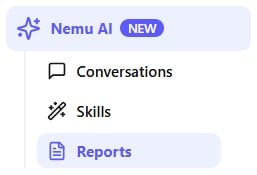
In the side menu, open **Nemu AI** and click **Reports**.
 ## The Reports screen
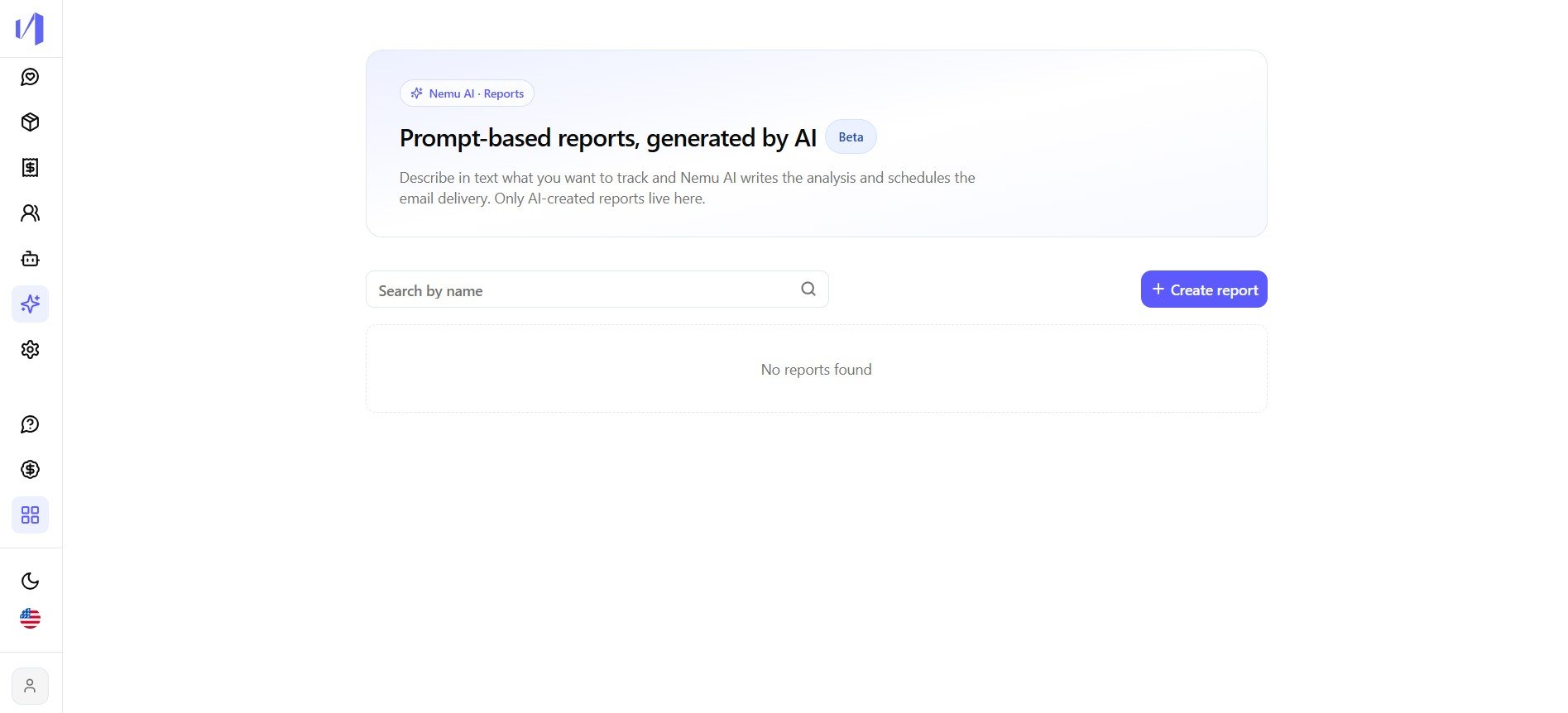
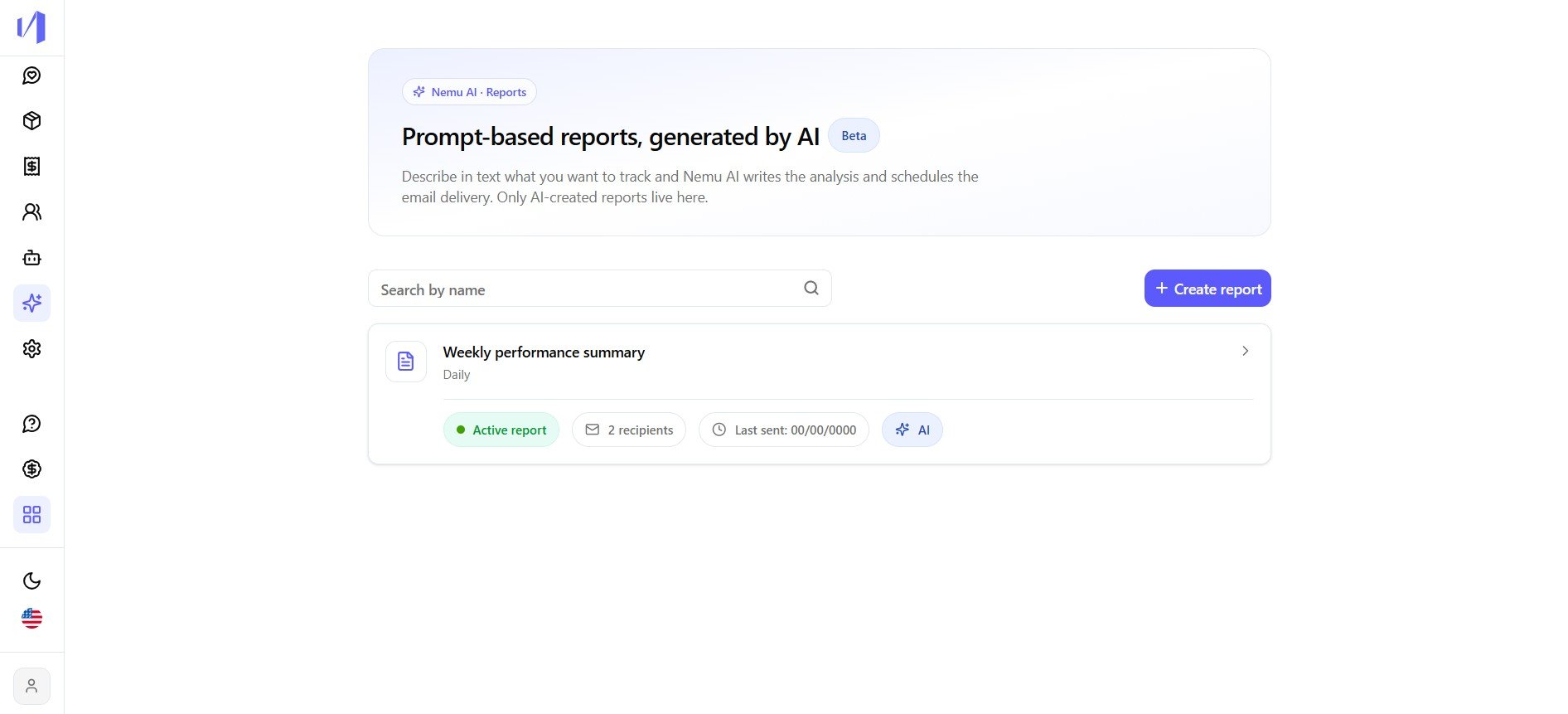
This screen lists every AI report you've created, with a field to **search by name** and the **+ Create report** button. If you don't have any yet, it shows "No reports found".
## The Reports screen
This screen lists every AI report you've created, with a field to **search by name** and the **+ Create report** button. If you don't have any yet, it shows "No reports found".
 ## Creating a report
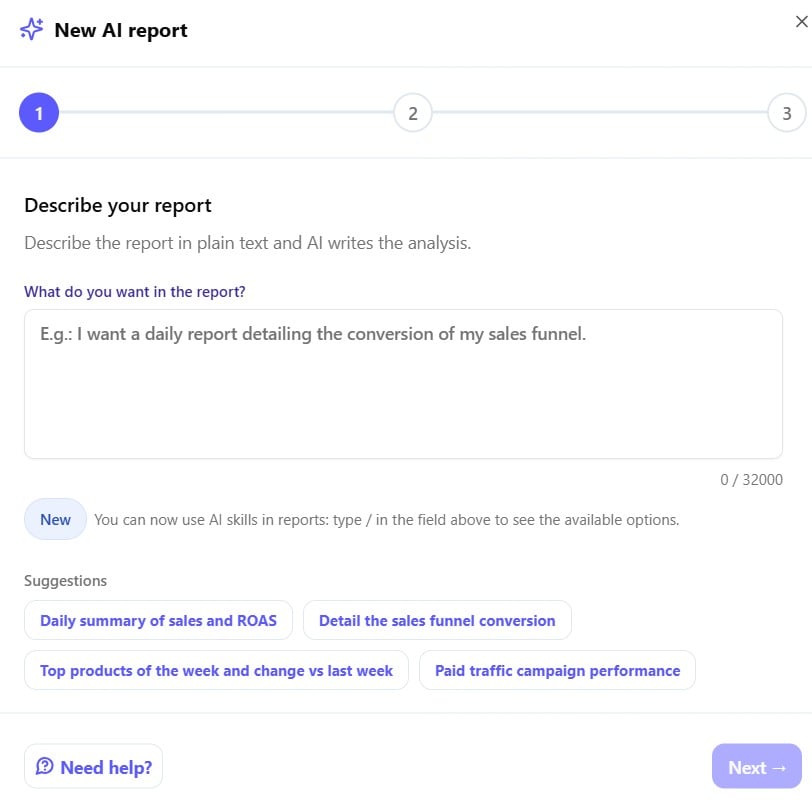
Clicking **+ Create report** opens a 3-step wizard.
Write, in free text, what the AI should analyze, for example "I want a
daily report detailing my sales funnel conversion". You can also type `/`
to use one of your [skills](/en/ai/iaskills) directly in the report, or
click one of the ready-made suggestions.
## Creating a report
Clicking **+ Create report** opens a 3-step wizard.
Write, in free text, what the AI should analyze, for example "I want a
daily report detailing my sales funnel conversion". You can also type `/`
to use one of your [skills](/en/ai/iaskills) directly in the report, or
click one of the ready-made suggestions.
 Before moving on, you can click **Generate preview now** to see what the
analysis looks like with the current description, without saving the report.
Before moving on, you can click **Generate preview now** to see what the
analysis looks like with the current description, without saving the report.
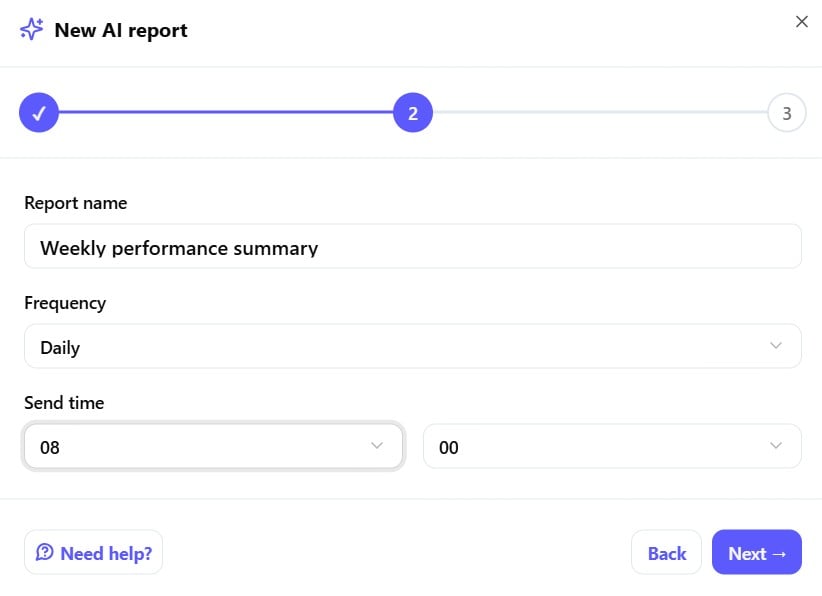
 Click **Next** to continue.
* **Report name**: how it will appear in the reports list.
* **Frequency**: daily, monthly, or another available schedule.
* **Send time**: the hour and minute the report should go out.
Click **Next** to continue.
* **Report name**: how it will appear in the reports list.
* **Frequency**: daily, monthly, or another available schedule.
* **Send time**: the hour and minute the report should go out.
 Click **Next** to move to the last step.
* **Recipients**: type an email and click **Add**, and repeat for every
person who should receive the report.
* **Observations (optional)**: extra context to help the AI write a
report that better matches what you expect.
Click **Next** to move to the last step.
* **Recipients**: type an email and click **Add**, and repeat for every
person who should receive the report.
* **Observations (optional)**: extra context to help the AI write a
report that better matches what you expect.
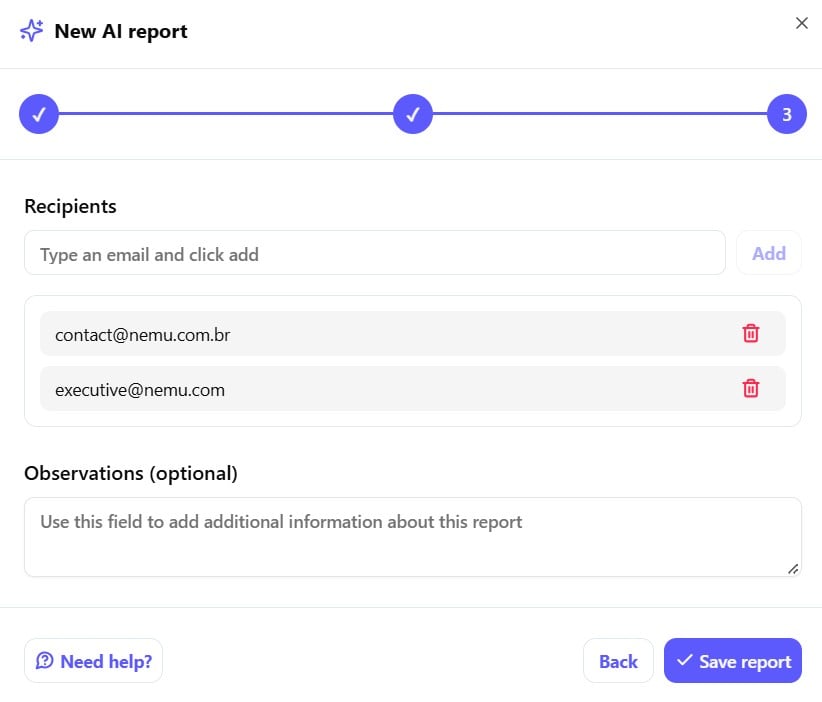 Click **Save report** to finish.
Once saved, the report appears in the list with a confirmation message, showing whether it's **active**, how many **recipients** it has, and the date of the **last delivery**.
Click **Save report** to finish.
Once saved, the report appears in the list with a confirmation message, showing whether it's **active**, how many **recipients** it has, and the date of the **last delivery**.
 ## Managing a report
Opening an existing report gives you three actions:
## Managing a report
Opening an existing report gives you three actions:
 * **Pause**: stops automatic deliveries without deleting the report.
* **View preview**: generates a preview of the analysis using the latest data.
* **Delete**: removes the report permanently.
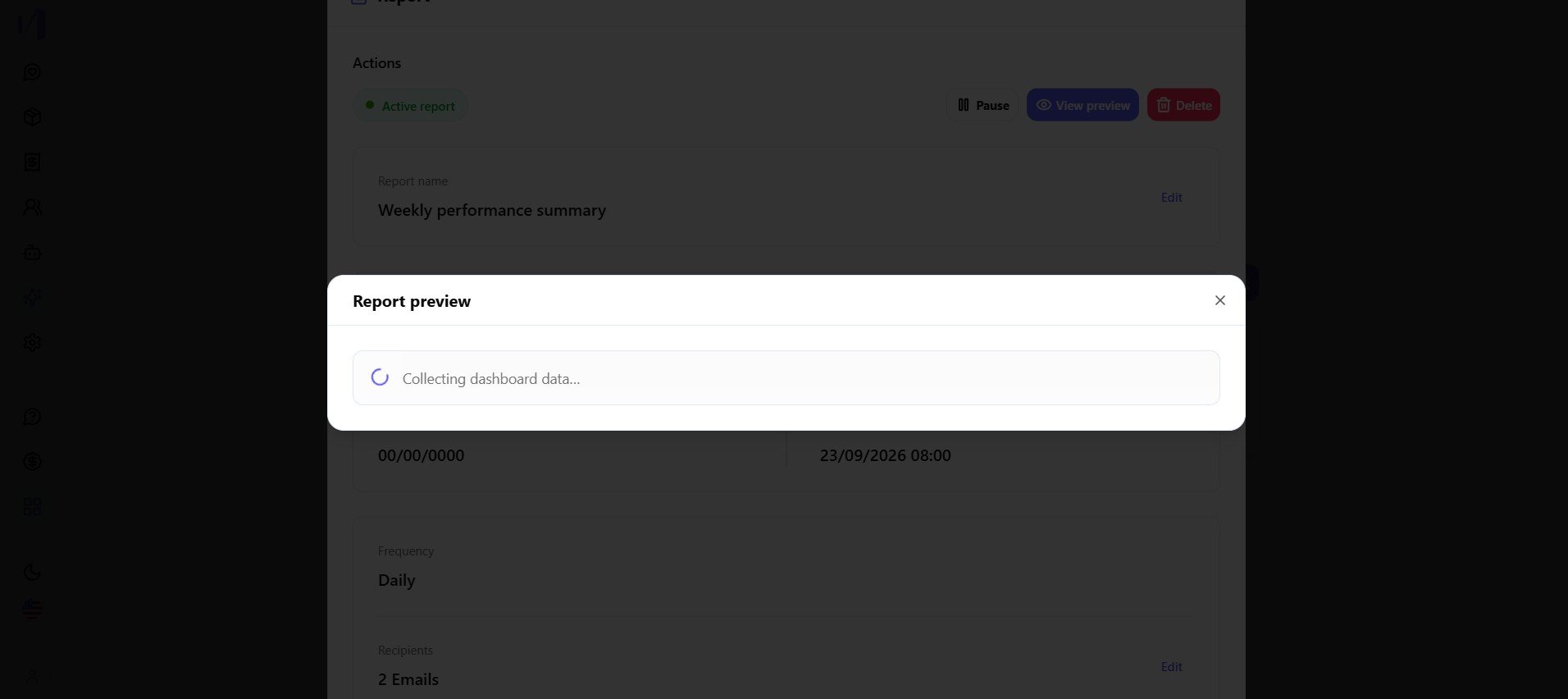
Clicking **View preview** makes Nemu AI generate the analysis on the spot, in a loading window.
* **Pause**: stops automatic deliveries without deleting the report.
* **View preview**: generates a preview of the analysis using the latest data.
* **Delete**: removes the report permanently.
Clicking **View preview** makes Nemu AI generate the analysis on the spot, in a loading window.
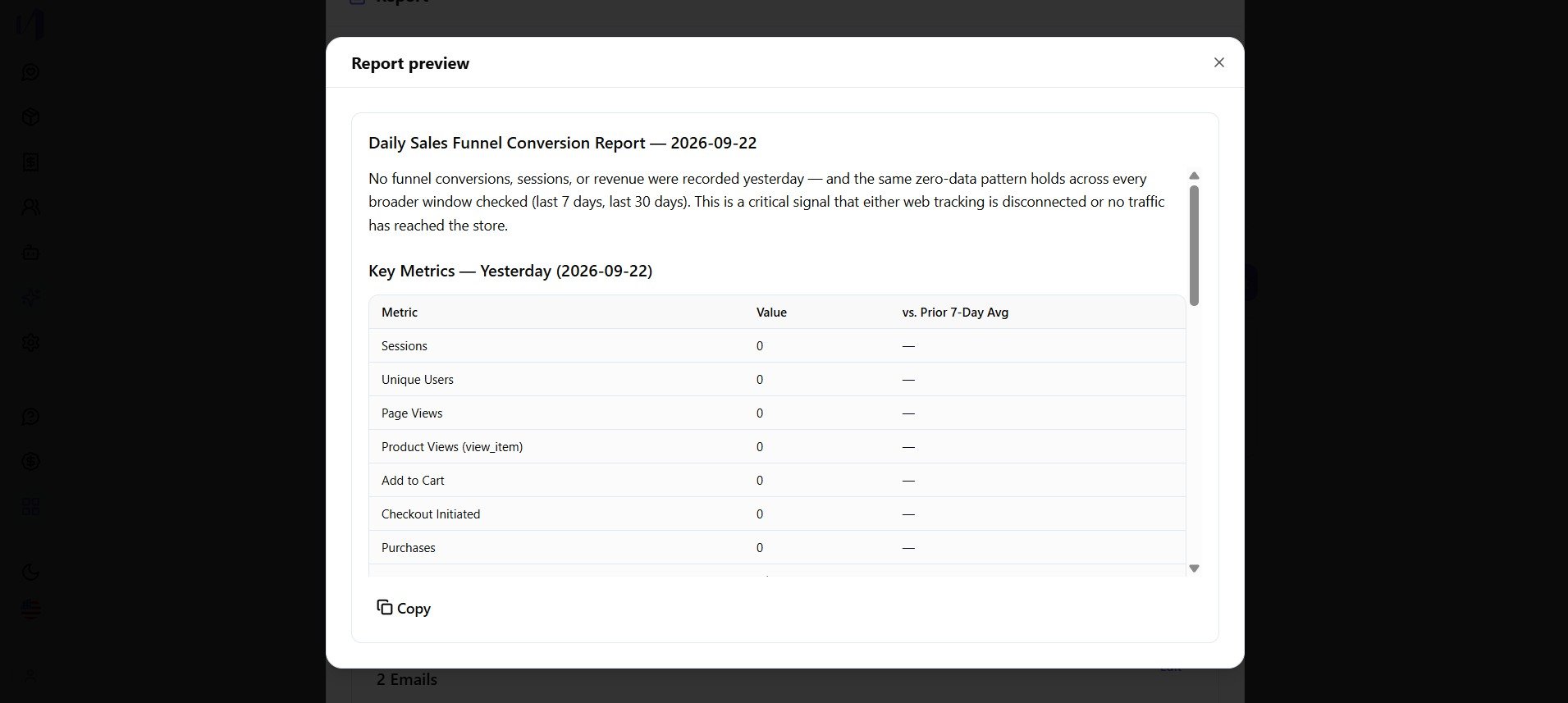
 Once it's done, the preview shows the full report: title, a natural-language analysis and a metrics table, with an option to **Copy** the content.
 ## What's in the email
The email you receive has the same content as the preview: an analytical text written by the AI, followed by a metrics table comparing the analyzed period with a longer reference period (for example, yesterday vs. the last 7 or 30 days). The comparison period is chosen by the AI and may vary from one report to another.
Use the **Observations** field when creating the report to guide the tone
and focus of the analysis, for example, asking it to prioritize revenue
drops or ignore metrics that don't matter for your business.
## Things to keep in mind
* **Frequency and time.** The report is generated and sent automatically at the configured time, on the chosen frequency (daily, monthly, or custom).
* **A paused report isn't deleted.** Pausing only stops future deliveries. The report stays saved and can be resumed.
This documentation is built and hosted on [Mintlify](https://mintlify.com), a developer documentation platform.
## What's in the email
The email you receive has the same content as the preview: an analytical text written by the AI, followed by a metrics table comparing the analyzed period with a longer reference period (for example, yesterday vs. the last 7 or 30 days). The comparison period is chosen by the AI and may vary from one report to another.
Use the **Observations** field when creating the report to guide the tone
and focus of the analysis, for example, asking it to prioritize revenue
drops or ignore metrics that don't matter for your business.
## Things to keep in mind
* **Frequency and time.** The report is generated and sent automatically at the configured time, on the chosen frequency (daily, monthly, or custom).
* **A paused report isn't deleted.** Pausing only stops future deliveries. The report stays saved and can be resumed.
This documentation is built and hosted on [Mintlify](https://mintlify.com), a developer documentation platform.