> ## Documentation Index
> Fetch the complete documentation index at: https://docs.nemu.com.br/llms.txt
> Use this file to discover all available pages before exploring further.
# Nemu AI Skills
> Use ready-made skills or create your own to automate recurring questions in Nemu AI
## What are Nemu AI Skills?
**Skills** are reusable Nemu AI prompts. Instead of typing the same complex question every time, you save a skill once and invoke it by typing `/` followed by its name, right in the [Chat](/en/ai/iachat).
Nemu already ships with **ready-made skills** for the most common use cases, and you can also **create your own**, with instructions specific to your business.
## How to access it
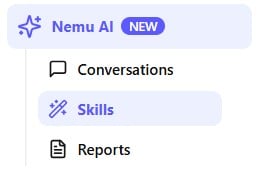
In the side menu, open **Nemu AI** and click **Skills**.
 ## Nemu's ready-made skills
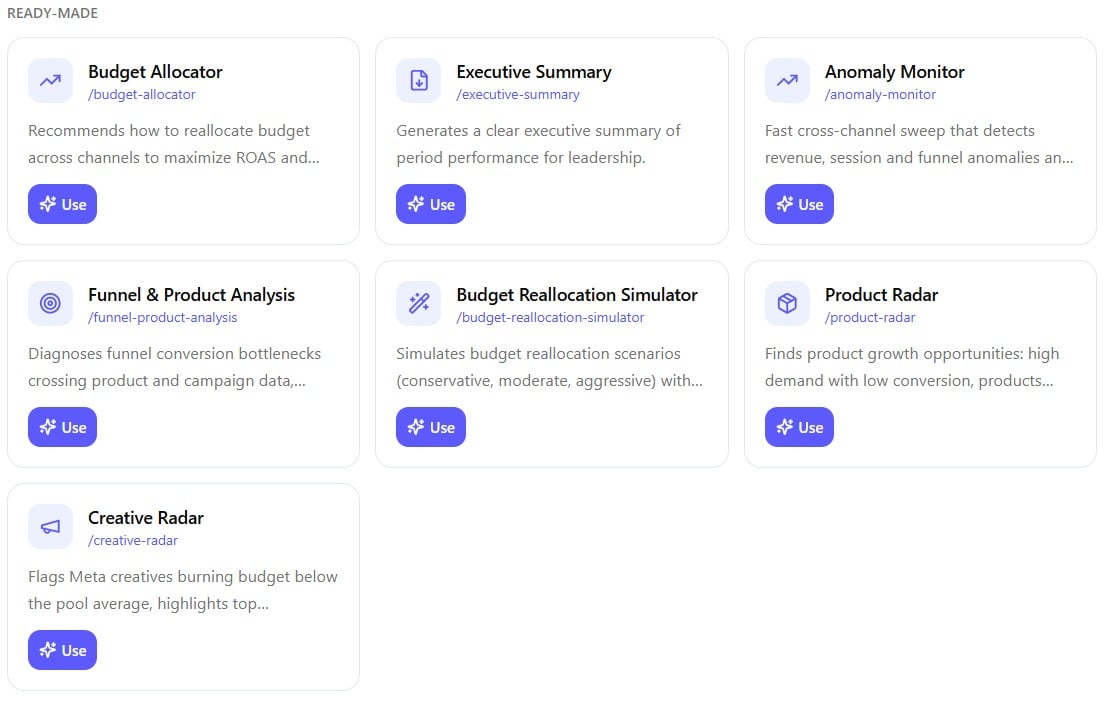
In the **Ready-made** section, you'll find skills already configured by Nemu, covering the most requested analyses:
## Nemu's ready-made skills
In the **Ready-made** section, you'll find skills already configured by Nemu, covering the most requested analyses:
 | Skill | What it does |
| - | - |
| **Budget Allocator** | Recommends how to reallocate budget across channels to maximize ROAS. |
| **Executive Summary** | Generates a clear executive summary of period performance for leadership. |
| **Anomaly Monitor** | Runs a fast cross-channel sweep that detects revenue, session and funnel anomalies. |
| **Funnel & Product Analysis** | Diagnoses funnel conversion bottlenecks, crossing product and campaign data. |
| **Budget Reallocation Simulator** | Simulates budget reallocation scenarios: conservative, moderate or aggressive. |
| **Product Radar** | Finds product growth opportunities, such as high demand with low conversion. |
| **Creative Radar** | Flags Meta creatives burning budget below the pool average. |
To use one, click **Use** on the skill's card.
| Skill | What it does |
| - | - |
| **Budget Allocator** | Recommends how to reallocate budget across channels to maximize ROAS. |
| **Executive Summary** | Generates a clear executive summary of period performance for leadership. |
| **Anomaly Monitor** | Runs a fast cross-channel sweep that detects revenue, session and funnel anomalies. |
| **Funnel & Product Analysis** | Diagnoses funnel conversion bottlenecks, crossing product and campaign data. |
| **Budget Reallocation Simulator** | Simulates budget reallocation scenarios: conservative, moderate or aggressive. |
| **Product Radar** | Finds product growth opportunities, such as high demand with low conversion. |
| **Creative Radar** | Flags Meta creatives burning budget below the pool average. |
To use one, click **Use** on the skill's card.
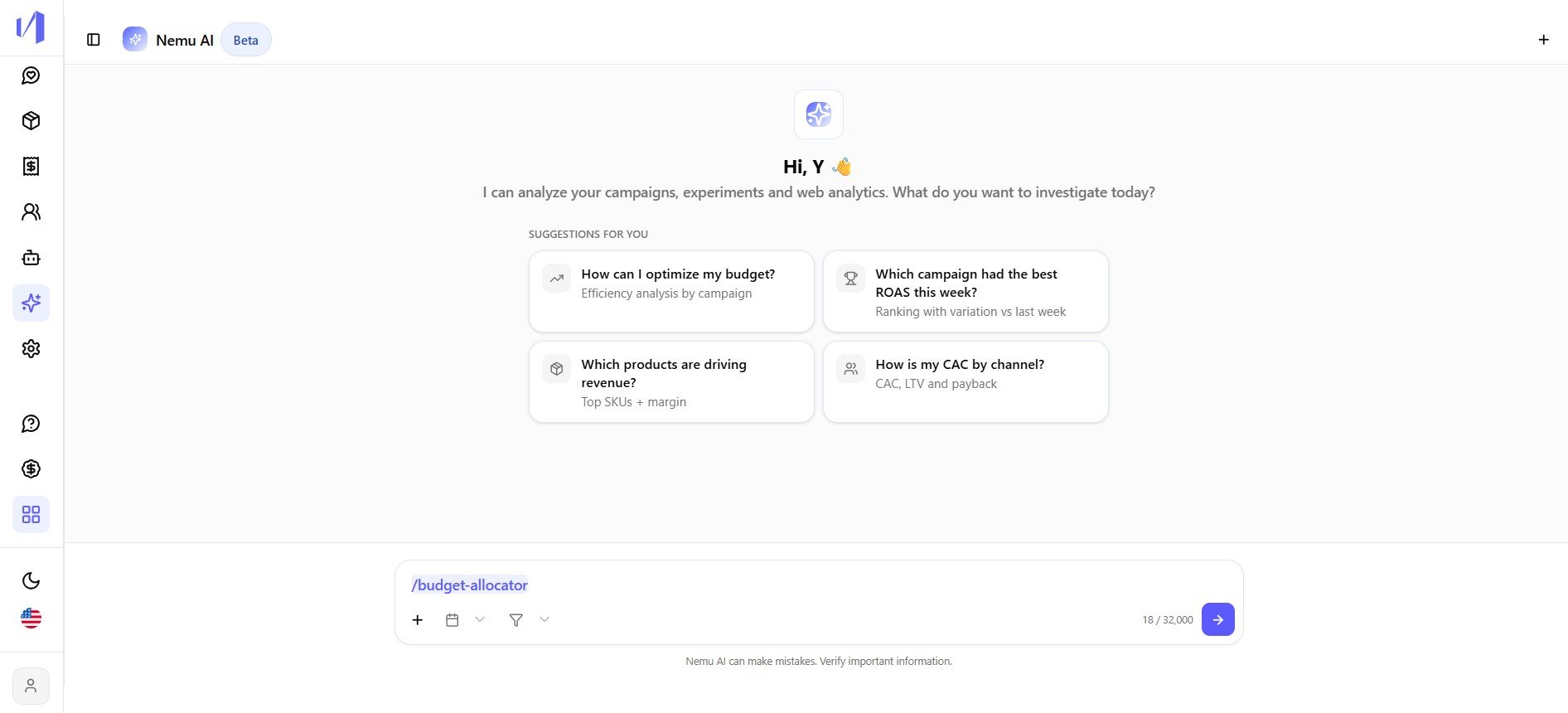 That takes you straight to the [Chat](/en/ai/iachat), with the skill already filled in the message field (for example `/budget-allocator`), just send it.
## Creating your own skill
Besides the ready-made ones, you can create custom skills for the questions that repeat most often in your day-to-day.
At the top of the Skills page, click **+ Create skill**.
That takes you straight to the [Chat](/en/ai/iachat), with the skill already filled in the message field (for example `/budget-allocator`), just send it.
## Creating your own skill
Besides the ready-made ones, you can create custom skills for the questions that repeat most often in your day-to-day.
At the top of the Skills page, click **+ Create skill**.
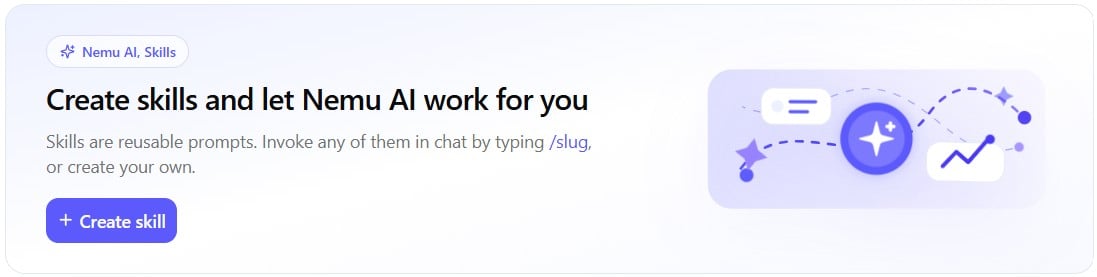 If you don't have any skill of your own yet, you'll find the same shortcut in the **Your skills** section, by clicking **Create your first skill**.
 A window opens with the following fields:
* **Name**: what the skill will be called, e.g. "Summary for the Board".
* **Invocation**: auto-generated from the name (for example `/my-skill`), this is what you'll type in the chat to use it.
* **Description**: what this skill does, in one sentence.
* **Instructions**: the prompt Nemu AI should follow every time the skill is called.
A window opens with the following fields:
* **Name**: what the skill will be called, e.g. "Summary for the Board".
* **Invocation**: auto-generated from the name (for example `/my-skill`), this is what you'll type in the chat to use it.
* **Description**: what this skill does, in one sentence.
* **Instructions**: the prompt Nemu AI should follow every time the skill is called.
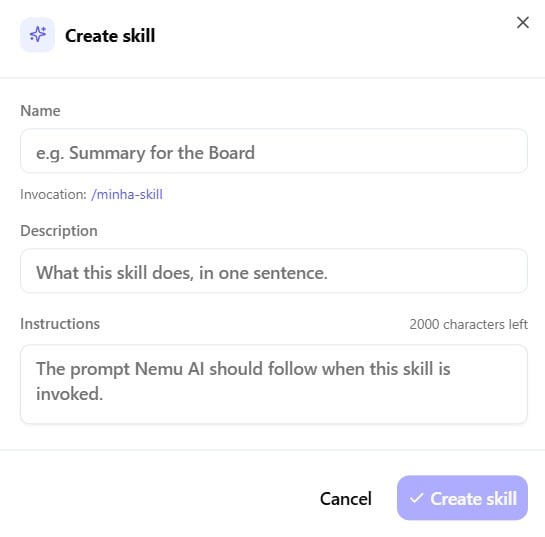 Click **Create skill** to save, or **Cancel** to discard.
## Your created skill
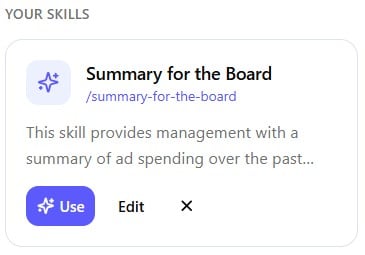
Skills you create show up in the **Your skills** section, with options to **Use**, **Edit** or remove it (**X**).
Click **Create skill** to save, or **Cancel** to discard.
## Your created skill
Skills you create show up in the **Your skills** section, with options to **Use**, **Edit** or remove it (**X**).
 Good instructions are specific. Tell the AI exactly which metrics to look
at, which period to consider and how you'd like the answer structured.
The clearer the instruction, the more consistent the result every time the
skill is used.
## Things to keep in mind
* **Unique invocation.** Each skill has its own slug (`/skill-name`) generated from the name. Use it in the chat or in [Reports](/en/ai/iareports) setup to call the skill directly.
* **Character limit.** The Instructions field has a character limit. The counter shows up in the corner of the creation window.
This documentation is built and hosted on [Mintlify](https://mintlify.com), a developer documentation platform.
Good instructions are specific. Tell the AI exactly which metrics to look
at, which period to consider and how you'd like the answer structured.
The clearer the instruction, the more consistent the result every time the
skill is used.
## Things to keep in mind
* **Unique invocation.** Each skill has its own slug (`/skill-name`) generated from the name. Use it in the chat or in [Reports](/en/ai/iareports) setup to call the skill directly.
* **Character limit.** The Instructions field has a character limit. The counter shows up in the corner of the creation window.
This documentation is built and hosted on [Mintlify](https://mintlify.com), a developer documentation platform.