> ## Documentation Index
> Fetch the complete documentation index at: https://docs.nemu.com.br/llms.txt
> Use this file to discover all available pages before exploring further.
# Appmax
> How to connect your Appmax account to Nemu Dashboard
> Follow the step-by-step guide and start receiving sales automatically in Nemu.
## Setting Up Webhooks
### On Nemu Dashboard
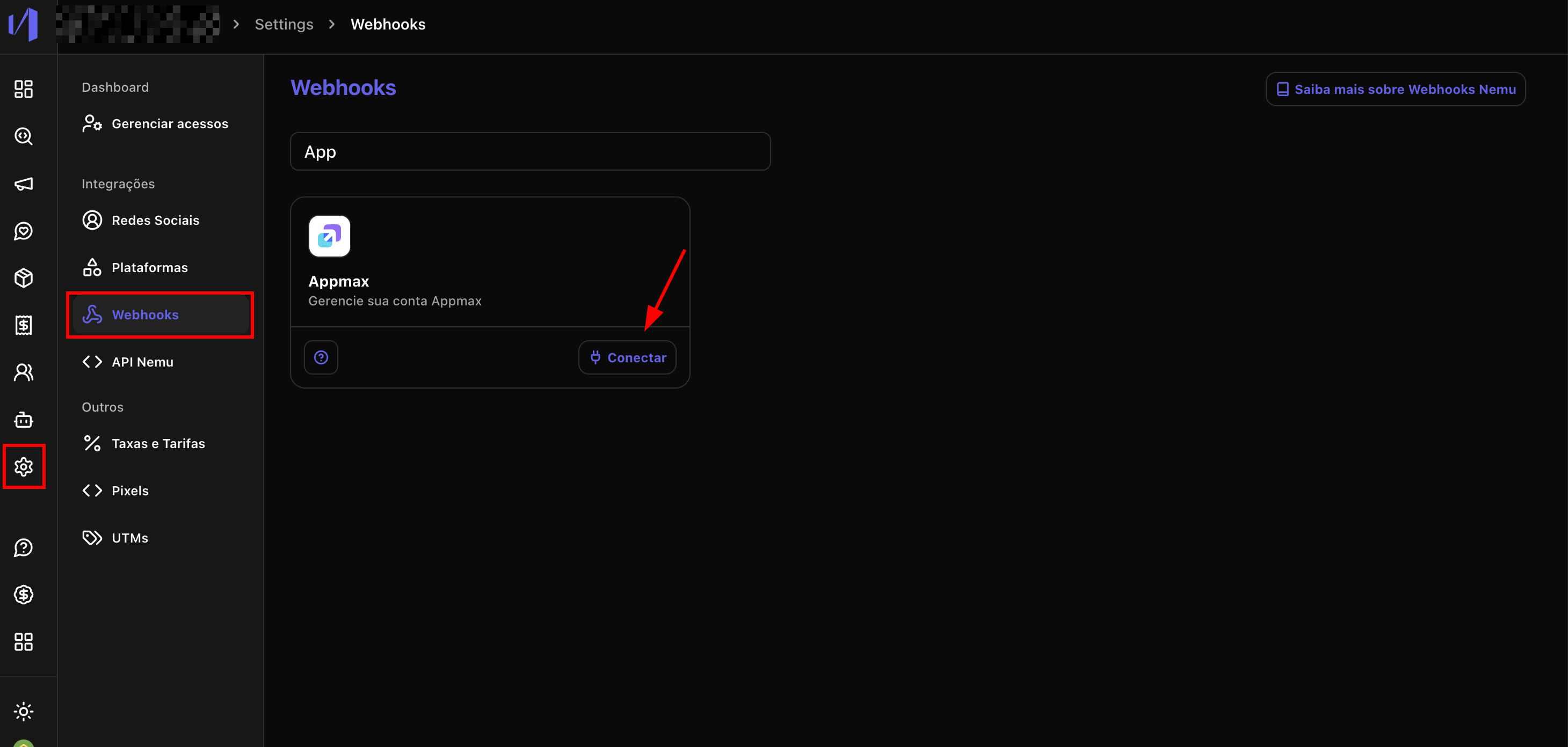
1. In the Nemu Dashboard, in the sidebar, click on **Settings** > **Webhooks**.
2. Search for **Appmax** and click on **Connect**.
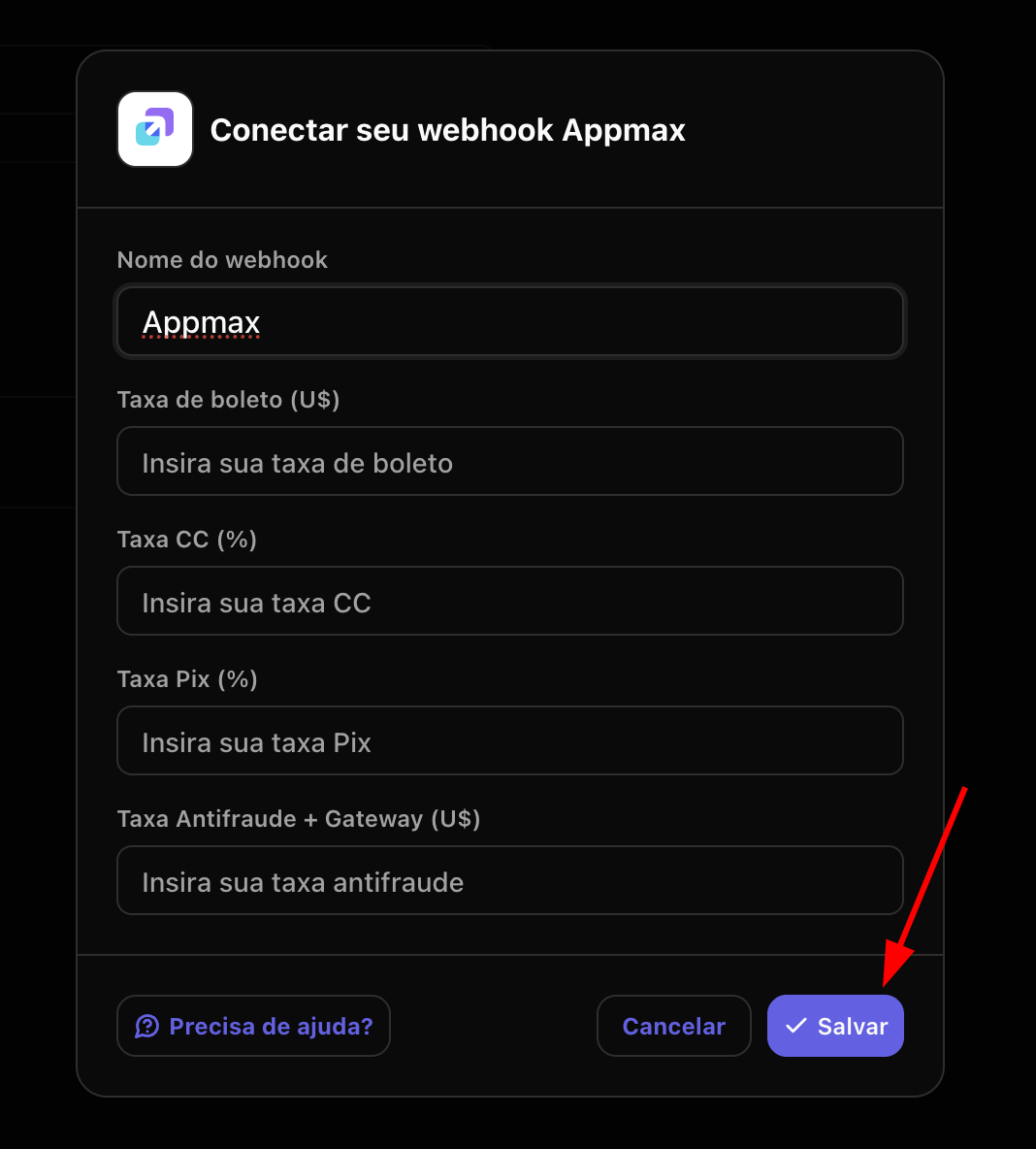
 3. Define a **Name** for the webhook.
You can also enter your **sales rates** for the various payment methods. Check this information in the Appmax panel under **Settings** > **My Rates**.
4. Click on **Save** to continue.
3. Define a **Name** for the webhook.
You can also enter your **sales rates** for the various payment methods. Check this information in the Appmax panel under **Settings** > **My Rates**.
4. Click on **Save** to continue.
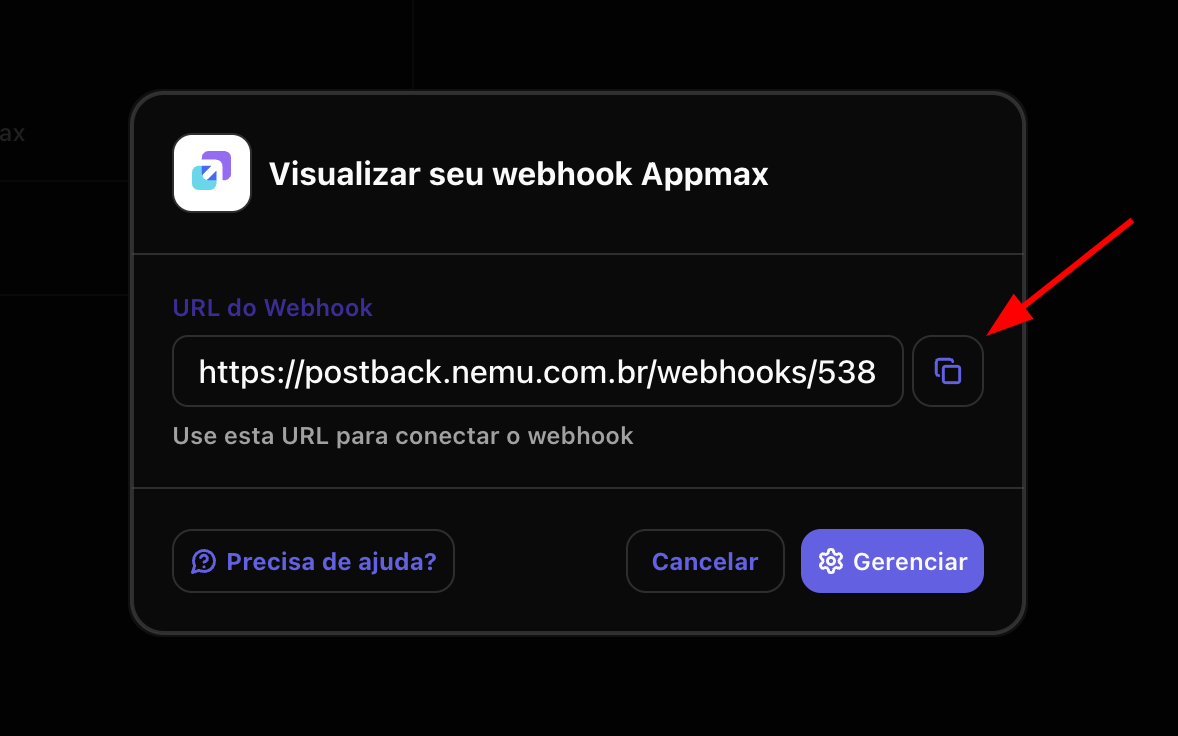
 5. Click the button to **copy** the **webhook URL** generated by Nemu.
 ### On Appmax Panel
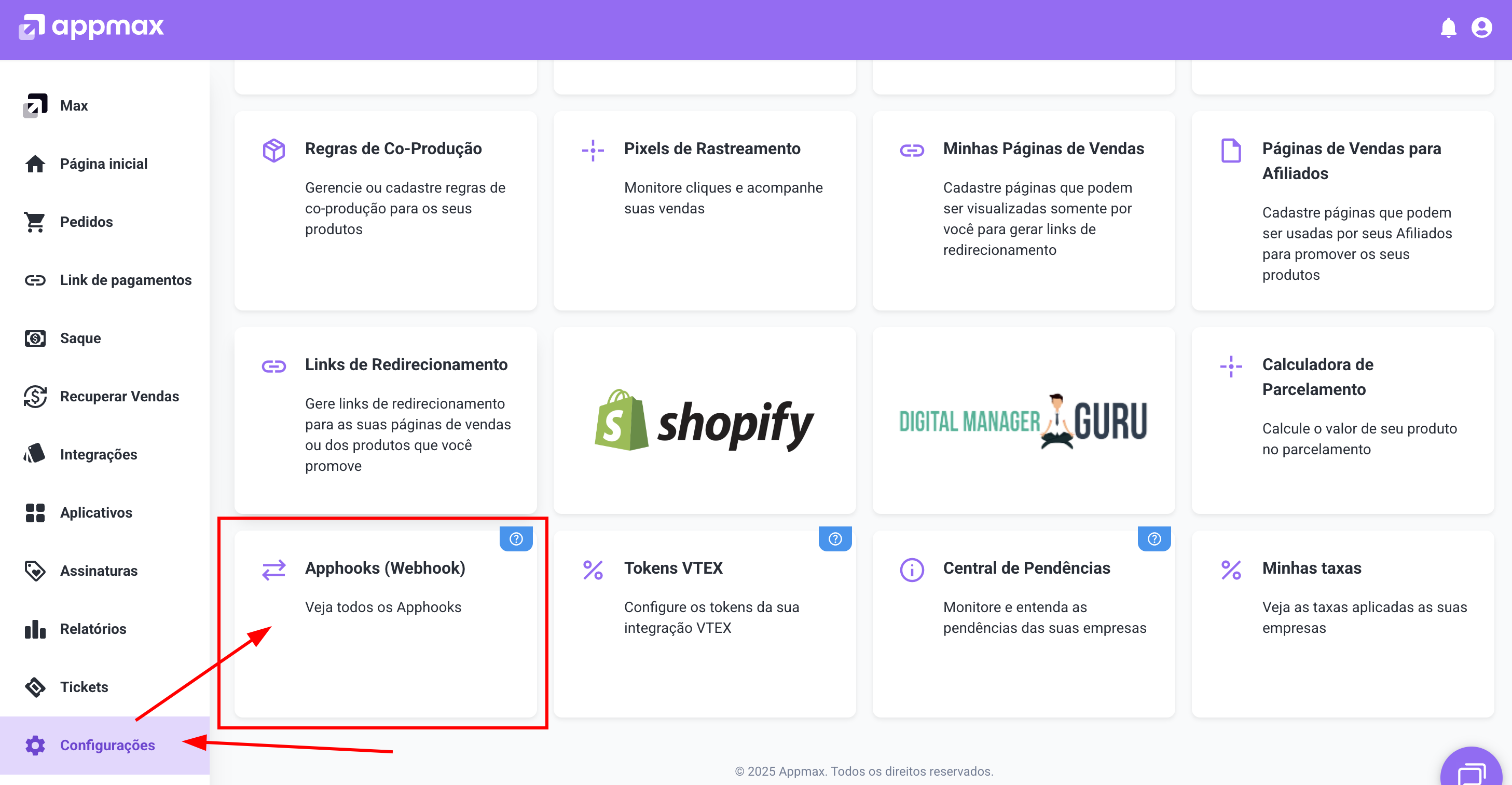
6. Access the Appmax panel and, in the sidebar, click on **Settings**.
7. On the settings page, locate and click on **Webhooks**.
### On Appmax Panel
6. Access the Appmax panel and, in the sidebar, click on **Settings**.
7. On the settings page, locate and click on **Webhooks**.
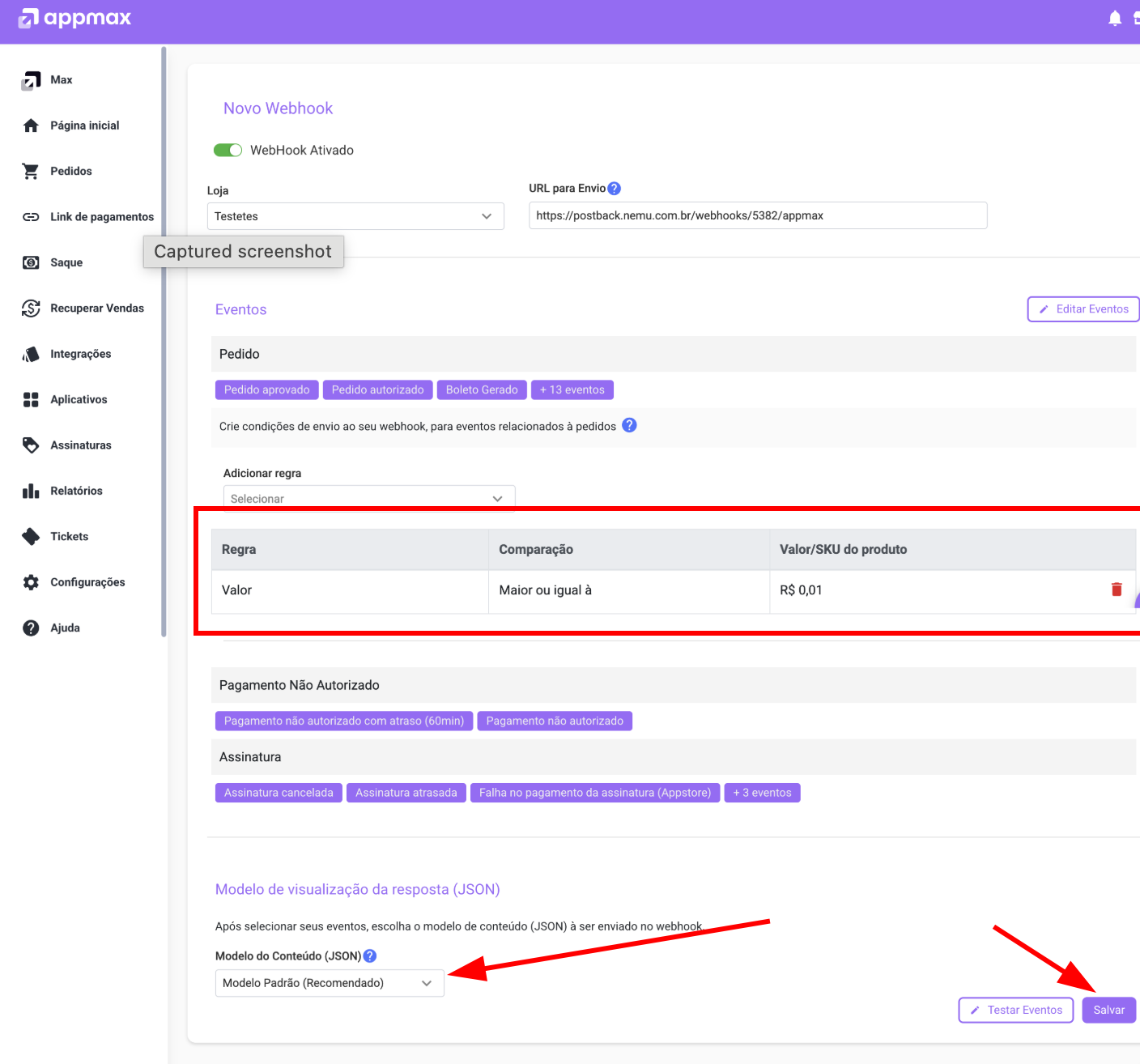
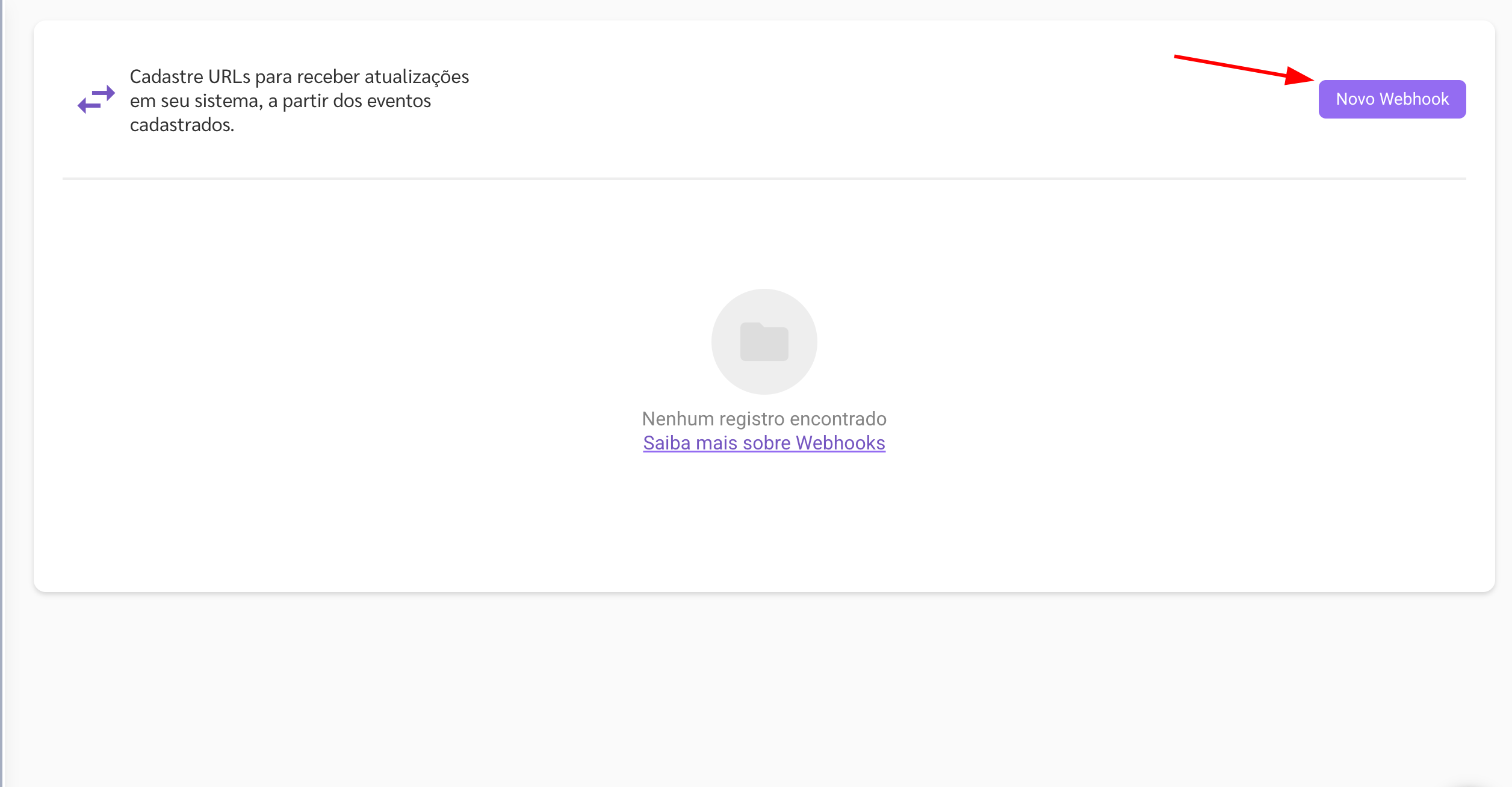
 8. Click on the **+ New webhook** button to create a new webhook.
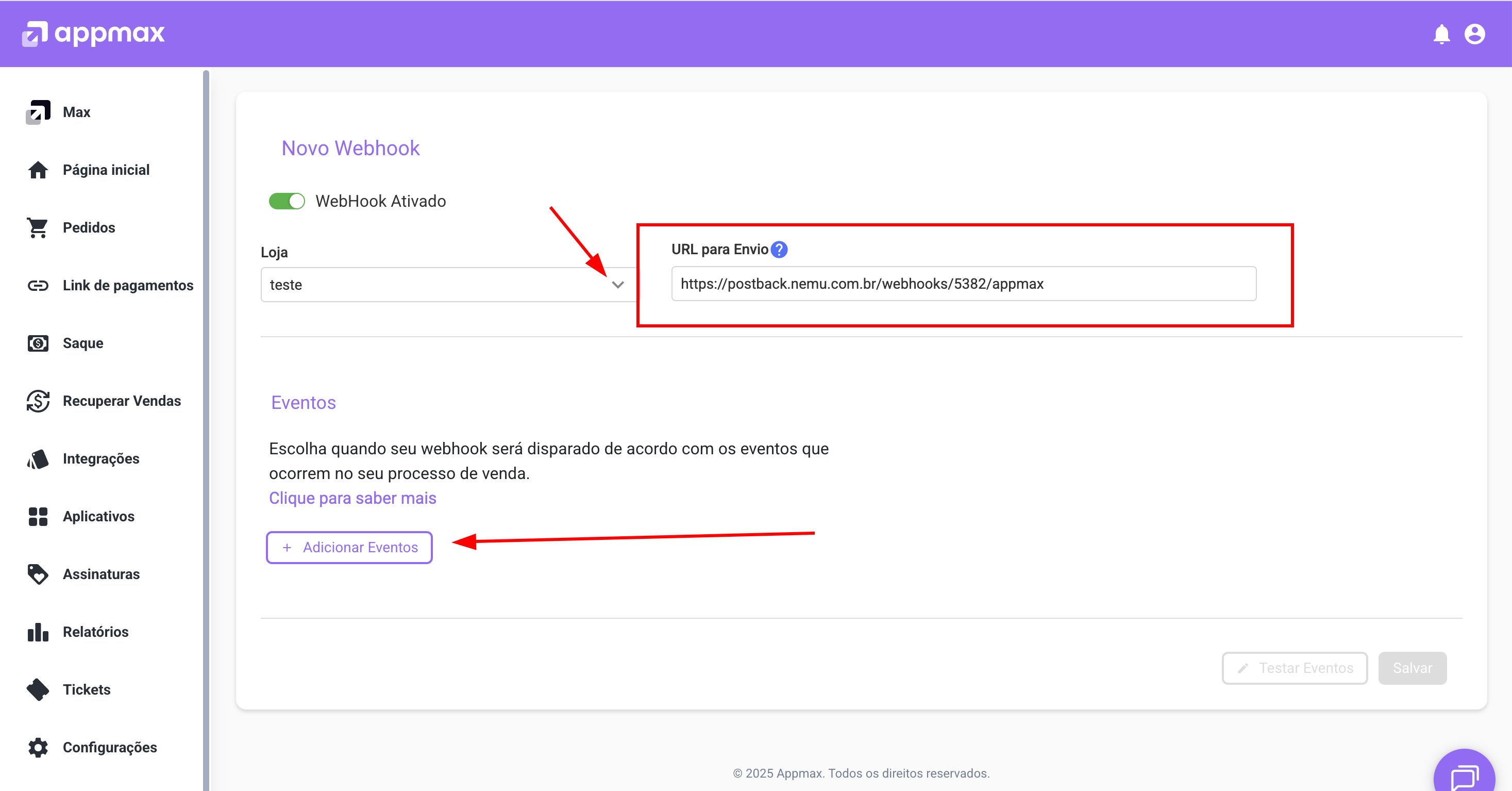
 9. Select your Store by clicking on the arrow.
10. In the **Webhook URL** field, **paste the URL** you copied in step 5 from the Nemu Dashboard.
11. Click on **+ Add Events**
9. Select your Store by clicking on the arrow.
10. In the **Webhook URL** field, **paste the URL** you copied in step 5 from the Nemu Dashboard.
11. Click on **+ Add Events**
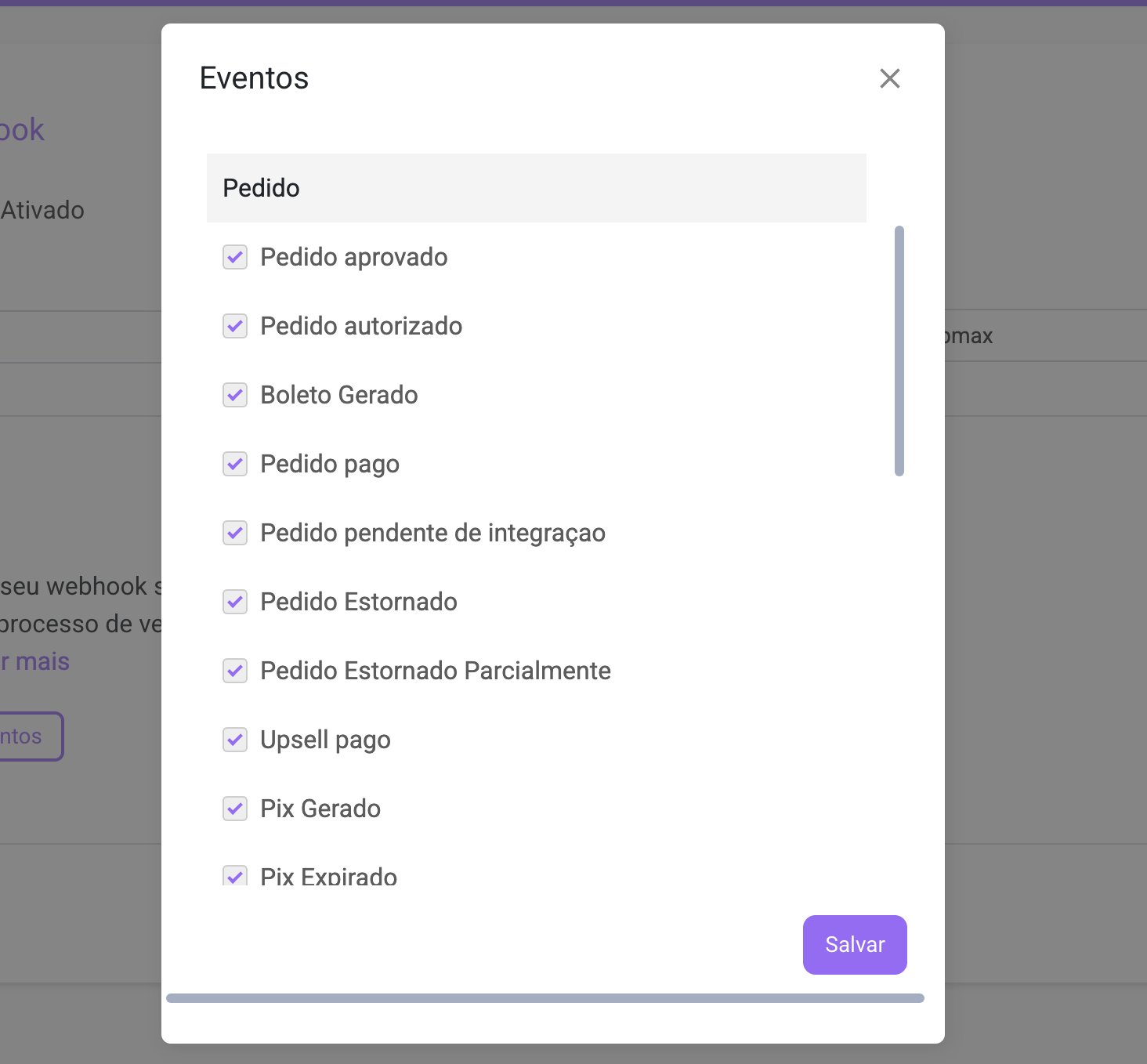
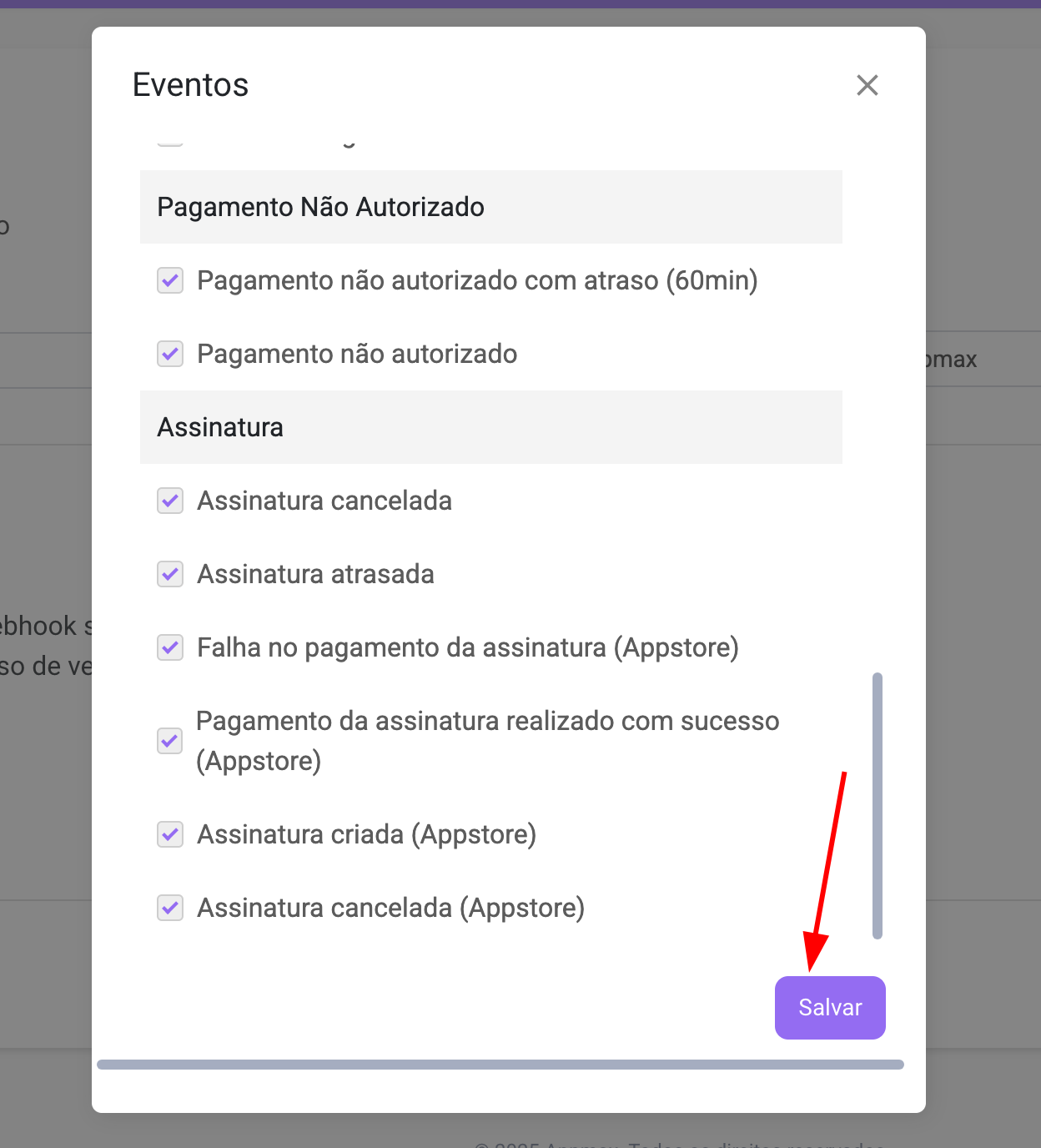
 12. In the **Events** section, select the events you want to receive in Nemu. We recommend selecting the following:
* All events from the **Orders** section
* All events from the **Unauthorized Payment** section
* All events from the **Subscription** section
12. In the **Events** section, select the events you want to receive in Nemu. We recommend selecting the following:
* All events from the **Orders** section
* All events from the **Unauthorized Payment** section
* All events from the **Subscription** section
 12. Verify that all information is correct and click on **Save** to complete the integration.
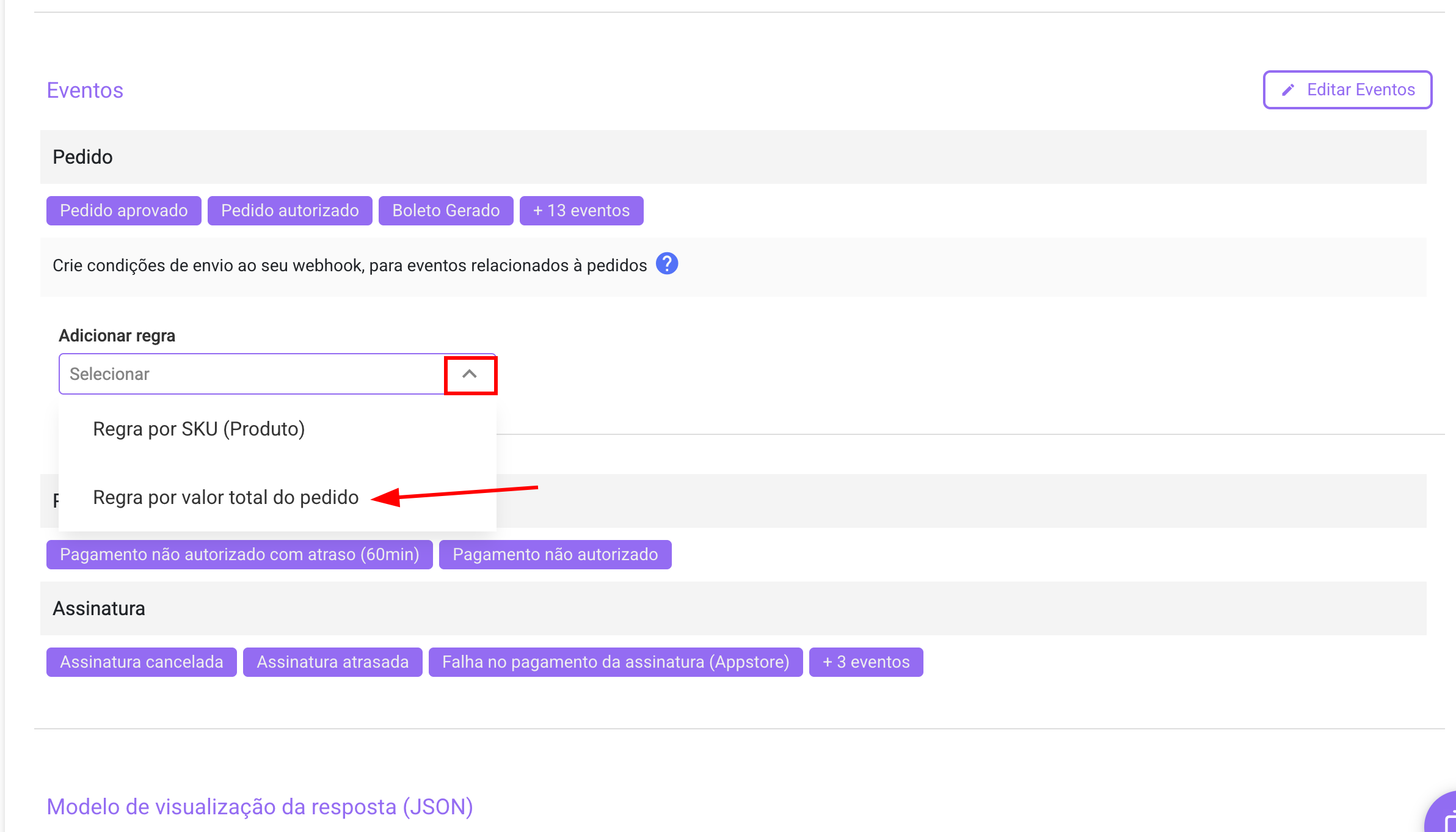
 13. After completing the event configuration, you will need to **add a rule** so that events from all orders are sent to the webhook, we recommend creating a **rule by total order value**
 14. Selecting values **Greater or equal to** and **R\$ 0.01** in the respective fields, then click on **+ Add**
 14. Confirm that the rule was created, verify that the response visualization model is the **Recommended Standard** and click on **Save** to complete.