> ## Documentation Index
> Fetch the complete documentation index at: https://docs.nemu.com.br/llms.txt
> Use this file to discover all available pages before exploring further.
# B4you
> How to connect your B4you account to Nemu Dashboard
## Setting Up Webhooks
### On Nemu Dashboard
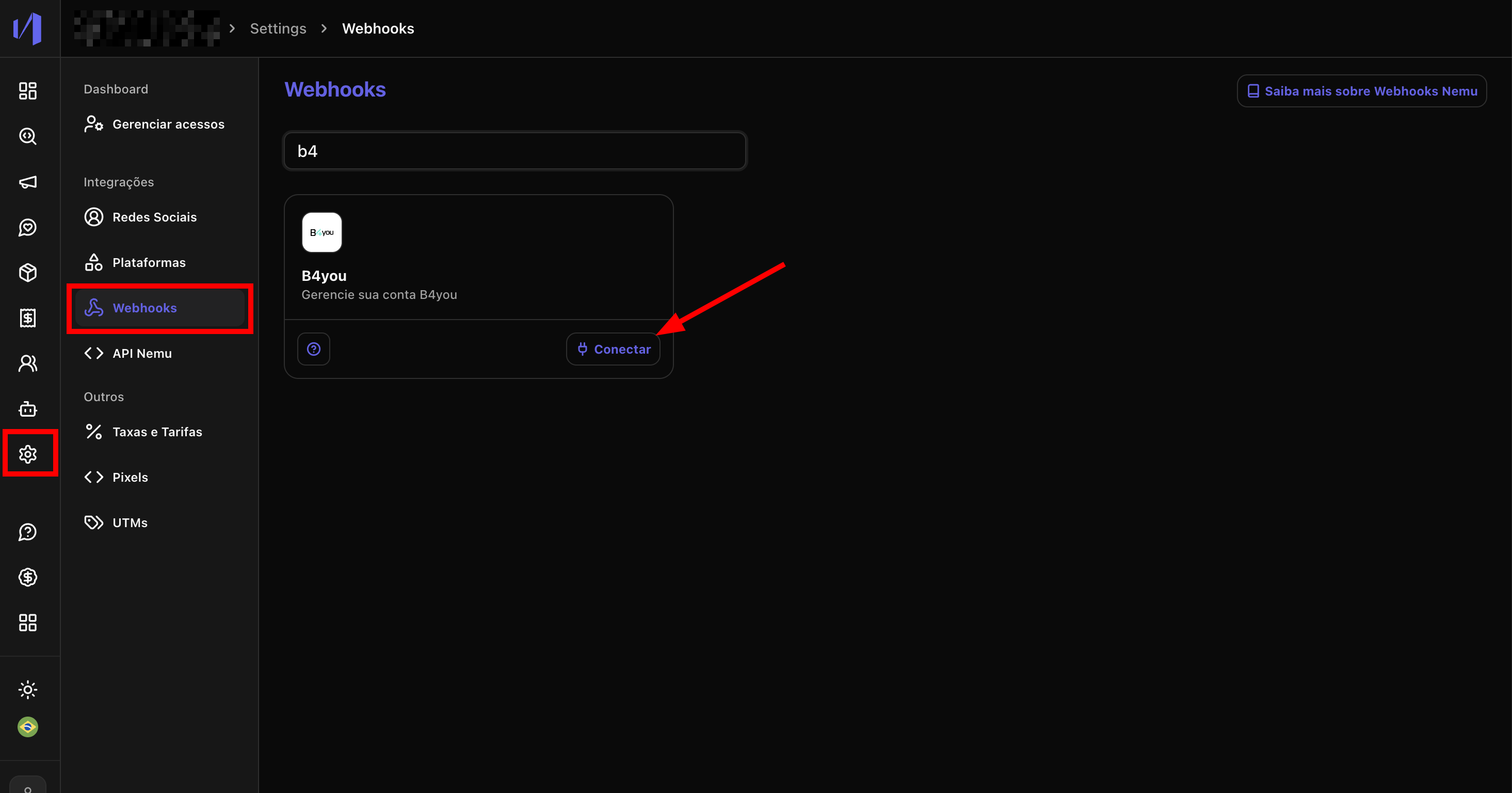
1. In the Nemu Dashboard, in the sidebar, go to **Settings** > **Webhooks**.
2. Search for **B4you** in the search field and click the **Connect** button
 3. In the modal that opens, define a **Webhook Name** (e.g., "B4you"), enter your **Email** and click on **Save**.
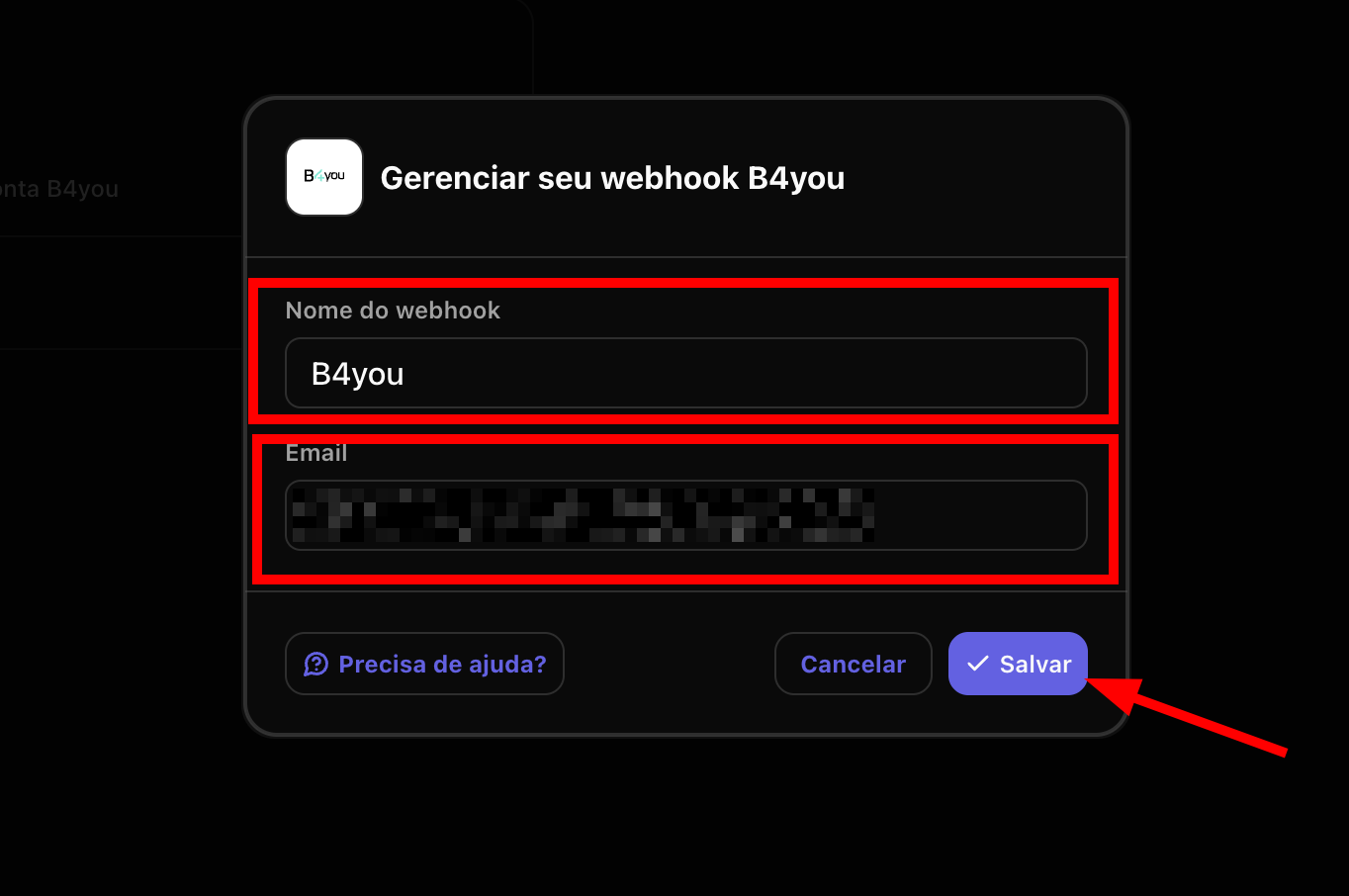 It can be the email used in the B4you account, for example.
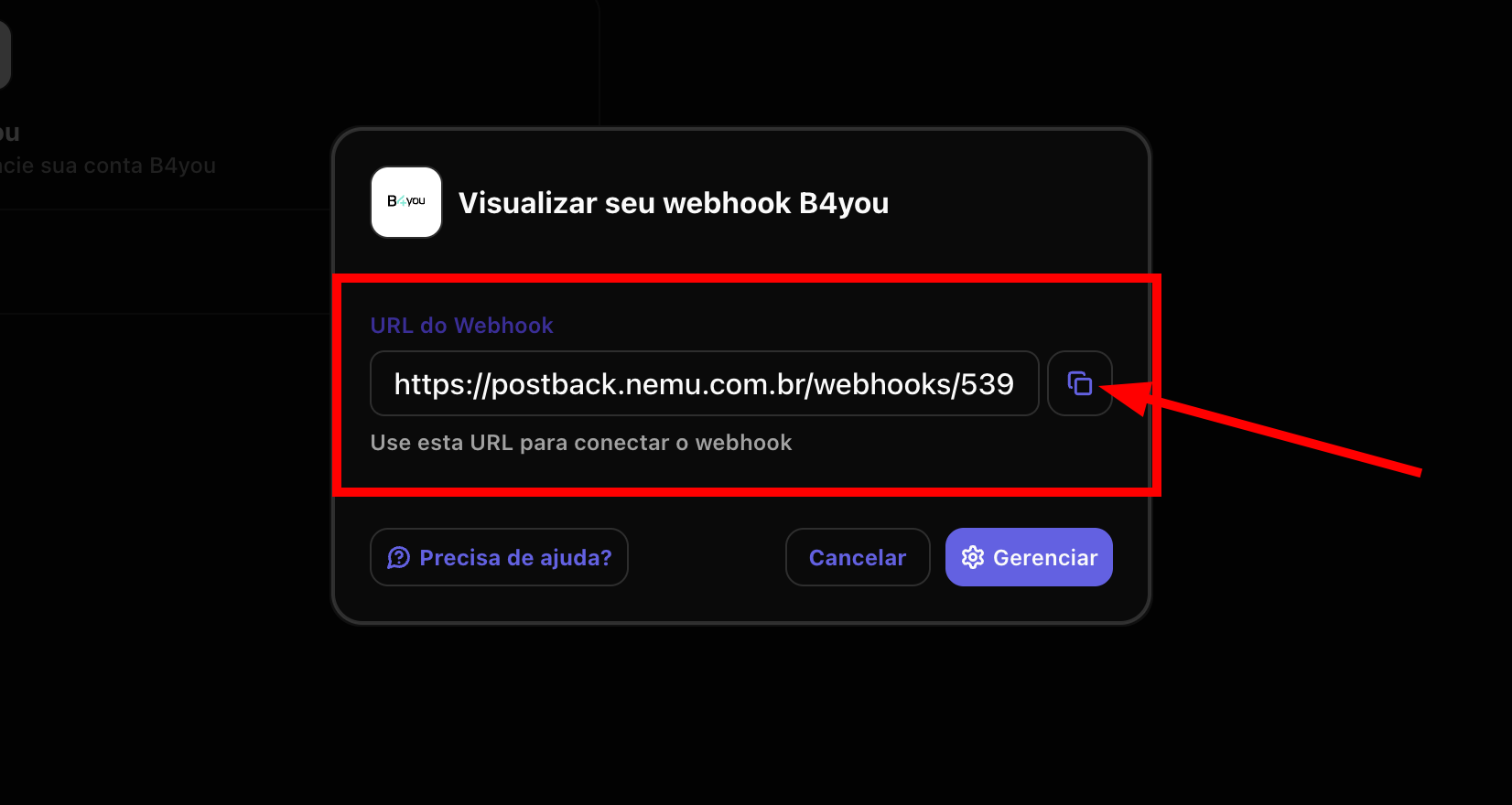
4. After saving, a modal will be displayed with the **Webhook URL** generated by Nemu. Click the **copy** button to copy the URL to the clipboard.
It can be the email used in the B4you account, for example.
4. After saving, a modal will be displayed with the **Webhook URL** generated by Nemu. Click the **copy** button to copy the URL to the clipboard.
 ### On B4you Panel
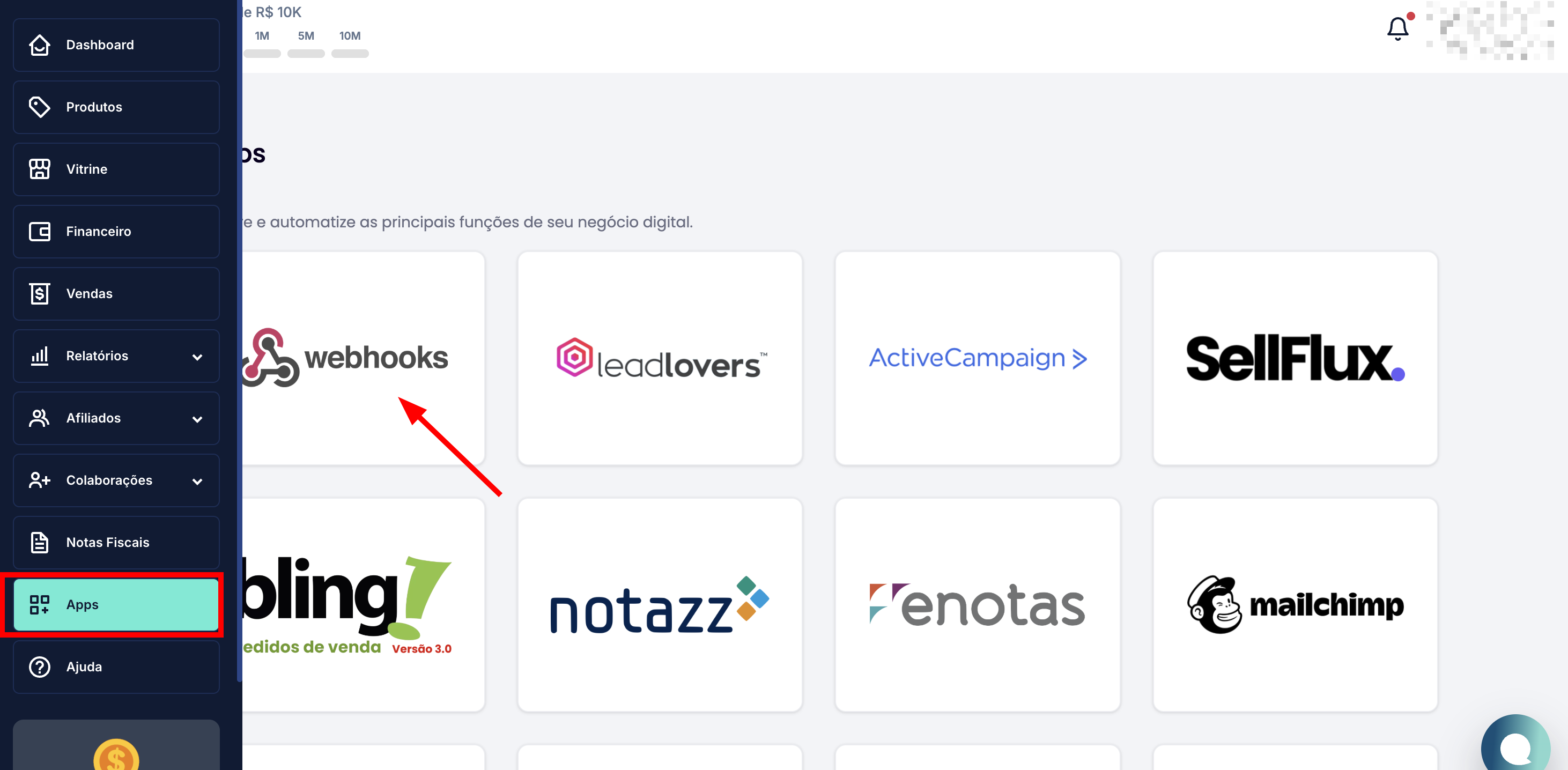
5. Access the **B4you** panel and, in the sidebar, click on **Apps**.
6. In the app list, locate and click on **Webhooks**.
### On B4you Panel
5. Access the **B4you** panel and, in the sidebar, click on **Apps**.
6. In the app list, locate and click on **Webhooks**.
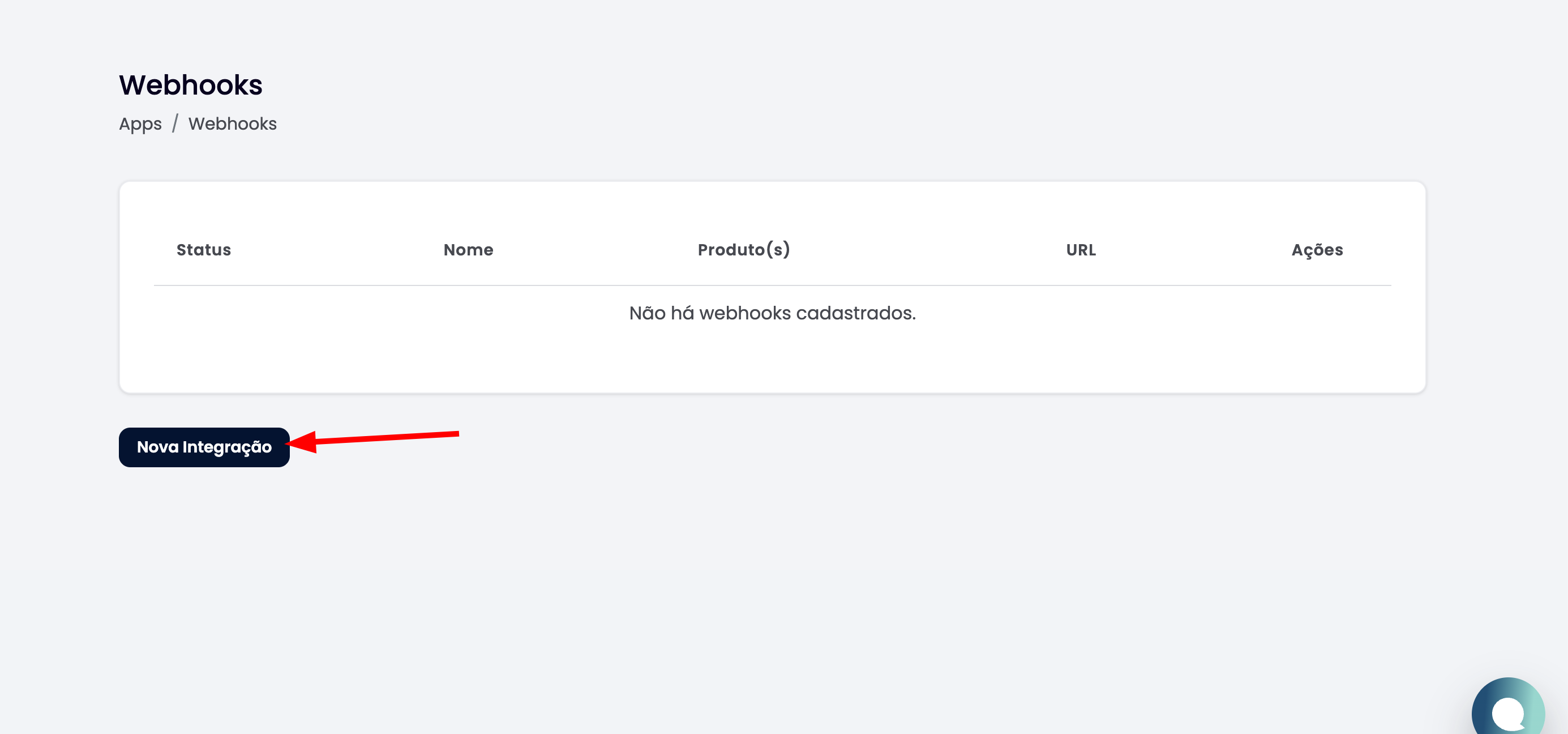
 7. On the Webhooks page, click the **New Integration** button located in the bottom left corner.
 8. In the "New Webhook" form, fill in the following fields:
* **Webhook Name**: Define a name to identify this integration (e.g., "Nemu")
* **Webhook URL**: Paste the **URL** you copied in step 4 from the Nemu Dashboard
* **B4you Token**: Will be filled in automatically.
8. In the "New Webhook" form, fill in the following fields:
* **Webhook Name**: Define a name to identify this integration (e.g., "Nemu")
* **Webhook URL**: Paste the **URL** you copied in step 4 from the Nemu Dashboard
* **B4you Token**: Will be filled in automatically.
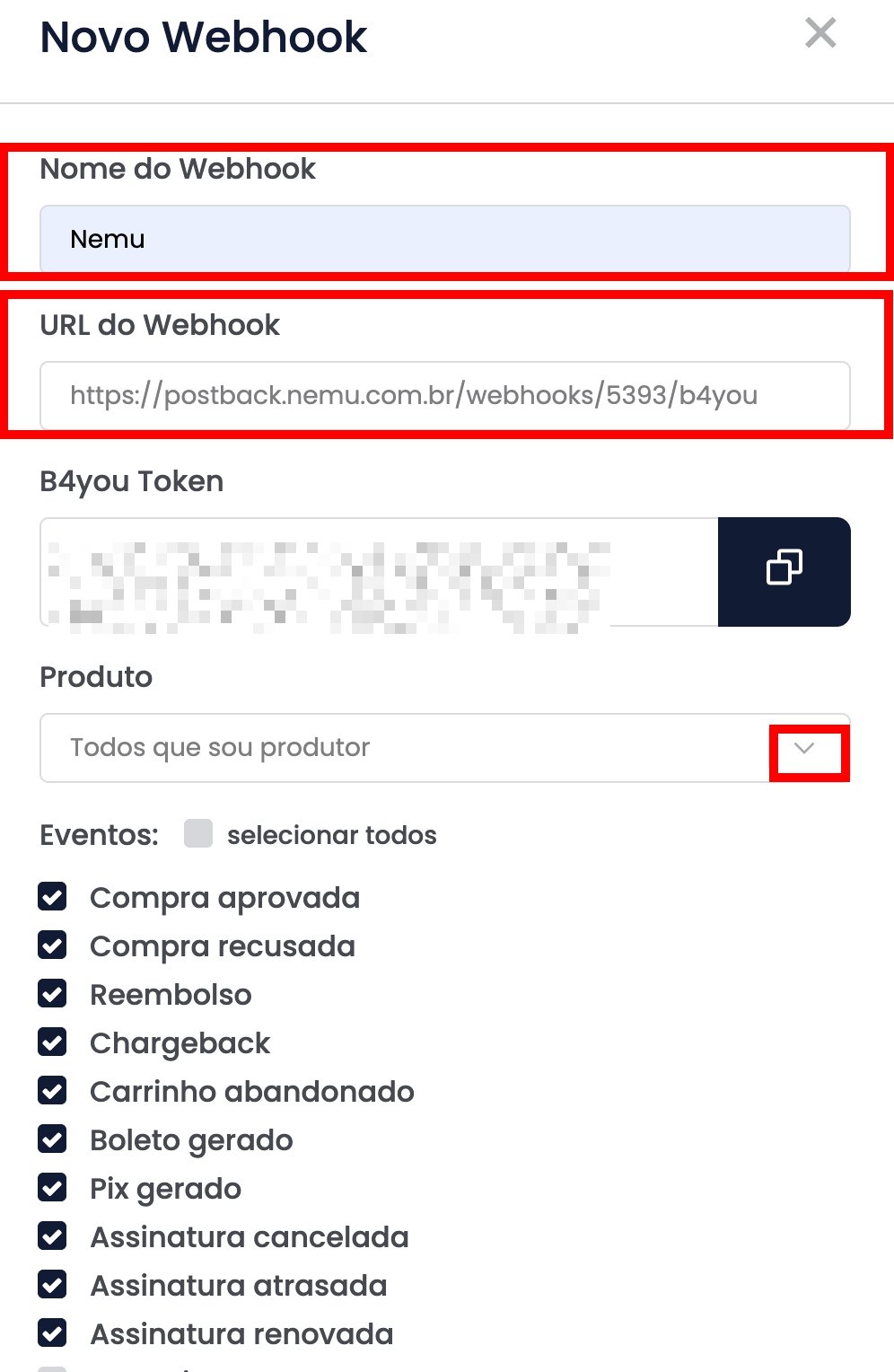 9. In the **Product** field, select the desired product or choose **"All that I am a producer"** to receive events from all products.
10. In the **Events** section, select all events.
11. Verify that all information is correct and click on **Save** to complete the integration.
Congratulations! Your integration between B4you and Nemu has been successfully configured. You will now automatically receive sales events in your Nemu account.
9. In the **Product** field, select the desired product or choose **"All that I am a producer"** to receive events from all products.
10. In the **Events** section, select all events.
11. Verify that all information is correct and click on **Save** to complete the integration.
Congratulations! Your integration between B4you and Nemu has been successfully configured. You will now automatically receive sales events in your Nemu account.