> ## Documentation Index
> Fetch the complete documentation index at: https://docs.nemu.com.br/llms.txt
> Use this file to discover all available pages before exploring further.
# Doppus
> How to connect your Doppus account to Nemu Dashboard
> Follow the step-by-step guide and start receiving sales automatically in Nemu.
## Setting Up Webhooks
### On Doppus Dashboard
1. Go to **Settings** > **Webhooks** and click the button to **copy** the token.
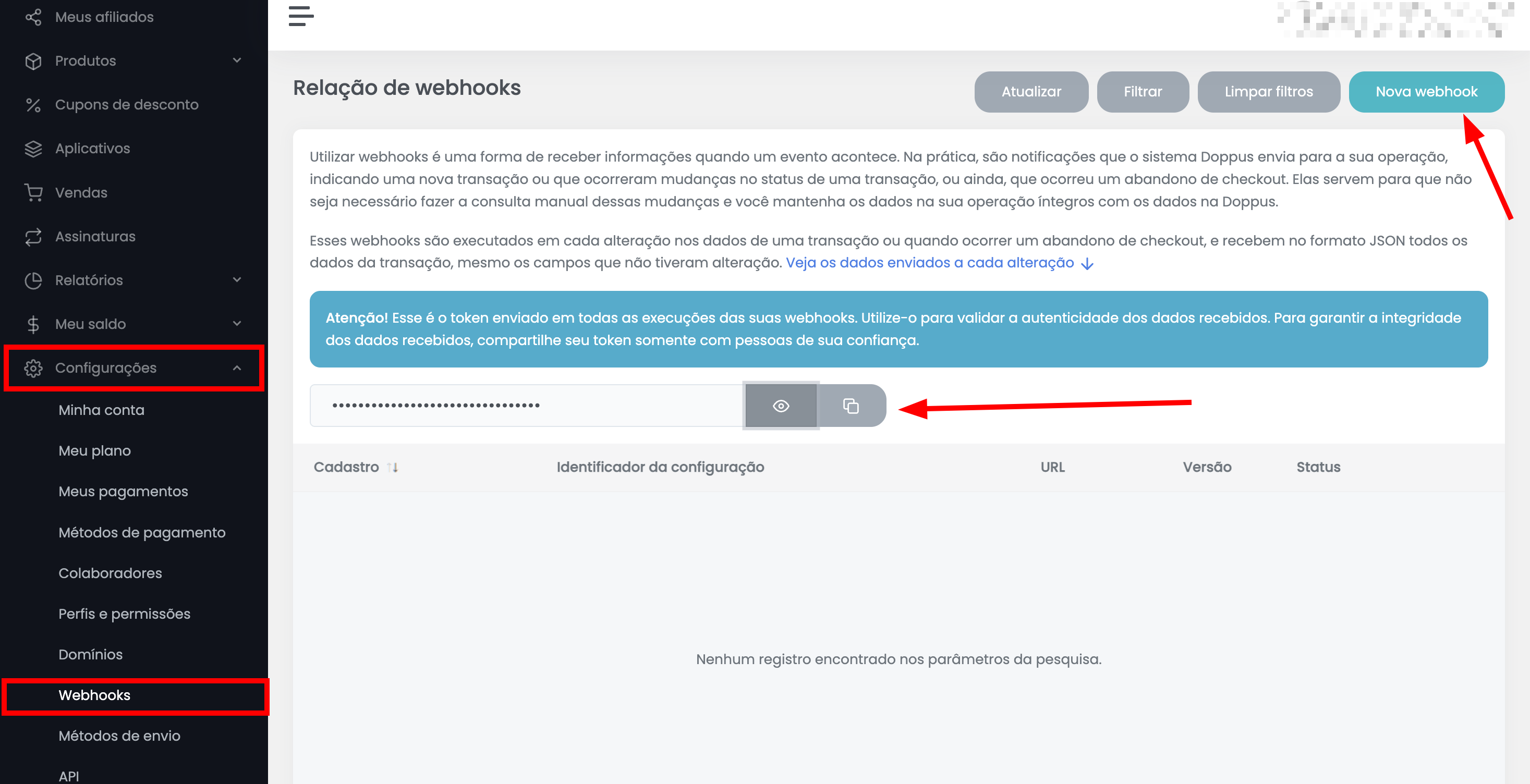 Keep this page open, as we will need it for the next steps.
2. Before proceeding with the next steps, click on **New Webhook** and we will continue from this point later.
### On Nemu Dashboard
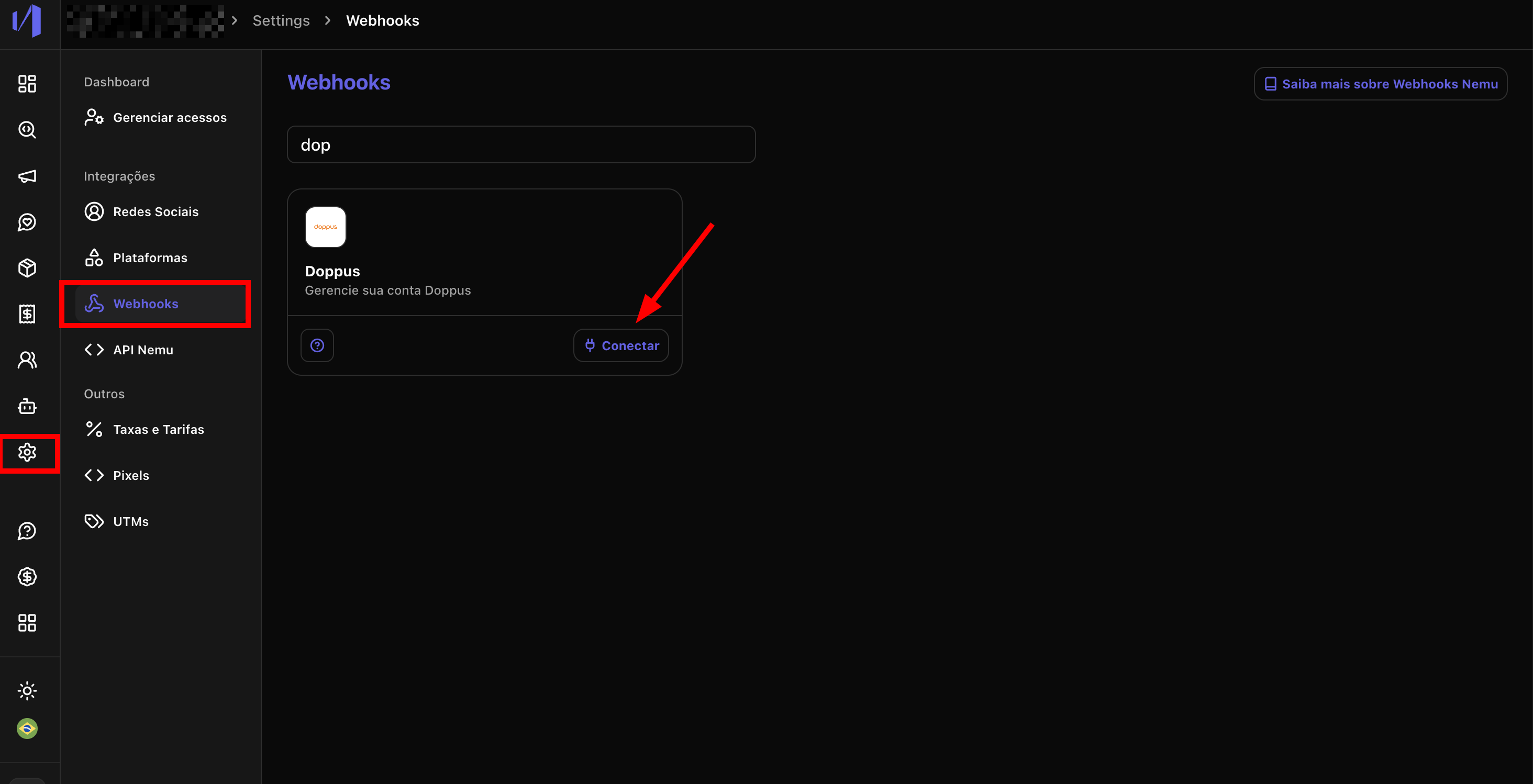
3. Go to **Settings** > **Webhooks**, search for **Doppus** and click on **Connect**.
Keep this page open, as we will need it for the next steps.
2. Before proceeding with the next steps, click on **New Webhook** and we will continue from this point later.
### On Nemu Dashboard
3. Go to **Settings** > **Webhooks**, search for **Doppus** and click on **Connect**.
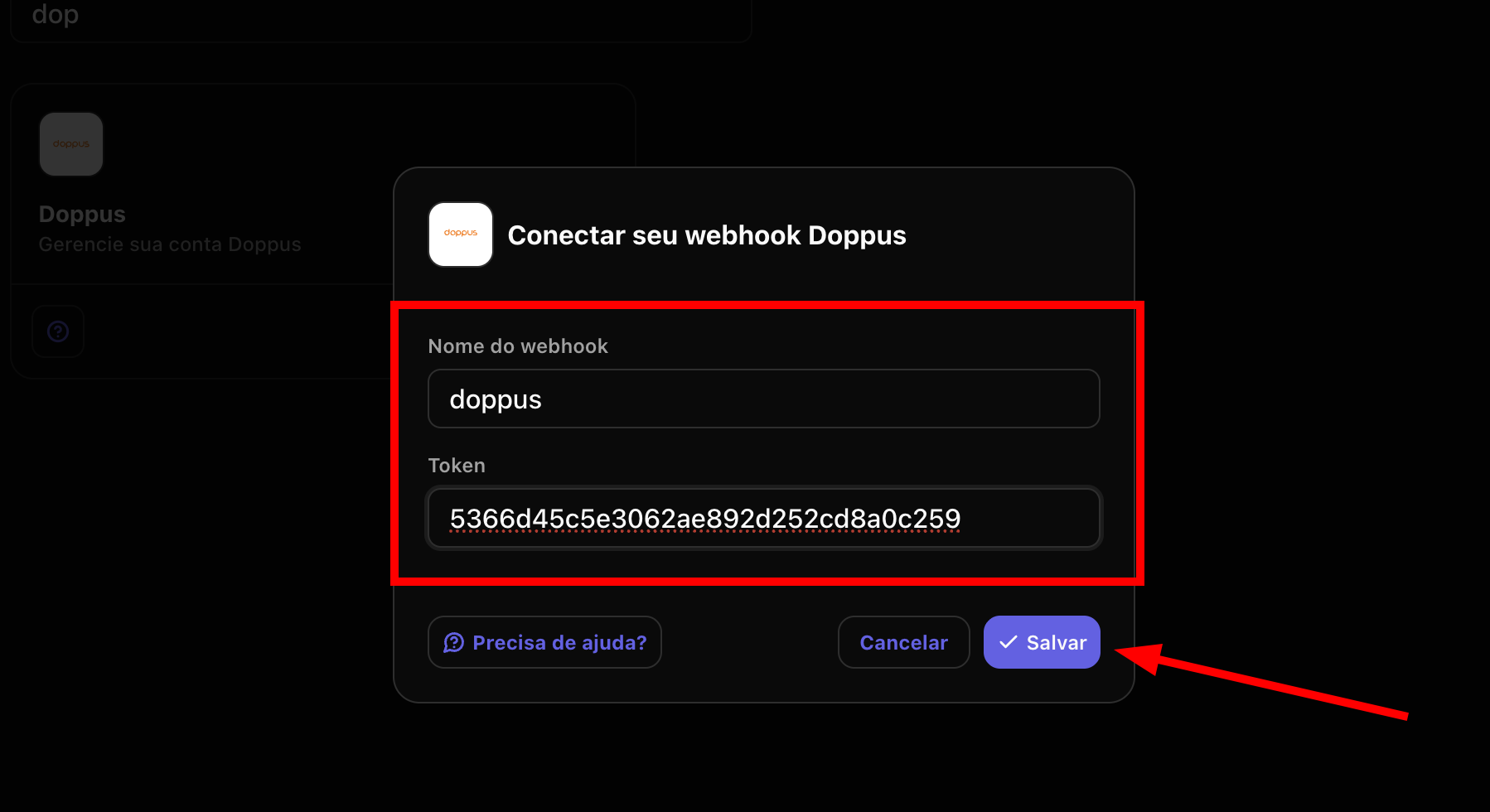
 4. Define a **Name** for the webhook, paste the token copied in step 1 in the **Token** field and click on **Save**.
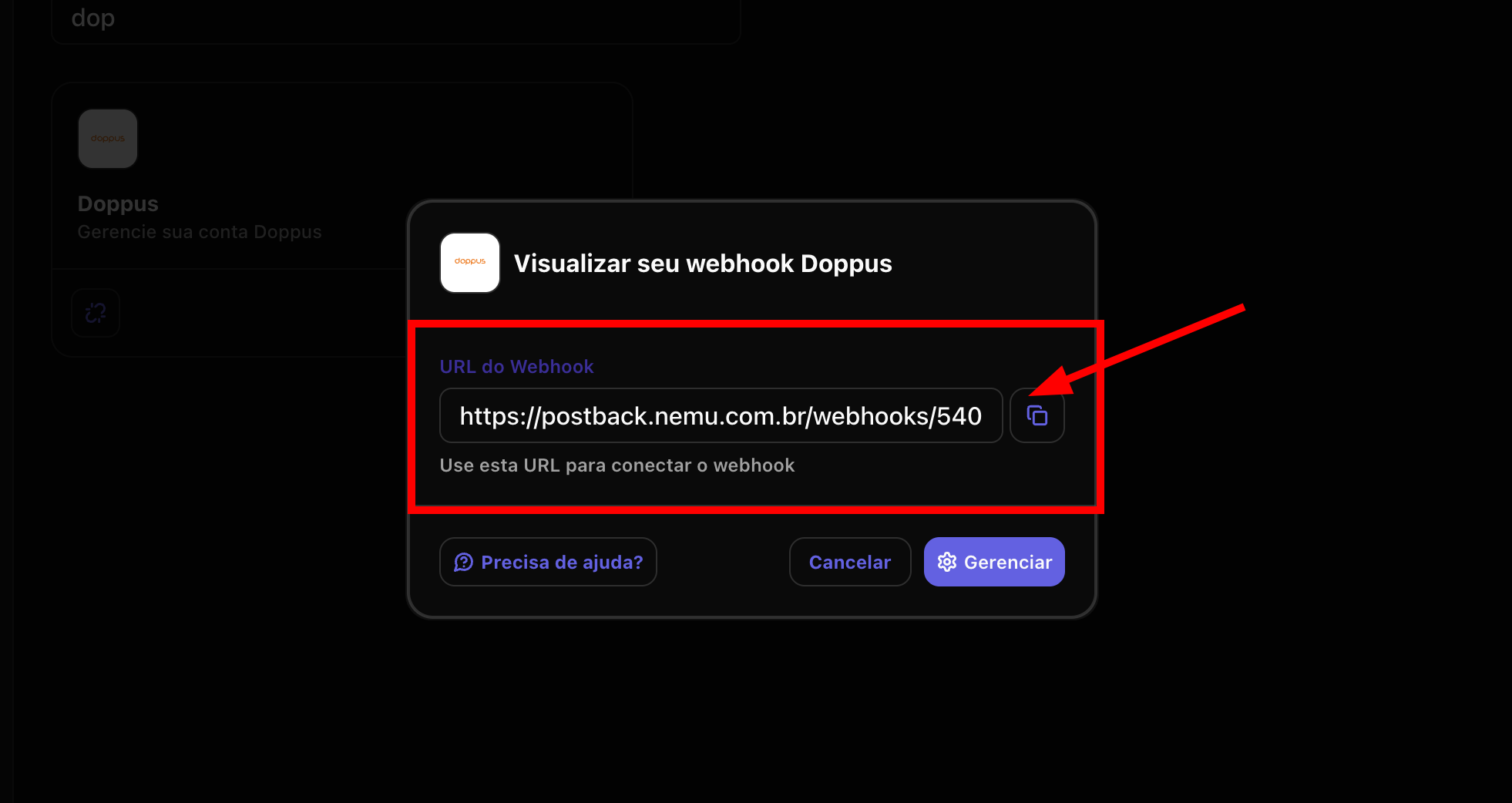
 5. Click the button to **copy** the **webhook URL** generated by Nemu.
 ### Finalizing the Integration on Doppus Dashboard
6. Define a **Name** for the webhook, select a specific product or **All products** paste the **webhook URL** generated by Nemu in the **URL for sending data** field.
### Finalizing the Integration on Doppus Dashboard
6. Define a **Name** for the webhook, select a specific product or **All products** paste the **webhook URL** generated by Nemu in the **URL for sending data** field.
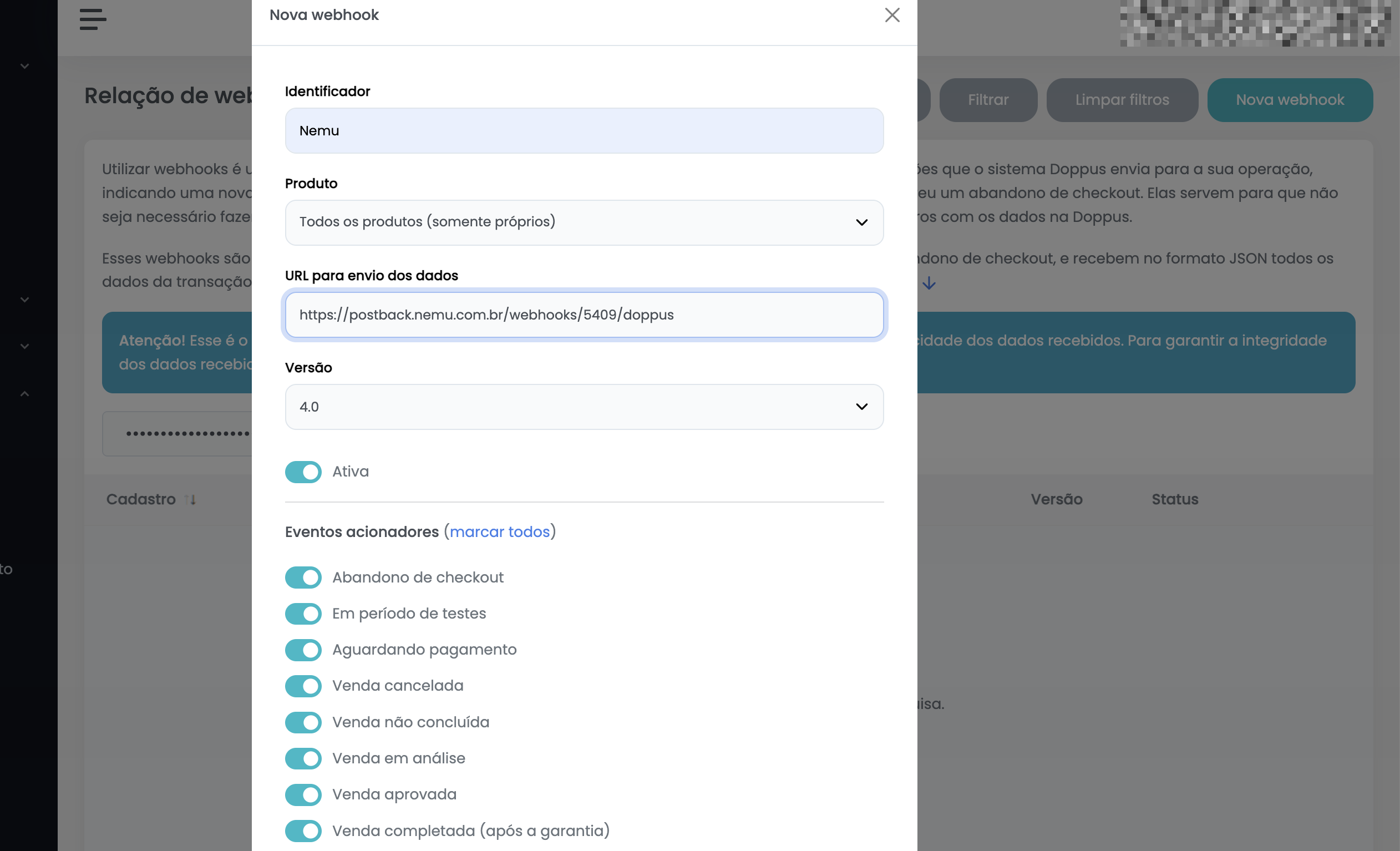 7. The **Version** will be set by default and there will be a switch that should be activated and should remain so.
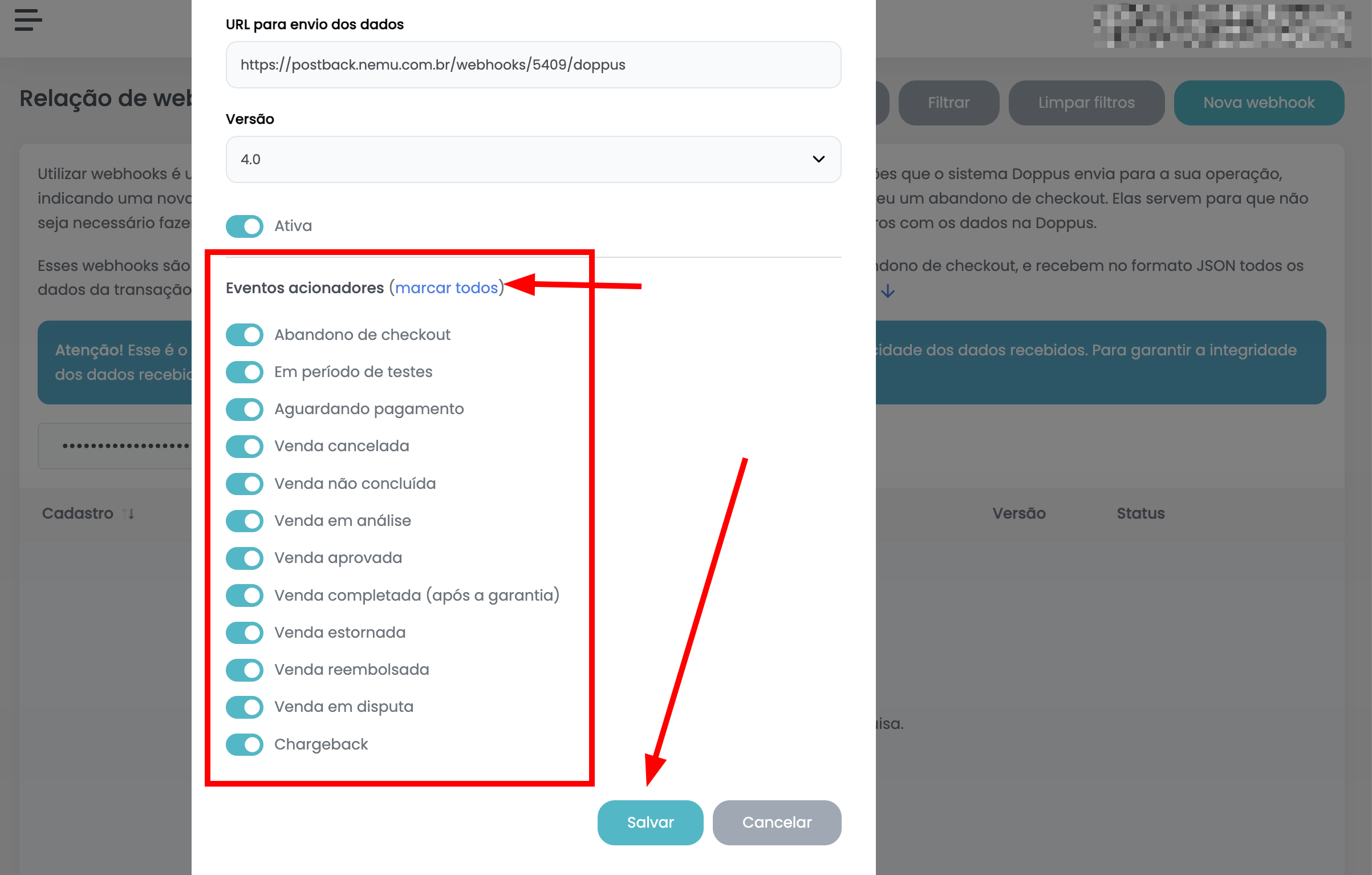 8. In the **Added events** section, select the events you want to receive in Nemu. We recommend clicking on **check all** to select all events.
9. Finally, click on **Save** to complete the integration.
8. In the **Added events** section, select the events you want to receive in Nemu. We recommend clicking on **check all** to select all events.
9. Finally, click on **Save** to complete the integration.