> ## Documentation Index
> Fetch the complete documentation index at: https://docs.nemu.com.br/llms.txt
> Use this file to discover all available pages before exploring further.

# Greenn

> How to connect your Greenn account to Nemu Dashboard

## Setting Up Webhooks in Nemu Dashboard

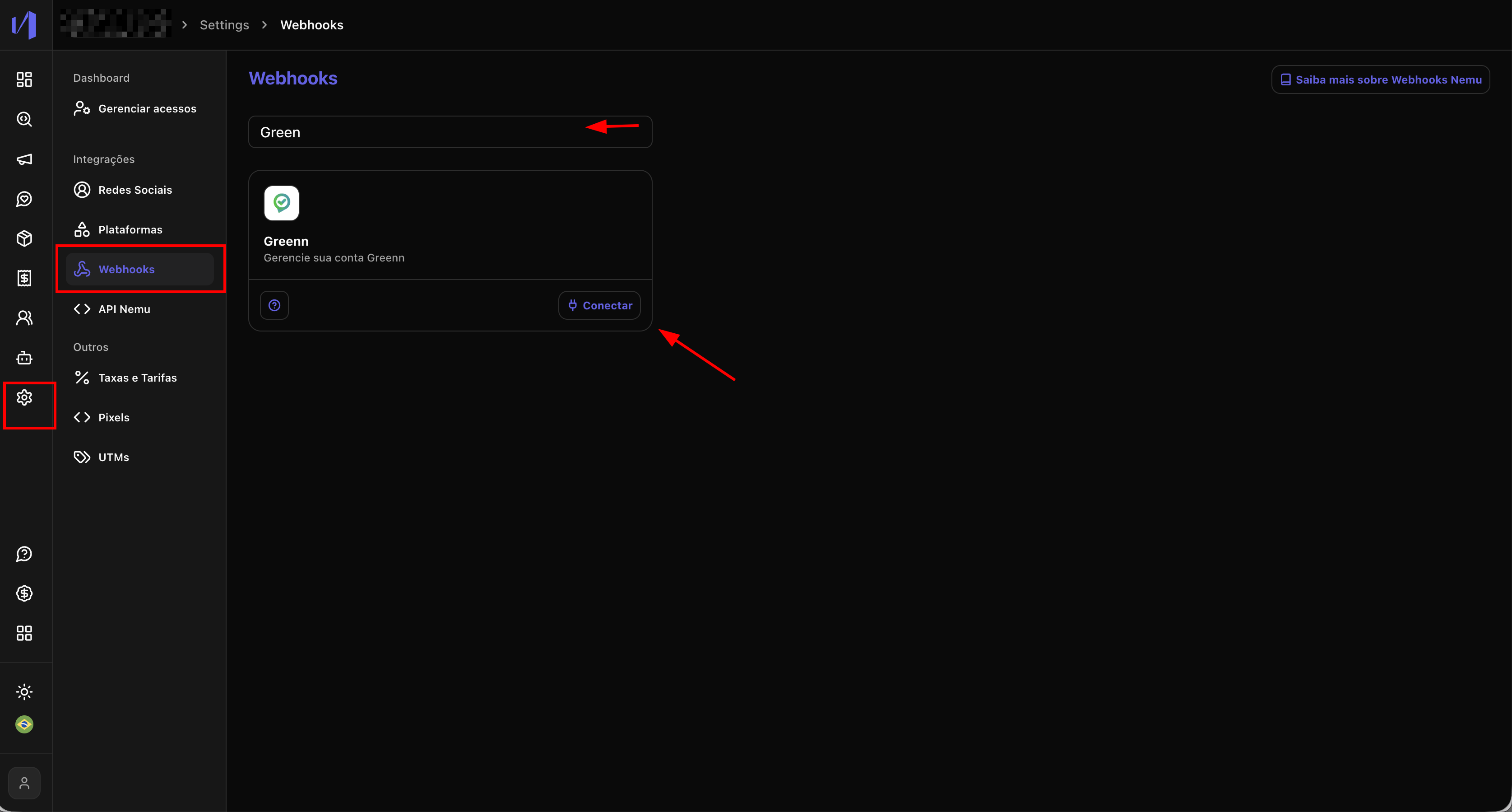
1. In the Nemu panel, go to **Settings** > **Webhooks**.
2. Search for **Greenn** and click on **Connect**.
<img src="https://mintcdn.com/nemu/0X5qZhp1XckvILBQ/assets/pages/integracoes/greenn/1.png?fit=max&auto=format&n=0X5qZhp1XckvILBQ&q=85&s=490aaeea6e288f8c8aef4d657843c6db" alt="" width="3350" height="1798" data-path="assets/pages/integracoes/greenn/1.png" />

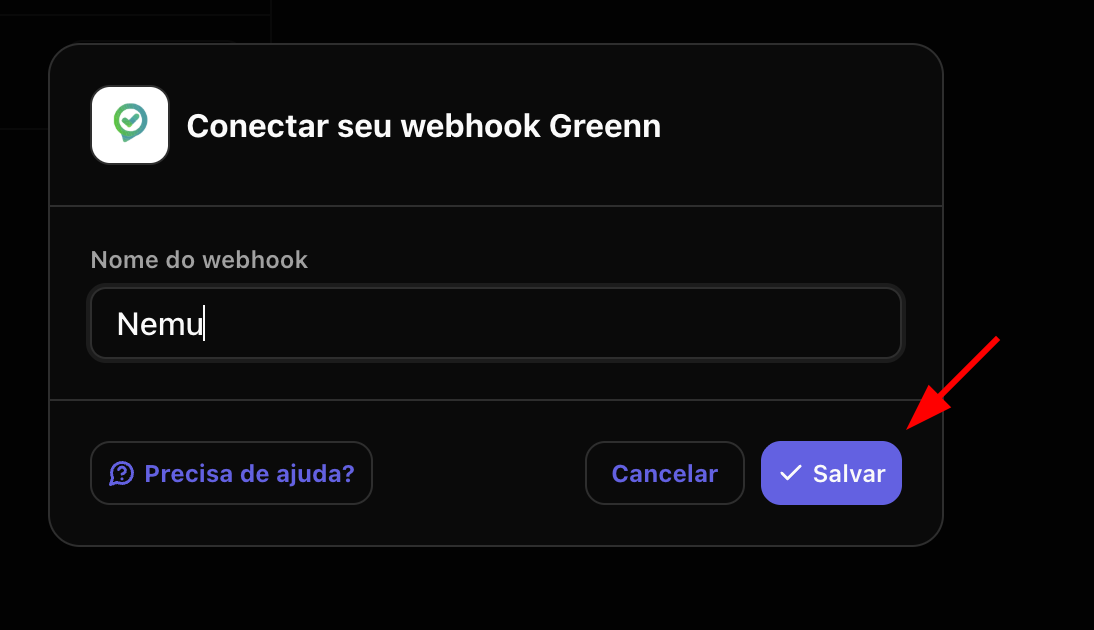
3. Define a **name** for the webhook and click on **Save**.
<img src="https://mintcdn.com/nemu/0X5qZhp1XckvILBQ/assets/pages/integracoes/greenn/2.png?fit=max&auto=format&n=0X5qZhp1XckvILBQ&q=85&s=e816cf29836ab41ade1d41e502a0720e" alt="" width="1094" height="630" data-path="assets/pages/integracoes/greenn/2.png" />

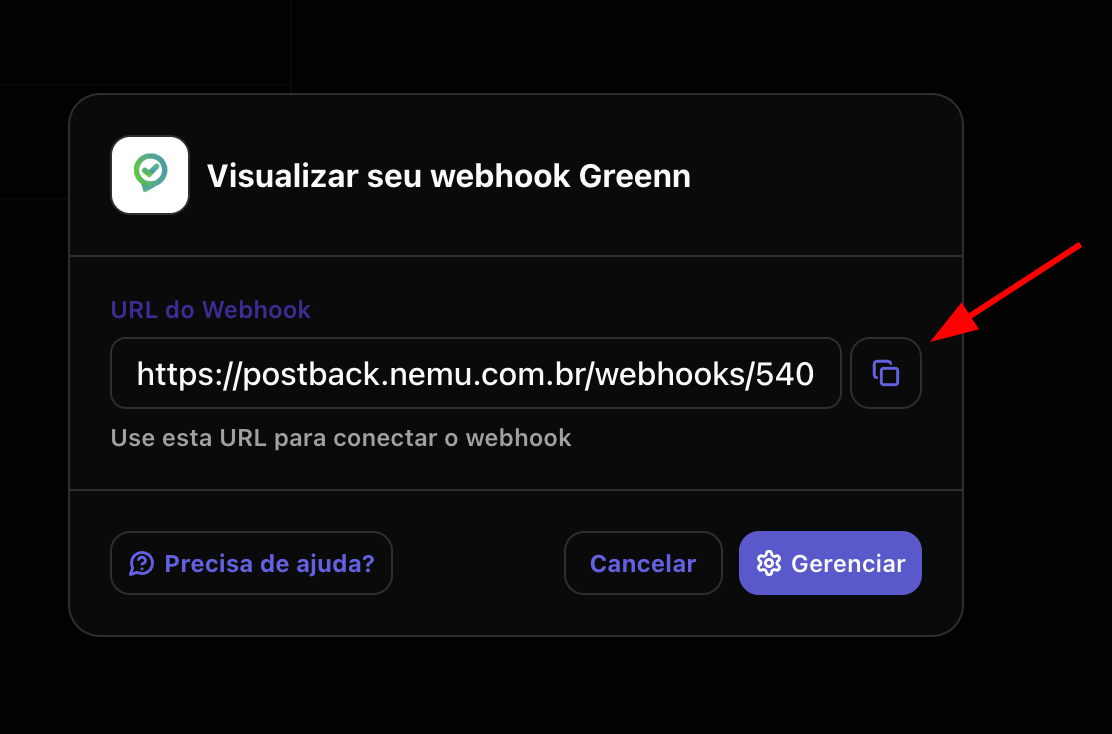
4. Click the button to **copy** the **webhook URL** generated by Nemu.
<img src="https://mintcdn.com/nemu/0X5qZhp1XckvILBQ/assets/pages/integracoes/greenn/3.png?fit=max&auto=format&n=0X5qZhp1XckvILBQ&q=85&s=e73509a38e62f22584e2a7738a5dc600" alt="" width="1112" height="734" data-path="assets/pages/integracoes/greenn/3.png" />

## Setting Up Webhooks in Greenn Dashboard

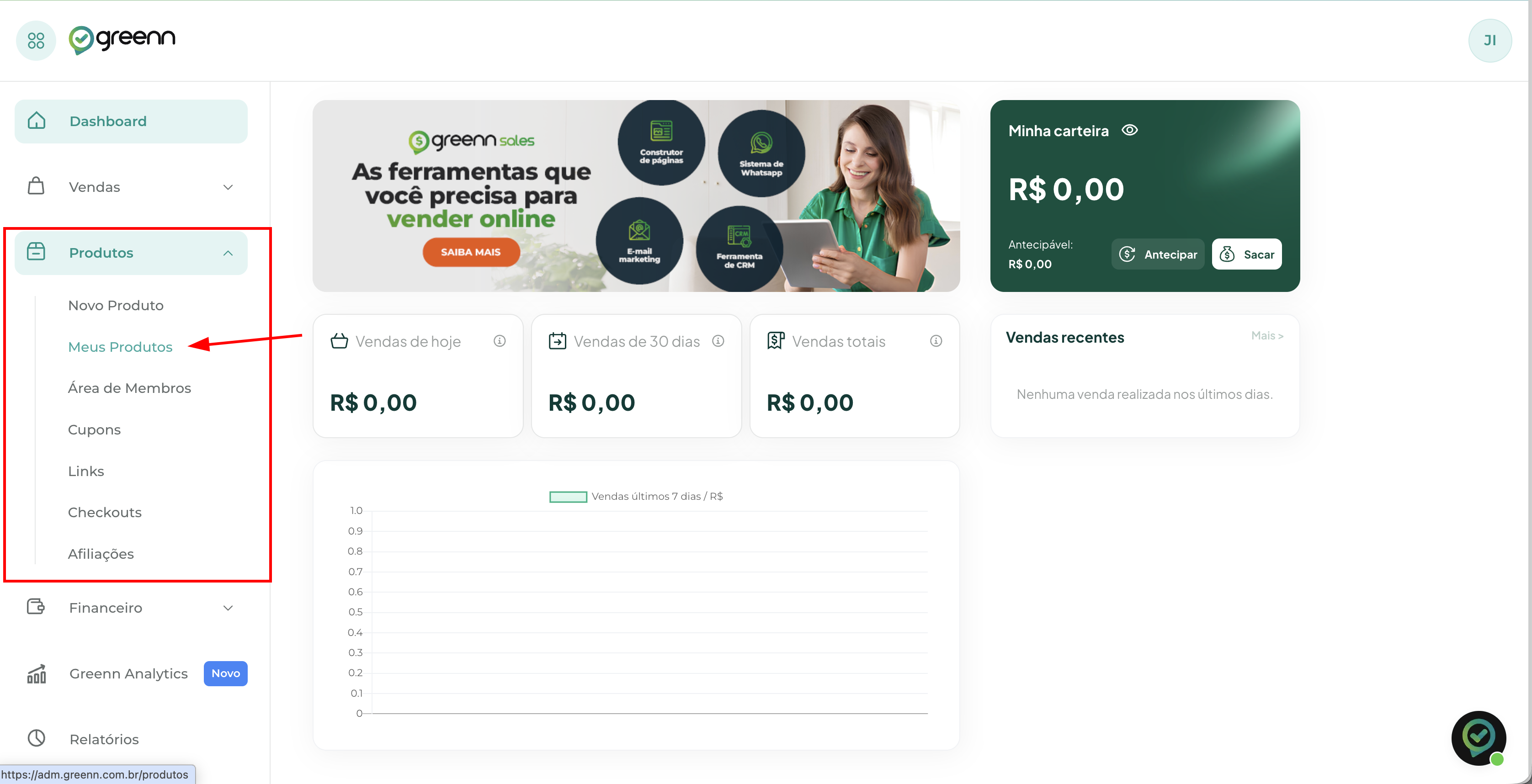
1. In the Greenn panel, in the left sidebar, click on **Products** > **My Products**.
<img src="https://mintcdn.com/nemu/0X5qZhp1XckvILBQ/assets/pages/integracoes/greenn/4.png?fit=max&auto=format&n=0X5qZhp1XckvILBQ&q=85&s=09b0ce858c4b8fde0795de1e0d6b0912" alt="" width="3352" height="1716" data-path="assets/pages/integracoes/greenn/4.png" />

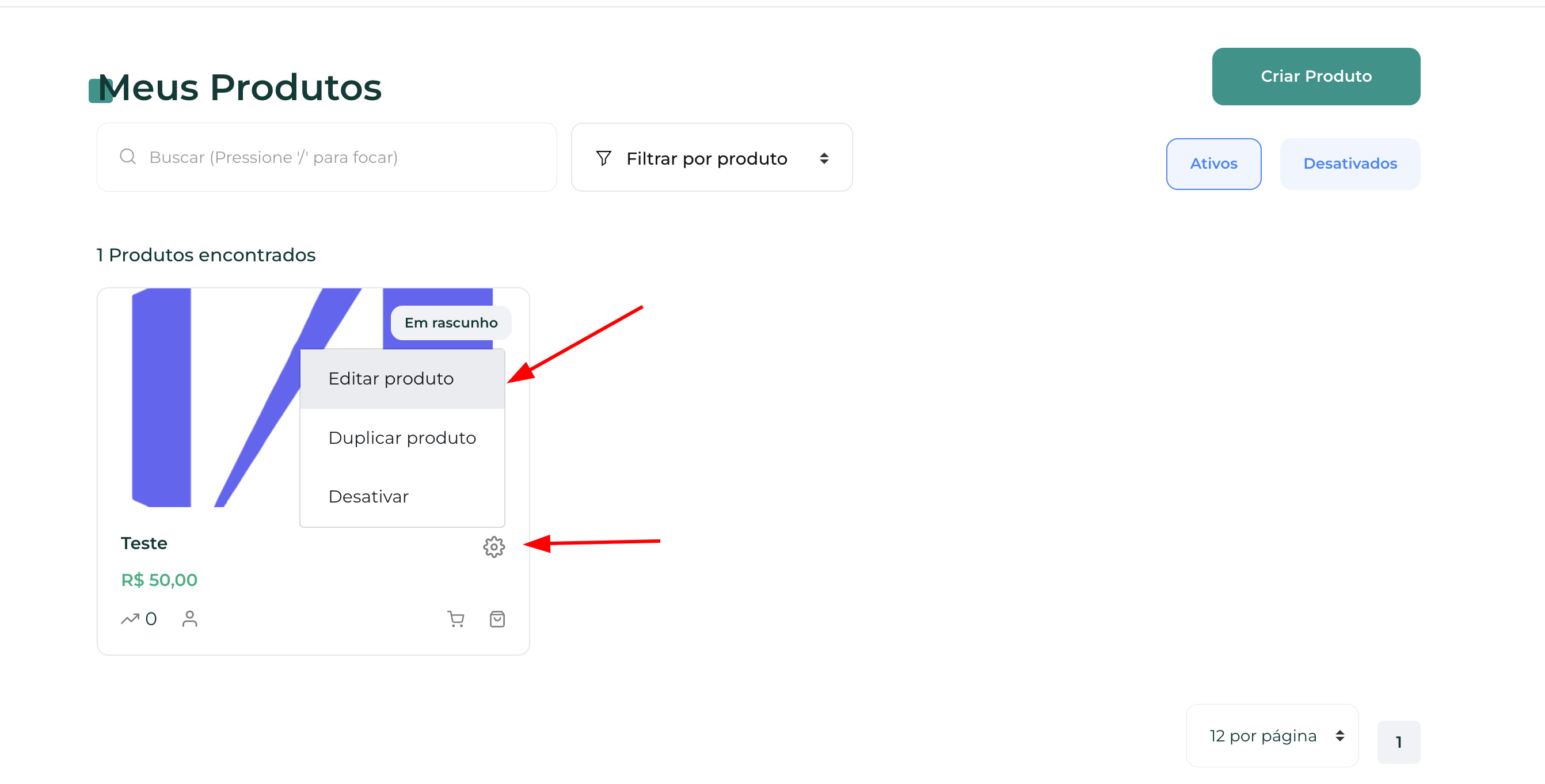
2. On the product you want to integrate, click on the **Settings** icon and then click on **Edit Product**.
<img src="https://mintcdn.com/nemu/0X5qZhp1XckvILBQ/assets/pages/integracoes/greenn/5.png?fit=max&auto=format&n=0X5qZhp1XckvILBQ&q=85&s=89382616fc1d005d09d90e5f4986eee9" alt="" width="2684" height="1362" data-path="assets/pages/integracoes/greenn/5.png" />

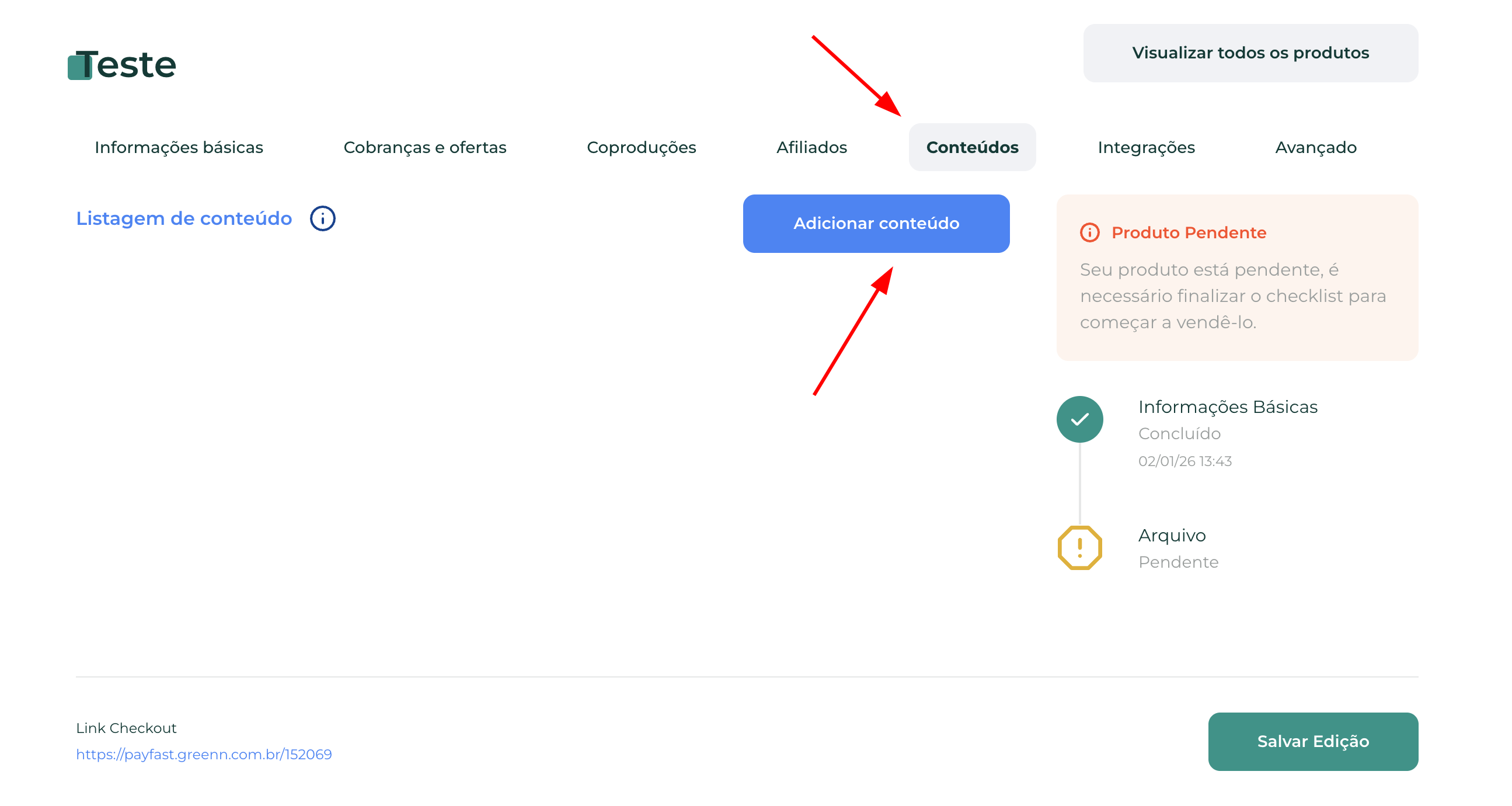
3. In the **Contents** tab, click on **Add Content**
<img src="https://mintcdn.com/nemu/0X5qZhp1XckvILBQ/assets/pages/integracoes/greenn/6.png?fit=max&auto=format&n=0X5qZhp1XckvILBQ&q=85&s=76c88ac9c9a63d8ccc9ff6e7133cb760" alt="" width="2590" height="1380" data-path="assets/pages/integracoes/greenn/6.png" />

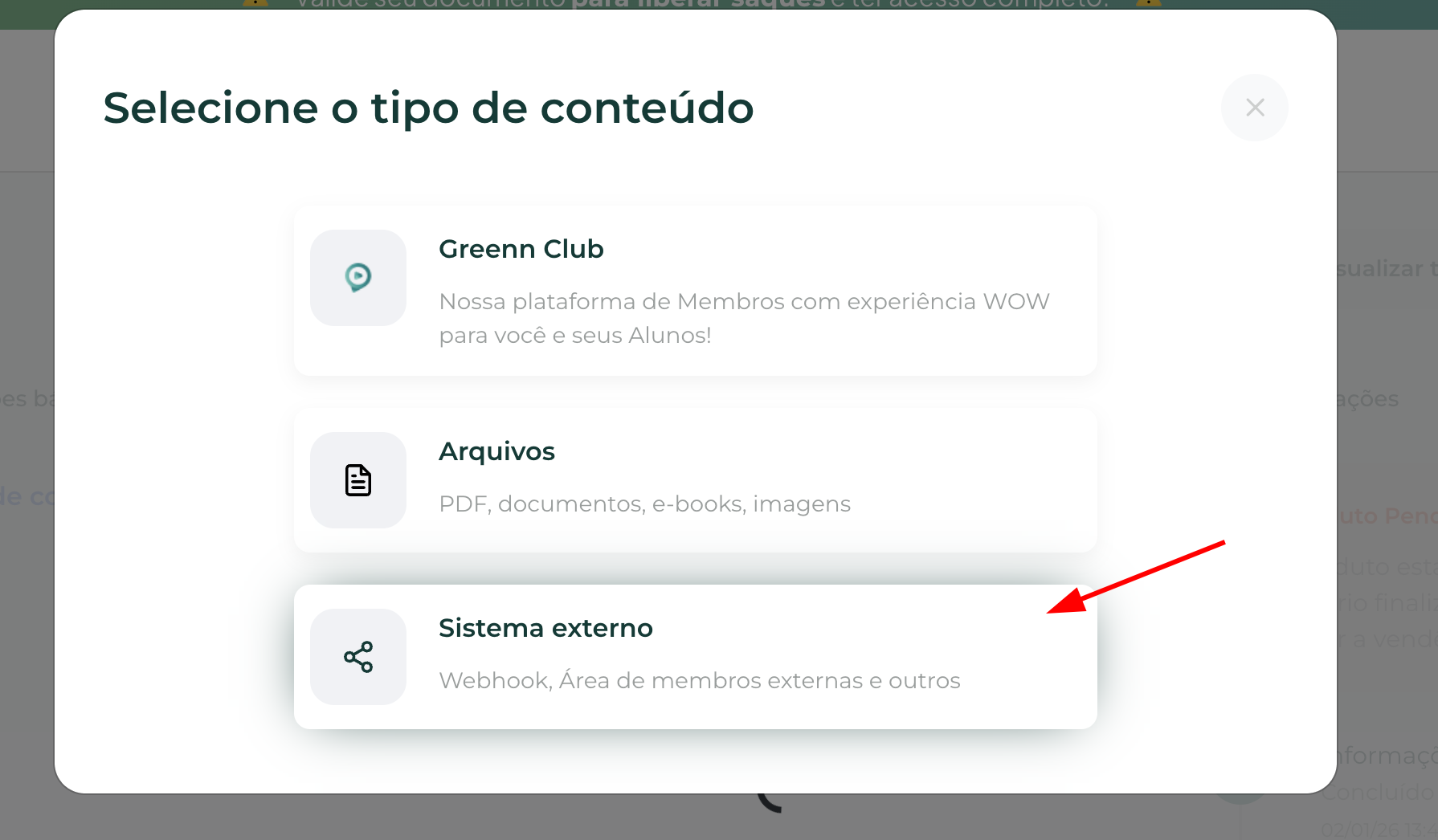
4. In content type, click on **External System**
<img src="https://mintcdn.com/nemu/0X5qZhp1XckvILBQ/assets/pages/integracoes/greenn/7.png?fit=max&auto=format&n=0X5qZhp1XckvILBQ&q=85&s=91fa4b635c169107064583c2f6f43113" alt="" width="1790" height="1046" data-path="assets/pages/integracoes/greenn/7.png" />

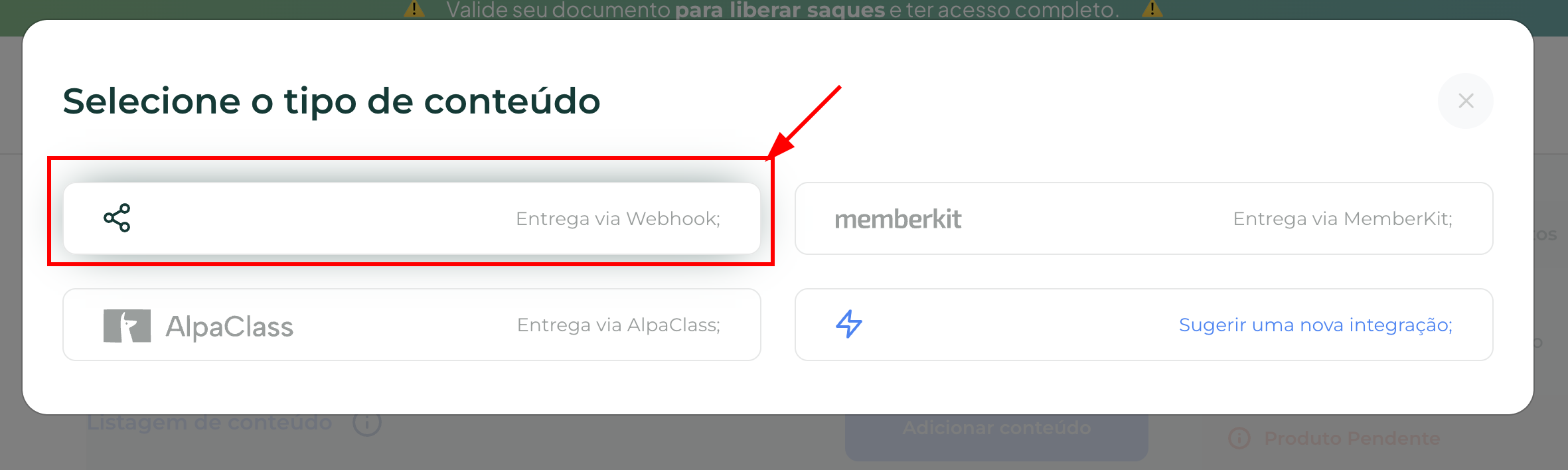
5. Then, click on **Webhook Delivery**
<img src="https://mintcdn.com/nemu/0X5qZhp1XckvILBQ/assets/pages/integracoes/greenn/8.png?fit=max&auto=format&n=0X5qZhp1XckvILBQ&q=85&s=da7bb29460aaca219d99798d9a64616c" alt="" width="2362" height="708" data-path="assets/pages/integracoes/greenn/8.png" />

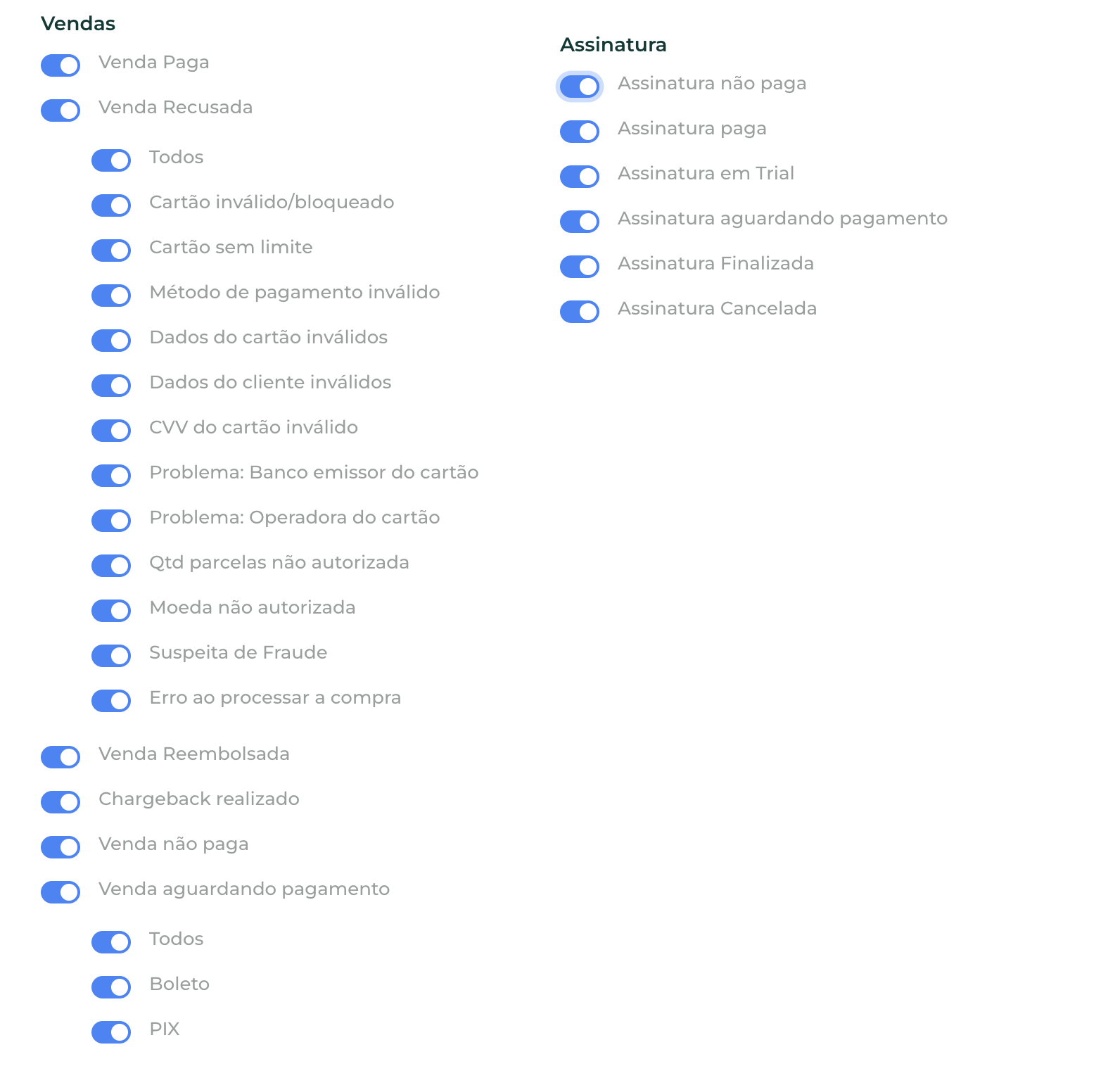
6. Select **all events** as shown in the image below:
<img src="https://mintcdn.com/nemu/0X5qZhp1XckvILBQ/assets/pages/integracoes/greenn/9.png?fit=max&auto=format&n=0X5qZhp1XckvILBQ&q=85&s=57212c36d628da5535315bc5526af1a7" alt="" width="1592" height="1532" data-path="assets/pages/integracoes/greenn/9.png" />

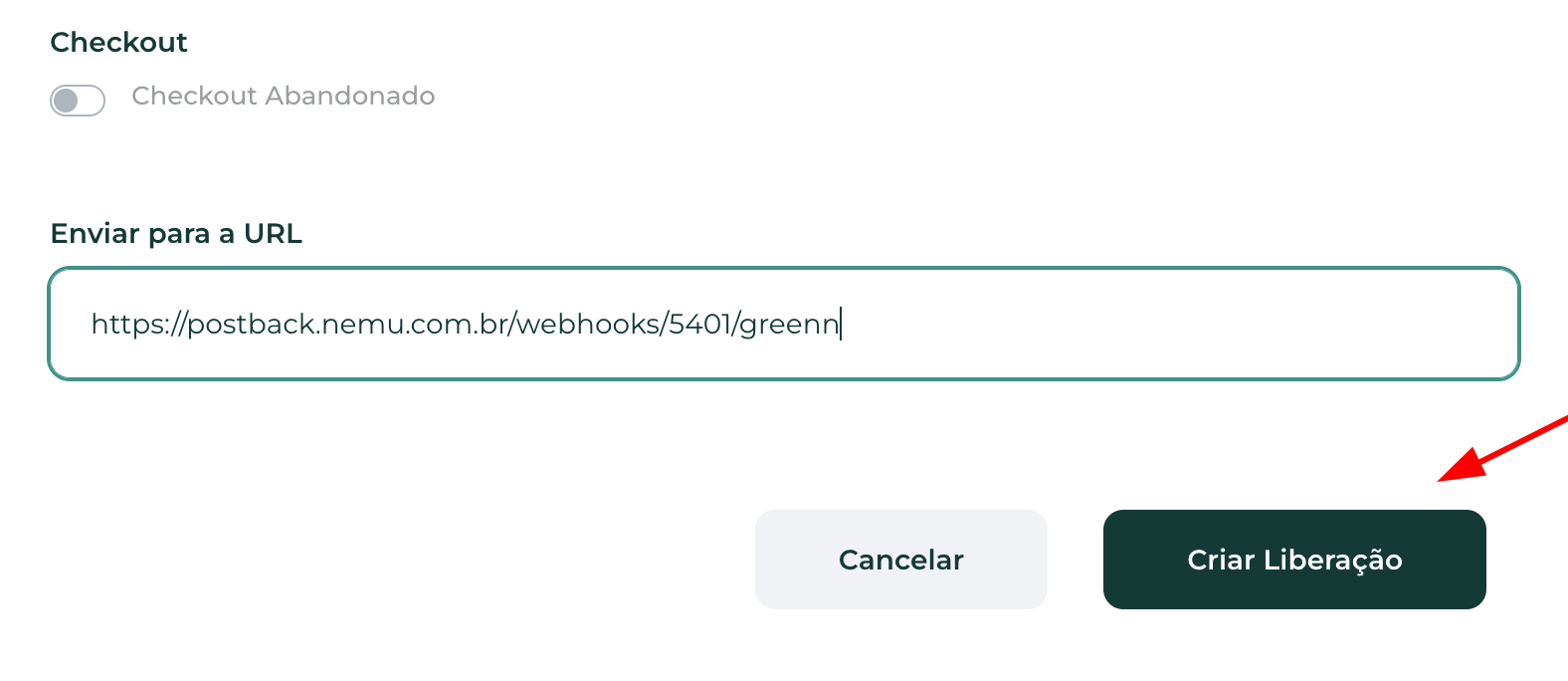
7. In the **Send to URL** field, paste the **webhook URL** generated in the [previous step](#setting-up-webhooks-in-nemu-dashboard) by Nemu and click on **Create release**.
<img src="https://mintcdn.com/nemu/0X5qZhp1XckvILBQ/assets/pages/integracoes/greenn/10.png?fit=max&auto=format&n=0X5qZhp1XckvILBQ&q=85&s=4e9075289549848cc724f5420125d1d1" alt="" width="1576" height="684" data-path="assets/pages/integracoes/greenn/10.png" />

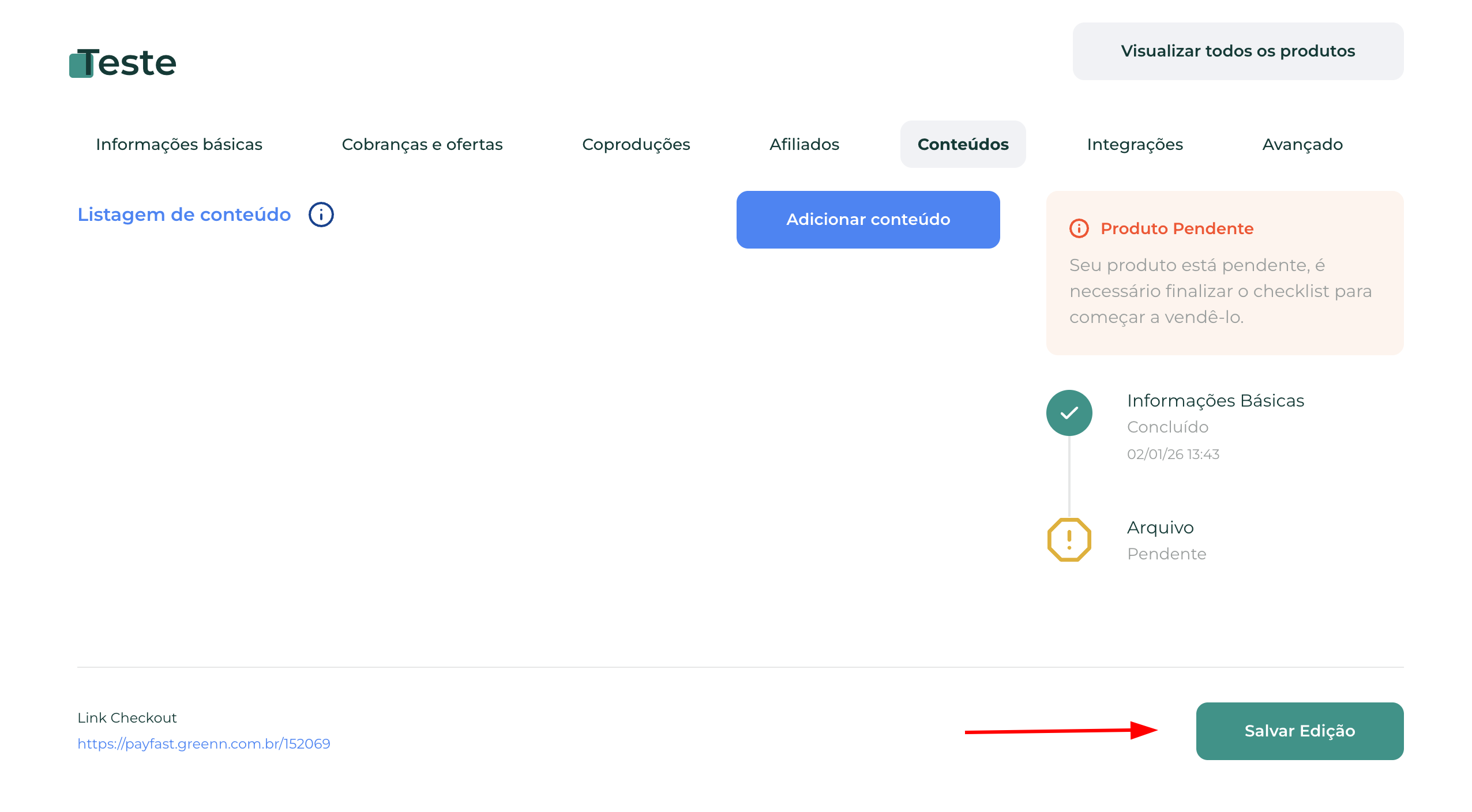
8. Click on **Save Edit** to finalize the integration.
<img src="https://mintcdn.com/nemu/0X5qZhp1XckvILBQ/assets/pages/integracoes/greenn/11.png?fit=max&auto=format&n=0X5qZhp1XckvILBQ&q=85&s=9cd0f31e0c8856145cd3f358c55fae70" alt="" width="2552" height="1408" data-path="assets/pages/integracoes/greenn/11.png" />
