> ## Documentation Index
> Fetch the complete documentation index at: https://docs.nemu.com.br/llms.txt
> Use this file to discover all available pages before exploring further.

# Irroba

> How to connect your Irroba Store to Nemu Dashboard

## Integrating Nemu Pixel on Irroba

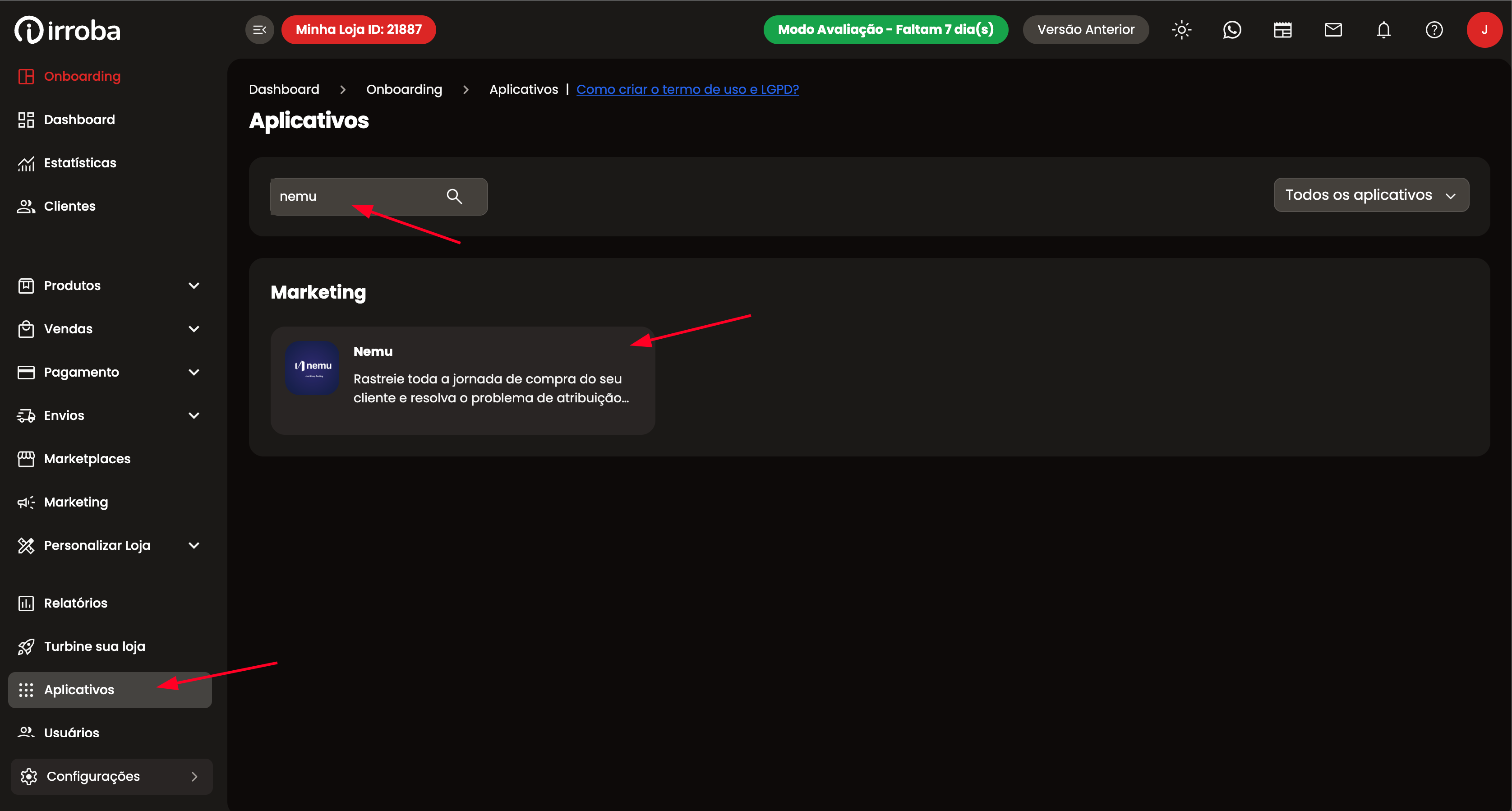
1. On the Irroba platform, in **Apps** search for **Nemu**
<img src="https://mintcdn.com/nemu/1PP-evrYzqGXeyQk/assets/pages/integracoes/irroba/6.png?fit=max&auto=format&n=1PP-evrYzqGXeyQk&q=85&s=85fb9bd6b6bf214f53d284fe4e8d749c" alt="" width="3352" height="1798" data-path="assets/pages/integracoes/irroba/6.png" />

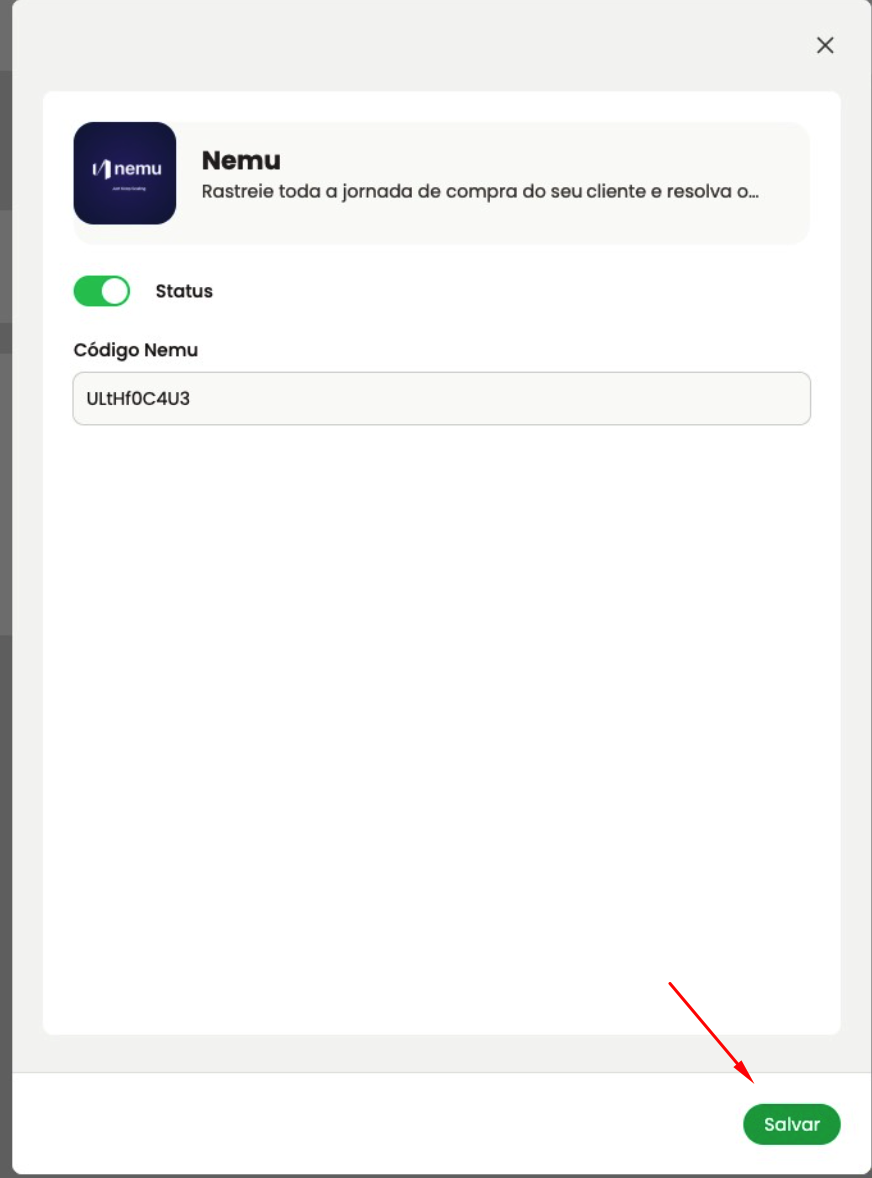
2. Paste **only the code located inside the `data-tracking-id` property of the `<script>`** from [Configuring Nemu Pixel](/en/onboarding/configuring-pixel) and enable the status to **Active** and click on **Save**

Example:

```js theme={null}
<script src="https://trackings.nemu.com.br/trackings/ULtHf0C4U3/script.js" async="" data-tracking-id="ULtHf0C4U3" crossorigin="anonymous"></script>
```

<Info>The code that should be copied is only what is inside the <br /> `data-tracking-id` property: `ULtHf0C4U3`</Info>

<img src="https://mintcdn.com/nemu/2YwW_5aaE3D8sbBo/assets/pages/integracoes/irroba/6-1.png?fit=max&auto=format&n=2YwW_5aaE3D8sbBo&q=85&s=cd65d52247851fa6c2b10600d1c13478" alt="" width="872" height="1178" data-path="assets/pages/integracoes/irroba/6-1.png" />

## Setting Up Webhooks

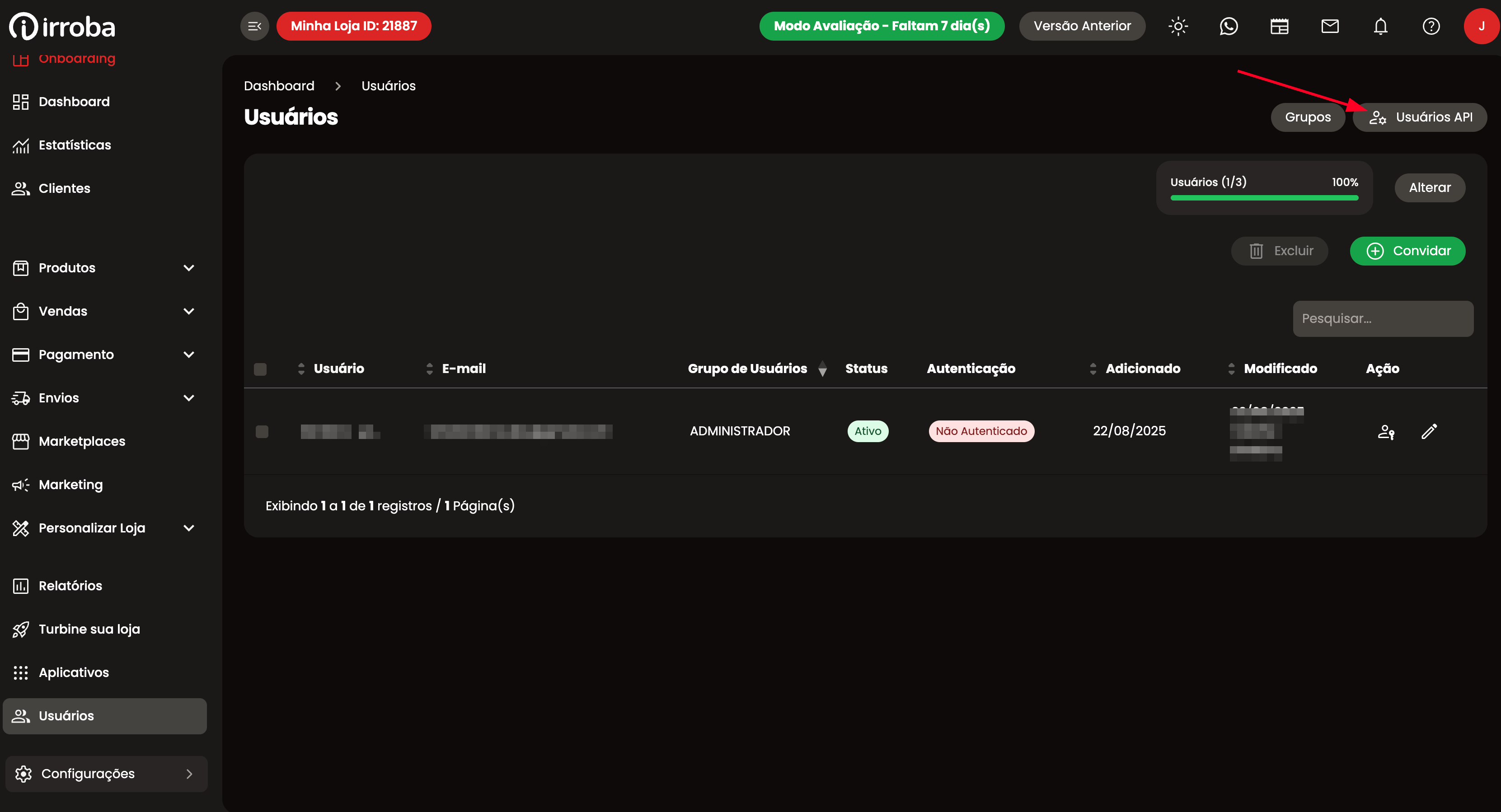
1. On the Irroba panel, go to **Users** and click on **API Users**
   <img src="https://mintcdn.com/nemu/1PP-evrYzqGXeyQk/assets/pages/integracoes/irroba/7.png?fit=max&auto=format&n=1PP-evrYzqGXeyQk&q=85&s=a1cd189e7c7baf614cc14bbaaffe4c00" alt="" width="3322" height="1798" data-path="assets/pages/integracoes/irroba/7.png" />

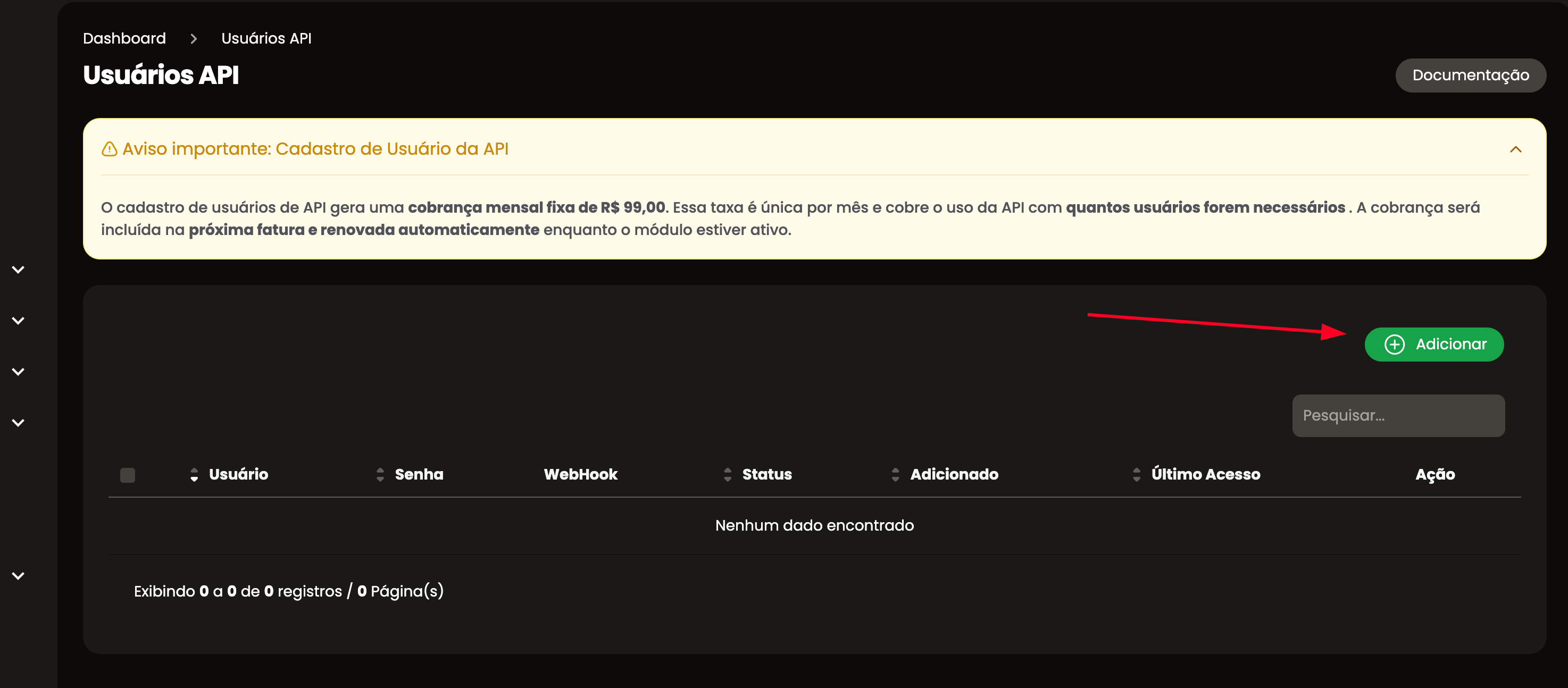
2. Click on the Add button
   <img src="https://mintcdn.com/nemu/1PP-evrYzqGXeyQk/assets/pages/integracoes/irroba/8.png?fit=max&auto=format&n=1PP-evrYzqGXeyQk&q=85&s=f43127d4417f7f2036c1172638f3360e" alt="" width="2948" height="1294" data-path="assets/pages/integracoes/irroba/8.png" />

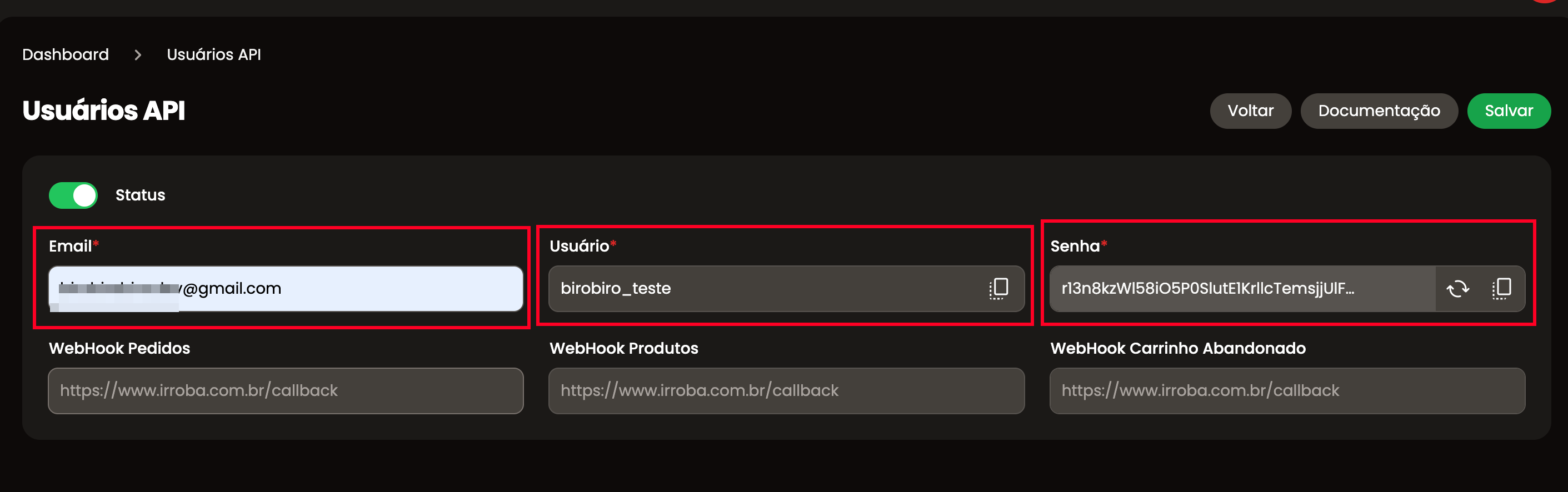
3. Fill in the necessary information with your data and generate a password
   <img src="https://mintcdn.com/nemu/1PP-evrYzqGXeyQk/assets/pages/integracoes/irroba/12.png?fit=max&auto=format&n=1PP-evrYzqGXeyQk&q=85&s=b01cc64e17900af314b381a45dc43398" alt="" width="2822" height="886" data-path="assets/pages/integracoes/irroba/12.png" />

<Warning>
  Copy the username and password generated, as they will be needed in the next step.
</Warning>

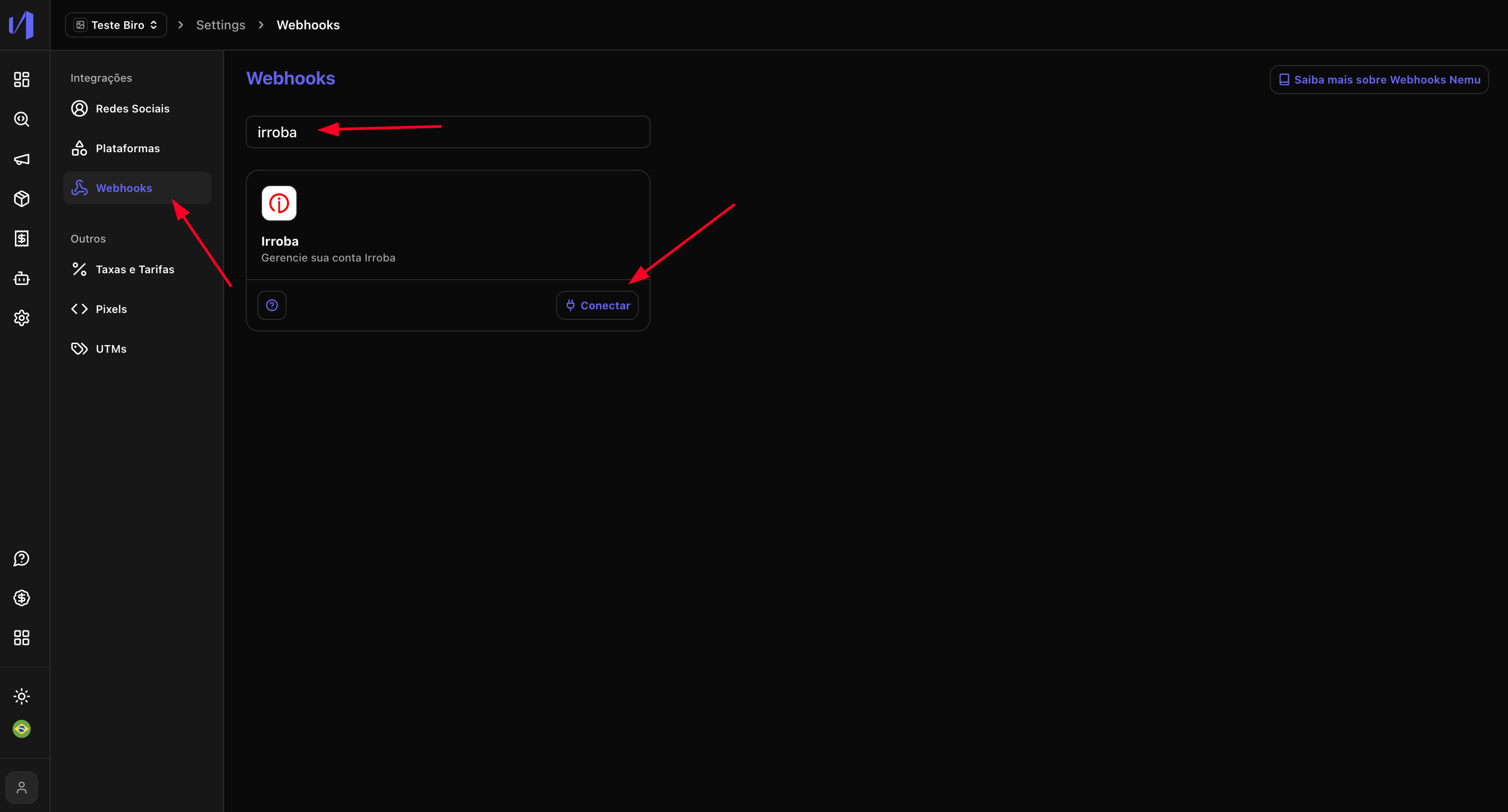
4. In Nemu, go to **Settings** > **Webhooks** and search for **Irroba** and click on **Connect**
   <img src="https://mintcdn.com/nemu/1PP-evrYzqGXeyQk/assets/pages/integracoes/irroba/9.png?fit=max&auto=format&n=1PP-evrYzqGXeyQk&q=85&s=67191f4f7fd48ff065e983ffd50612cc" alt="" width="3338" height="1798" data-path="assets/pages/integracoes/irroba/9.png" />

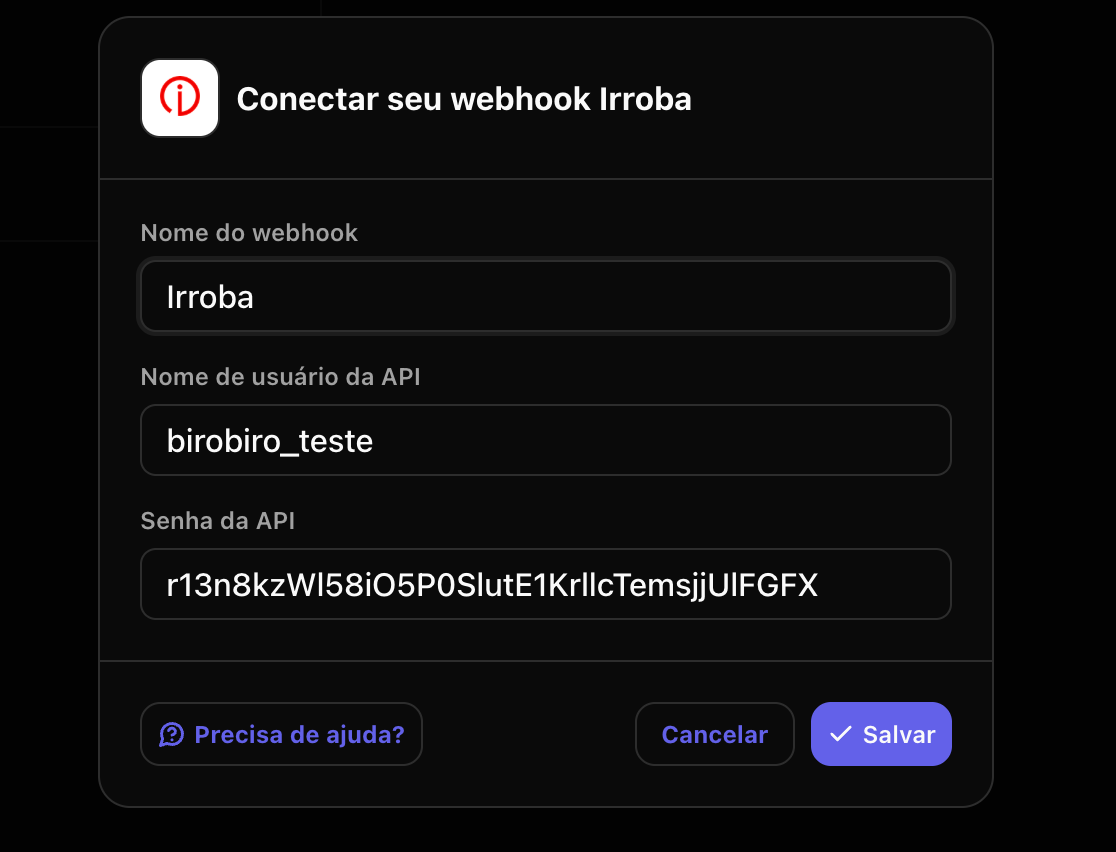
5. Fill in the Webhook data with the information from **step 3**
   <img src="https://mintcdn.com/nemu/1PP-evrYzqGXeyQk/assets/pages/integracoes/irroba/10.png?fit=max&auto=format&n=1PP-evrYzqGXeyQk&q=85&s=047b2fb6902926158a182d9c50510432" alt="" width="1116" height="852" data-path="assets/pages/integracoes/irroba/10.png" />

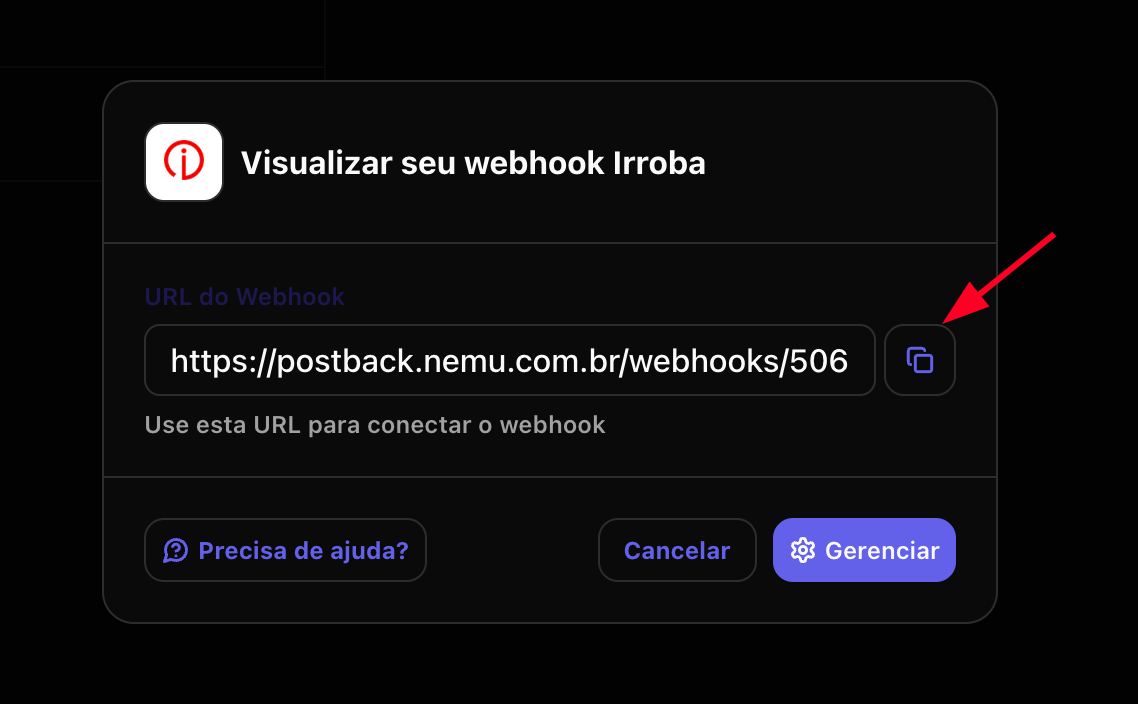
6. Copy the generated Webhook URL and return to Irroba
   <img src="https://mintcdn.com/nemu/1PP-evrYzqGXeyQk/assets/pages/integracoes/irroba/11.png?fit=max&auto=format&n=1PP-evrYzqGXeyQk&q=85&s=bdf4a84d04afe53474d6c6ccce98ab3f" alt="" width="1138" height="704" data-path="assets/pages/integracoes/irroba/11.png" />

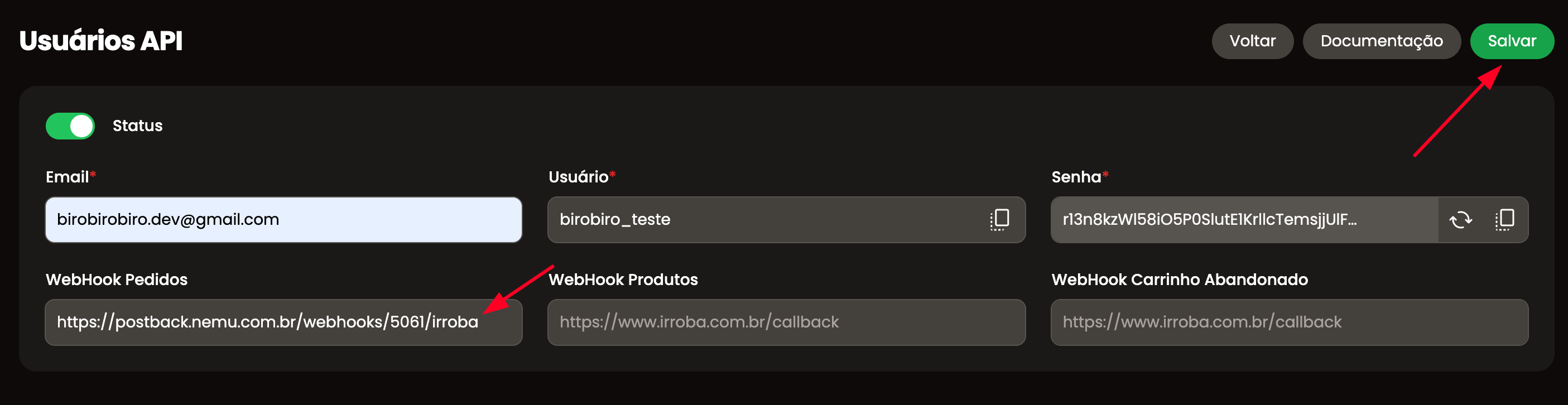
7. Paste the URL copied from the previous step and click on **Save**
   <img src="https://mintcdn.com/nemu/1PP-evrYzqGXeyQk/assets/pages/integracoes/irroba/13.png?fit=max&auto=format&n=1PP-evrYzqGXeyQk&q=85&s=aaaeefc3f1fac6010c896486791b3ef5" alt="" width="2810" height="726" data-path="assets/pages/integracoes/irroba/13.png" />

Done, your integration with Nemu is complete 🚀