> ## Documentation Index
> Fetch the complete documentation index at: https://docs.nemu.com.br/llms.txt
> Use this file to discover all available pages before exploring further.
# JetEcommerce
> How to connect your JetEcommerce account to Nemu Dashboard
## Generating JetEcommerce OpenAPI Credentials
These credentials will be used to connect your JetEcommerce store to Nemu
1. Access the JetEcommerce platform and click on **Settings > OpenAPI Credentials (V 1.0)**.
2. Click on the **+ New partner** button.
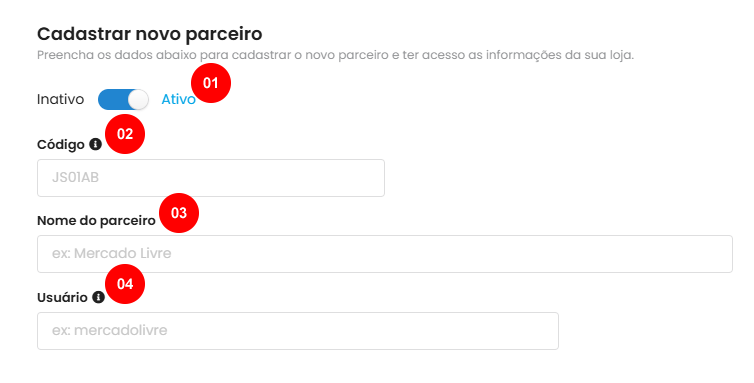
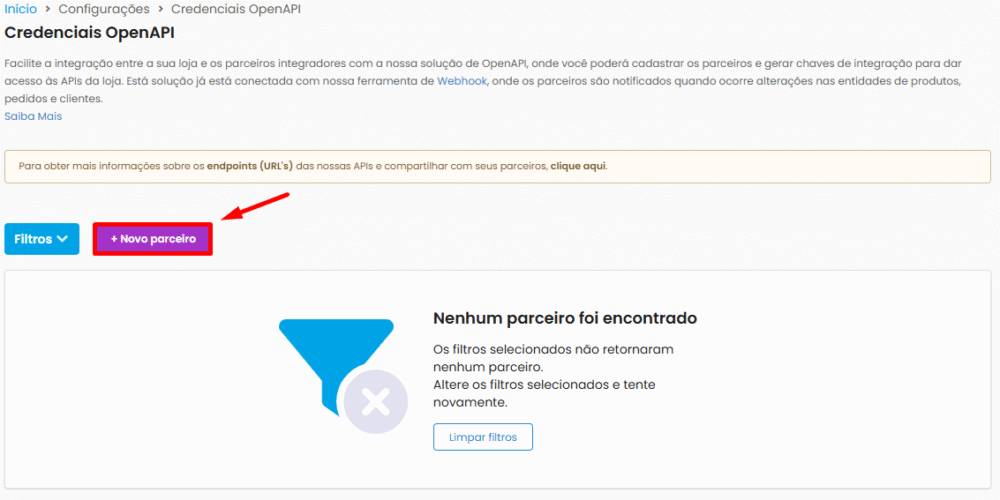 3. Fill in the **code**, **partner name**, and **user** fields with **Nemu**.
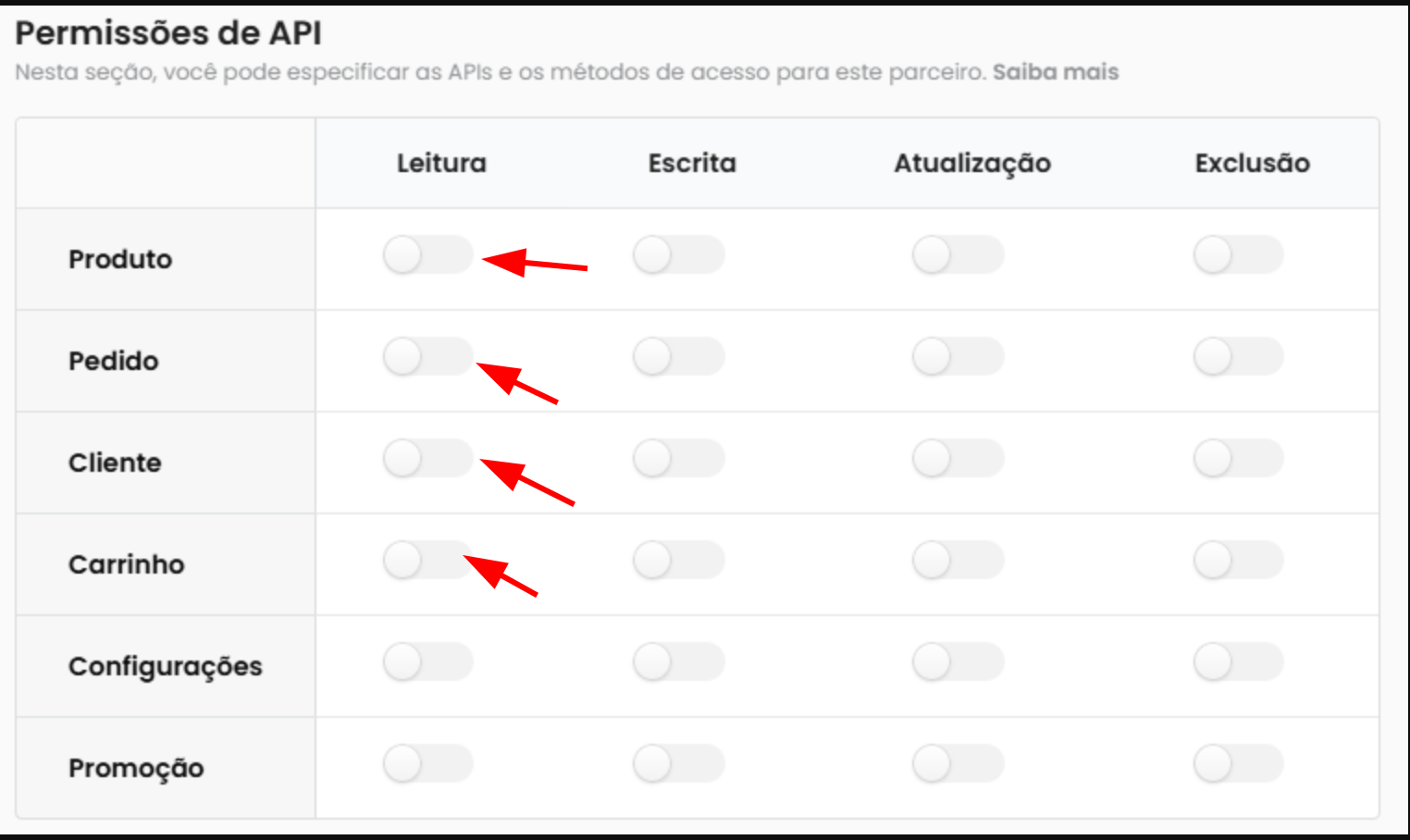
 4. Grant **read** permissions for the following items:
* **Product**
* **Order**
* **Customer**
* **Cart**
4. Grant **read** permissions for the following items:
* **Product**
* **Order**
* **Customer**
* **Cart**
 5. Click on **Register partner**.
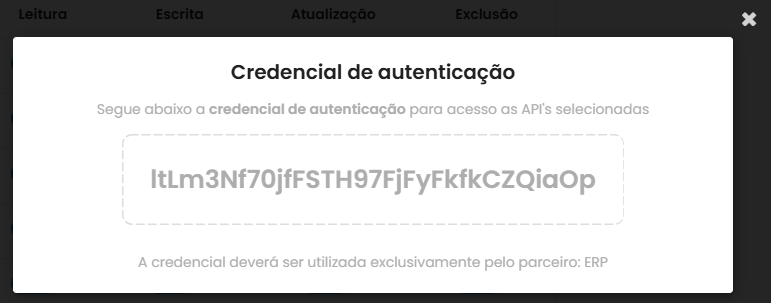
 6. Copy the **Authentication Credential** displayed on the screen.
Keep this credential safe, as it will be used for the connection to Nemu.
6. Copy the **Authentication Credential** displayed on the screen.
Keep this credential safe, as it will be used for the connection to Nemu.
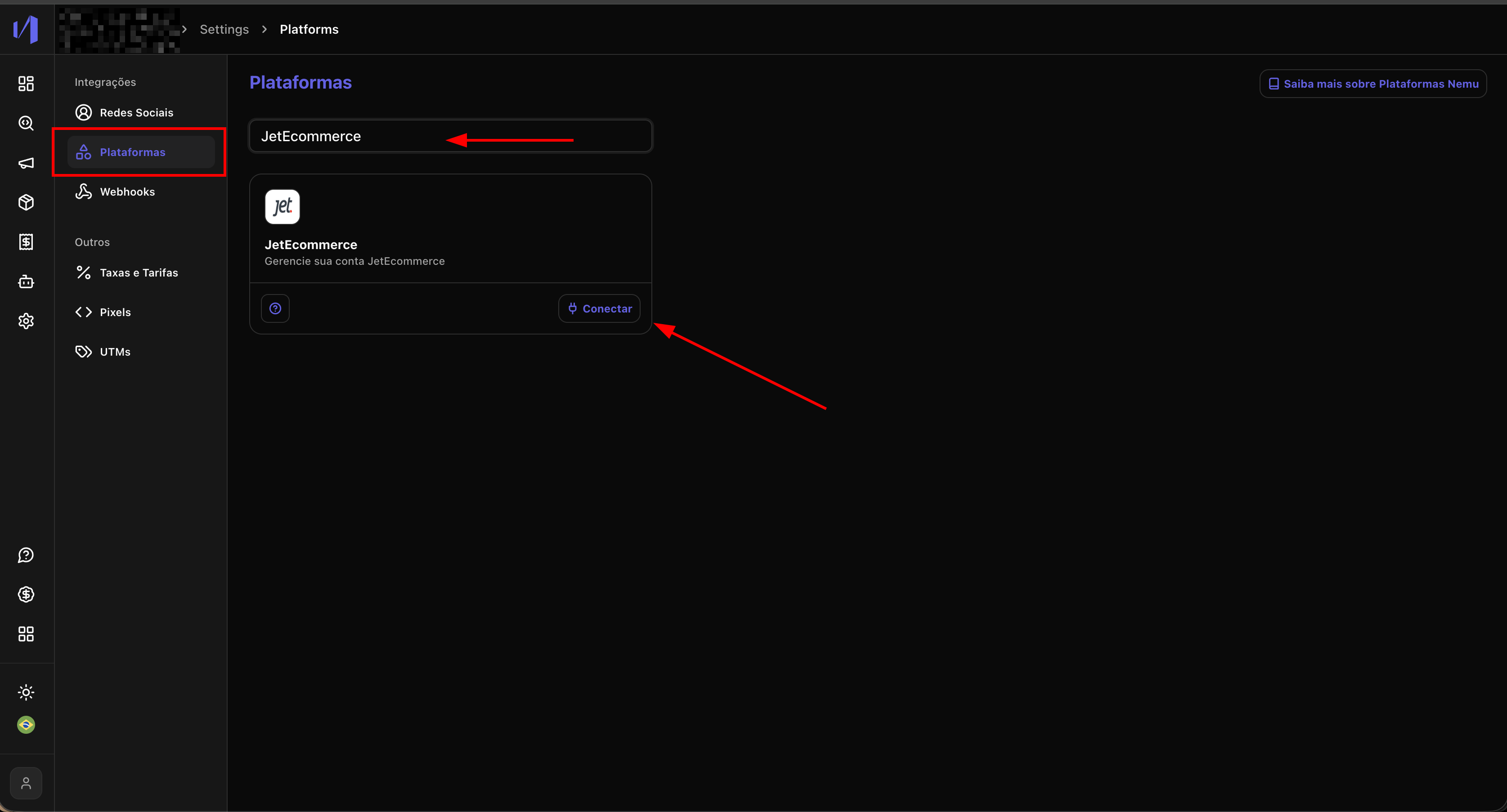
 7. In Nemu, go to **Settings > Platforms**, search for **JetEcommerce** and click on **Connect**.
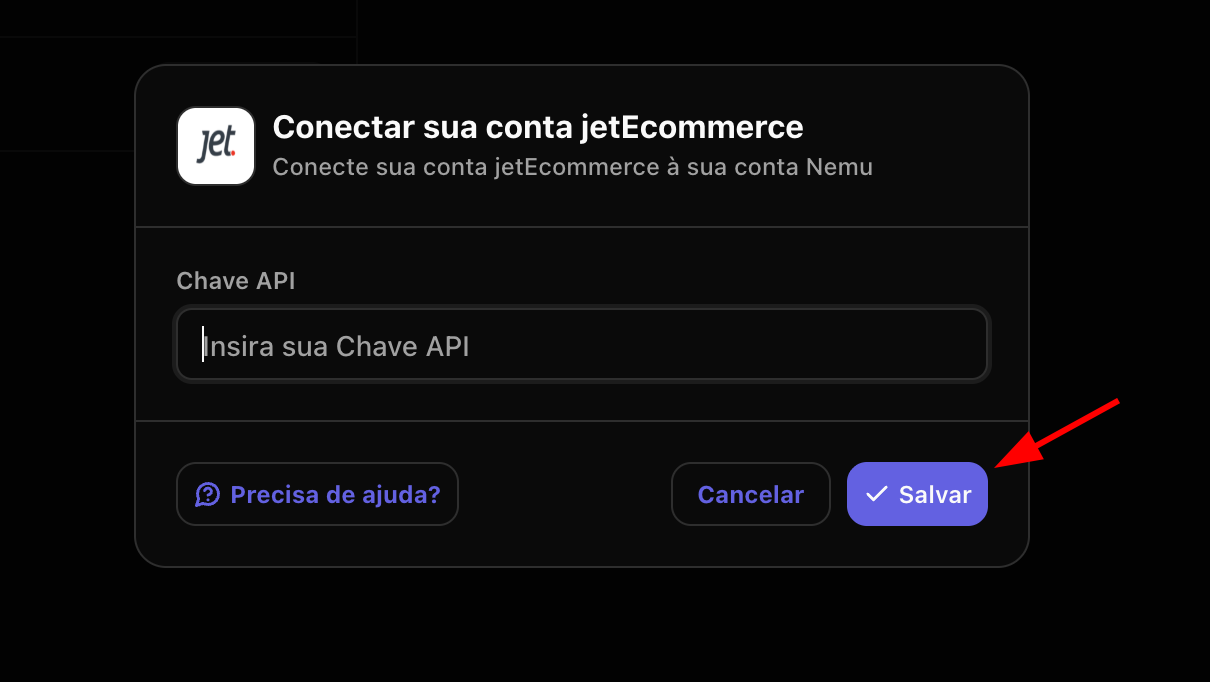
 8. Paste the credential copied in **step 6** and click on **Save**.
 ***
## Setting Up Webhooks
Webhooks allow JetEcommerce to automatically send updates to Nemu.
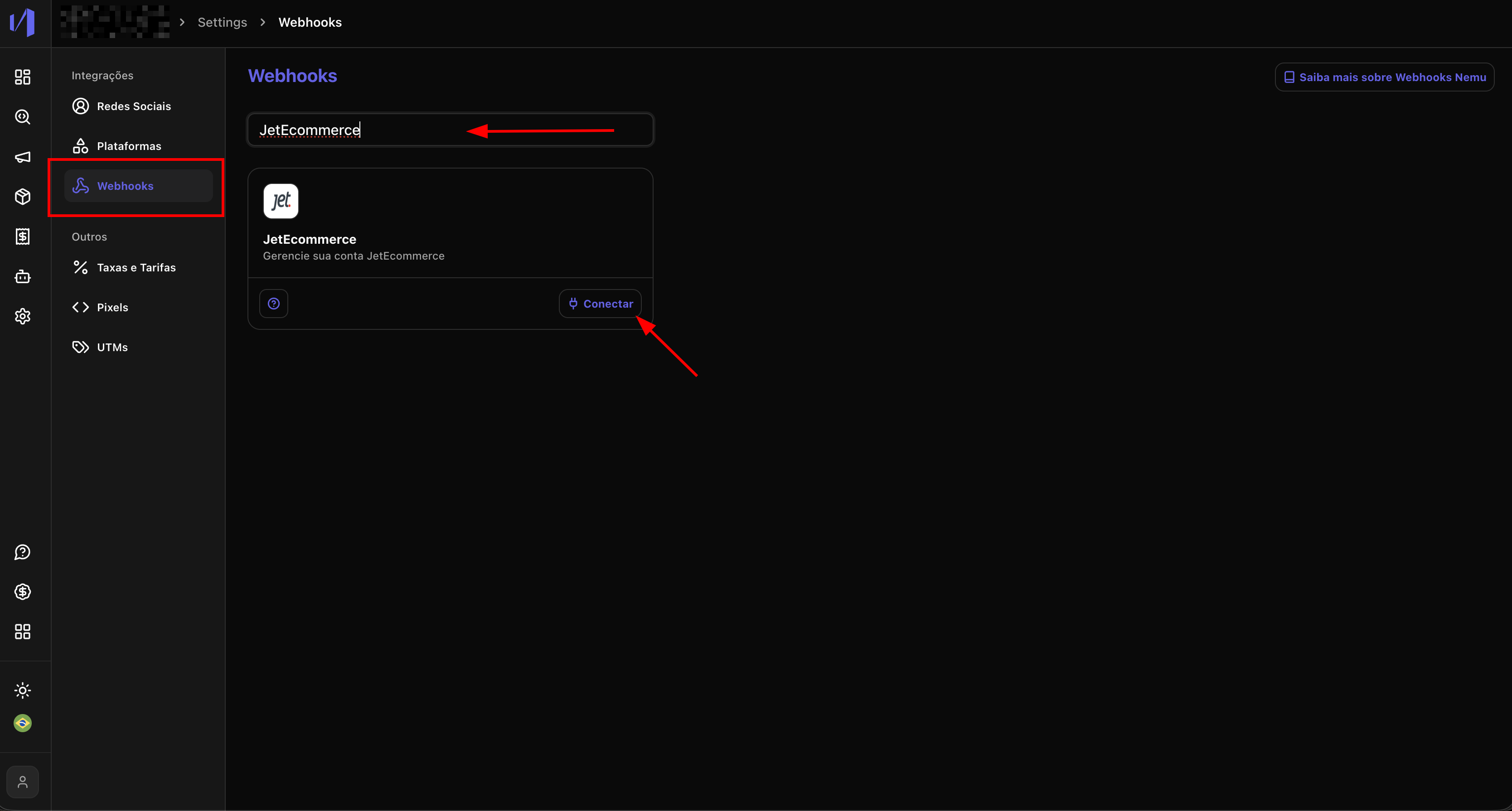
1. In Nemu, go to **Settings > Webhooks**, search for **JetEcommerce** and click on **Connect**.
***
## Setting Up Webhooks
Webhooks allow JetEcommerce to automatically send updates to Nemu.
1. In Nemu, go to **Settings > Webhooks**, search for **JetEcommerce** and click on **Connect**.
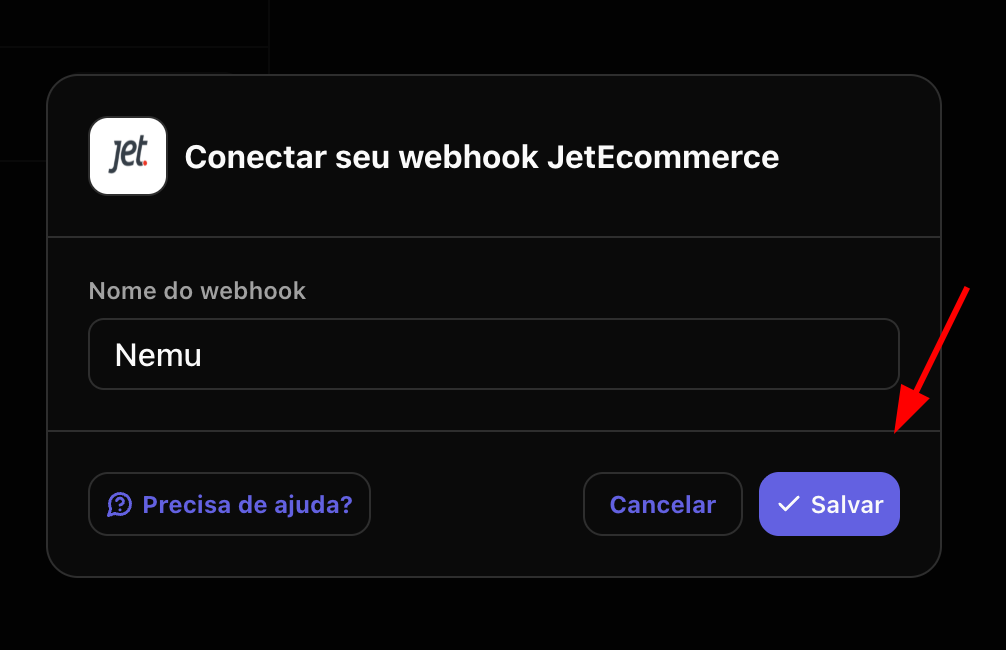
 2. Define a name for the webhook and click on **Save**.
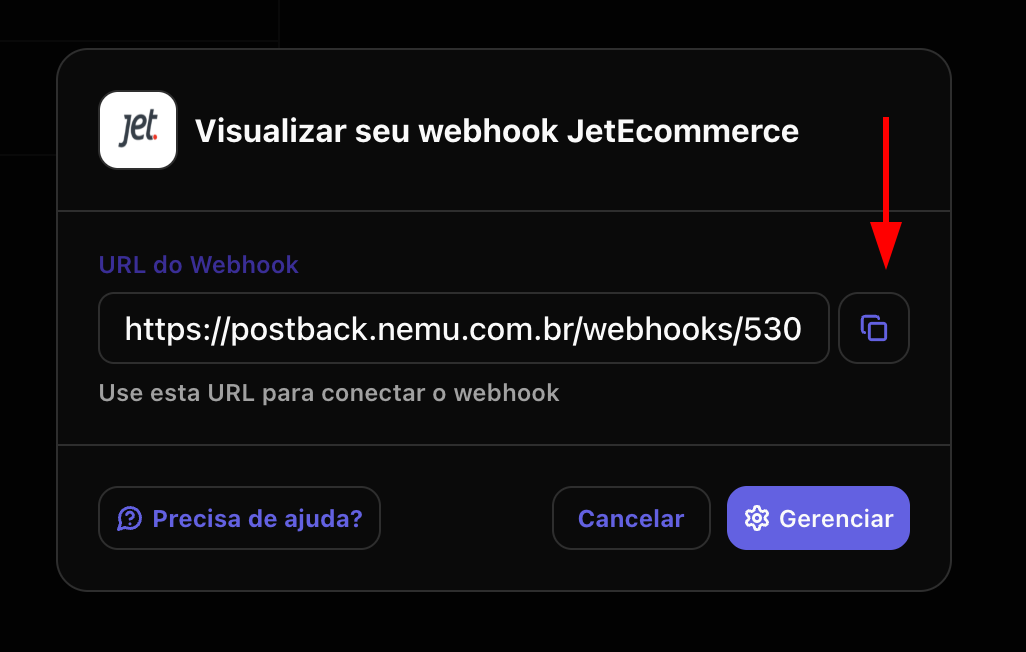
 3. Copy the generated **Webhook URL**.
This URL will be used in the JetEcommerce configuration in the next step.
3. Copy the generated **Webhook URL**.
This URL will be used in the JetEcommerce configuration in the next step.
 4. Access the JetEcommerce platform and click on **Settings > Webhooks**.
5. Click on the **+ New webhook** button.
4. Access the JetEcommerce platform and click on **Settings > Webhooks**.
5. Click on the **+ New webhook** button.
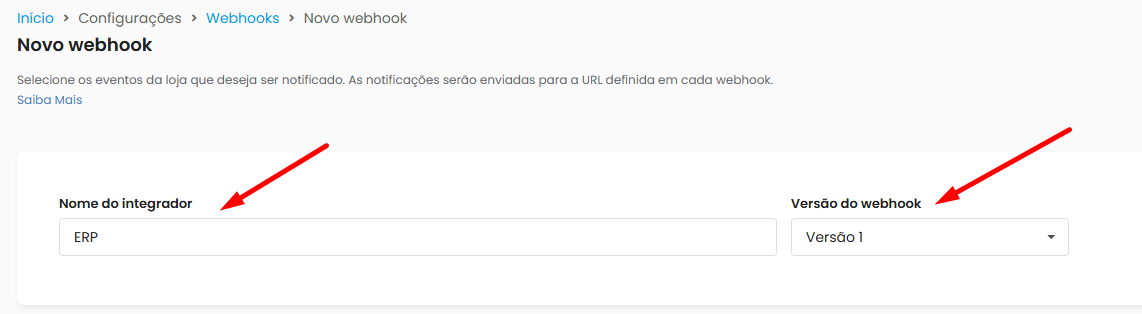
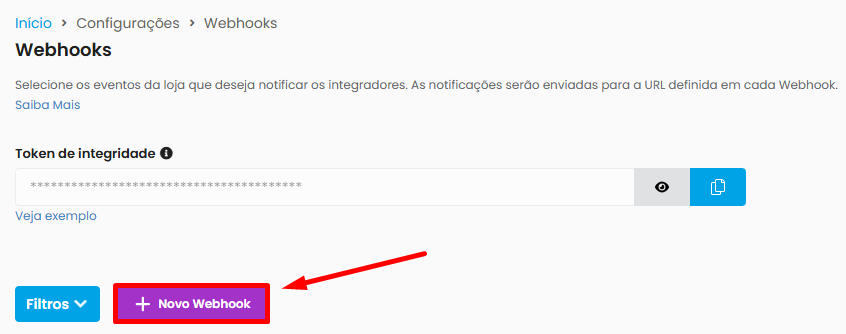 6. Enter the **Integrator Name** as **Nemu** and the **Webhook Version** as **Version 1**.
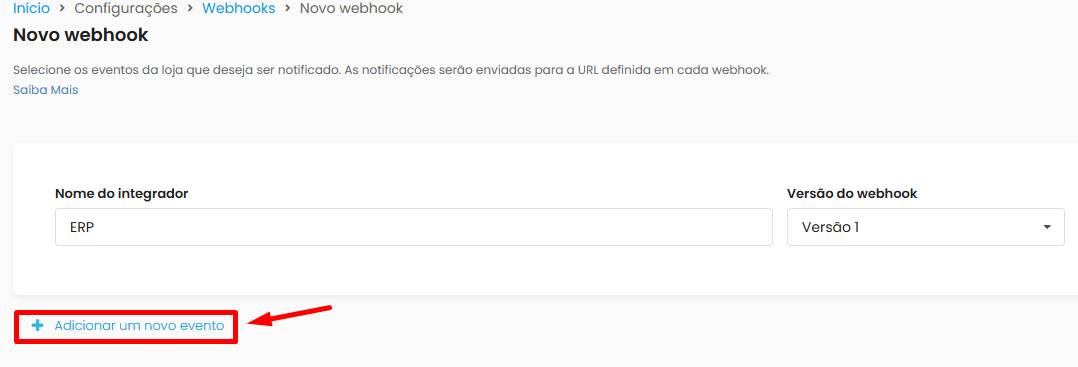
 7. Click on **+ Add a new event**.
 8. Configure as per the table below, using the **URL** copied in **step 3**
| Entity | Event | Notification URL |
| -------- | ----------------------- | --------------------------- |
| ORDERS | Order created | URL copied in previous step |
| ORDERS | Order status changes | URL copied in previous step |
| PRODUCTS | Product registered | URL copied in previous step |
| PRODUCTS | Price and stock changes | URL copied in previous step |
8. Configure as per the table below, using the **URL** copied in **step 3**
| Entity | Event | Notification URL |
| -------- | ----------------------- | --------------------------- |
| ORDERS | Order created | URL copied in previous step |
| ORDERS | Order status changes | URL copied in previous step |
| PRODUCTS | Product registered | URL copied in previous step |
| PRODUCTS | Price and stock changes | URL copied in previous step |
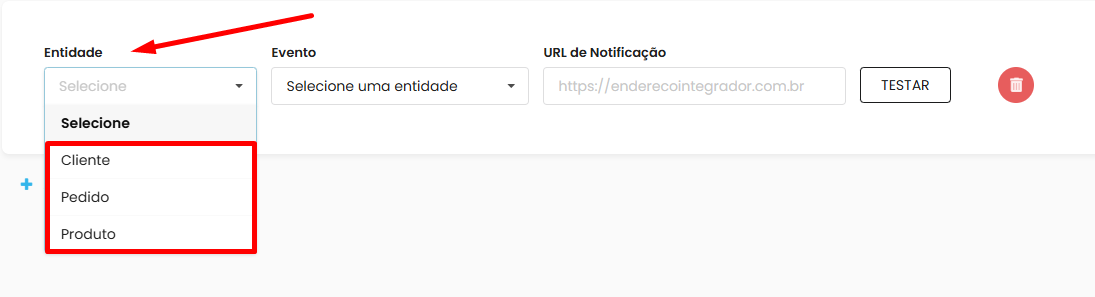 9. Click on **Save Webhook**.
 Done! Your JetEcommerce integration is configured and orders and products will start synchronizing automatically in Nemu.