> ## Documentation Index
> Fetch the complete documentation index at: https://docs.nemu.com.br/llms.txt
> Use this file to discover all available pages before exploring further.

# Kirvano

> How to connect Kirvano to Nemu Dashboard

## Setting Up Webhooks in Nemu Dashboard

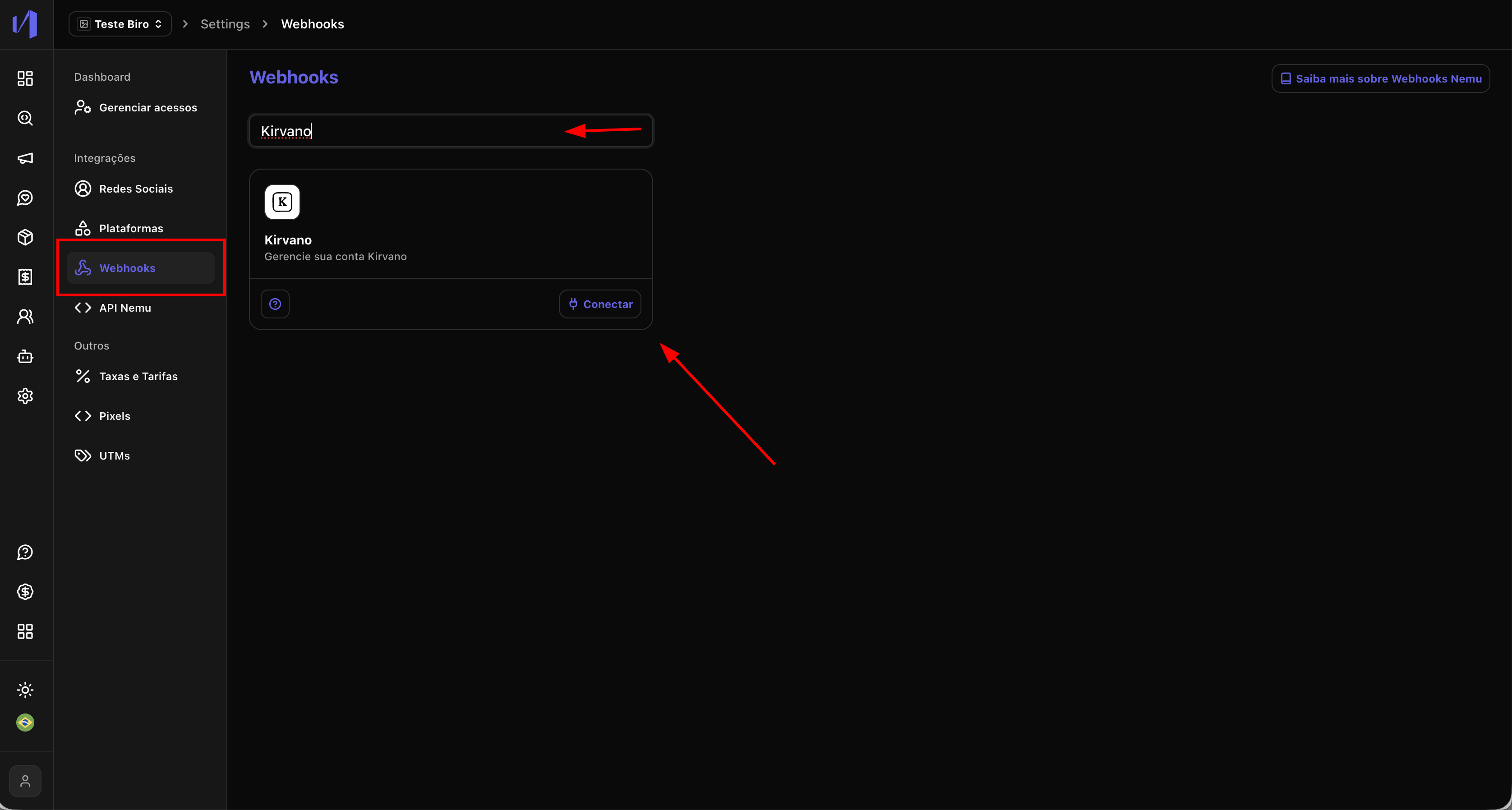
1. In the Nemu panel, go to **Settings** > **Webhooks**.
2. Search for **Kirvano** and click on **Connect**.
<img src="https://mintcdn.com/nemu/kxqKrO80B3-lM9e0/assets/pages/integracoes/kirvano/1.png?fit=max&auto=format&n=kxqKrO80B3-lM9e0&q=85&s=ec9edf491abdc2fdee81d682b156e278" alt="" width="3352" height="1796" data-path="assets/pages/integracoes/kirvano/1.png" />

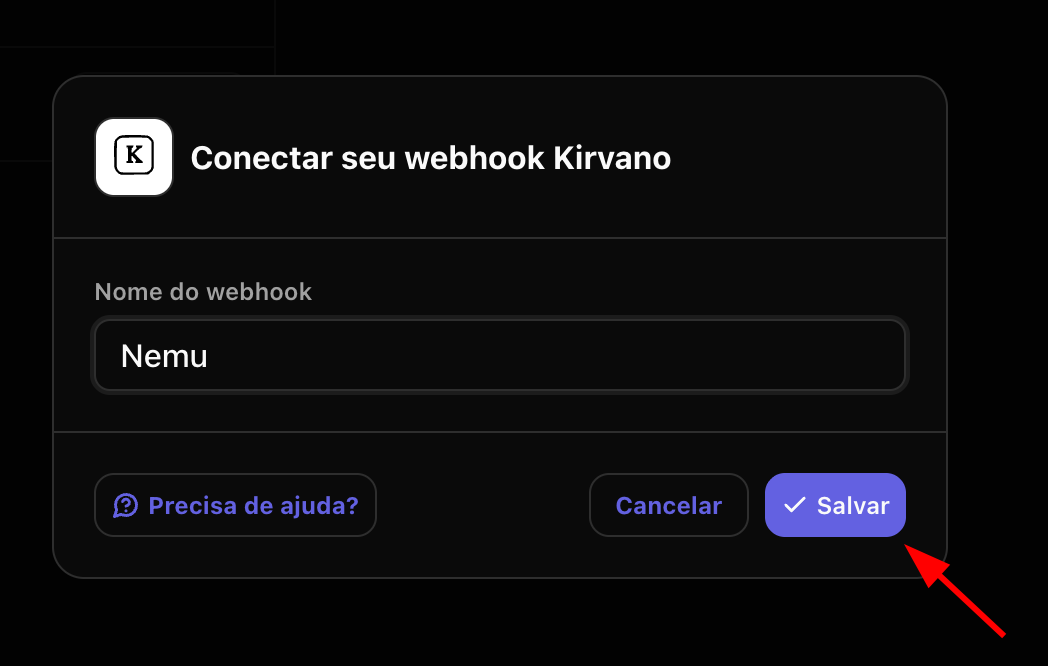
3. Define a **name** for the webhook and click on **Save**.
<img src="https://mintcdn.com/nemu/kxqKrO80B3-lM9e0/assets/pages/integracoes/kirvano/2.png?fit=max&auto=format&n=kxqKrO80B3-lM9e0&q=85&s=bc95d990fd32f7b27995649afddead0b" alt="" width="1048" height="666" data-path="assets/pages/integracoes/kirvano/2.png" />

4. Click the button to **copy** the **webhook URL** generated by Nemu.
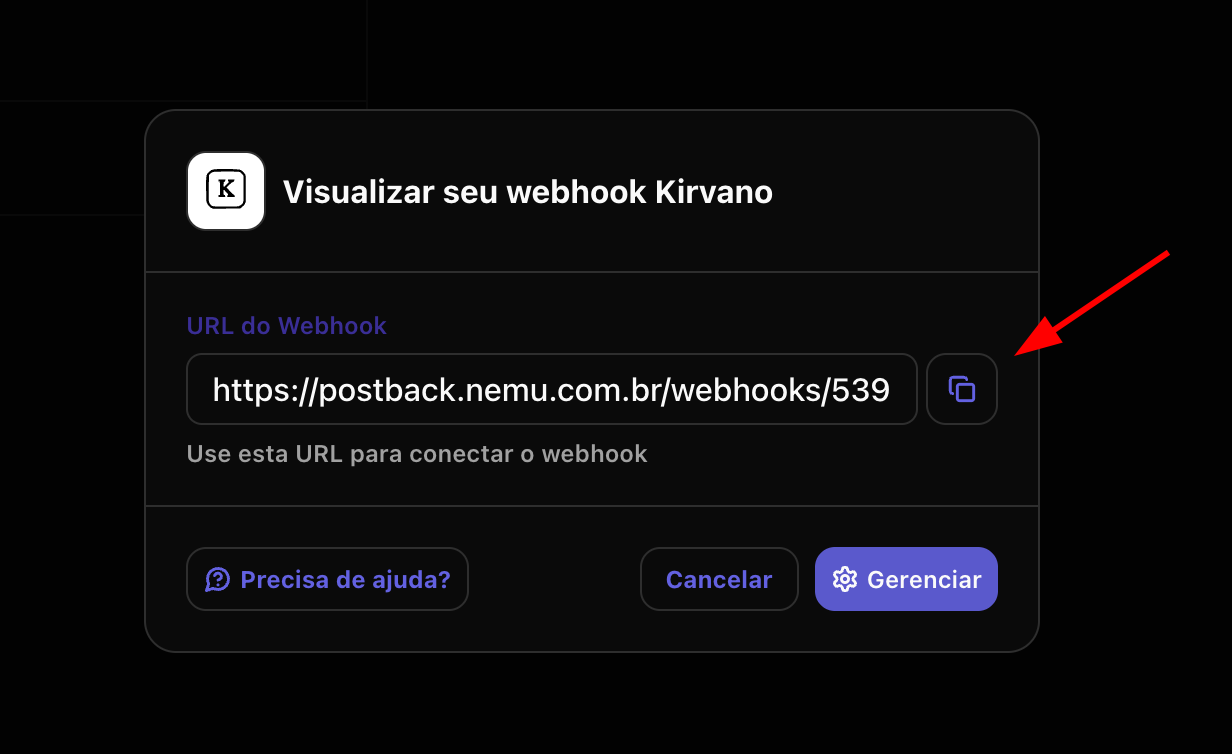
<img src="https://mintcdn.com/nemu/kxqKrO80B3-lM9e0/assets/pages/integracoes/kirvano/3.png?fit=max&auto=format&n=kxqKrO80B3-lM9e0&q=85&s=9ffaaf12152956fb1bf0cd73b4ebda50" alt="" width="1232" height="754" data-path="assets/pages/integracoes/kirvano/3.png" />

## Setting Up Webhooks in Kirvano Dashboard

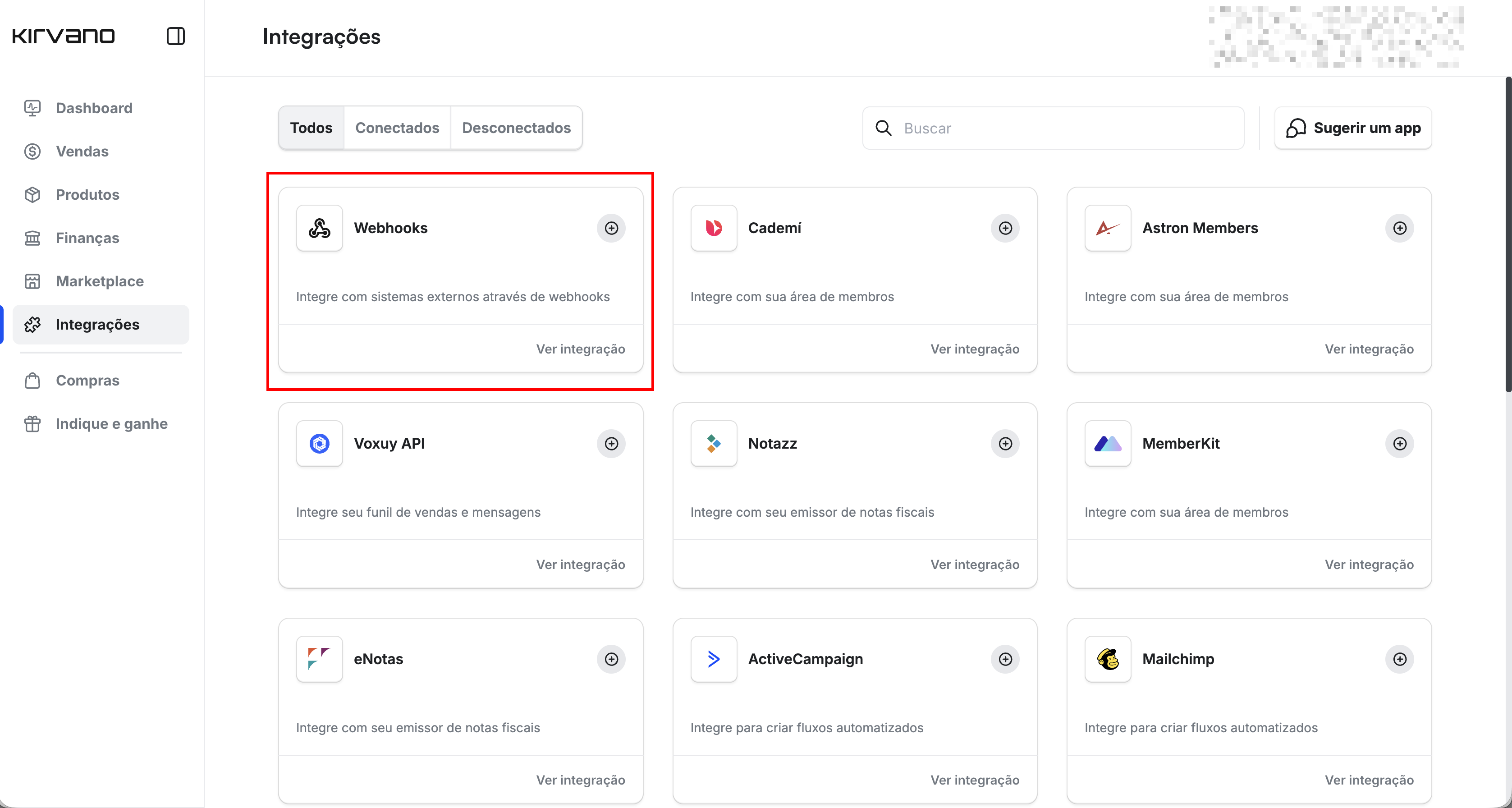
1. In the Kirvano panel, click on **Integrations** in the left sidebar.
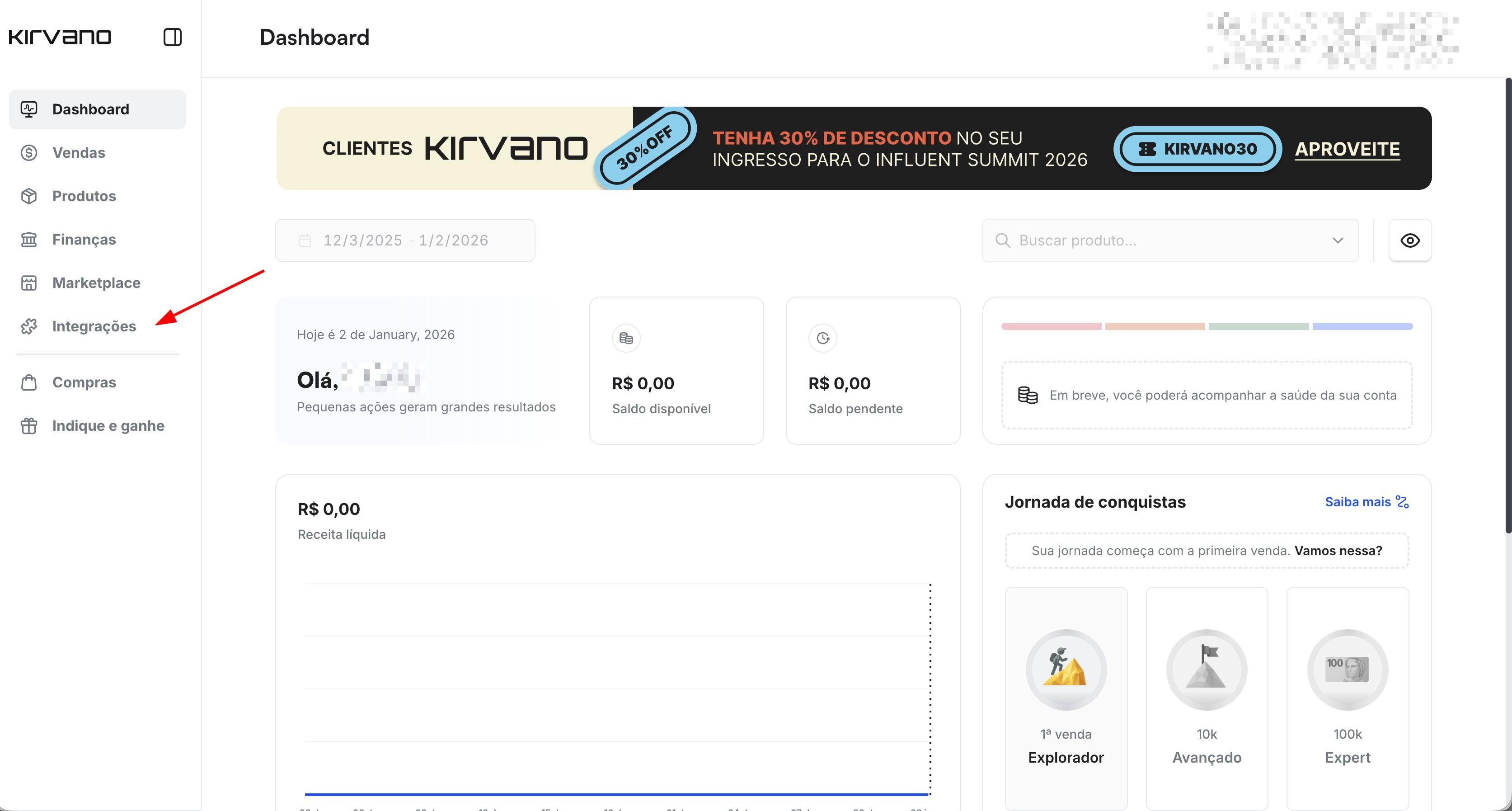
<img src="https://mintcdn.com/nemu/kxqKrO80B3-lM9e0/assets/pages/integracoes/kirvano/4.png?fit=max&auto=format&n=kxqKrO80B3-lM9e0&q=85&s=ca06240158e639ca006129069e30660d" alt="" width="3346" height="1794" data-path="assets/pages/integracoes/kirvano/4.png" />

2. Click on the **Webhooks** card

<img src="https://mintcdn.com/nemu/kxqKrO80B3-lM9e0/assets/pages/integracoes/kirvano/5.png?fit=max&auto=format&n=kxqKrO80B3-lM9e0&q=85&s=3fe09af9d1db6d720e7177a2dca38409" alt="" width="3354" height="1792" data-path="assets/pages/integracoes/kirvano/5.png" />

3. Click on the **Add Integration** button
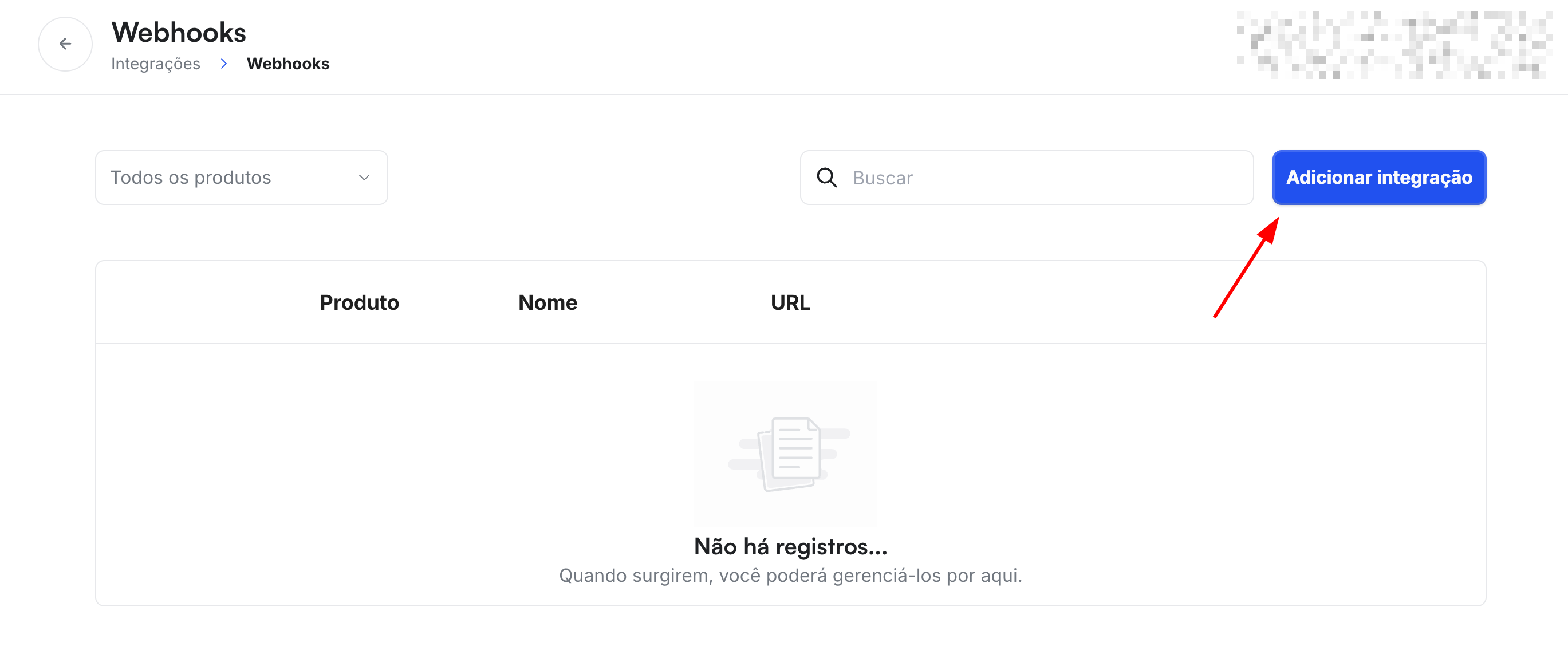
<img src="https://mintcdn.com/nemu/kxqKrO80B3-lM9e0/assets/pages/integracoes/kirvano/6.png?fit=max&auto=format&n=kxqKrO80B3-lM9e0&q=85&s=a7c0c30f2f77247db68b93c8ecefe34a" alt="" width="2738" height="1170" data-path="assets/pages/integracoes/kirvano/6.png" />

4. Define a **name** for the Webhook and paste the **webhook URL** generated by Nemu.
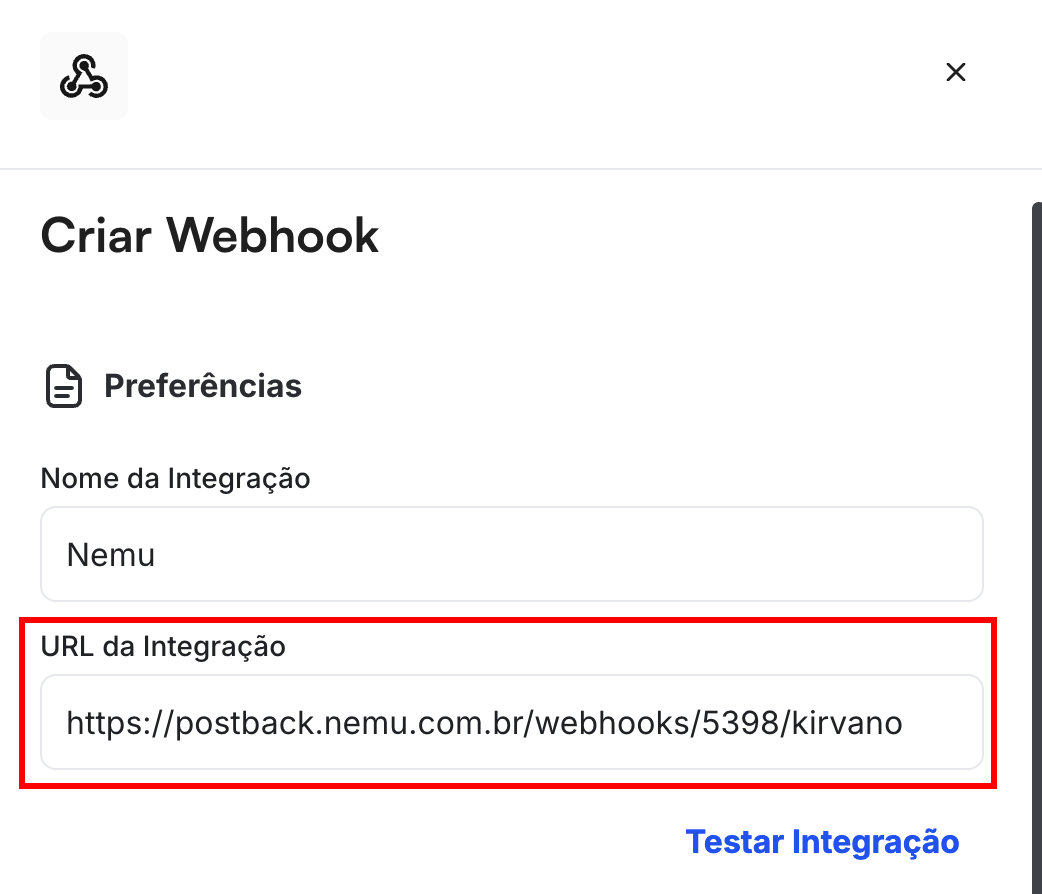
<img src="https://mintcdn.com/nemu/kxqKrO80B3-lM9e0/assets/pages/integracoes/kirvano/7.png?fit=max&auto=format&n=kxqKrO80B3-lM9e0&q=85&s=79473c43805f3486596477d3d785c522" alt="" width="1042" height="894" data-path="assets/pages/integracoes/kirvano/7.png" />

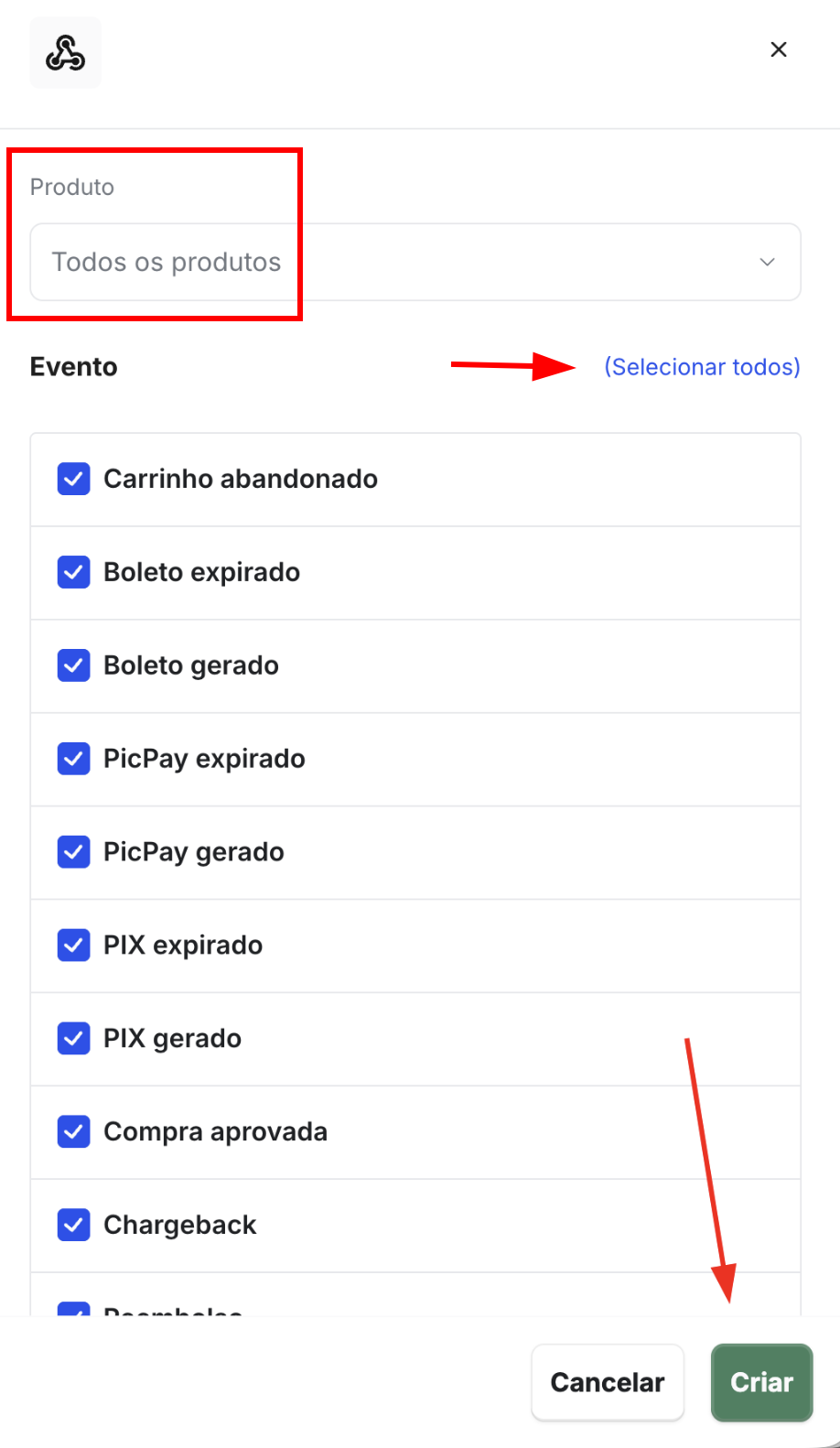
5. Select **All Products** and in Events click on **Select All** and click on **Save**.

<Tip>
  The Token field can be left blank.
</Tip>

<img src="https://mintcdn.com/nemu/kxqKrO80B3-lM9e0/assets/pages/integracoes/kirvano/8.png?fit=max&auto=format&n=kxqKrO80B3-lM9e0&q=85&s=35b2a53b831a60dca8557653b4a3cded" alt="" width="918" height="1582" data-path="assets/pages/integracoes/kirvano/8.png" />