> ## Documentation Index
> Fetch the complete documentation index at: https://docs.nemu.com.br/llms.txt
> Use this file to discover all available pages before exploring further.
# Magazord
> How to connect Magazord to Nemu Dashboard
To complete the integration, it is necessary to contact **Magazord support**.
Send them the `` generated in the [previous
step](/en/onboarding/configuring-pixel#4-click-on-the-button-to-copy-the-generated-script)
and the connection URL created at the end of this tutorial, so they can add it
correctly to your store.
## Setting Up Webhooks in Nemu
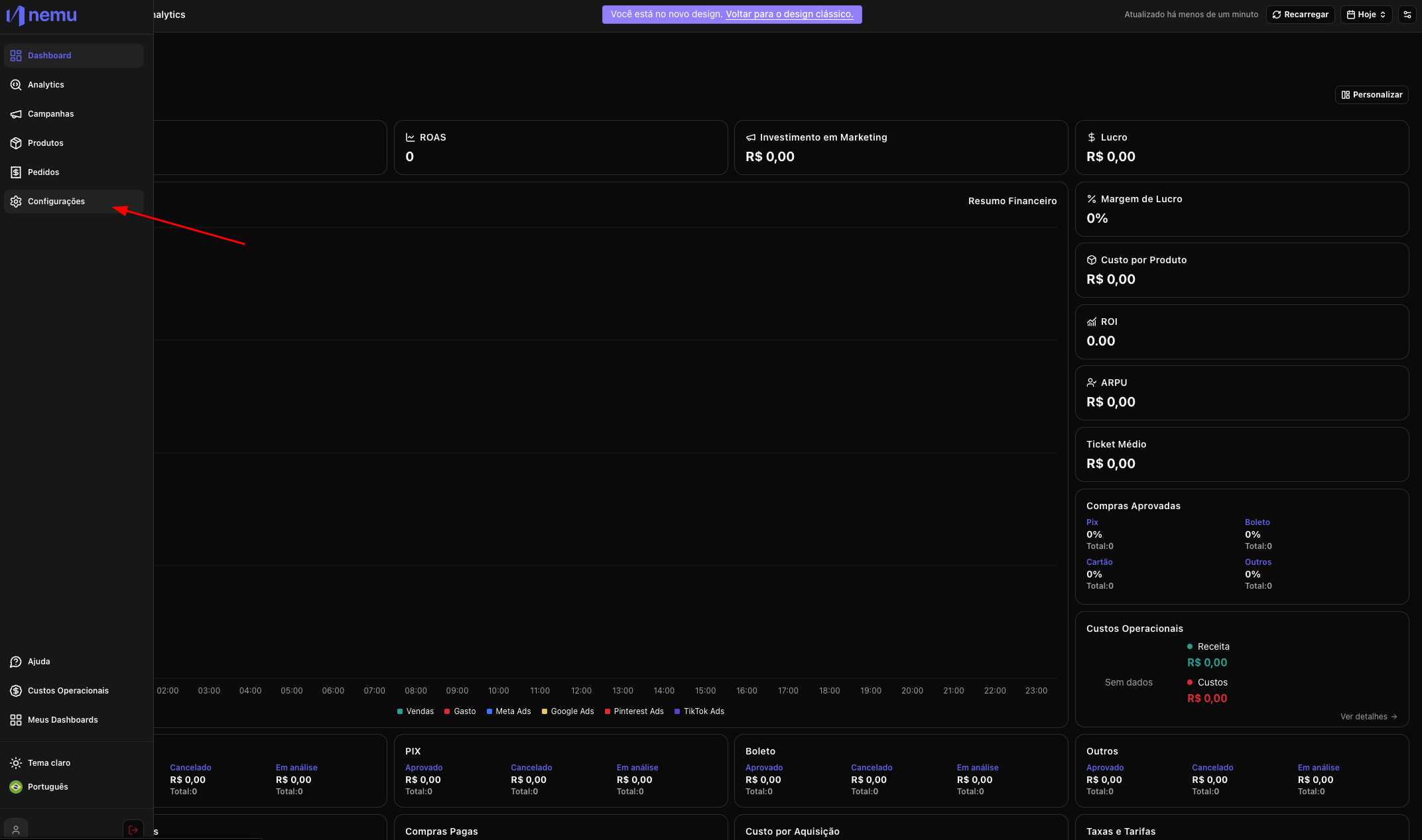
1. Access the sidebar menu of the Nemu dashboard and click on **Settings**.
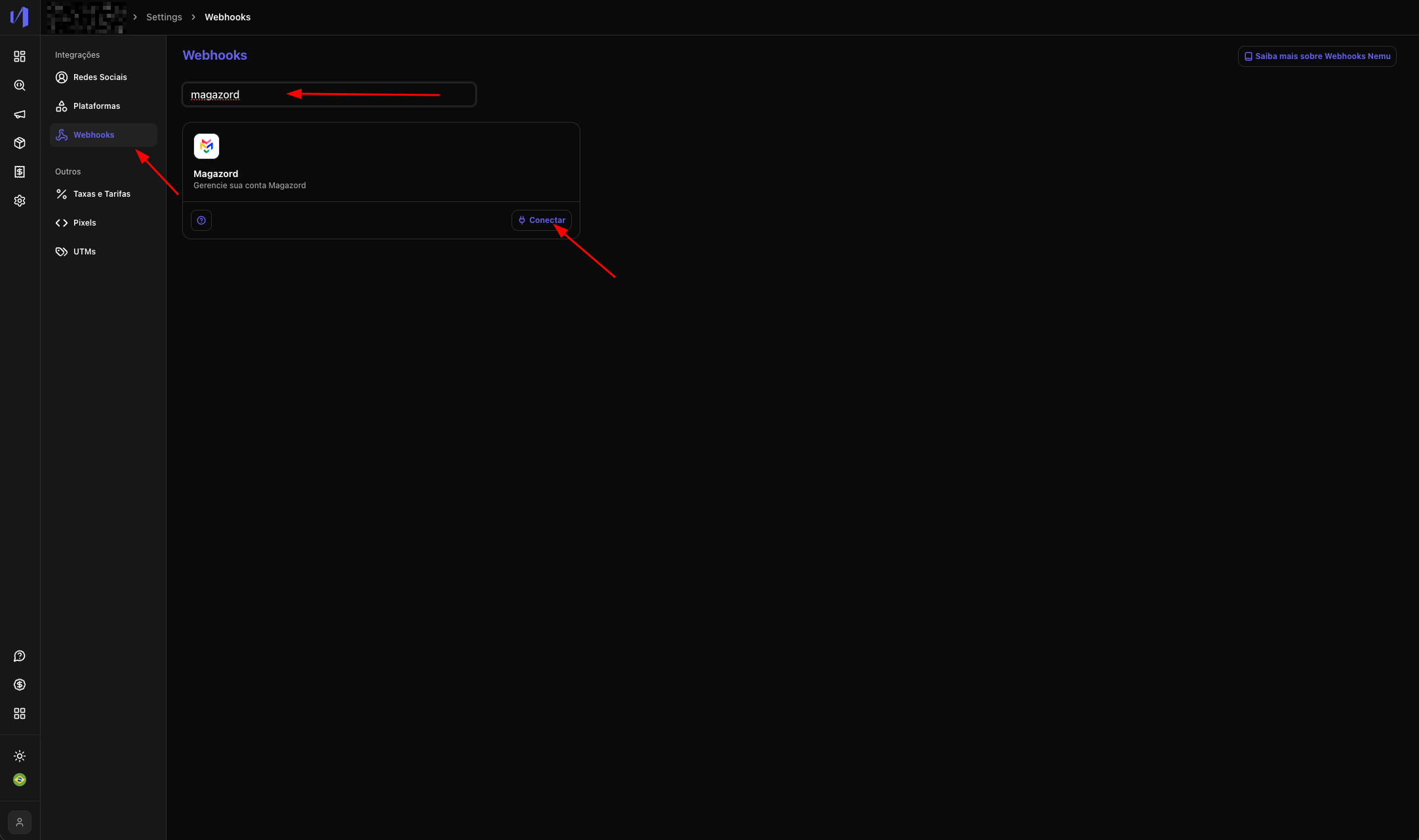
 2. Click on **Webhooks**, search for **Magazord** and select **Connect**.
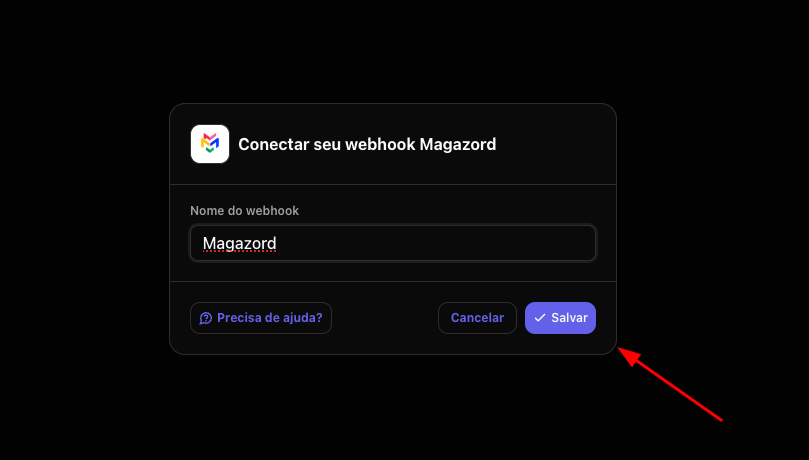
 3. Define a name for the Webhook and click on **Save**.
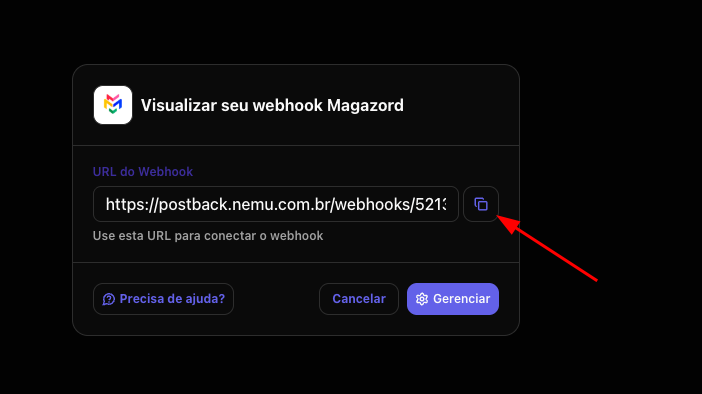
 4. Copy the generated **Connection URL**.
 ## Adding Scripts and Webhooks on Magazord
1. Contact Magazord support and request the configuration of **Orders** events for
the **Webhook URL** created in the previous step.
2. Also request the inclusion of the **Nemu pixel** (generated in [step 4 of
onboarding](/en/onboarding/configuring-pixel#4-click-on-the-button-to-copy-the-generated-script))
in the HTML of **all pages of your store**.
## Adding Scripts and Webhooks on Magazord
1. Contact Magazord support and request the configuration of **Orders** events for
the **Webhook URL** created in the previous step.
2. Also request the inclusion of the **Nemu pixel** (generated in [step 4 of
onboarding](/en/onboarding/configuring-pixel#4-click-on-the-button-to-copy-the-generated-script))
in the HTML of **all pages of your store**.