> ## Documentation Index
> Fetch the complete documentation index at: https://docs.nemu.com.br/llms.txt
> Use this file to discover all available pages before exploring further.
# Magento
> How to connect your Magento store to Nemu Dashboard
Magento can be integrated in two ways: via [**REST API**](/en/onboarding/integrations/magento#rest-api-integration) or via [**SOAP API**](/en/onboarding/integrations/magento#soap-api-integration). Choose the method according to the information available in your store.
## REST API Integration
Before starting the integration, request the following information from your Store support for the integration:
The integration will be done via **REST API** and will require the following information:
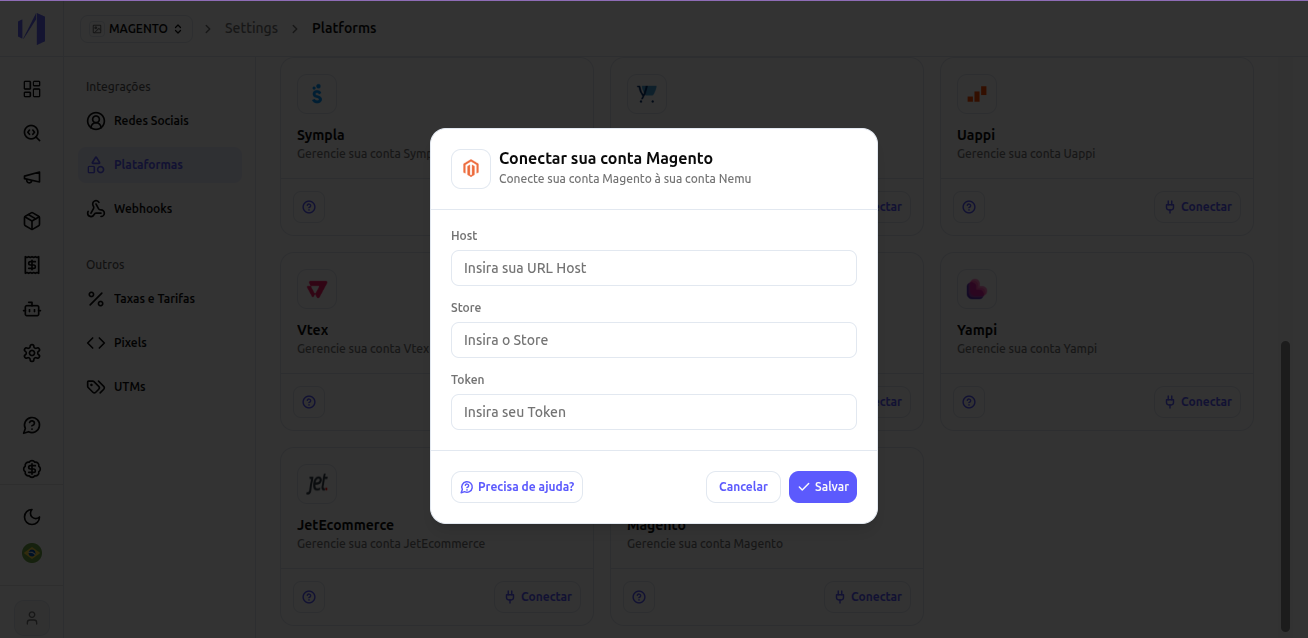
* **URL Host**
* **Store View**
* **Access Token**
Required permissions:
* **List orders**
* **View orders by id**
* **View products**
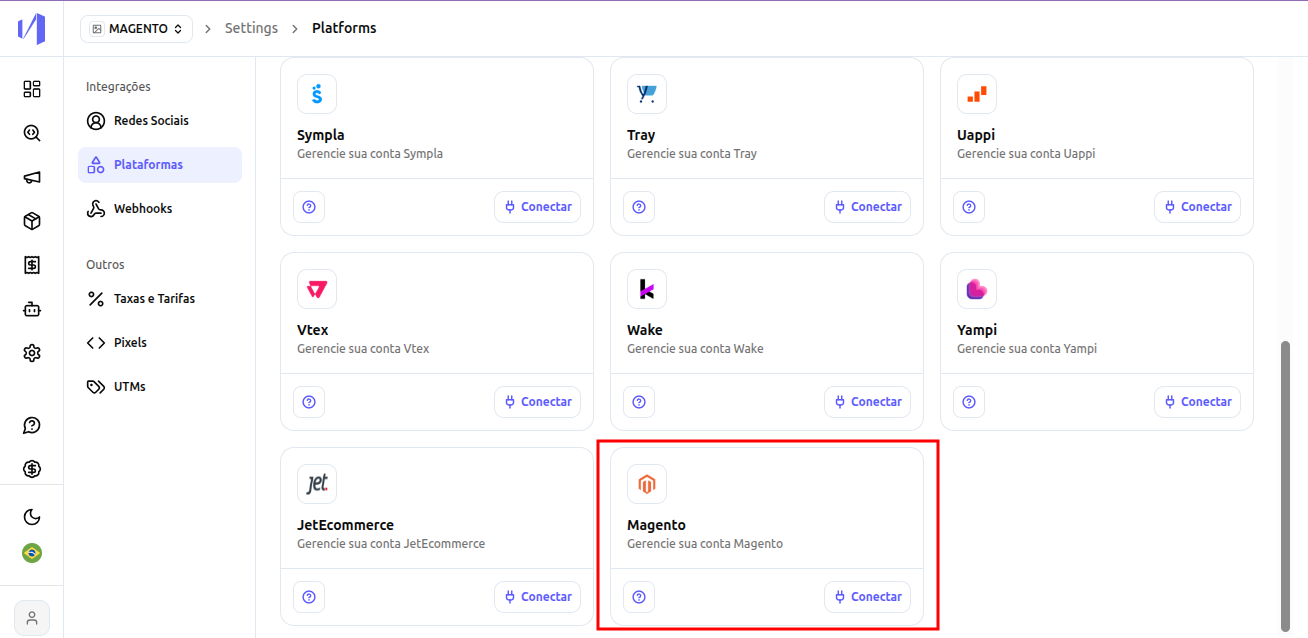
### 1. Access the integrations tab in your Nemu panel
In the main panel, go to **Settings > Platforms**.
Select the Magento Integration and click on **Connect**
 ### 2. Fill in the information with the data requested from your Store support
* After filling in all fields, click on **Save**.
### 2. Fill in the information with the data requested from your Store support
* After filling in all fields, click on **Save**.
 ### 3. Configure the Nemu Pixel
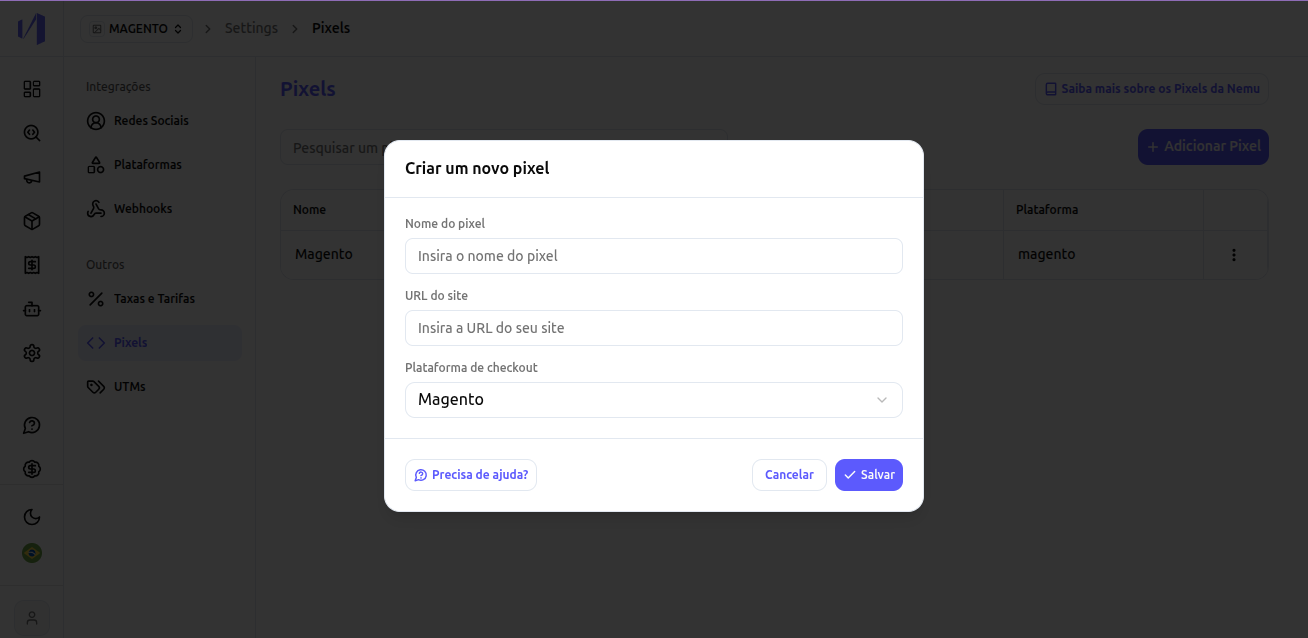
* In the main panel, go to **Settings > Pixels**.
* Click on **Add Pixel**.
* Fill in the fields and select the checkout platform **Magento**
* Click on **Save**
### 3. Configure the Nemu Pixel
* In the main panel, go to **Settings > Pixels**.
* Click on **Add Pixel**.
* Fill in the fields and select the checkout platform **Magento**
* Click on **Save**
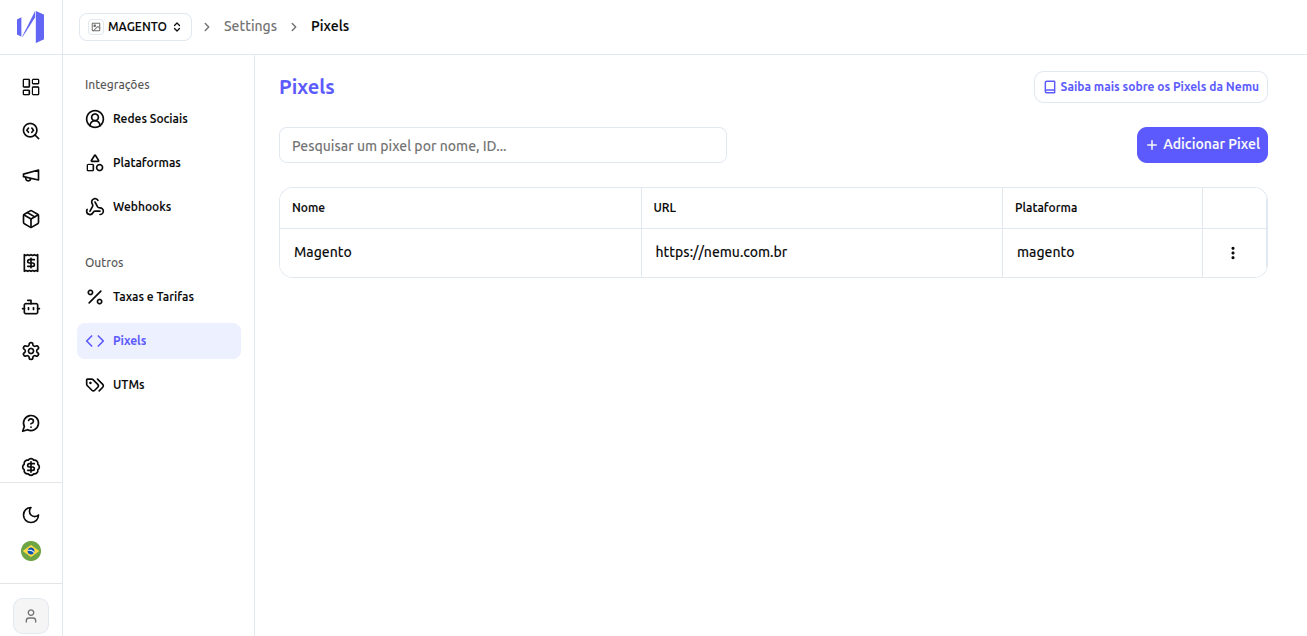
 * You will see your Pixel registered like this:
 ### 4. Complete the integration
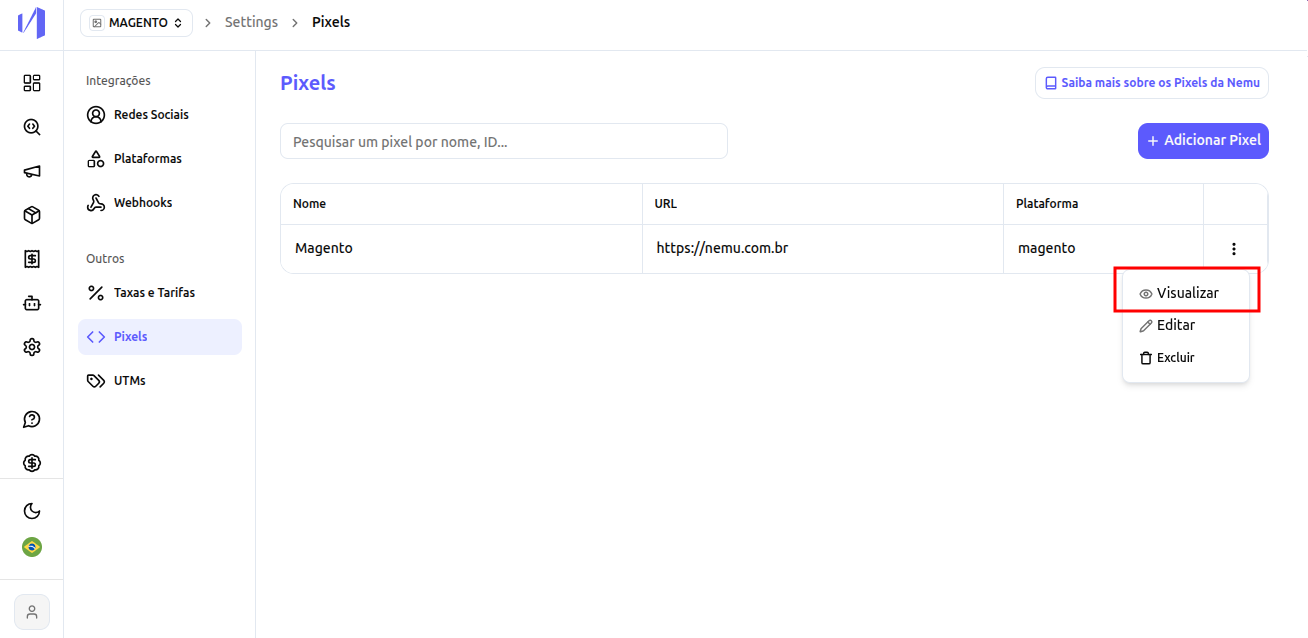
* Select to view the Nemu Pixel code.
### 4. Complete the integration
* Select to view the Nemu Pixel code.
 * Click the button to copy the code
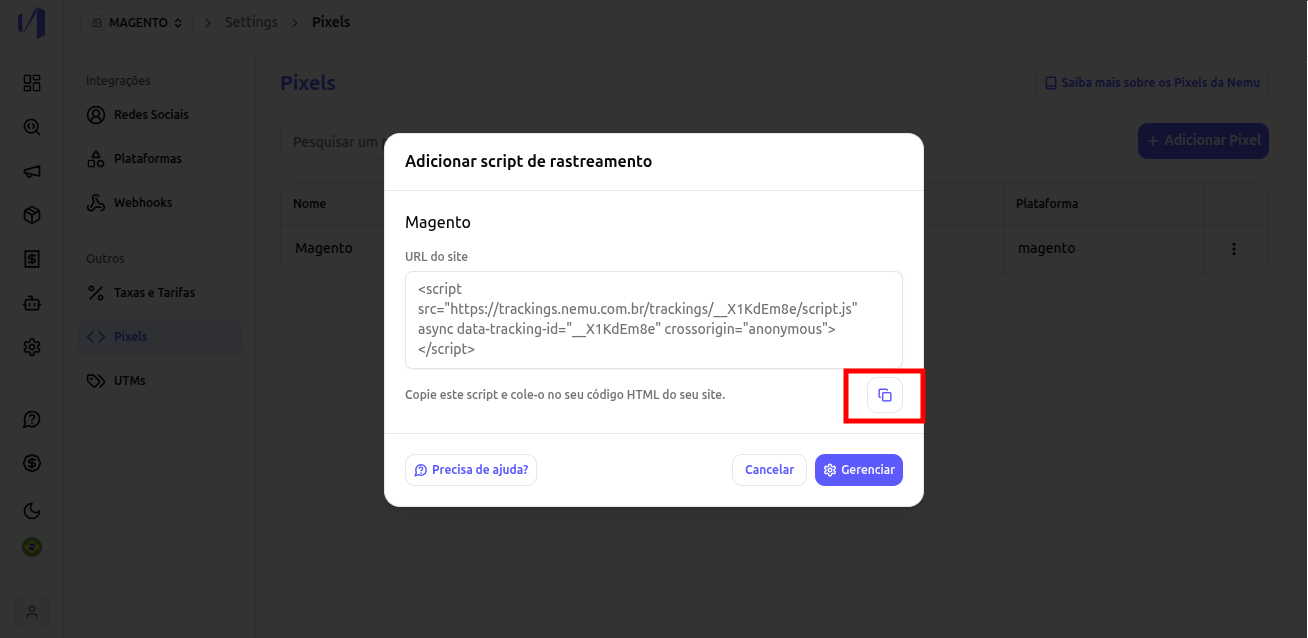 * Request your Store support to install this HTML code in the `` of **all store pages**.
Since this integration uses Webhooks, it will not be possible to capture
retroactive data. The data will start appearing in your dashboard as new
sales are made.
### 5. Add the Content Security Policies (CSP) in Magento
Magento applies a restrictive **Content Security Policy (CSP)**. By default, scripts and network calls from external domains, including those used by the Nemu Pixel, are **blocked**, which prevents the capture of tracking data on that page.
For the Nemu Pixel to work correctly, you must add the Nemu domains to your Magento store's **CSP whitelist**.
#### URLs that need to be whitelisted
Request your store support (or the responsible developer) to add the following domains to the CSP whitelist, in the `script-src`, `connect-src`, and `img-src` directives:
* `https://trackings.nemu.com.br`
* `https://openfpcdn.io`
* `https://ipinfo.io`
* `https://api.ipify.org`
* `https://api.bigdatacloud.net`
***
## SOAP API Integration
Before starting the integration, request the following information from your Store support for the integration:
* **Login**
* **Password**
* **SOAP API URL**
Required permissions:
* **List orders**
* **View orders by id**
* **View products**
For SOAP integration, it is necessary to release this **44.207.179.171** so
that API requests can be made
> The **SOAP API URL** must follow the format:
**[https://urldaloja/api/v2\_soap](https://urldaloja/api/v2_soap)**, replacing **urldaloja** with the original URL of your store.
For example, if your store URL is **[https://minhaloja.com.br](https://minhaloja.com.br)**, the SOAP API URL will be **[https://minhaloja.com.br/api/v2\_soap](https://minhaloja.com.br/api/v2_soap)**.
After getting the requested data, forward it to the Nemu support team for the integration configuration.
* Request your Store support to install this HTML code in the `` of **all store pages**.
Since this integration uses Webhooks, it will not be possible to capture
retroactive data. The data will start appearing in your dashboard as new
sales are made.
### 5. Add the Content Security Policies (CSP) in Magento
Magento applies a restrictive **Content Security Policy (CSP)**. By default, scripts and network calls from external domains, including those used by the Nemu Pixel, are **blocked**, which prevents the capture of tracking data on that page.
For the Nemu Pixel to work correctly, you must add the Nemu domains to your Magento store's **CSP whitelist**.
#### URLs that need to be whitelisted
Request your store support (or the responsible developer) to add the following domains to the CSP whitelist, in the `script-src`, `connect-src`, and `img-src` directives:
* `https://trackings.nemu.com.br`
* `https://openfpcdn.io`
* `https://ipinfo.io`
* `https://api.ipify.org`
* `https://api.bigdatacloud.net`
***
## SOAP API Integration
Before starting the integration, request the following information from your Store support for the integration:
* **Login**
* **Password**
* **SOAP API URL**
Required permissions:
* **List orders**
* **View orders by id**
* **View products**
For SOAP integration, it is necessary to release this **44.207.179.171** so
that API requests can be made
> The **SOAP API URL** must follow the format:
**[https://urldaloja/api/v2\_soap](https://urldaloja/api/v2_soap)**, replacing **urldaloja** with the original URL of your store.
For example, if your store URL is **[https://minhaloja.com.br](https://minhaloja.com.br)**, the SOAP API URL will be **[https://minhaloja.com.br/api/v2\_soap](https://minhaloja.com.br/api/v2_soap)**.
After getting the requested data, forward it to the Nemu support team for the integration configuration.