> ## Documentation Index
> Fetch the complete documentation index at: https://docs.nemu.com.br/llms.txt
> Use this file to discover all available pages before exploring further.
# Pepper
> How to connect Pepper to Nemu Dashboard
## Setting Up Webhooks in Nemu Dashboard
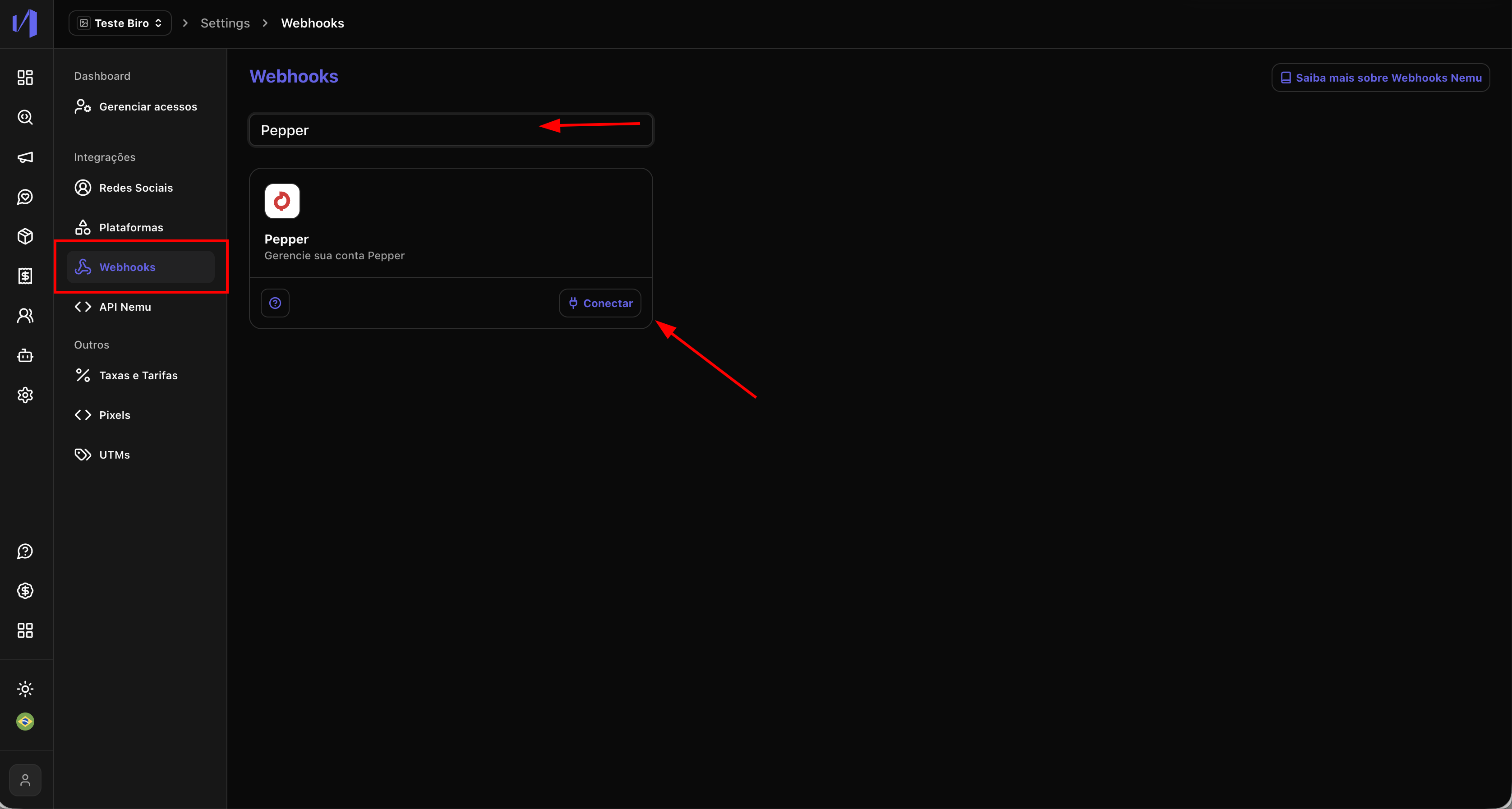
1. In the Nemu panel, go to **Settings** > **Webhooks**.
2. Search for **Pepper** and click on **Connect**.
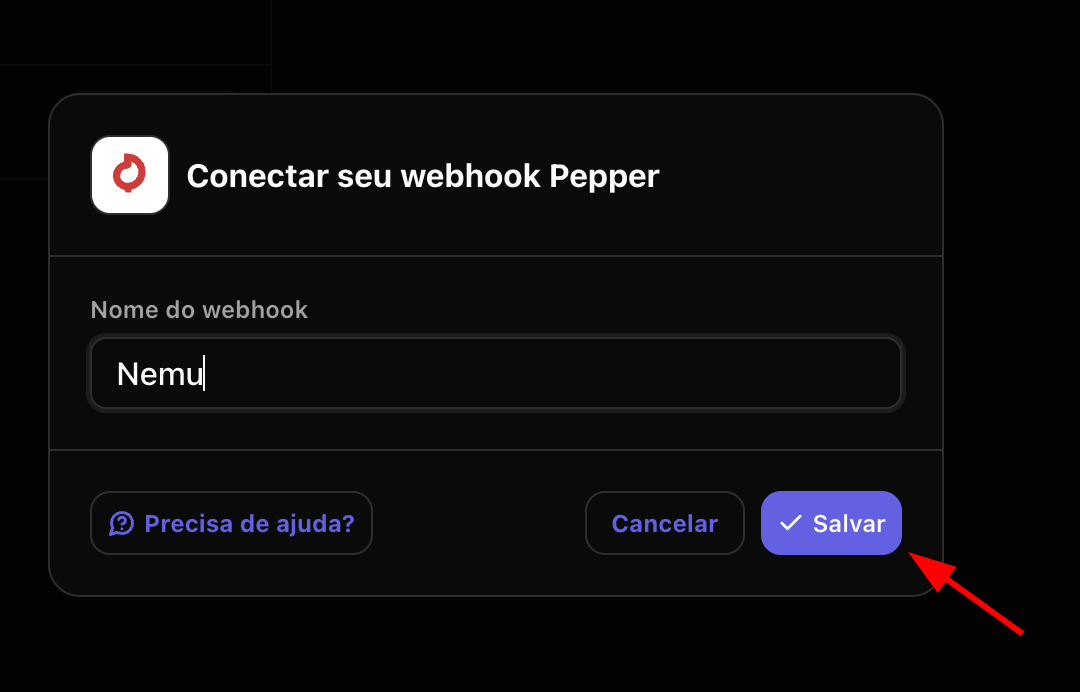
 3. Define a **name** for the webhook and click on **Save**.
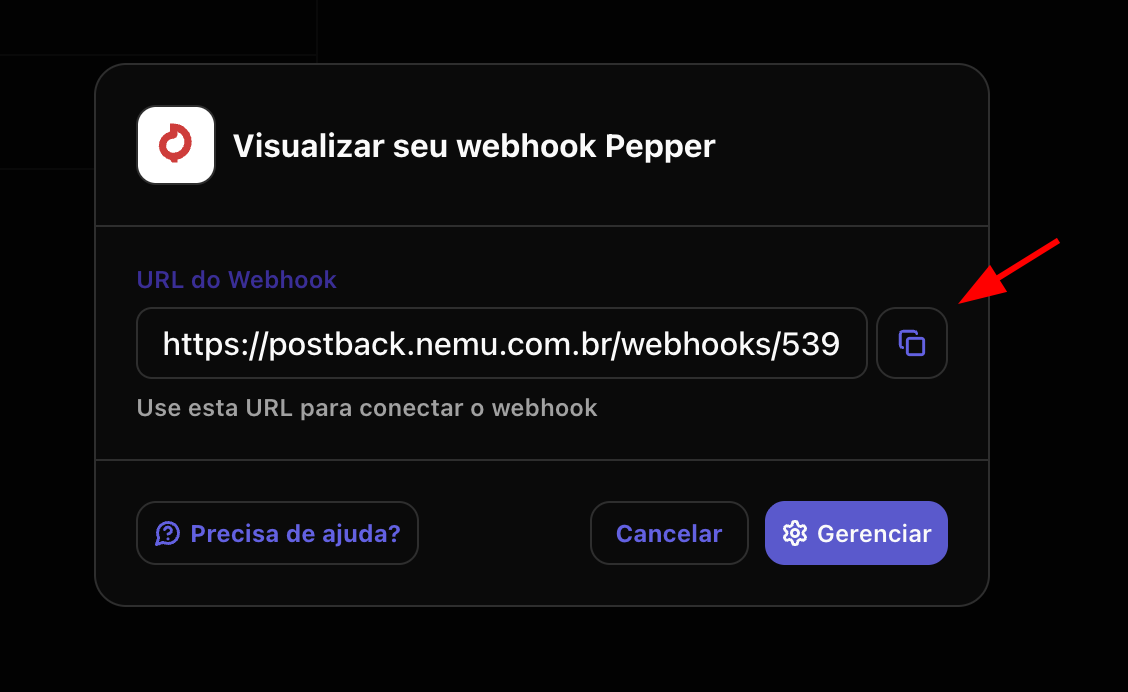
 4. Click the button to **copy** the **webhook URL** generated by Nemu.
 ## Setting Up Webhooks in Pepper Panel
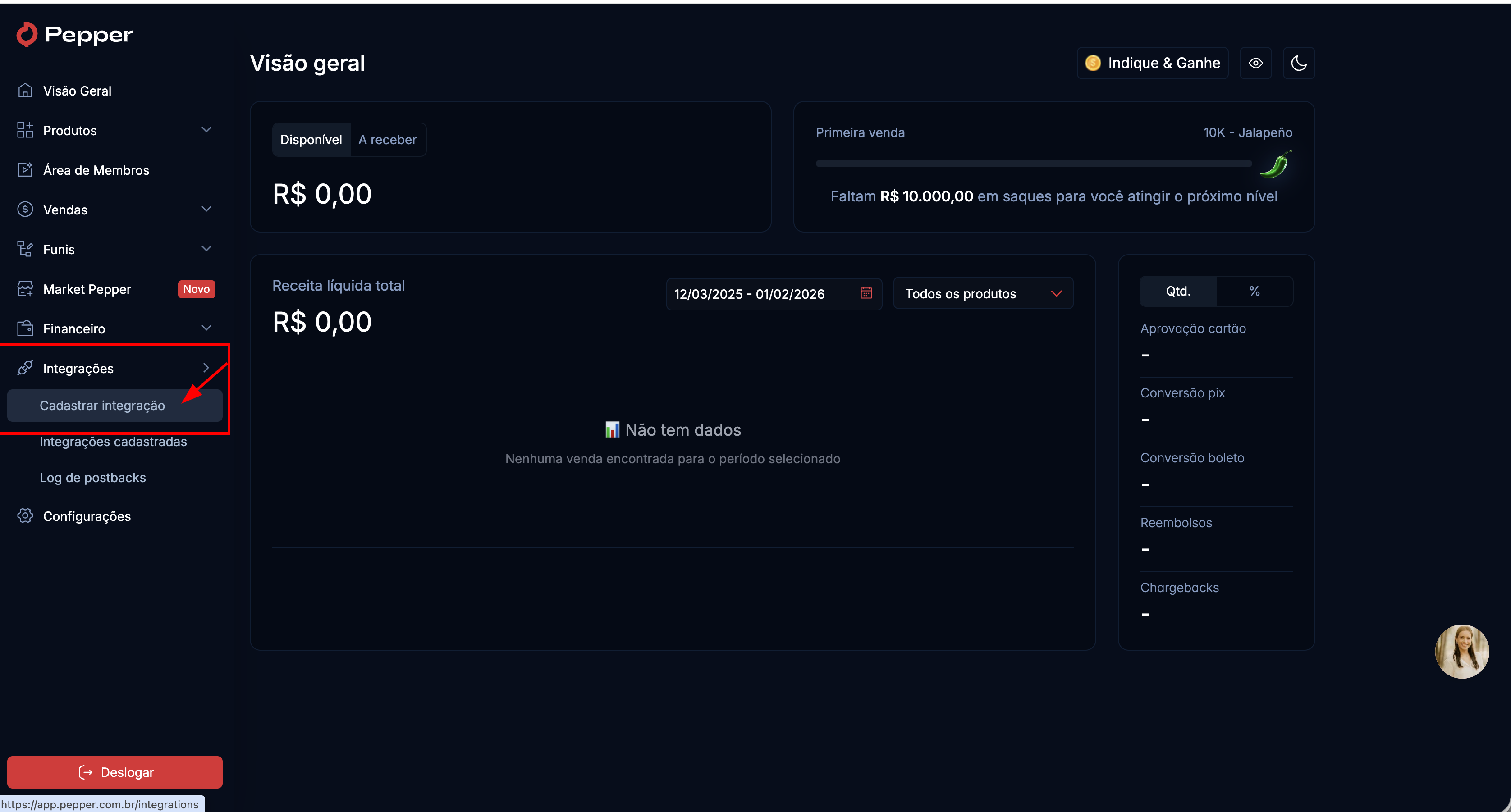
1. In the Pepper panel, go to **Integrations** > **Register Integration**.
## Setting Up Webhooks in Pepper Panel
1. In the Pepper panel, go to **Integrations** > **Register Integration**.
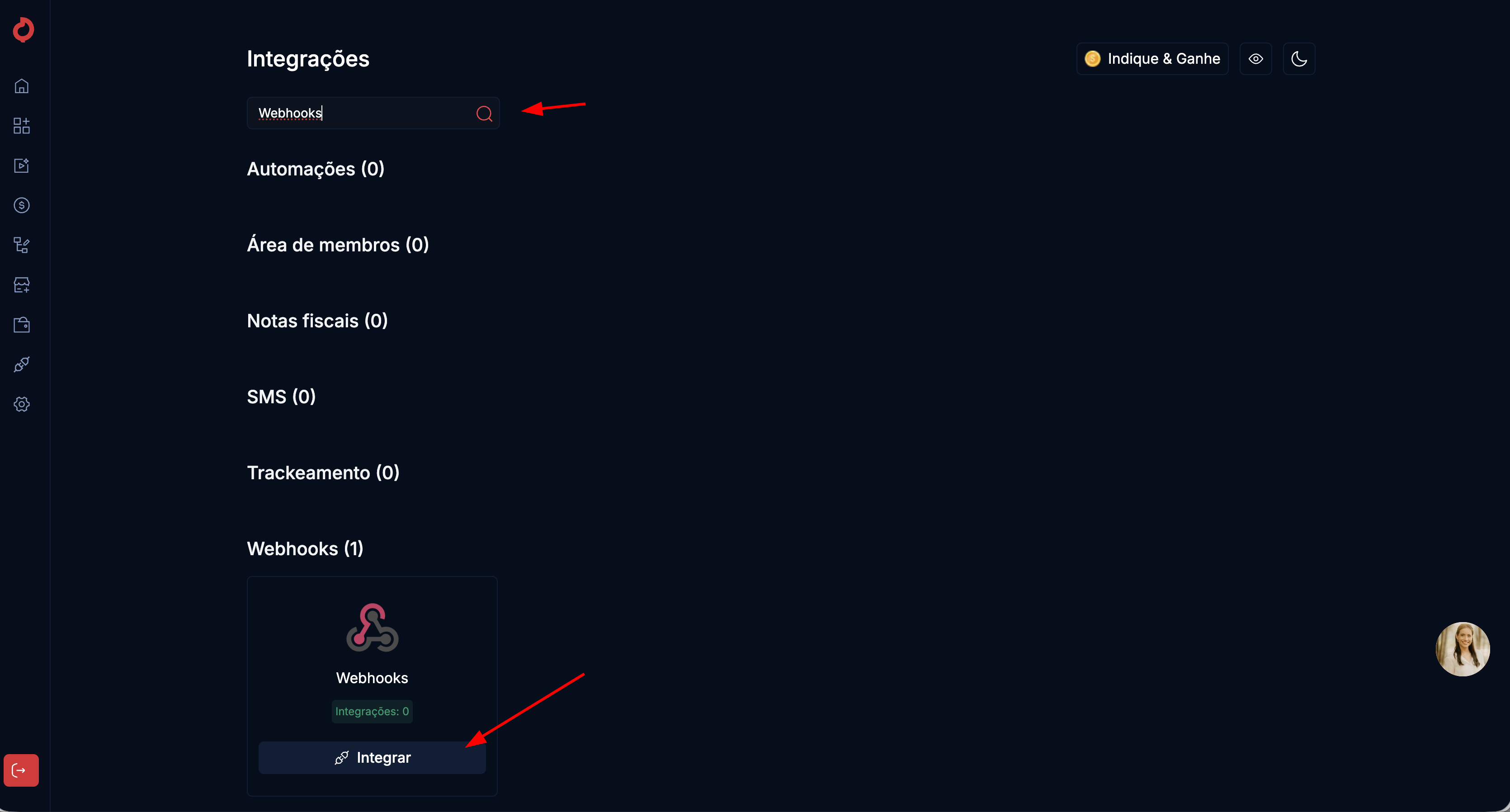
 2. Search for **Webhooks** and click on **Integrate**.
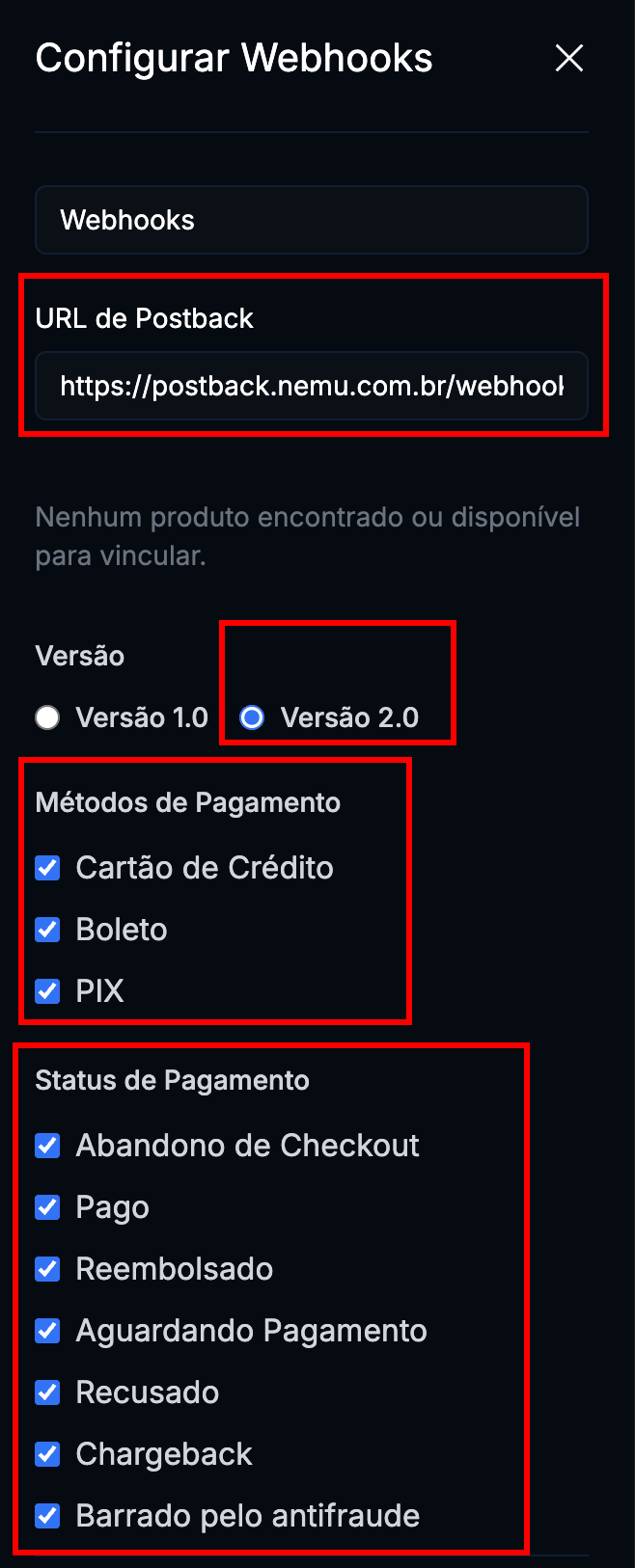
 3. Paste the **URL** copied in the [previous step](#setting-up-webhooks-in-nemu-dashboard) in the **Postback URL** field.
4. Select **Version 2.0**, all **Methods** and **Payment Status**.
3. Paste the **URL** copied in the [previous step](#setting-up-webhooks-in-nemu-dashboard) in the **Postback URL** field.
4. Select **Version 2.0**, all **Methods** and **Payment Status**.
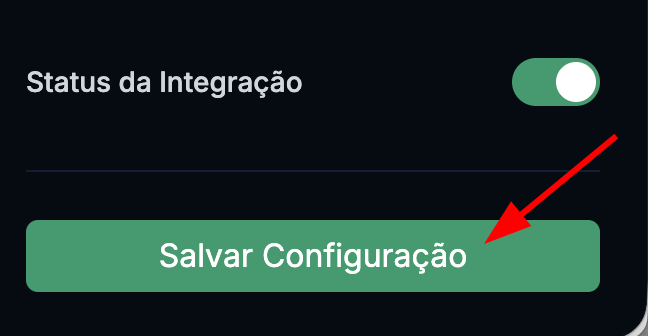
 5. Make sure the Integration Status is set to **Active** and click on **Save Configuration**.