> ## Documentation Index
> Fetch the complete documentation index at: https://docs.nemu.com.br/llms.txt
> Use this file to discover all available pages before exploring further.

# Shopify (Legacy)

> How to connect your Shopify Store (Legacy) to Nemu Dashboard

## Integrating Nemu Pixel on Shopify

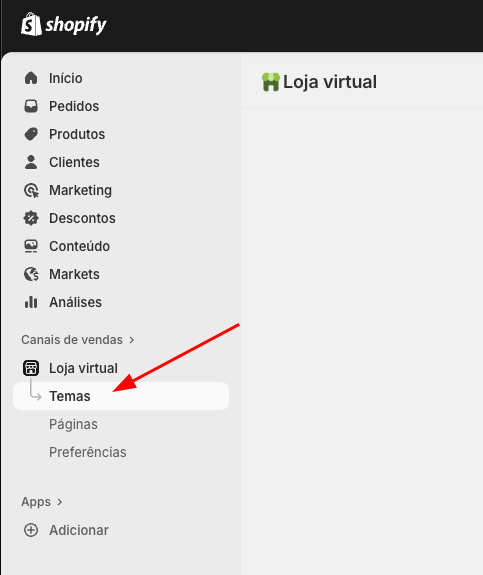
1. In the Shopify panel, click on **Sales channels** in the sidebar, then click on **Themes**
<img src="https://mintcdn.com/nemu/kADs4R1q-QrwyuCI/assets/pages/integracoes/shopify-legacy/pixel/1.png?fit=max&auto=format&n=kADs4R1q-QrwyuCI&q=85&s=2ae54cf8e122a32b010f9e308e706abd" alt="" width="483" height="575" data-path="assets/pages/integracoes/shopify-legacy/pixel/1.png" />

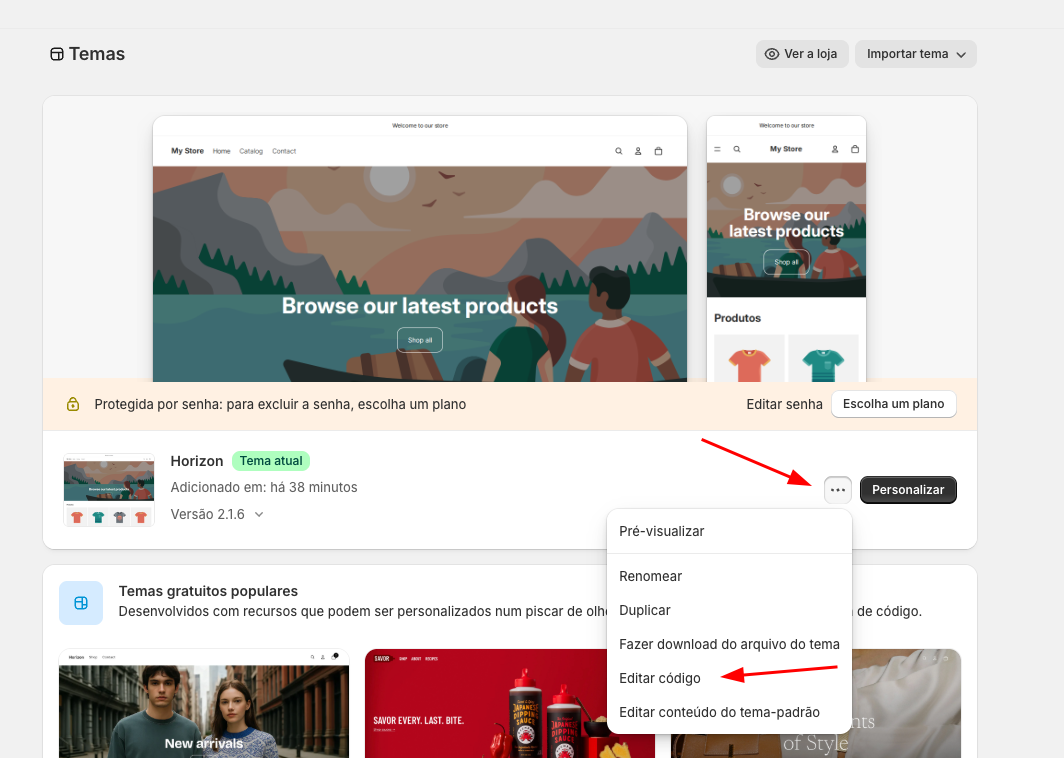
2. In your **Current Theme**, click the button and then click on **Edit code**
<img src="https://mintcdn.com/nemu/kADs4R1q-QrwyuCI/assets/pages/integracoes/shopify-legacy/pixel/2.png?fit=max&auto=format&n=kADs4R1q-QrwyuCI&q=85&s=351f3d1580afb6cdf248ef74847632db" alt="" width="1064" height="758" data-path="assets/pages/integracoes/shopify-legacy/pixel/2.png" />

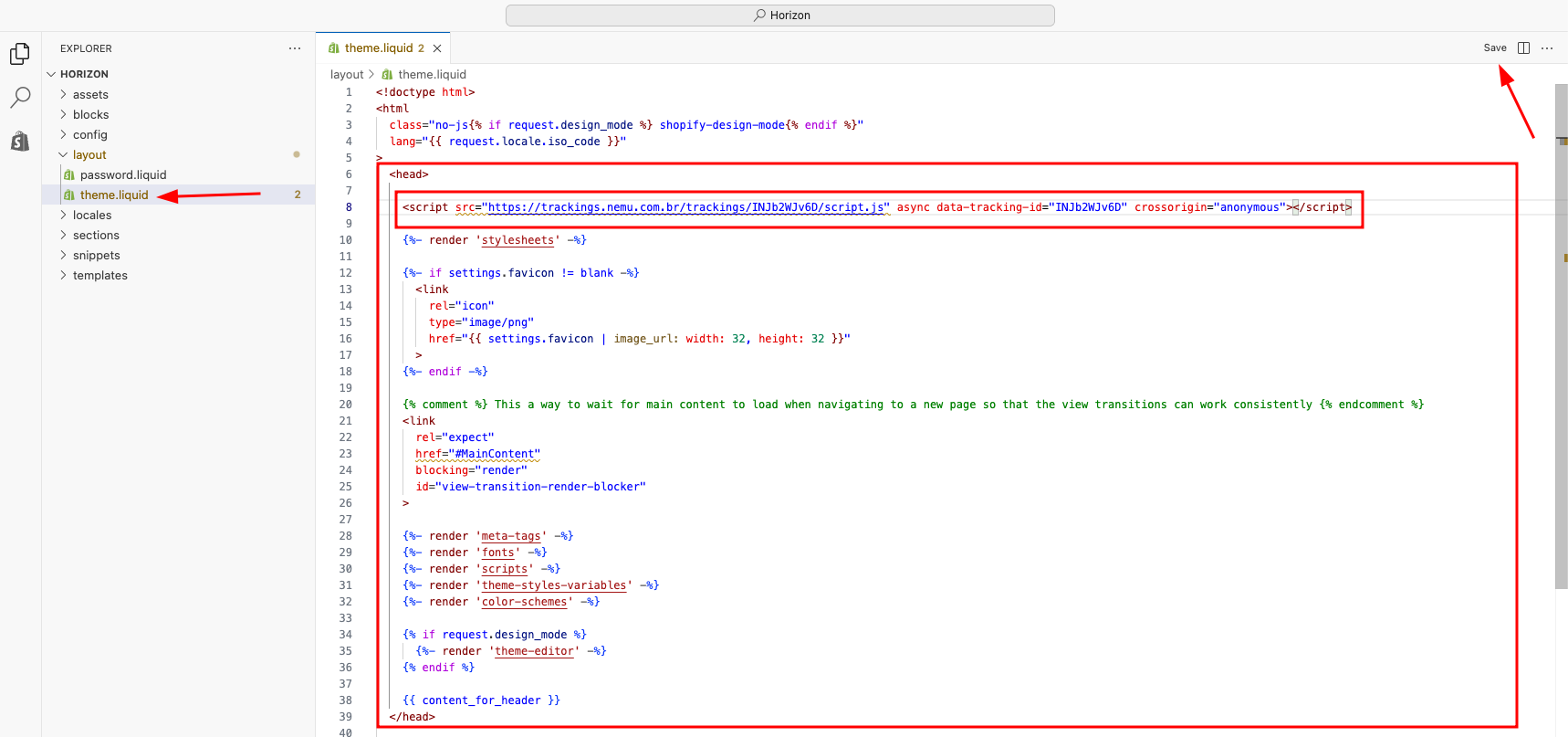
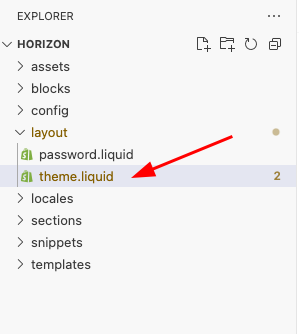
3. Open the **layout** folder and select the **theme.liquid** file
<img src="https://mintcdn.com/nemu/kADs4R1q-QrwyuCI/assets/pages/integracoes/shopify-legacy/pixel/3.png?fit=max&auto=format&n=kADs4R1q-QrwyuCI&q=85&s=2b0f25719ef9189b8cfef7ed7a7c4035" alt="" width="299" height="334" data-path="assets/pages/integracoes/shopify-legacy/pixel/3.png" />

4. Paste the code copied in the [previous onboarding step](/en/onboarding/configuring-pixel/) inside the `<head>` tag and click **Save**

<img src="https://mintcdn.com/nemu/kADs4R1q-QrwyuCI/assets/pages/integracoes/shopify-legacy/pixel/4.png?fit=max&auto=format&n=kADs4R1q-QrwyuCI&q=85&s=46a934d41943e3e6f84ba1cee78bcd90" alt="" width="1718" height="807" data-path="assets/pages/integracoes/shopify-legacy/pixel/4.png" />

## Setting Up Webhooks

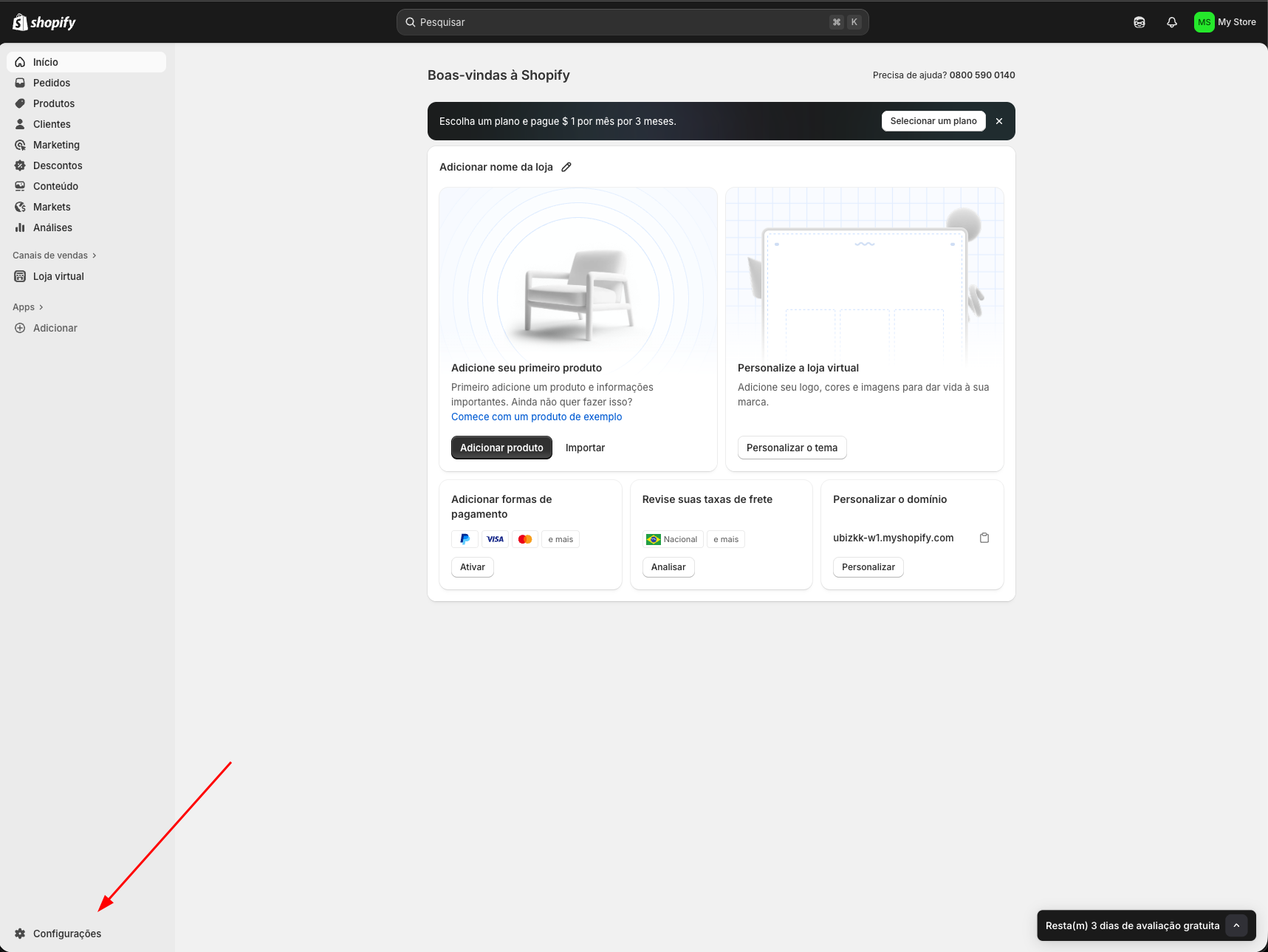
1. In the Shopify panel, click on **Settings** in the sidebar
<img src="https://mintcdn.com/nemu/kADs4R1q-QrwyuCI/assets/pages/integracoes/shopify-legacy/4.png?fit=max&auto=format&n=kADs4R1q-QrwyuCI&q=85&s=dc35753546315b3f5a76bf0e424dcab6" alt="" width="1717" height="1289" data-path="assets/pages/integracoes/shopify-legacy/4.png" />

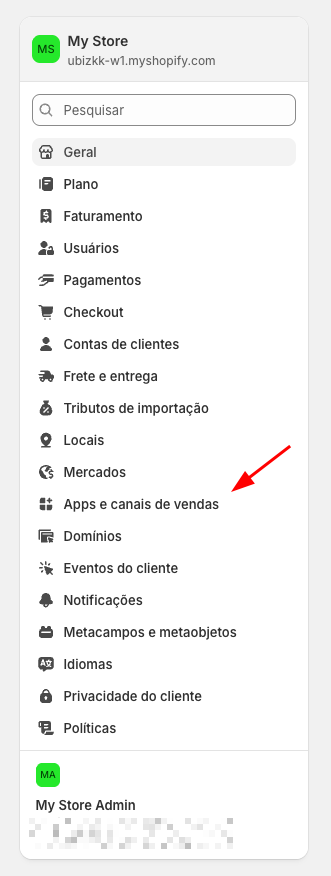
2. Click on **Apps and sales channels**
<img src="https://mintcdn.com/nemu/kADs4R1q-QrwyuCI/assets/pages/integracoes/shopify-legacy/5.png?fit=max&auto=format&n=kADs4R1q-QrwyuCI&q=85&s=6cd36f51446eb666f87676ab902e6ffd" alt="" width="331" height="876" data-path="assets/pages/integracoes/shopify-legacy/5.png" />

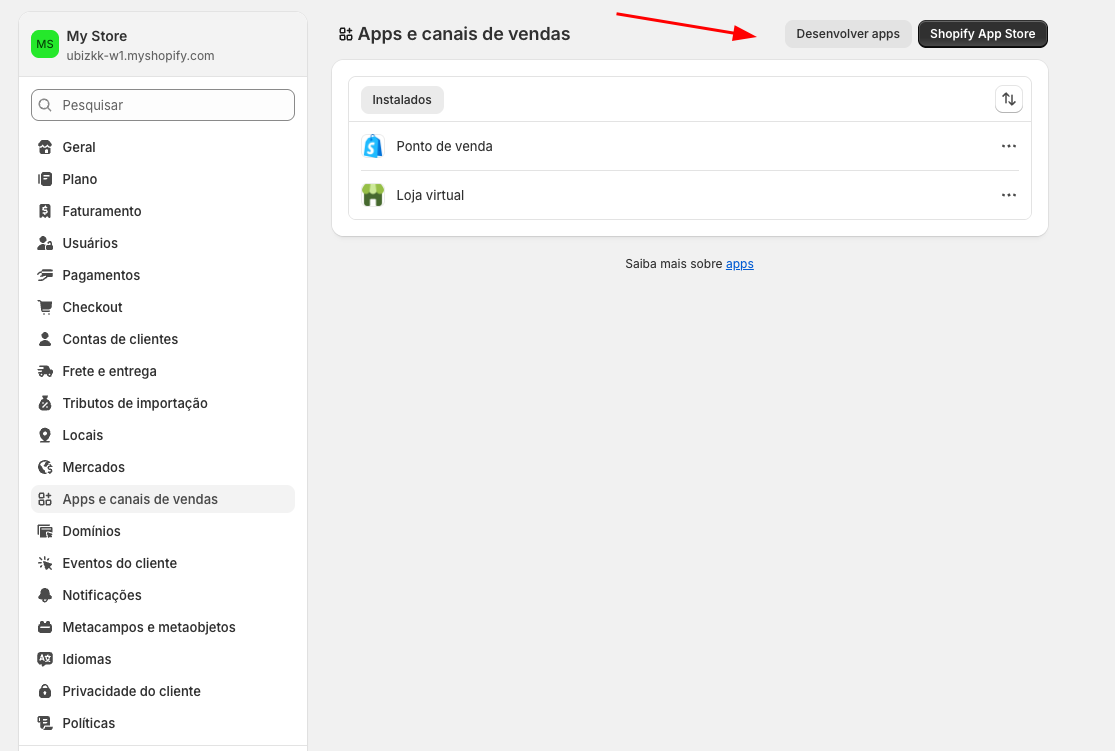
3. Click on the **Develop apps** button
<img src="https://mintcdn.com/nemu/kADs4R1q-QrwyuCI/assets/pages/integracoes/shopify-legacy/6.png?fit=max&auto=format&n=kADs4R1q-QrwyuCI&q=85&s=f8b015071a971de8e182cceba001879b" alt="" width="1115" height="751" data-path="assets/pages/integracoes/shopify-legacy/6.png" />

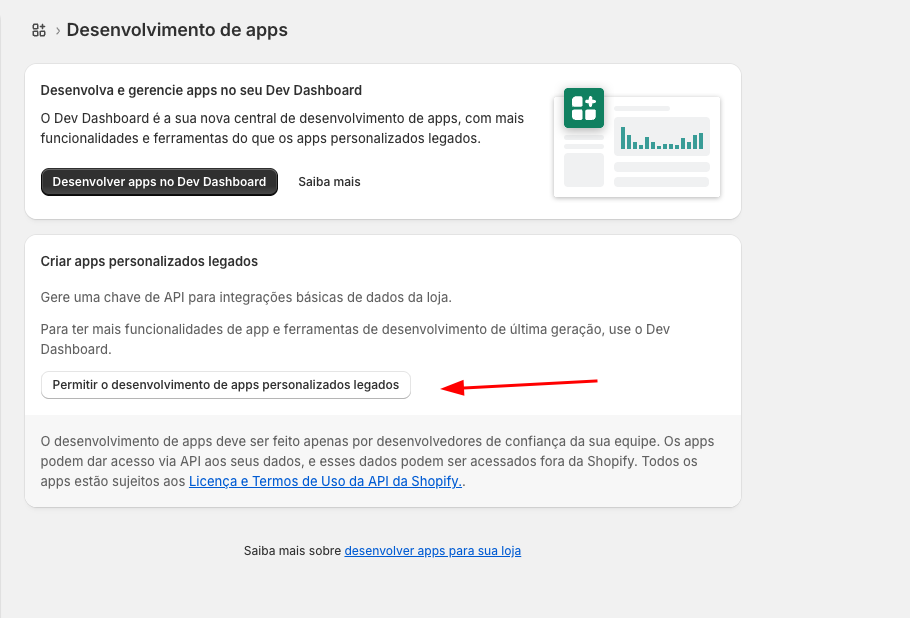
4. Click on **Allow legacy custom app development**
<img src="https://mintcdn.com/nemu/kADs4R1q-QrwyuCI/assets/pages/integracoes/shopify-legacy/7.png?fit=max&auto=format&n=kADs4R1q-QrwyuCI&q=85&s=d43575cef39dd75ec56c0bbfbecae4d9" alt="" width="910" height="618" data-path="assets/pages/integracoes/shopify-legacy/7.png" />

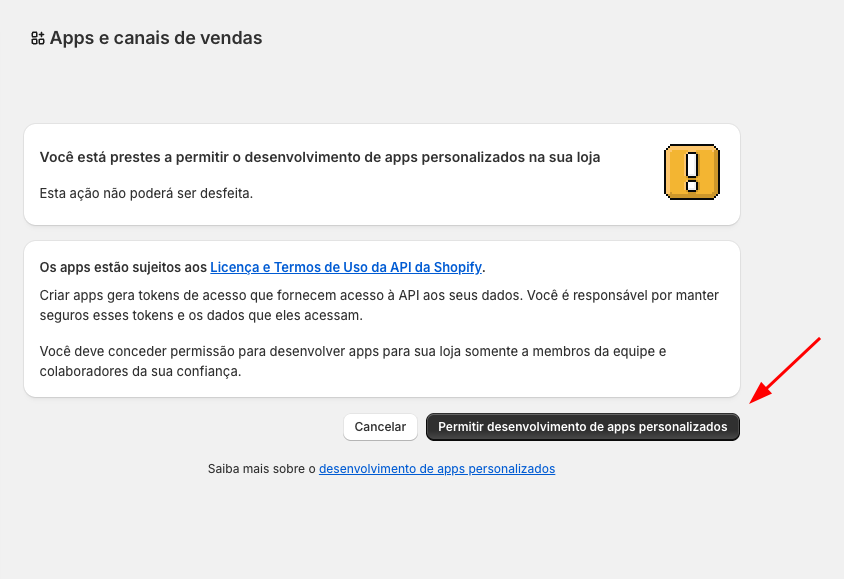
5. Click on **Allow custom app development**
<img src="https://mintcdn.com/nemu/kADs4R1q-QrwyuCI/assets/pages/integracoes/shopify-legacy/8.png?fit=max&auto=format&n=kADs4R1q-QrwyuCI&q=85&s=ab36ccd18bd02a0477eae42410bafa20" alt="" width="844" height="579" data-path="assets/pages/integracoes/shopify-legacy/8.png" />

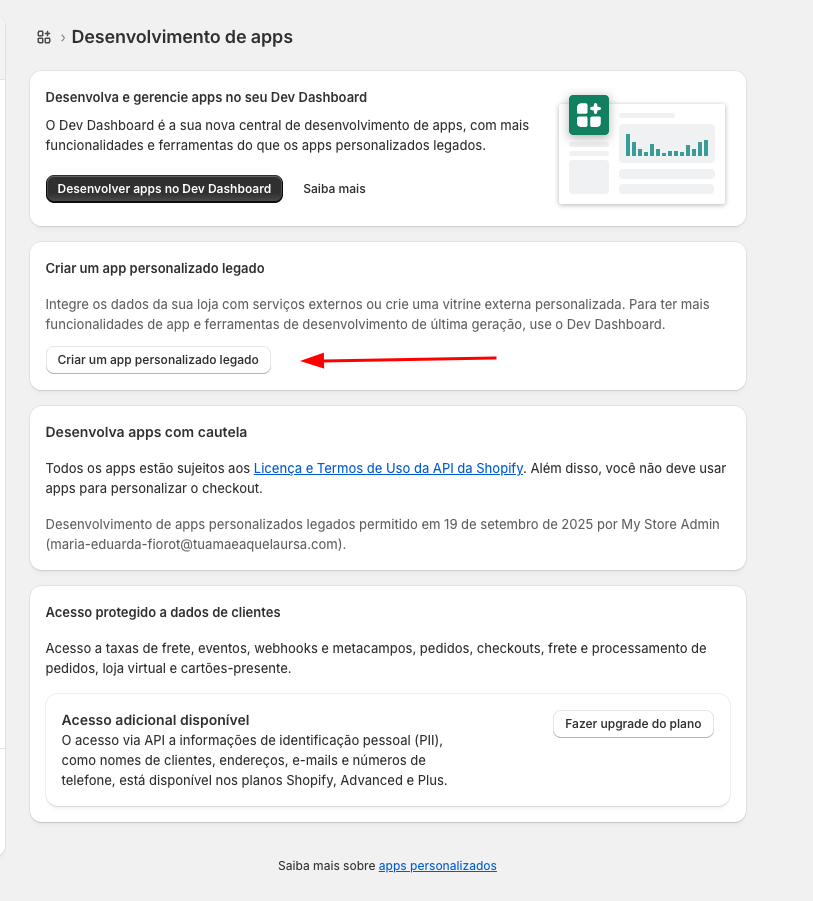
6. Click on **Create a legacy custom app**
<img src="https://mintcdn.com/nemu/kADs4R1q-QrwyuCI/assets/pages/integracoes/shopify-legacy/9.png?fit=max&auto=format&n=kADs4R1q-QrwyuCI&q=85&s=377b93e537a798923e5607080f3cde90" alt="" width="813" height="901" data-path="assets/pages/integracoes/shopify-legacy/9.png" />

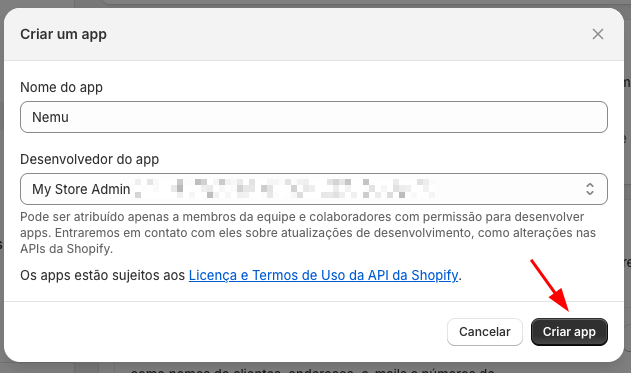
7. Define a name for your app and click on **Create app**
<img src="https://mintcdn.com/nemu/kADs4R1q-QrwyuCI/assets/pages/integracoes/shopify-legacy/10.png?fit=max&auto=format&n=kADs4R1q-QrwyuCI&q=85&s=f671bc5bbfd621076bbdd5d3e544f42f" alt="" width="631" height="373" data-path="assets/pages/integracoes/shopify-legacy/10.png" />

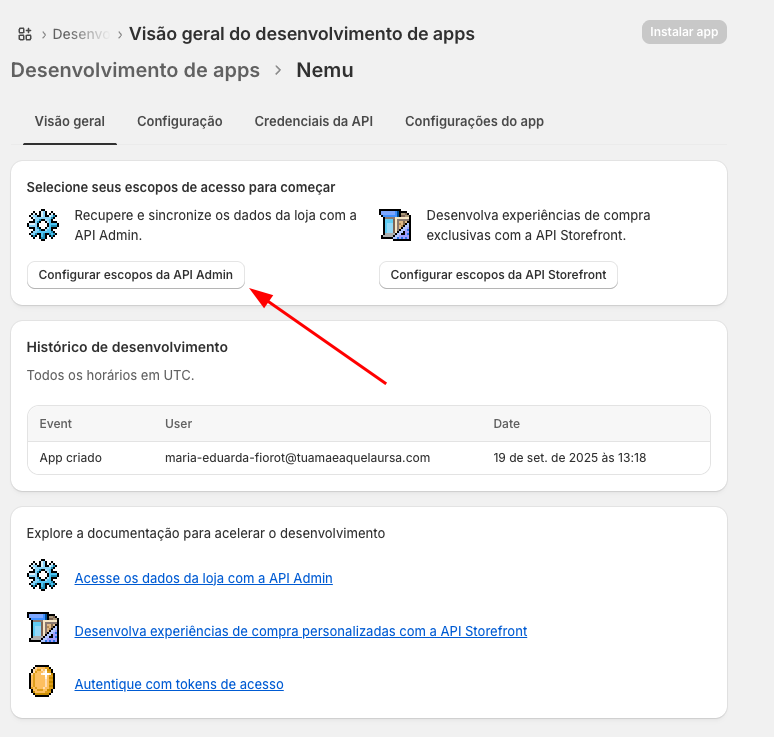
8. In the **Overview** tab, click on **Configure Admin API scopes**
<img src="https://mintcdn.com/nemu/kADs4R1q-QrwyuCI/assets/pages/integracoes/shopify-legacy/11.png?fit=max&auto=format&n=kADs4R1q-QrwyuCI&q=85&s=f49c97e56dcad9d0eb95b645ff098775" alt="" width="774" height="737" data-path="assets/pages/integracoes/shopify-legacy/11.png" />

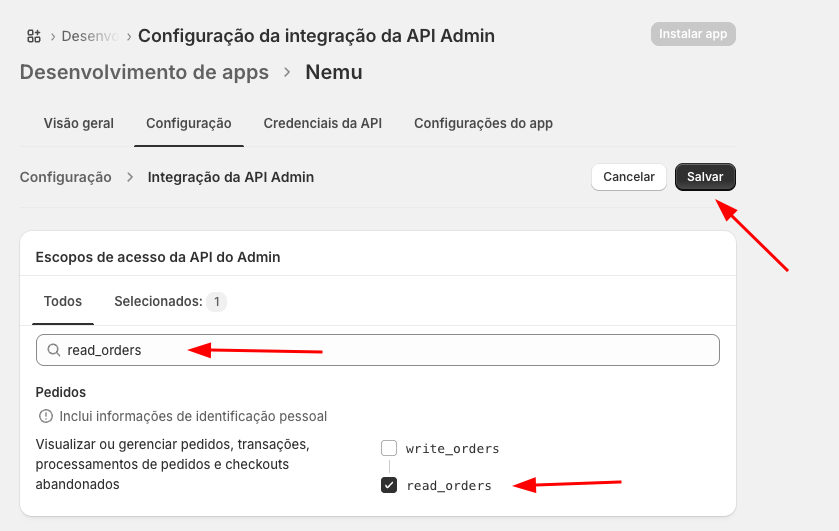
9. Search for `read_orders`, check only this option and click on **Save**
<img src="https://mintcdn.com/nemu/kADs4R1q-QrwyuCI/assets/pages/integracoes/shopify-legacy/12.png?fit=max&auto=format&n=kADs4R1q-QrwyuCI&q=85&s=c3ea381c3f74362afdd5a1ad2e1e26c7" alt="" width="839" height="531" data-path="assets/pages/integracoes/shopify-legacy/12.png" />

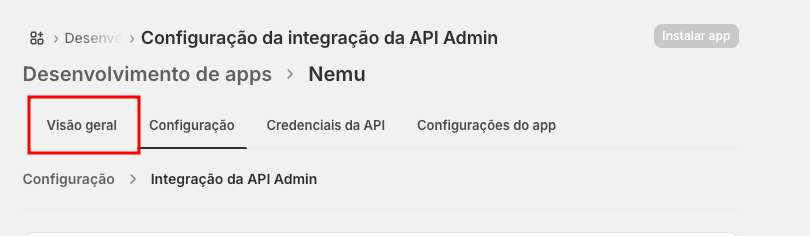
10. Go back to the **Overview** tab

<img src="https://mintcdn.com/nemu/kADs4R1q-QrwyuCI/assets/pages/integracoes/shopify-legacy/13.png?fit=max&auto=format&n=kADs4R1q-QrwyuCI&q=85&s=47763f646bcdccd5151e1adc554e3842" alt="" width="810" height="236" data-path="assets/pages/integracoes/shopify-legacy/13.png" />

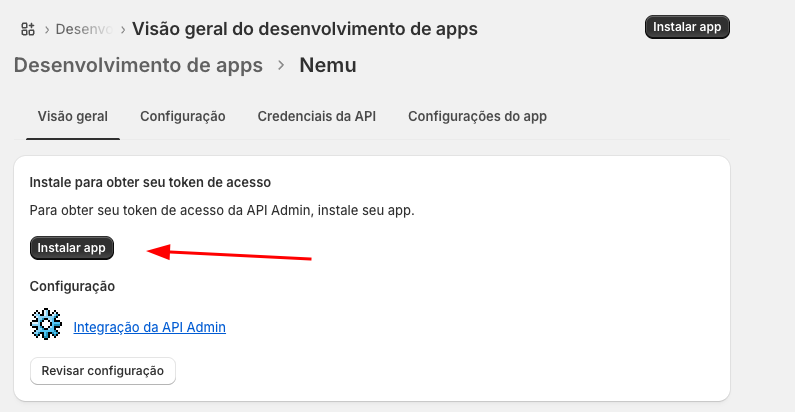
11. Click on **Install app**

<img src="https://mintcdn.com/nemu/kADs4R1q-QrwyuCI/assets/pages/integracoes/shopify-legacy/14.png?fit=max&auto=format&n=kADs4R1q-QrwyuCI&q=85&s=f2736d6f2959911a00d6a3b08f212c37" alt="" width="795" height="412" data-path="assets/pages/integracoes/shopify-legacy/14.png" />

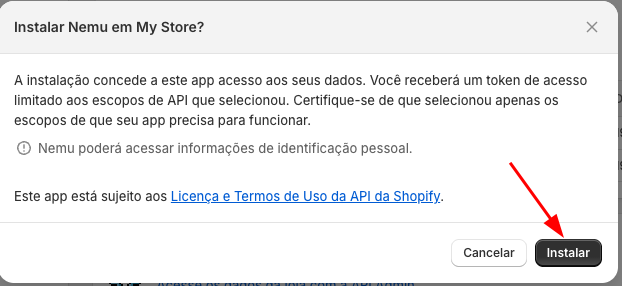
12. Click on **Install** again to confirm
<img src="https://mintcdn.com/nemu/kADs4R1q-QrwyuCI/assets/pages/integracoes/shopify-legacy/15.png?fit=max&auto=format&n=kADs4R1q-QrwyuCI&q=85&s=669e59d390ce206e4e61c2e8163e8320" alt="" width="622" height="286" data-path="assets/pages/integracoes/shopify-legacy/15.png" />

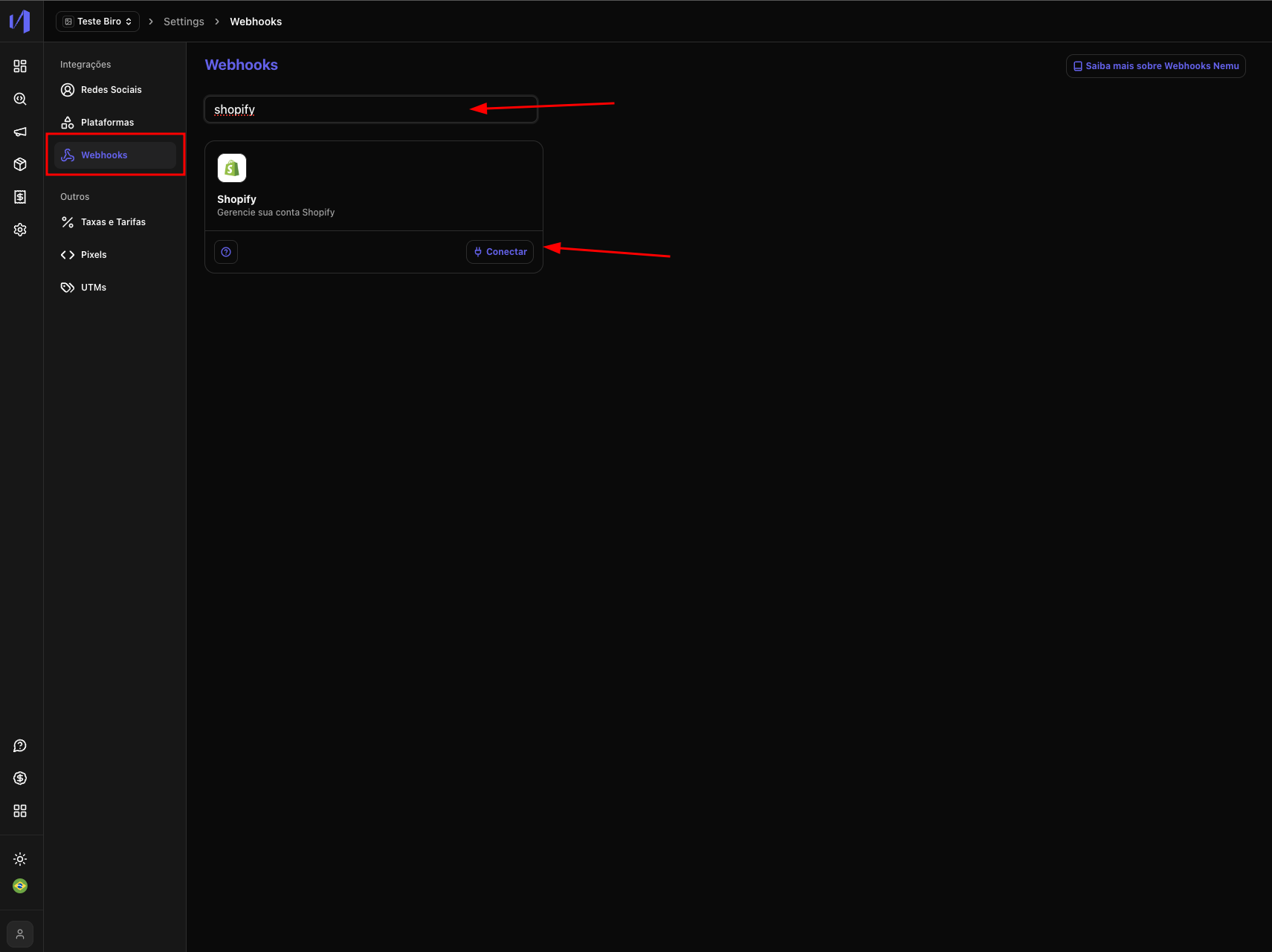
13. In Nemu, go to **Settings** > **Webhooks**, search for **Shopify** and click on **Connect**
<img src="https://mintcdn.com/nemu/43e6njeKqMf8Xxwd/assets/pages/integracoes/shopify-legacy/webhooks/2.png?fit=max&auto=format&n=43e6njeKqMf8Xxwd&q=85&s=9058834e9769fb369f9178f64b02a361" alt="" width="1711" height="1281" data-path="assets/pages/integracoes/shopify-legacy/webhooks/2.png" />

<Info>
  Copy the credentials and paste them into the respective Webhook fields on the Nemu platform.
</Info>

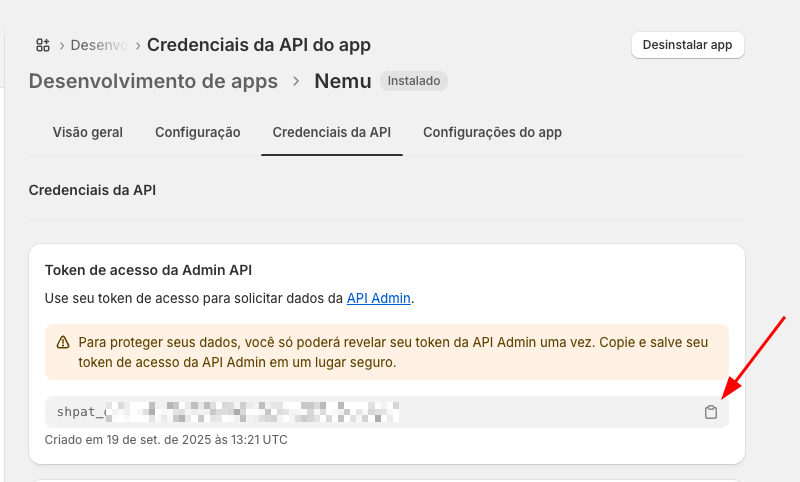
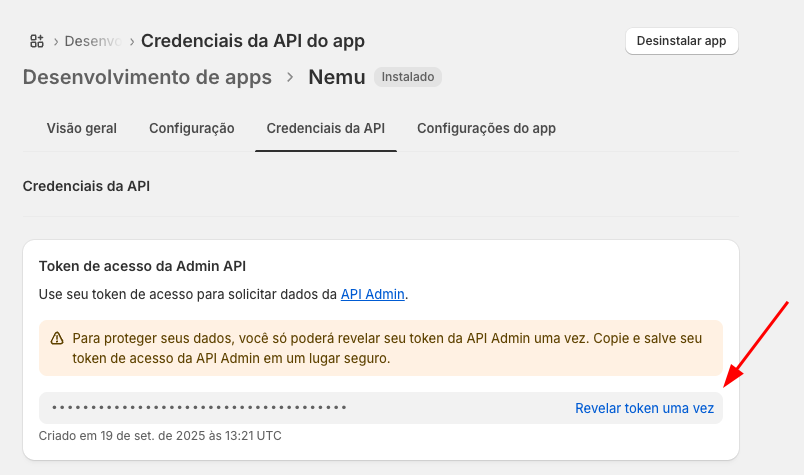
14. Click on **Reveal token once** and then on the **Copy** button
<img src="https://mintcdn.com/nemu/kADs4R1q-QrwyuCI/assets/pages/integracoes/shopify-legacy/16.png?fit=max&auto=format&n=kADs4R1q-QrwyuCI&q=85&s=9c725748a37c10dca13919b78318b281" alt="" width="804" height="475" data-path="assets/pages/integracoes/shopify-legacy/16.png" />

<img src="https://mintcdn.com/nemu/kADs4R1q-QrwyuCI/assets/pages/integracoes/shopify-legacy/17.png?fit=max&auto=format&n=kADs4R1q-QrwyuCI&q=85&s=587db4314da80c497c4399926befe942" alt="" width="800" height="482" data-path="assets/pages/integracoes/shopify-legacy/17.png" />

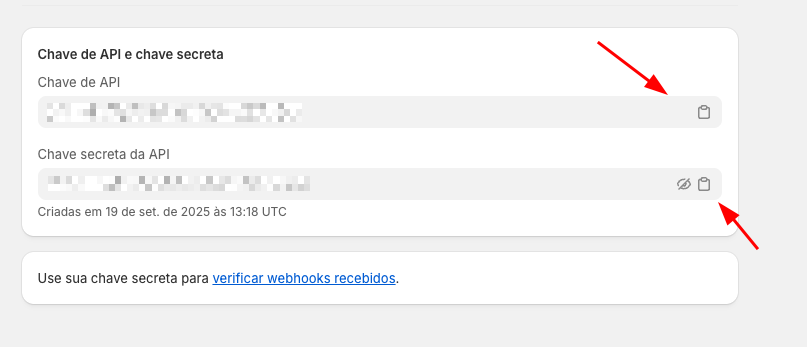
15. On the same page, copy the **API Key** and **Secret Key**
<img src="https://mintcdn.com/nemu/kADs4R1q-QrwyuCI/assets/pages/integracoes/shopify-legacy/18.png?fit=max&auto=format&n=kADs4R1q-QrwyuCI&q=85&s=8c6318d3b1a203cc29dd0860ca80dad1" alt="" width="807" height="347" data-path="assets/pages/integracoes/shopify-legacy/18.png" />

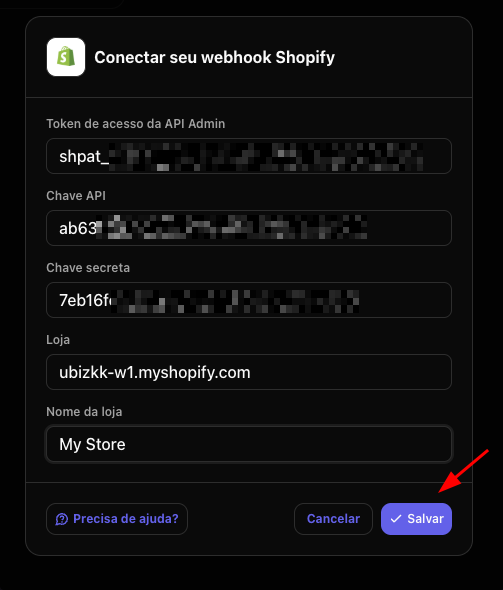
16. Paste the copied credentials in Nemu
<img src="https://mintcdn.com/nemu/kADs4R1q-QrwyuCI/assets/pages/integracoes/shopify-legacy/20.png?fit=max&auto=format&n=kADs4R1q-QrwyuCI&q=85&s=6e6d92edd620832f9dfbf5dc7b1687f7" alt="" width="503" height="590" data-path="assets/pages/integracoes/shopify-legacy/20.png" />

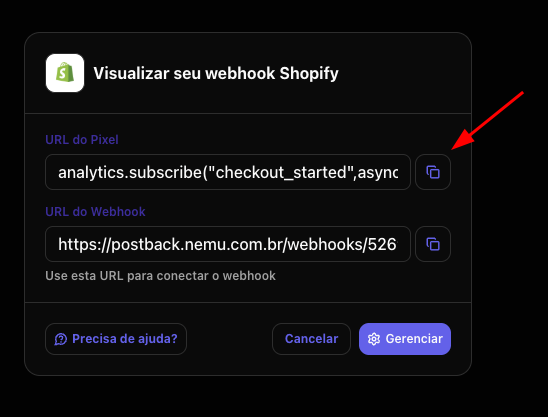
17. Copy the Custom Pixel generated by the Webhook
<img src="https://mintcdn.com/nemu/kADs4R1q-QrwyuCI/assets/pages/integracoes/shopify-legacy/21.png?fit=max&auto=format&n=kADs4R1q-QrwyuCI&q=85&s=b65de41b631f793ba3a64a92dbfa9677" alt="" width="548" height="417" data-path="assets/pages/integracoes/shopify-legacy/21.png" />

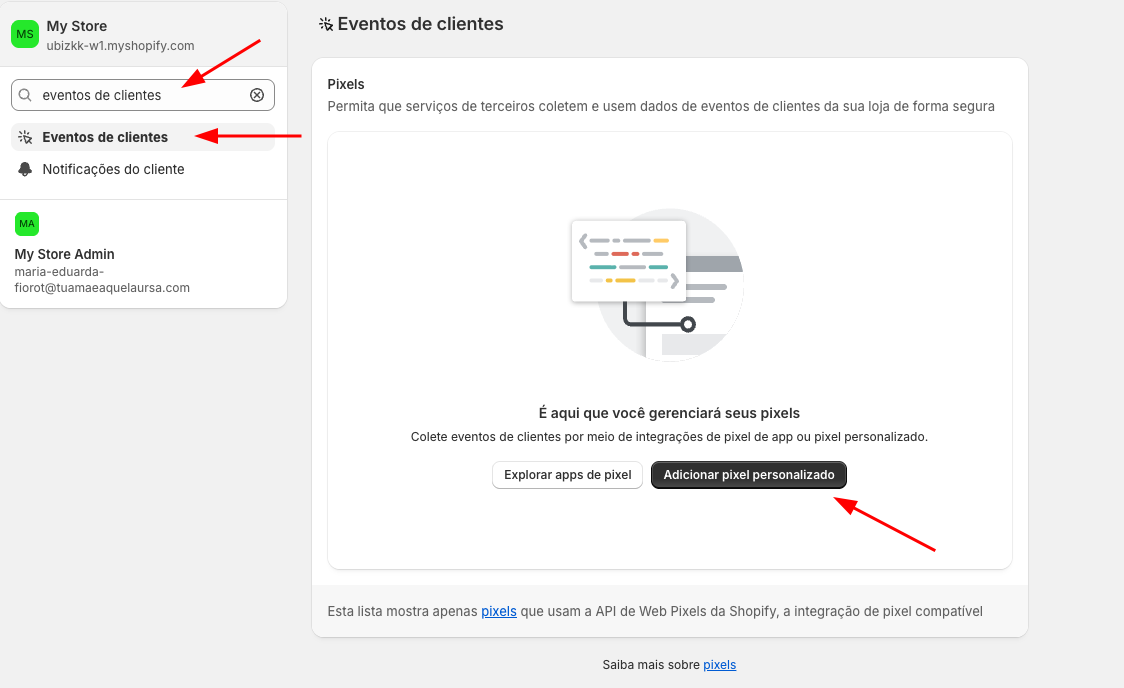
18. In Shopify, search for **Customer events** and click on **Add custom pixel**
<img src="https://mintcdn.com/nemu/kADs4R1q-QrwyuCI/assets/pages/integracoes/shopify-legacy/22.png?fit=max&auto=format&n=kADs4R1q-QrwyuCI&q=85&s=0b7048759397ed55d5aa24158ea89fb0" alt="" width="1124" height="688" data-path="assets/pages/integracoes/shopify-legacy/22.png" />

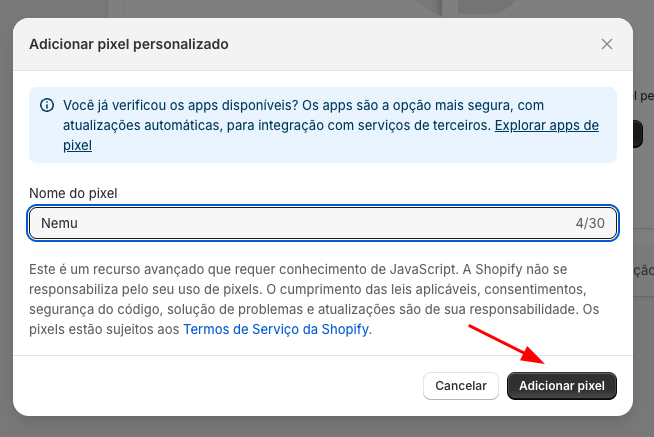
19. Define a name for the Pixel and click on **Add pixel**
<img src="https://mintcdn.com/nemu/kADs4R1q-QrwyuCI/assets/pages/integracoes/shopify-legacy/23.png?fit=max&auto=format&n=kADs4R1q-QrwyuCI&q=85&s=185f7e57cded86bcb9e17f953f064b40" alt="" width="654" height="437" data-path="assets/pages/integracoes/shopify-legacy/23.png" />

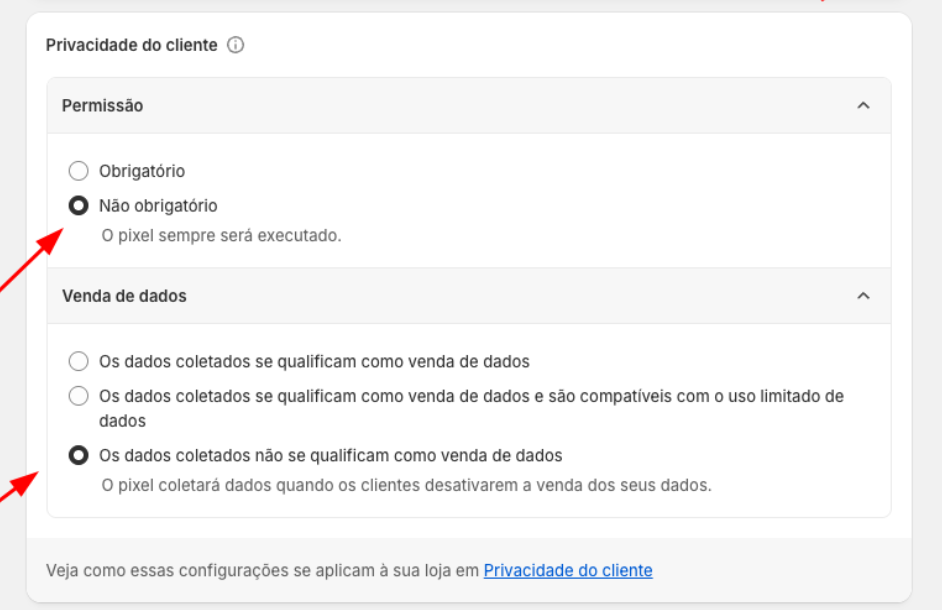
20. In the **Customer Privacy** section, configure:

* **Consent**: *Not required*
* **Data sale select**: *The data collected does not qualify as data sale*
<img src="https://mintcdn.com/nemu/kADs4R1q-QrwyuCI/assets/pages/integracoes/shopify-legacy/23.1.png?fit=max&auto=format&n=kADs4R1q-QrwyuCI&q=85&s=aa954999ae87b5162caba653a8610fa6" alt="" width="942" height="610" data-path="assets/pages/integracoes/shopify-legacy/23.1.png" />

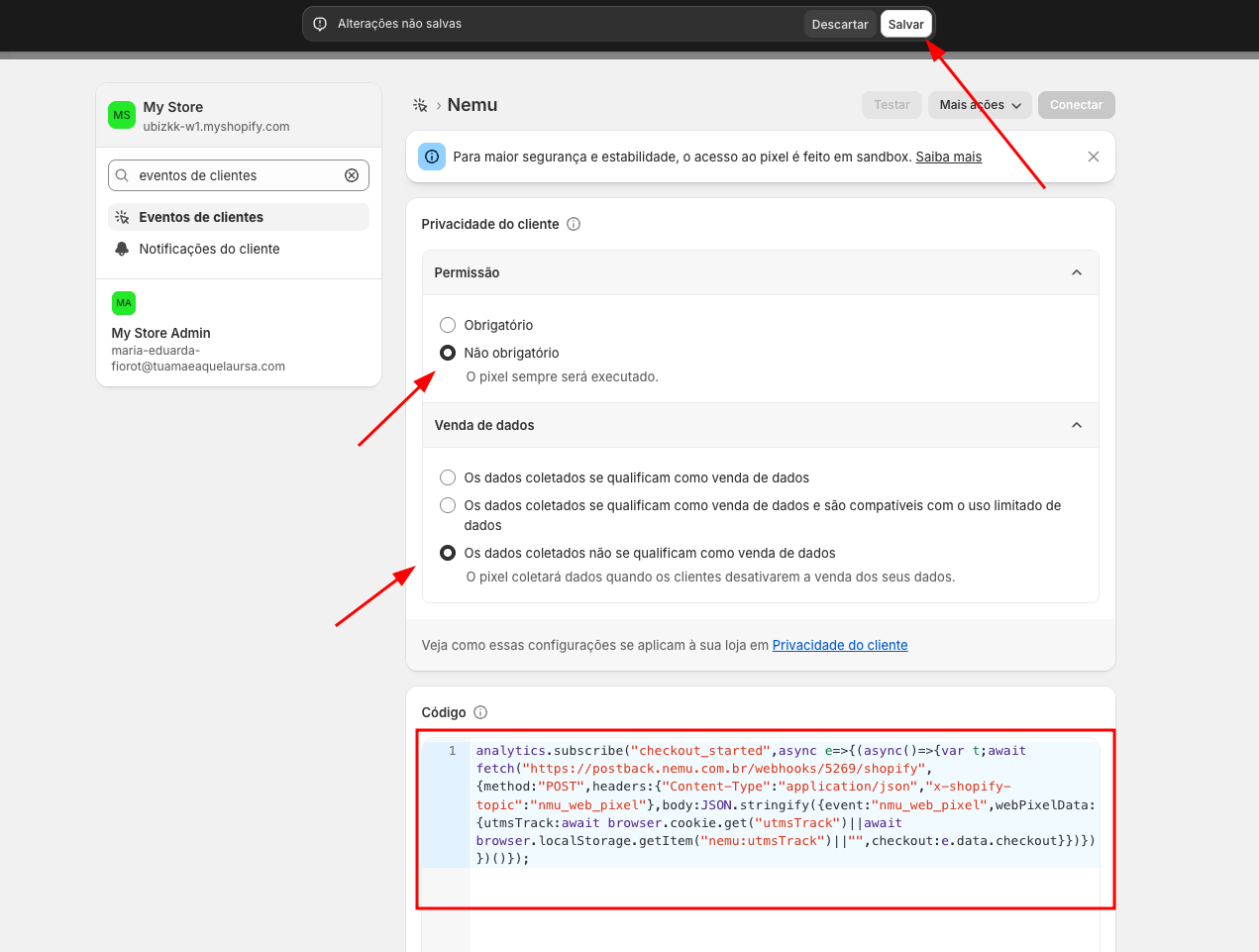
21. Paste the code copied in step **17** and click on **Save**
<img src="https://mintcdn.com/nemu/kADs4R1q-QrwyuCI/assets/pages/integracoes/shopify-legacy/24.png?fit=max&auto=format&n=kADs4R1q-QrwyuCI&q=85&s=a5addebbec51c0d225bdd534dc0d8fcf" alt="" width="1271" height="961" data-path="assets/pages/integracoes/shopify-legacy/24.png" />

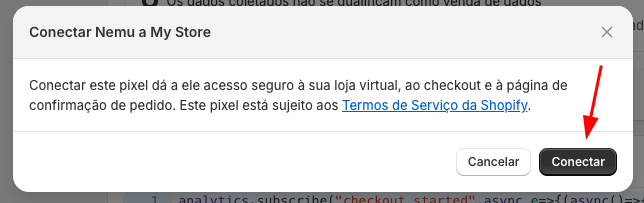
22. Click on **Connect** at the top of the page and confirm again by clicking on **Connect**

<img src="https://mintcdn.com/nemu/kADs4R1q-QrwyuCI/assets/pages/integracoes/shopify-legacy/25.png?fit=max&auto=format&n=kADs4R1q-QrwyuCI&q=85&s=3081d9426b7b954c7bf7b04e1067cf1c" alt="" width="807" height="146" data-path="assets/pages/integracoes/shopify-legacy/25.png" />

<img src="https://mintcdn.com/nemu/kADs4R1q-QrwyuCI/assets/pages/integracoes/shopify-legacy/26.png?fit=max&auto=format&n=kADs4R1q-QrwyuCI&q=85&s=73f1fd8c3776c964daa84d2e161b5294" alt="" width="644" height="203" data-path="assets/pages/integracoes/shopify-legacy/26.png" />