> ## Documentation Index
> Fetch the complete documentation index at: https://docs.nemu.com.br/llms.txt
> Use this file to discover all available pages before exploring further.

# Shopify (New)

> How to connect your Shopify Store to Nemu Dashboard

## Important Information Before You Start

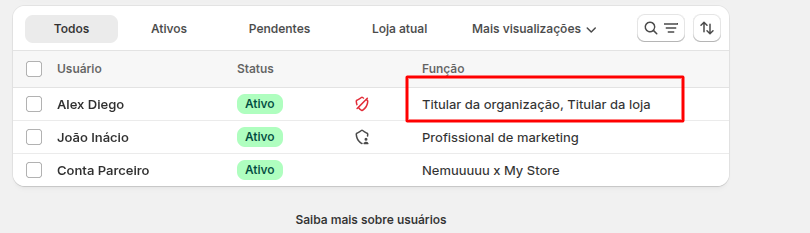
* If a **Shopify Partner (Agency)** is managing your store, you'll need to ask the **Organization Owner / Store Owner** to follow the steps in this guide.

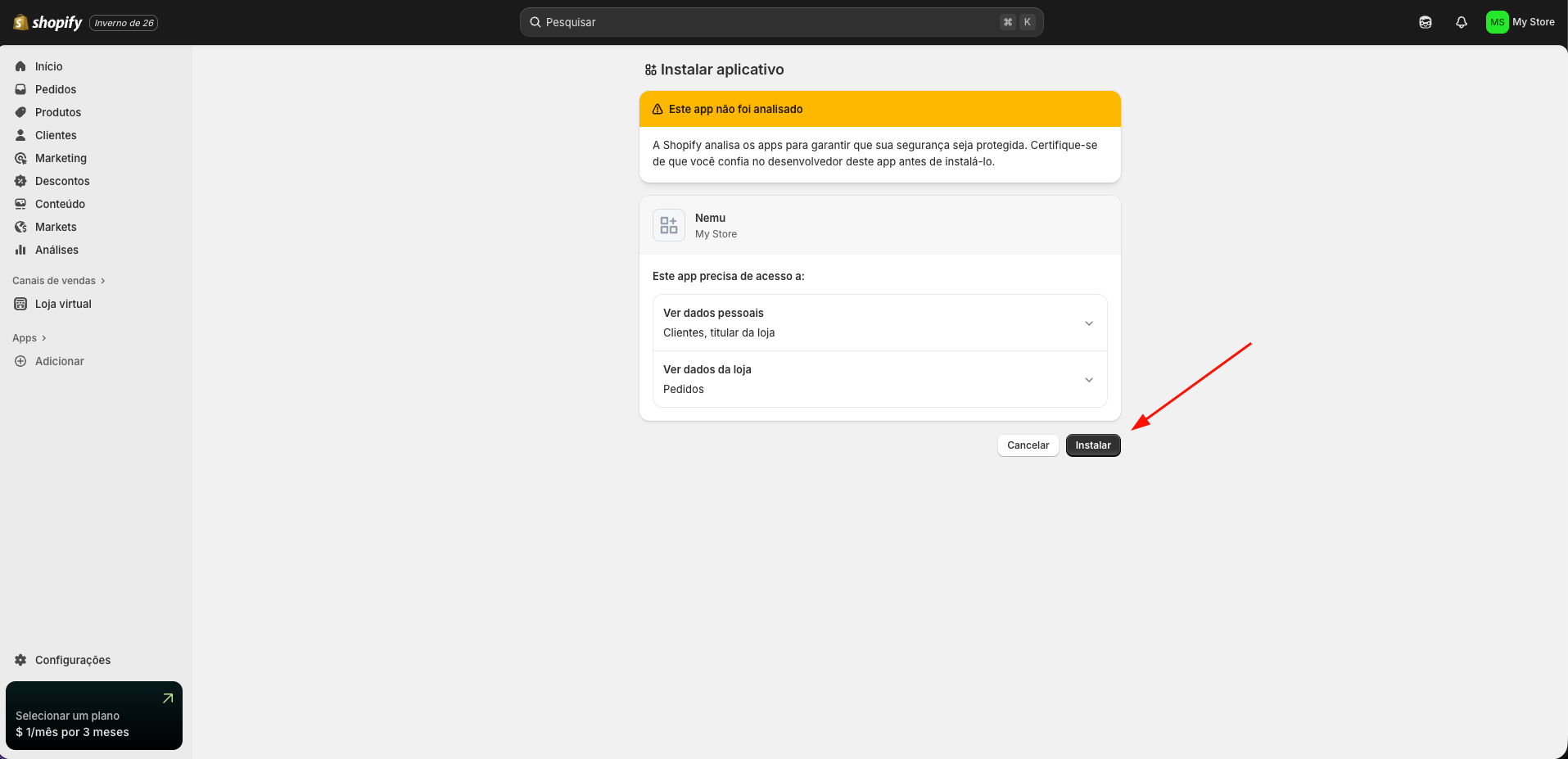
* Check your account permissions on Shopify. You'll need **Owner** access to follow all steps in this guide. [Learn more about user management on Shopify](https://help.shopify.com/pt-BR/manual/your-account/users/manage-users#consideracoes-sobre-o-gerenciamento-de-usuarios).
<img src="https://mintcdn.com/nemu/B58j3q5rcfh9ZLct/assets/pages/integracoes/shopify/new/intro.png?fit=max&auto=format&n=B58j3q5rcfh9ZLct&q=85&s=da585fba95f41dd918dfa3f8eb5e17fd" alt="" width="810" height="233" data-path="assets/pages/integracoes/shopify/new/intro.png" />

## Integrating Nemu Pixel on Shopify

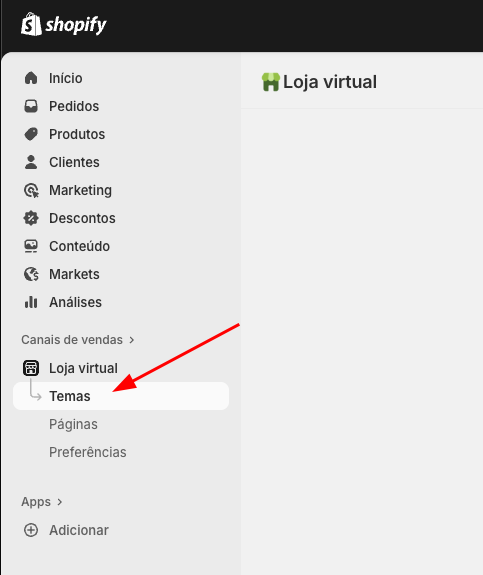
1. In the Shopify panel, click on **Sales channels** in the sidebar, then click on **Themes**
<img src="https://mintcdn.com/nemu/aRIWkl0MRf2tOyPM/assets/pages/integracoes/shopify/pixel/1.png?fit=max&auto=format&n=aRIWkl0MRf2tOyPM&q=85&s=b84ec1ecb1fa290ff1135af06a4e7b02" alt="" width="483" height="575" data-path="assets/pages/integracoes/shopify/pixel/1.png" />

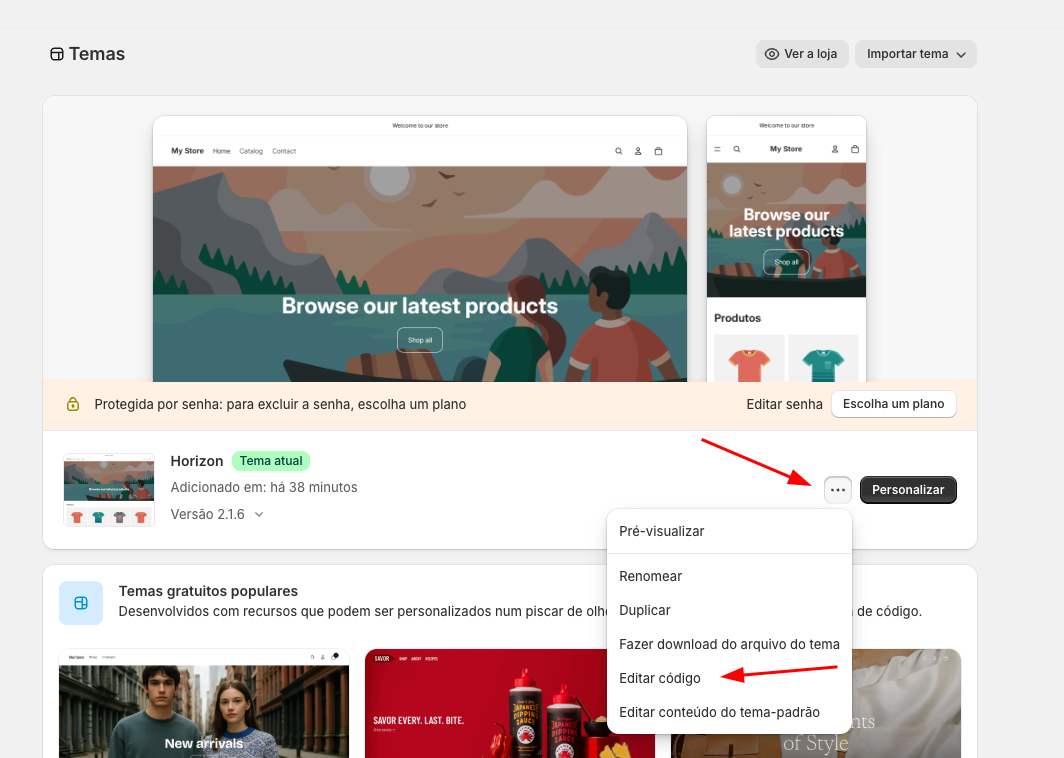
2. In your **Current Theme**, click the button and then click on **Edit code**
<img src="https://mintcdn.com/nemu/aRIWkl0MRf2tOyPM/assets/pages/integracoes/shopify/pixel/2.png?fit=max&auto=format&n=aRIWkl0MRf2tOyPM&q=85&s=d65556334b7d263caaa8b5059169fccd" alt="" width="1064" height="758" data-path="assets/pages/integracoes/shopify/pixel/2.png" />

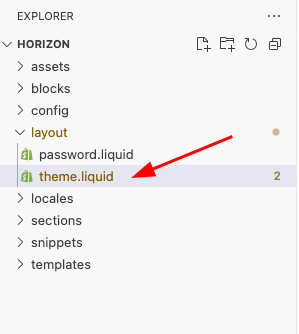
3. Open the **layout** folder and select the **theme.liquid** file
<img src="https://mintcdn.com/nemu/aRIWkl0MRf2tOyPM/assets/pages/integracoes/shopify/pixel/3.png?fit=max&auto=format&n=aRIWkl0MRf2tOyPM&q=85&s=e1e98e288dbd81893e024b4cc9c63fd9" alt="" width="299" height="334" data-path="assets/pages/integracoes/shopify/pixel/3.png" />

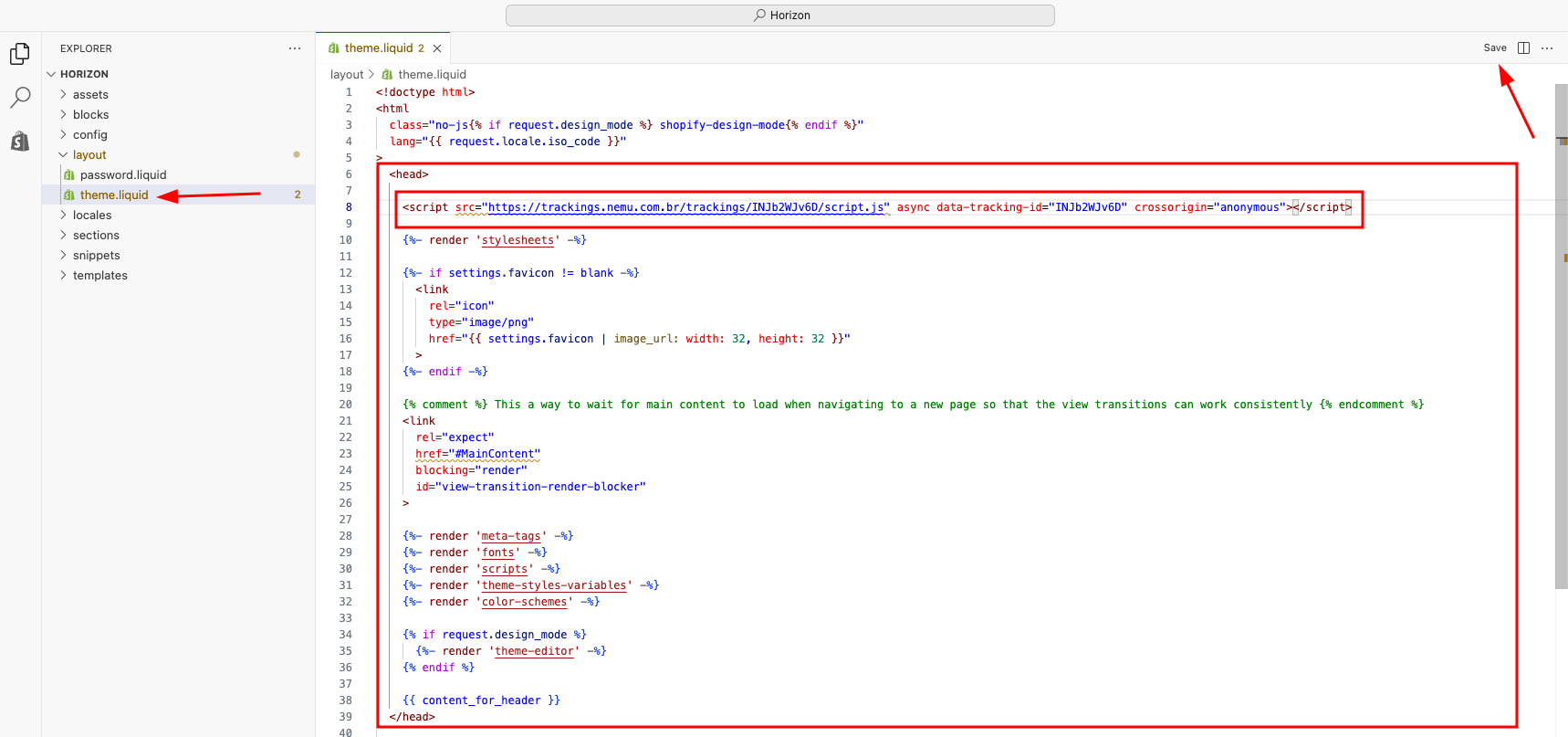
4. Paste the code copied in the [previous onboarding step](/en/onboarding/configuring-pixel/) inside the `<head>` tag and click **Save**

<img src="https://mintcdn.com/nemu/aRIWkl0MRf2tOyPM/assets/pages/integracoes/shopify/pixel/4.png?fit=max&auto=format&n=aRIWkl0MRf2tOyPM&q=85&s=00992f2ec86db540e327820b708d1a87" alt="" width="1718" height="807" data-path="assets/pages/integracoes/shopify/pixel/4.png" />

## Setting Up Webhooks on Shopify

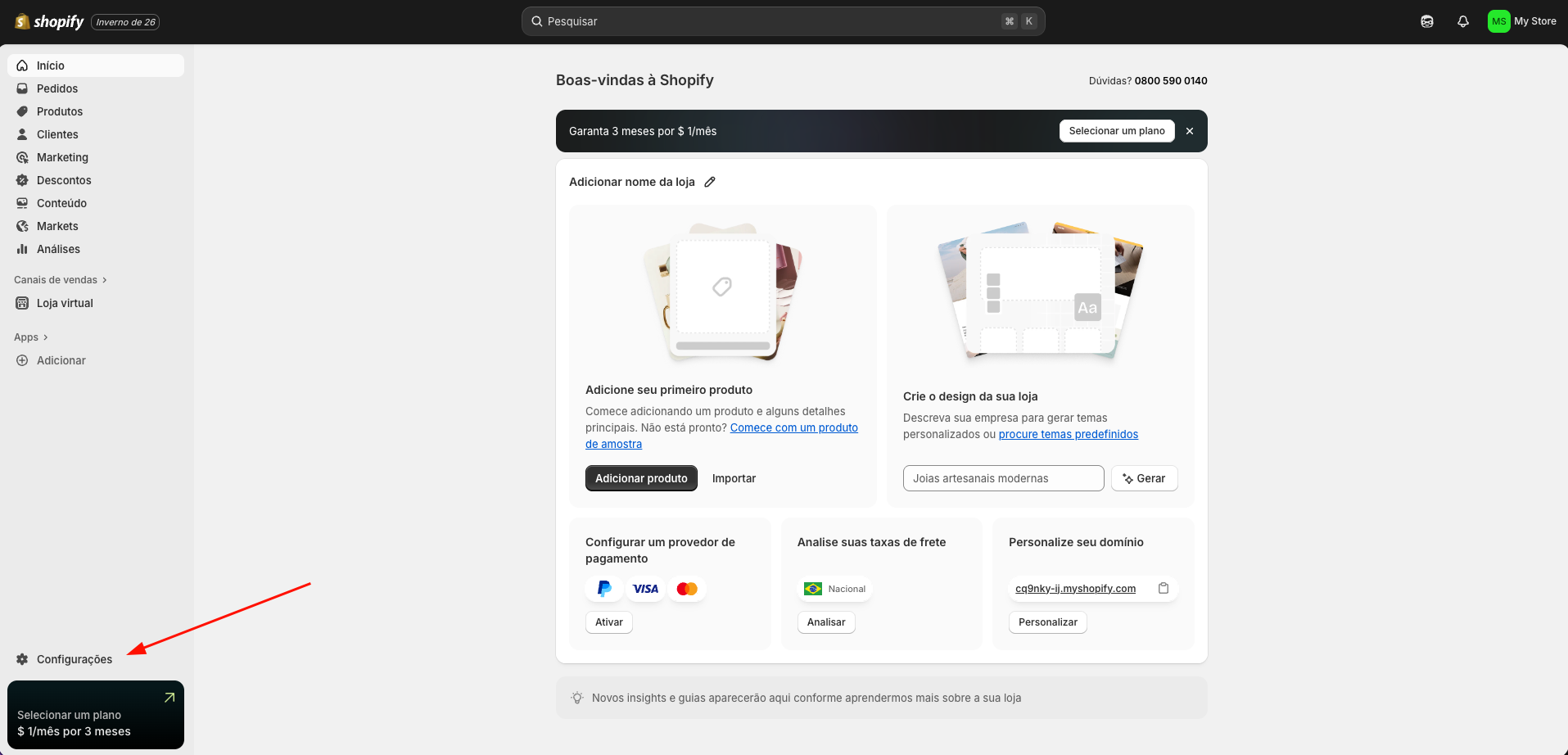
1. In the Shopify panel, click on **Settings** in the sidebar
<img src="https://mintcdn.com/nemu/B_CUoA13satbxmtz/assets/pages/integracoes/shopify/new/1.png?fit=max&auto=format&n=B_CUoA13satbxmtz&q=85&s=e8b445eebd13d79f5c0dc0eb170ef7fe" alt="" width="1915" height="922" data-path="assets/pages/integracoes/shopify/new/1.png" />

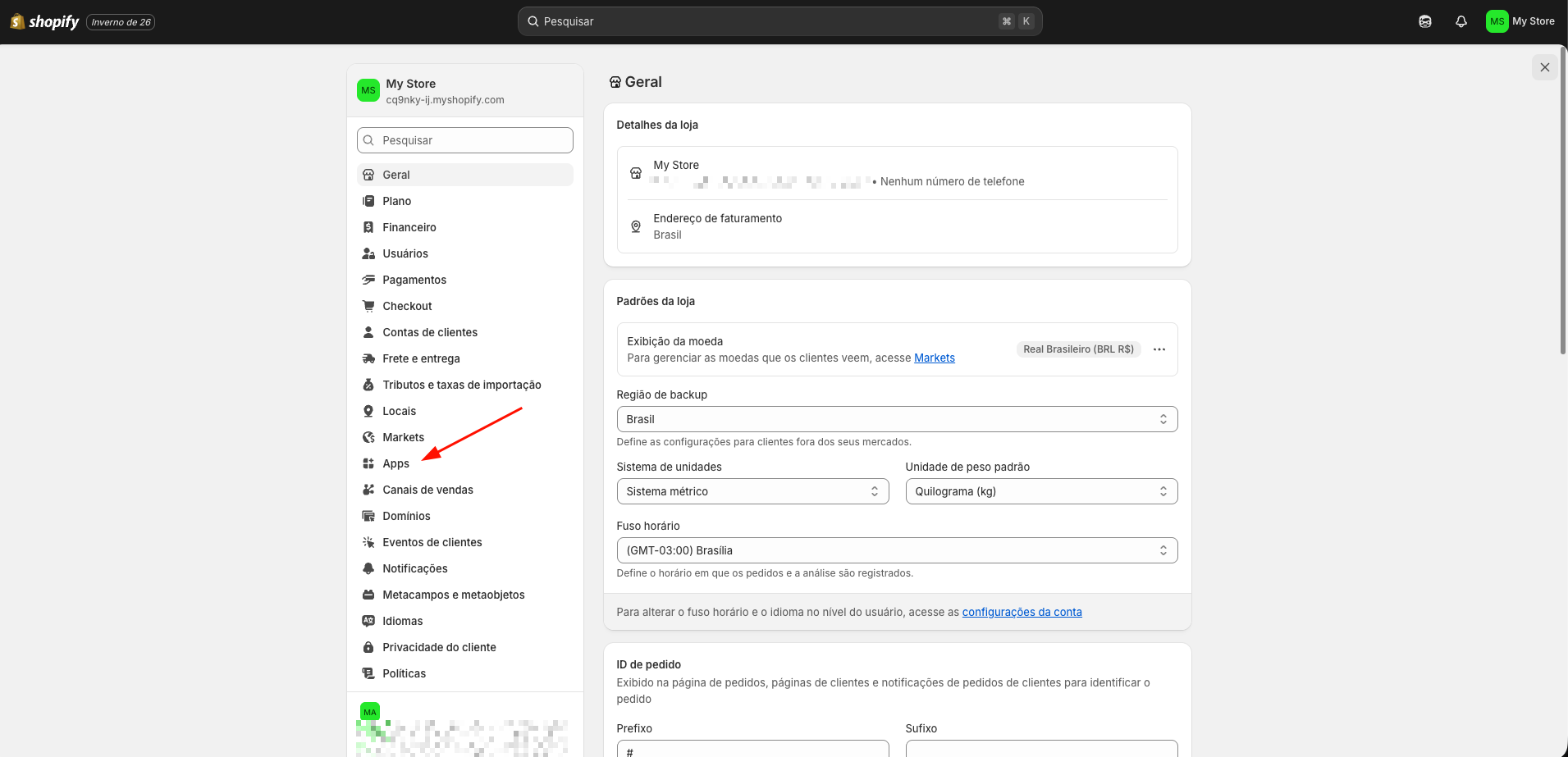
2. In the sidebar, click on **Apps**

<img src="https://mintcdn.com/nemu/B_CUoA13satbxmtz/assets/pages/integracoes/shopify/new/2.png?fit=max&auto=format&n=B_CUoA13satbxmtz&q=85&s=c732585e4c91cf4437cffb22f434280a" alt="" width="1911" height="923" data-path="assets/pages/integracoes/shopify/new/2.png" />

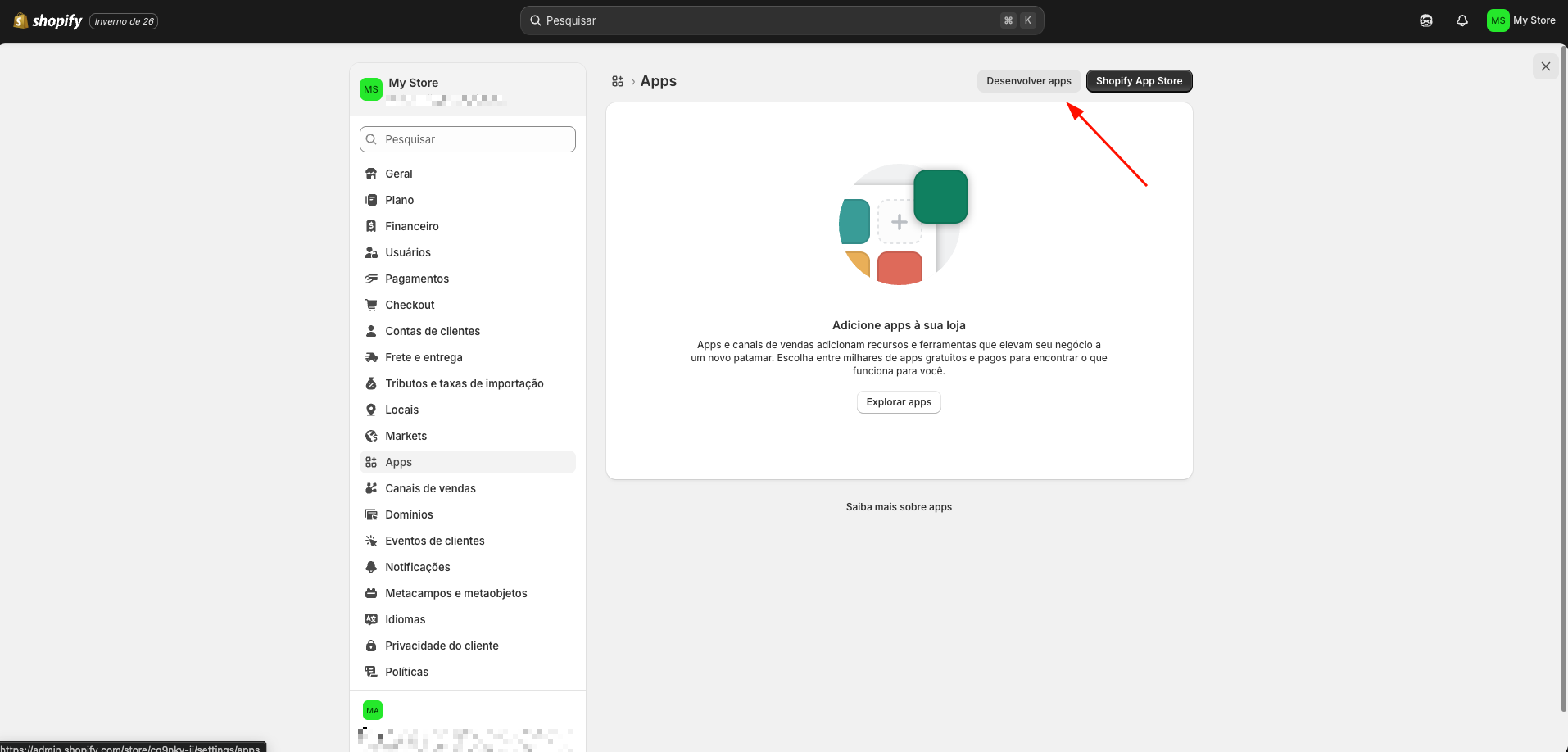
3. Click on the **Develop apps** button
<img src="https://mintcdn.com/nemu/B_CUoA13satbxmtz/assets/pages/integracoes/shopify/new/3.png?fit=max&auto=format&n=B_CUoA13satbxmtz&q=85&s=30fbabb3ee4b304d544aaba29c622400" alt="" width="1914" height="918" data-path="assets/pages/integracoes/shopify/new/3.png" />

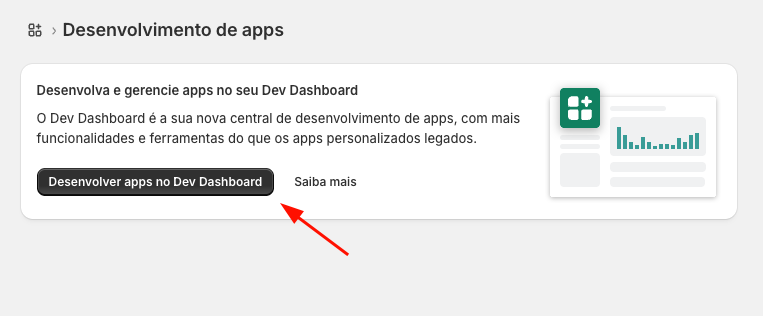
4. Click on **Develop apps in the Dev Dashboard**
<img src="https://mintcdn.com/nemu/B_CUoA13satbxmtz/assets/pages/integracoes/shopify/new/4.png?fit=max&auto=format&n=B_CUoA13satbxmtz&q=85&s=02226e1364ec7dfa4d14d442315dd9d9" alt="" width="763" height="316" data-path="assets/pages/integracoes/shopify/new/4.png" />

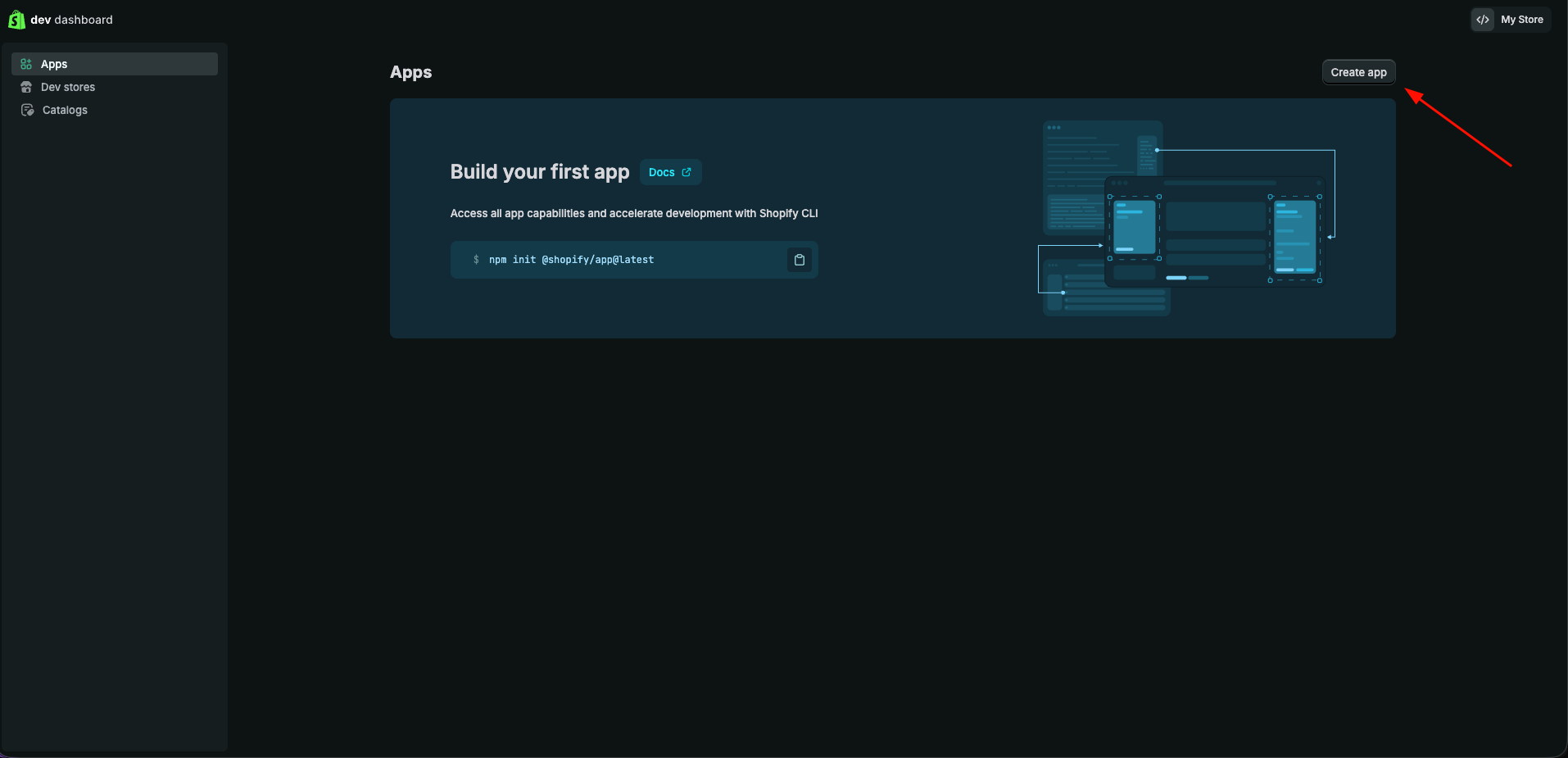
5. You will be redirected to the app development screen, click on **Create app**
<img src="https://mintcdn.com/nemu/B_CUoA13satbxmtz/assets/pages/integracoes/shopify/new/5.png?fit=max&auto=format&n=B_CUoA13satbxmtz&q=85&s=22af972a15c9a86b8d858fbc56cbe507" alt="" width="1914" height="925" data-path="assets/pages/integracoes/shopify/new/5.png" />

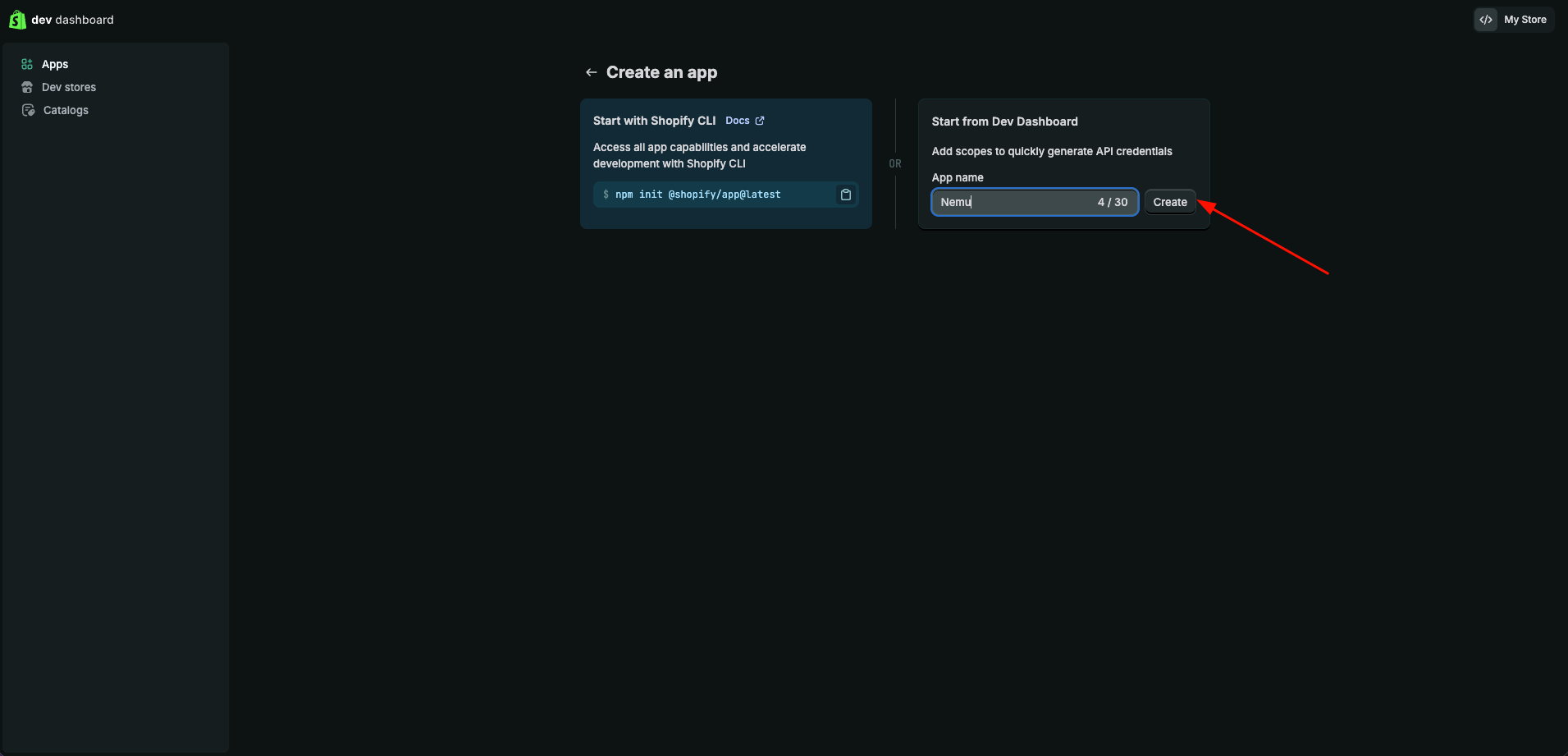
6. Define a name for your app and click on **Create**
<img src="https://mintcdn.com/nemu/B_CUoA13satbxmtz/assets/pages/integracoes/shopify/new/6.png?fit=max&auto=format&n=B_CUoA13satbxmtz&q=85&s=9facc627e802312d6415dafa9f914283" alt="" width="1911" height="921" data-path="assets/pages/integracoes/shopify/new/6.png" />

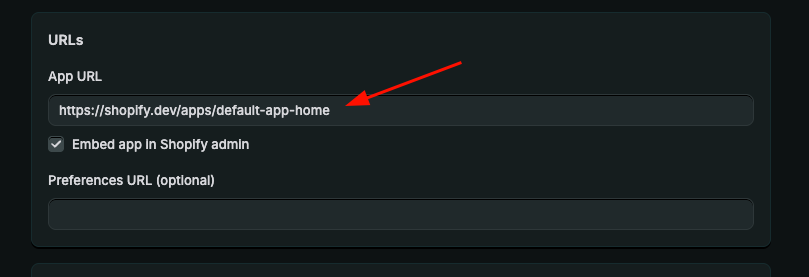
7. Copy the **URL** and paste it into the **App URL** field

```plaintext theme={null}
https://shopify.dev/apps/default-app-home
```
<img src="https://mintcdn.com/nemu/B_CUoA13satbxmtz/assets/pages/integracoes/shopify/new/7.png?fit=max&auto=format&n=B_CUoA13satbxmtz&q=85&s=0fe8821ecc0347d1751299b9f74a2fdc" alt="" width="809" height="277" data-path="assets/pages/integracoes/shopify/new/7.png" />

8. In Webhooks API Version, select version 2026-01

<img src="https://mintcdn.com/nemu/B_CUoA13satbxmtz/assets/pages/integracoes/shopify/new/8.png?fit=max&auto=format&n=B_CUoA13satbxmtz&q=85&s=b59908e7cf071f15beafa05723c23d2f" alt="" width="845" height="148" data-path="assets/pages/integracoes/shopify/new/8.png" />

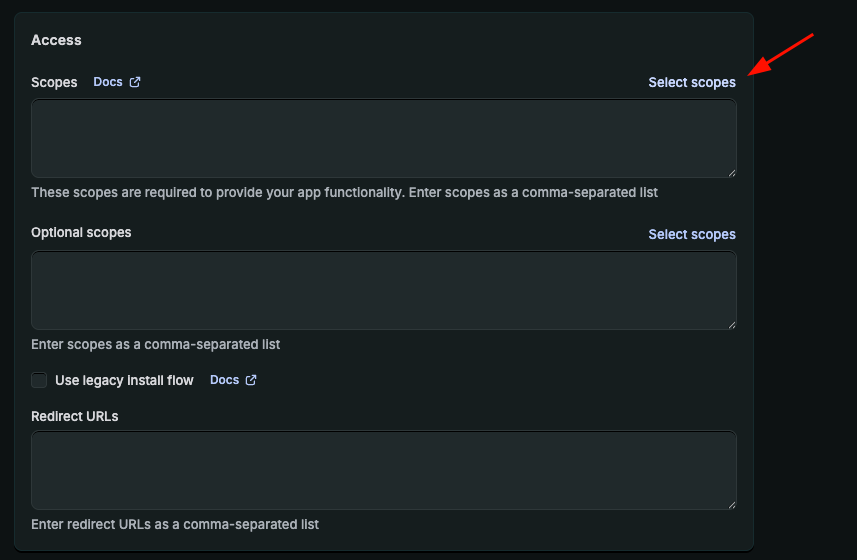
9. Click on **Select scopes**

<img src="https://mintcdn.com/nemu/B_CUoA13satbxmtz/assets/pages/integracoes/shopify/new/9.png?fit=max&auto=format&n=B_CUoA13satbxmtz&q=85&s=b5d93976f3be67092df3ddc6de548c67" alt="" width="857" height="560" data-path="assets/pages/integracoes/shopify/new/9.png" />

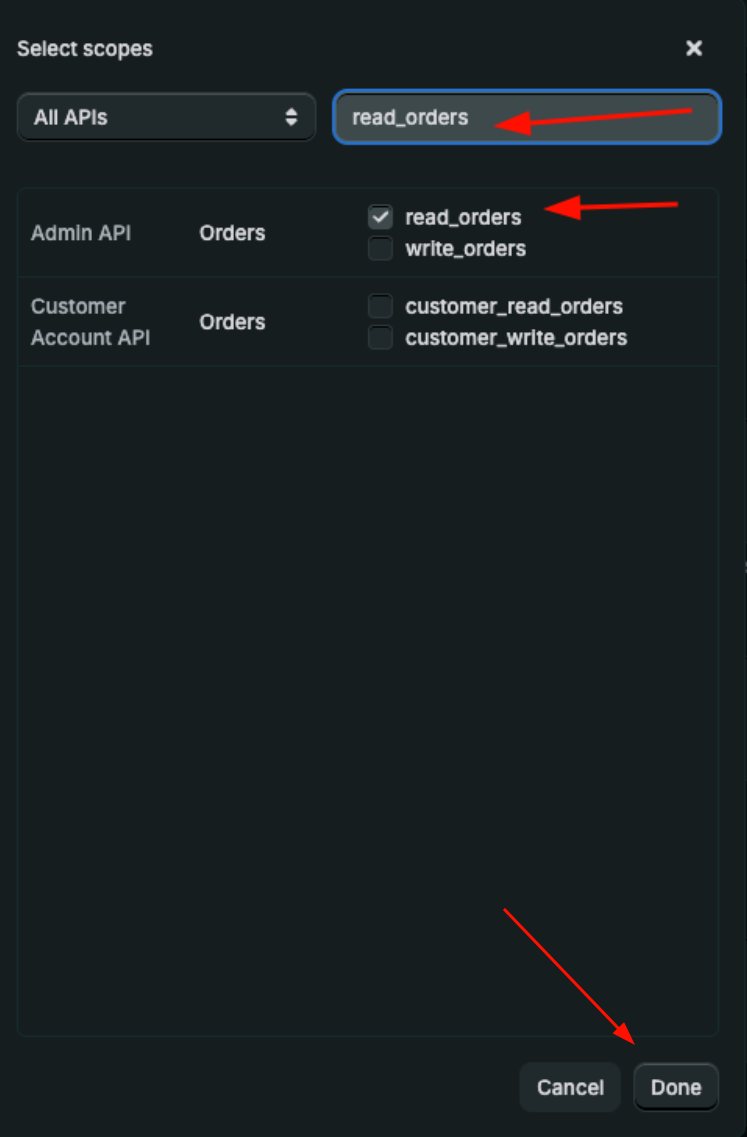
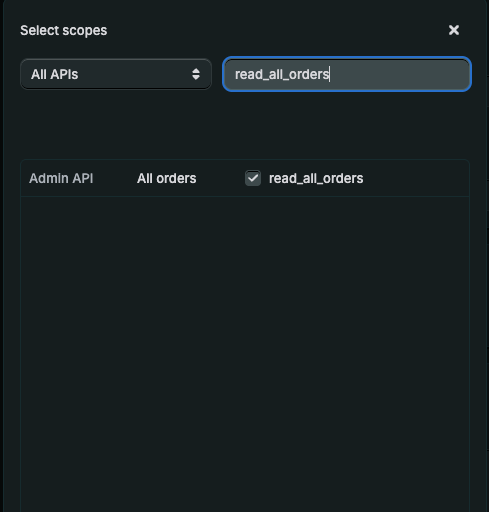
10. Search for:

* `read_all_orders`
* `read_orders`

Check these options and click on **Done**
<Columns cols={2}>
  <Card>
    <img src="https://mintcdn.com/nemu/B_CUoA13satbxmtz/assets/pages/integracoes/shopify/new/9.1.png?fit=max&auto=format&n=B_CUoA13satbxmtz&q=85&s=6803136688d0e7335d7851679c5ca7f8" alt="" width="489" height="512" data-path="assets/pages/integracoes/shopify/new/9.1.png" />
  </Card>

  <Card>
    <img src="https://mintcdn.com/nemu/B_CUoA13satbxmtz/assets/pages/integracoes/shopify/new/9.2.png?fit=max&auto=format&n=B_CUoA13satbxmtz&q=85&s=ffb3f14c7d354944347063c62a492fd7" alt="" width="747" height="1137" data-path="assets/pages/integracoes/shopify/new/9.2.png" />
  </Card>
</Columns>

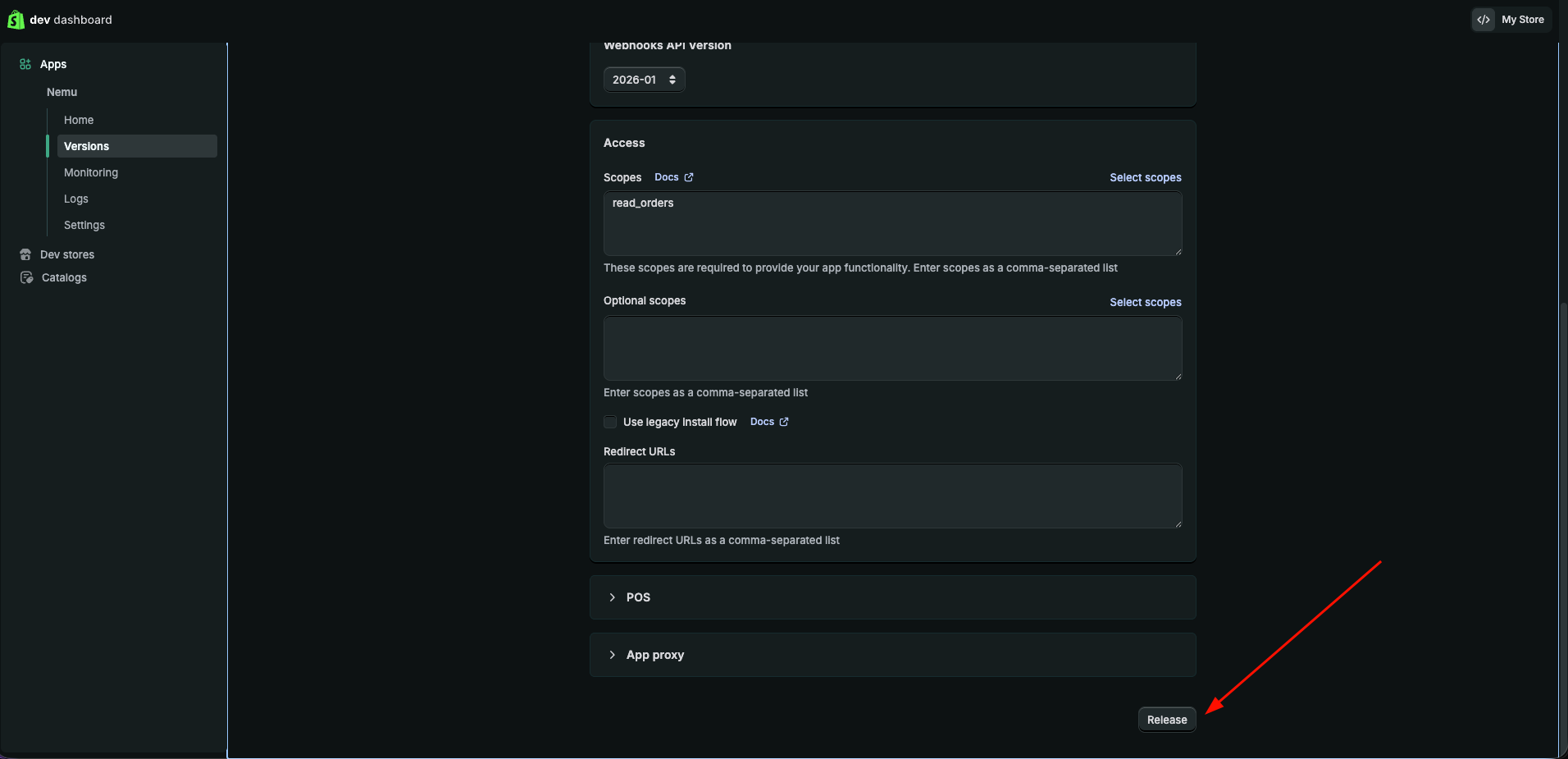
11. Scroll down to the bottom of the page and click on **Release**
<img src="https://mintcdn.com/nemu/B_CUoA13satbxmtz/assets/pages/integracoes/shopify/new/10.png?fit=max&auto=format&n=B_CUoA13satbxmtz&q=85&s=f26c47b9f7a78d5db02b678b37efb8c7" alt="" width="1912" height="925" data-path="assets/pages/integracoes/shopify/new/10.png" />

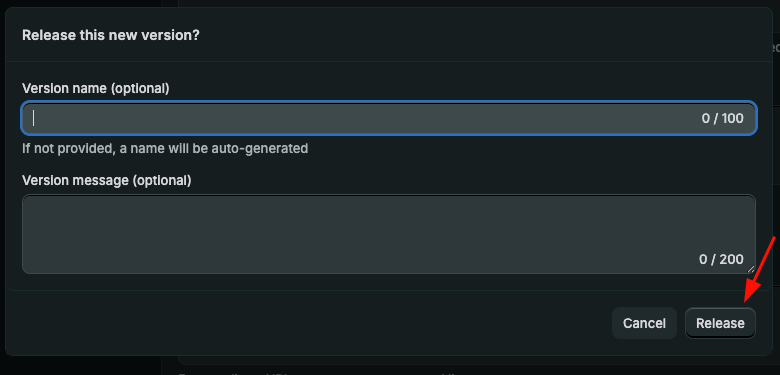
12. In **Version name**, you can leave it blank and click on **Release**
<img src="https://mintcdn.com/nemu/B_CUoA13satbxmtz/assets/pages/integracoes/shopify/new/11.png?fit=max&auto=format&n=B_CUoA13satbxmtz&q=85&s=e75e574bee38d793c02a5b43b089b02b" alt="" width="780" height="375" data-path="assets/pages/integracoes/shopify/new/11.png" />

## Installing the App on Shopify

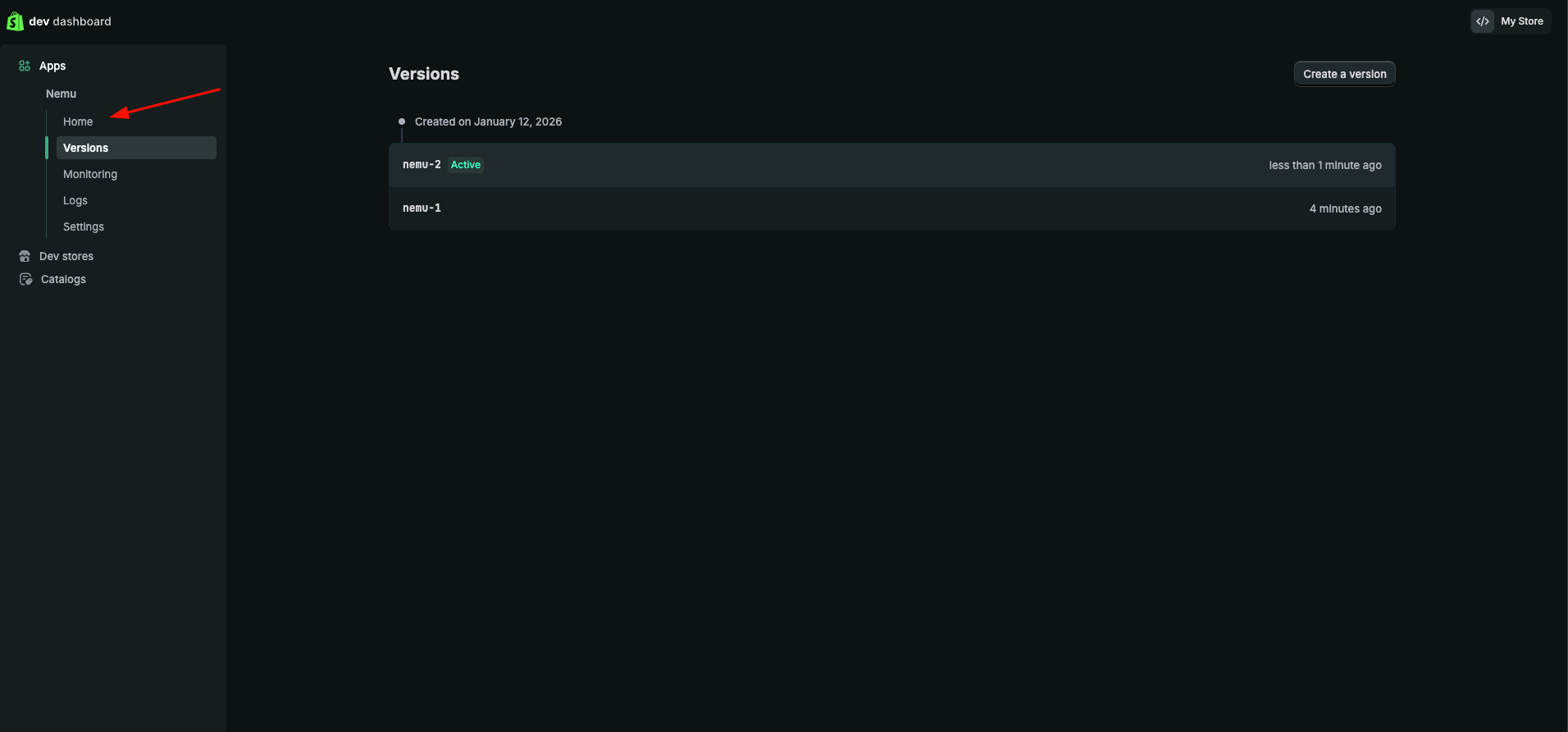
1. In the sidebar, click on **Home**
<img src="https://mintcdn.com/nemu/B_CUoA13satbxmtz/assets/pages/integracoes/shopify/new/12.png?fit=max&auto=format&n=B_CUoA13satbxmtz&q=85&s=81adc78dd65f52c1da639659eda2ca5a" alt="" width="1912" height="892" data-path="assets/pages/integracoes/shopify/new/12.png" />

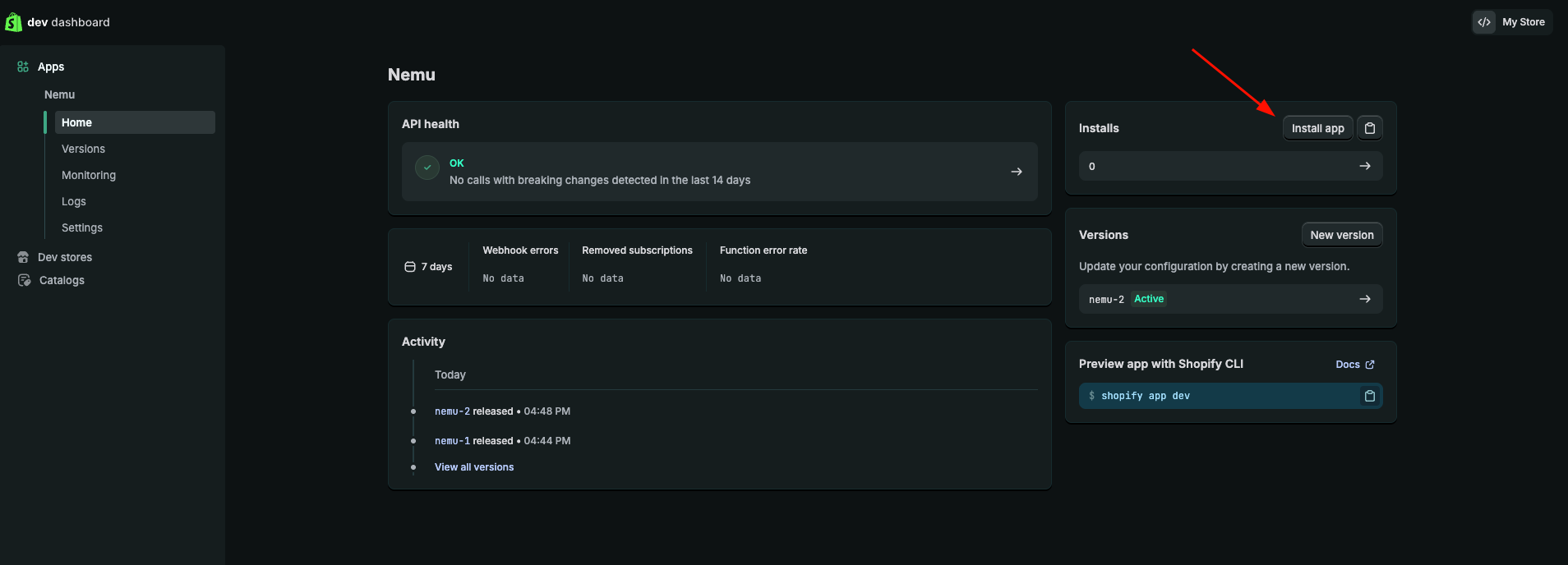
2. Click on the **Install app** button
<img src="https://mintcdn.com/nemu/B_CUoA13satbxmtz/assets/pages/integracoes/shopify/new/13.png?fit=max&auto=format&n=B_CUoA13satbxmtz&q=85&s=5a130d16891d6fbdb11d5aa9ae3178a1" alt="" width="1908" height="688" data-path="assets/pages/integracoes/shopify/new/13.png" />

<Info>
  Keep this page open, as we will need the **Client ID** and **Client Secret** for the next steps.
</Info>

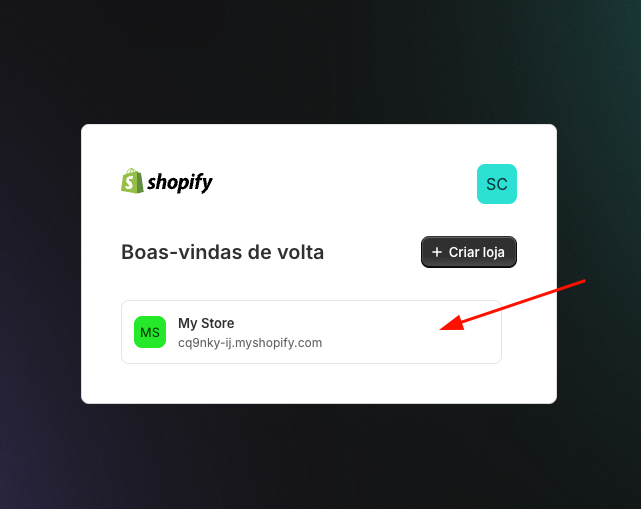
3. Click on the store card where you want to install the app
<img src="https://mintcdn.com/nemu/B_CUoA13satbxmtz/assets/pages/integracoes/shopify/new/14.png?fit=max&auto=format&n=B_CUoA13satbxmtz&q=85&s=2b27f7db9b7b10d292e8da825d9ea5ff" alt="" width="641" height="509" data-path="assets/pages/integracoes/shopify/new/14.png" />

4. Click on the **Install** button

<img src="https://mintcdn.com/nemu/B_CUoA13satbxmtz/assets/pages/integracoes/shopify/new/15.png?fit=max&auto=format&n=B_CUoA13satbxmtz&q=85&s=c6939d6e13da56be54007573f3a7fe06" alt="" width="1915" height="927" data-path="assets/pages/integracoes/shopify/new/15.png" />

## Setting Up Webhooks in Nemu

1. Access the Shopify dev dashboard [by clicking here](https://dev.shopify.com/dashboard/)

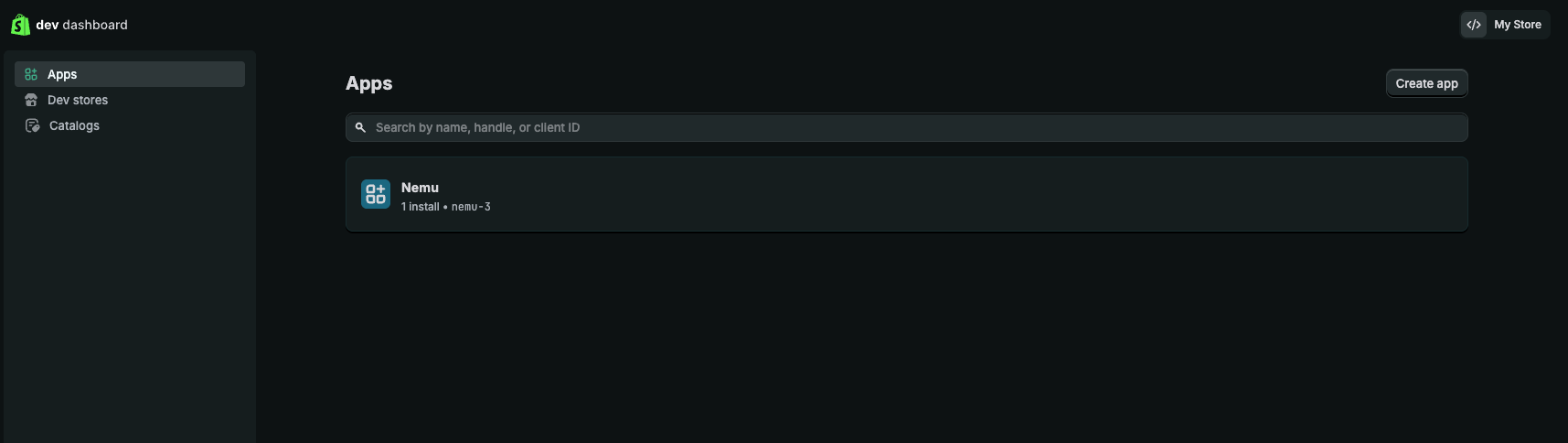
2. Click on the app card that we created in the [setting up webhooks on Shopify step](/en/onboarding/integrations/shopify/#setting-up-webhooks-on-shopify)
<img src="https://mintcdn.com/nemu/B_CUoA13satbxmtz/assets/pages/integracoes/shopify/new/16.png?fit=max&auto=format&n=B_CUoA13satbxmtz&q=85&s=900d66a93b6986a1ee31ccca7c6b1c86" alt="" width="1715" height="484" data-path="assets/pages/integracoes/shopify/new/16.png" />

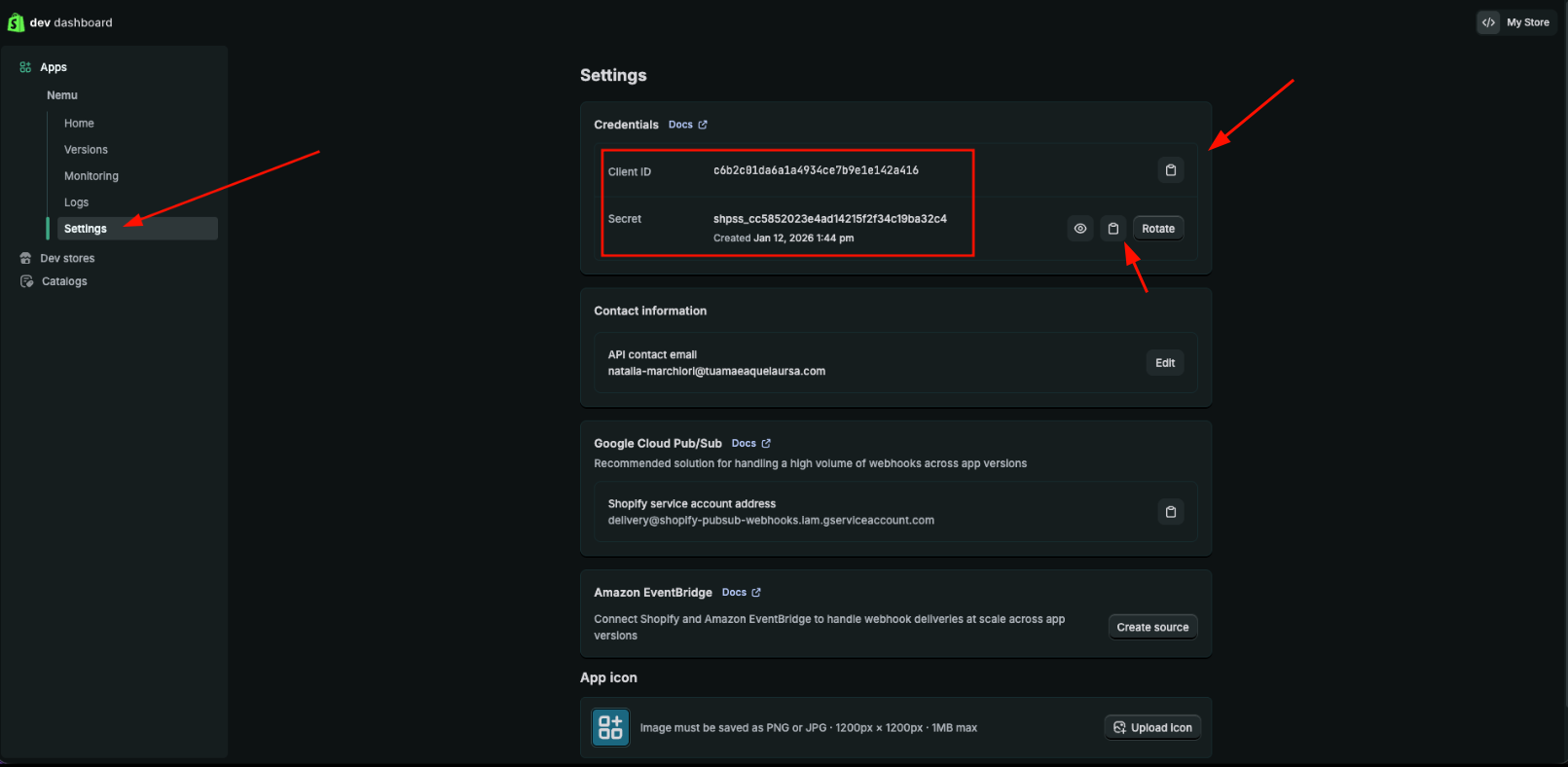
3. In the sidebar, click on **Settings** and copy the **Client ID** and **Client Secret**
<img src="https://mintcdn.com/nemu/B_CUoA13satbxmtz/assets/pages/integracoes/shopify/new/17.png?fit=max&auto=format&n=B_CUoA13satbxmtz&q=85&s=3ee5f2026617be5cc3fa8cd31ae3693a" alt="" width="1611" height="788" data-path="assets/pages/integracoes/shopify/new/17.png" />

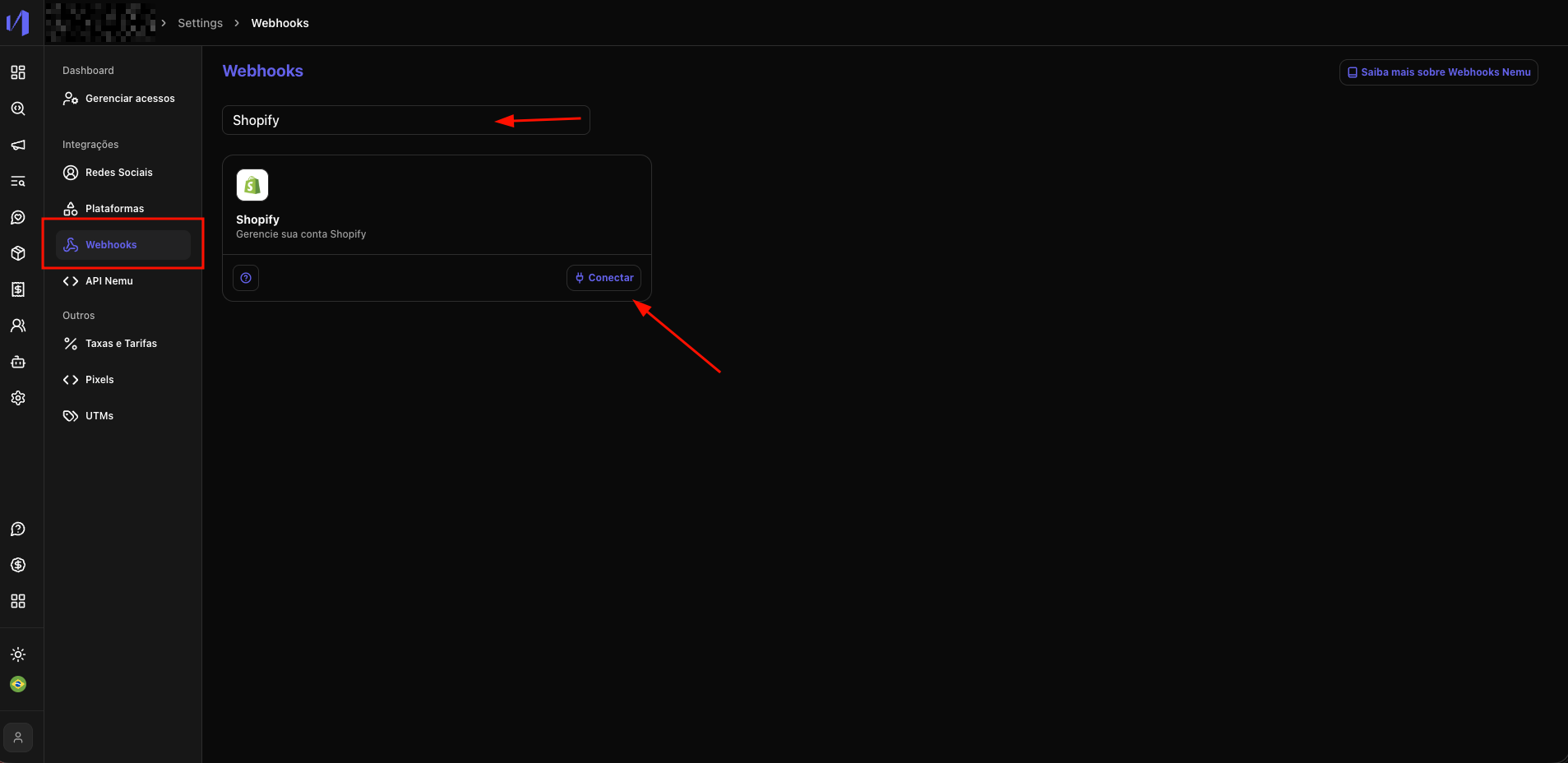
4. In Nemu, go to **Settings** > **Webhooks**, search for **Shopify** and click on **Connect**
<img src="https://mintcdn.com/nemu/B_CUoA13satbxmtz/assets/pages/integracoes/shopify/new/18.png?fit=max&auto=format&n=B_CUoA13satbxmtz&q=85&s=6a422f9366d4612354d20b7a84fc3f84" alt="" width="1907" height="928" data-path="assets/pages/integracoes/shopify/new/18.png" />

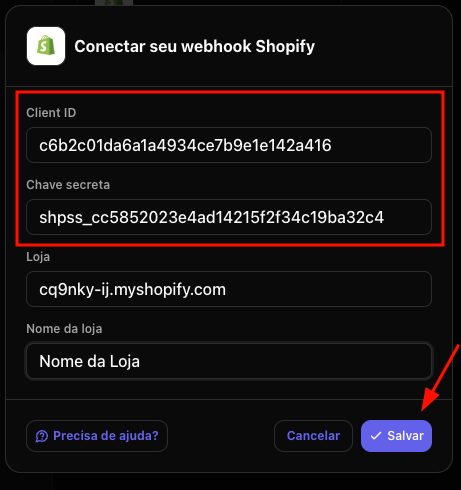
5. Paste the **Client ID** and **Client Secret** in their respective fields
<img src="https://mintcdn.com/nemu/B_CUoA13satbxmtz/assets/pages/integracoes/shopify/new/19.png?fit=max&auto=format&n=B_CUoA13satbxmtz&q=85&s=7980cb11acadef8a2265e5c14b59a599" alt="" width="461" height="490" data-path="assets/pages/integracoes/shopify/new/19.png" />

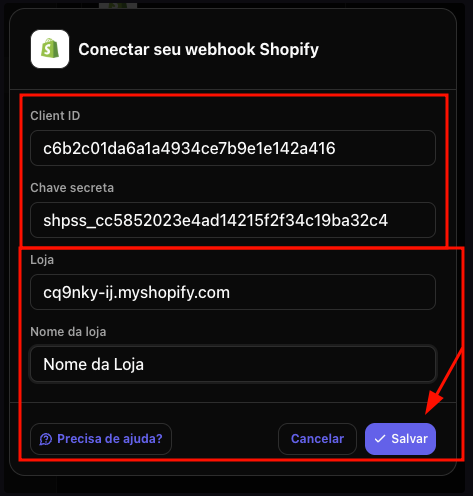
6. Fill in the Store details and click on **Save**
<img src="https://mintcdn.com/nemu/B_CUoA13satbxmtz/assets/pages/integracoes/shopify/new/19.1.png?fit=max&auto=format&n=B_CUoA13satbxmtz&q=85&s=5589190dfce66aa217fd289f7111e45f" alt="" width="473" height="496" data-path="assets/pages/integracoes/shopify/new/19.1.png" />

<Warning>
  Do not close the popup that appears, as we will need the **Pixel URL** for the next steps.
</Warning>

## Setting Up Custom Pixel on Shopify

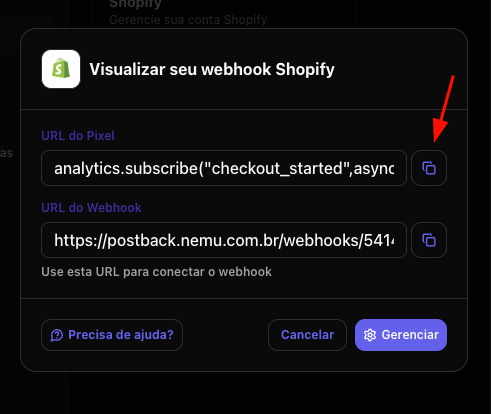
1. Copy the **Pixel URL**, we will use this in step 7 of this section to set up the Custom Pixel on Shopify.
<img src="https://mintcdn.com/nemu/B_CUoA13satbxmtz/assets/pages/integracoes/shopify/custom-pixel/1.png?fit=max&auto=format&n=B_CUoA13satbxmtz&q=85&s=5c3ce826135c1f5c89e642866db96023" alt="" width="491" height="414" data-path="assets/pages/integracoes/shopify/custom-pixel/1.png" />

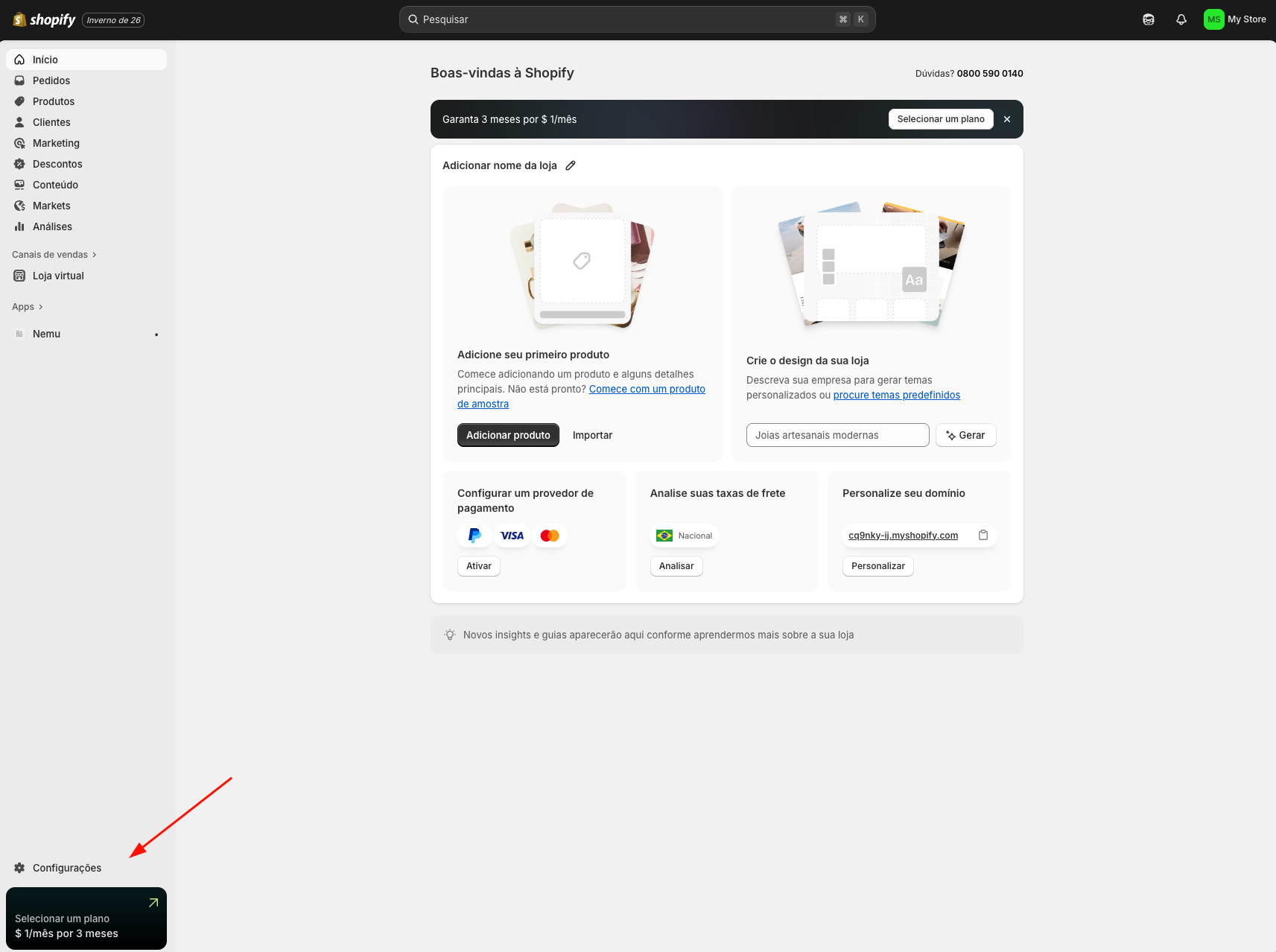
2. In the sidebar, click on **Settings**
<img src="https://mintcdn.com/nemu/X995Crav-FoQ1rcL/assets/pages/integracoes/shopify/custom-pixel/2.png?fit=max&auto=format&n=X995Crav-FoQ1rcL&q=85&s=fdf80b751d219f579b532ef811d69ffd" alt="" width="1713" height="1278" data-path="assets/pages/integracoes/shopify/custom-pixel/2.png" />

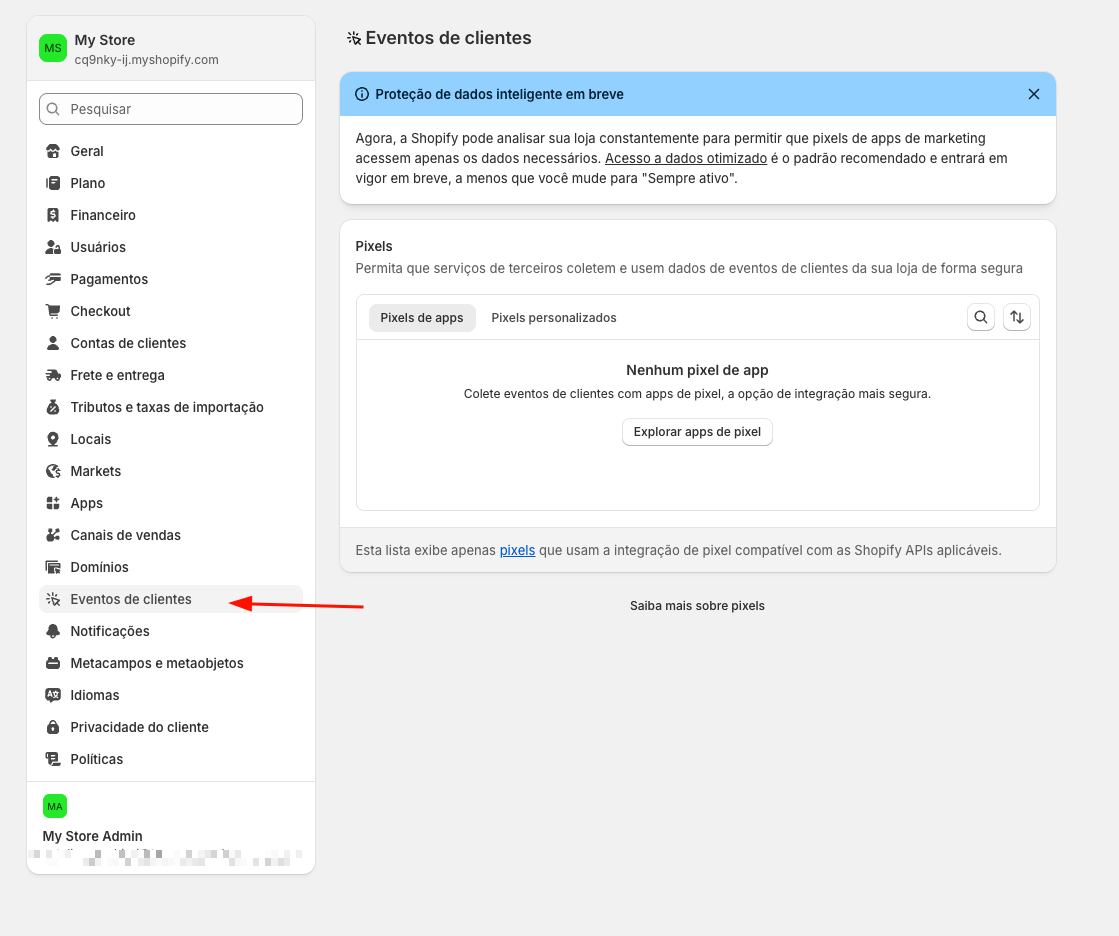
3. A new page will open, click on **Customer events**
<img src="https://mintcdn.com/nemu/X995Crav-FoQ1rcL/assets/pages/integracoes/shopify/custom-pixel/3.png?fit=max&auto=format&n=X995Crav-FoQ1rcL&q=85&s=199bb14267f6eea0a4e480d203bc06df" alt="" width="1119" height="936" data-path="assets/pages/integracoes/shopify/custom-pixel/3.png" />

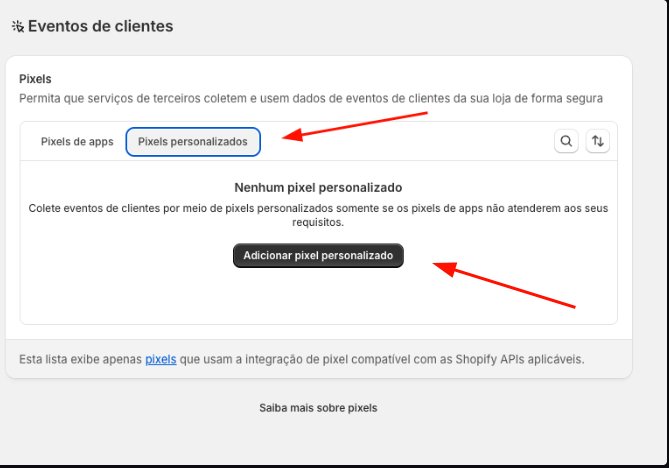
4. Click on the **Custom Pixels** tab and click on **Add custom pixel**
<img src="https://mintcdn.com/nemu/X995Crav-FoQ1rcL/assets/pages/integracoes/shopify/custom-pixel/4.png?fit=max&auto=format&n=X995Crav-FoQ1rcL&q=85&s=8fe466d5ba86e7701543b38acb6ccc32" alt="" width="669" height="468" data-path="assets/pages/integracoes/shopify/custom-pixel/4.png" />

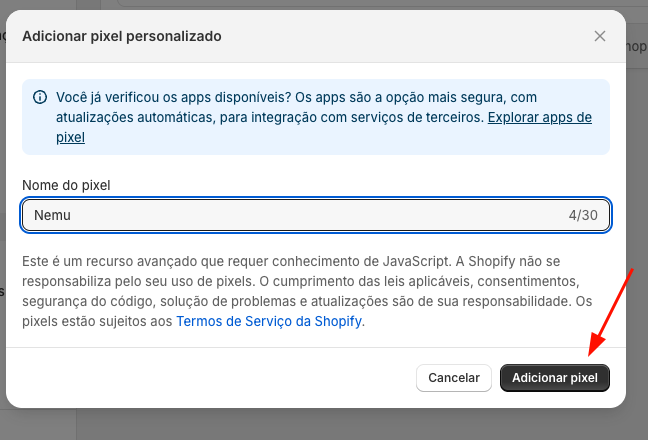
5. Define a name for the Pixel and click on **Add pixel**
<img src="https://mintcdn.com/nemu/X995Crav-FoQ1rcL/assets/pages/integracoes/shopify/custom-pixel/5.png?fit=max&auto=format&n=X995Crav-FoQ1rcL&q=85&s=12d3d28cce7c35f5cde9812147e0e6af" alt="" width="648" height="440" data-path="assets/pages/integracoes/shopify/custom-pixel/5.png" />

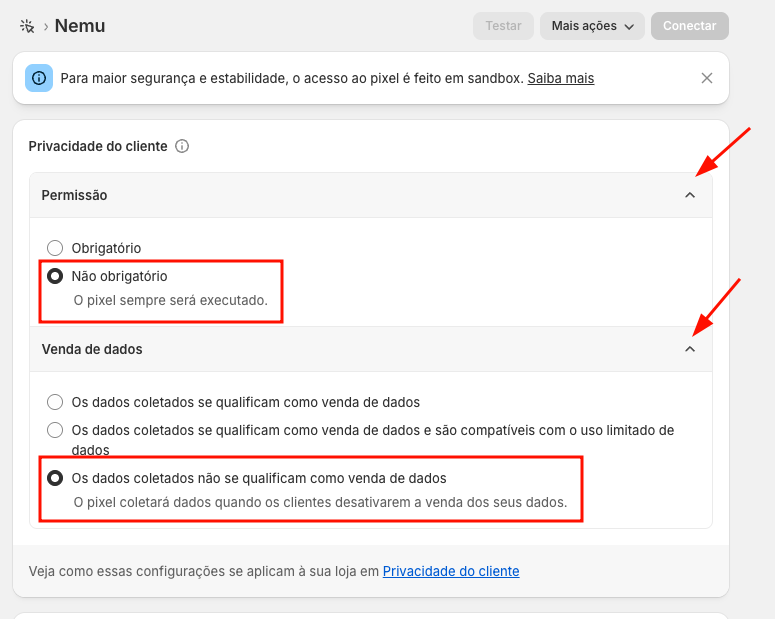
6. Expand the **Customer Privacy** section and configure:

* **Consent**: *Not required*
* **Data sale select**: *The data collected does not qualify as data sale*
<img src="https://mintcdn.com/nemu/X995Crav-FoQ1rcL/assets/pages/integracoes/shopify/custom-pixel/6.png?fit=max&auto=format&n=X995Crav-FoQ1rcL&q=85&s=ecac70f8a861d78d2c5f3b17f06773aa" alt="" width="775" height="619" data-path="assets/pages/integracoes/shopify/custom-pixel/6.png" />

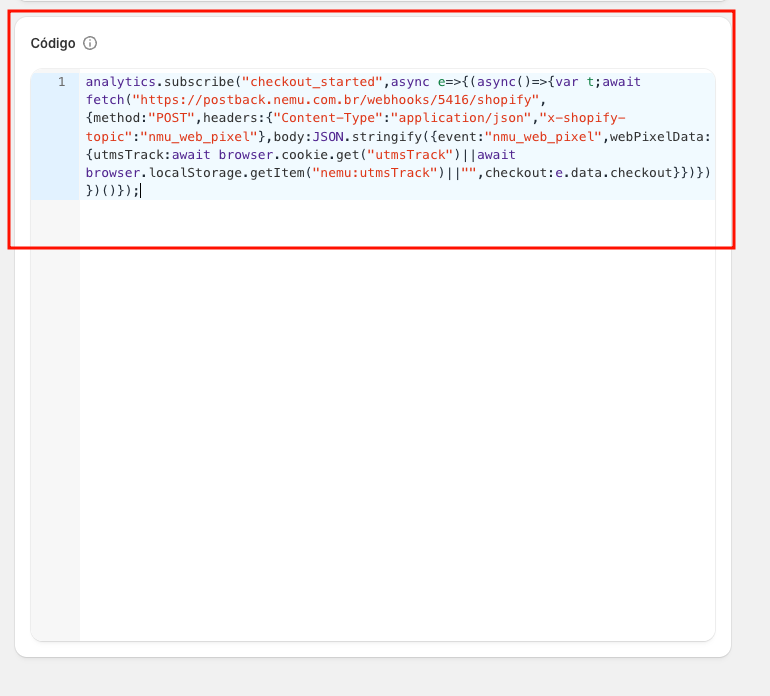
7. Paste the code copied in step **1**
<img src="https://mintcdn.com/nemu/X995Crav-FoQ1rcL/assets/pages/integracoes/shopify/custom-pixel/7.png?fit=max&auto=format&n=X995Crav-FoQ1rcL&q=85&s=e8000b58e7e39acfb646075ed83ec135" alt="" width="770" height="696" data-path="assets/pages/integracoes/shopify/custom-pixel/7.png" />

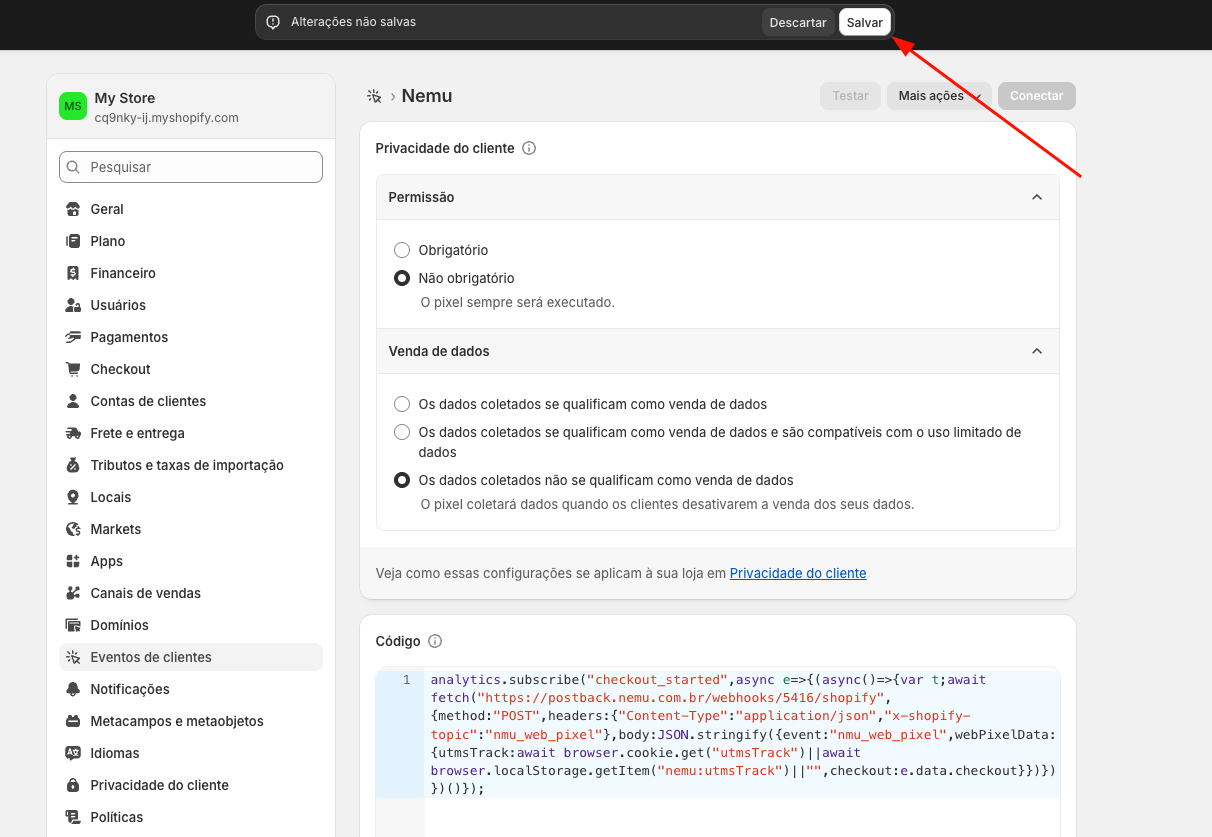
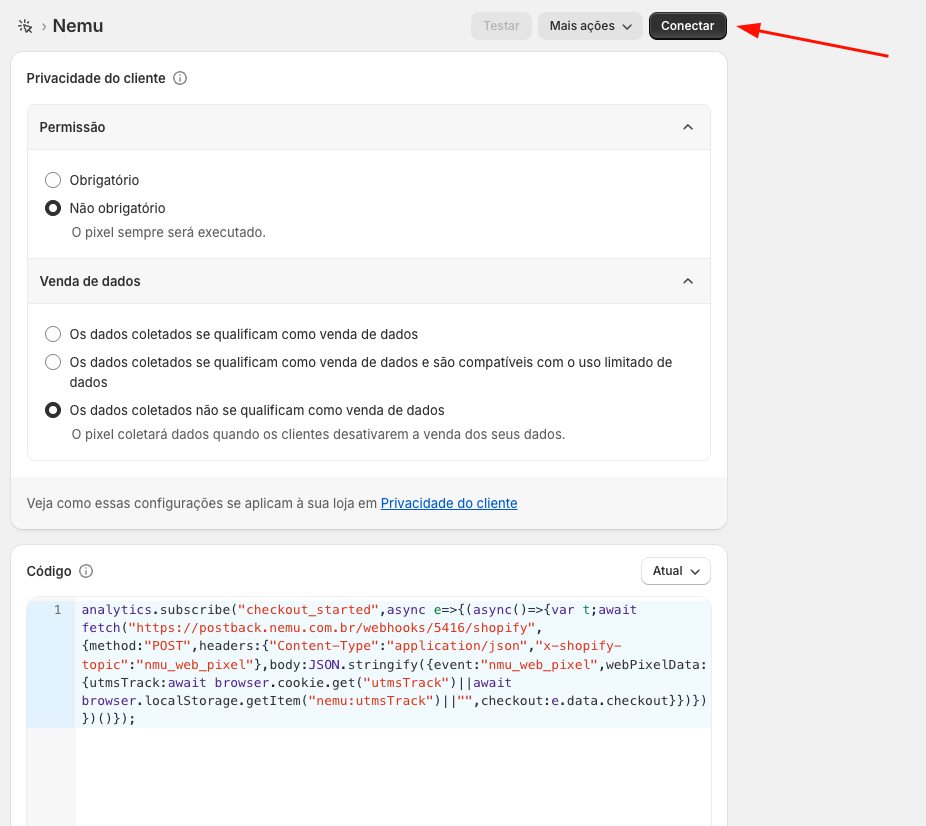
8. At the top of the page, after pasting the code, the **Save** button will appear, then click on **Connect**
<img src="https://mintcdn.com/nemu/X995Crav-FoQ1rcL/assets/pages/integracoes/shopify/custom-pixel/8.png?fit=max&auto=format&n=X995Crav-FoQ1rcL&q=85&s=008ce1251019da8a54a148b74b0d3cb3" alt="" width="1212" height="837" data-path="assets/pages/integracoes/shopify/custom-pixel/8.png" />

<br />

<img src="https://mintcdn.com/nemu/X995Crav-FoQ1rcL/assets/pages/integracoes/shopify/custom-pixel/9.png?fit=max&auto=format&n=X995Crav-FoQ1rcL&q=85&s=e828b61ef35050e8f9645e8d10740a28" alt="" width="926" height="826" data-path="assets/pages/integracoes/shopify/custom-pixel/9.png" />

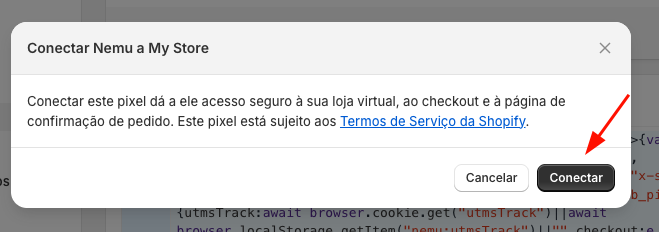
9. Confirm again by clicking on **Connect**
<img src="https://mintcdn.com/nemu/X995Crav-FoQ1rcL/assets/pages/integracoes/shopify/custom-pixel/10.png?fit=max&auto=format&n=X995Crav-FoQ1rcL&q=85&s=d204cc375a93950b23a4d66e933657f1" alt="" width="659" height="232" data-path="assets/pages/integracoes/shopify/custom-pixel/10.png" />