> ## Documentation Index
> Fetch the complete documentation index at: https://docs.nemu.com.br/llms.txt
> Use this file to discover all available pages before exploring further.

# Ticto

> How to connect your Ticto account to Nemu Dashboard

## Setting Up Webhooks in Ticto Panel

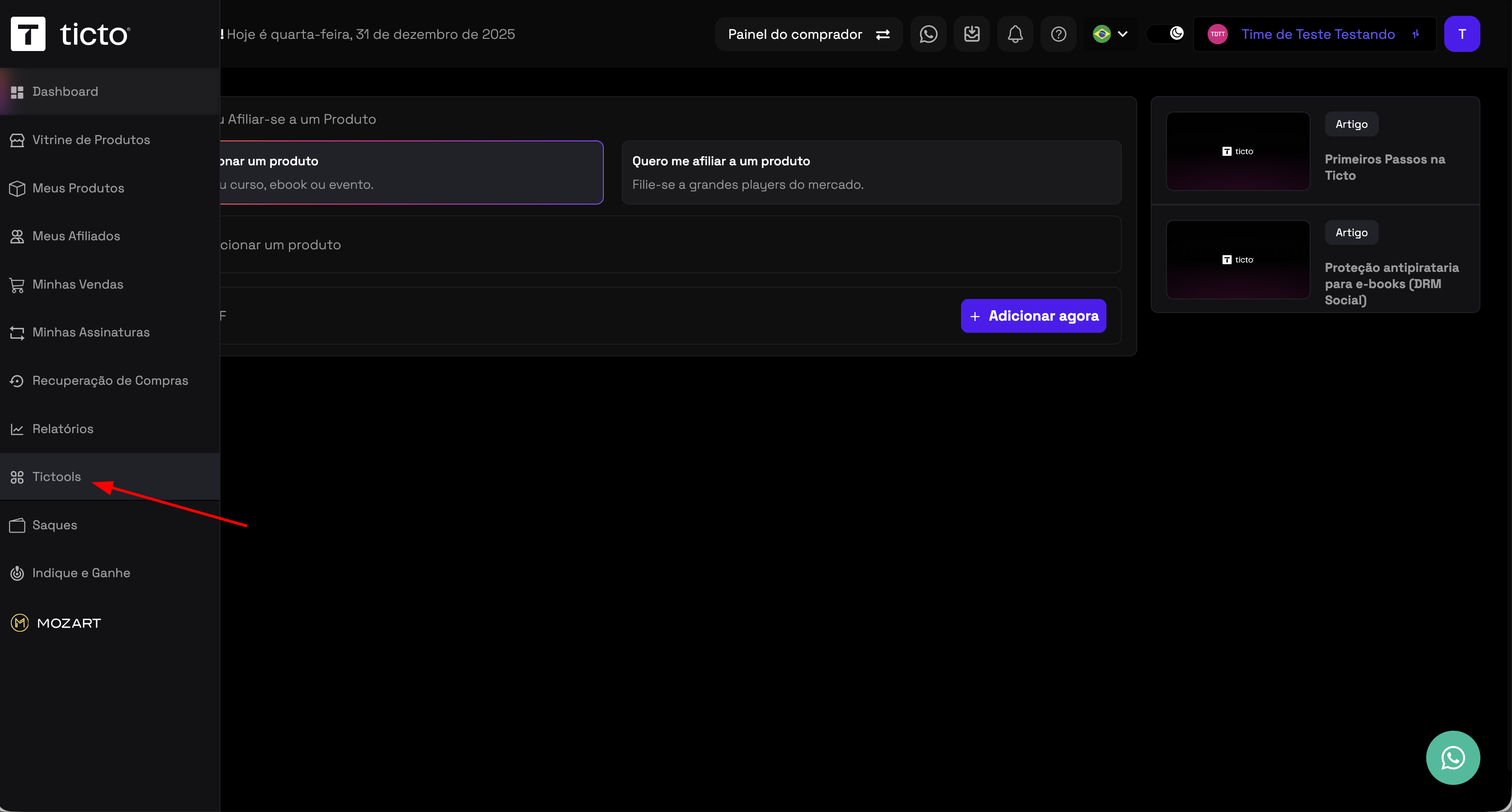
1. Access the Ticto panel, in the sidebar click on **Tictools**
<img src="https://mintcdn.com/nemu/3g1KAdQ58VKGTRqz/assets/pages/integracoes/ticto/1.png?fit=max&auto=format&n=3g1KAdQ58VKGTRqz&q=85&s=c46c4730b18140fd3455ea87fe916bbc" alt="" width="3348" height="1798" data-path="assets/pages/integracoes/ticto/1.png" />

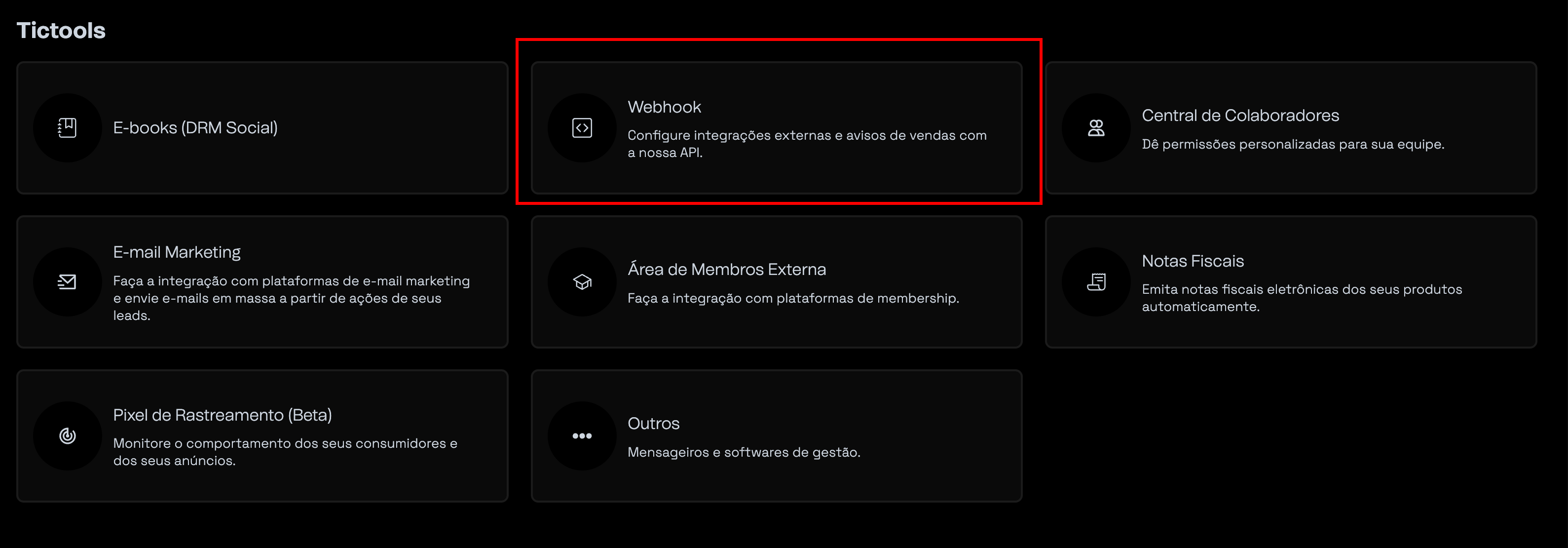
2. Click on **Webhooks**

<img src="https://mintcdn.com/nemu/3g1KAdQ58VKGTRqz/assets/pages/integracoes/ticto/2.png?fit=max&auto=format&n=3g1KAdQ58VKGTRqz&q=85&s=bfd08c1986546a3dc145b2b1f0df2303" alt="" width="3178" height="1110" data-path="assets/pages/integracoes/ticto/2.png" />

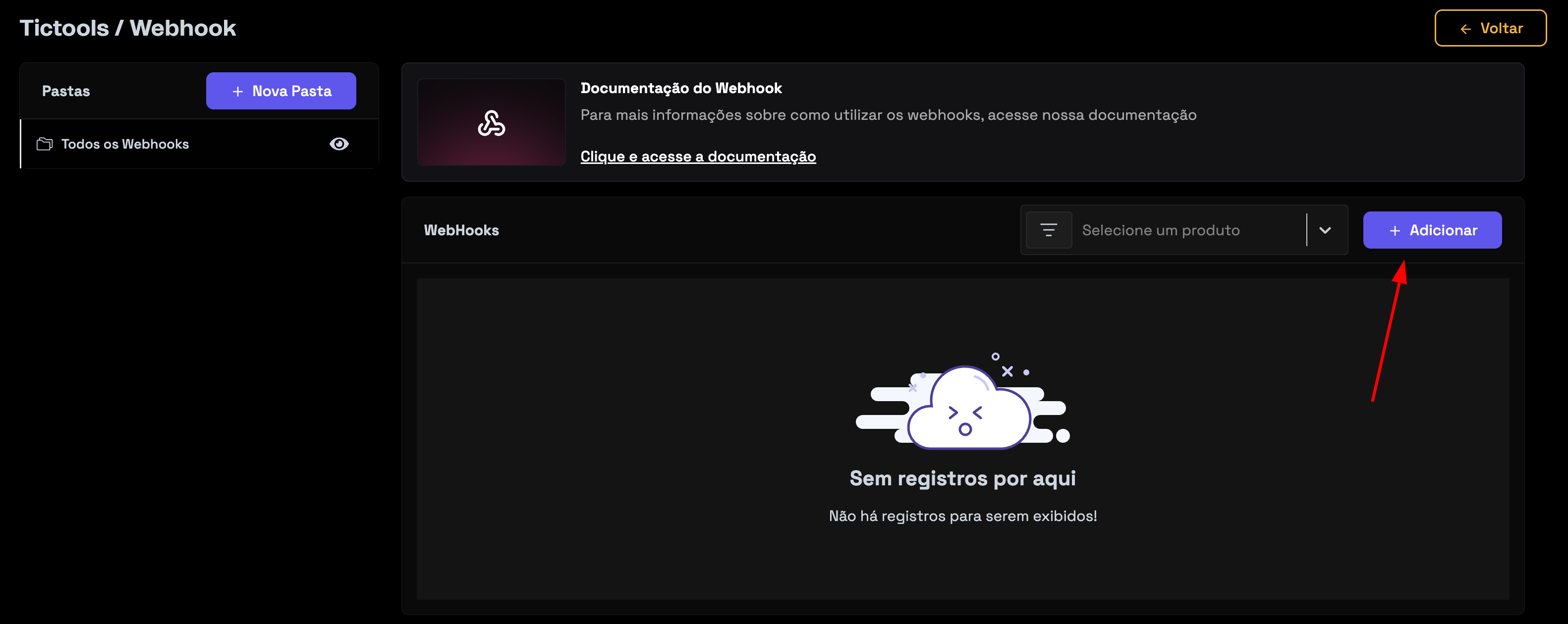
3. Click on the **Add** button

<img src="https://mintcdn.com/nemu/3g1KAdQ58VKGTRqz/assets/pages/integracoes/ticto/3.png?fit=max&auto=format&n=3g1KAdQ58VKGTRqz&q=85&s=aa49be94cc5a048efb50b9e8addd4ab3" alt="" width="3164" height="1260" data-path="assets/pages/integracoes/ticto/3.png" />

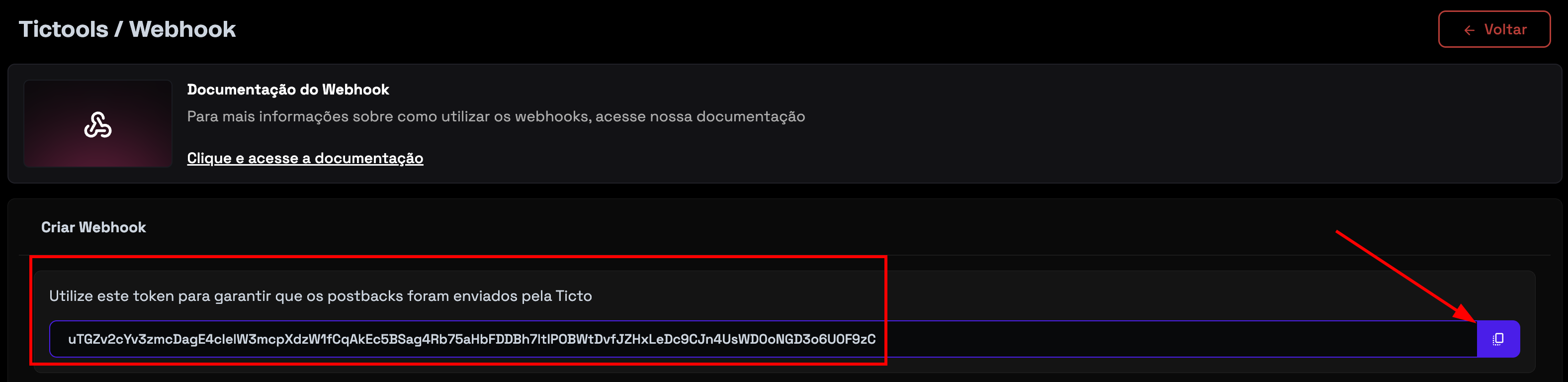
4. Copy the **token** generated by Ticto.
<img src="https://mintcdn.com/nemu/3g1KAdQ58VKGTRqz/assets/pages/integracoes/ticto/4.png?fit=max&auto=format&n=3g1KAdQ58VKGTRqz&q=85&s=03f6b0144776be501d6e6760367c3128" alt="" width="3154" height="768" data-path="assets/pages/integracoes/ticto/4.png" />

<Tip>
  Keep this page open, as we will need it for the next steps.
</Tip>

## Setting Up Webhooks in Nemu Dashboard

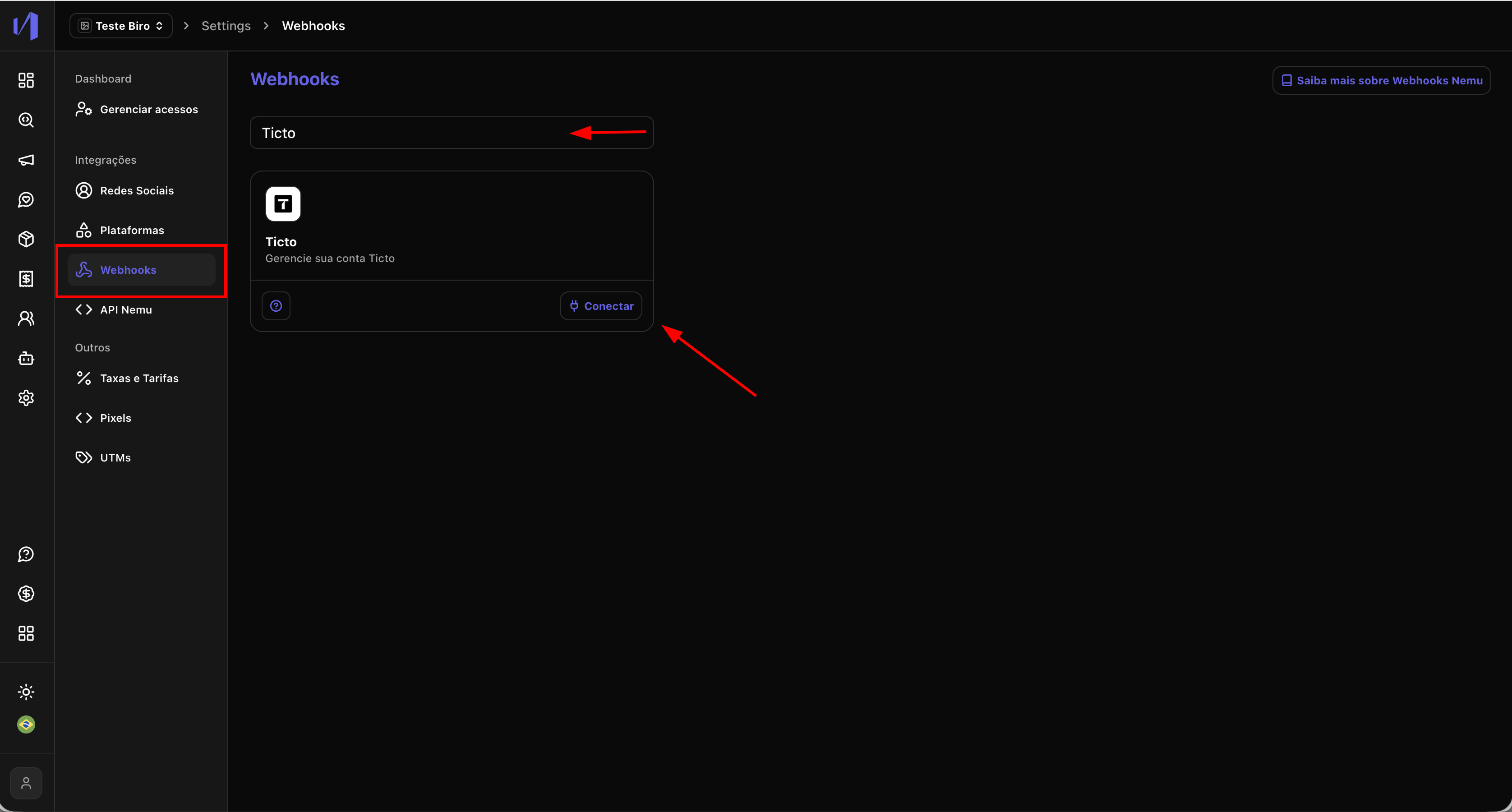
1. In the Nemu panel, go to **Settings** > **Webhooks**.
2. Search for **Ticto** and click on **Connect**.
<img src="https://mintcdn.com/nemu/pvaiDnjbpelPTsgP/assets/pages/integracoes/ticto/1.1.png?fit=max&auto=format&n=pvaiDnjbpelPTsgP&q=85&s=f0564d578d0da0c6db994b82daea1fbc" alt="" width="3352" height="1800" data-path="assets/pages/integracoes/ticto/1.1.png" />

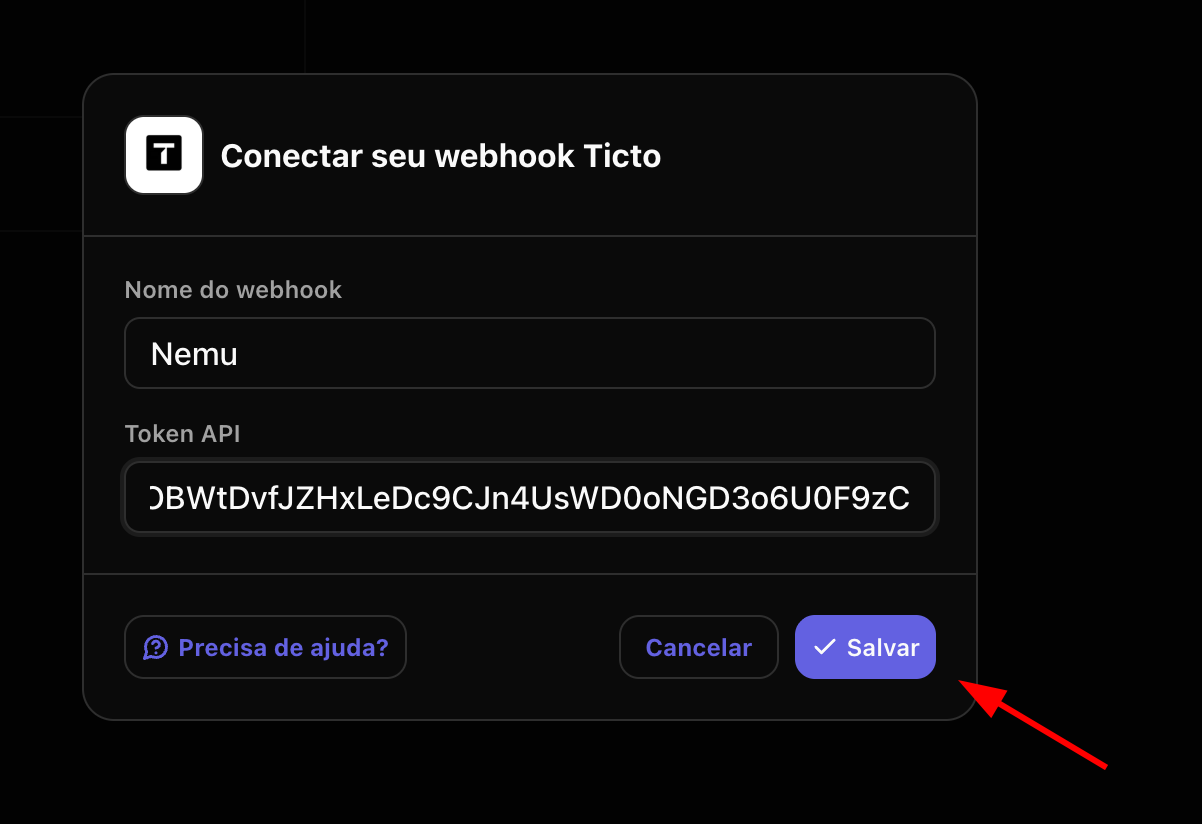
3. Define a **name** for the webhook, paste the token generated by Ticto in the **Token** field and click on **Save**.
<img src="https://mintcdn.com/nemu/pvaiDnjbpelPTsgP/assets/pages/integracoes/ticto/1.2.png?fit=max&auto=format&n=pvaiDnjbpelPTsgP&q=85&s=99d6bc511e792fc1058abb552094ceef" alt="" width="1202" height="824" data-path="assets/pages/integracoes/ticto/1.2.png" />

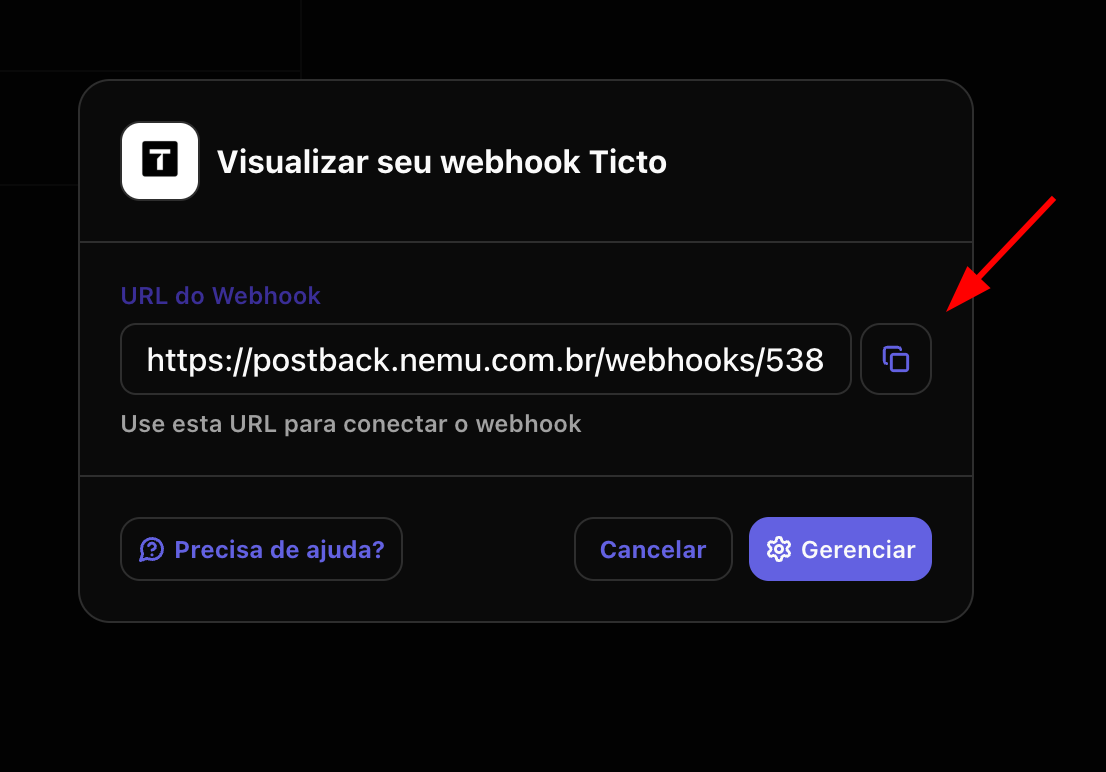
4. Click the button to **copy** the **webhook URL** generated by Nemu.
<img src="https://mintcdn.com/nemu/pvaiDnjbpelPTsgP/assets/pages/integracoes/ticto/1.3.png?fit=max&auto=format&n=pvaiDnjbpelPTsgP&q=85&s=6e6b6b519dfdfb2ae6992730f582254f" alt="" width="1106" height="772" data-path="assets/pages/integracoes/ticto/1.3.png" />

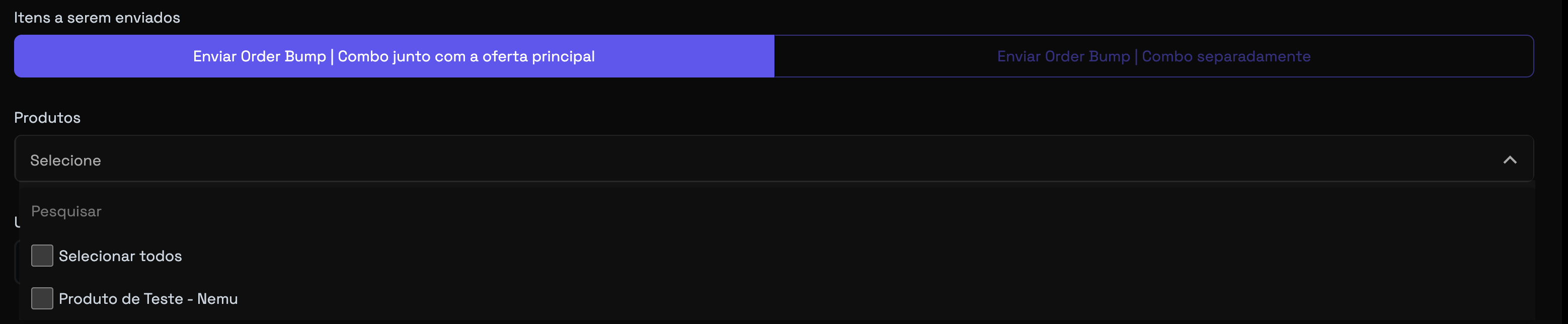
5. Go back to Ticto and **select the products you want to capture in the webhook**
<img src="https://mintcdn.com/nemu/pvaiDnjbpelPTsgP/assets/pages/integracoes/ticto/1.4.png?fit=max&auto=format&n=pvaiDnjbpelPTsgP&q=85&s=d990eda282fcc99761e589f25071d092" alt="" width="3116" height="644" data-path="assets/pages/integracoes/ticto/1.4.png" />

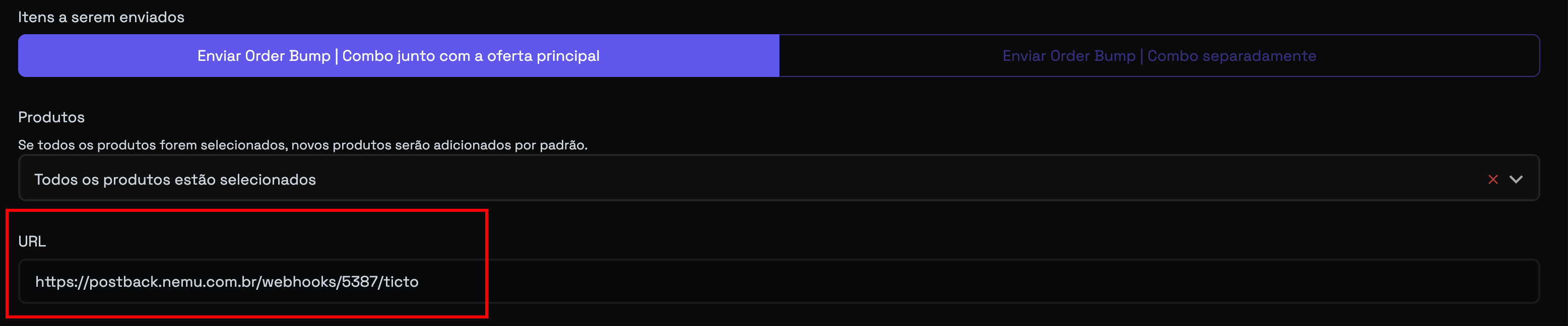
6. Paste the **webhook URL** generated by Nemu in the **Webhook URL** field
<img src="https://mintcdn.com/nemu/3g1KAdQ58VKGTRqz/assets/pages/integracoes/ticto/1.5.png?fit=max&auto=format&n=3g1KAdQ58VKGTRqz&q=85&s=3eb8d2a86abed8c11d659443b3bc143d" alt="" width="3112" height="648" data-path="assets/pages/integracoes/ticto/1.5.png" />

7. Select the webhook version as **Version 2 (Recommended)** and the send format as **JSON (Recommended)**

<img src="https://mintcdn.com/nemu/3g1KAdQ58VKGTRqz/assets/pages/integracoes/ticto/1.6.png?fit=max&auto=format&n=3g1KAdQ58VKGTRqz&q=85&s=f4102240db7b9c08aab1ad17a8ddebe6" alt="" width="3164" height="446" data-path="assets/pages/integracoes/ticto/1.6.png" />

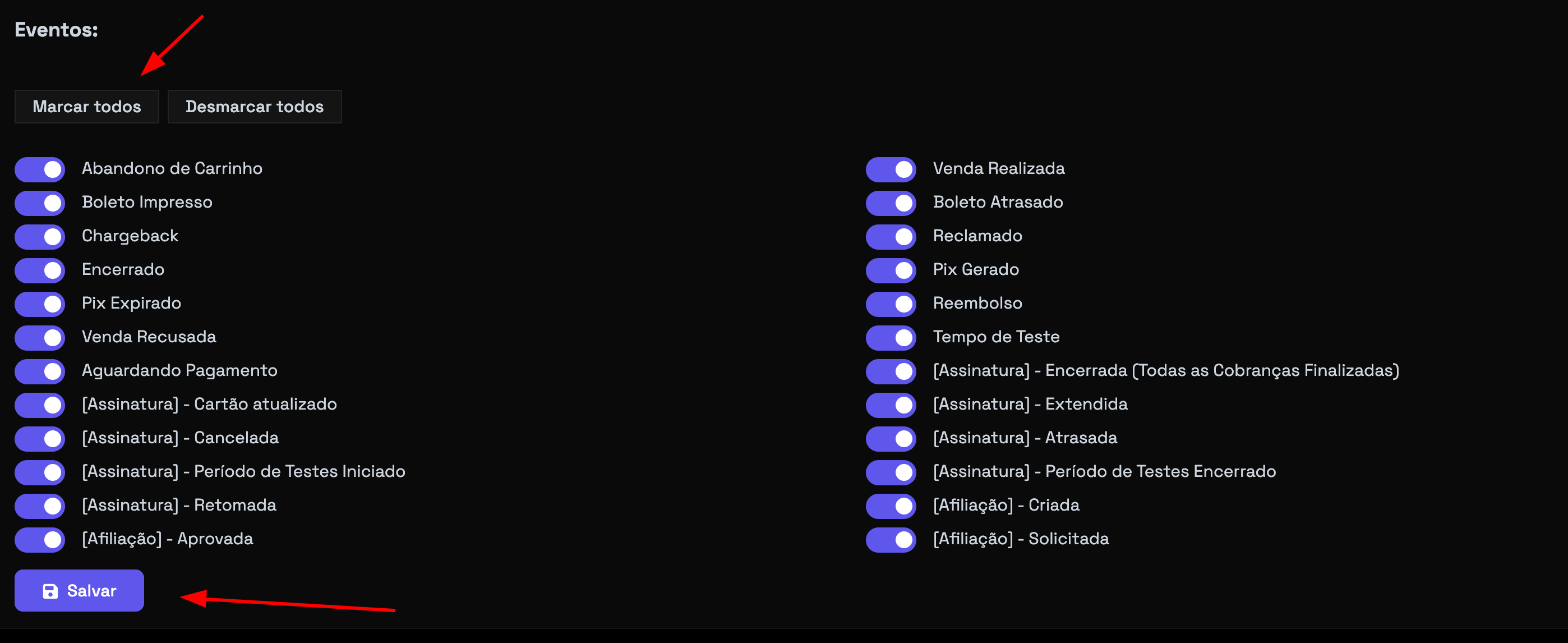
8. In events click on **Check all** and click on **Save**
<img src="https://mintcdn.com/nemu/3g1KAdQ58VKGTRqz/assets/pages/integracoes/ticto/1.7.png?fit=max&auto=format&n=3g1KAdQ58VKGTRqz&q=85&s=8c8eaacbf97d71e5516a36dd99a293cc" alt="" width="2796" height="1146" data-path="assets/pages/integracoes/ticto/1.7.png" />