> ## Documentation Index
> Fetch the complete documentation index at: https://docs.nemu.com.br/llms.txt
> Use this file to discover all available pages before exploring further.
# Tray
> How to connect Tray to Nemu Dashboard
## Installing the Nemu App
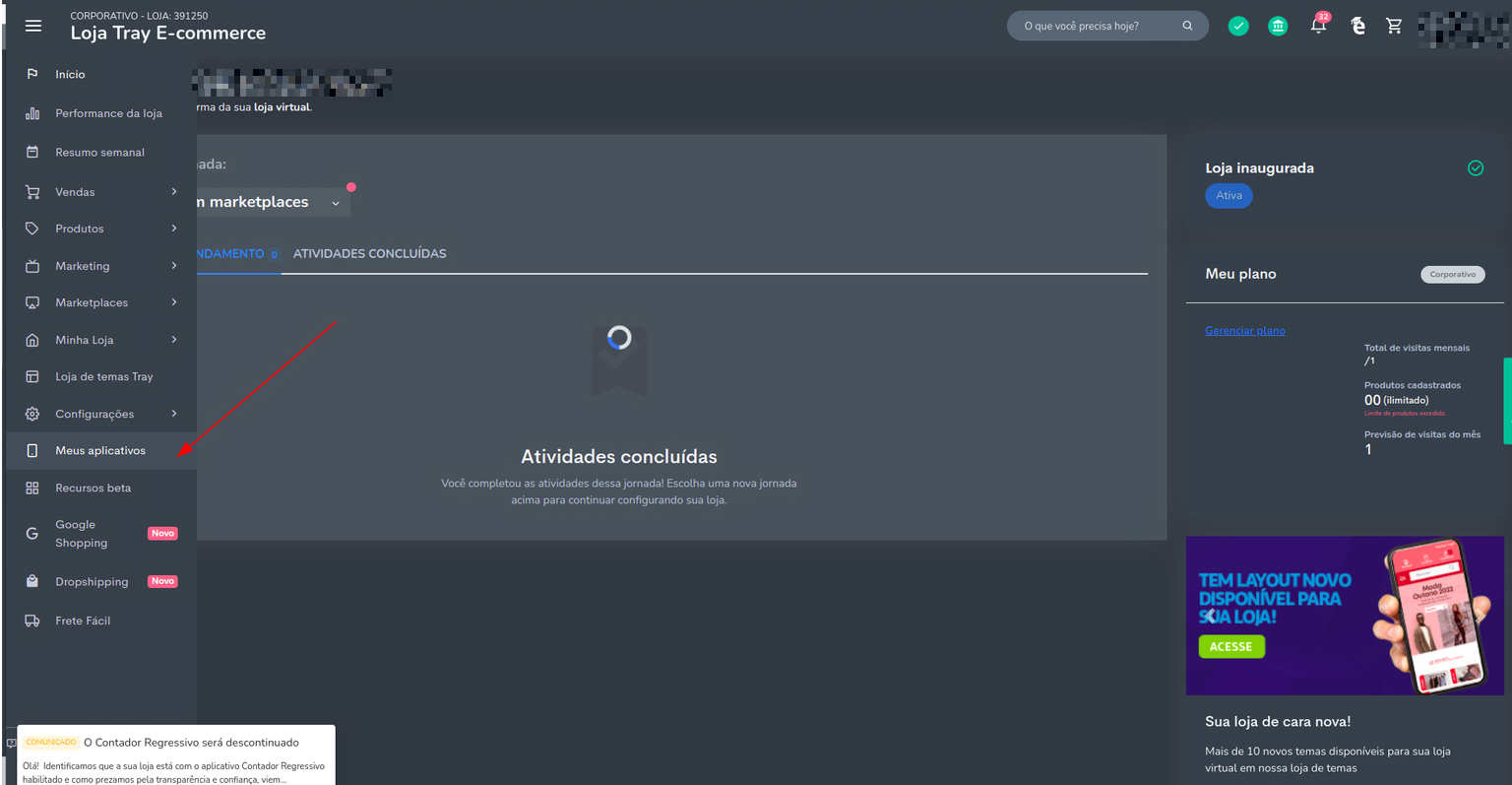
1. In the Tray panel, click on **My Apps** in the sidebar
 2. In the top right corner of the screen, click on the button to **Install new apps**
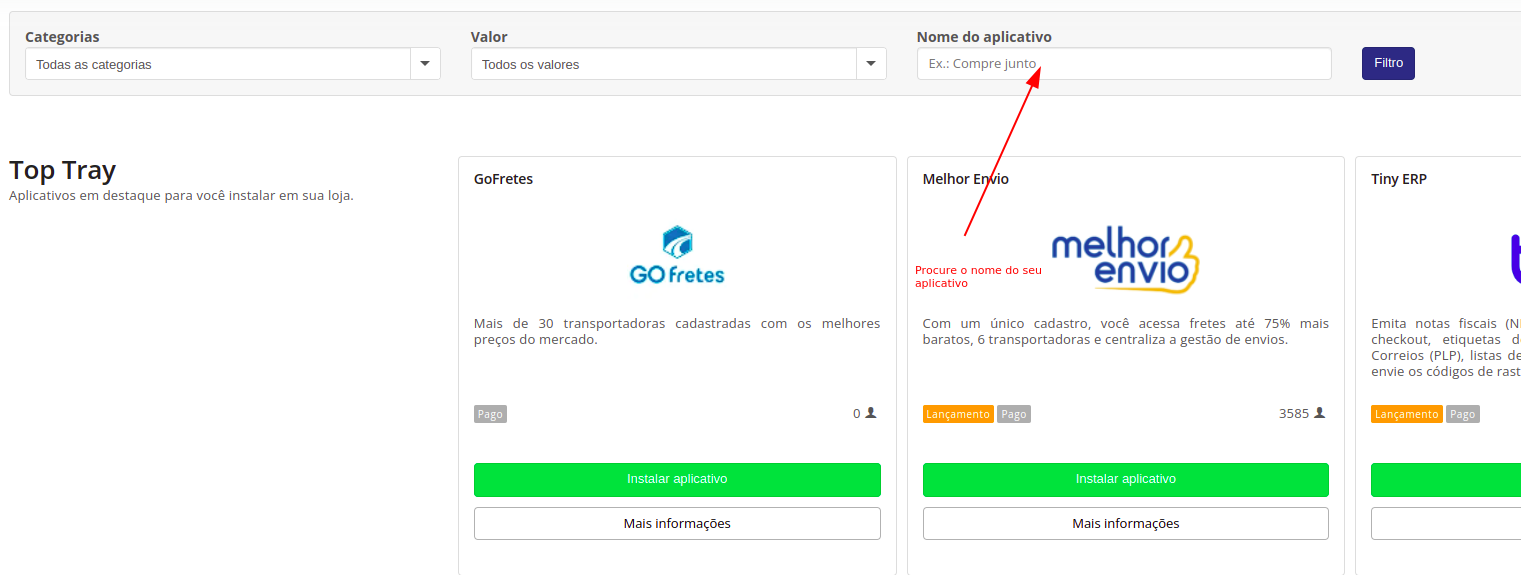
 3. Look for the app called **Nemu**, click on **Install app**, then click on **Authorize**
 4. The panel with the code will be displayed next, but if it is not displayed, access **Apps** in the left sidebar, then look for the app, and click on **Access** and the code will be displayed, then copy it
 5. In Nemu, go to **Settings**
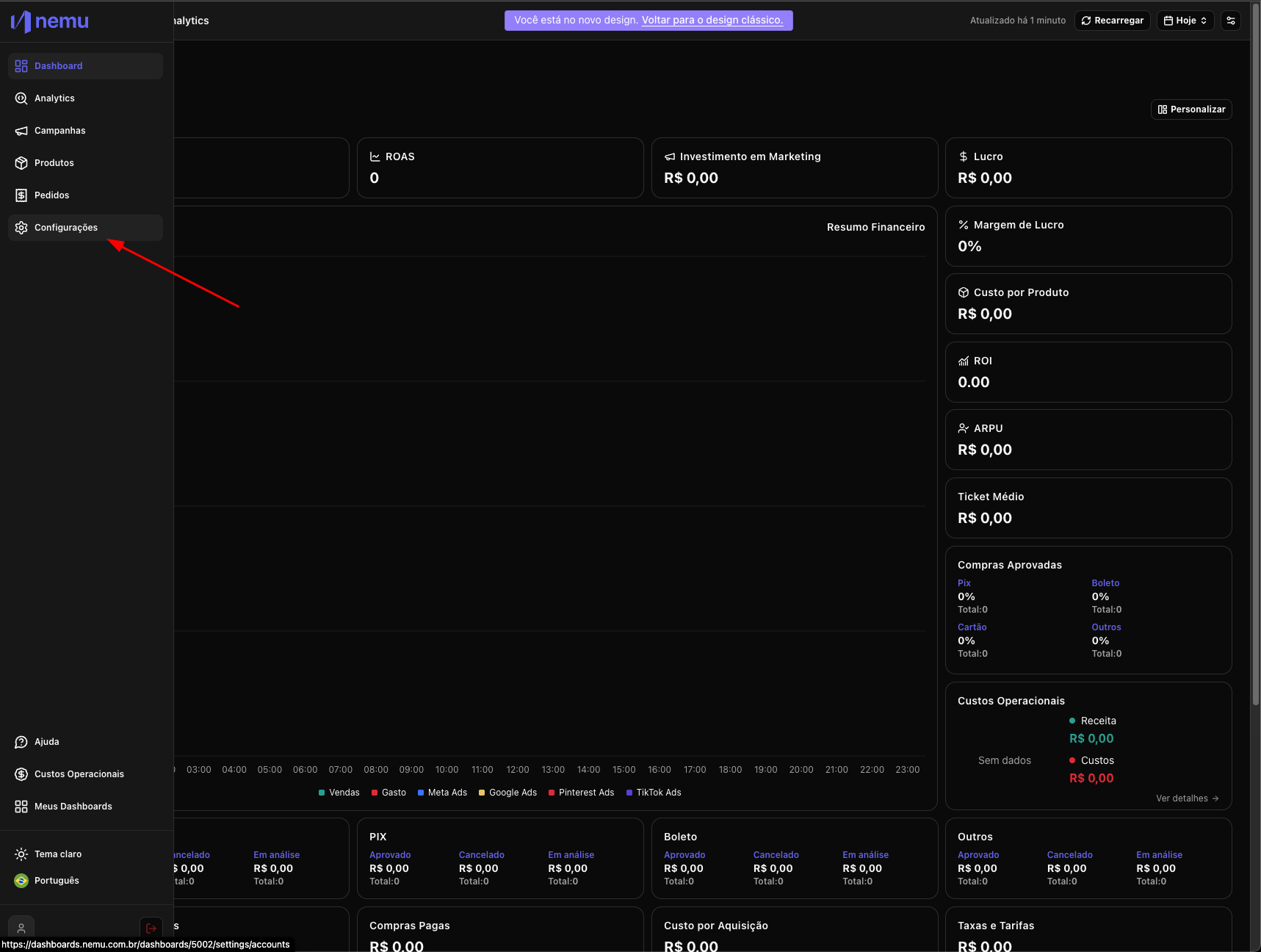 6. Then click on **Platforms** and search for **Tray** and click on the **Connect** button
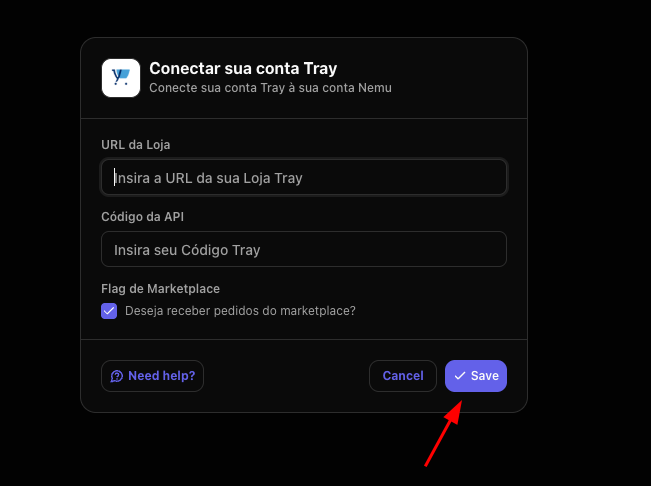
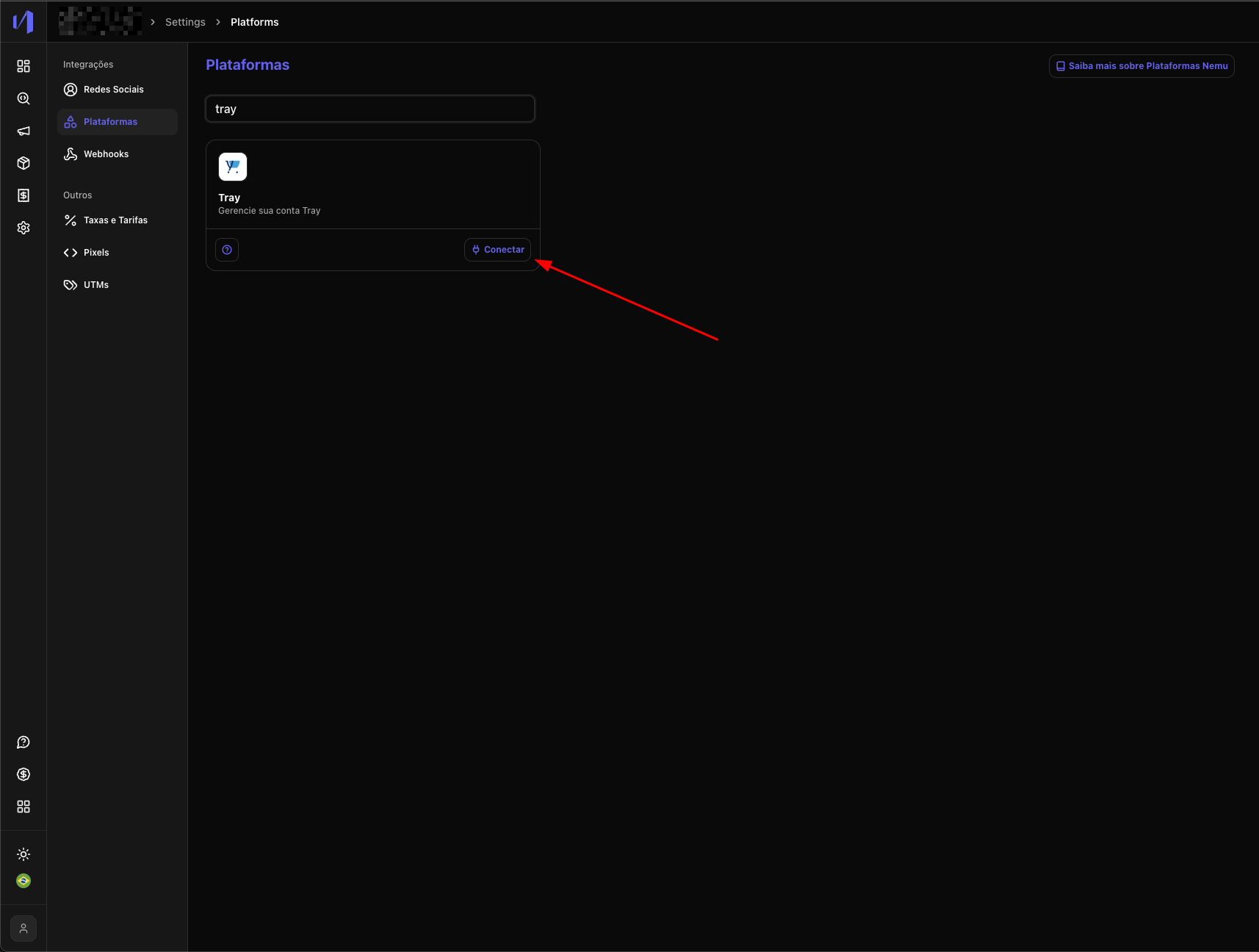 7. Paste your store URL and the **code copied in step 4** and click on **Save**
Enable the **Marketplace Flag** if you also want to import orders from
marketplaces integrated with Tray.
These orders **are not tracked** and can **inflate your ROAS reports**. To
track only direct sales from your store, keep this option **unchecked**.
7. Paste your store URL and the **code copied in step 4** and click on **Save**
Enable the **Marketplace Flag** if you also want to import orders from
marketplaces integrated with Tray.
These orders **are not tracked** and can **inflate your ROAS reports**. To
track only direct sales from your store, keep this option **unchecked**.