> ## Documentation Index
> Fetch the complete documentation index at: https://docs.nemu.com.br/llms.txt
> Use this file to discover all available pages before exploring further.
# Uappi
> How to connect Uappi to Nemu Dashboard
### 1. Access the Uappi Panel
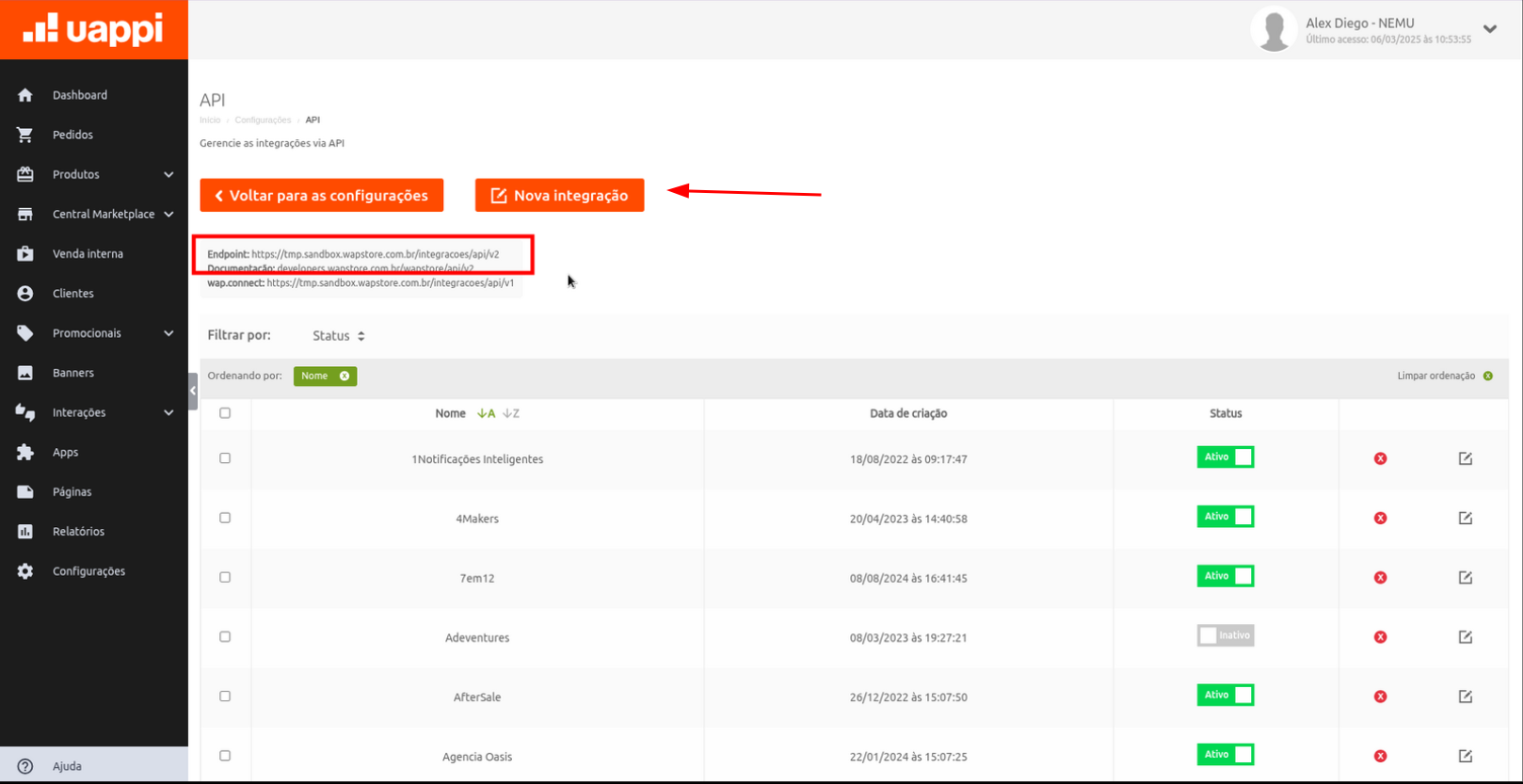
1. In the main menu, go to **Settings**.
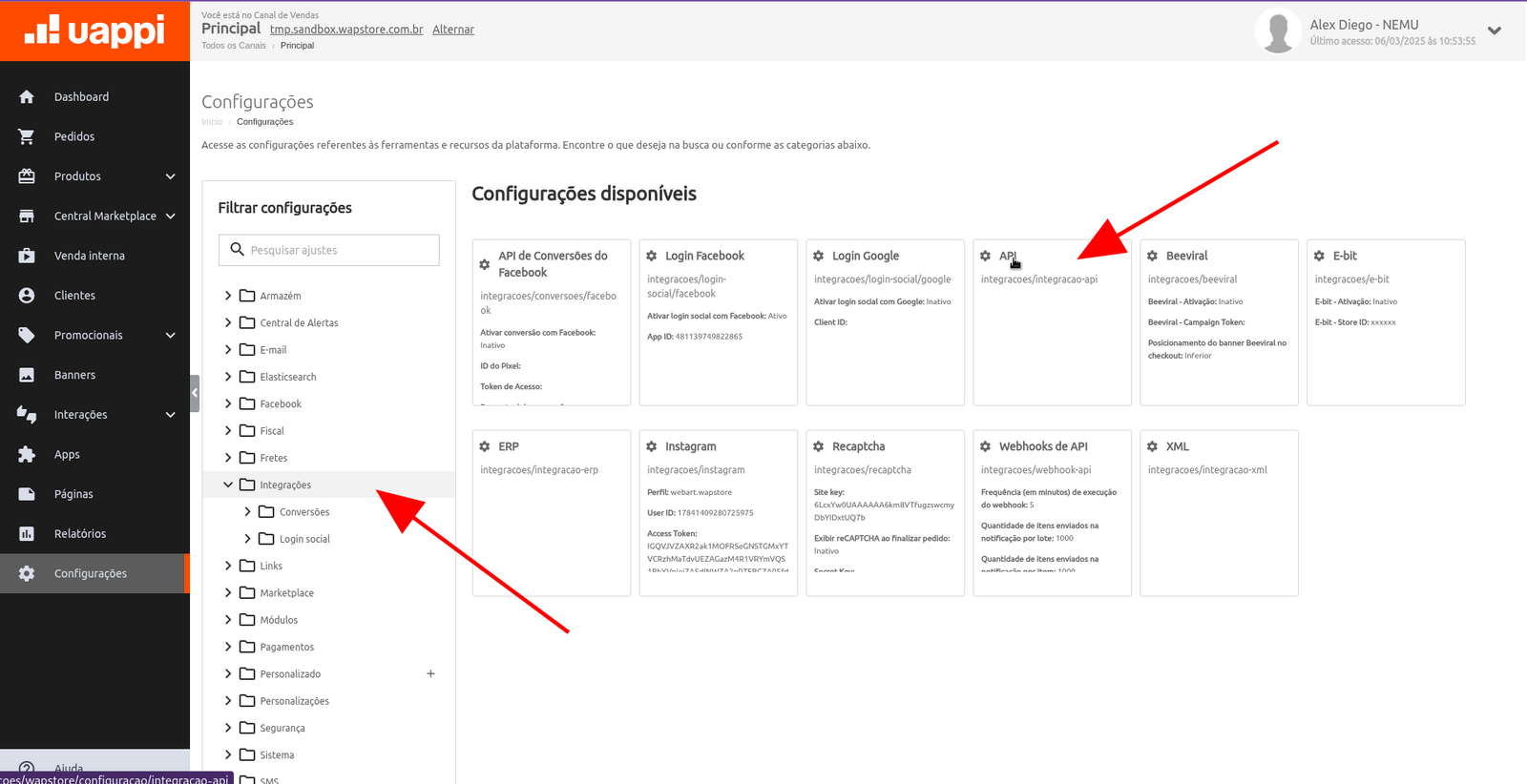
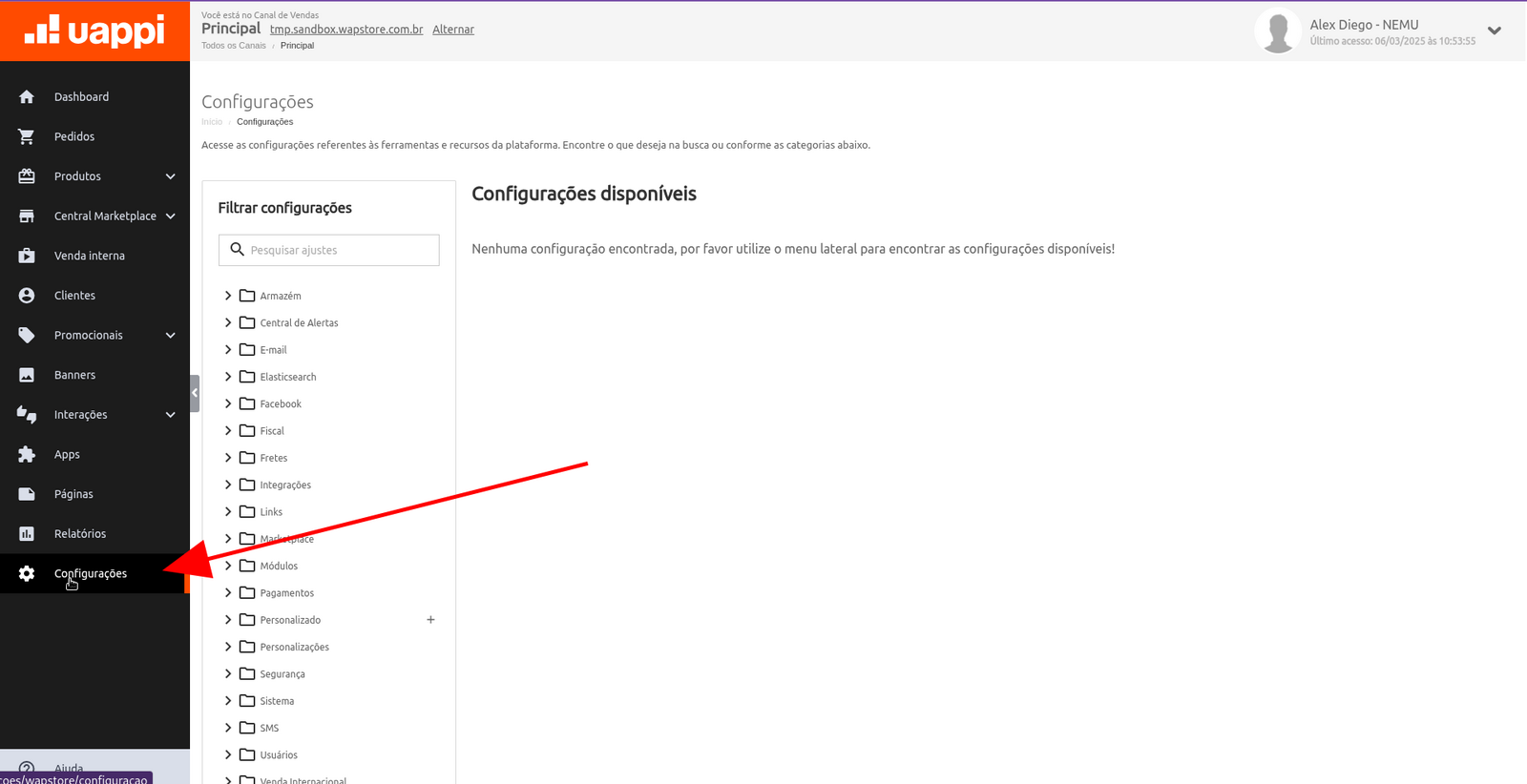 2. Click on **Integrations** and select the **API** section.
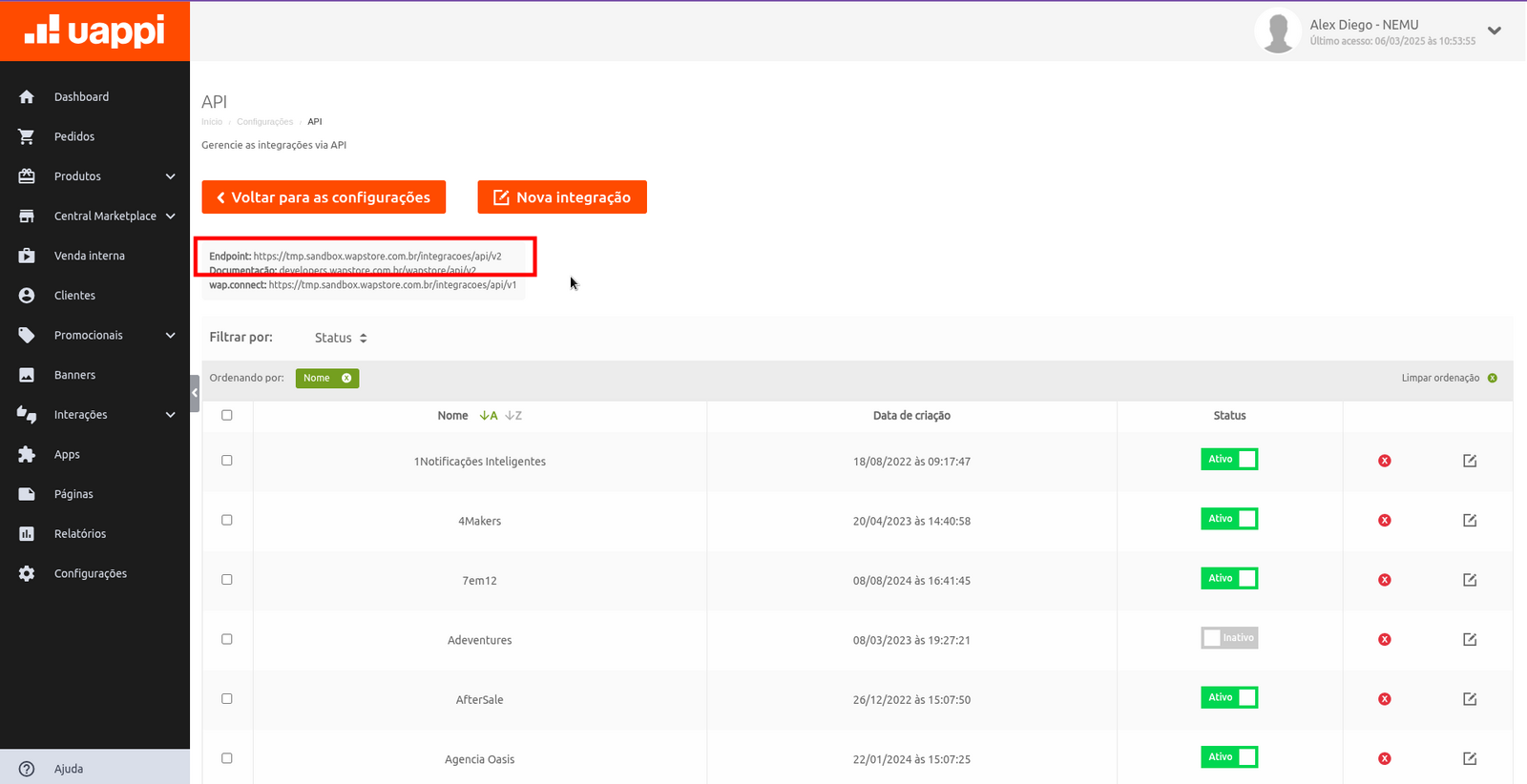
 3. Copy the **Endpoint** URL (will be used in the next step).
 4. Click on **New Integration**.
 ### 2. Create a New Integration
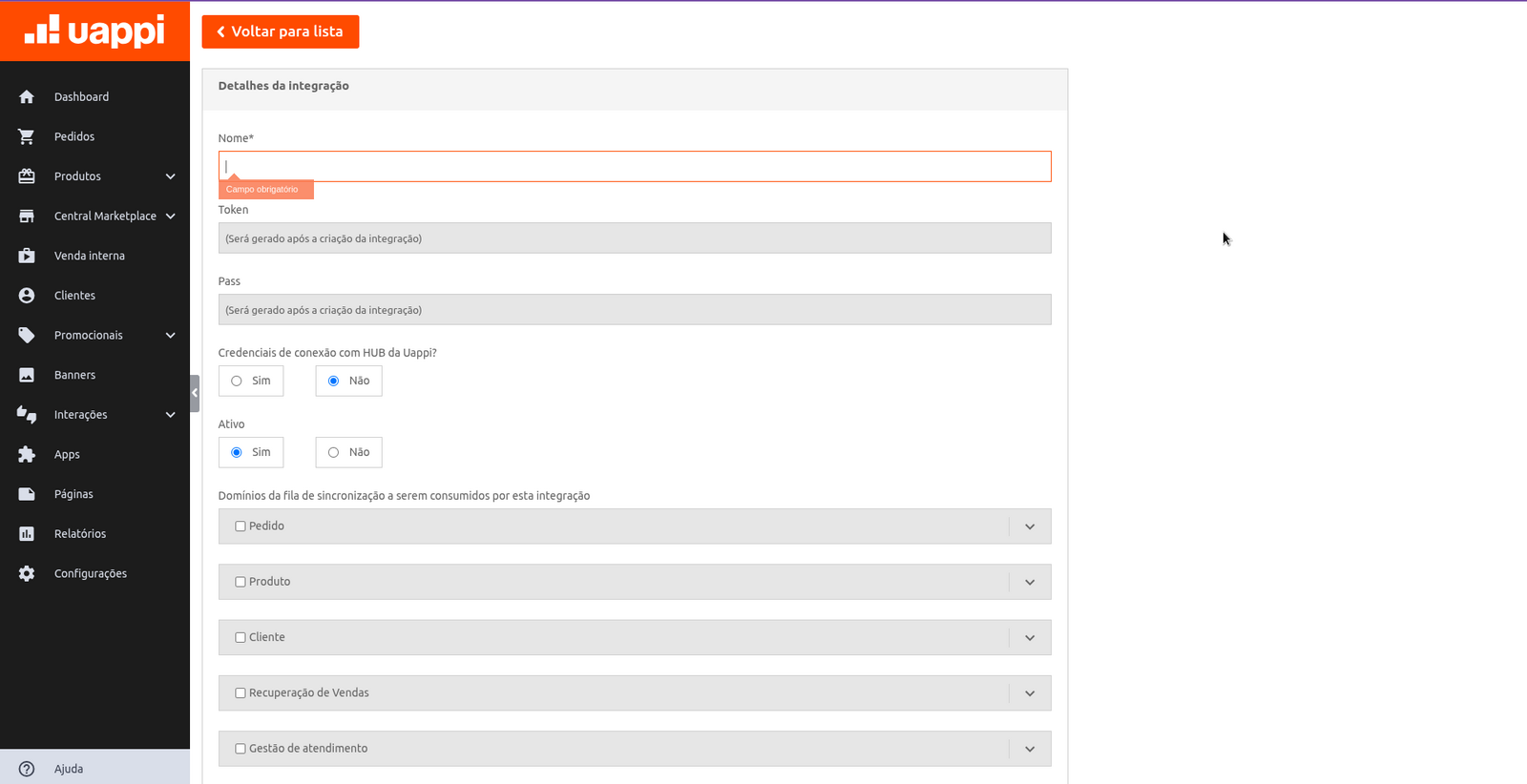
1. Give a name to the integration.
2. Mark as **Active**.
3. Click on **Save**.
### 2. Create a New Integration
1. Give a name to the integration.
2. Mark as **Active**.
3. Click on **Save**.
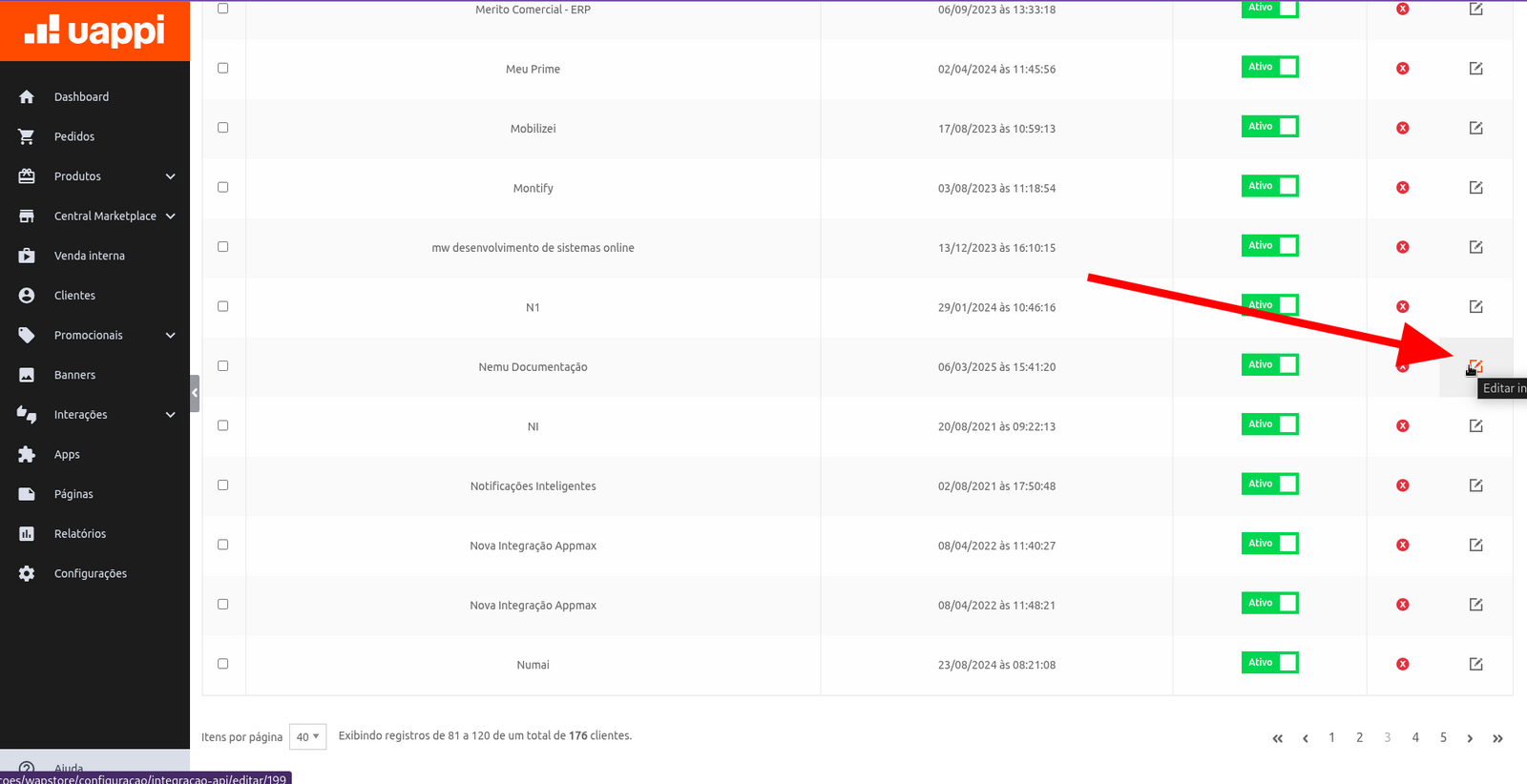
 4. Go back to the integrations page and locate the new integration.
5. Click on **Edit** and then on **View Credentials**.
4. Go back to the integrations page and locate the new integration.
5. Click on **Edit** and then on **View Credentials**.
 ### 3. Configure the Integration in Nemu Panel
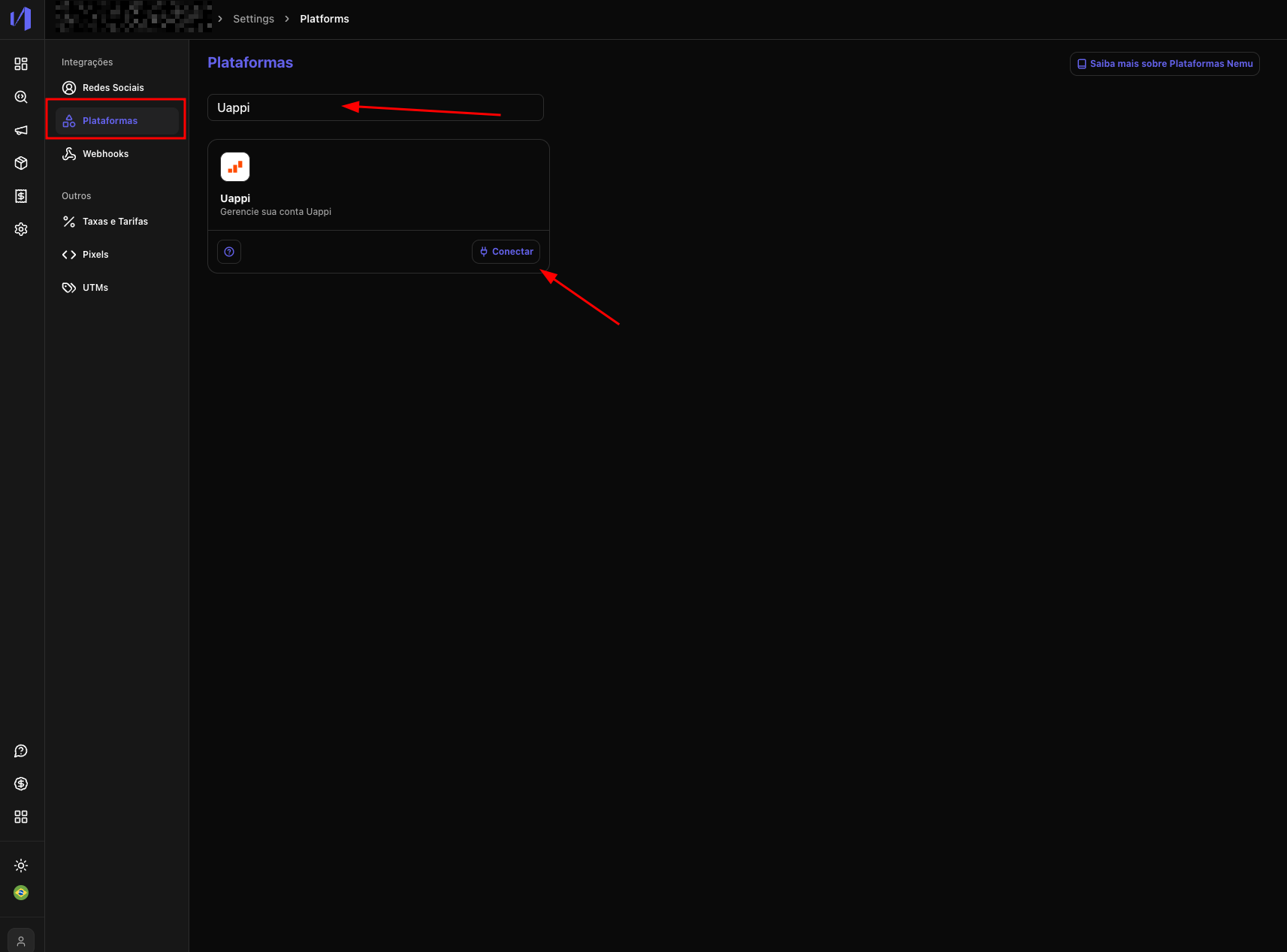
1. In the Nemu panel, go to **Settings** > **Platforms**.
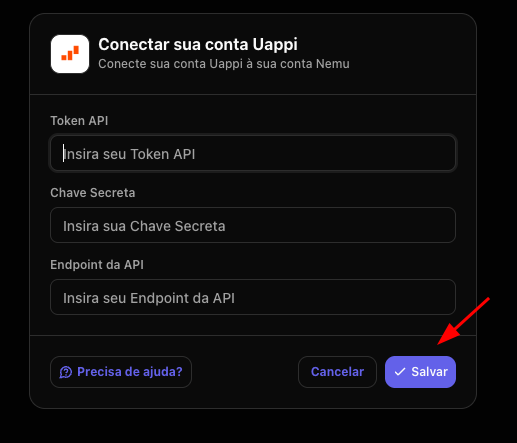
2. Search for Uappi and click on **Connect**.
### 3. Configure the Integration in Nemu Panel
1. In the Nemu panel, go to **Settings** > **Platforms**.
2. Search for Uappi and click on **Connect**.
 3. Fill in the fields with the data obtained in Uappi and click on **Save**
 ### 4. Configure Webhooks in Uappi
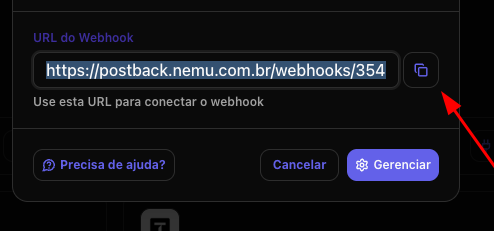
1. Copy the **Webhook URL**.
### 4. Configure Webhooks in Uappi
1. Copy the **Webhook URL**.
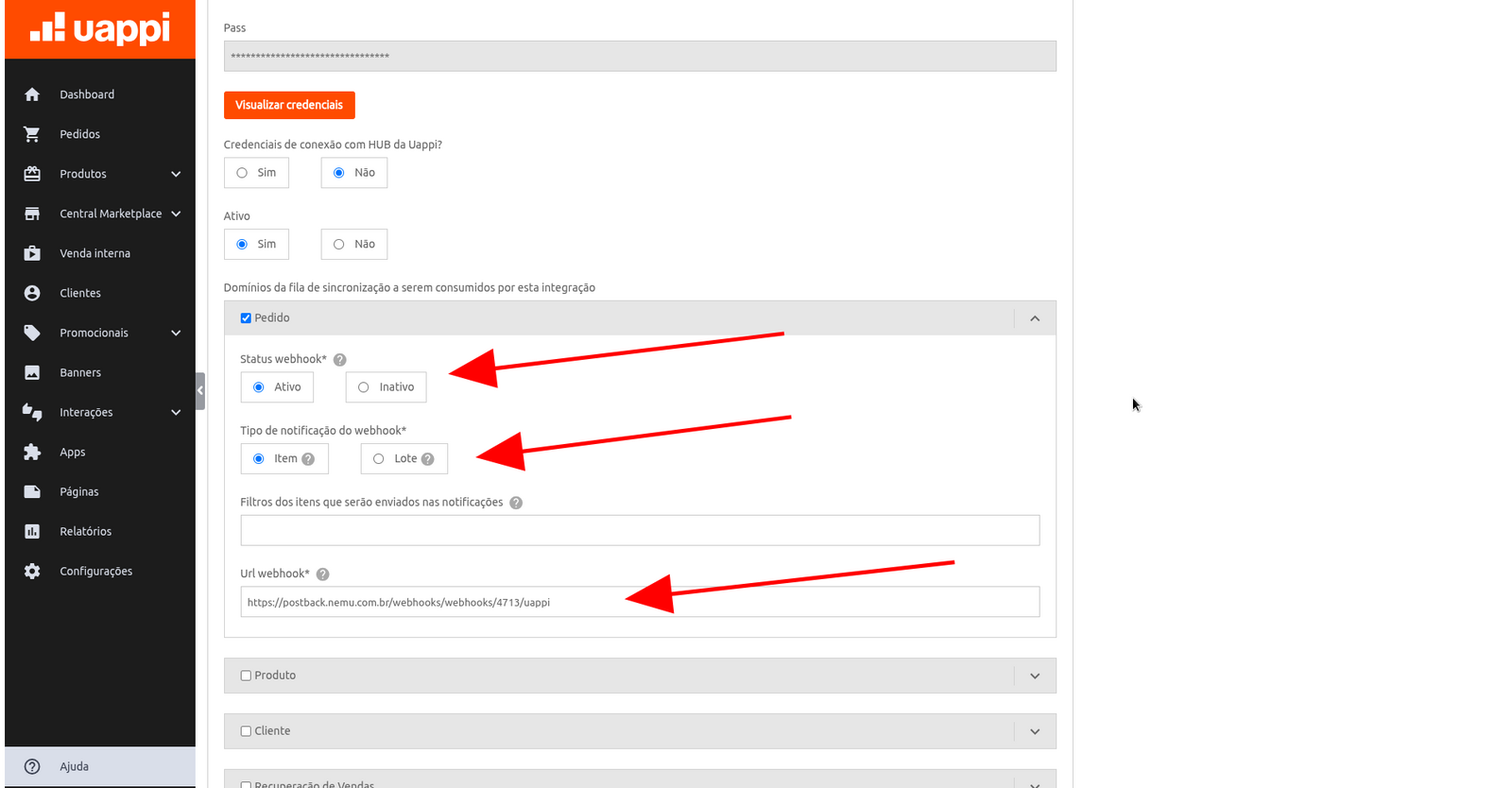
 2. Go back to the Uappi panel and edit the integration created earlier.
3. Mark the **Order** section.
4. Configure the webhook as **Active** and set the **Notification Type** as **Item**.
2. Go back to the Uappi panel and edit the integration created earlier.
3. Mark the **Order** section.
4. Configure the webhook as **Active** and set the **Notification Type** as **Item**.
 ### 5. Define the Necessary Permissions
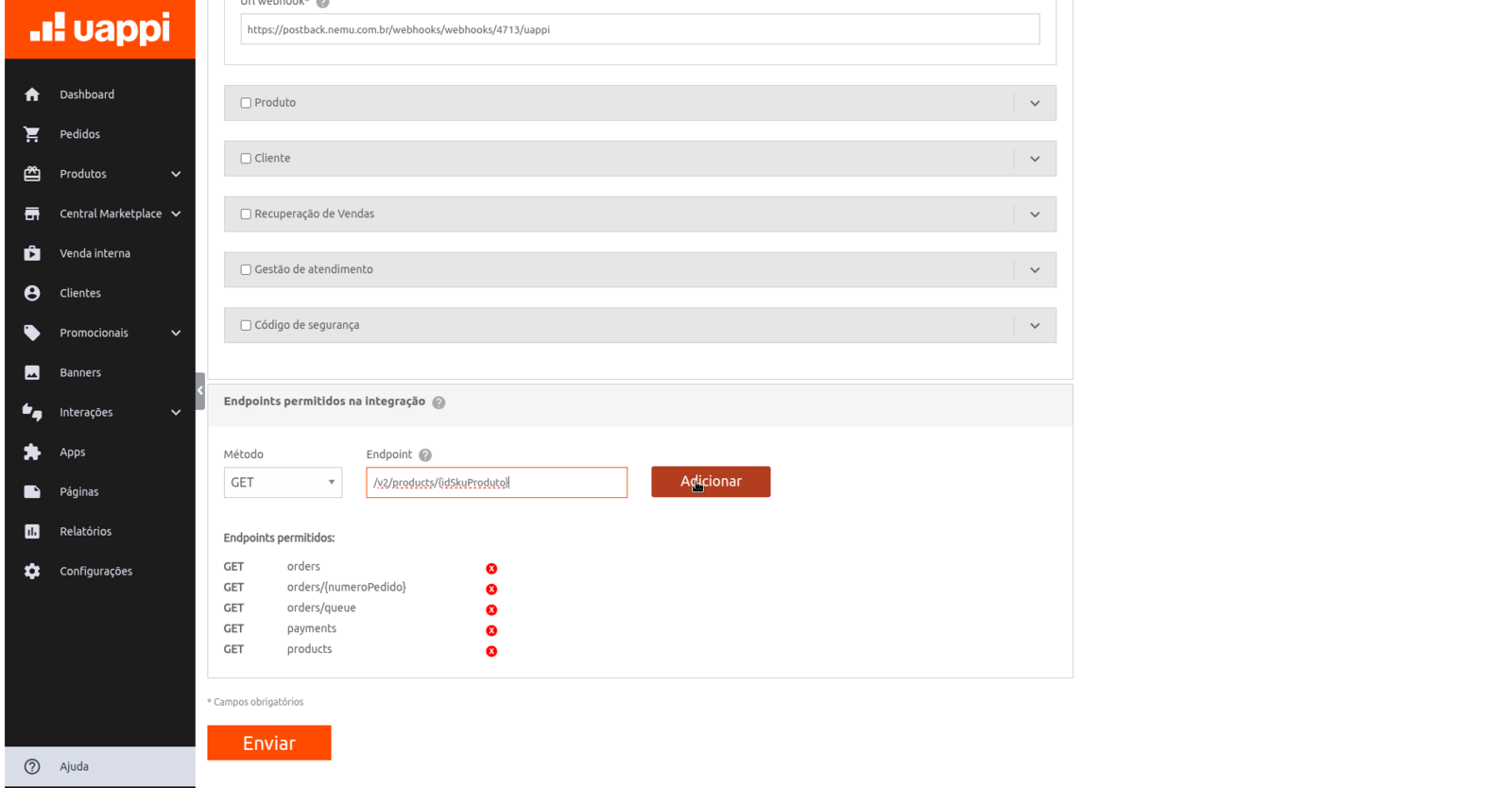
In Uappi, add permissions for the following routes:
* `/v2/products/{idSkuProduto}`
* `/v2/products`
* `/v2/orders`
* `/v2/orders/{numeroPedido}`
* `/v2/orders/queue`
* `/v2/payments`
After that, click on **Send** to finalize the configuration.
### 5. Define the Necessary Permissions
In Uappi, add permissions for the following routes:
* `/v2/products/{idSkuProduto}`
* `/v2/products`
* `/v2/orders`
* `/v2/orders/{numeroPedido}`
* `/v2/orders/queue`
* `/v2/payments`
After that, click on **Send** to finalize the configuration.