> ## Documentation Index
> Fetch the complete documentation index at: https://docs.nemu.com.br/llms.txt
> Use this file to discover all available pages before exploring further.
# WooCommerce
> How to connect your WooCommerce site to Nemu Dashboard
### Setting Up Webhooks in Nemu Dashboard
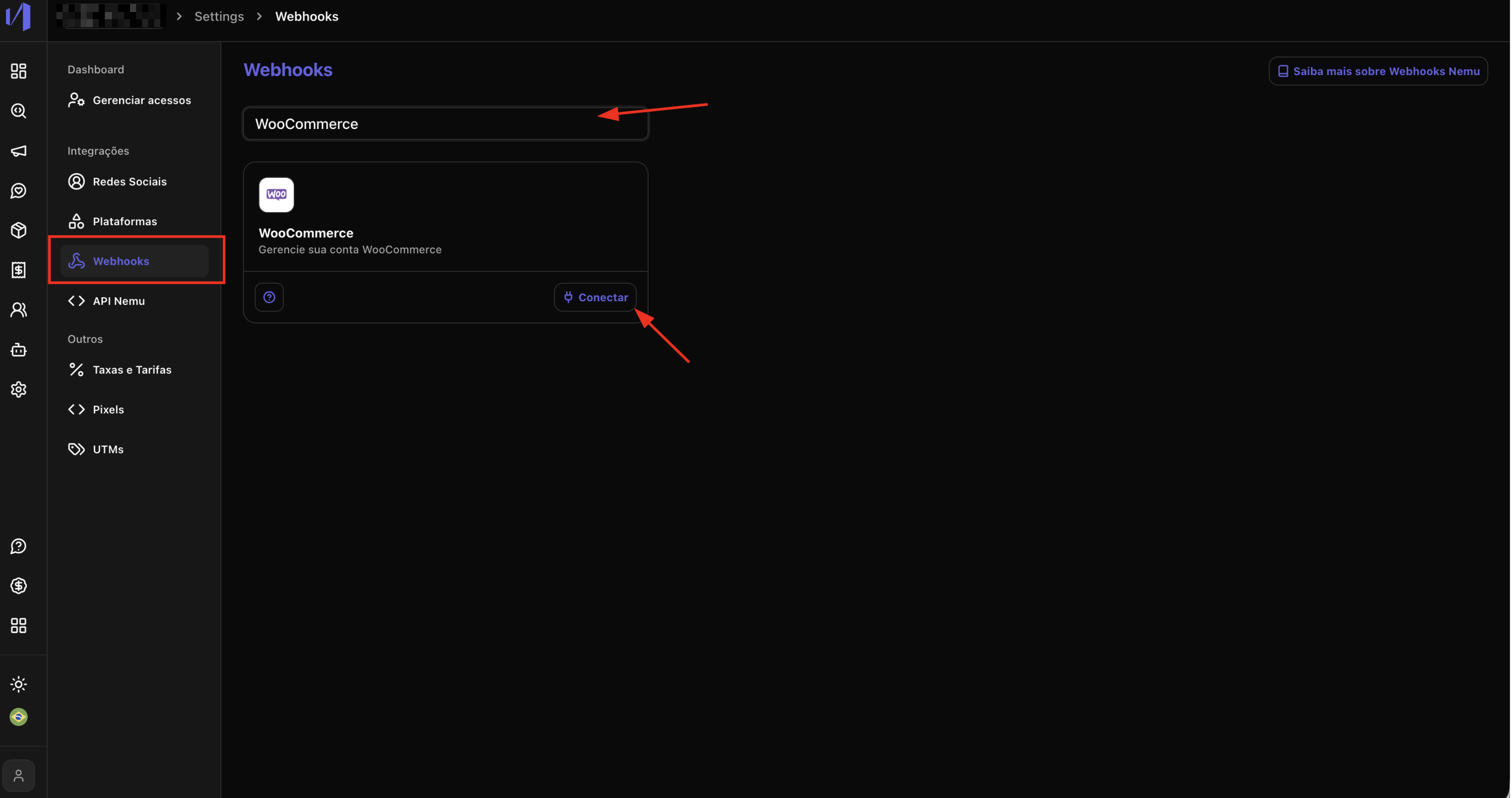
1. In the Nemu panel, go to **Settings** > **Webhooks**.
2. Search for **WooCommerce** and click on **Connect**.
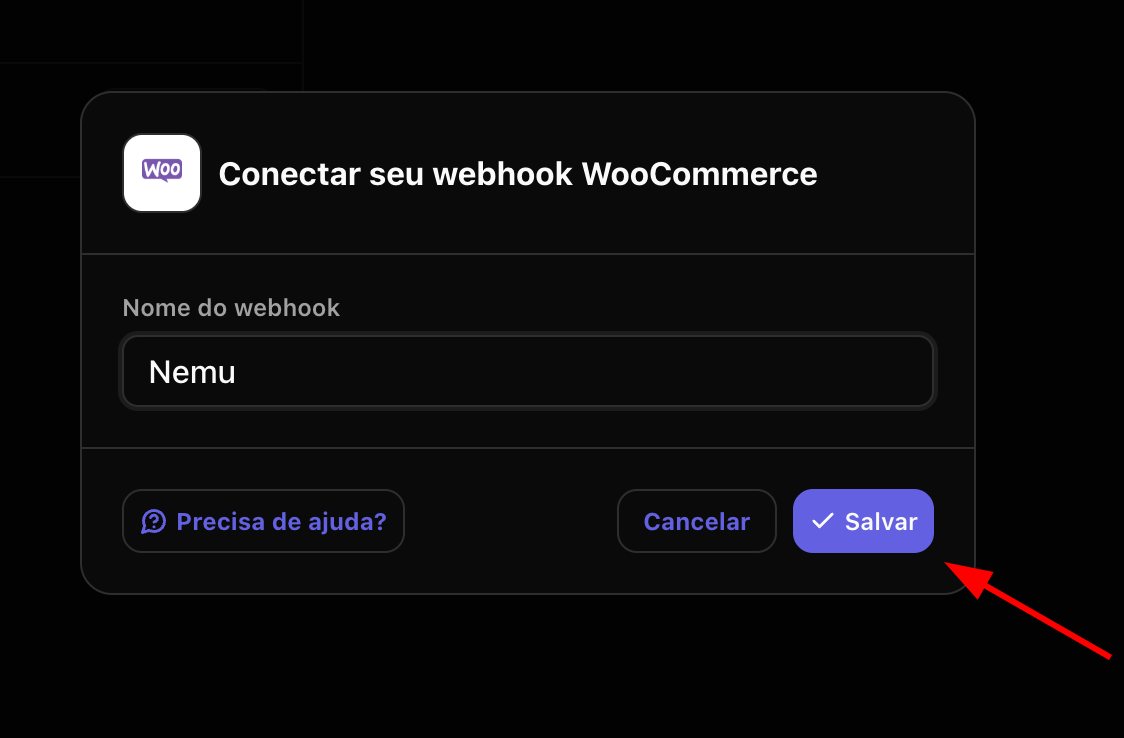
 3. Define a **name** for the webhook and click on **Save**.
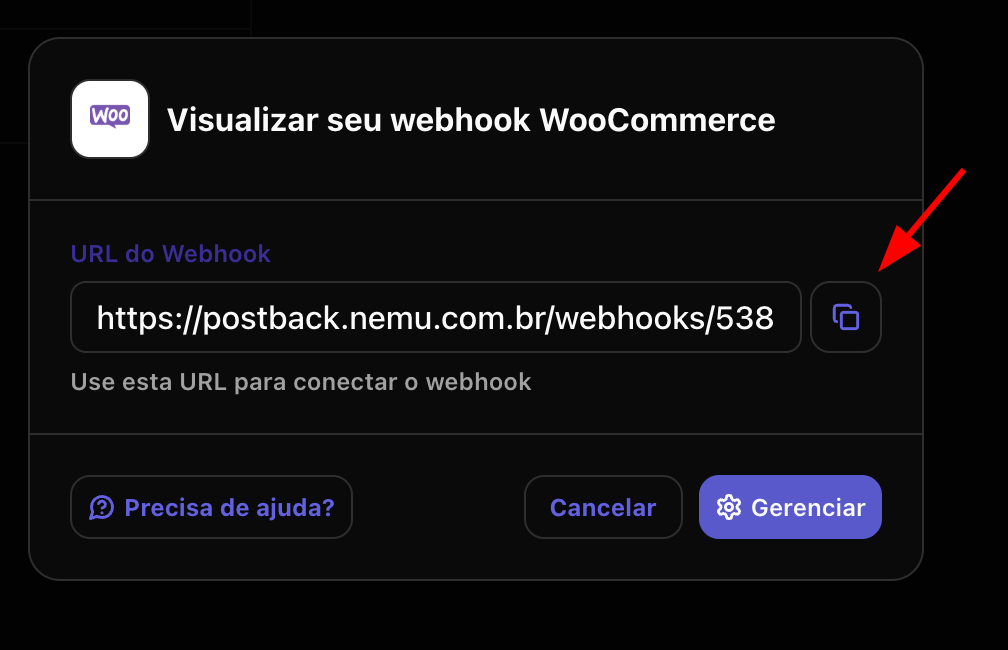
 4. Click the button to **copy** the **webhook URL** generated by Nemu.
 ### Setting Up Webhooks in WooCommerce
To ensure orders are tracked correctly, you need to create **two webhooks** in WooCommerce:
### Setting Up Webhooks in WooCommerce
To ensure orders are tracked correctly, you need to create **two webhooks** in WooCommerce:
* One for the **"Order Created"** event
* Another for the **"Order Updated"** event
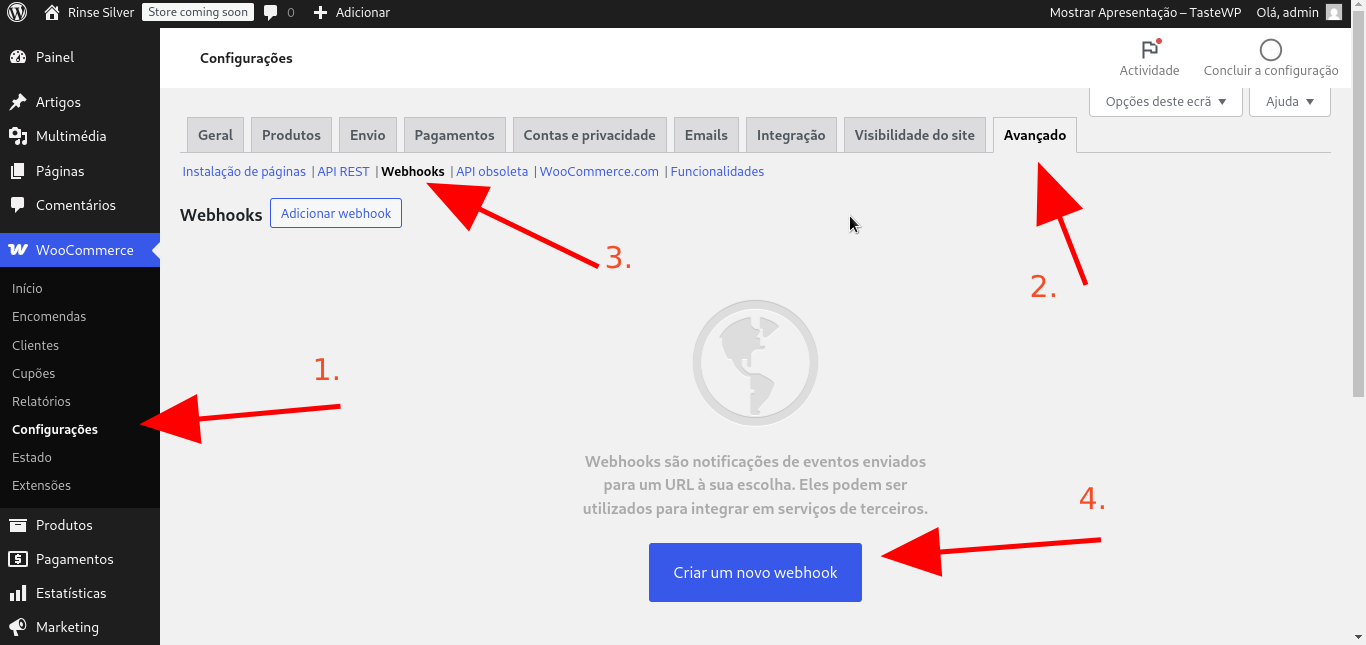
1. Access the **WordPress panel** and go to **WooCommerce > Settings**.
2. Click on the **Advanced** tab and then on **Webhooks**.
3. Click on **Add Webhook**.
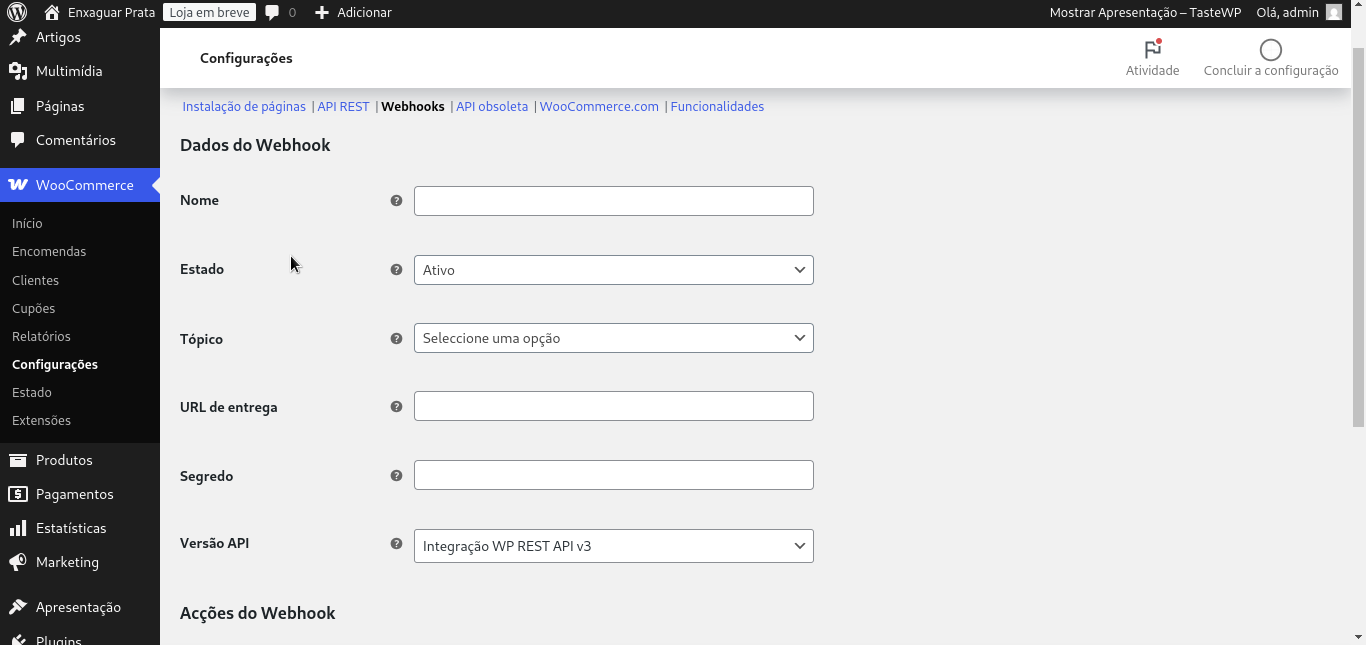
 4. Fill in the **Name** field for the integration.
5. In the WooCommerce panel, **paste the connection URL** copied in the [previous step](#setting-up-webhooks-in-woocommerce) in the **Delivery URL** field.
6. Select the corresponding event:
* **For the first webhook**, select **"Order Created"**
* **For the second webhook**, select **"Order Updated"**
7. Mark the status as **"Active"**.
8. Click on **Save Webhook** to finalize the configuration.
4. Fill in the **Name** field for the integration.
5. In the WooCommerce panel, **paste the connection URL** copied in the [previous step](#setting-up-webhooks-in-woocommerce) in the **Delivery URL** field.
6. Select the corresponding event:
* **For the first webhook**, select **"Order Created"**
* **For the second webhook**, select **"Order Updated"**
7. Mark the status as **"Active"**.
8. Click on **Save Webhook** to finalize the configuration.
 Repeat this process twice, once for each event.
### Installing the UTMs plugin for WooCommerce
1. Download the plugin [by clicking here](https://github.com/nemu-brazil/woocommerce-nemu-utms/releases/download/v1.0.0/woocommerce-nemu-utms.zip)
This file is in `.zip` format, ready to be imported into the WordPress panel.
2. Access the WordPress panel
* Log in to the **administrative panel** of your WordPress site.
* Go to **Plugins → Add New**.
* Click on the **"Upload plugin"** button at the top of the page.
Repeat this process twice, once for each event.
### Installing the UTMs plugin for WooCommerce
1. Download the plugin [by clicking here](https://github.com/nemu-brazil/woocommerce-nemu-utms/releases/download/v1.0.0/woocommerce-nemu-utms.zip)
This file is in `.zip` format, ready to be imported into the WordPress panel.
2. Access the WordPress panel
* Log in to the **administrative panel** of your WordPress site.
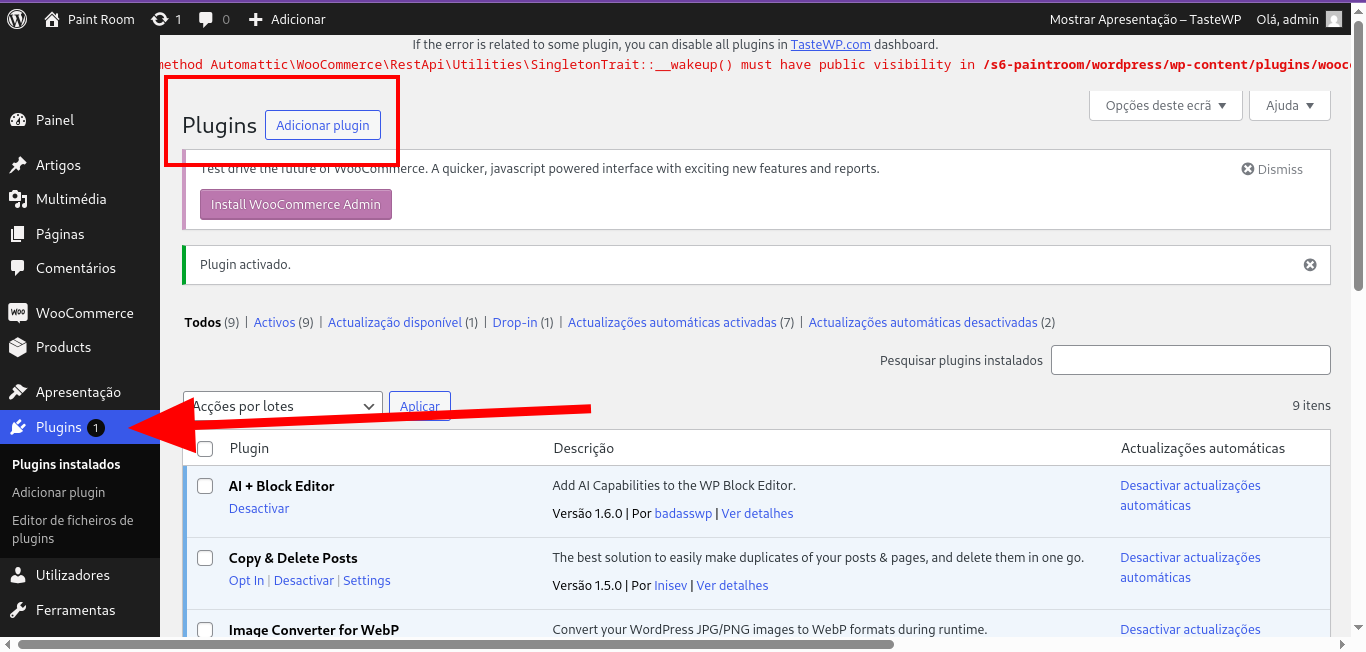
* Go to **Plugins → Add New**.
* Click on the **"Upload plugin"** button at the top of the page.
 3. Import and activate the plugin
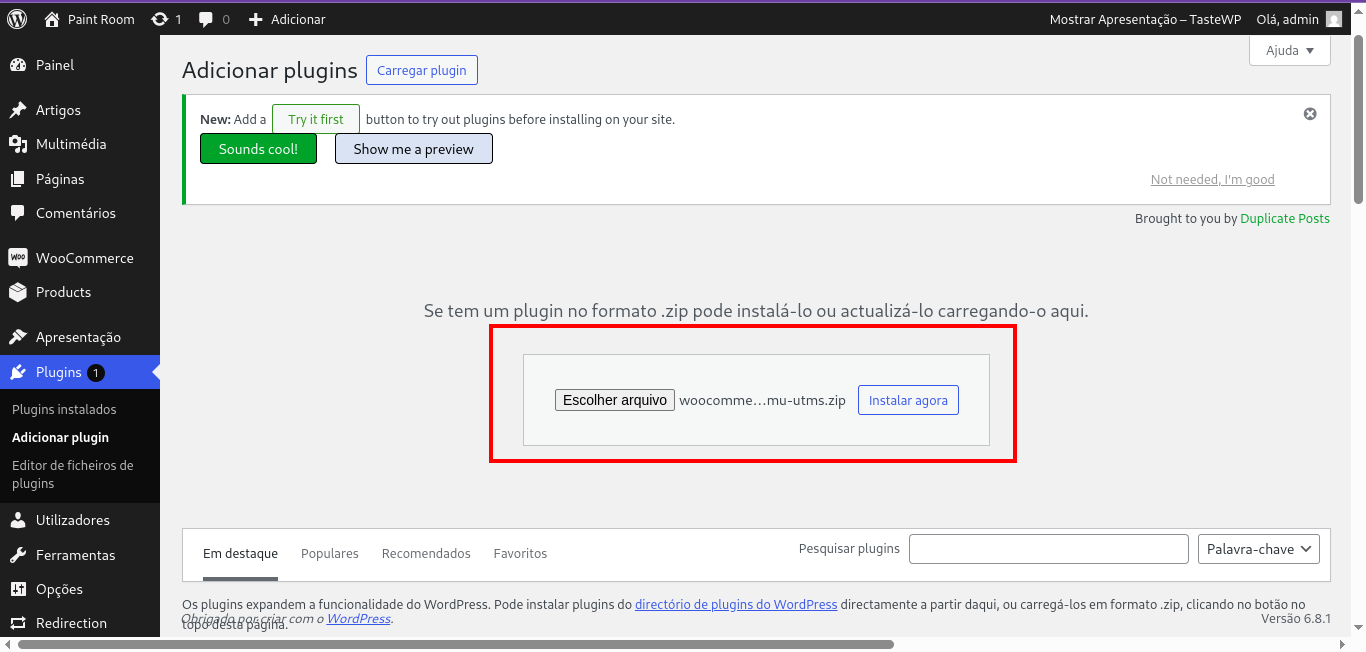
* Click on **"Choose file"** and select the `.zip` file you downloaded.
* Click on **"Install now"**.
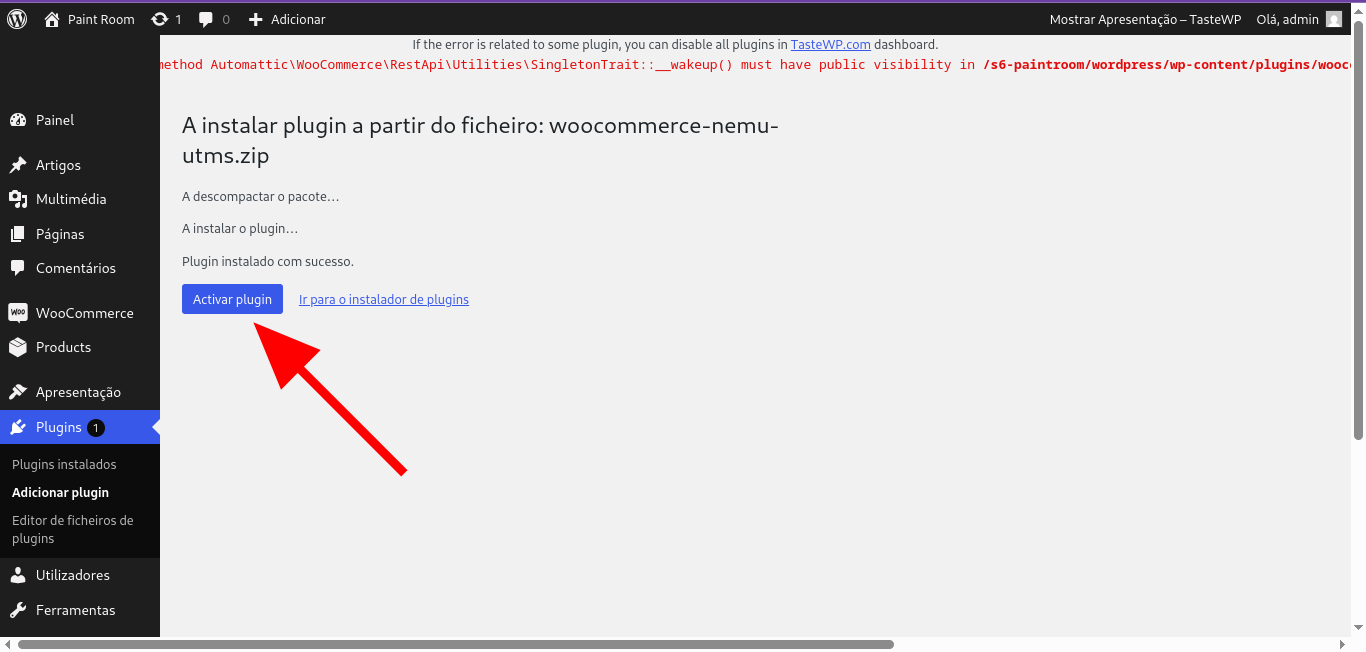
* After installation, click on **"Activate plugin"**.
3. Import and activate the plugin
* Click on **"Choose file"** and select the `.zip` file you downloaded.
* Click on **"Install now"**.
* After installation, click on **"Activate plugin"**.