

Environments
The API is available in two environments. Each one has its own dashboard, where the API token is generated:
Access to the staging dashboard requires an invite code. Contact the Nemu team
to receive the code and create your account in that environment.
Use the staging environment to validate your integration before sending real
sales. Generate the API token in the dashboard of the same environment you
will be sending requests to: to use the staging API, generate the token at
stg.dashboards.nemu.com.br.
Authentication
Include the dashboard token in theAuthorization header of your request.
Generating the User Token
- In Nemu, go to Settings > Nemu API.
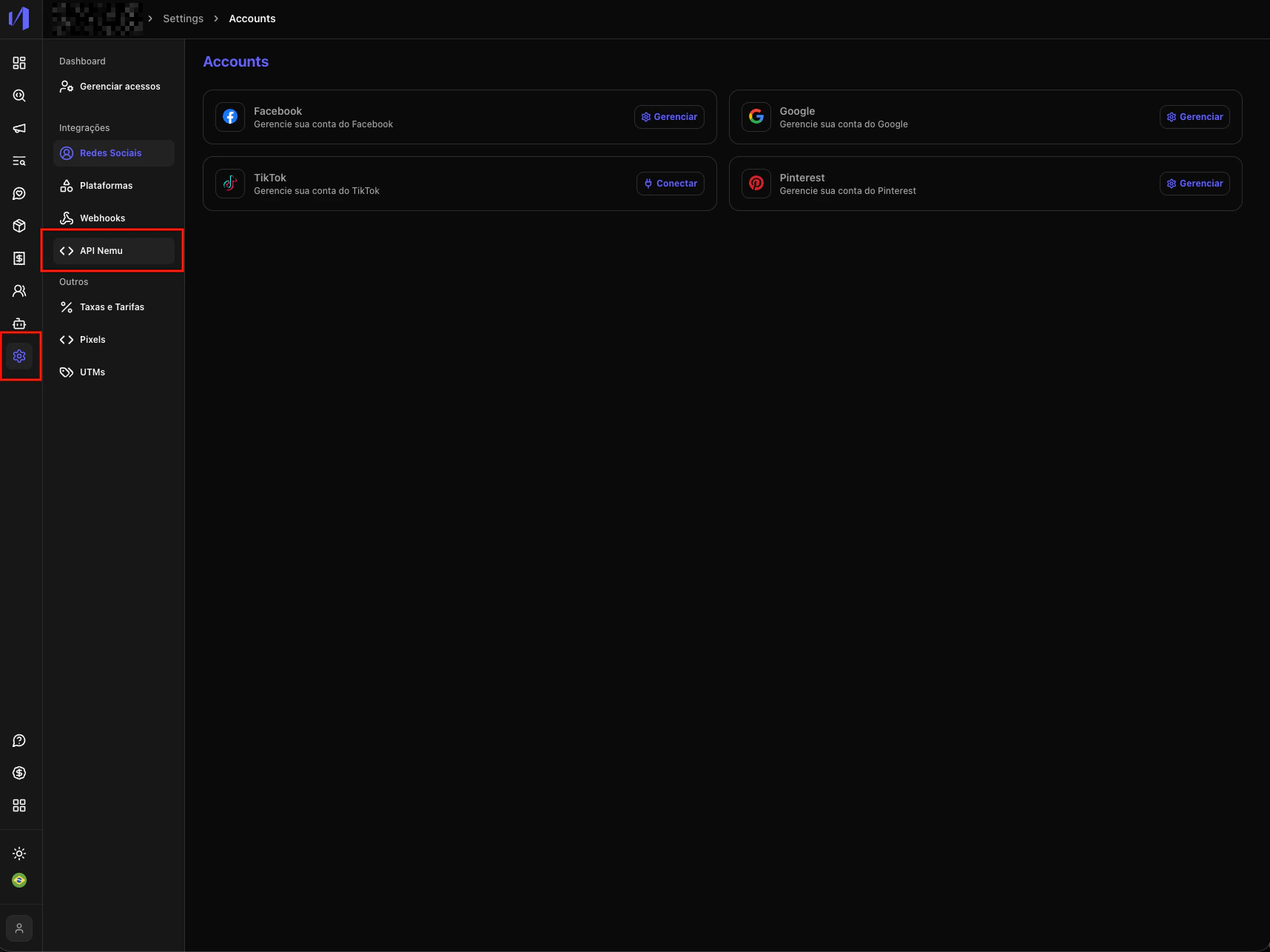
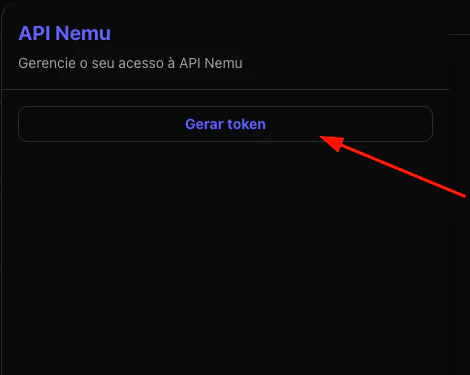
- Click on Generate token.
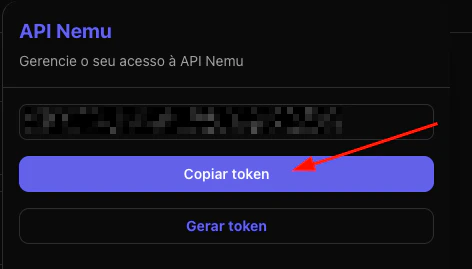
- Copy the displayed token.
Retrieving UTMs for Integration
To send sales data with tracking information (UTMs), you must retrieve this information from one of three available sources in the following priority order:Available UTM Sources
-
Global Variable (Priority 1):
window.trackingNemu.nemuUtms- Returns a
URLSearchParamsobject with UTMs - Available when Nemu pixel is loaded on the page
- Returns a
-
Cookie (Priority 2):
nemuUtmsTrack- Cookie containing UTM information in query string format
-
LocalStorage (Priority 3):
nemu:utmsTrack- Local storage with UTMs in query string format
Recommended Implementation
Fallback Strategy
The implementation should follow the priority order, trying the global variable first, then the cookie, and finally localStorage. This ensures UTMs are captured regardless of how the user arrived at the page.Sending Sales Data
The API offers two main routes to create and update orders:POST /salesto create salesPUT /sales/:transactionIdto update sales