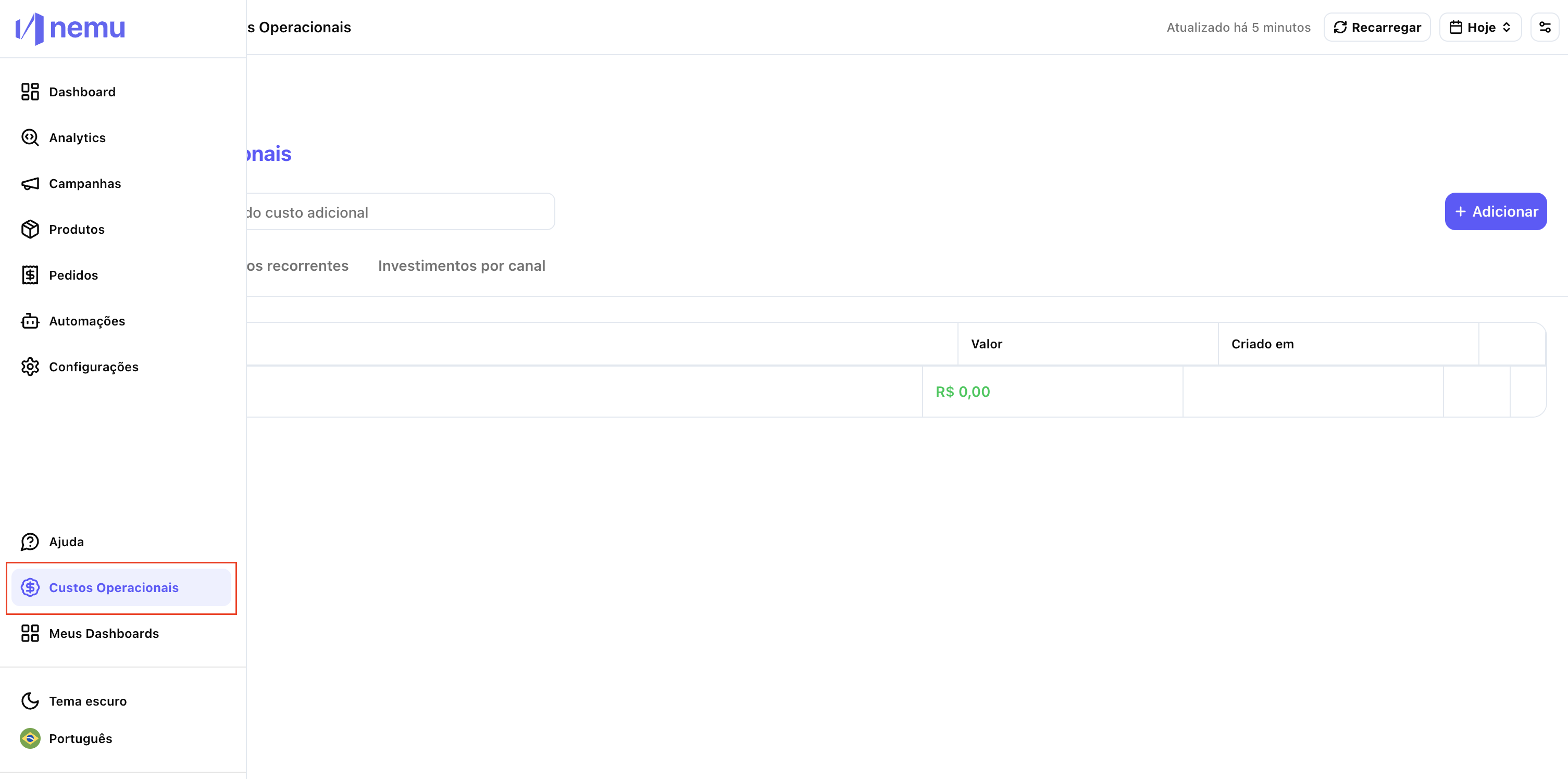
1. Access the “Operational Costs” menu
- In the Nemu sidebar, click on “Operational Costs”.
- This is where you can add and manage investments per channel and other costs.
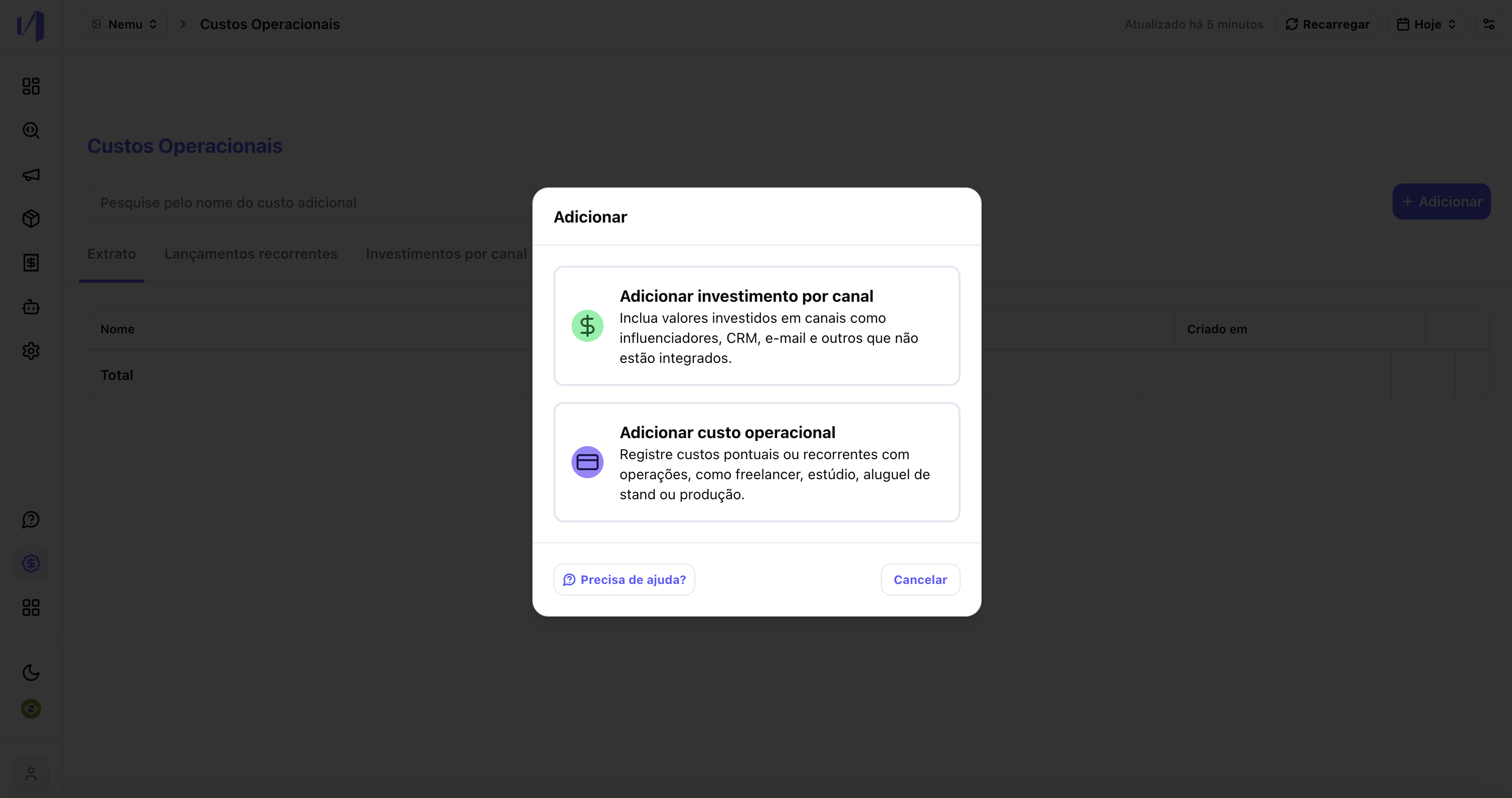
2. Click on “Add”
You will see two options:- Add investment per channel
- Add operational cost
3. Understand the difference between the two types
- Investment per channel: use for costs related to marketing channels (e.g., CRM, email, influencers, etc.) to calculate ROI.
- Operational cost: use for general expenses (freelancers, rent, studio, etc.) that don’t need to be tied to a specific channel.
4. Adding investment per channel
You can do this in two ways:4.1. Add individually
-
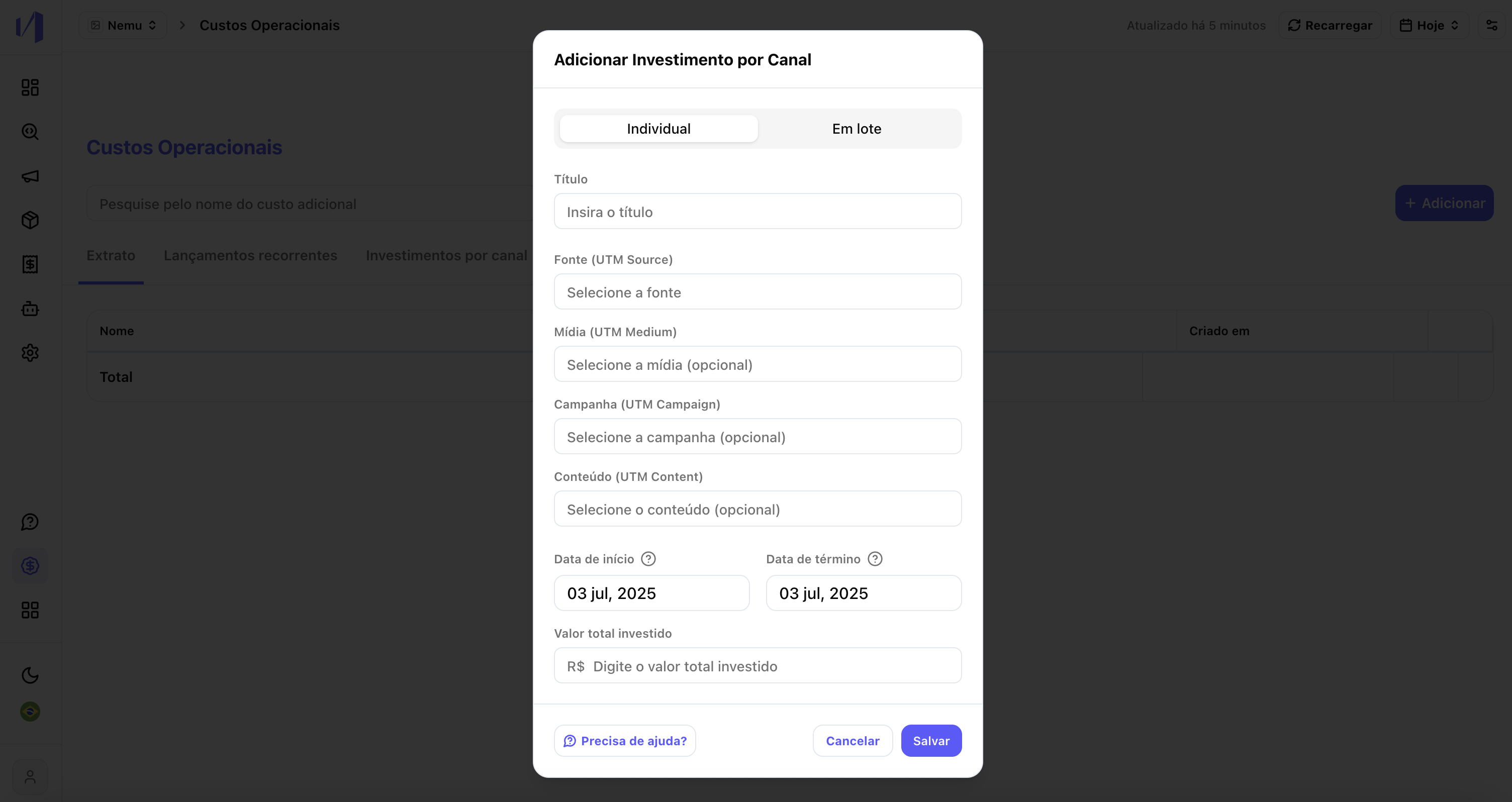
Fill in the fields:
- Title (e.g., March CRM Campaign)
- Source, Medium, Campaign, Content (UTMs you already use)
- Start and end date
- Total value invested
- The value will be distributed proportionally per day in the indicated period.
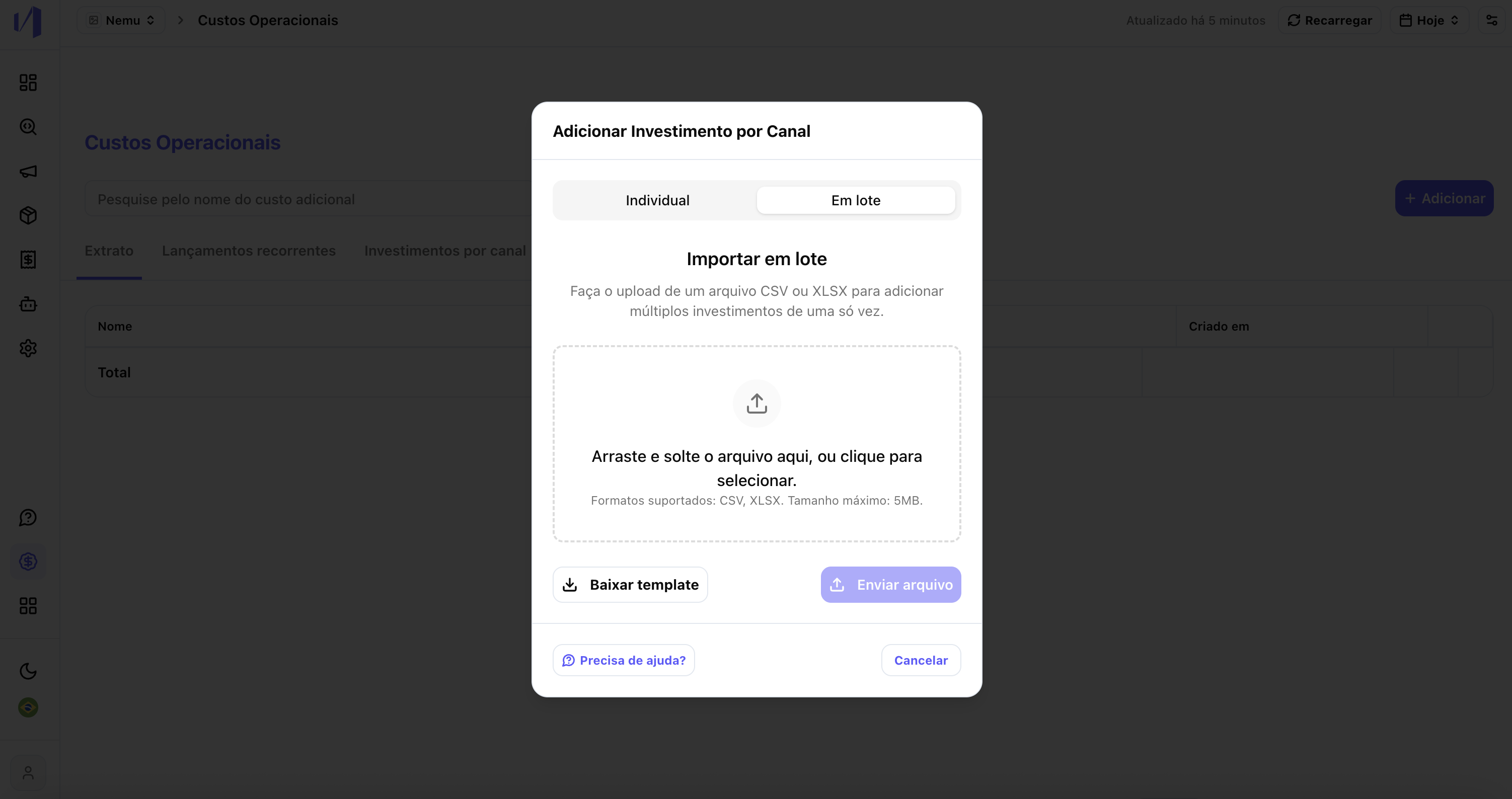
4.2. Bulk import
Ideal if you have many investments to add at once. Steps:- Click on “Bulk import”
- Download the template provided
-
Fill in the columns:
- Title
- Source, Medium, Campaign, Content
- Start and end date
- Total value
- Send the file back through the platform
- Keep the UTM standard you already use to ensure the connection with the channels.
- The dates are used to calculate the daily investment (e.g., 1,000 per day).
5. View and edit your investments per channel
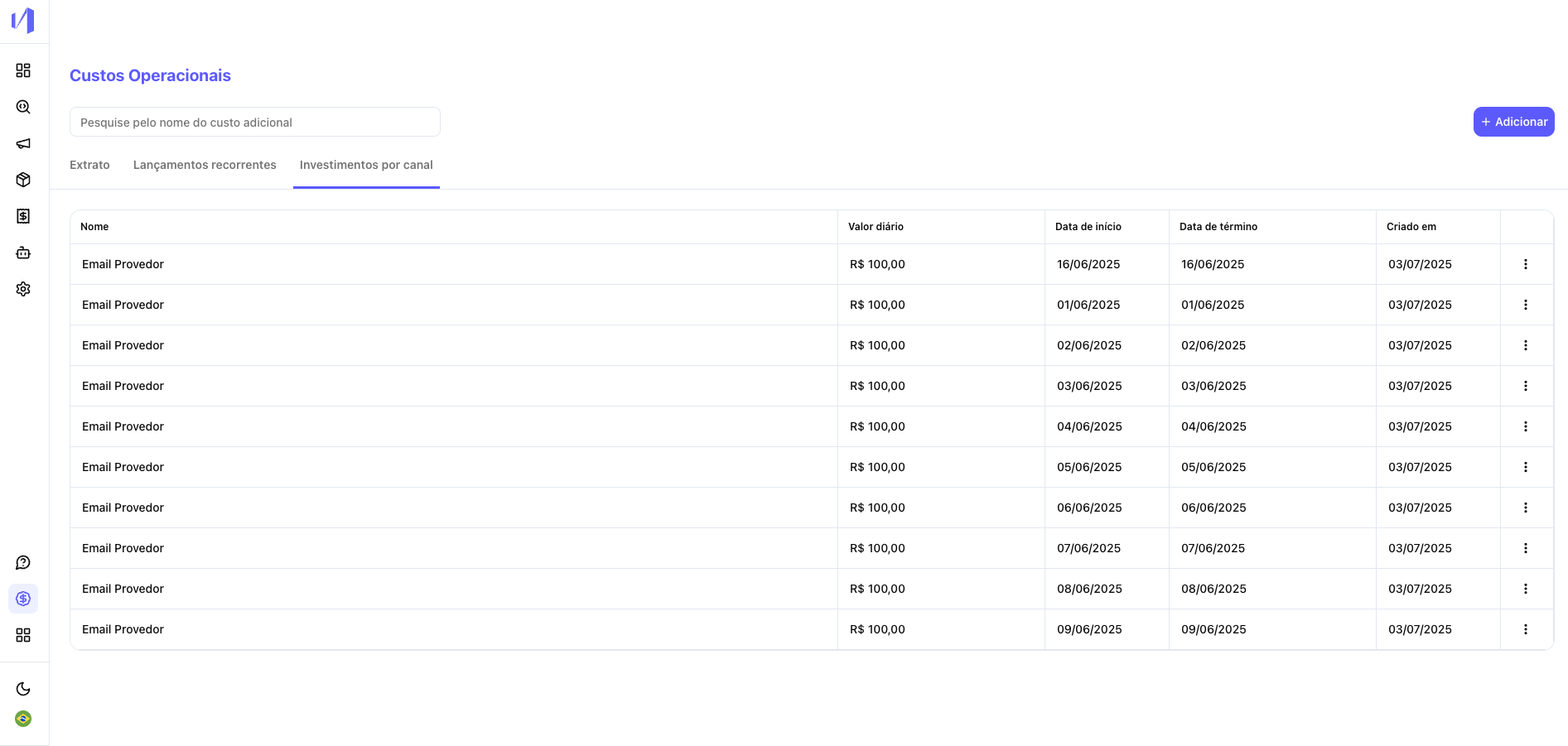
In the “Operational Costs” tab itself, select the “Investments per channel” tab to see the entire upload history you performed.- You can edit or delete each item.
- There you can see the investment name, daily value, dates, and creation date.
6. View the data in the campaigns tabs
After adding the costs:- Go to Campaigns > All Channels to see ROI, Revenue, Spend, etc. data.
- The investments you add will be distributed to the respective channels and UTMs.
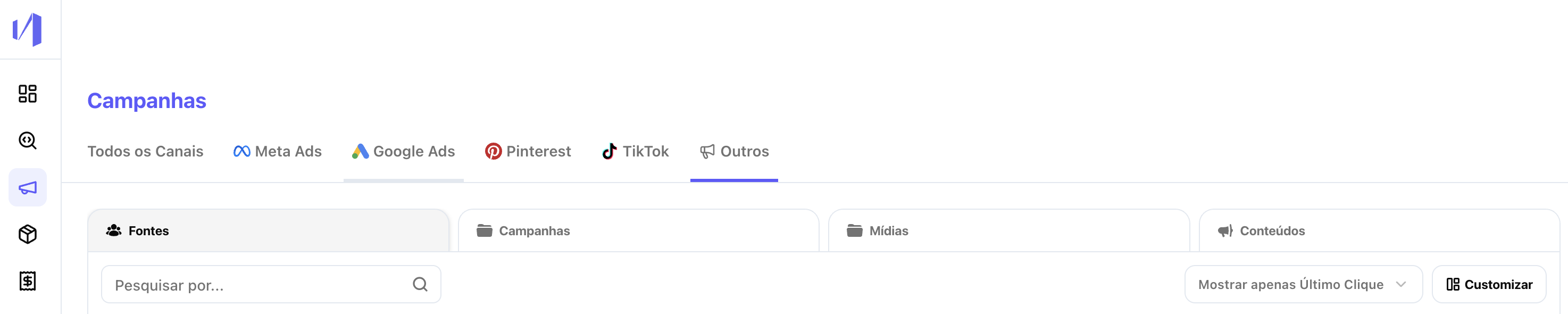
- The channels you insert also appear in the “Others” tab.
- The “Others” tab shows detailed UTMs (Source, Campaign, Medium, Content).
- Important: if you don’t fill in the
campaign,medium, orcontentfields at the time of upload, these fields will appear blank in the “Others” tab view.