Follow the step-by-step guide and start receiving sales automatically in Nemu.
Setting Up Webhooks
On Nemu Dashboard
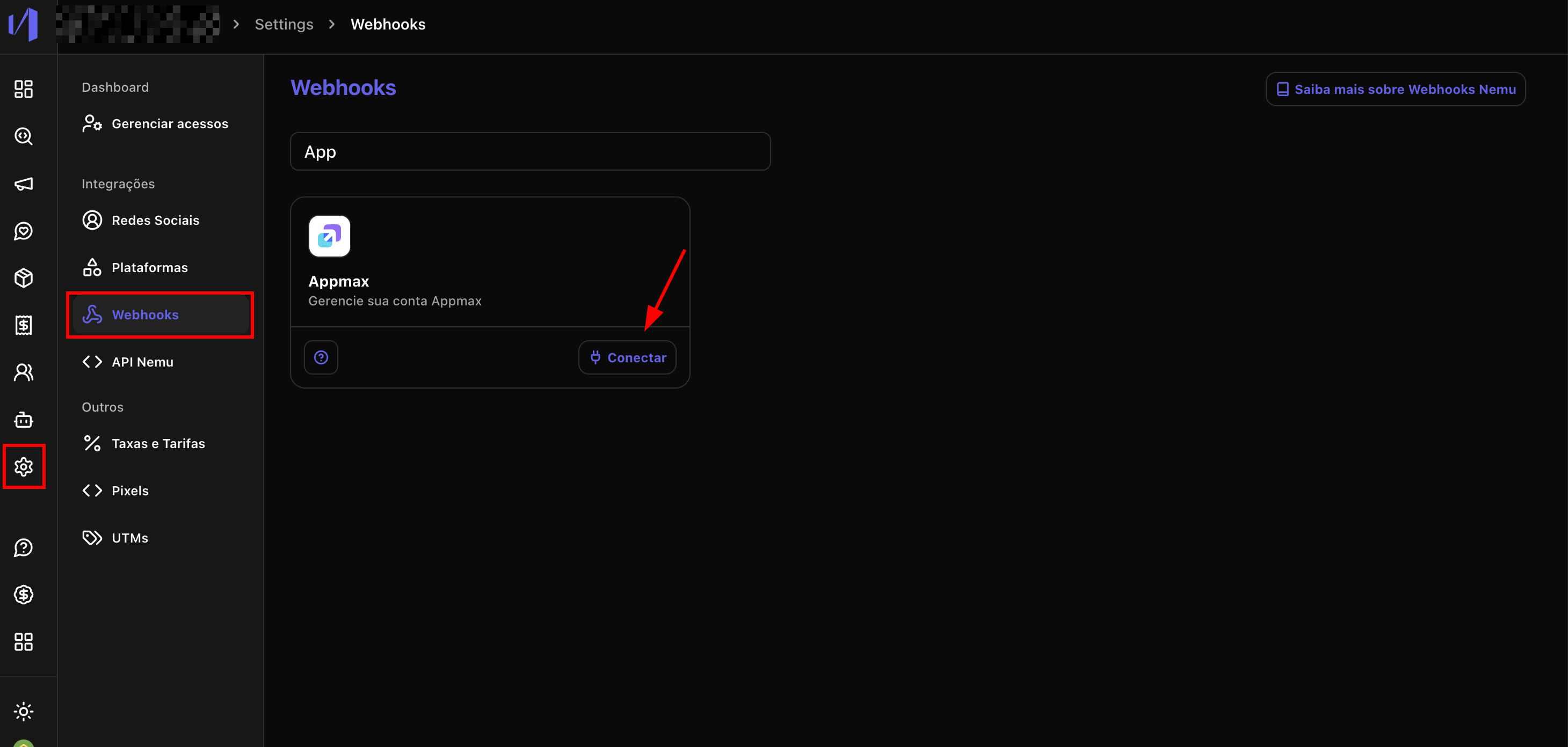
- In the Nemu Dashboard, in the sidebar, click on Settings > Webhooks.
- Search for Appmax and click on Connect.
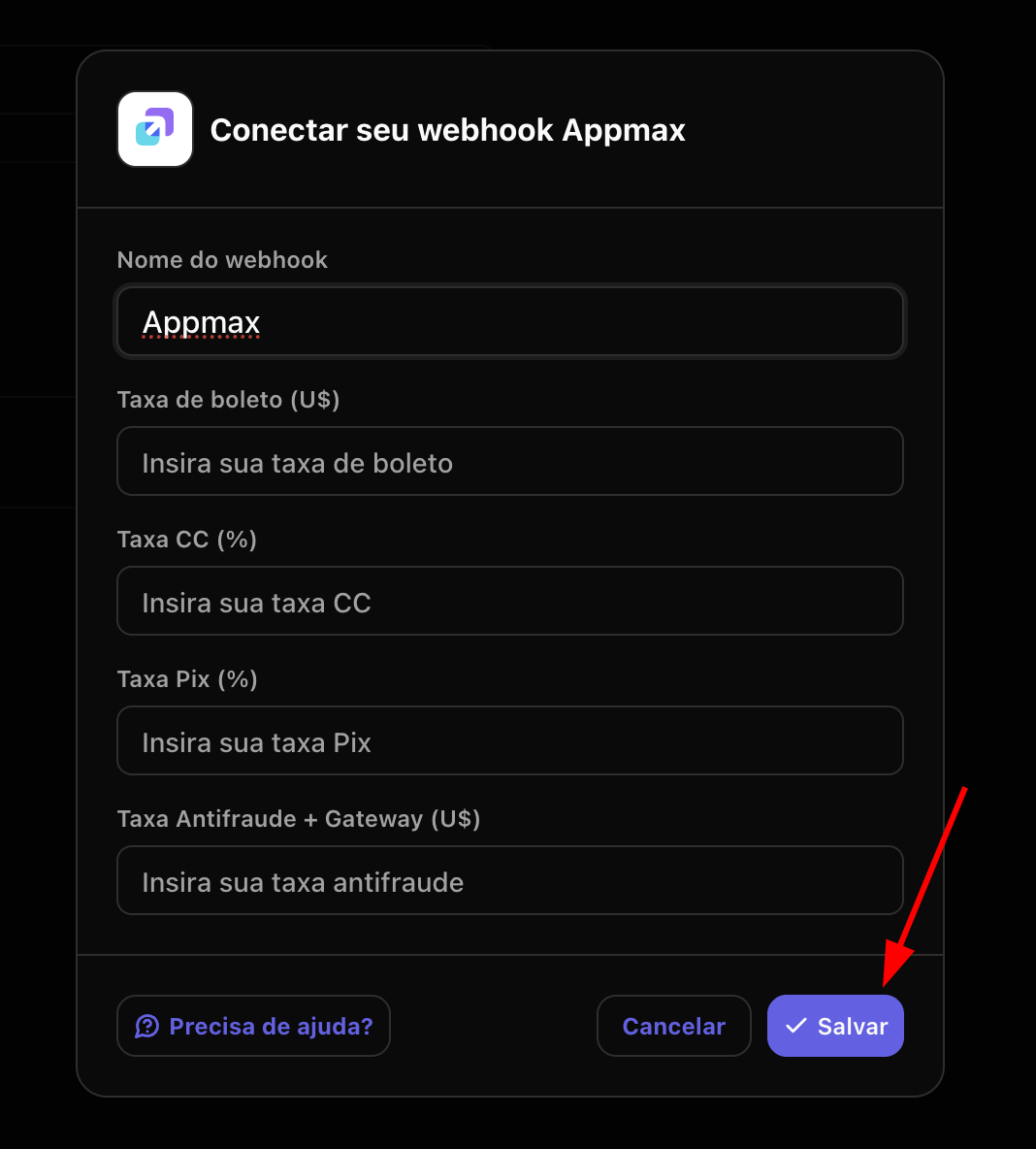
- Define a Name for the webhook.
You can also enter your sales rates for the various payment methods. Check this information in the Appmax panel under Settings > My Rates.
-
Click on Save to continue.
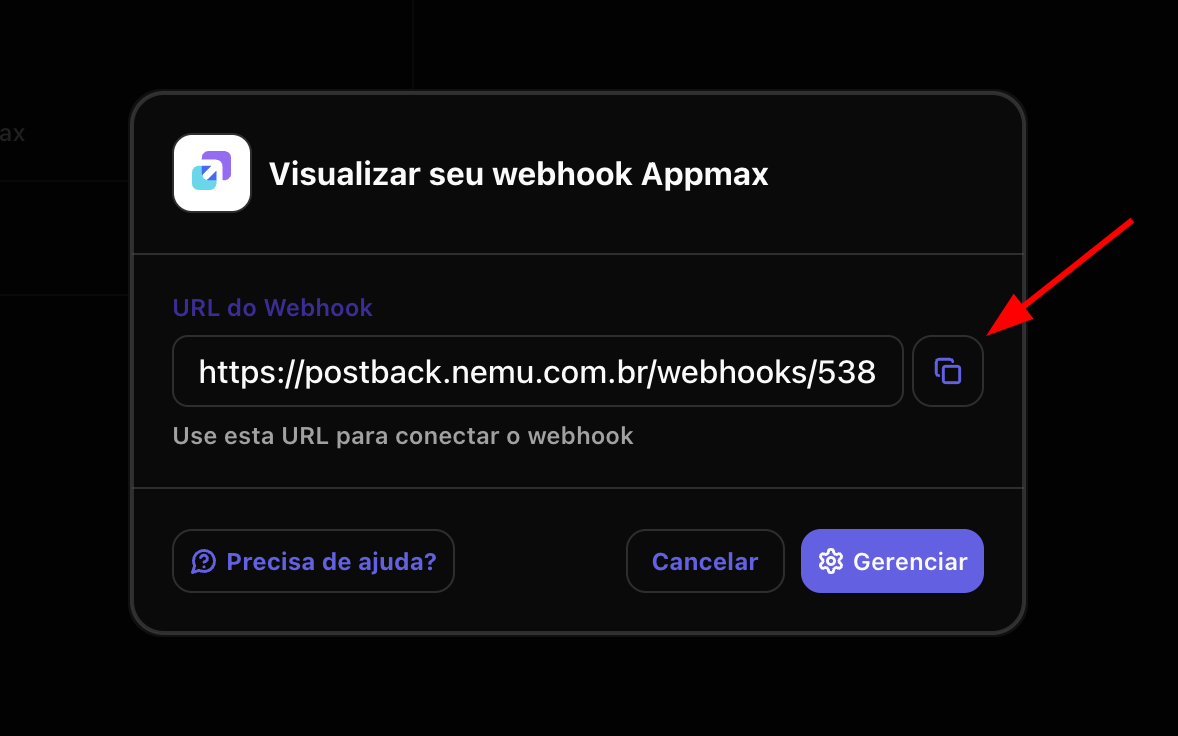
- Click the button to copy the webhook URL generated by Nemu.
On Appmax Panel
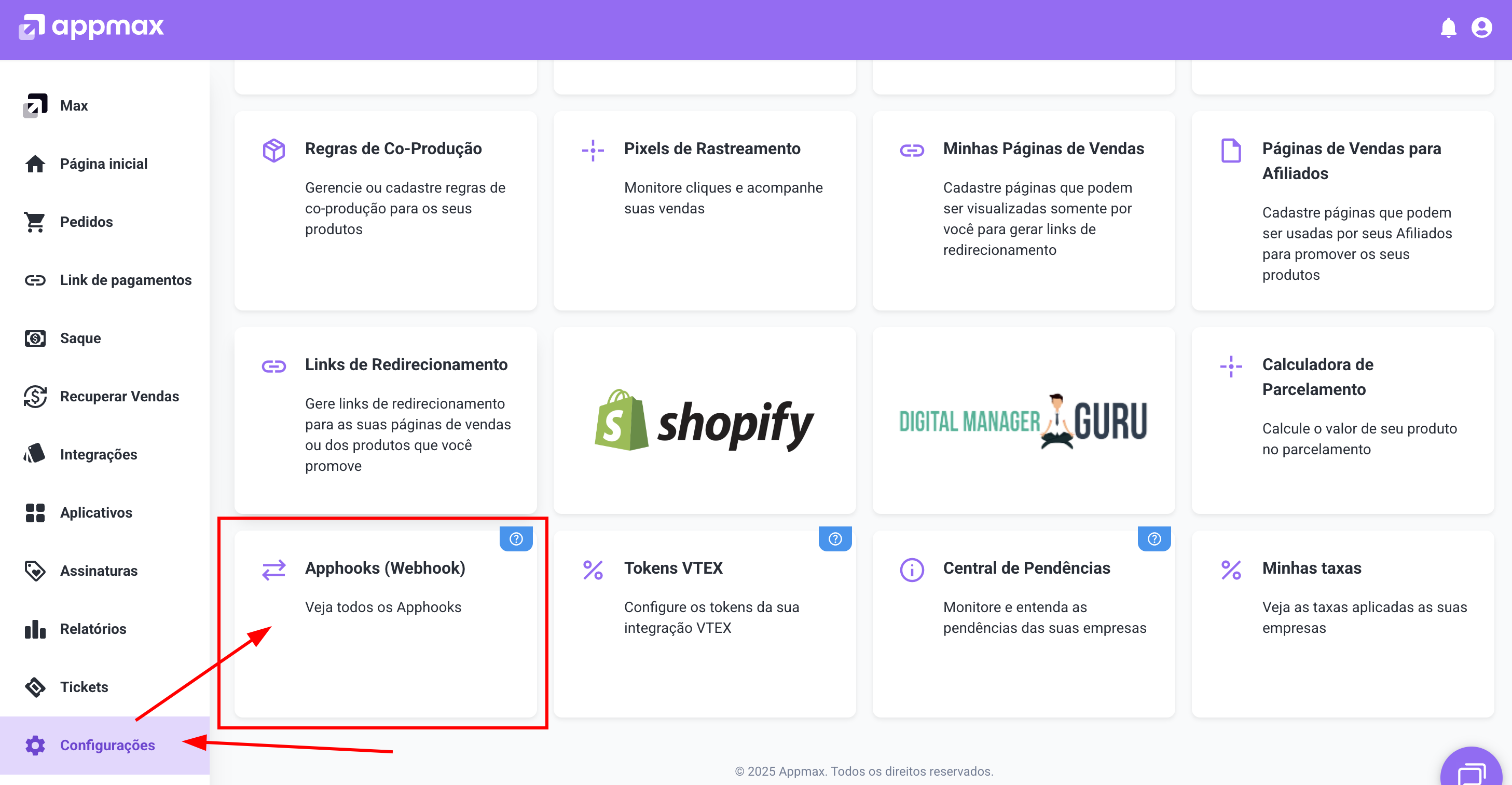
- Access the Appmax panel and, in the sidebar, click on Settings.
- On the settings page, locate and click on Webhooks.
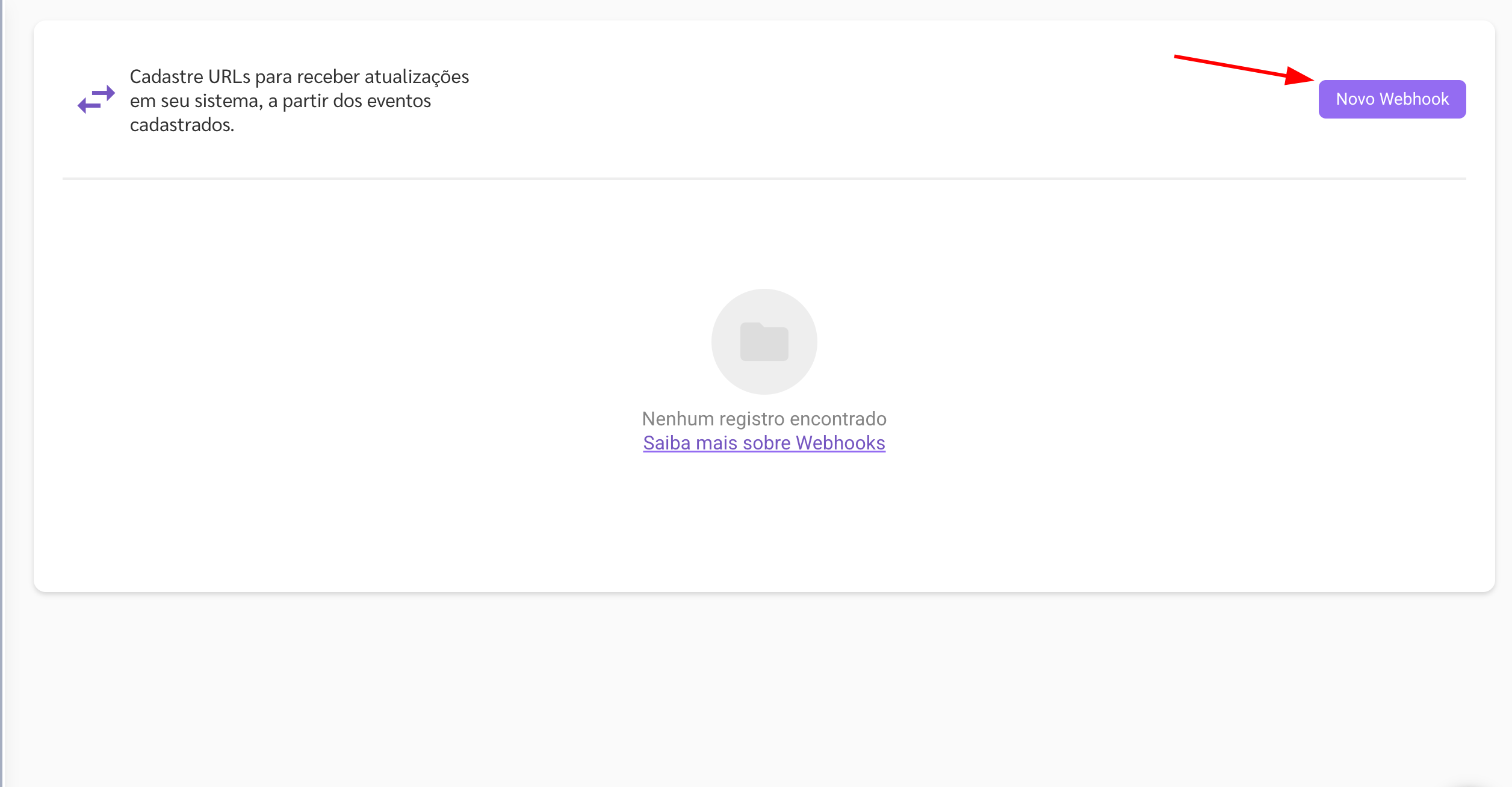
- Click on the + New webhook button to create a new webhook.
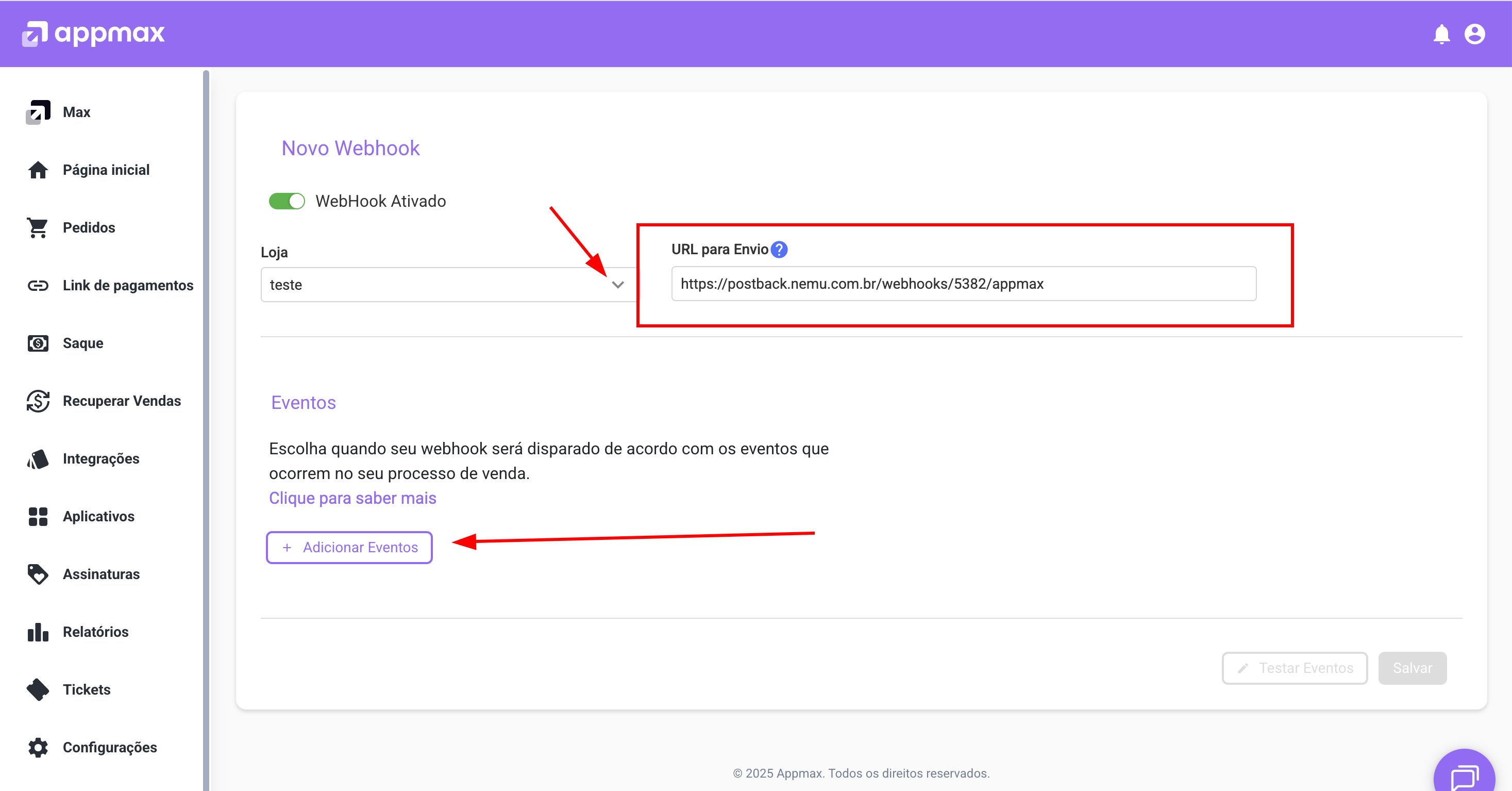
- Select your Store by clicking on the arrow.
- In the Webhook URL field, paste the URL you copied in step 5 from the Nemu Dashboard.
- Click on + Add Events
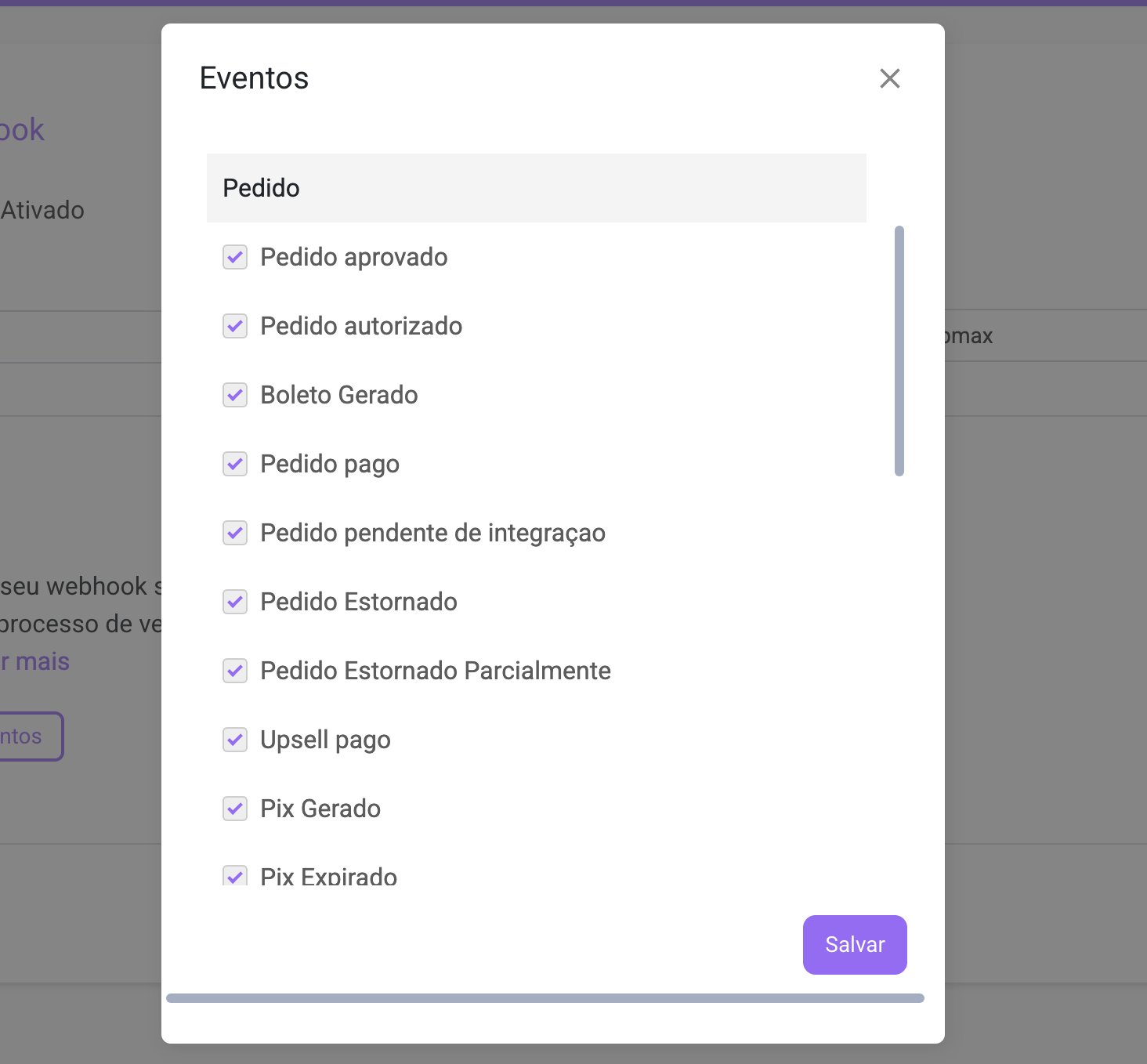
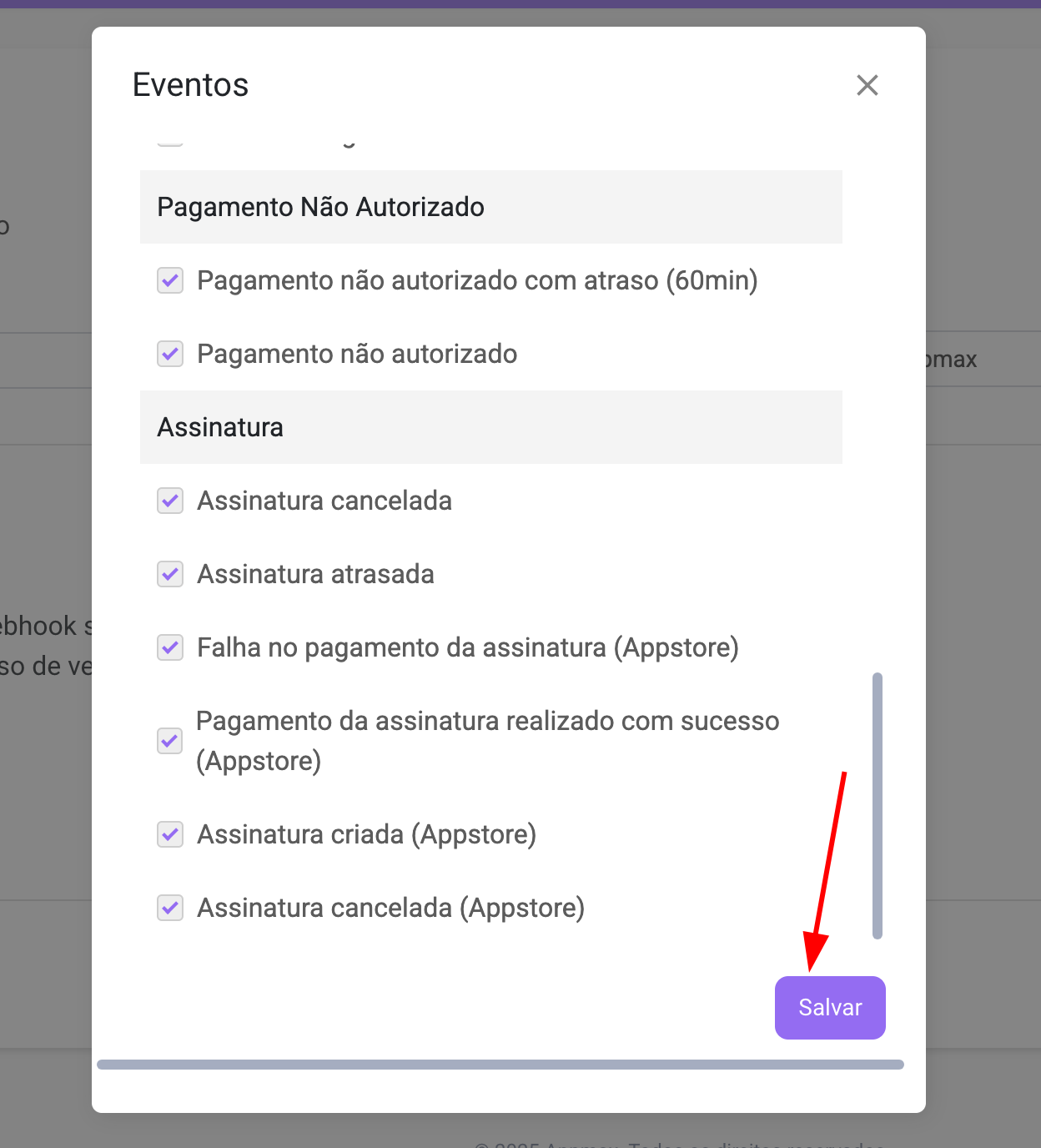
- In the Events section, select the events you want to receive in Nemu. We recommend selecting the following:
- All events from the Orders section
- All events from the Unauthorized Payment section
- All events from the Subscription section
- Verify that all information is correct and click on Save to complete the integration.
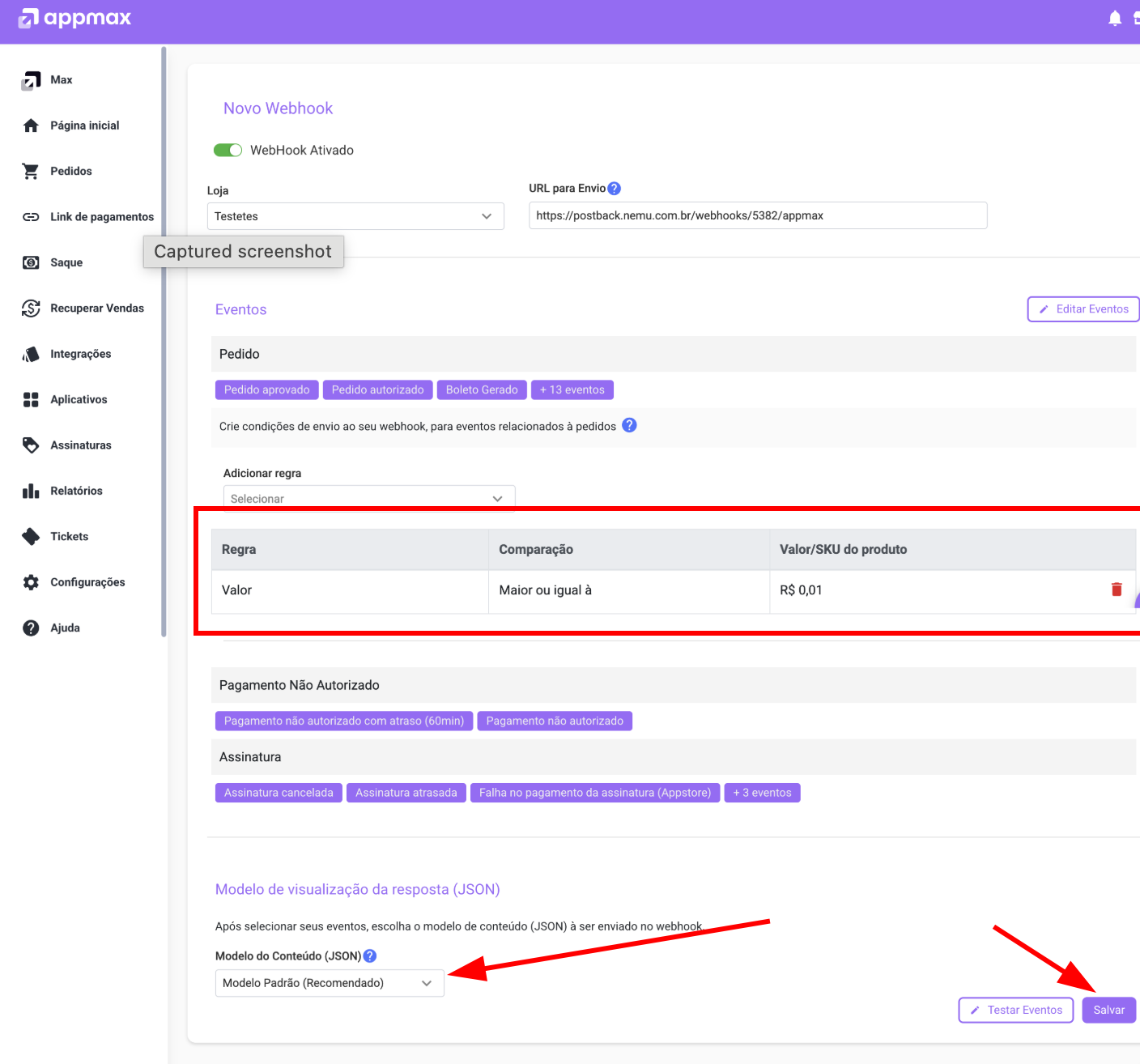
- After completing the event configuration, you will need to add a rule so that events from all orders are sent to the webhook, we recommend creating a rule by total order value
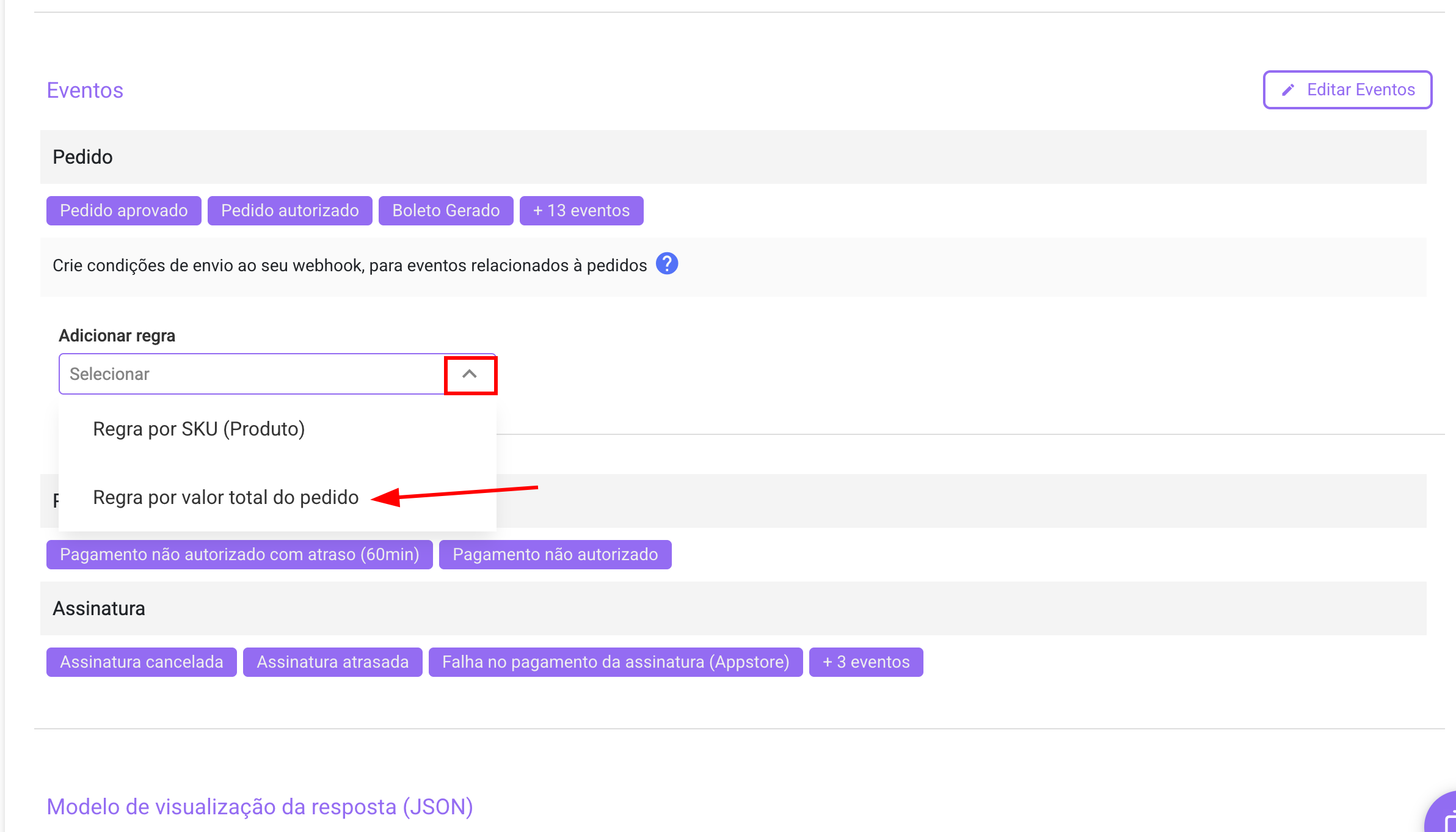
- Selecting values Greater or equal to and R$ 0.01 in the respective fields, then click on + Add

- Confirm that the rule was created, verify that the response visualization model is the Recommended Standard and click on Save to complete.