

Generating JetEcommerce OpenAPI Credentials
These credentials will be used to connect your JetEcommerce store to Nemu
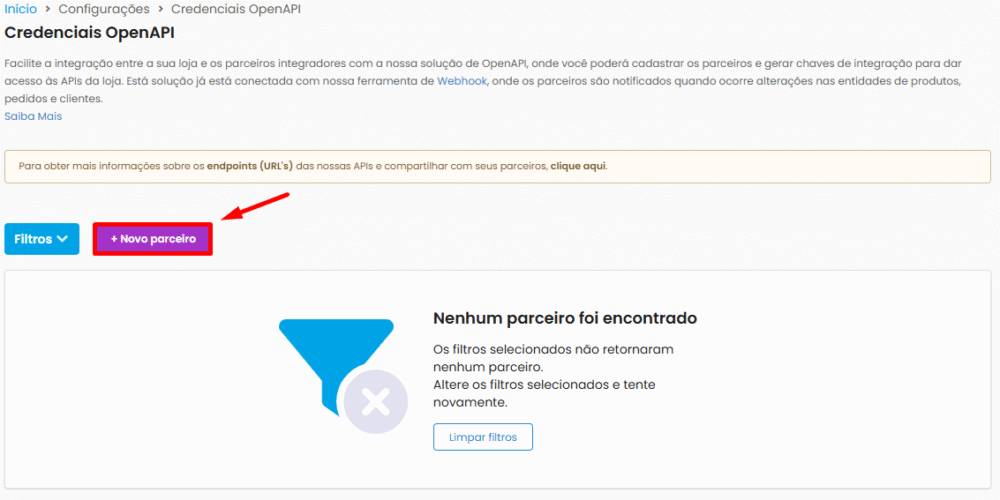
- Access the JetEcommerce platform and click on Settings > OpenAPI Credentials (V 1.0).
- Click on the + New partner button.
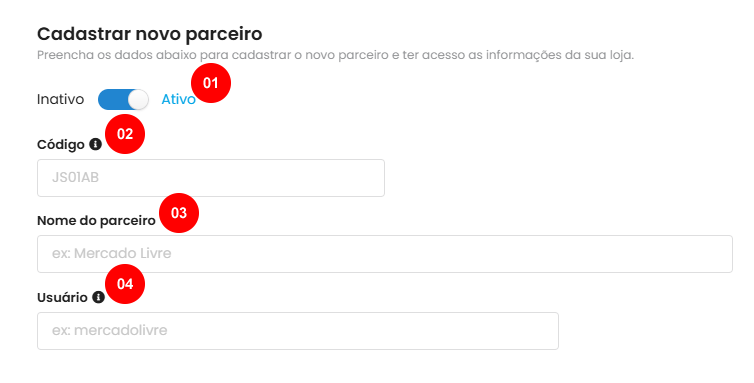
- Fill in the code, partner name, and user fields with Nemu.
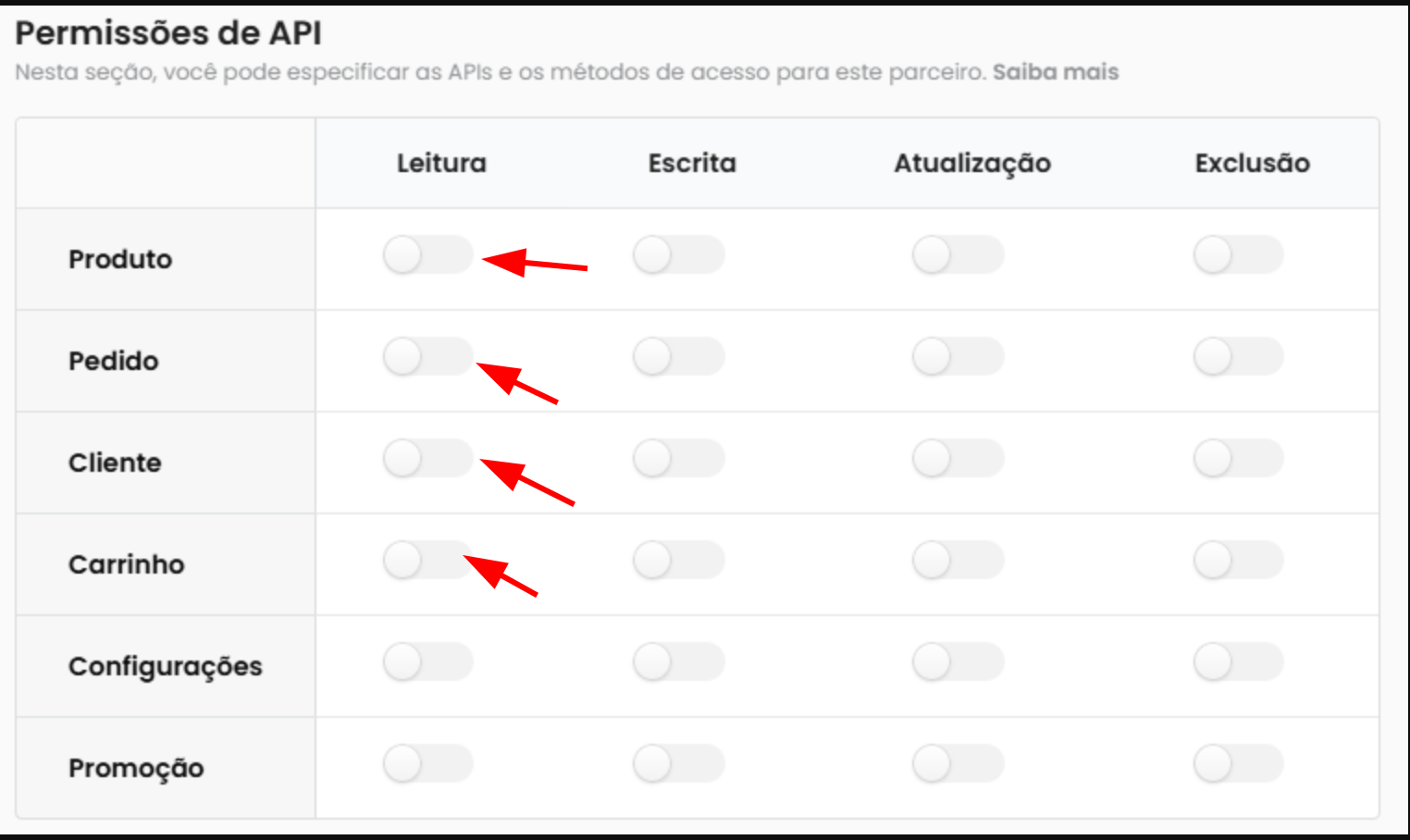
- Grant read permissions for the following items:
- Product
- Order
- Customer
- Cart
- Click on Register partner.

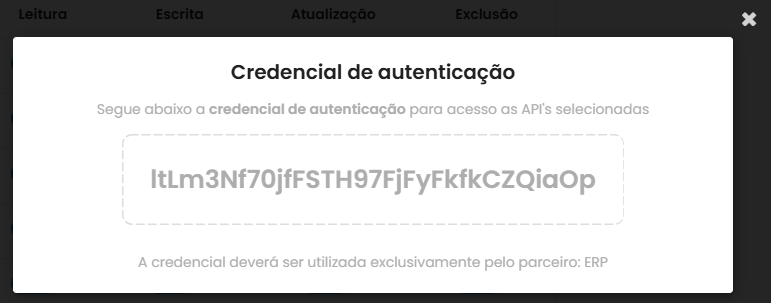
- Copy the Authentication Credential displayed on the screen.
Keep this credential safe, as it will be used for the connection to Nemu.
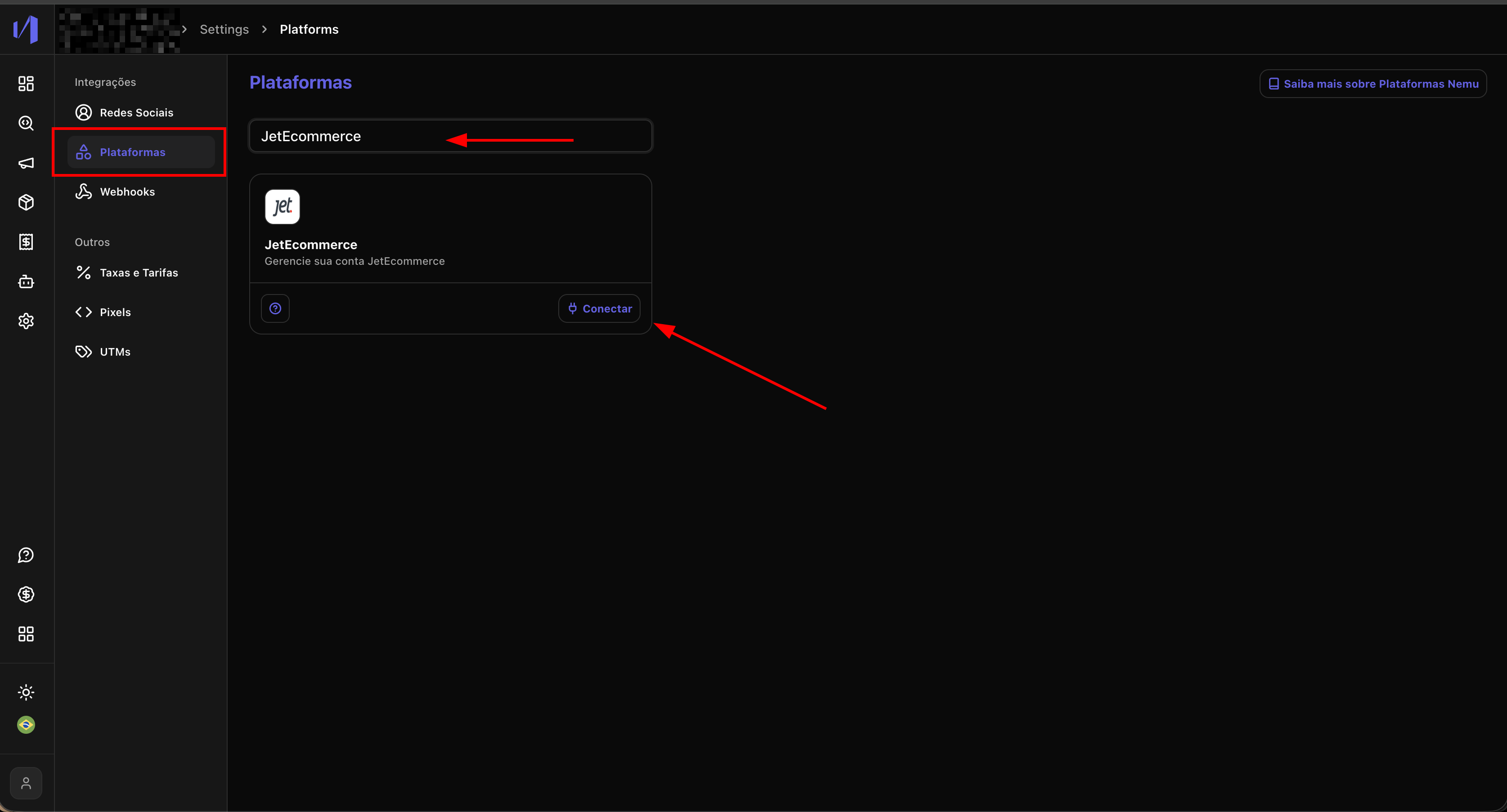
- In Nemu, go to Settings > Platforms, search for JetEcommerce and click on Connect.
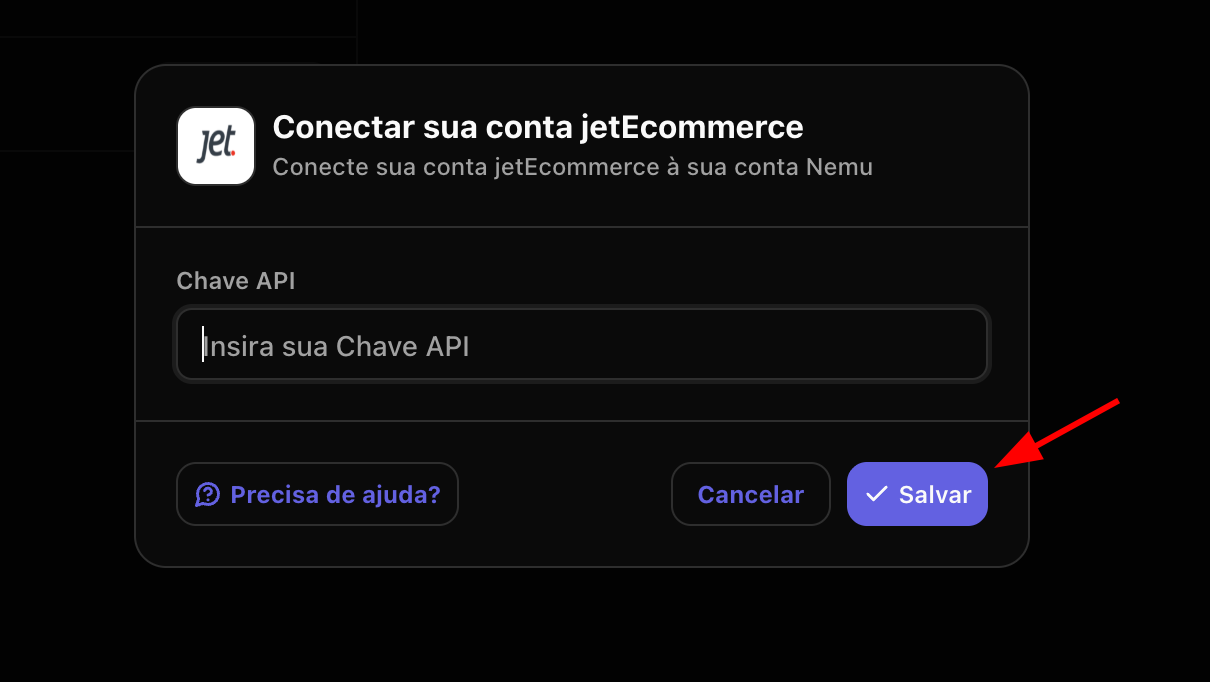
- Paste the credential copied in step 6 and click on Save.
Setting Up Webhooks
Webhooks allow JetEcommerce to automatically send updates to Nemu.
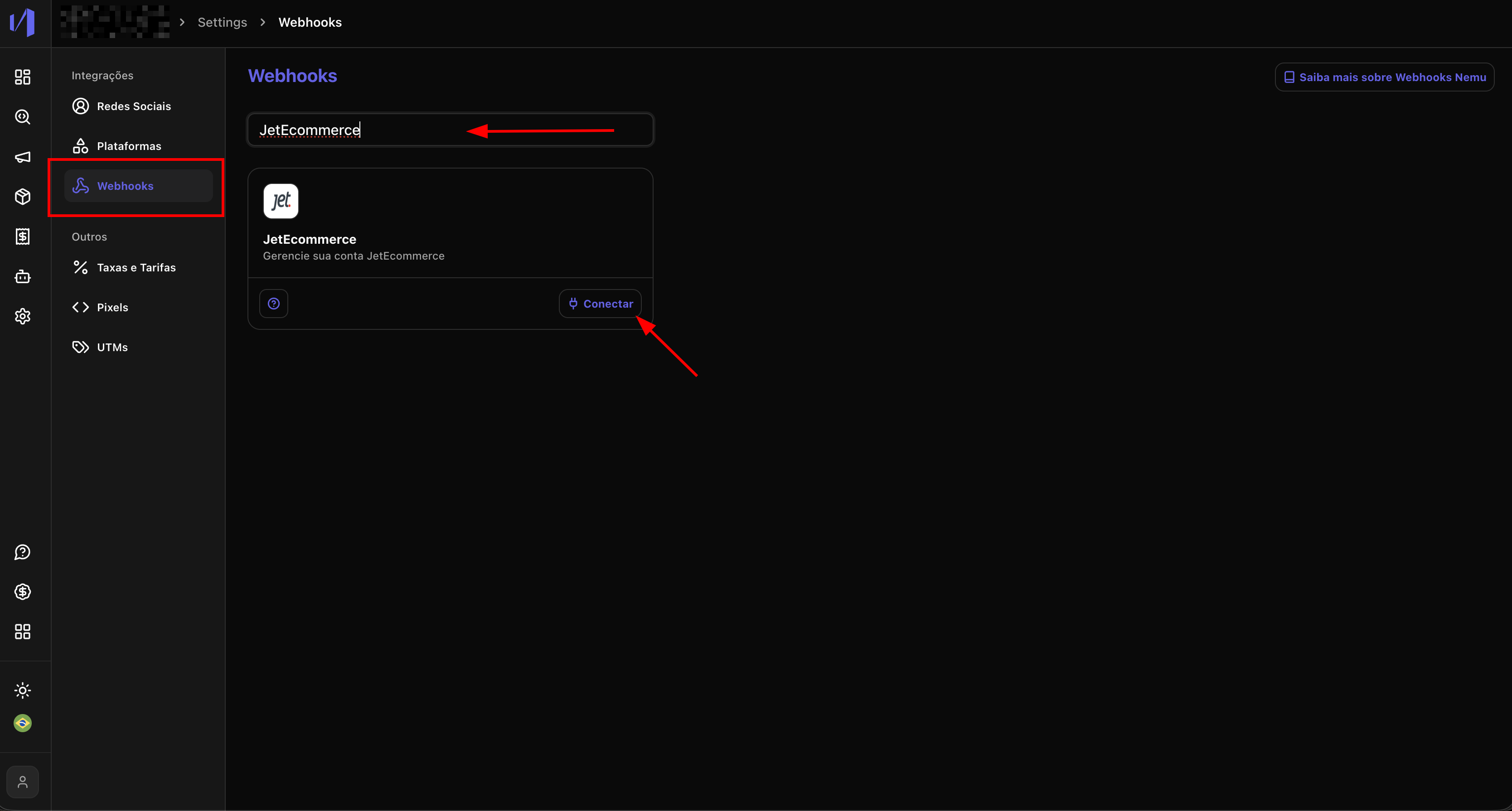
- In Nemu, go to Settings > Webhooks, search for JetEcommerce and click on Connect.
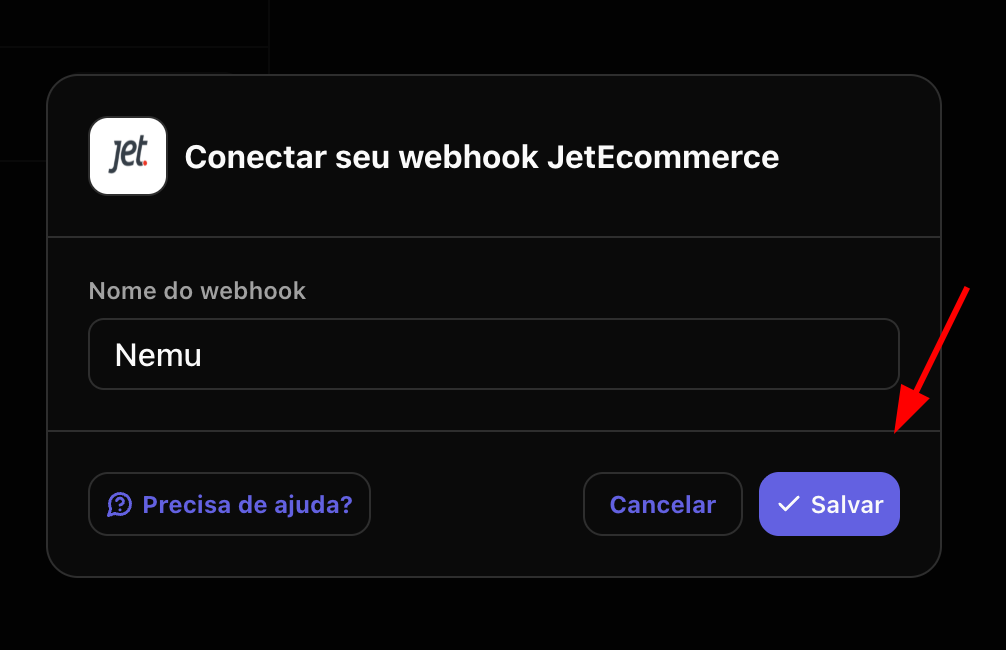
- Define a name for the webhook and click on Save.
- Copy the generated Webhook URL.
This URL will be used in the JetEcommerce configuration in the next step.
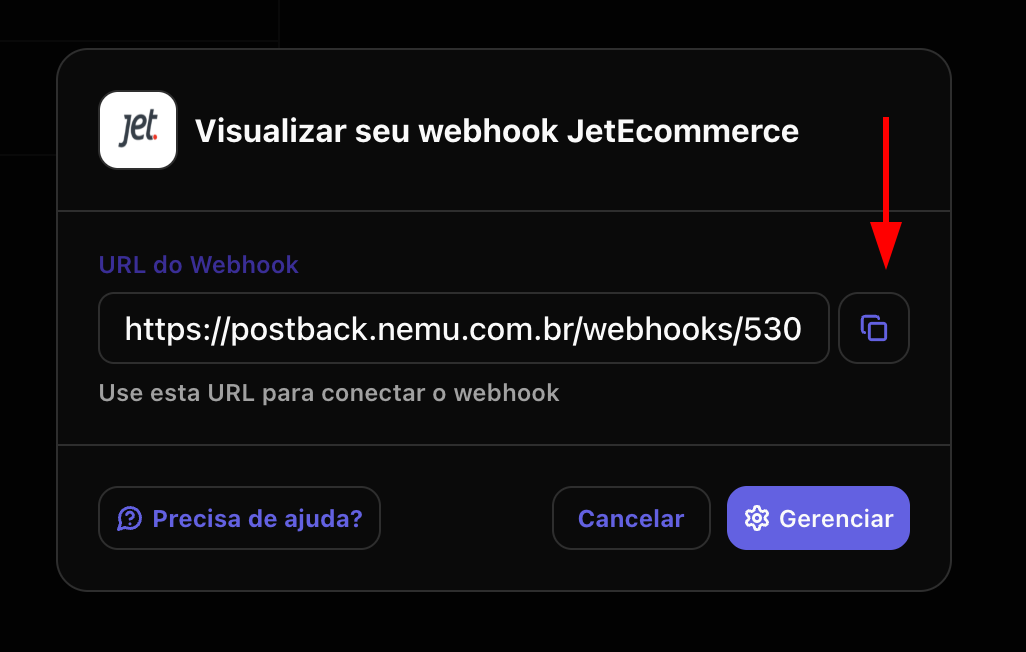
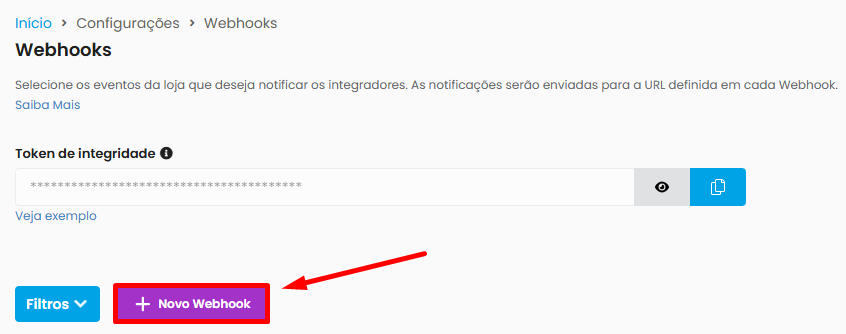
- Access the JetEcommerce platform and click on Settings > Webhooks.
- Click on the + New webhook button.
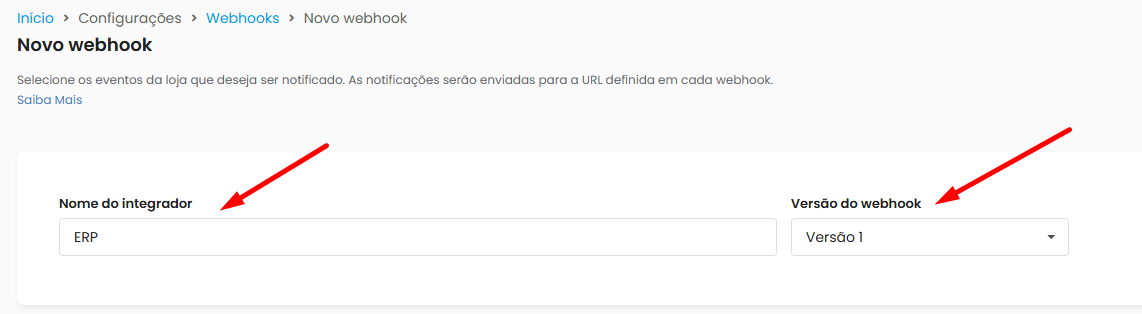
- Enter the Integrator Name as Nemu and the Webhook Version as Version 1.
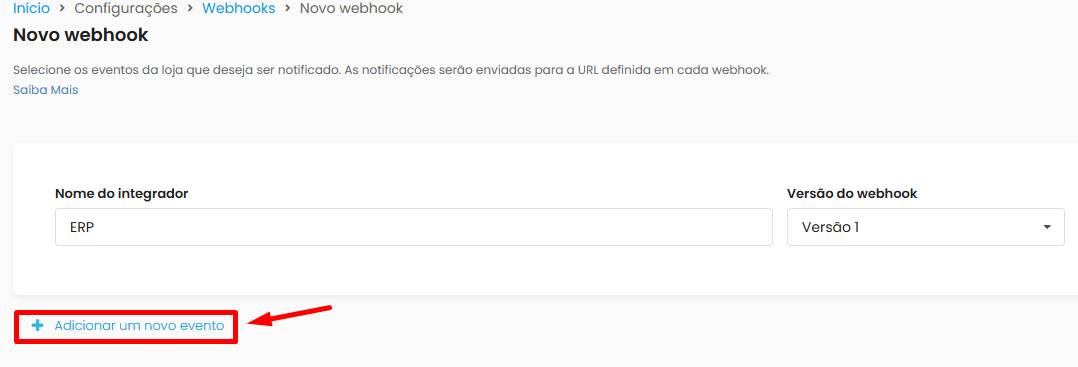
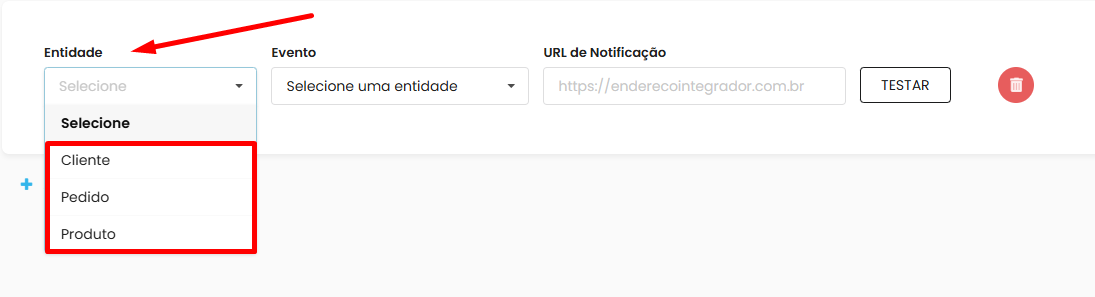
- Click on + Add a new event.
- Configure as per the table below, using the URL copied in step 3
- Click on Save Webhook.
