

Setting Up Webhooks
On Nemu Dashboard
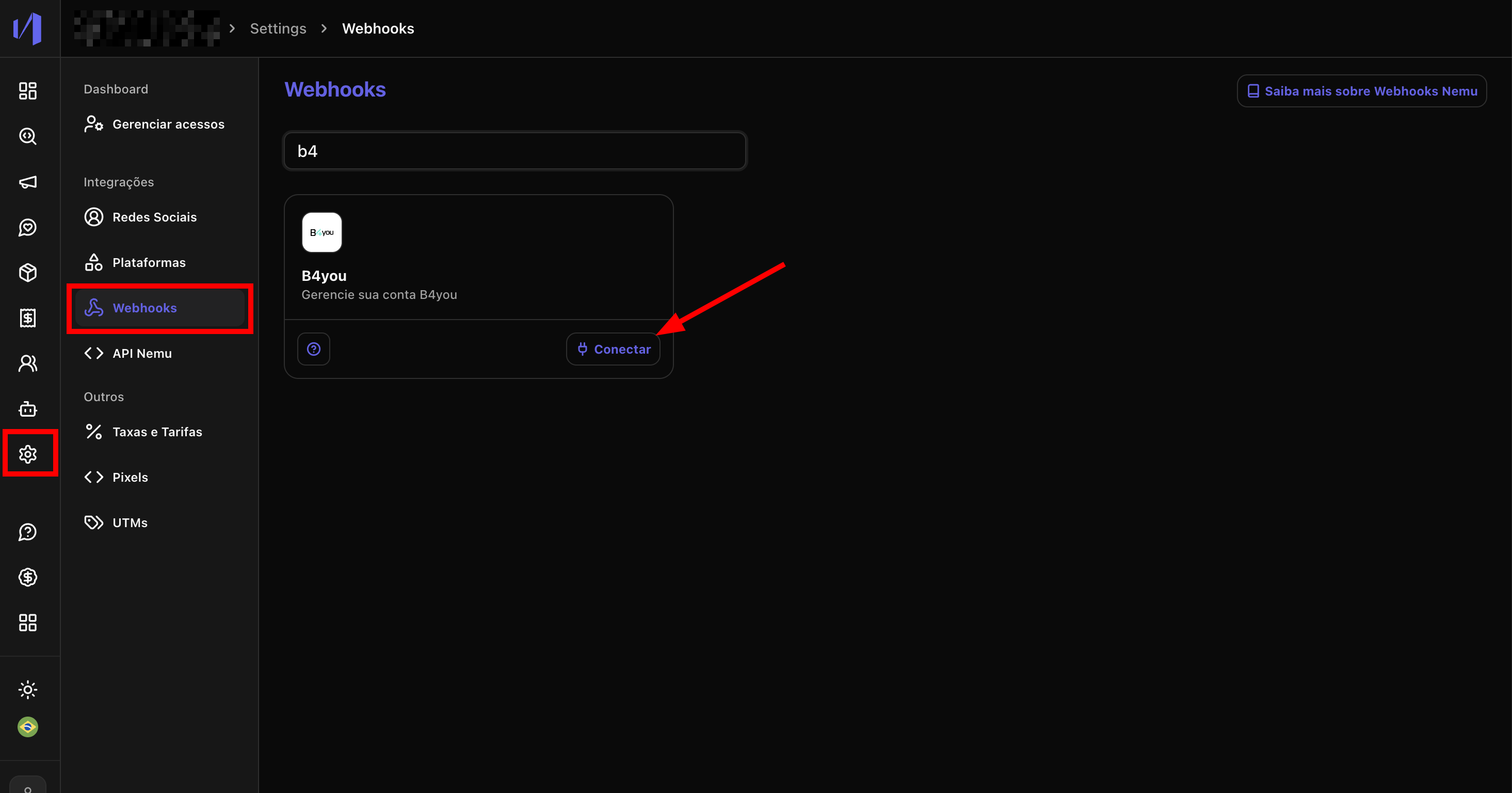
- In the Nemu Dashboard, in the sidebar, go to Settings > Webhooks.
- Search for B4you in the search field and click the Connect button
- In the modal that opens, define a Webhook Name (e.g., “B4you”), enter your Email and click on Save.
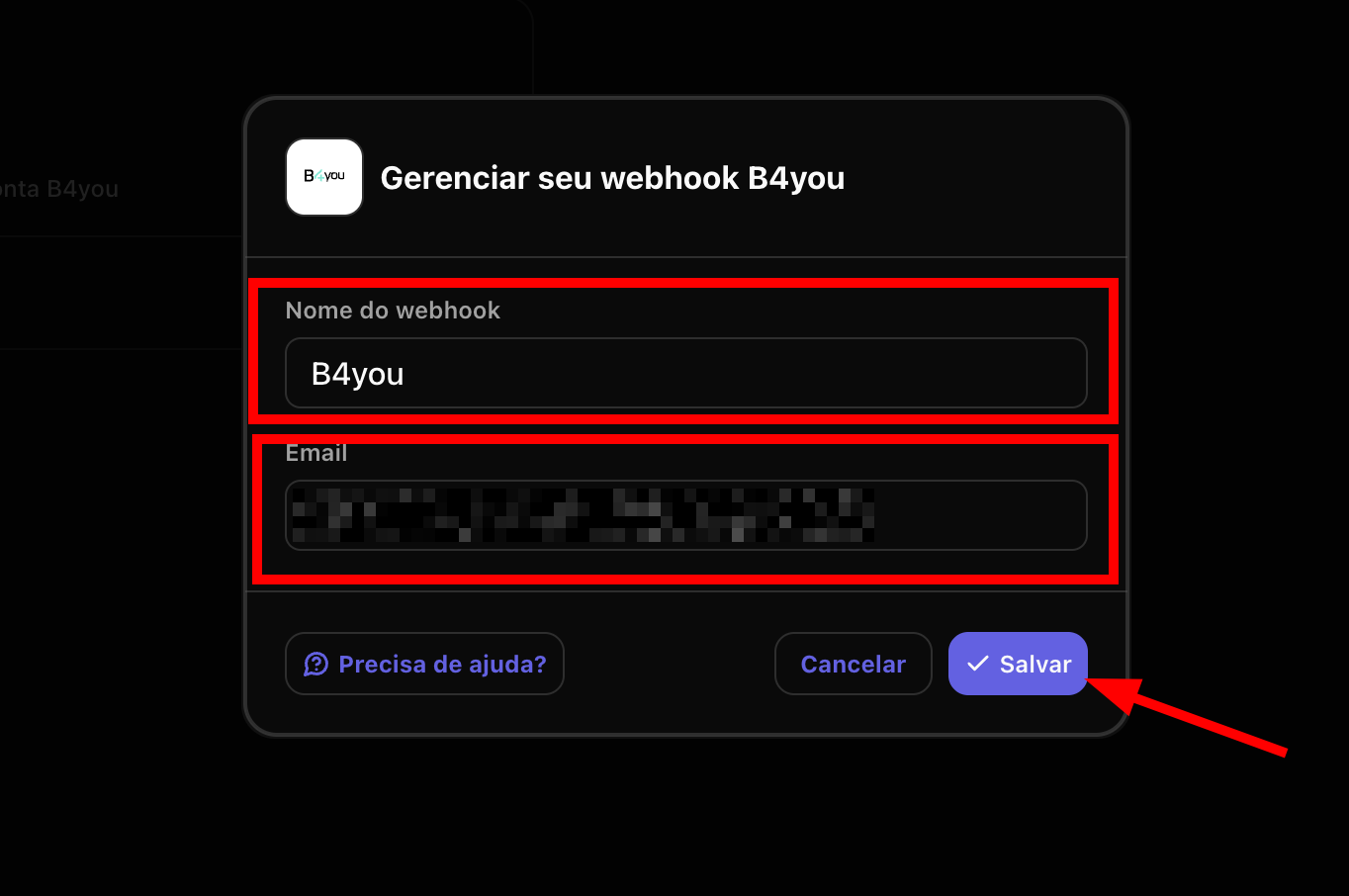
It can be the email used in the B4you account, for example.
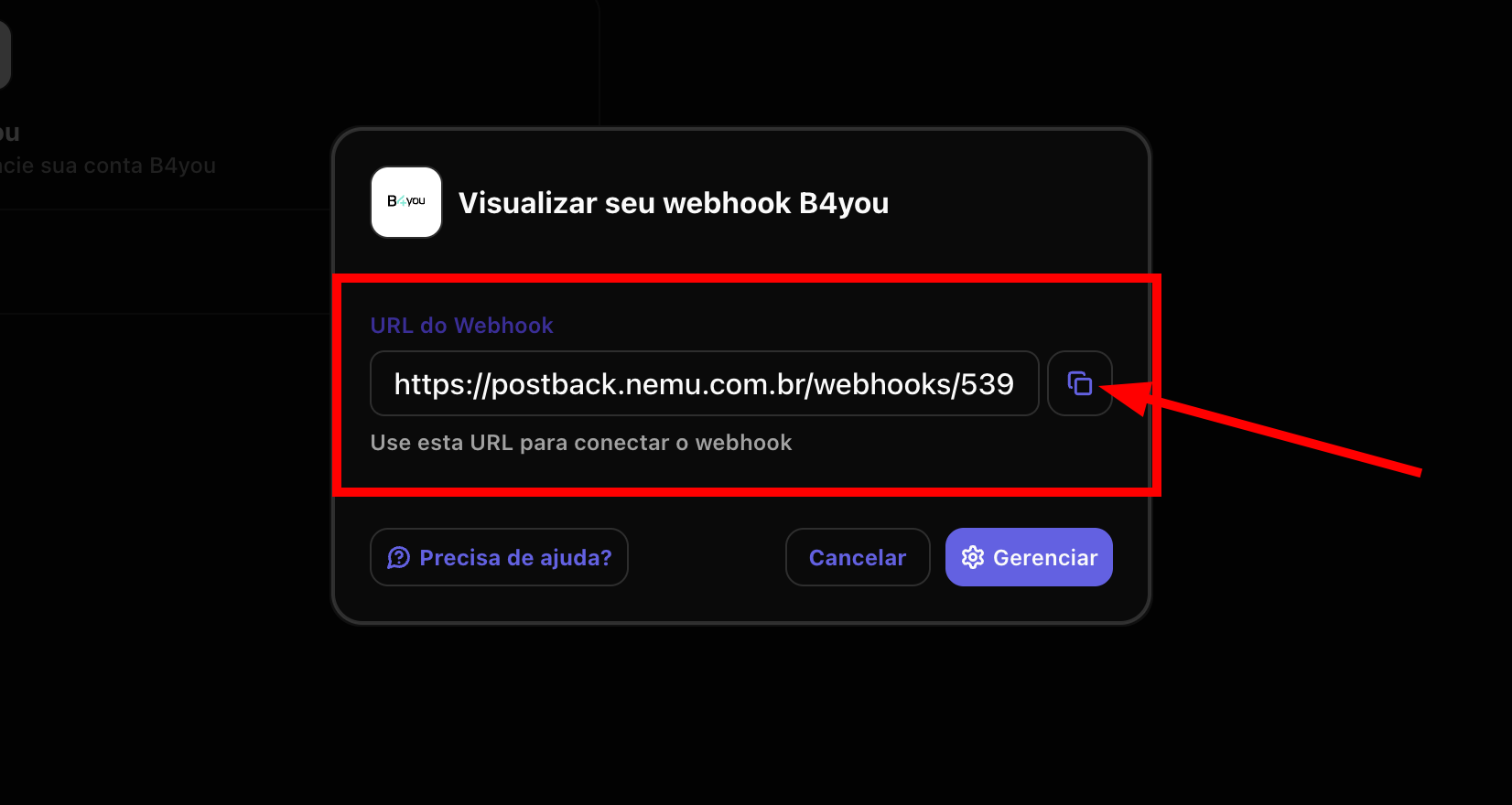
- After saving, a modal will be displayed with the Webhook URL generated by Nemu. Click the copy button to copy the URL to the clipboard.
On B4you Panel
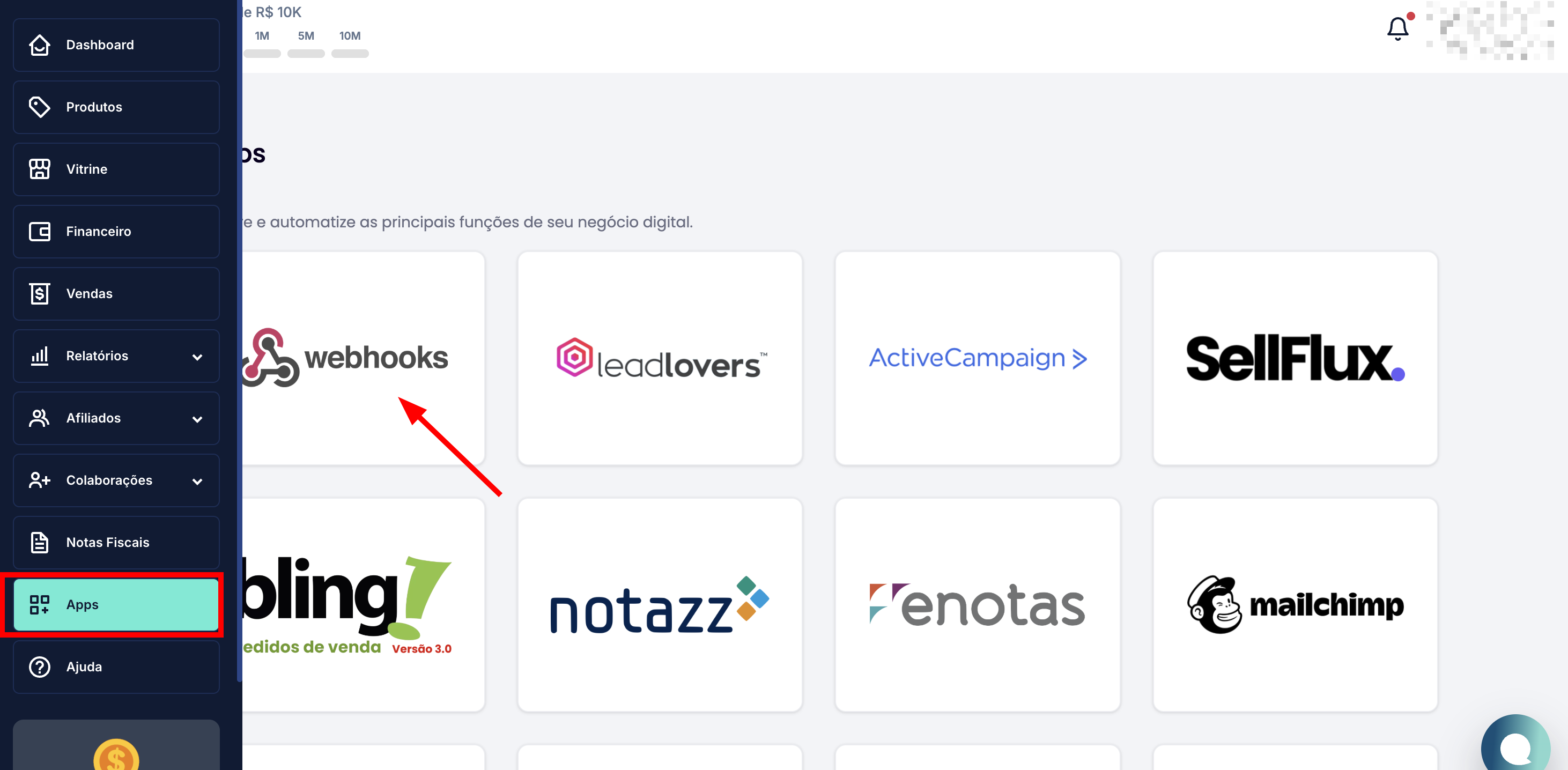
- Access the B4you panel and, in the sidebar, click on Apps.
- In the app list, locate and click on Webhooks.
- On the Webhooks page, click the New Integration button located in the bottom left corner.
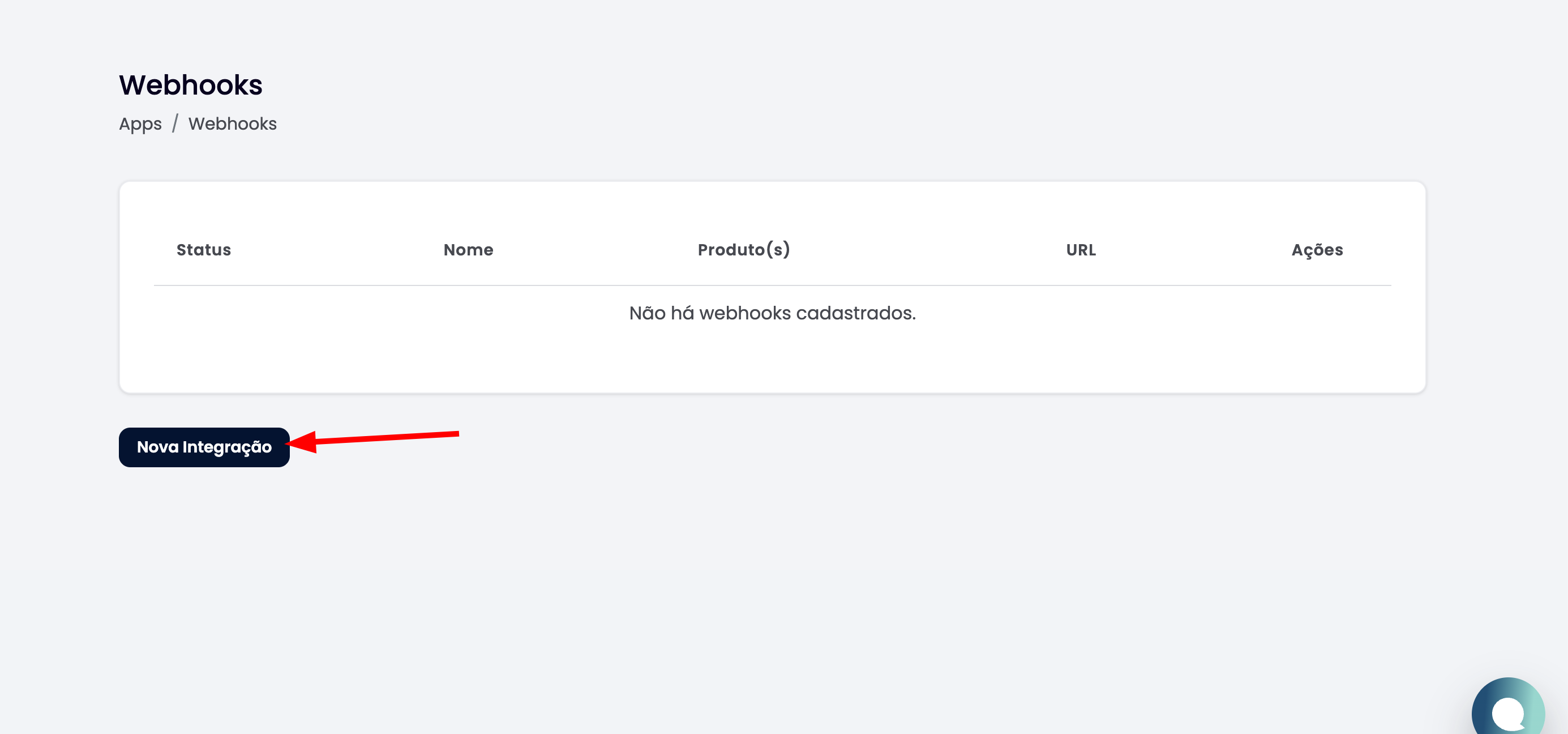
- In the “New Webhook” form, fill in the following fields:
- Webhook Name: Define a name to identify this integration (e.g., “Nemu”)
- Webhook URL: Paste the URL you copied in step 4 from the Nemu Dashboard
- B4you Token: Will be filled in automatically.
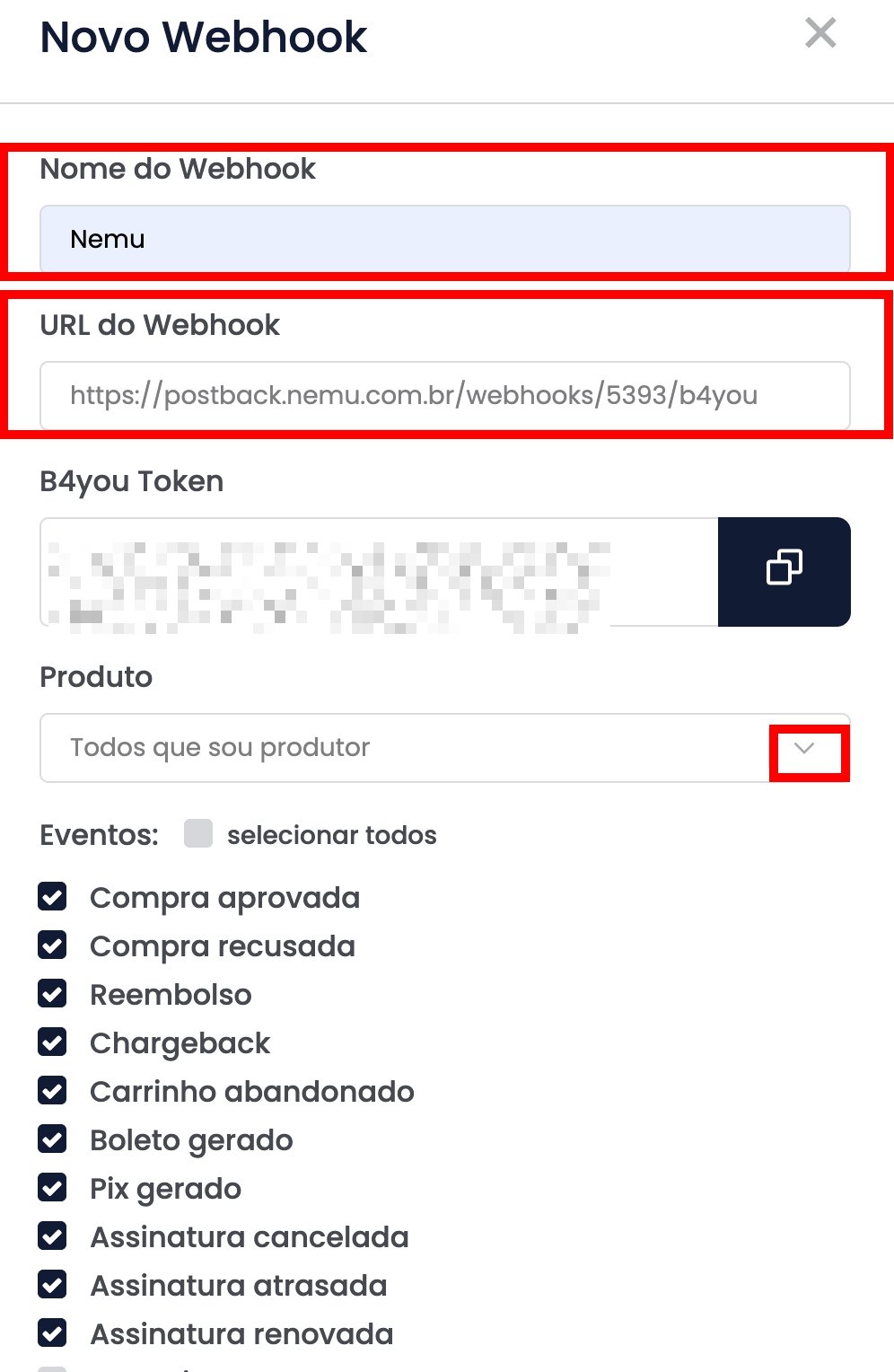
- In the Product field, select the desired product or choose “All that I am a producer” to receive events from all products.
- In the Events section, select all events.
- Verify that all information is correct and click on Save to complete the integration.
Congratulations! Your integration between B4you and Nemu has been successfully configured. You will now automatically receive sales events in your Nemu account.