Generating an Integration Key
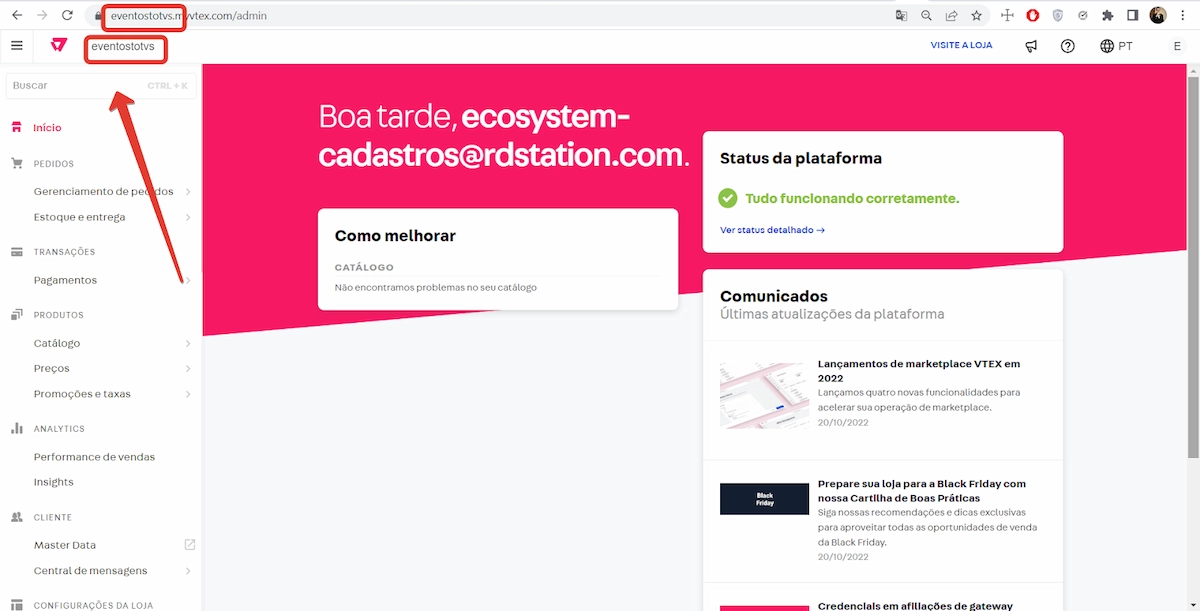
- Log in to your VTEX account.
The account name is part of your URL. You can also find it in the top left corner, next to the VTEX logo.
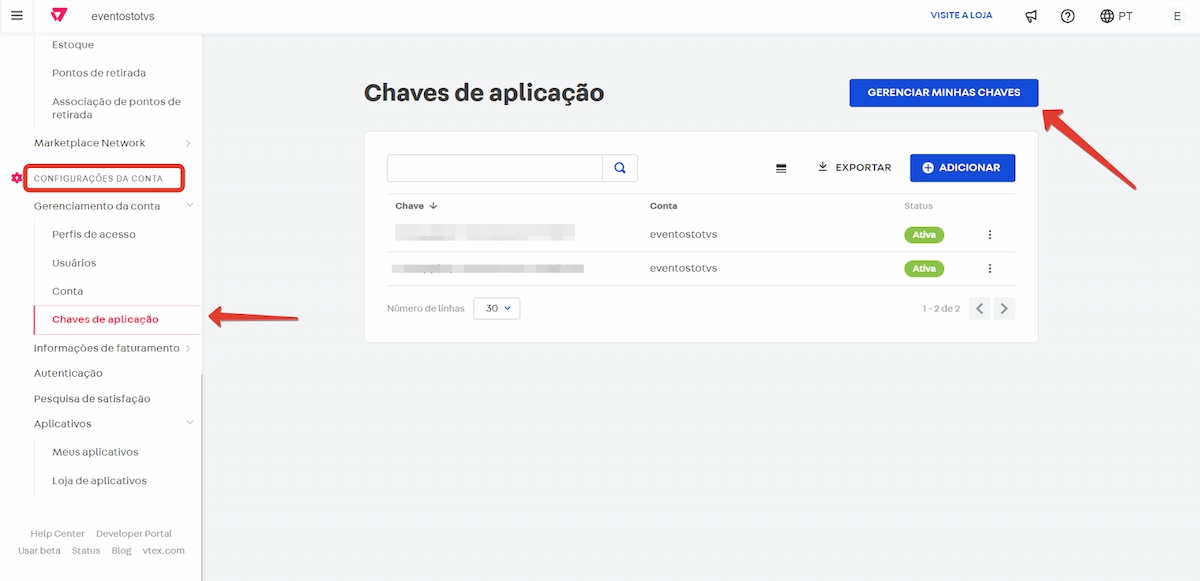
- In the sidebar, click on ACCOUNT CONFIGURATION > Account Management > Application Keys.
- Click on the Manage My Keys button in the top right corner.
- Then click on “Generate Key”.
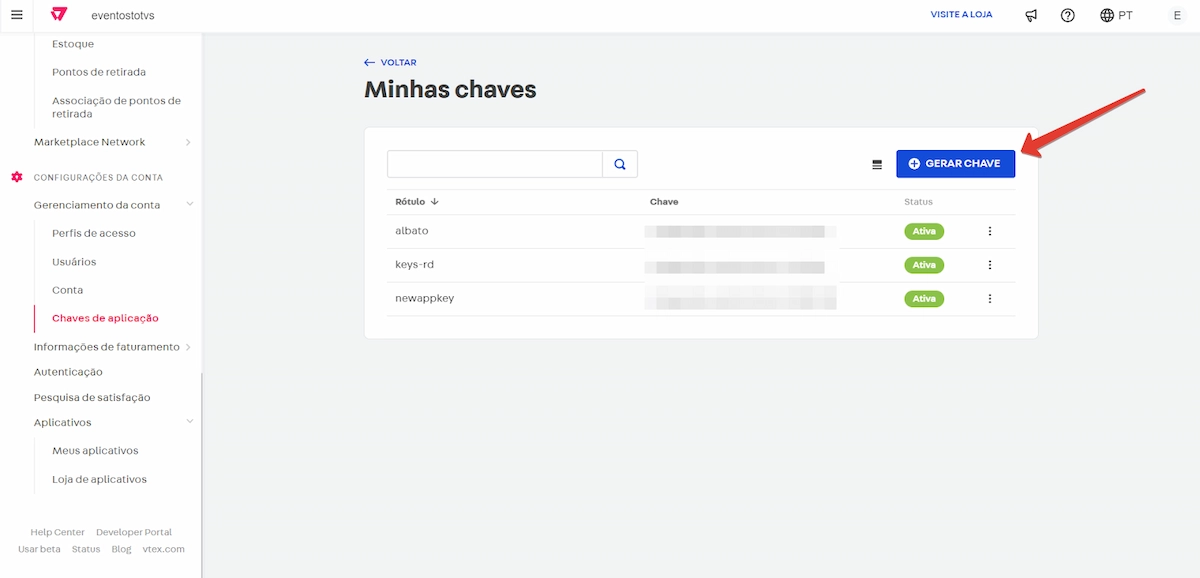
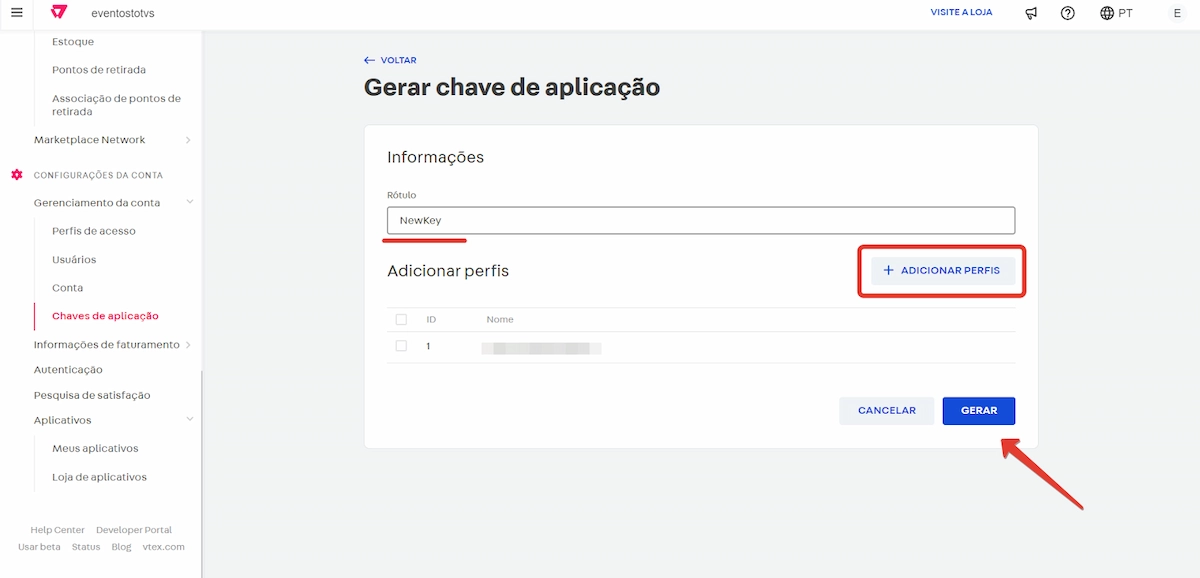
- Define a name (Label) for the key and add the users who will be able to use this key, then click on “Generate”.
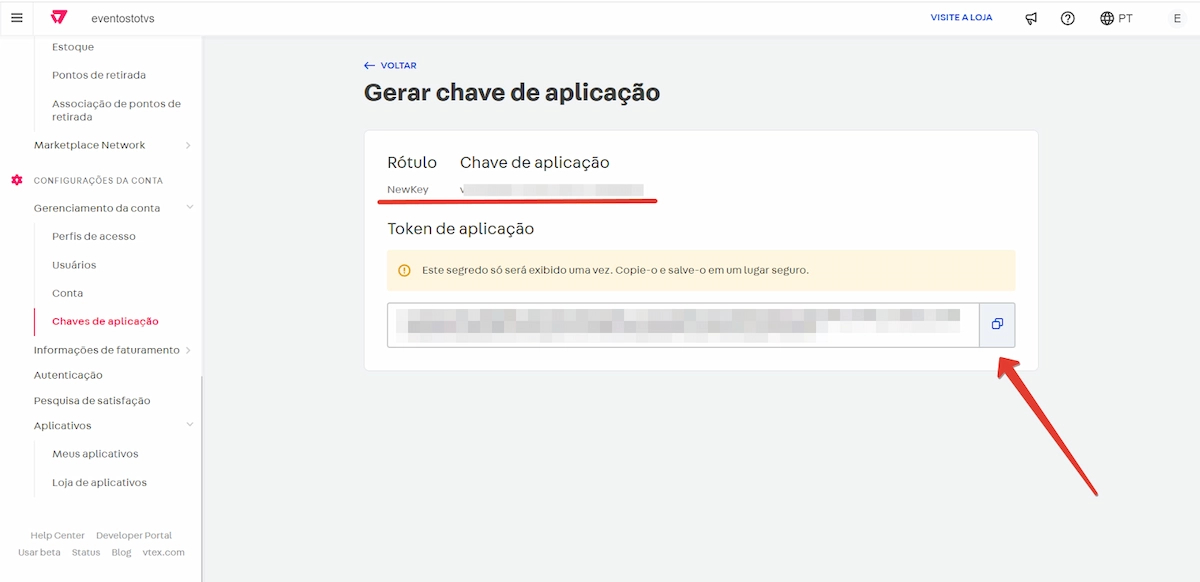
- After that, your Application Key and Application Token will be displayed.
Connecting VTEX to Nemu Dashboard
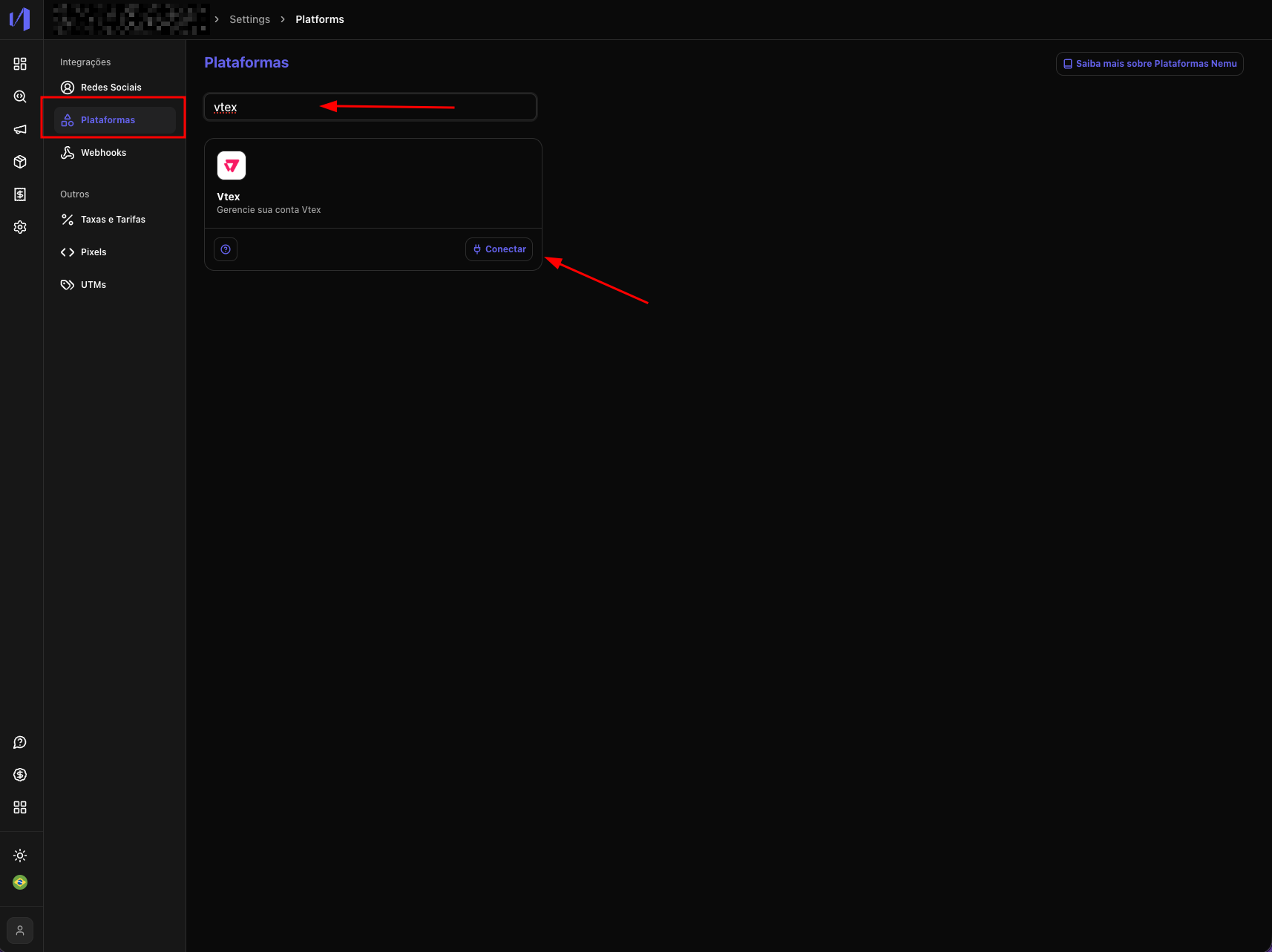
Now that you have generated the credentials in the VTEX panel, follow the steps below to integrate with the Nemu dashboard.- In the Nemu panel, go to Settings > Platforms.
- Search for VTEX and click on Connect.
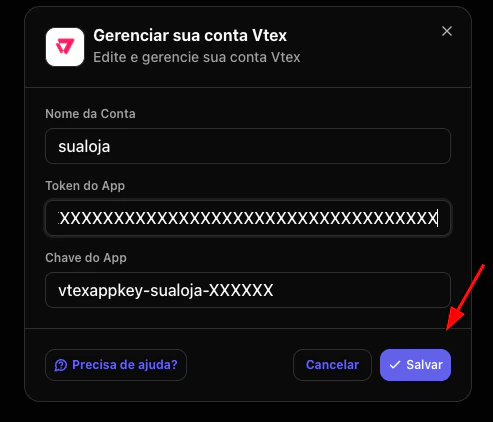
- Fill in the connection information.
Installing the Pixel on VTEX
After connecting VTEX to the Nemu Dashboard, you need to install the Nemu pixel on your VTEX store. Follow the instructions below and pay special attention to the important warnings.Important Considerations
- Loading Speed: The Nemu pixel is loaded asynchronously, which means it doesn’t interfere with site loading. It doesn’t block page rendering and doesn’t impact store performance.
- LGPD and Apple Users: The Nemu pixel is LGPD compliant. For specific questions about Apple users, check our security and privacy policy.
Installation Requirements
The Nemu pixel must be installed following these mandatory rules:- ✅ Always in the
<head>tag of all pages - ✅ Present on all store pages (not just the home page)
- ✅ Included in checkout (checkout head)
- ✅ Installation via Custom Script (not via GTM)
Installing the Pixel on Checkout
In addition to installing the pixel on the store pages, it is mandatory to install this script on the VTEX checkout. Without this step, conversion events will not be captured correctly.- Check whether your store has the VTEX Checkout UI Custom app installed. If it does not, install it via the VTEX App Store or manually according to the documentation.
- Go to
https://accountname.myvtex.com/admin/vtex-checkout-ui-custom, replacingaccountnamewith your VTEX account name. - Open the JavaScript tab and locate the Custom JavaScript field.
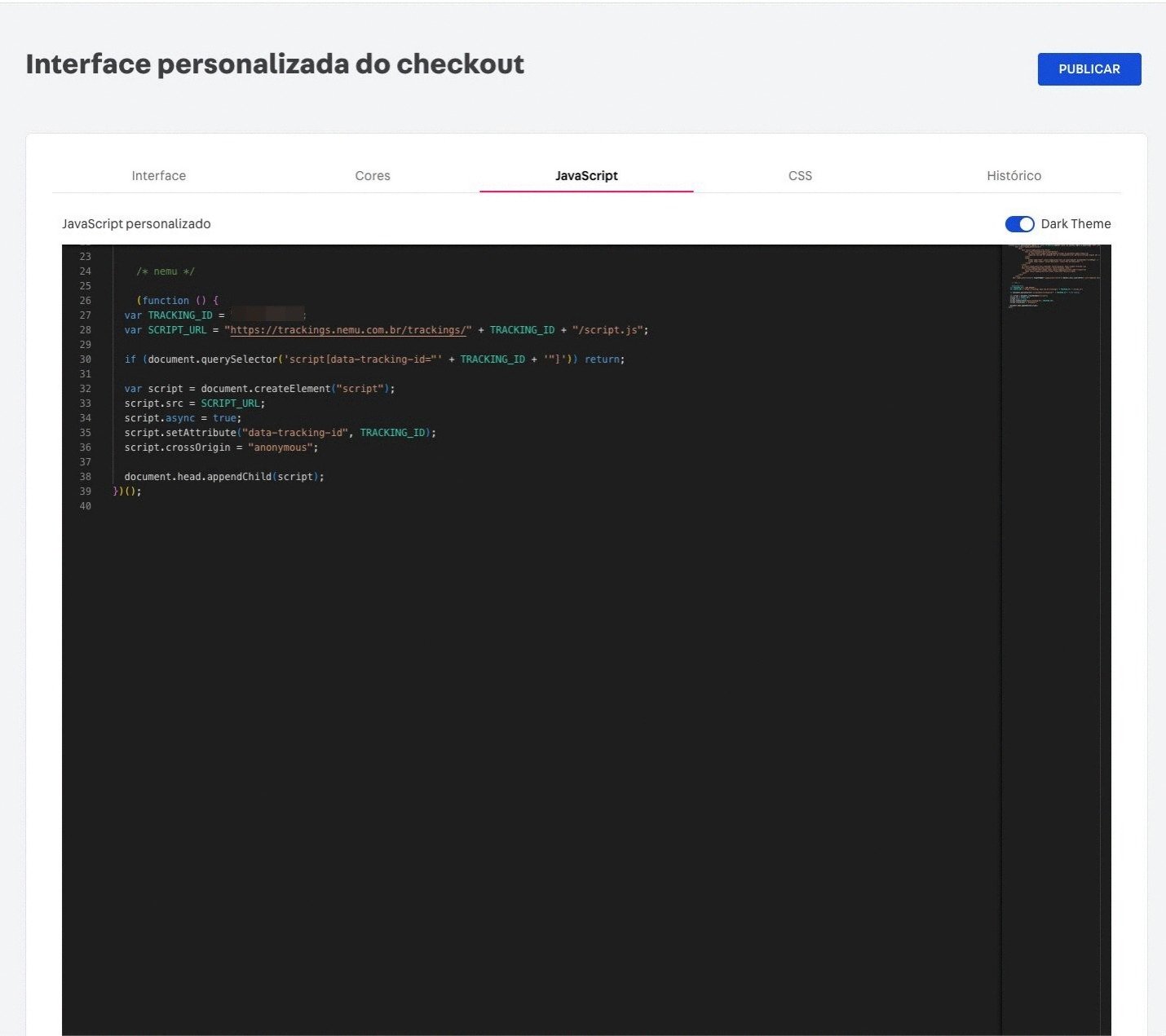
- Paste the script below into the editor:
- Click “Publish” to apply the changes to the checkout.
Required Permissions on VTEX Account
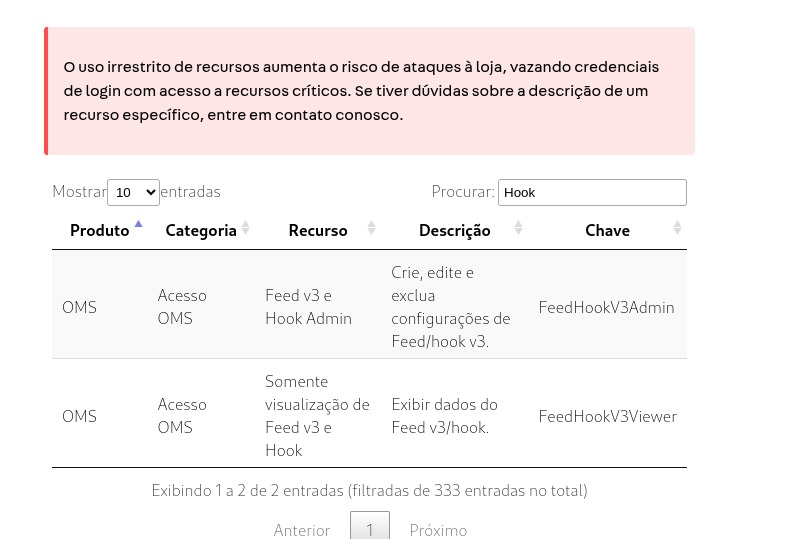
For the integration to work correctly, it is essential that the VTEX user used to generate the credentials has the appropriate permissions.- Check user access
- Required permissions
View orderFeed v3 and Hook AdminFeed v3 and Hook view onlyList Orders
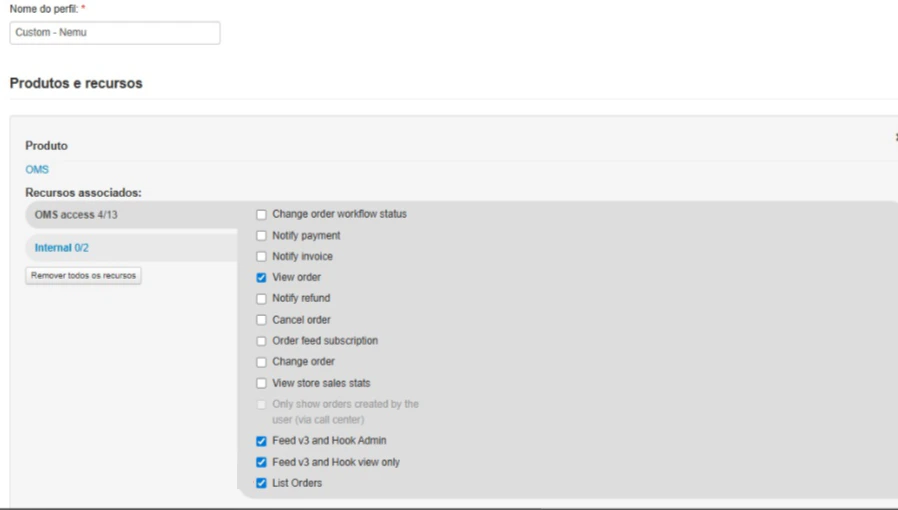
How to Manage Permissions on VTEX
You can adjust user permissions by following the official VTEX tutorials
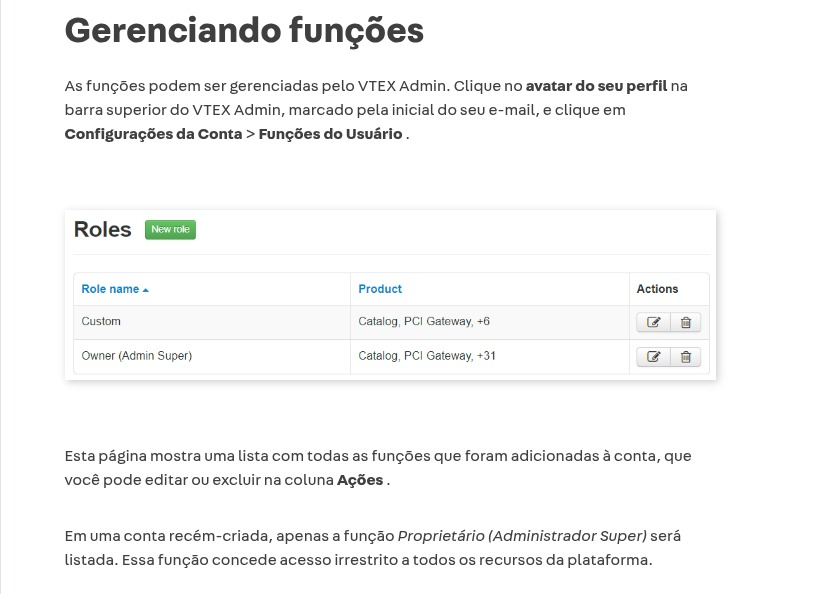
Managing roles