I already have UTMs configured
Learn how to add Nemu parameters alongside traditional UTMs to track your sales accurately on Pinterest.
I don't have UTMs configured
Learn how to add UTM parameters in Pinterest Ads Manager to track your sales accurately.
If you don’t understand the difference between traditional UTMs and Nemu UTMs,
click here to learn more.
With UTMs configured
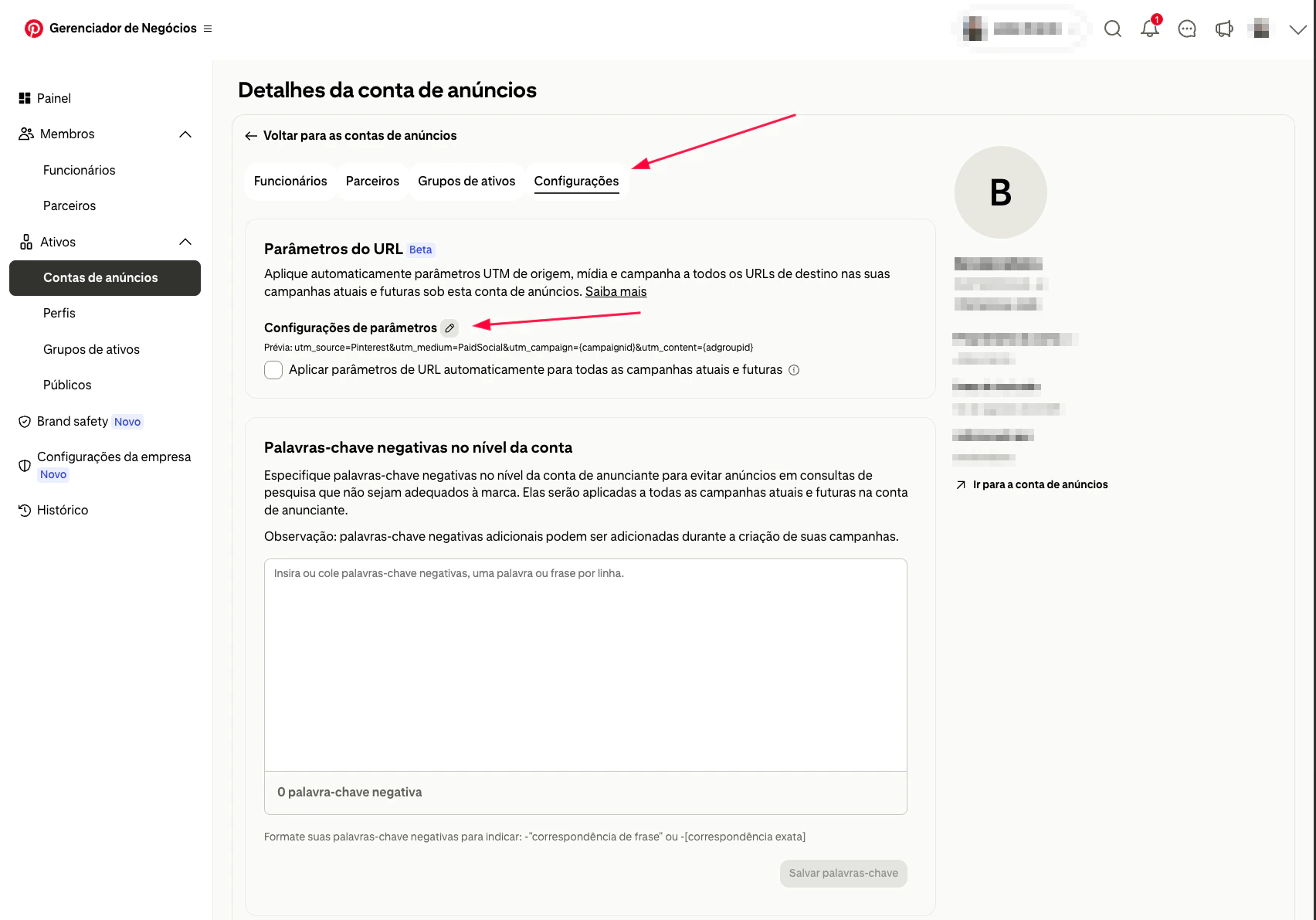
- Sign in to Pinterest Ads Manager.
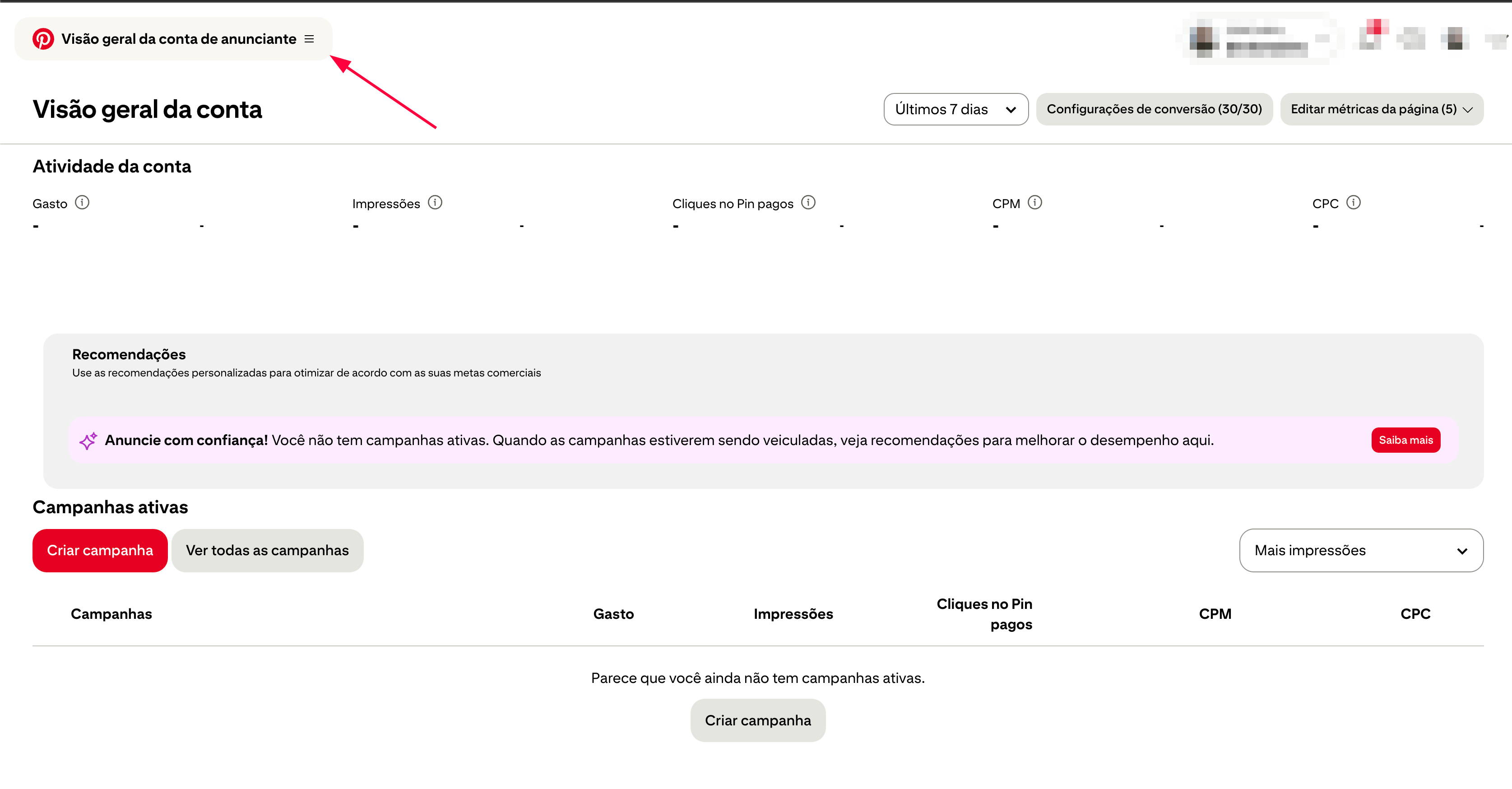
- Click on Advertiser account overview
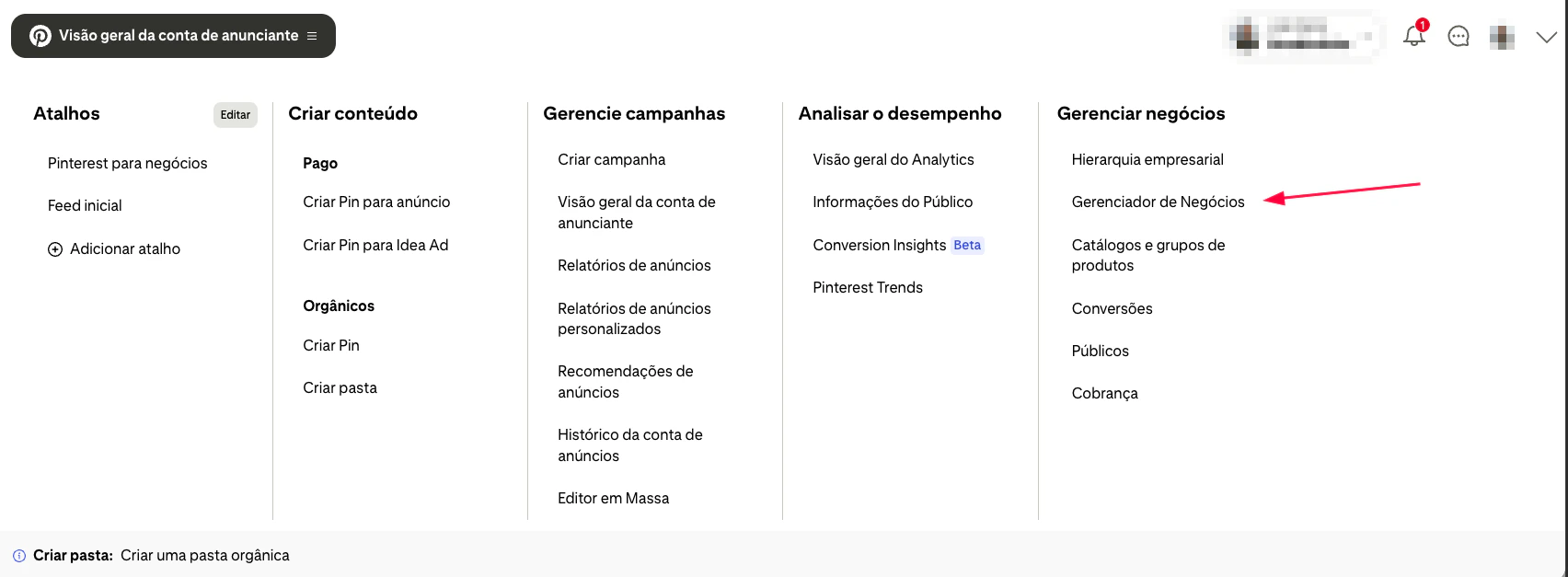
- Click on Business Manager
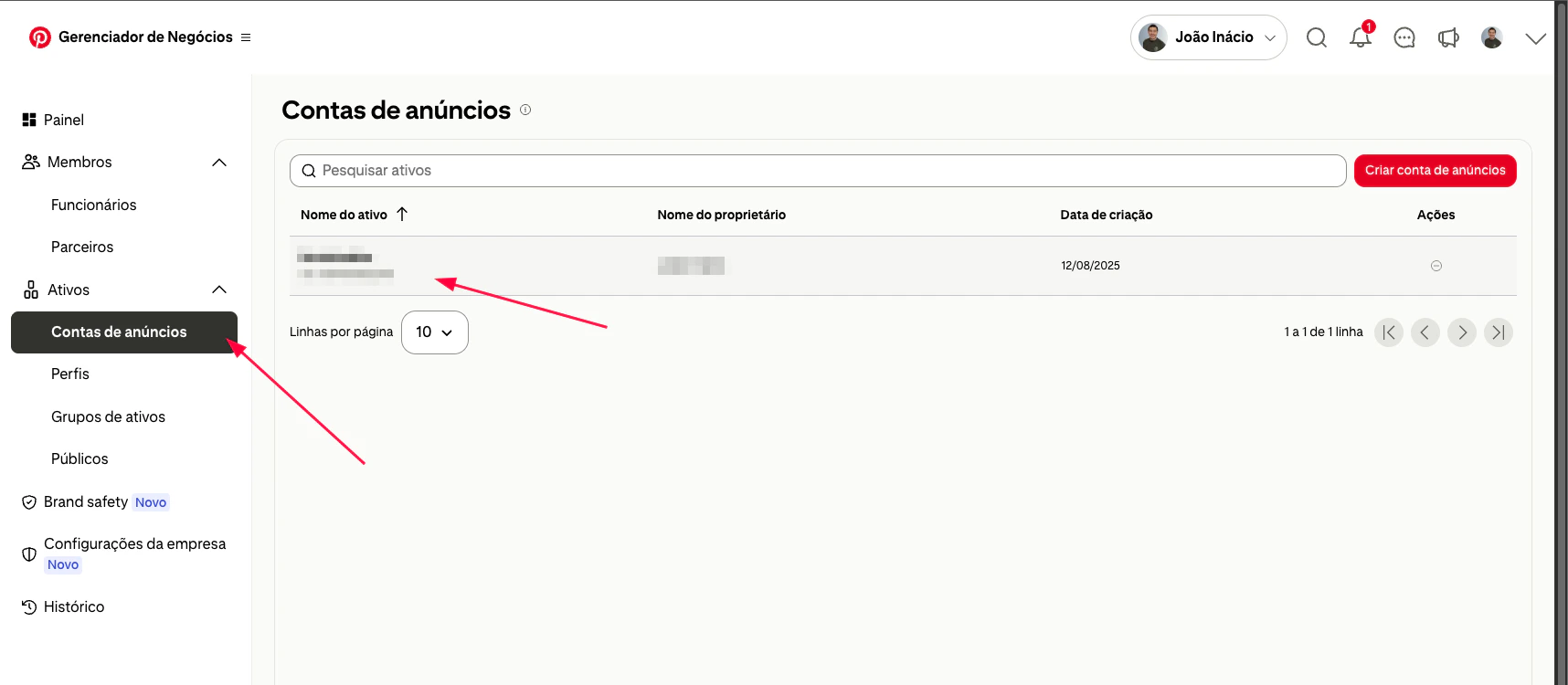
- Click on Ads Accounts and select the advertiser account.
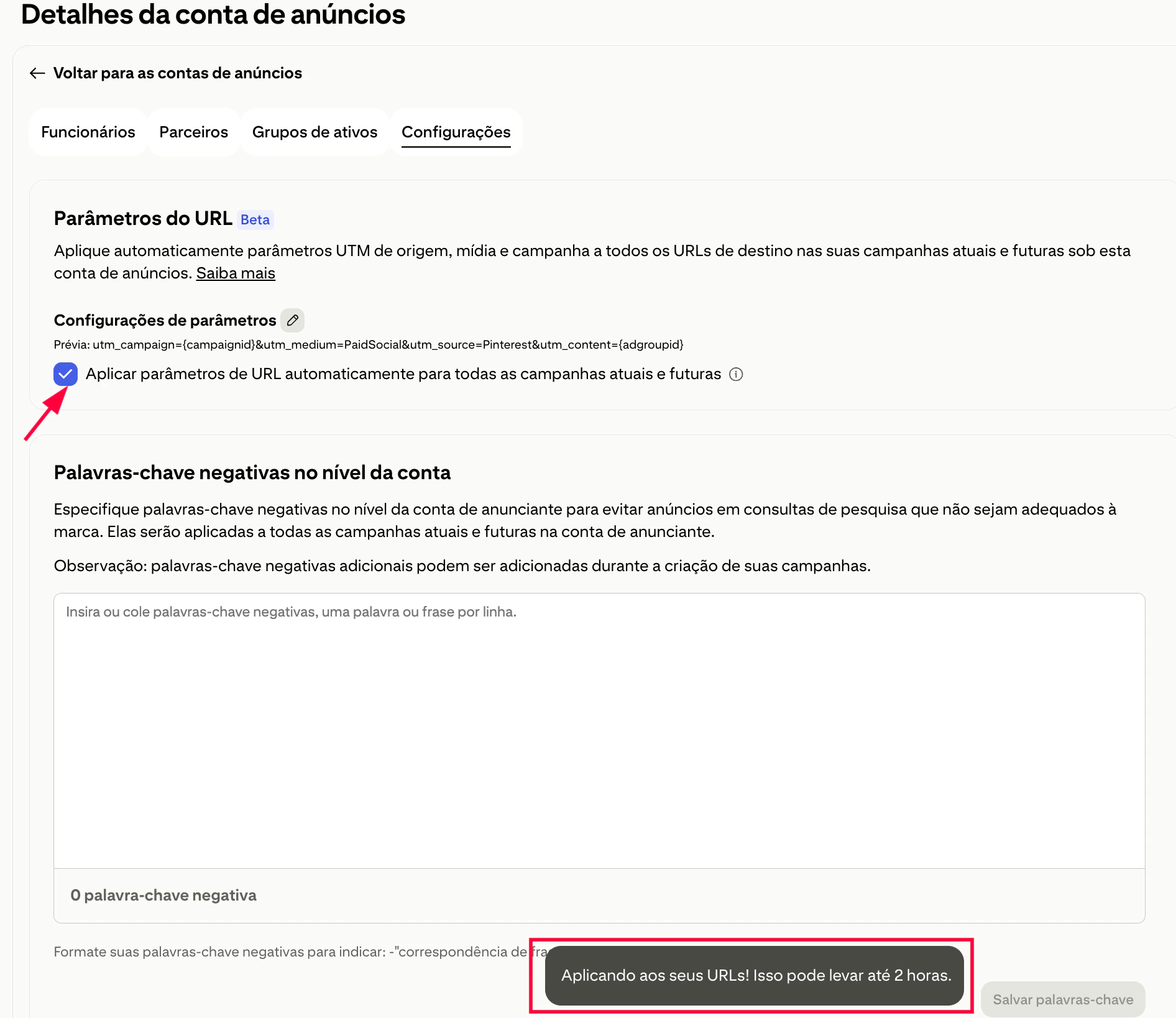
- Click on Settings and click to edit Parameters settings
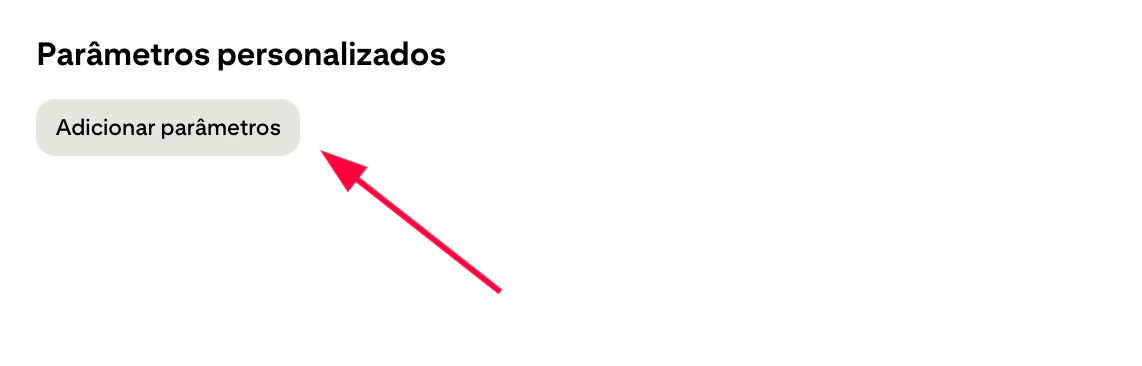
- In custom parameters click on Add Parameters button
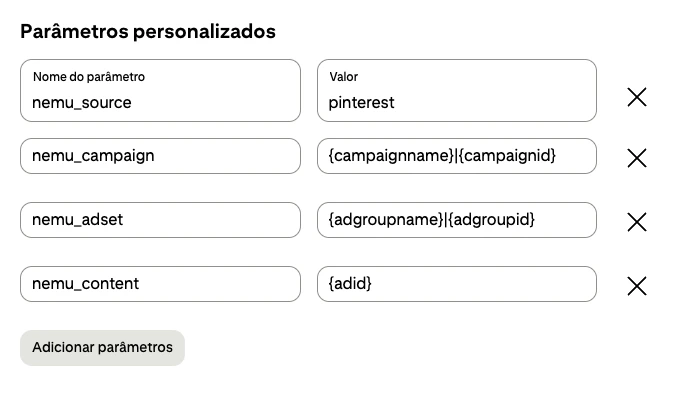
- Copy and paste the parameters for each field as shown in the image above and click on Save and apply
Custom parameters
nemu_source:
- Check the option Automatically apply URL parameters to all current and future campaigns
After applying, updates may take up to 2 hours to be updated

Example of how your final destination URL should look with Standard Checkout:
Without UTMs configured
- Sign in to Pinterest Ads Manager.
- Click on Advertiser account overview
- Click on Business Manager
- Click on Ads Accounts and select the advertiser account.
- Click on Settings and click to edit Parameters settings
- Copy and paste the URL parameters according to your checkout.
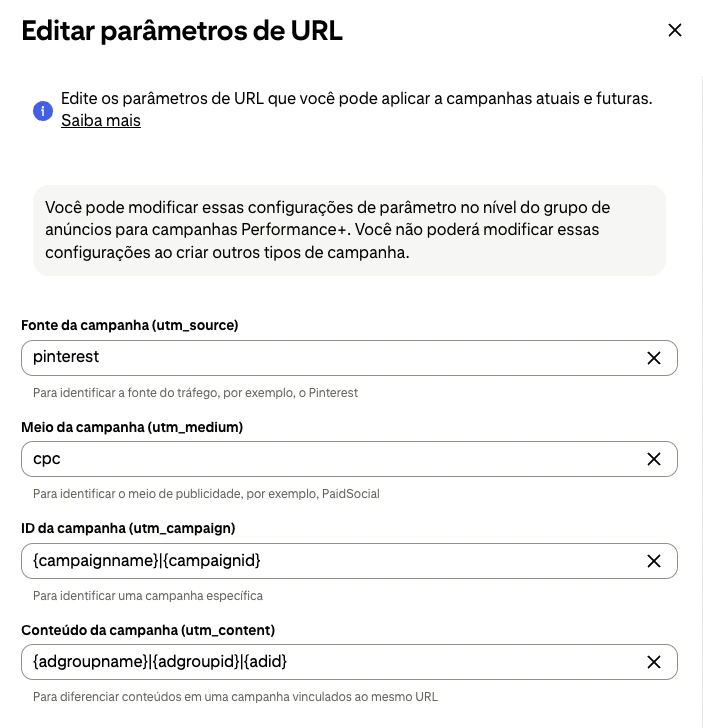
Standard Checkout
Campaign source (utm_source)
- In custom parameters click on Add Parameters button
- Copy and paste the parameters for each field as shown in the image above and click on Save and apply
Custom parameters
nemu_source:
Hotmart (Producer)
src
Hotmart (Affiliate)
sck
- Check the option Automatically apply URL parameters to all current and future campaigns
After applying, updates may take up to 2 hours to be updated