

Follow the step-by-step guide and start receiving sales automatically in Nemu.
Setting Up Webhooks
On Cartpanda Panel
- Access the Cartpanda panel and, in the top right corner, click on your profile icon (with your initials).
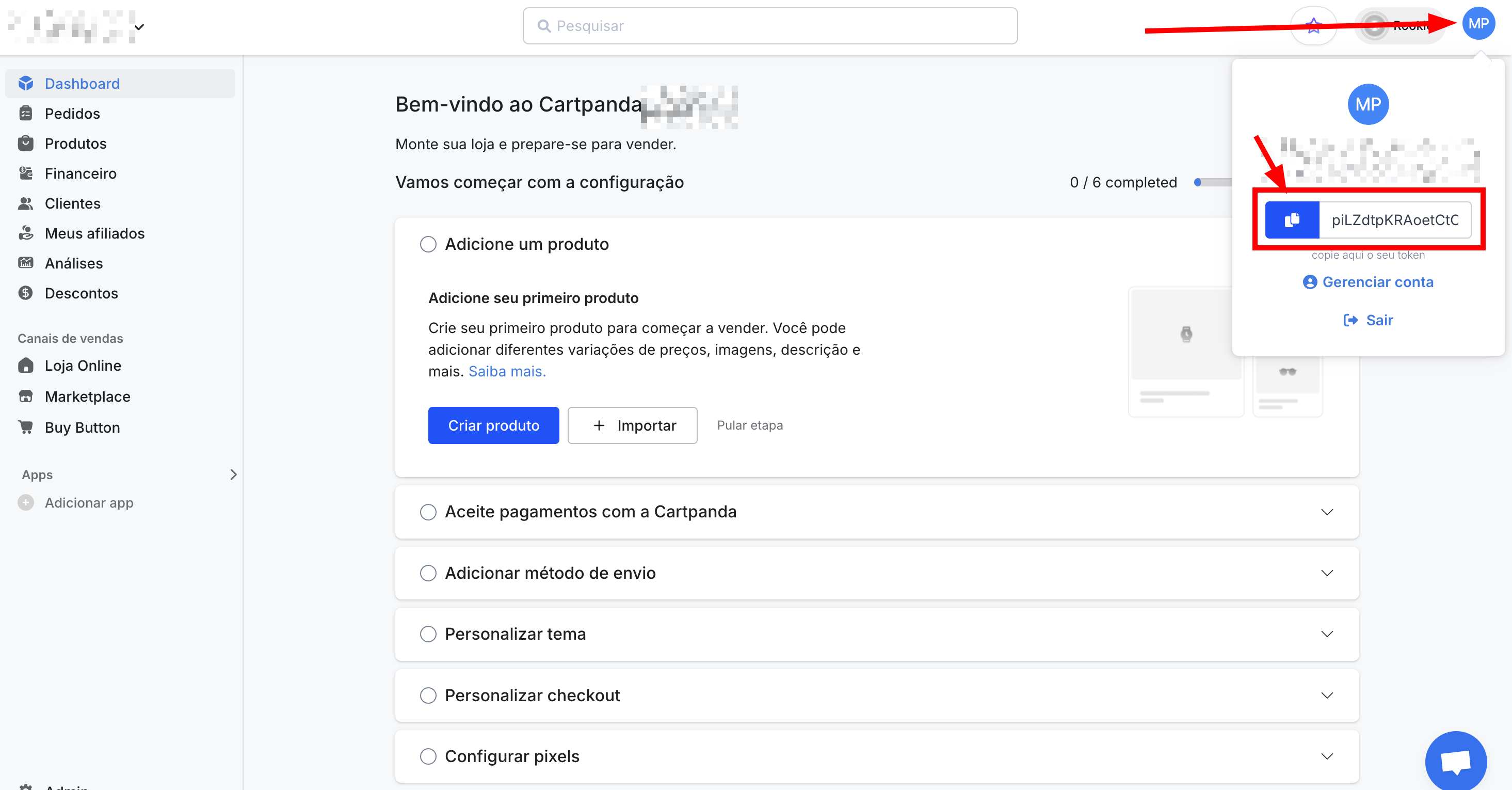
- In the menu that opens, locate the API Token field and click the copy button to copy the token.
Keep this page open, as we will need the token in the next steps. The authentication token is unique and will be used to verify that requests were sent by Cartpanda.
On Nemu Dashboard
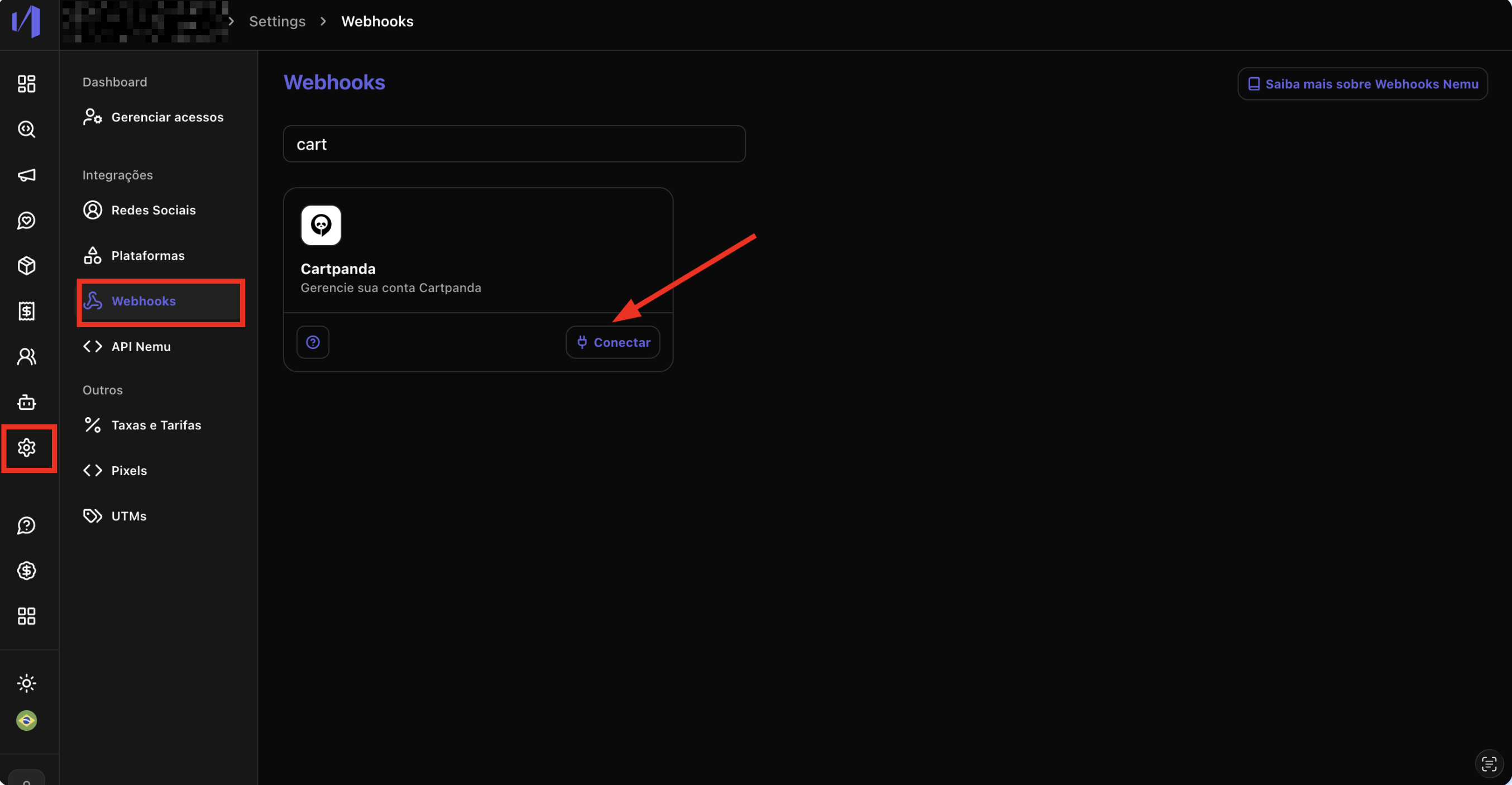
- In the Nemu Dashboard, in the sidebar, go to Settings > Webhooks.
- Search for Cartpanda in the search field and click the Connect button on the integration card.
- In the modal that opens, fill in the following fields:
- Webhook name: Define a name to identify this integration (e.g., “Cartpanda”)
- API Token: Paste the token you copied in step 2
- Role: choose between “I am a Producer” or “I am an Affiliate” in the toggle
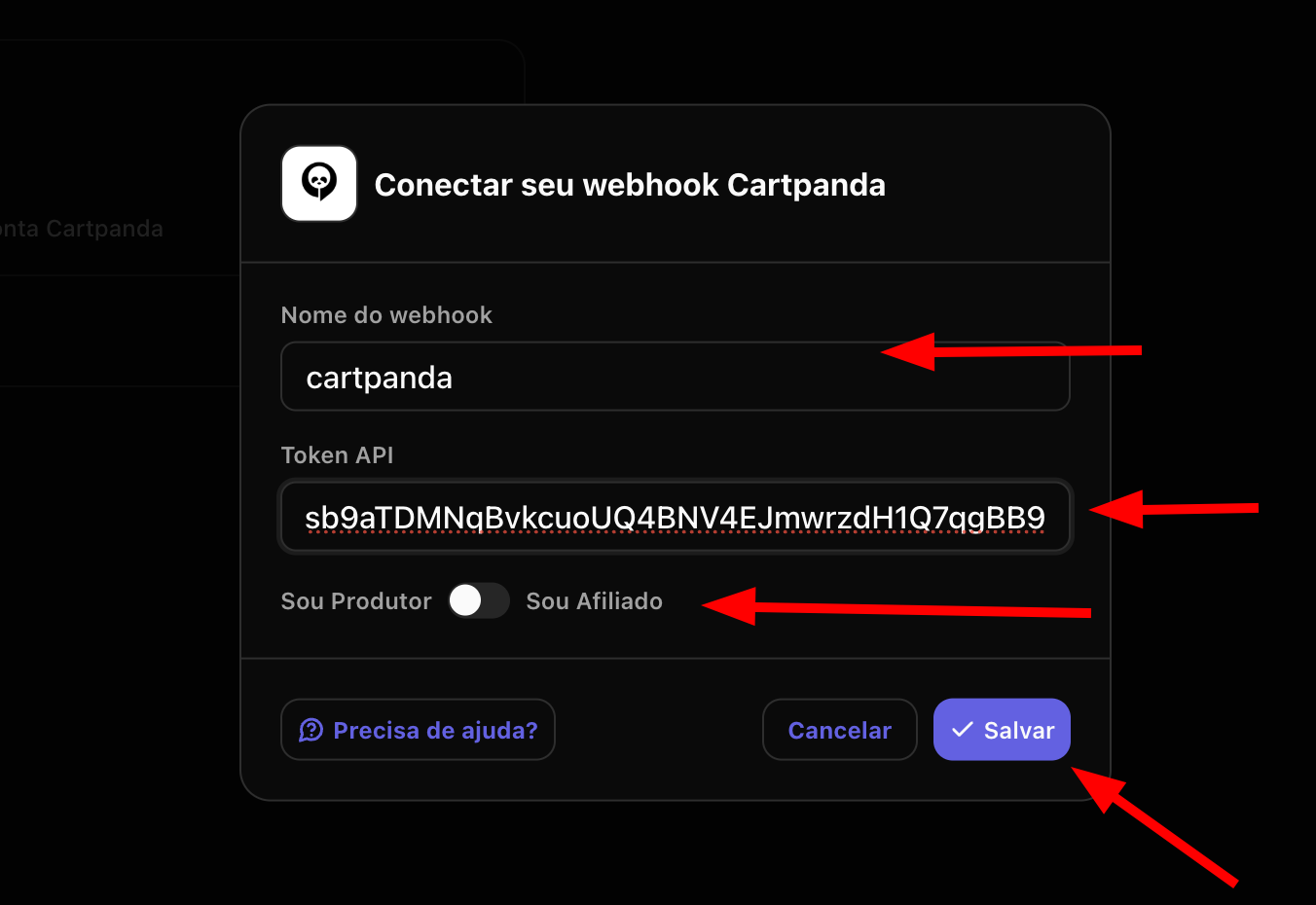
- Click the Save button to continue.
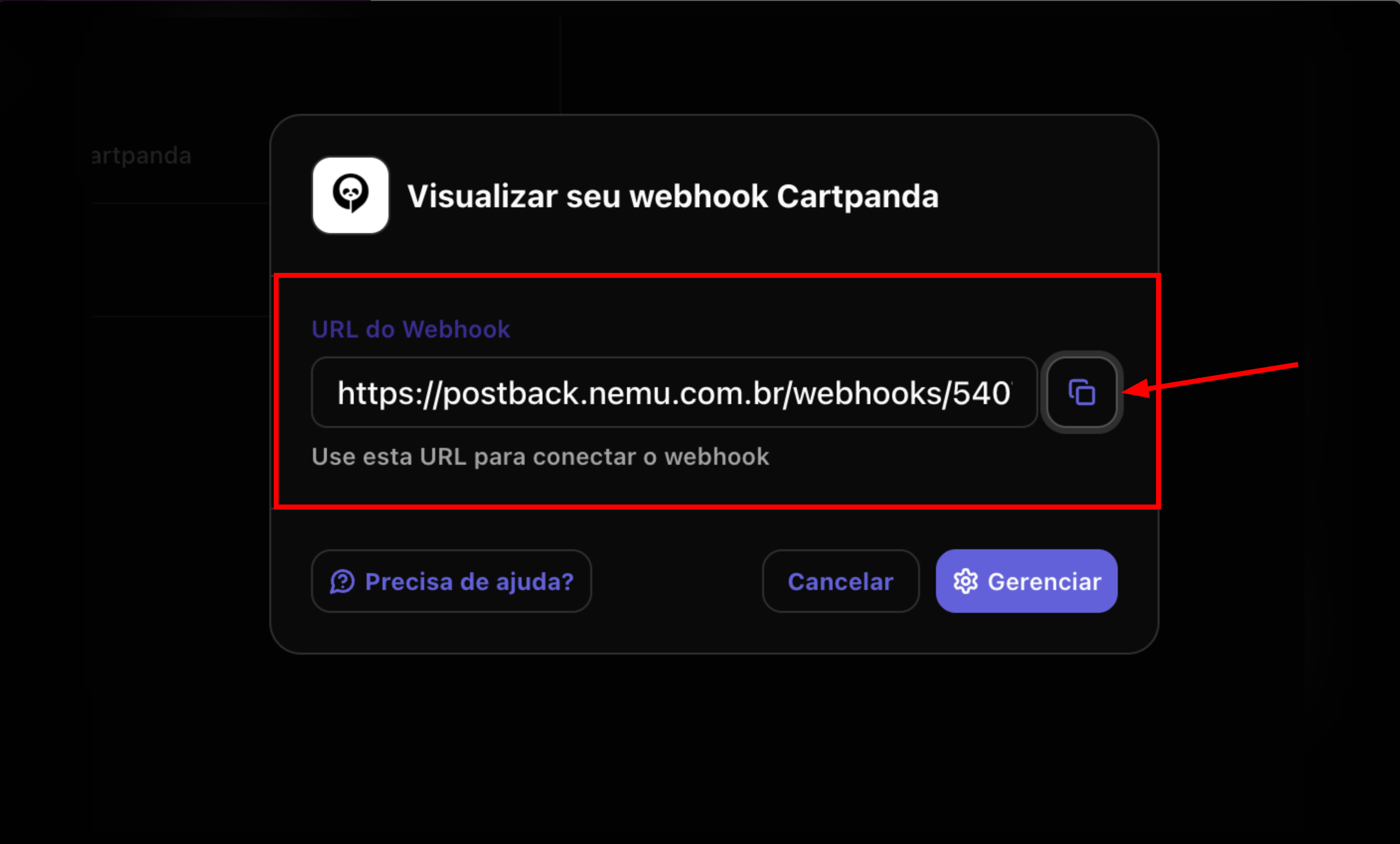
- After saving, a modal will be displayed with the Webhook URL generated by Nemu. Click the copy button to copy the URL.
On Cartpanda Panel
- Access the Cartpanda panel and, in the lower part of the sidebar, click on Admin.
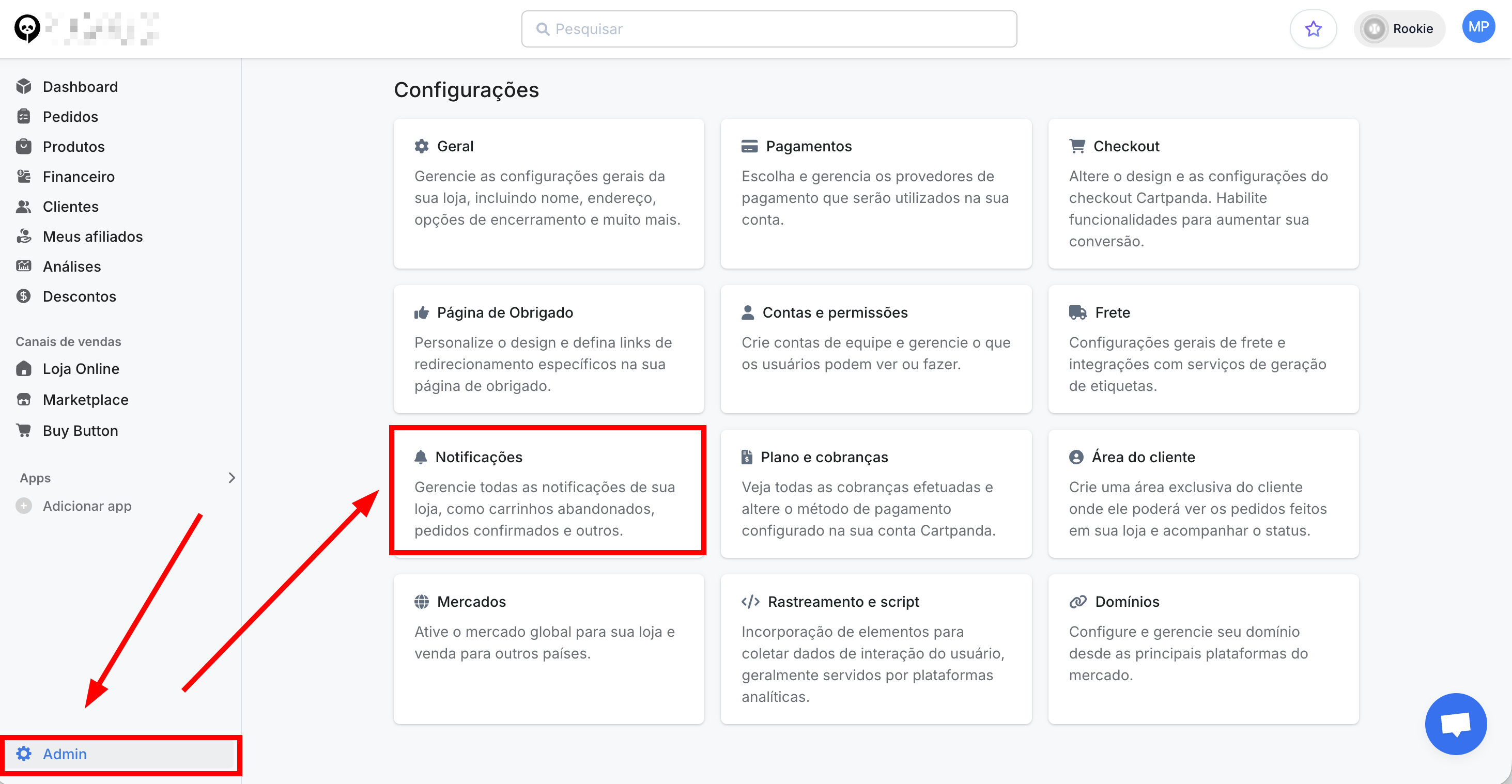
- On the Settings page, locate and click on the Notifications card.
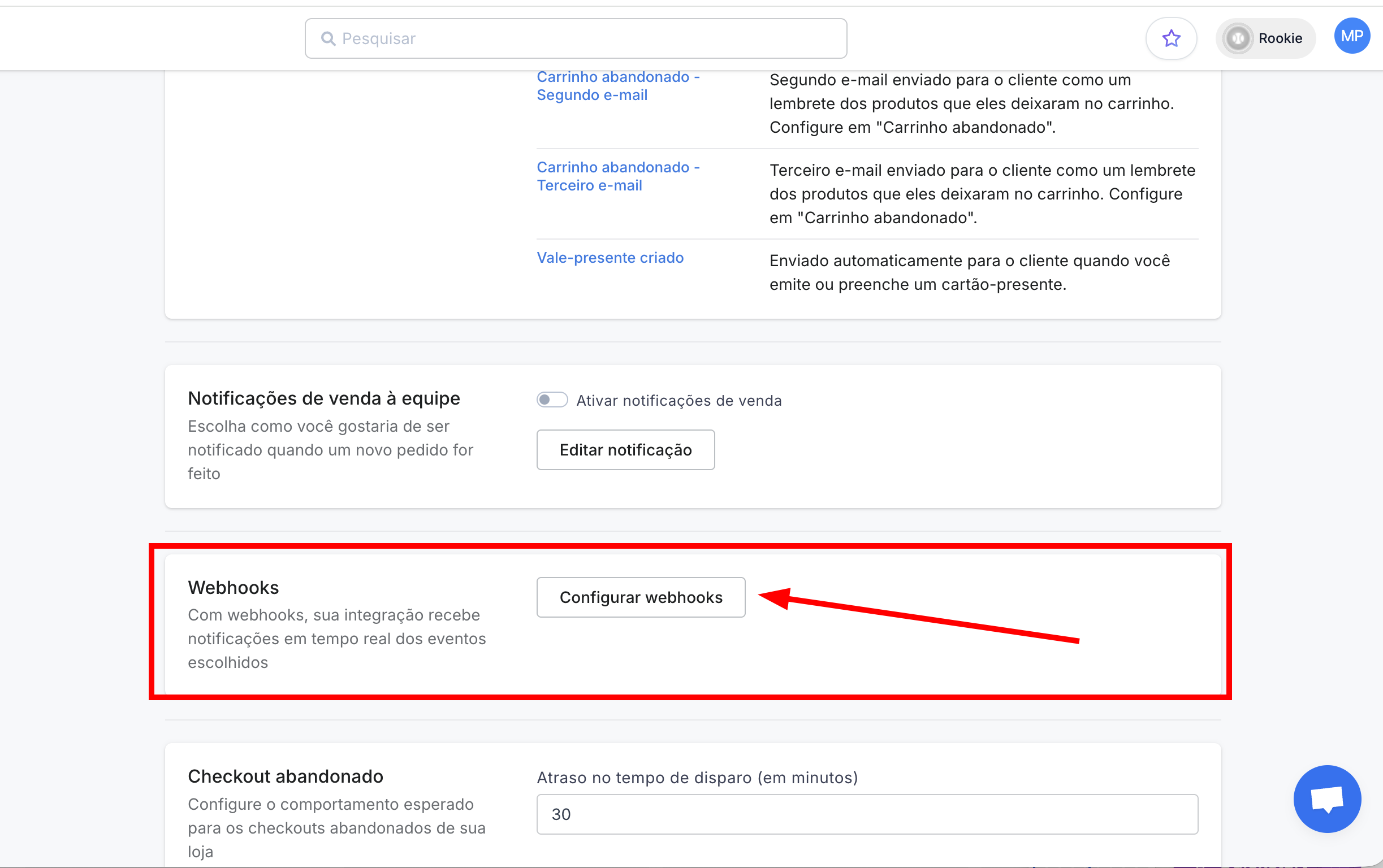
- In the Webhooks section, locate the description “With webhooks, your integration receives real-time notifications of the chosen events” and click the Configure webhooks button.
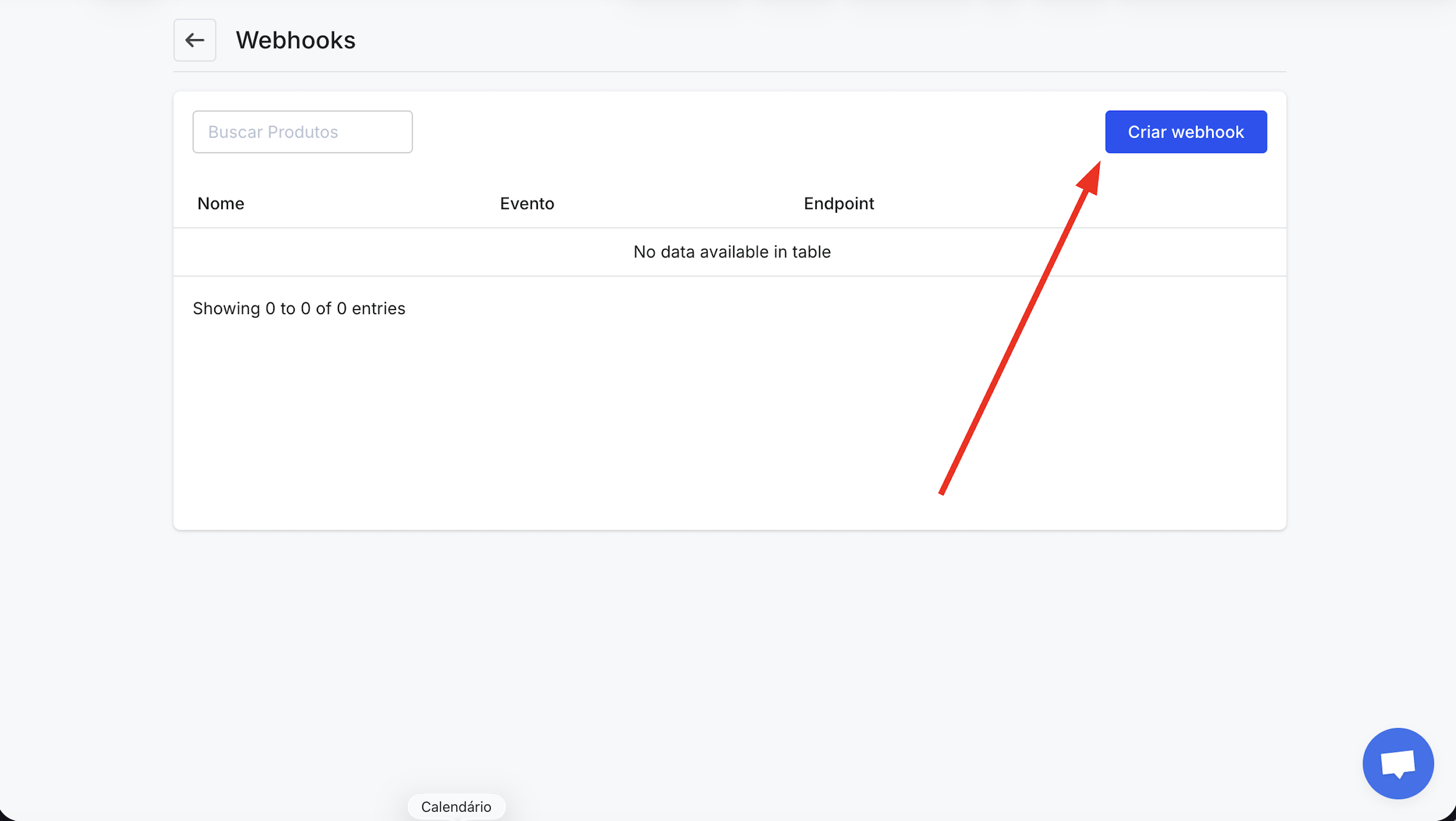
- On the Webhooks page, click the Create webhook button located in the top right corner.
- In the webhook creation form, fill in the following fields:
- Webhook name: Define a name to identify this integration (e.g., “Nemu”)
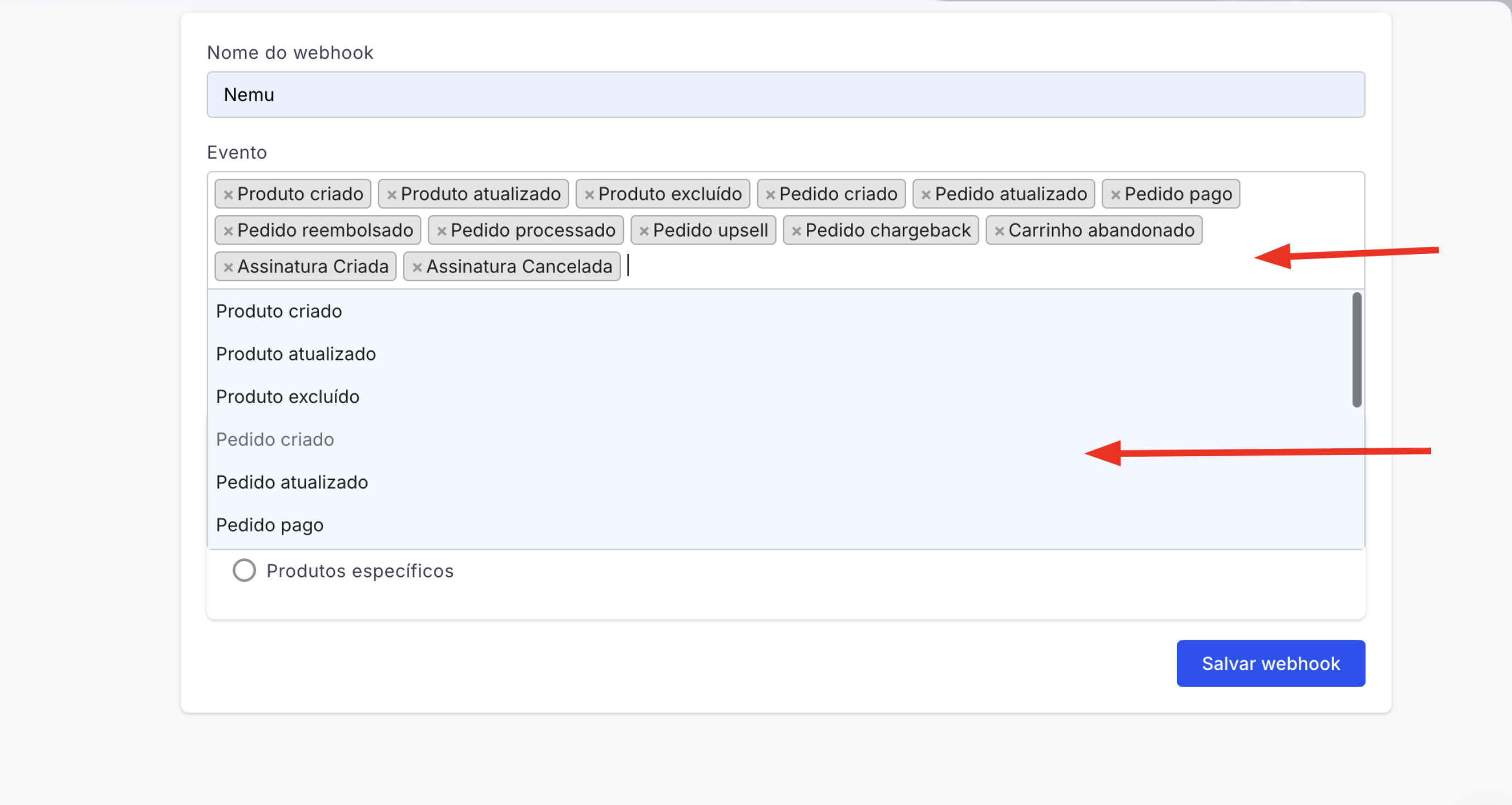
- In the Event section, click inside the text box to open the available events dropdown.
- Select all events available in the list. You can scroll within the dropdown to view and select all events.
We recommend selecting all events to receive all notifications in Nemu. The events include: Product created, Product updated, Product deleted, Order created, Order updated, Order paid, Order refunded, Order processed, Order upsell, Order chargeback, Abandoned cart, Subscription Created, and Subscription Canceled.
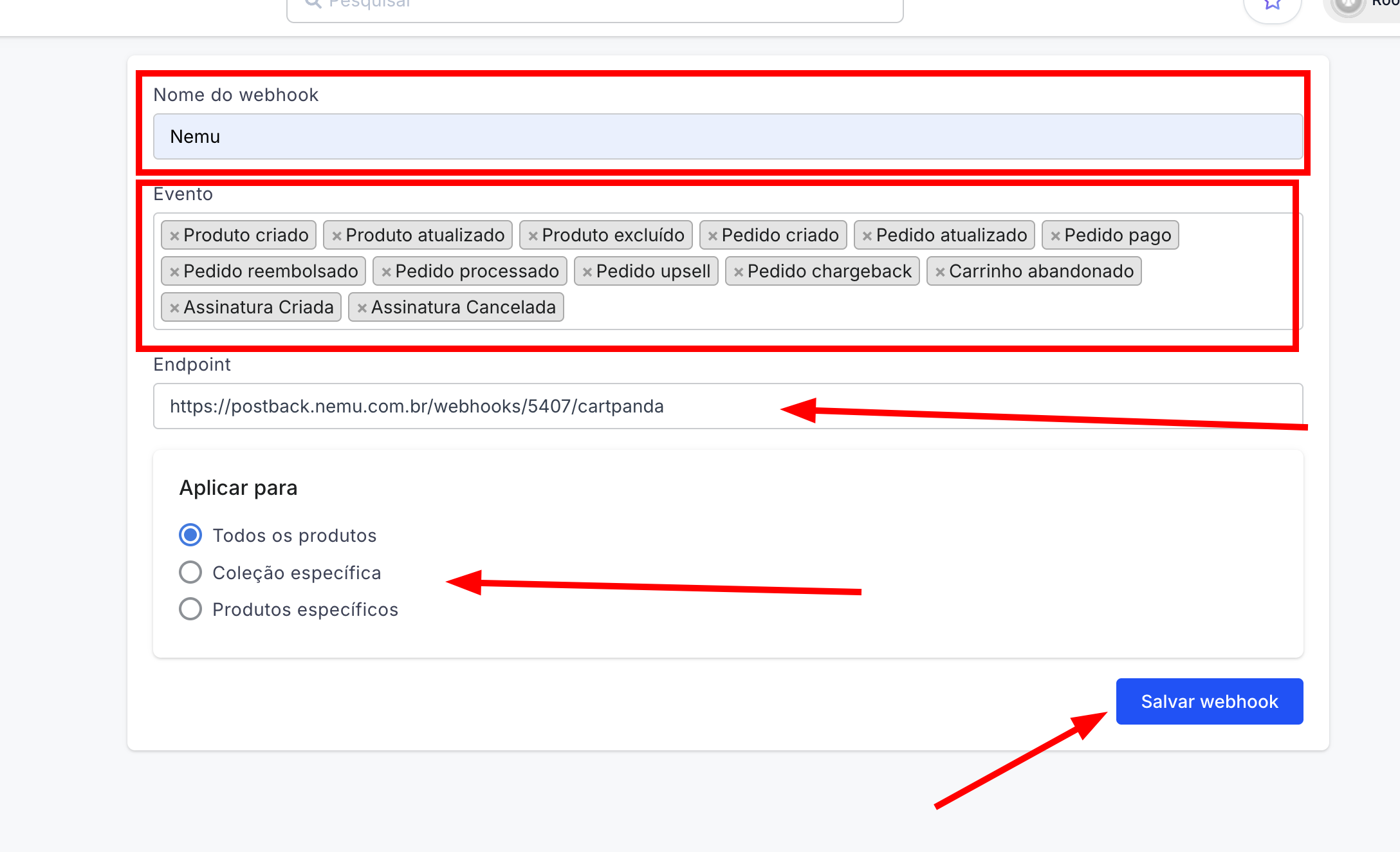
- In the Endpoint field, paste the Webhook URL you copied in step 7 from the Nemu Dashboard.
- In the Apply to section, select the “All products” option or just the desired collection or product.
- Verify that all information is correct and click the Save webhook button to complete the integration.
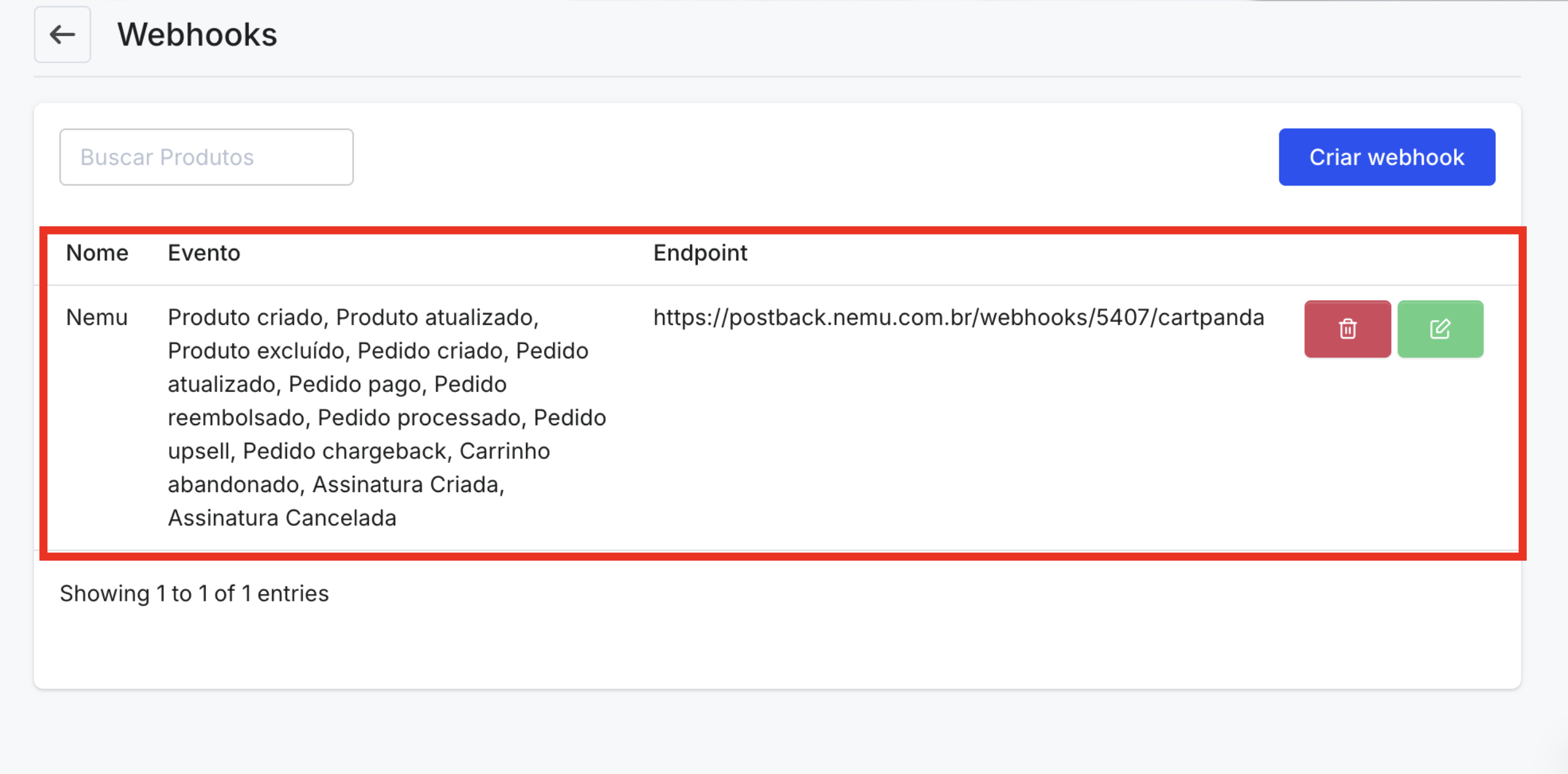
Congratulations! Your integration between Cartpanda and Nemu has been successfully configured.