Setting Up Webhooks in Ticto Panel
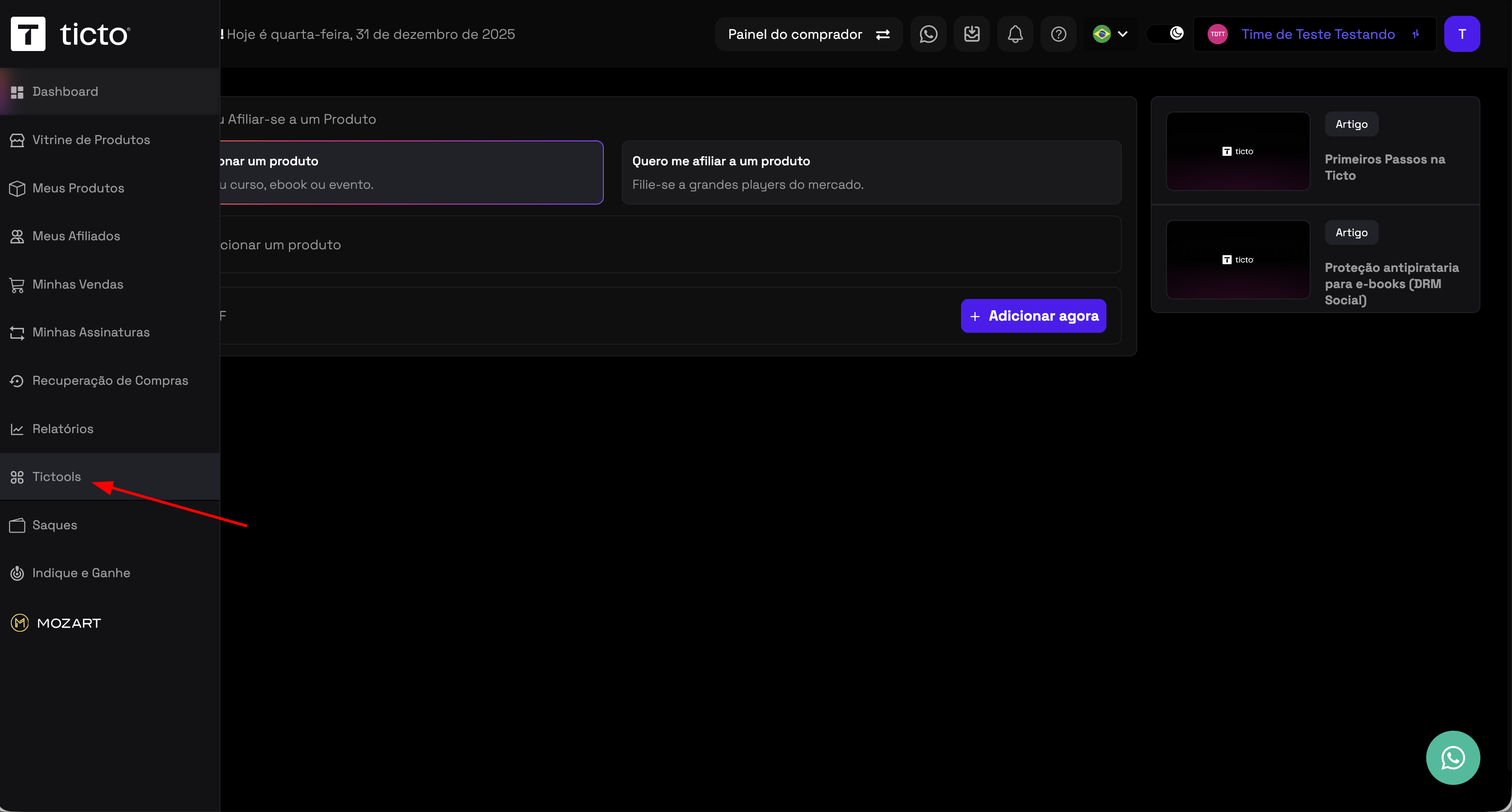
- Access the Ticto panel, in the sidebar click on Tictools
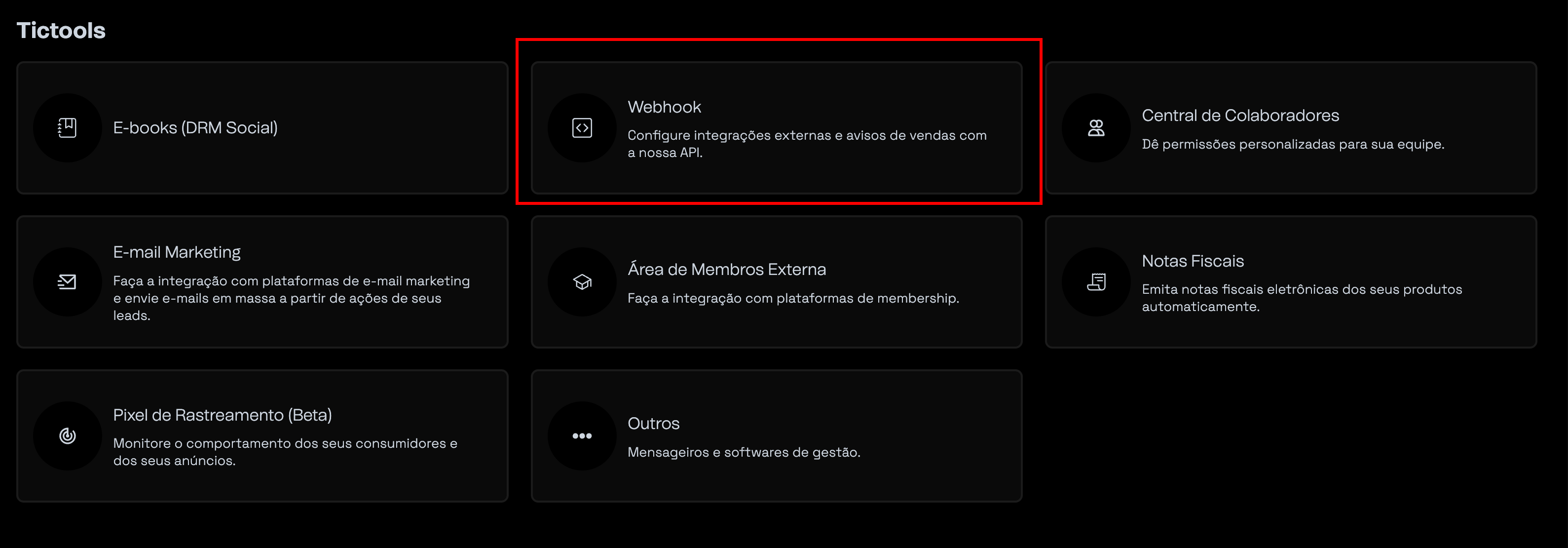
- Click on Webhooks
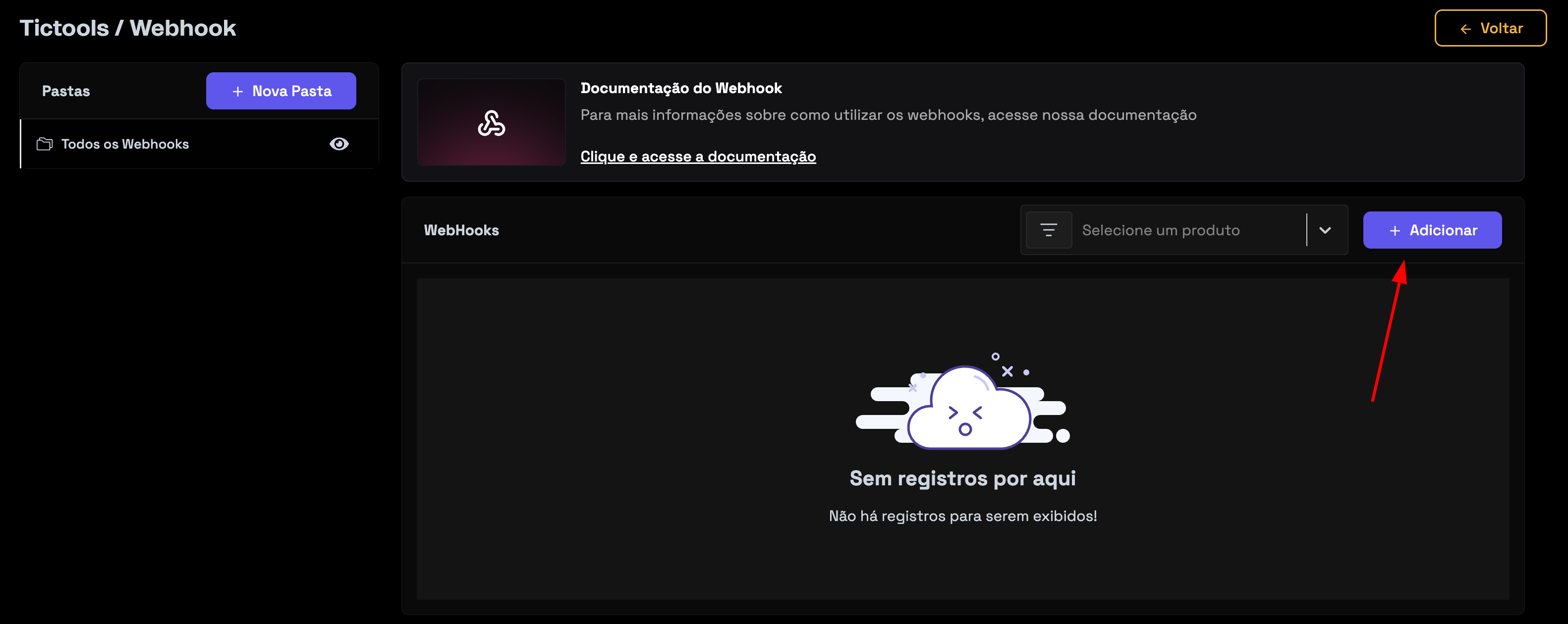
- Click on the Add button
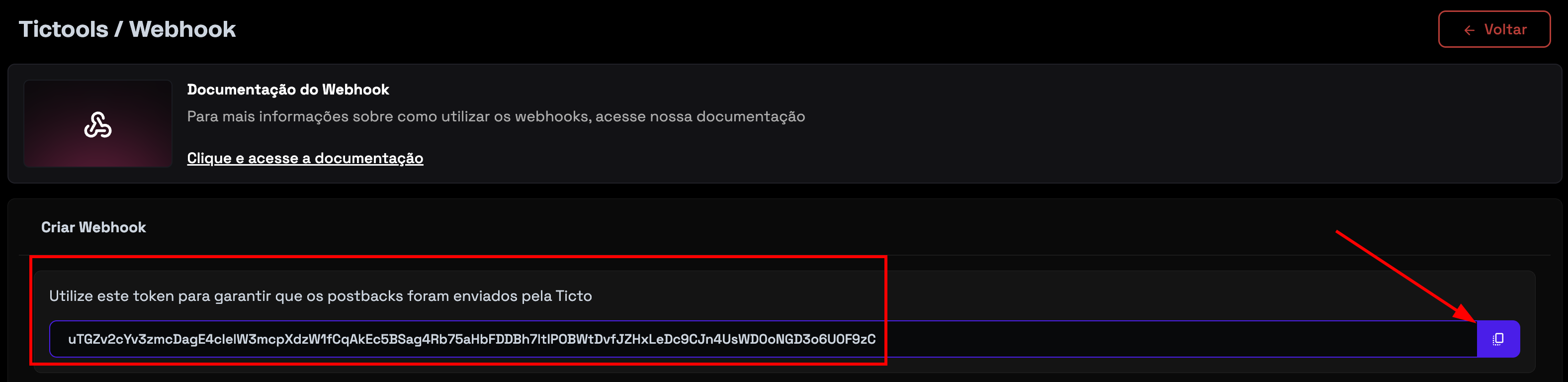
- Copy the token generated by Ticto.
Setting Up Webhooks in Nemu Dashboard
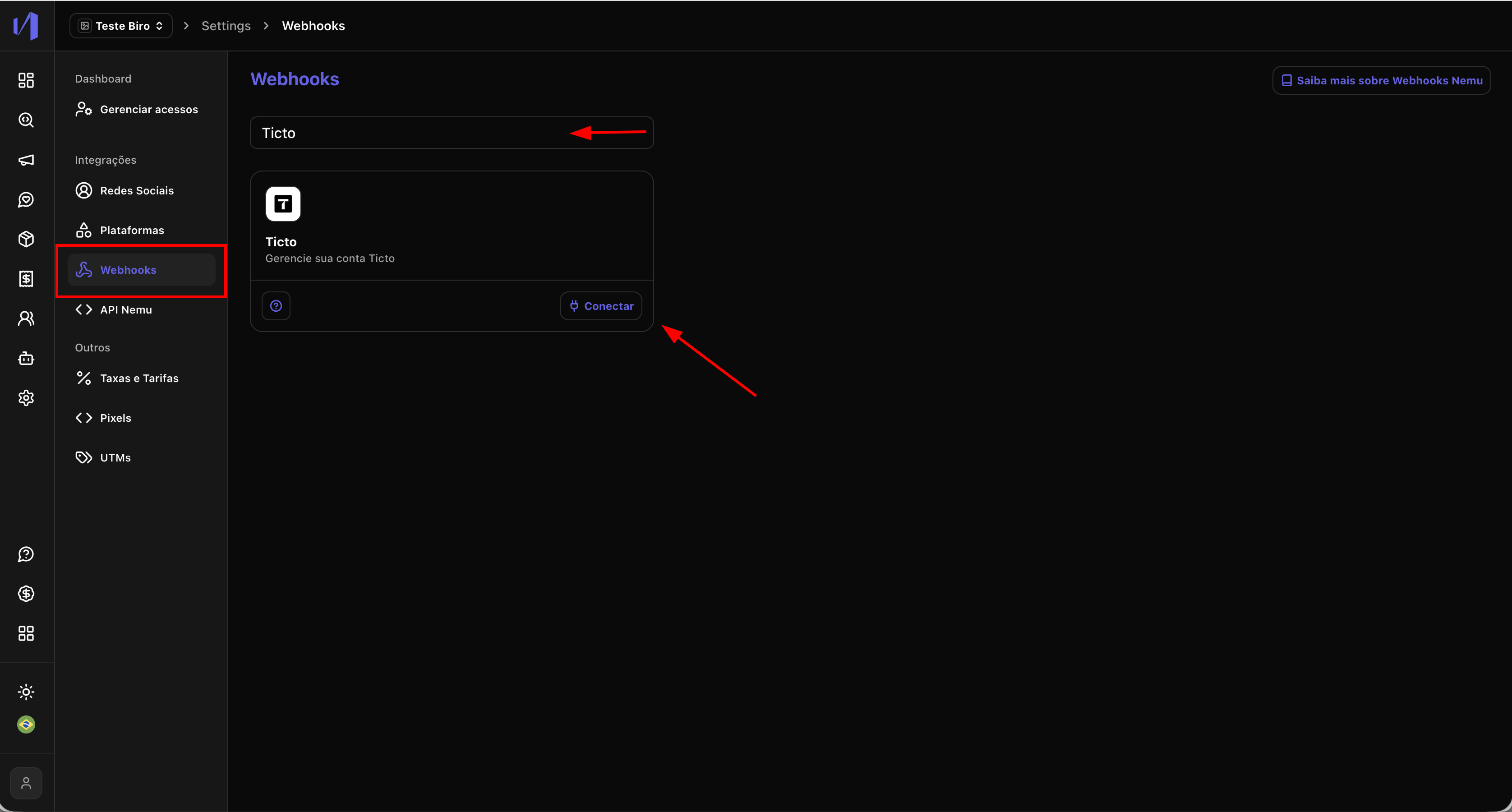
- In the Nemu panel, go to Settings > Webhooks.
- Search for Ticto and click on Connect.
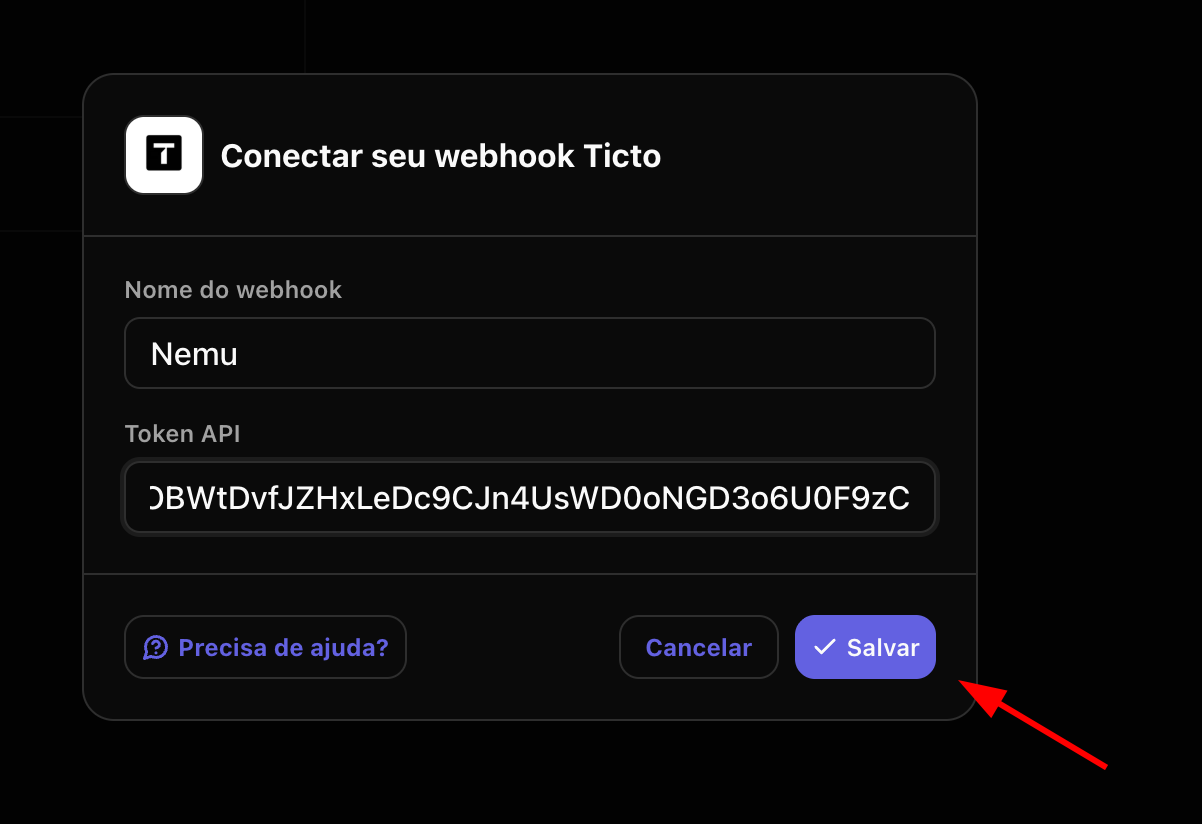
- Define a name for the webhook, paste the token generated by Ticto in the Token field and click on Save.
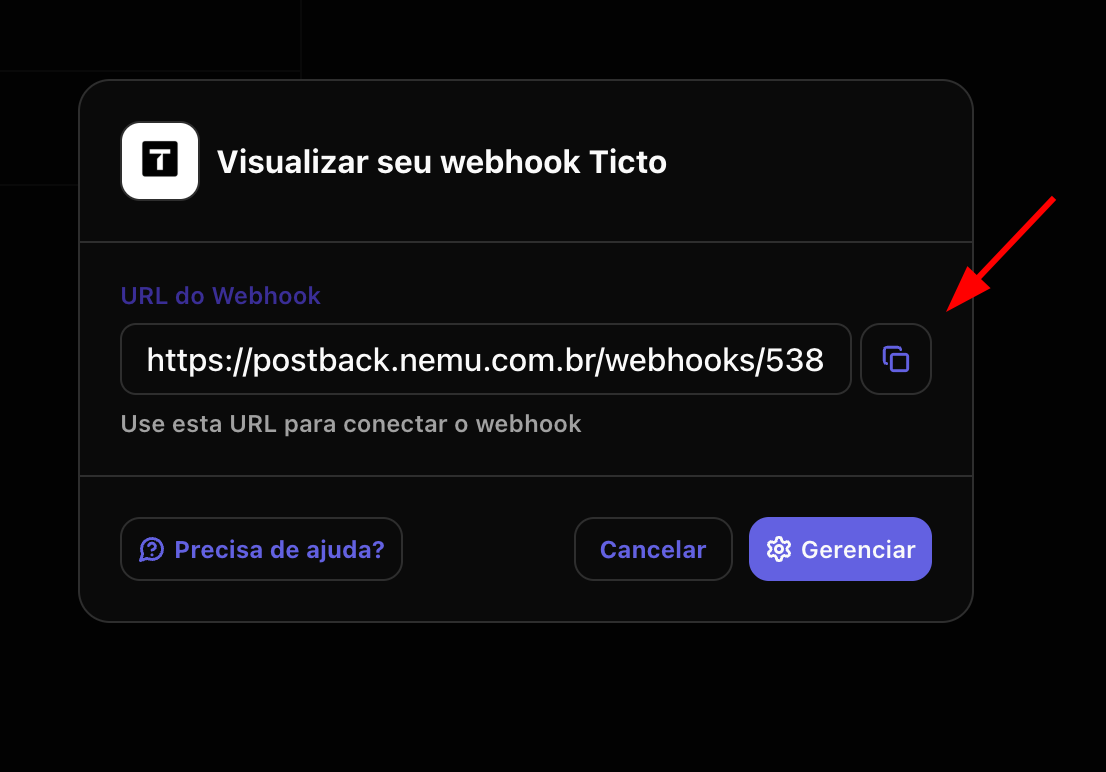
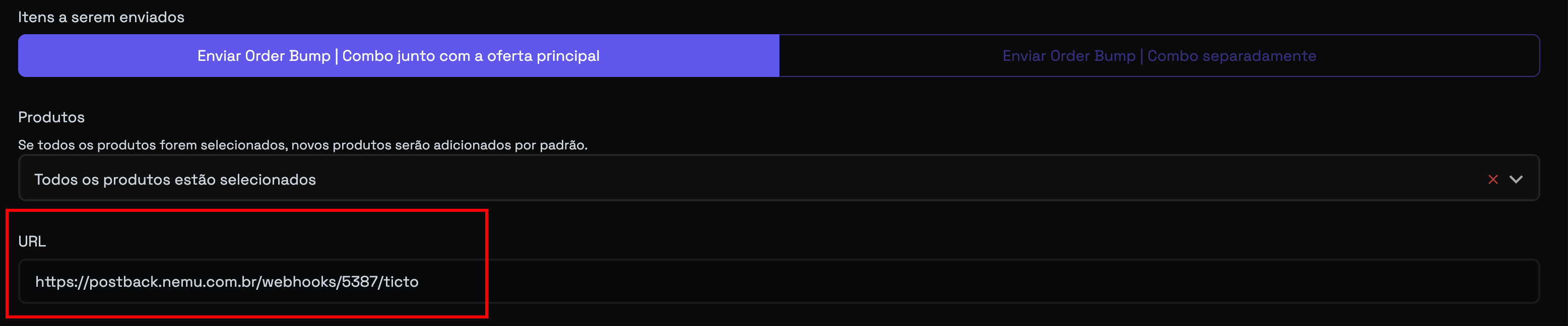
- Click the button to copy the webhook URL generated by Nemu.
- Go back to Ticto and select the products you want to capture in the webhook
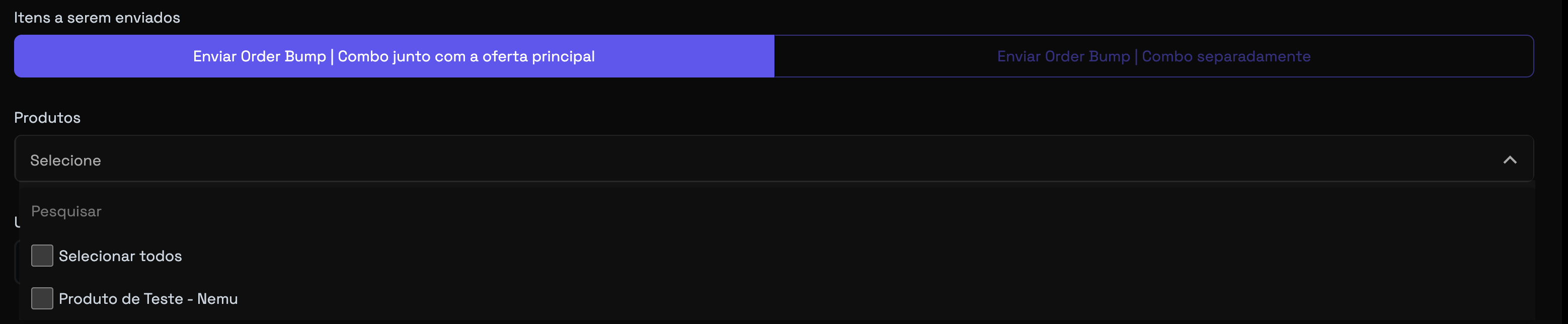
- Paste the webhook URL generated by Nemu in the Webhook URL field
- Select the webhook version as Version 2 (Recommended) and the send format as JSON (Recommended)

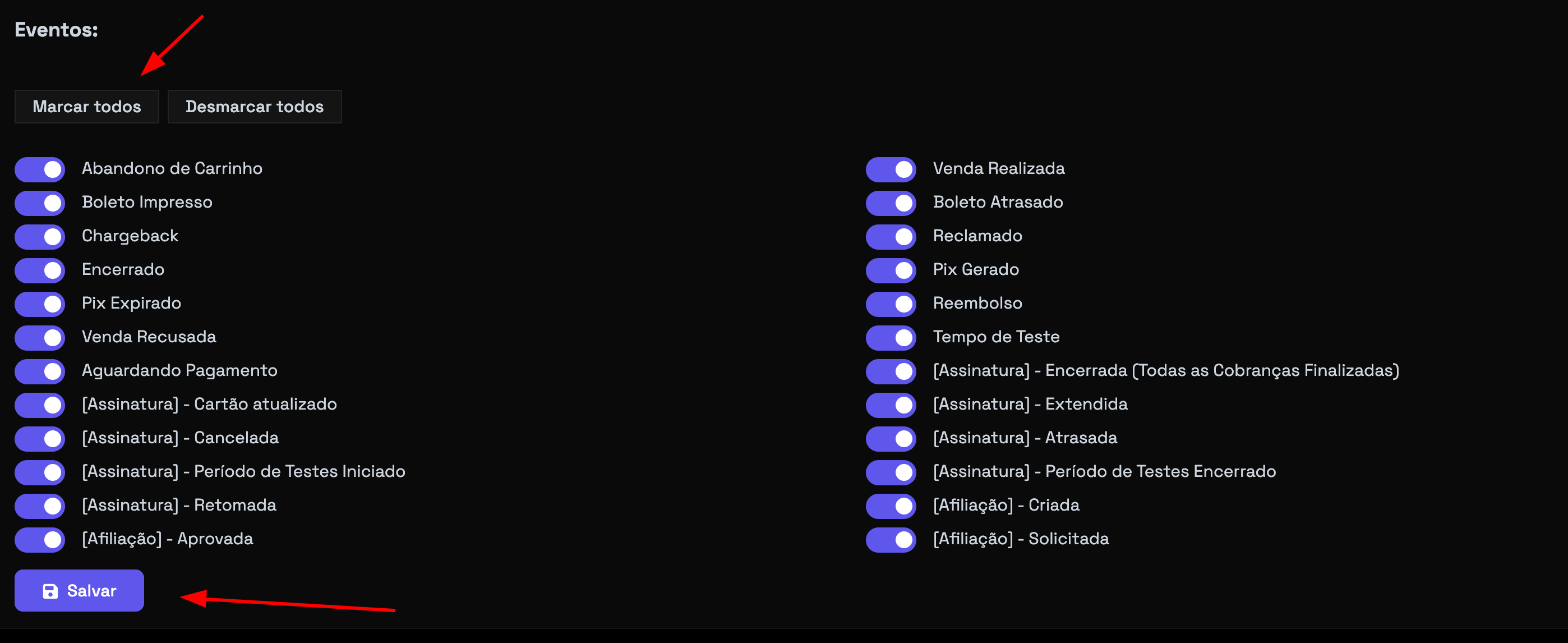
- In events click on Check all and click on Save