Follow the step-by-step guide and start receiving sales automatically in Nemu.
Setting Up Webhooks
On Nemu Dashboard
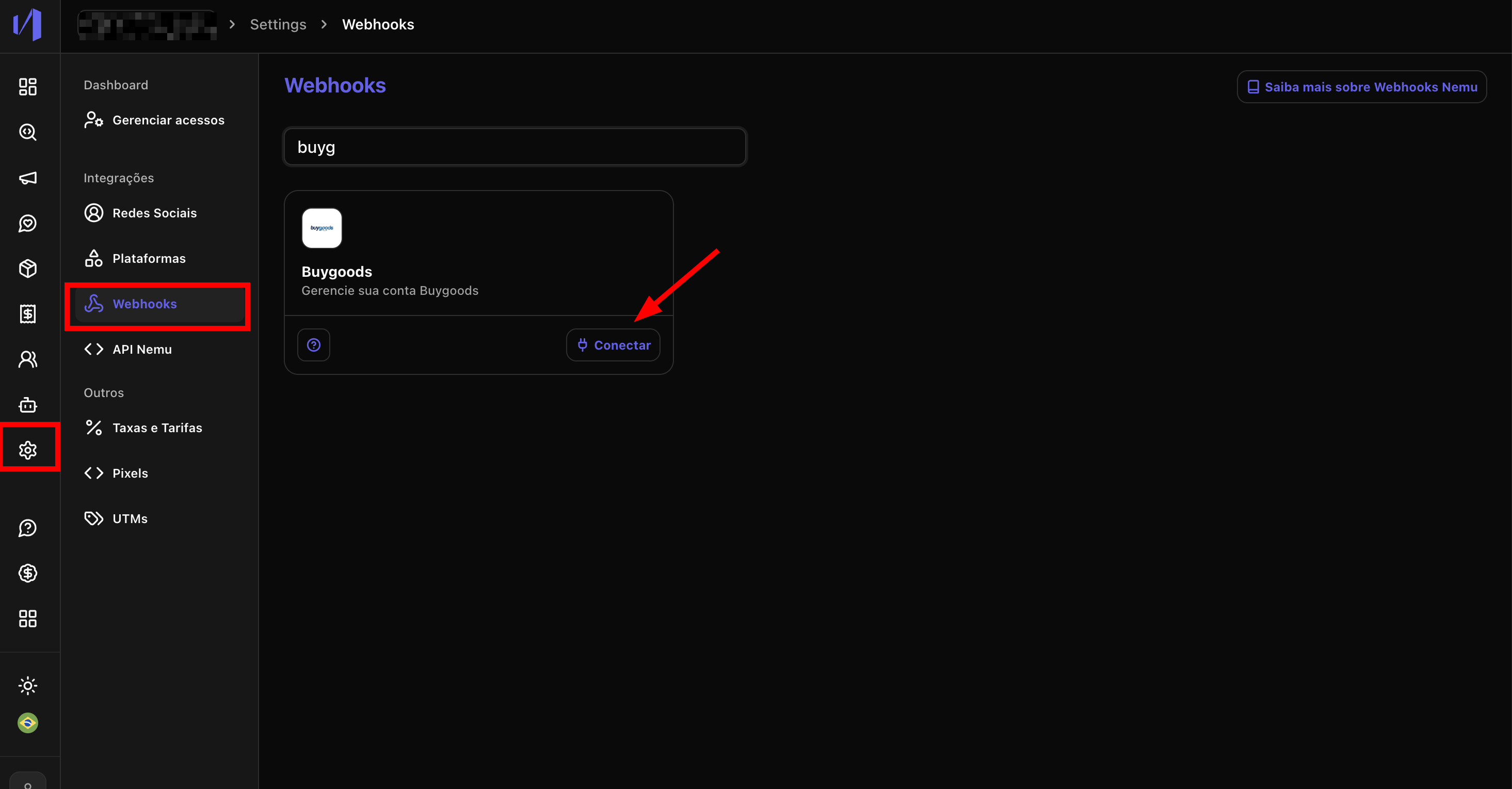
- In the sidebar, go to Settings > Webhooks.
- Search for Buygoods in the search field and click the Connect button on the integration card.
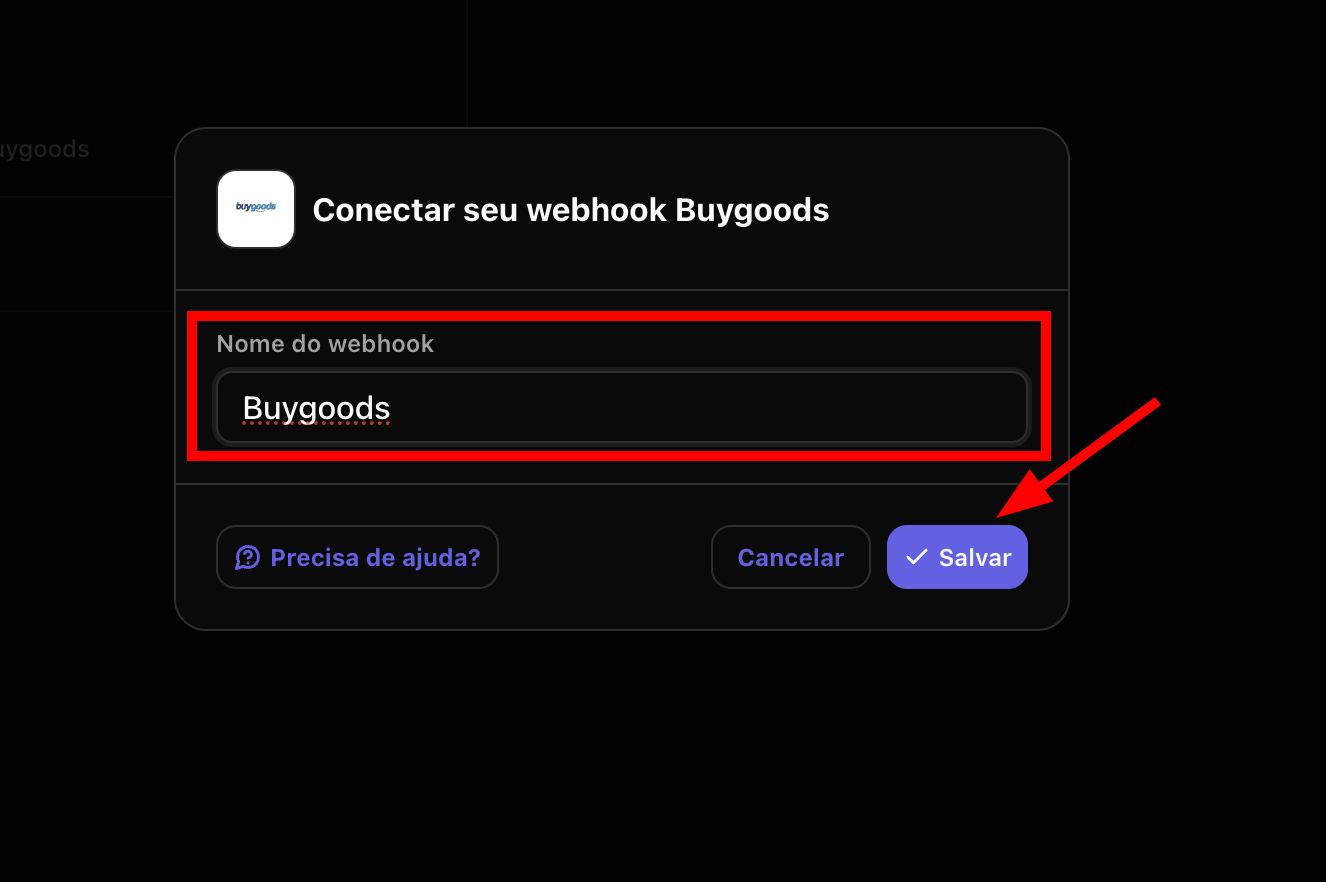
- In the modal that opens, define a Webhook name (e.g., “Buygoods”) and click on Save.
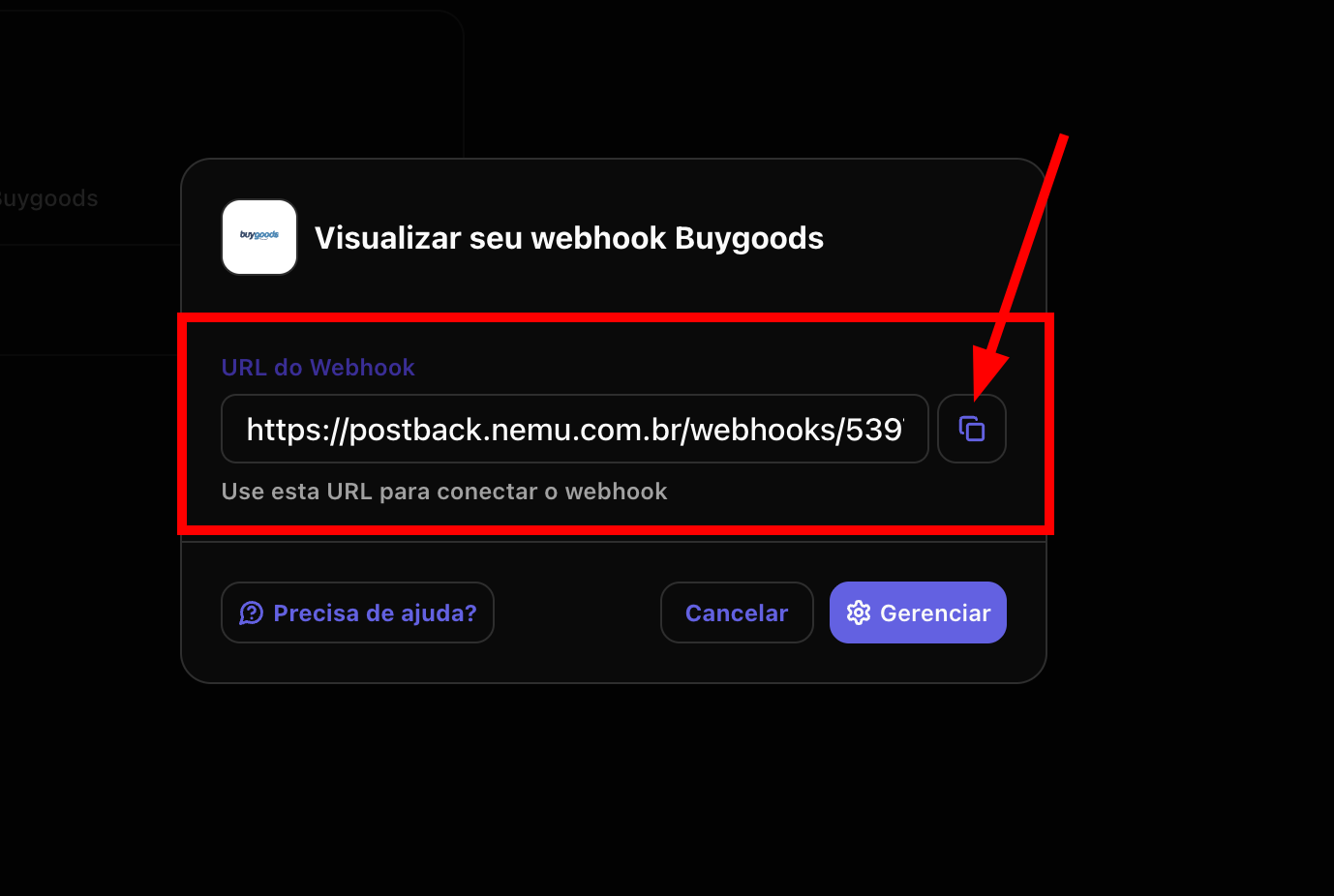
- After saving, a modal will be displayed with the Webhook URL generated by Nemu. Click the copy button
On Buygoods Panel
- Access the Buygoods panel and, in the navigation menu at the top of the page, click on Setup.
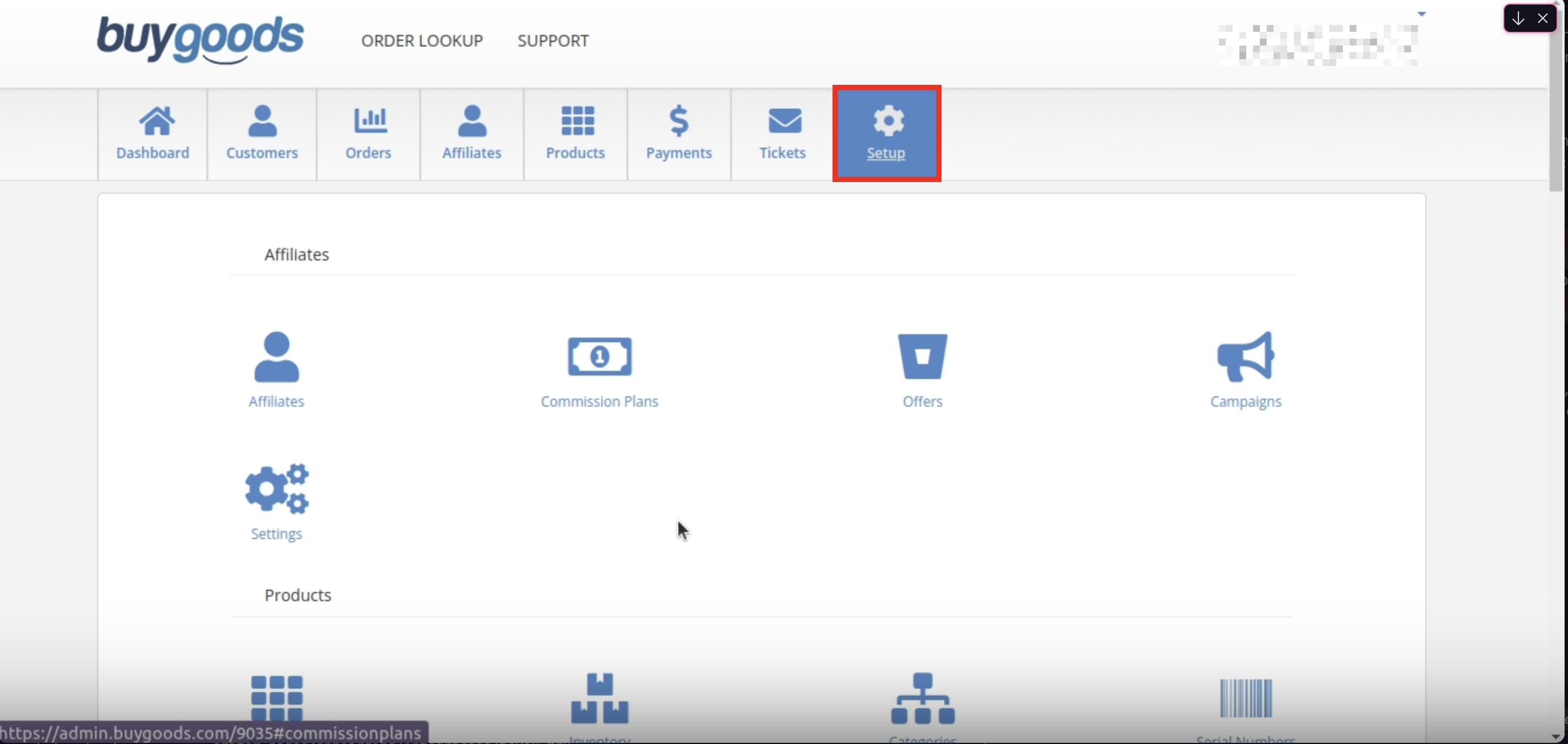
- On the Setup page, locate the Products section and click on Settings.
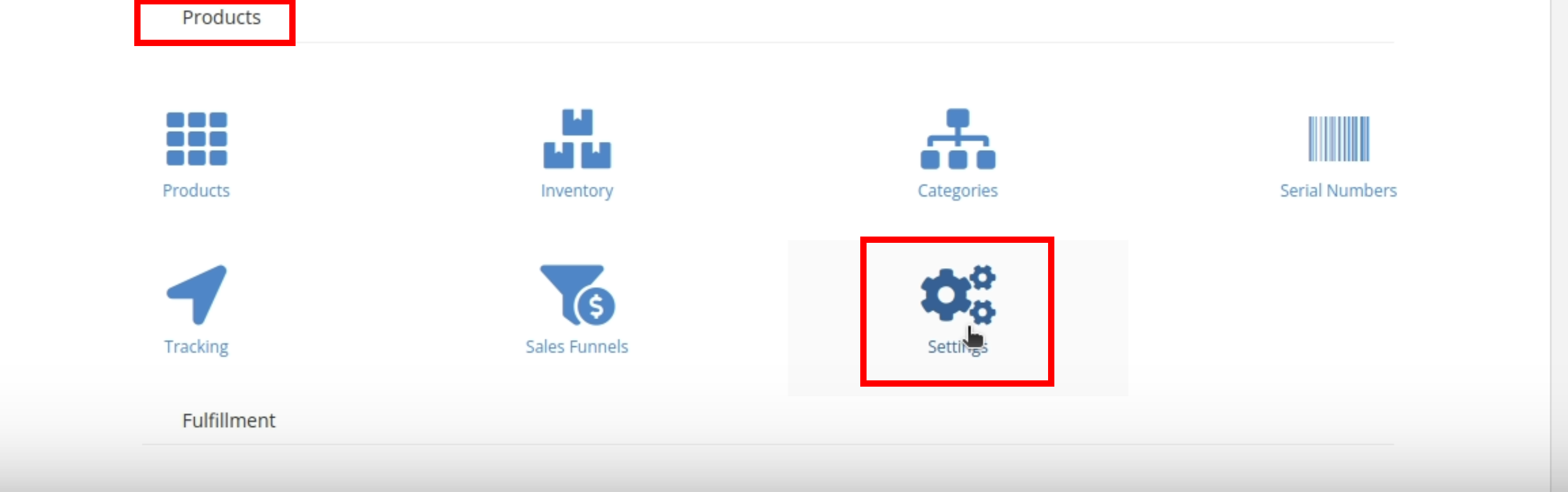
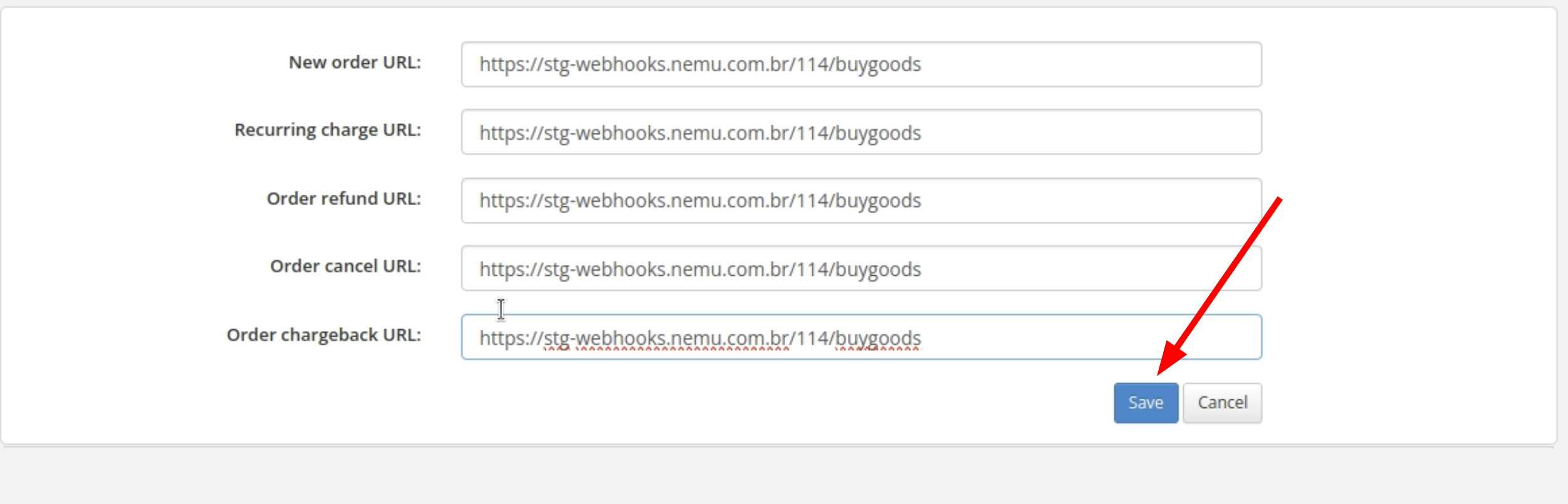
- To better locate yourself, verify that you are on the Products> Products Settings page as shown in the image, where you will see various URL fields.
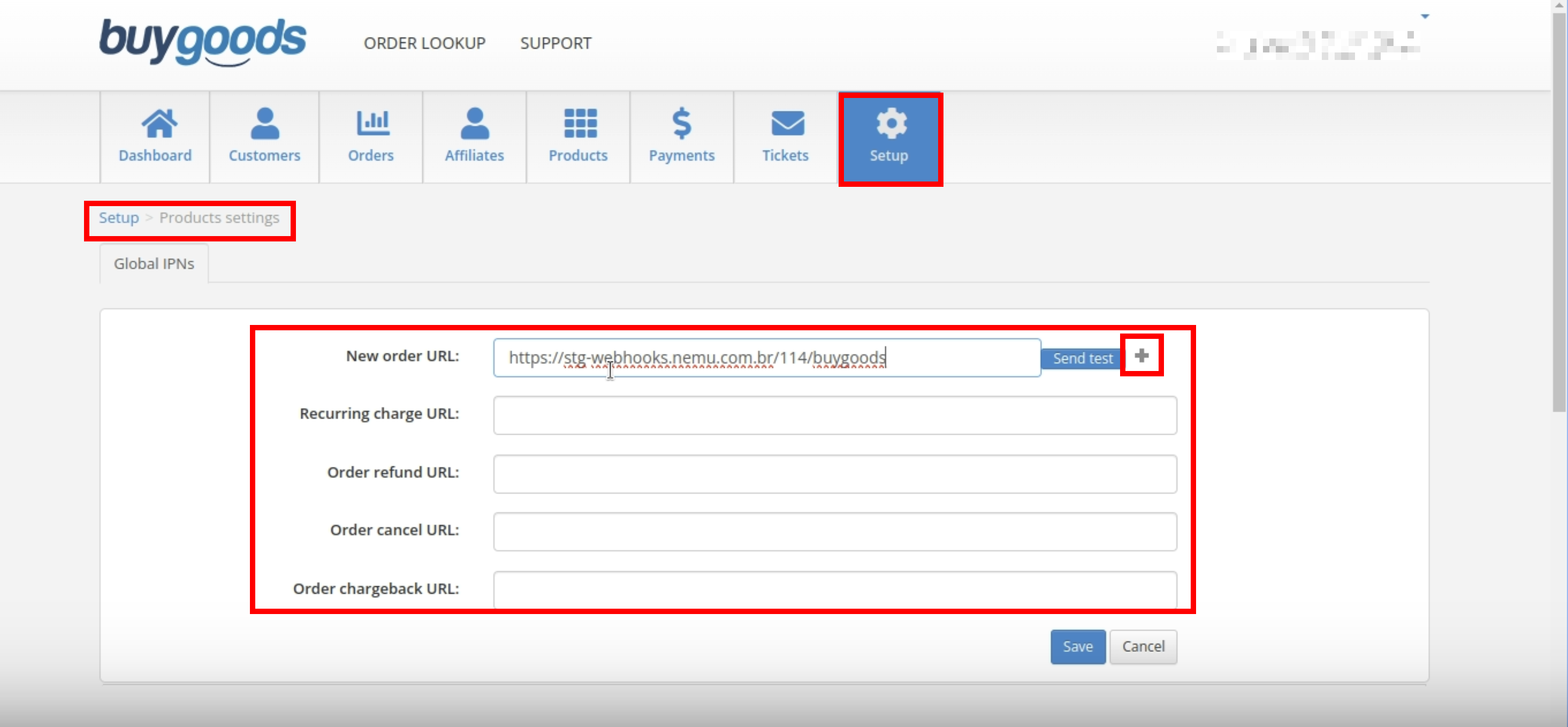
- Paste the Webhook URL you copied in step 5 in the following fields:
- New order URL
- Recurring charge URL
- Order refund URL
- Order cancel URL
- Order chargeback URL
You must use the same URL in all fields.
- Verify that all URLs have been filled in correctly and click the Save button to complete the integration.