Setting Up Webhooks in Nemu Dashboard
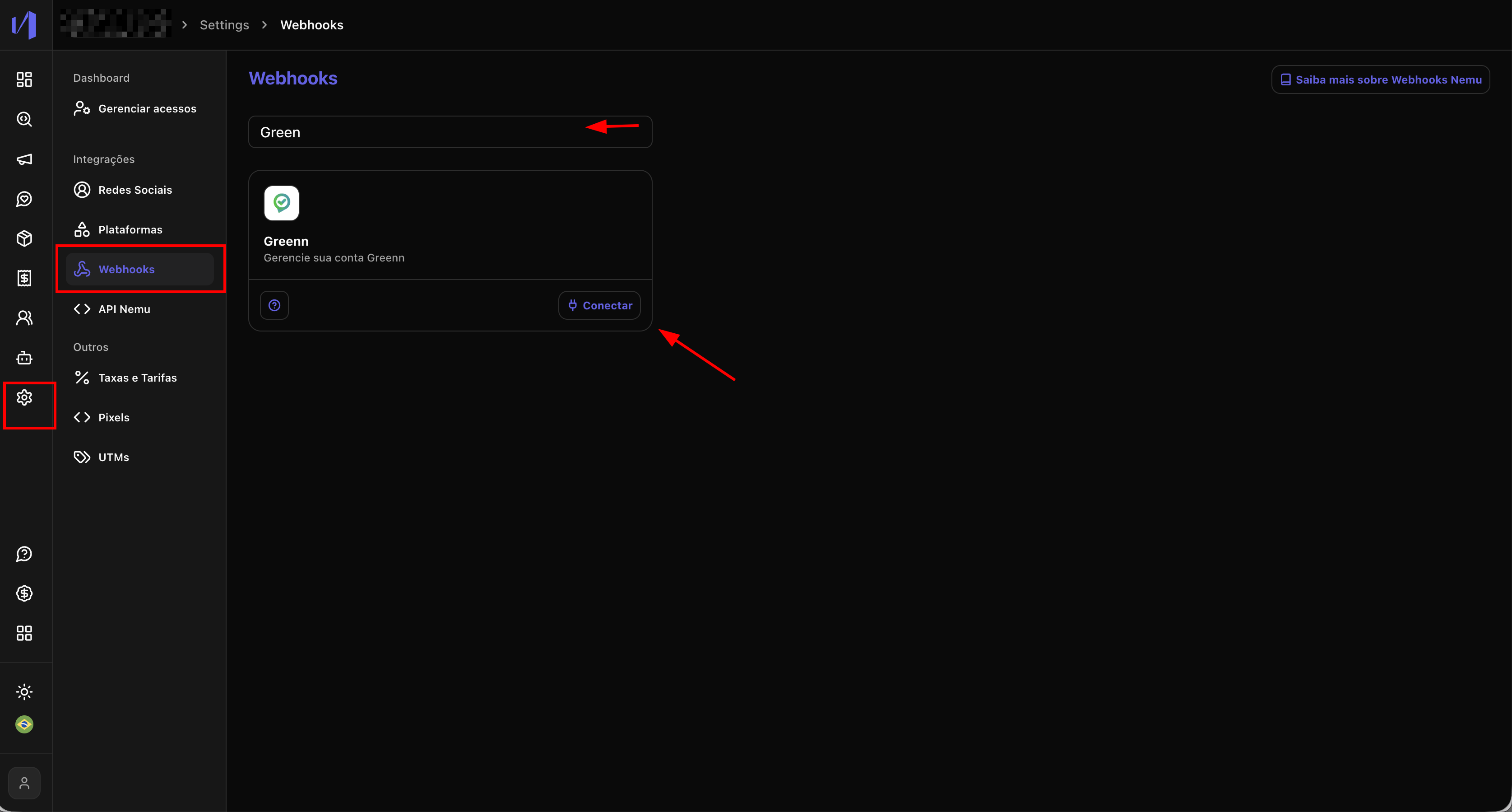
- In the Nemu panel, go to Settings > Webhooks.
- Search for Greenn and click on Connect.
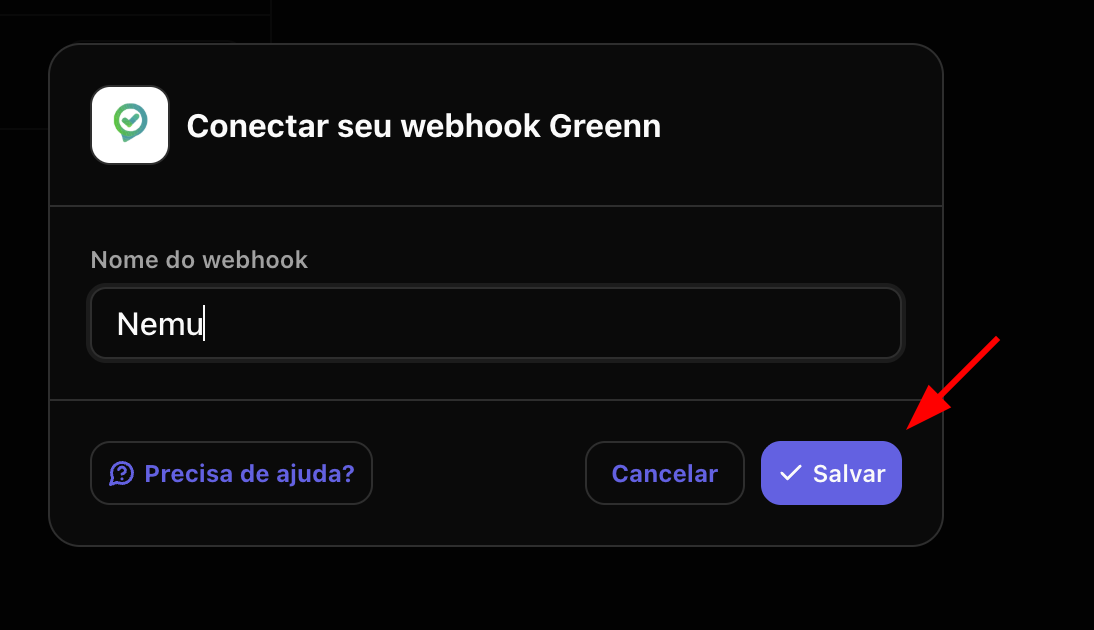
- Define a name for the webhook and click on Save.
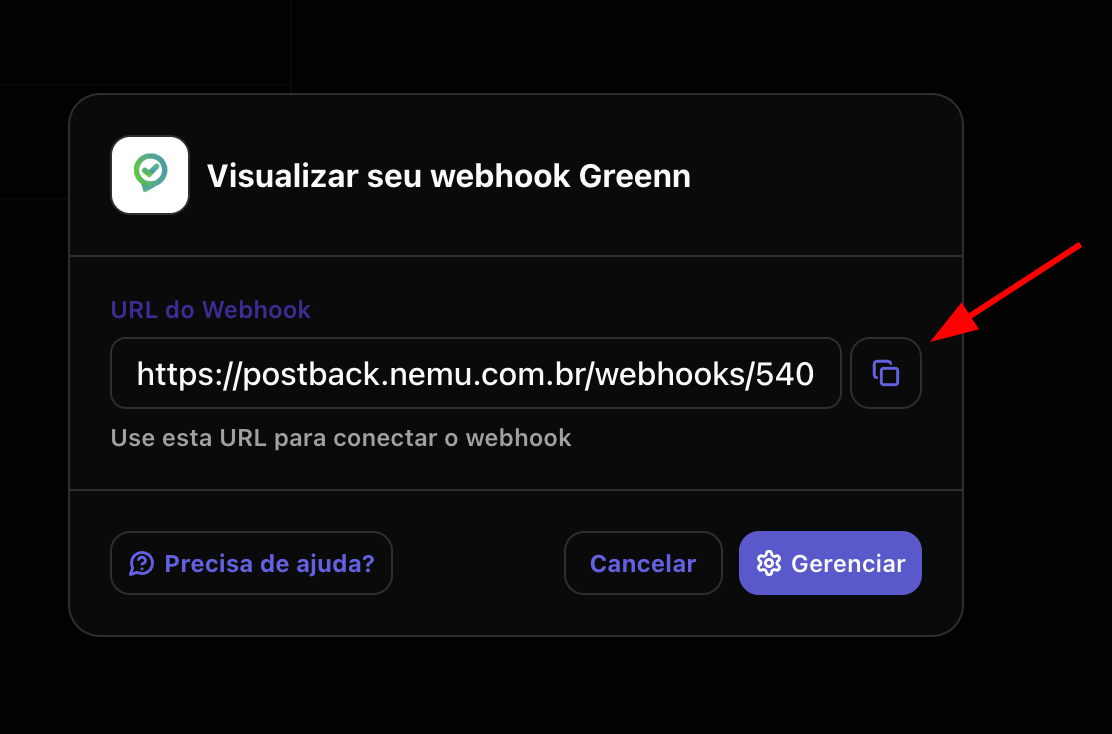
- Click the button to copy the webhook URL generated by Nemu.
Setting Up Webhooks in Greenn Dashboard
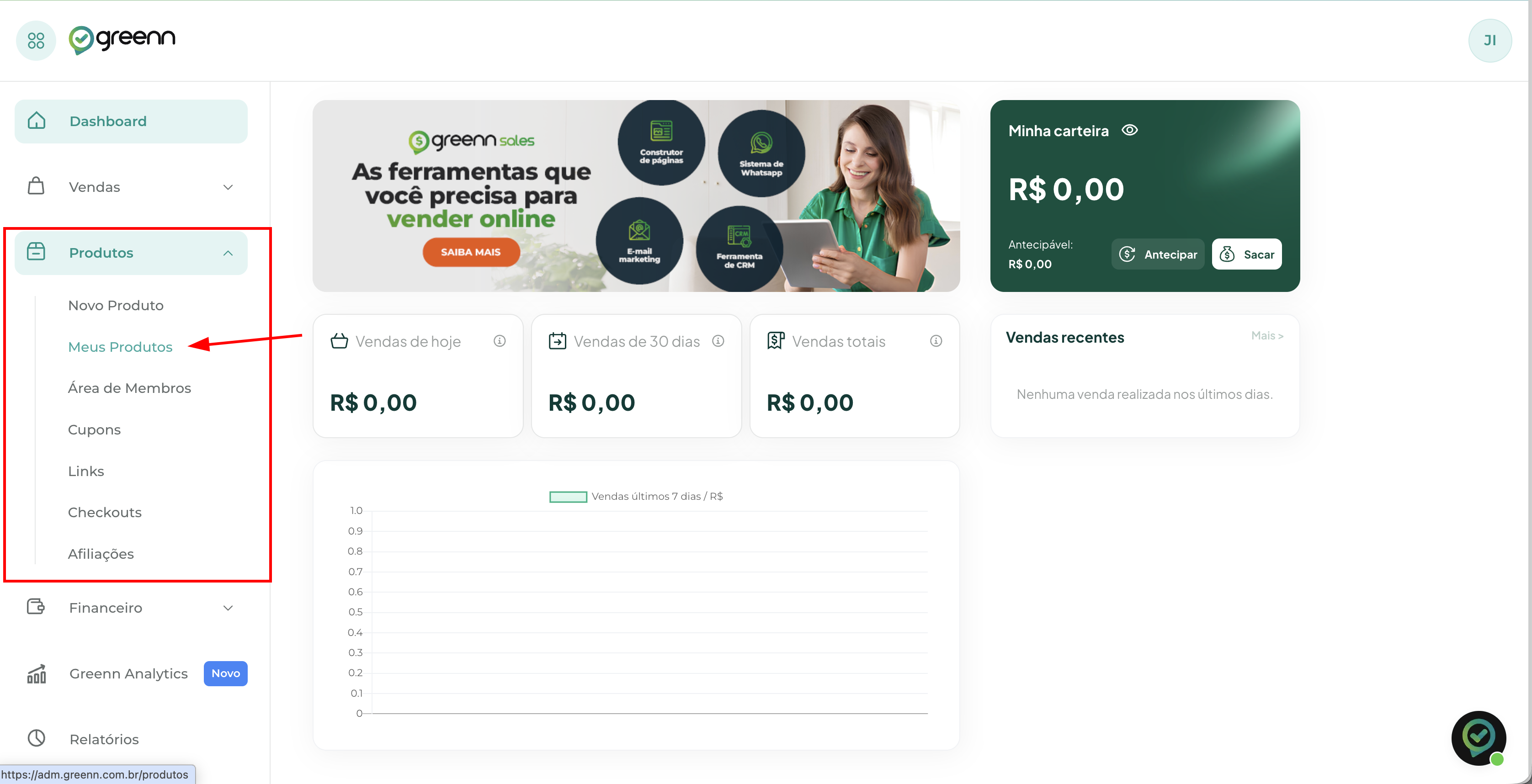
- In the Greenn panel, in the left sidebar, click on Products > My Products.
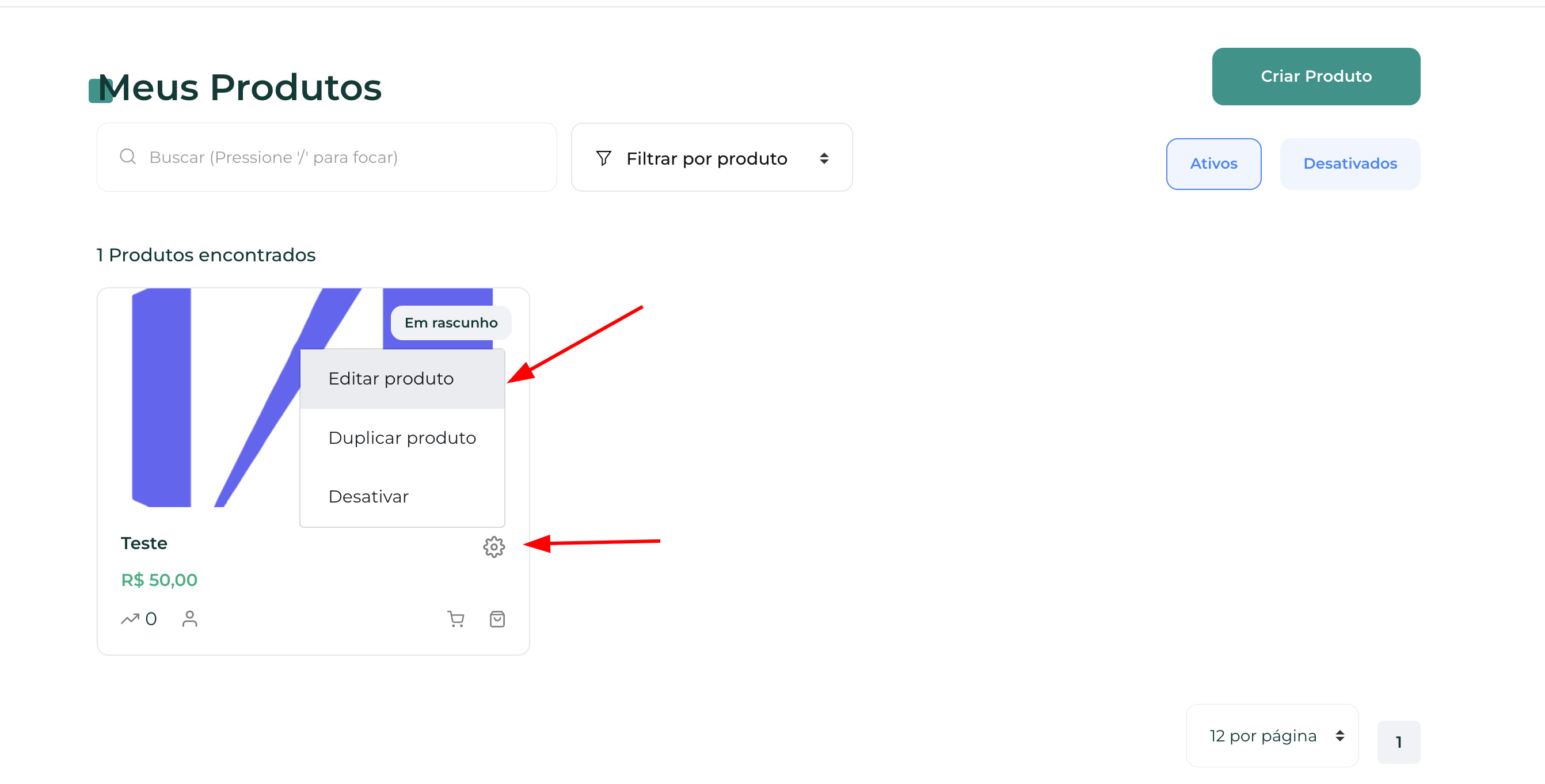
- On the product you want to integrate, click on the Settings icon and then click on Edit Product.
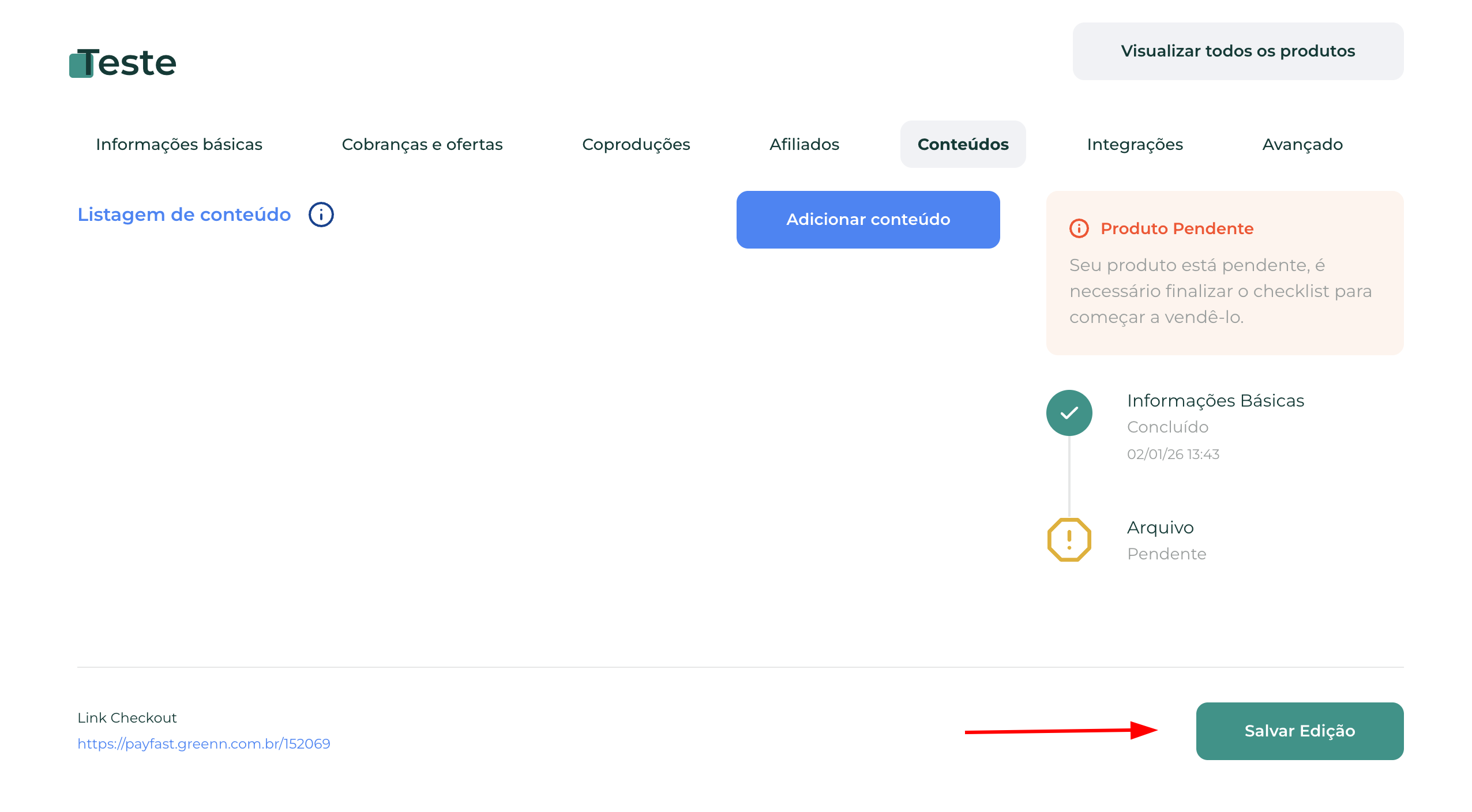
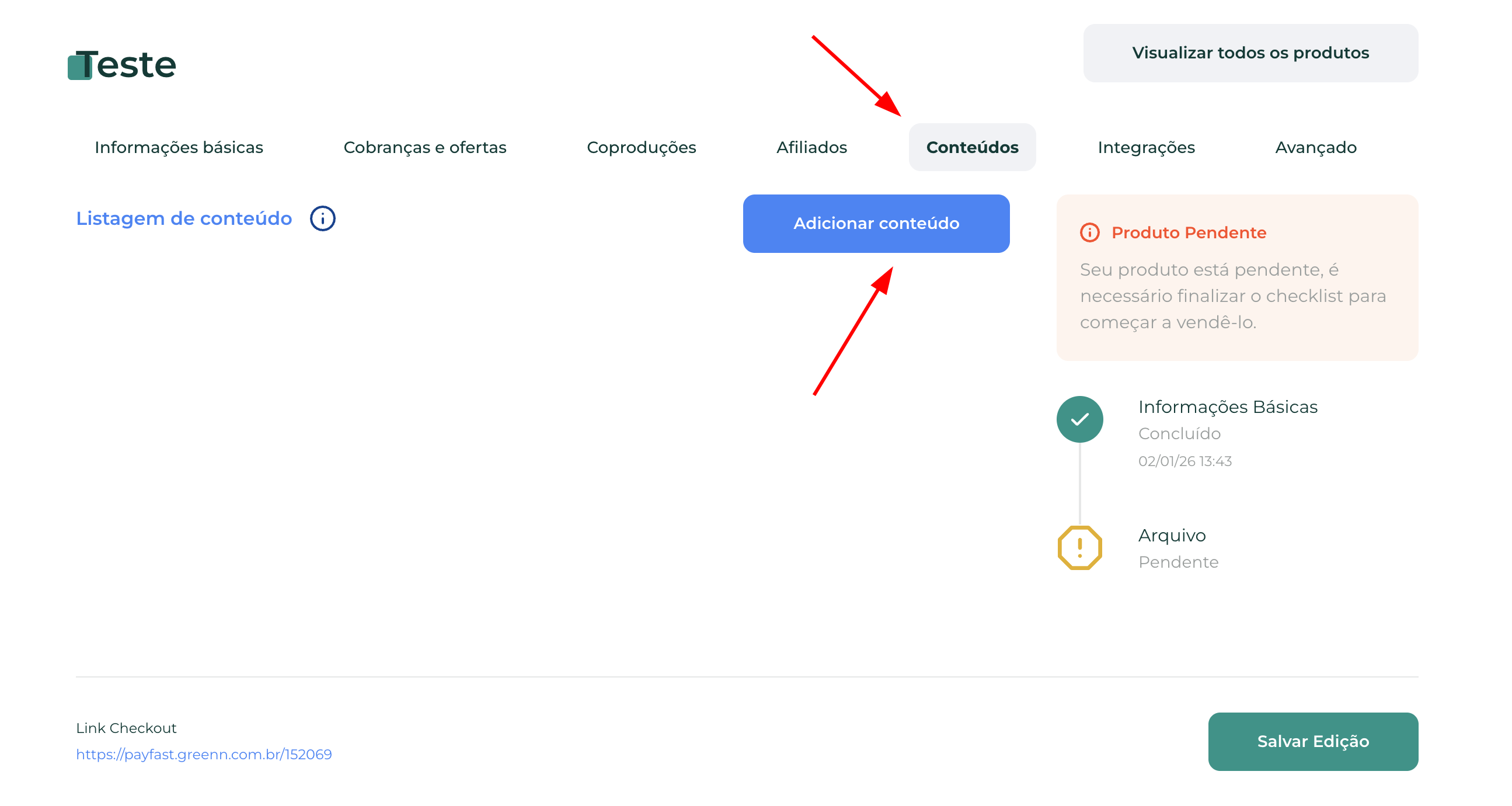
- In the Contents tab, click on Add Content
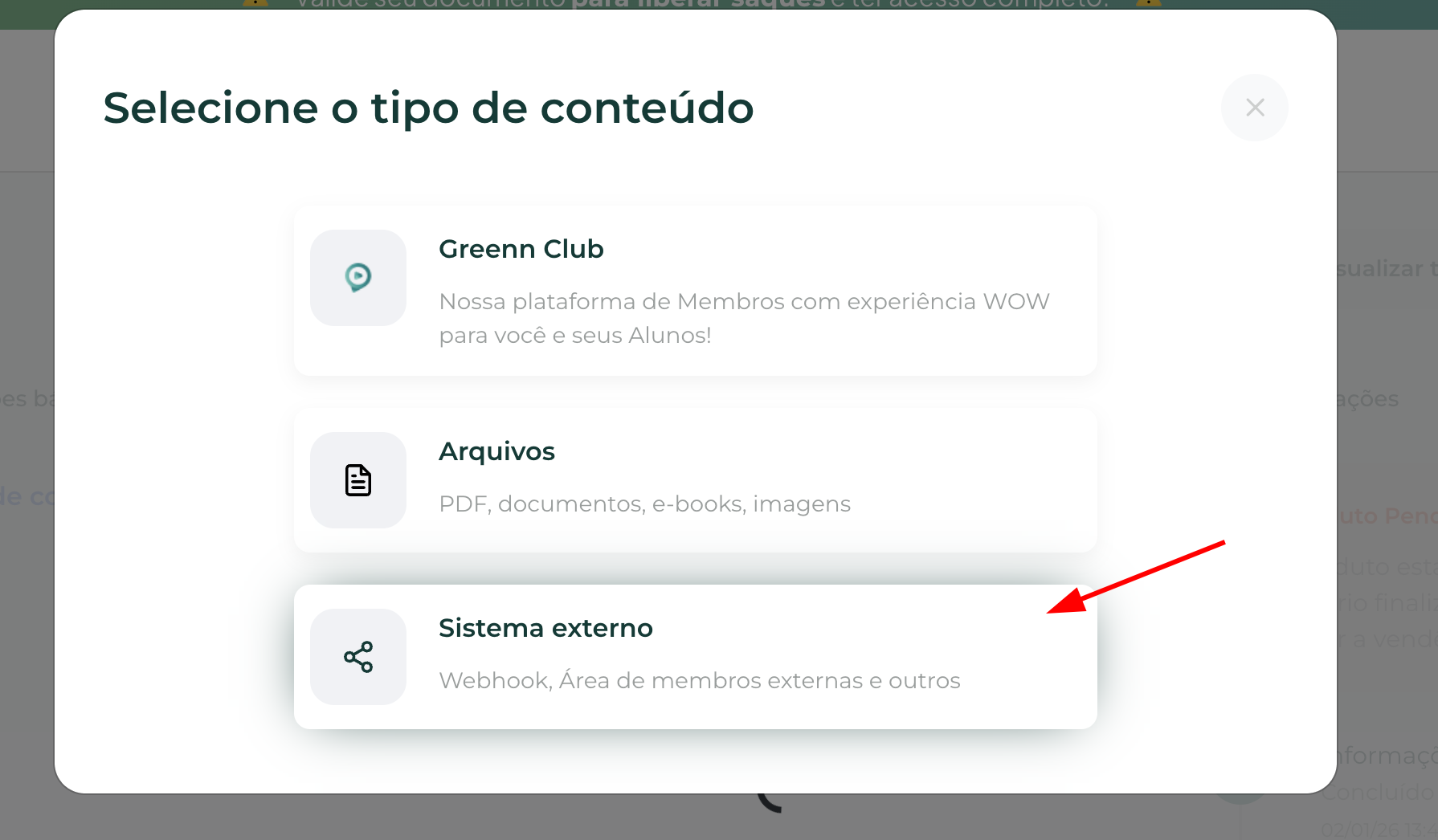
- In content type, click on External System
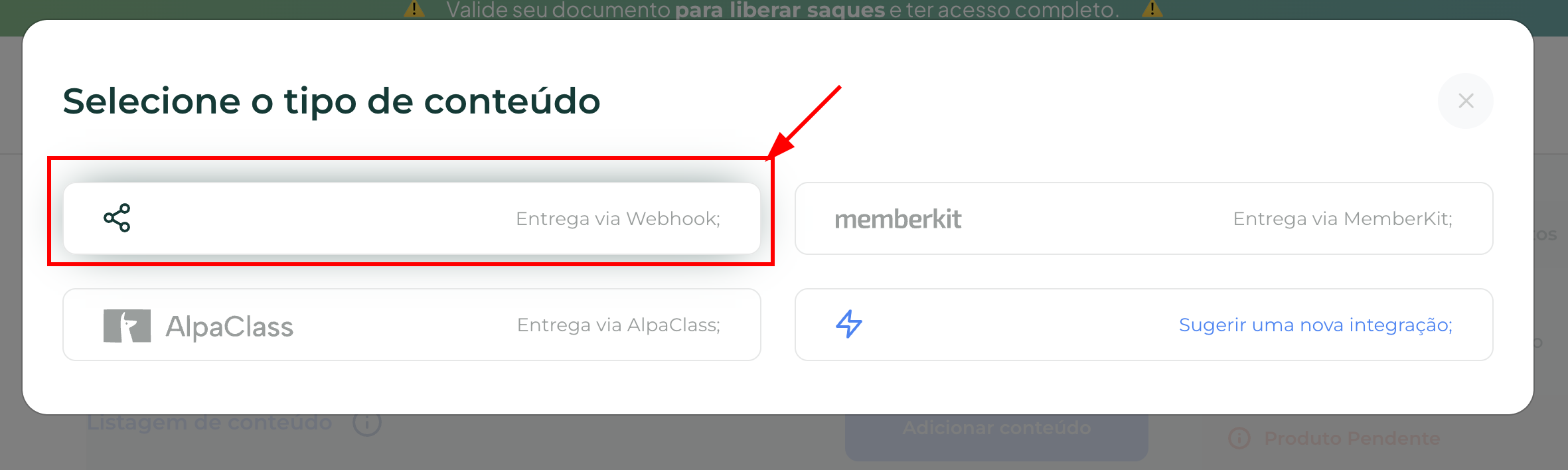
- Then, click on Webhook Delivery
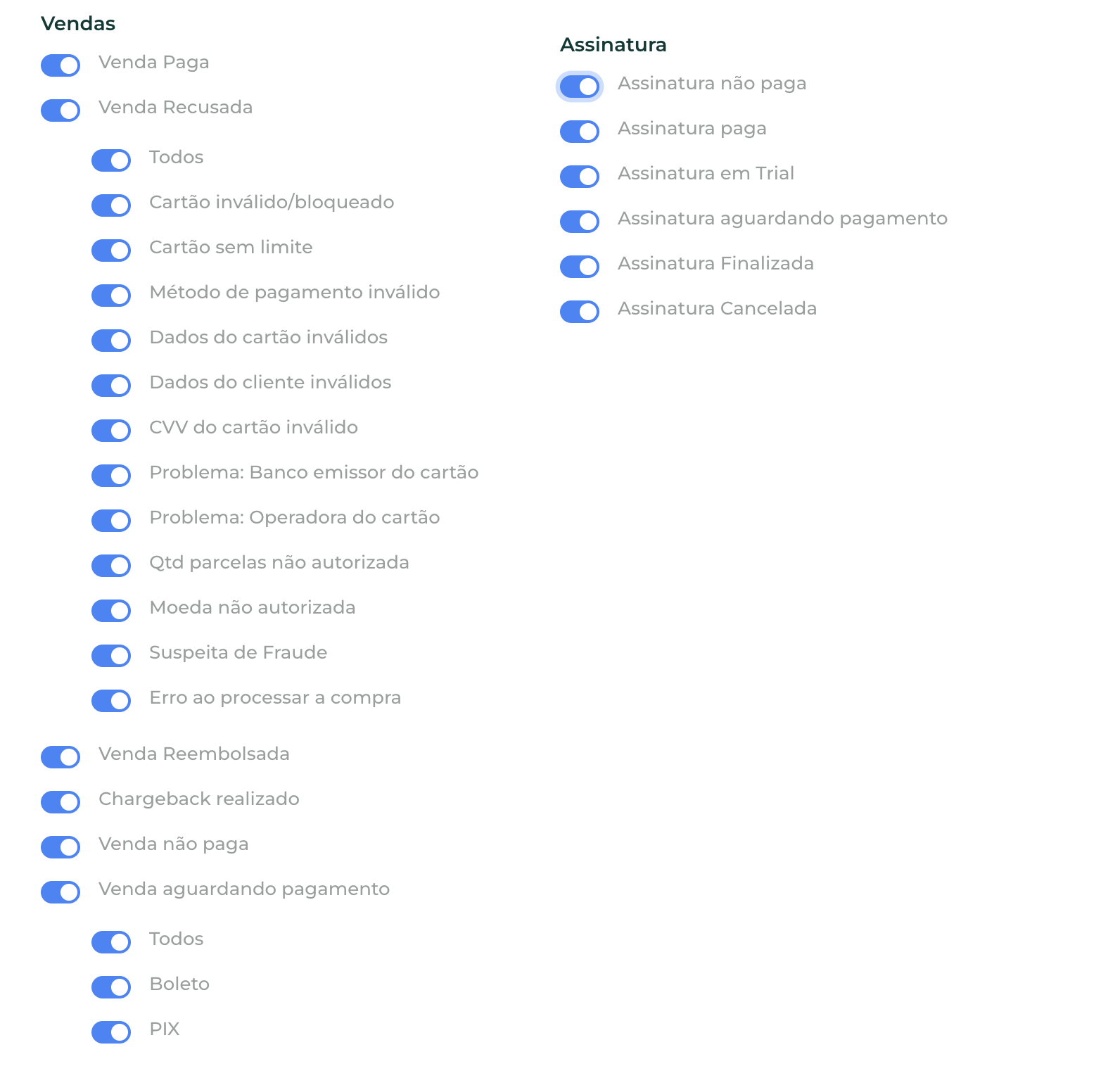
- Select all events as shown in the image below:
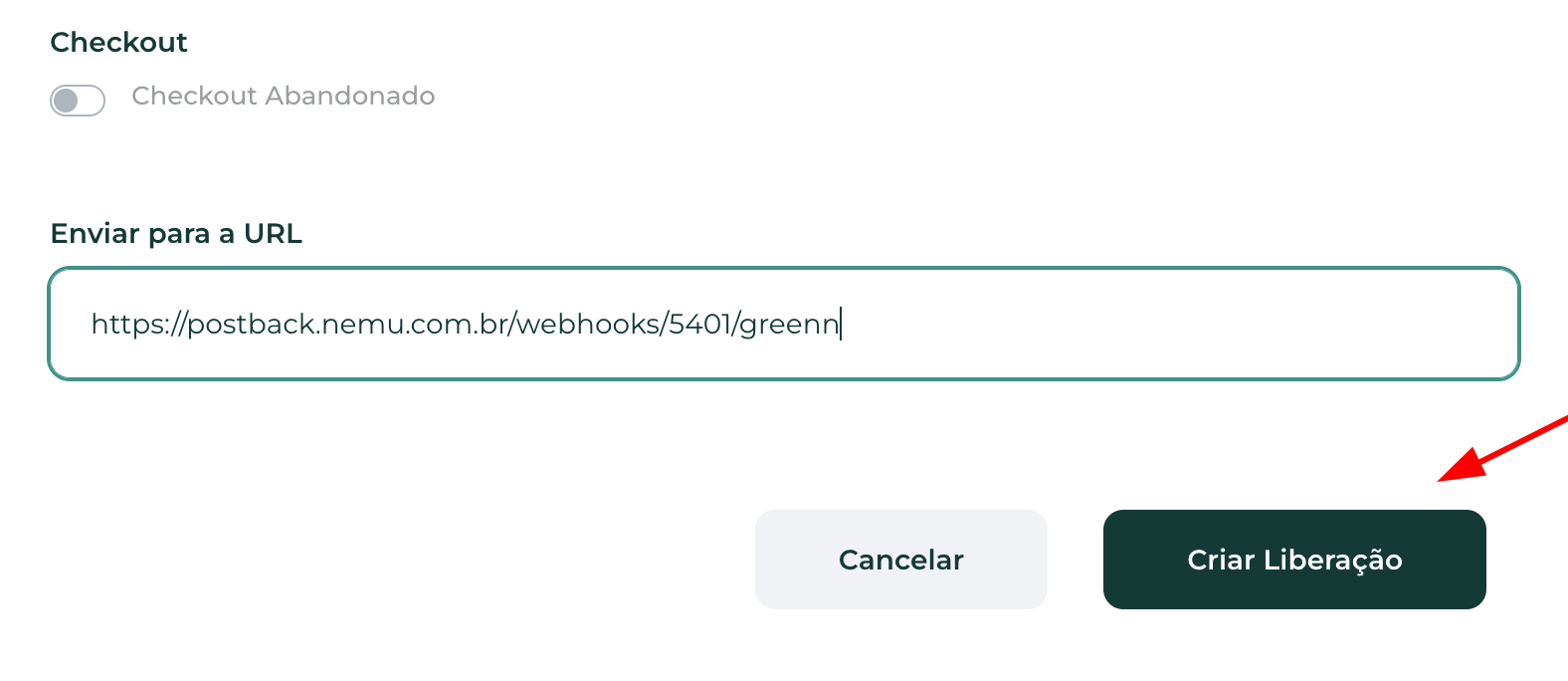
- In the Send to URL field, paste the webhook URL generated in the previous step by Nemu and click on Create release.
- Click on Save Edit to finalize the integration.