Integrating Nemu Pixel on Irroba
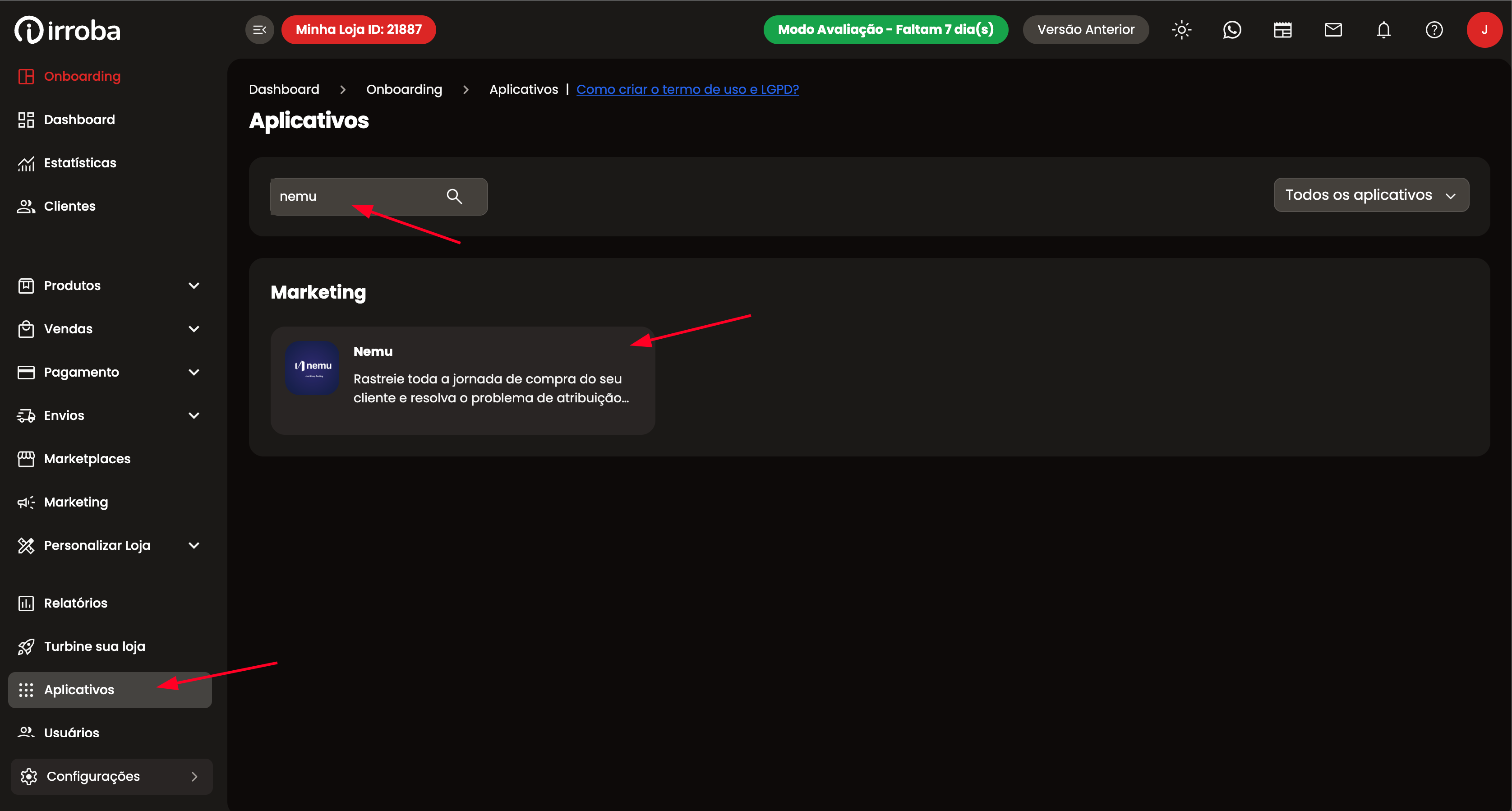
- On the Irroba platform, in Apps search for Nemu
- Paste only the code located inside the
data-tracking-idproperty of the<script>from Configuring Nemu Pixel and enable the status to Active and click on Save
The code that should be copied is only what is inside the
data-tracking-id property: ULtHf0C4U3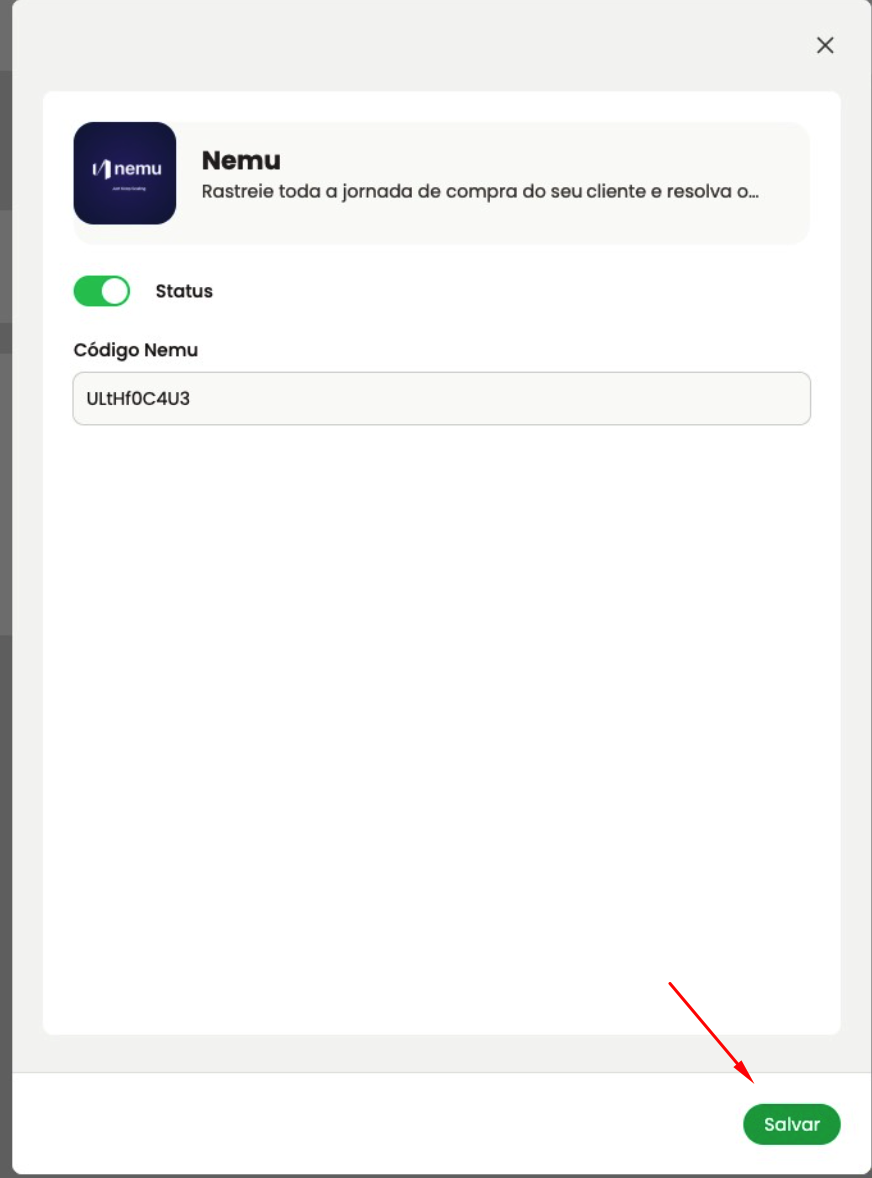
Setting Up Webhooks
-
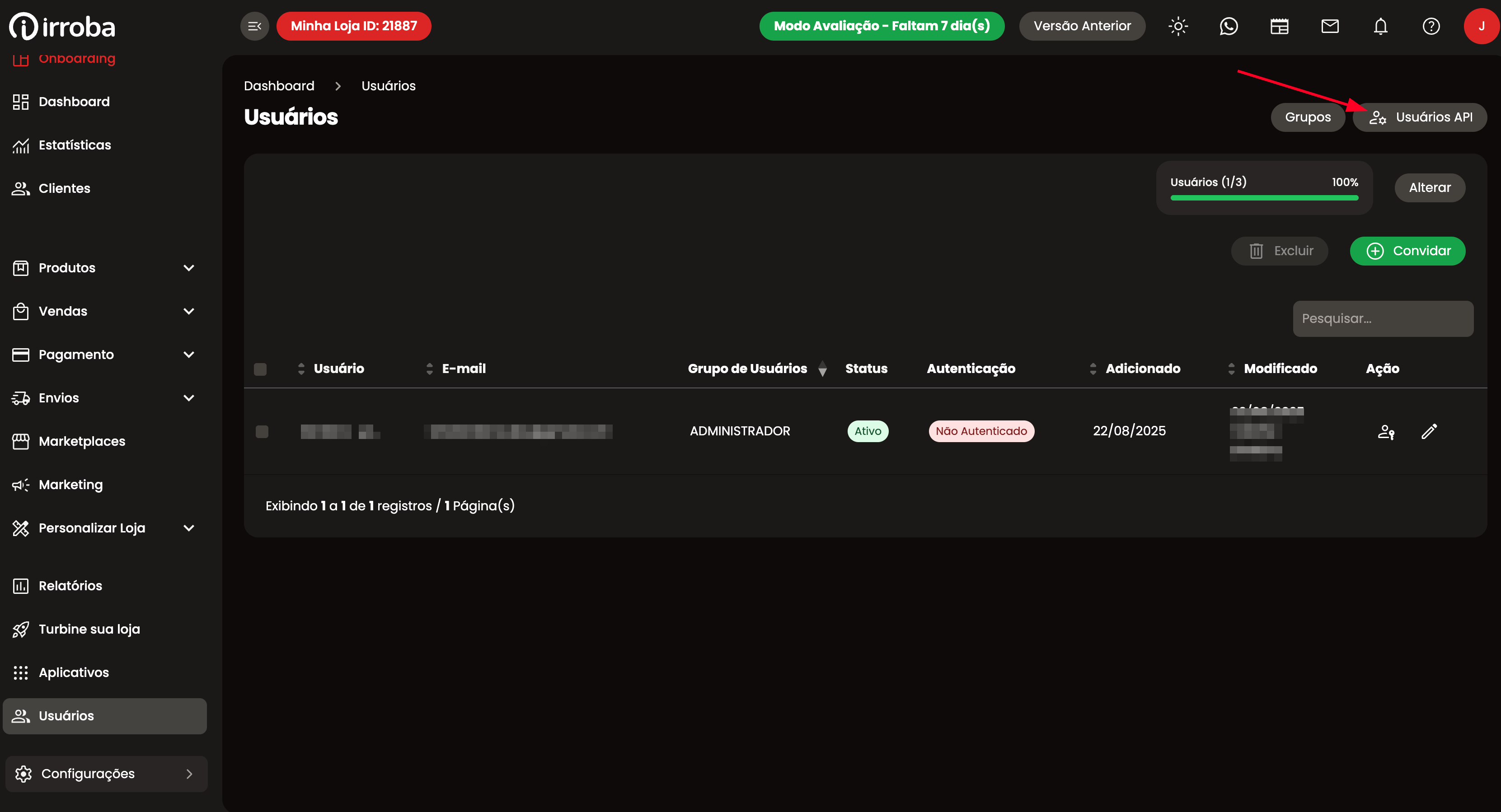
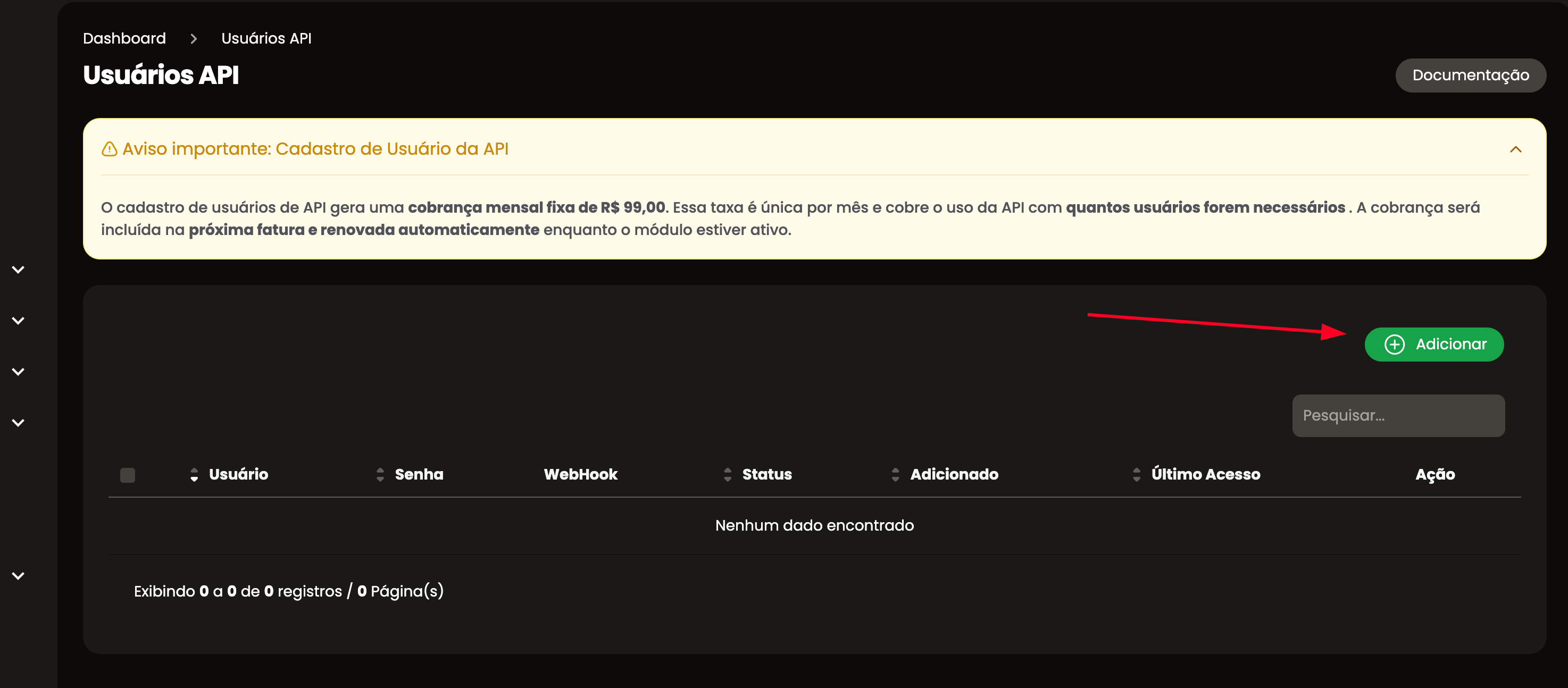
On the Irroba panel, go to Users and click on API Users
-
Click on the Add button
-
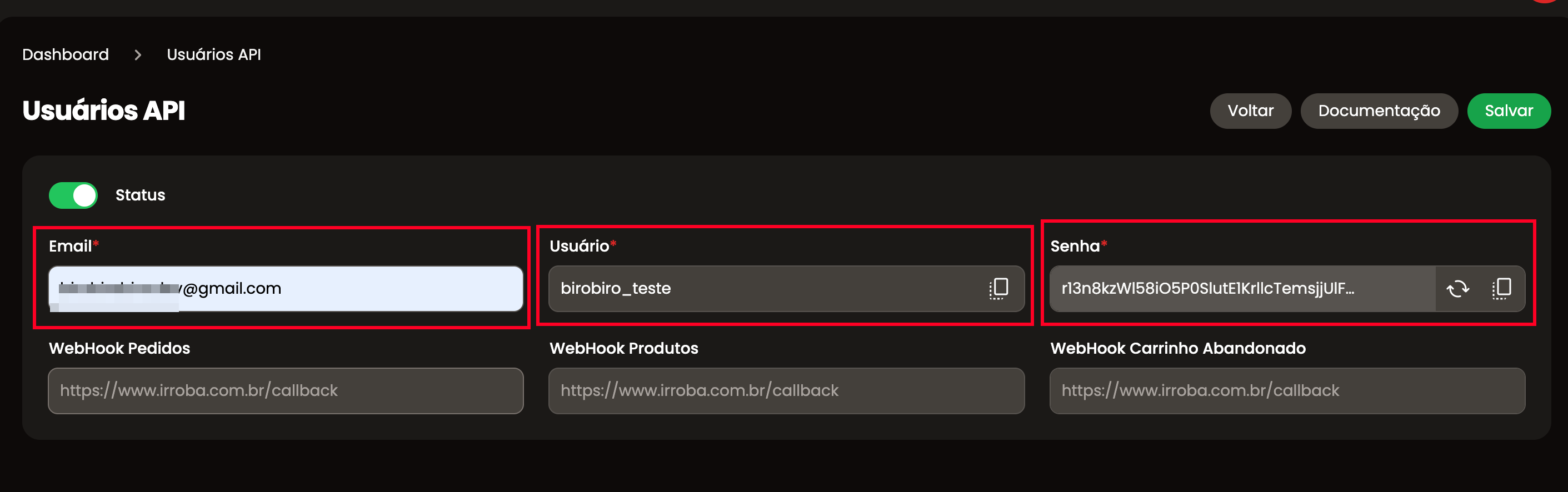
Fill in the necessary information with your data and generate a password
-
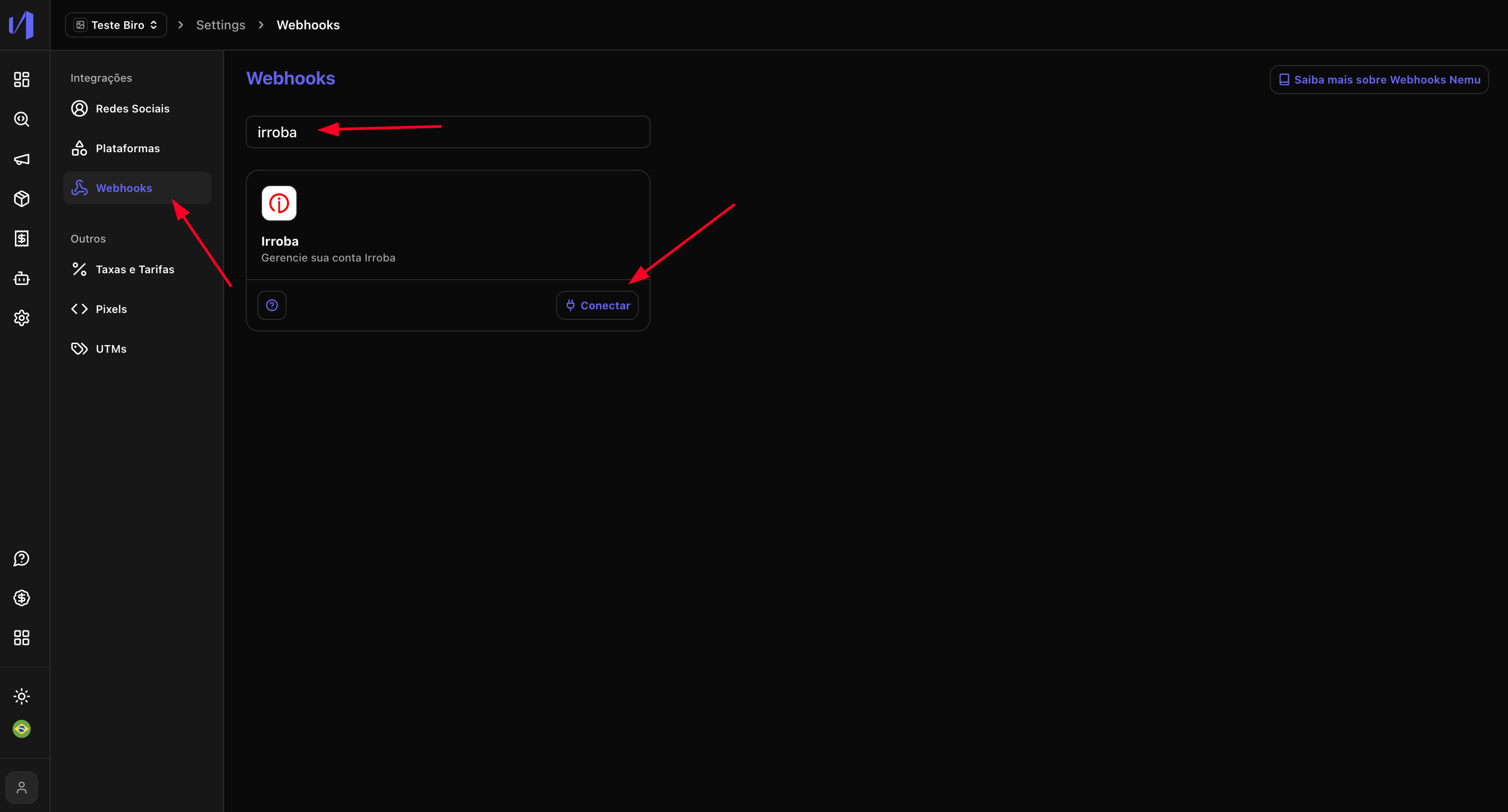
In Nemu, go to Settings > Webhooks and search for Irroba and click on Connect
-
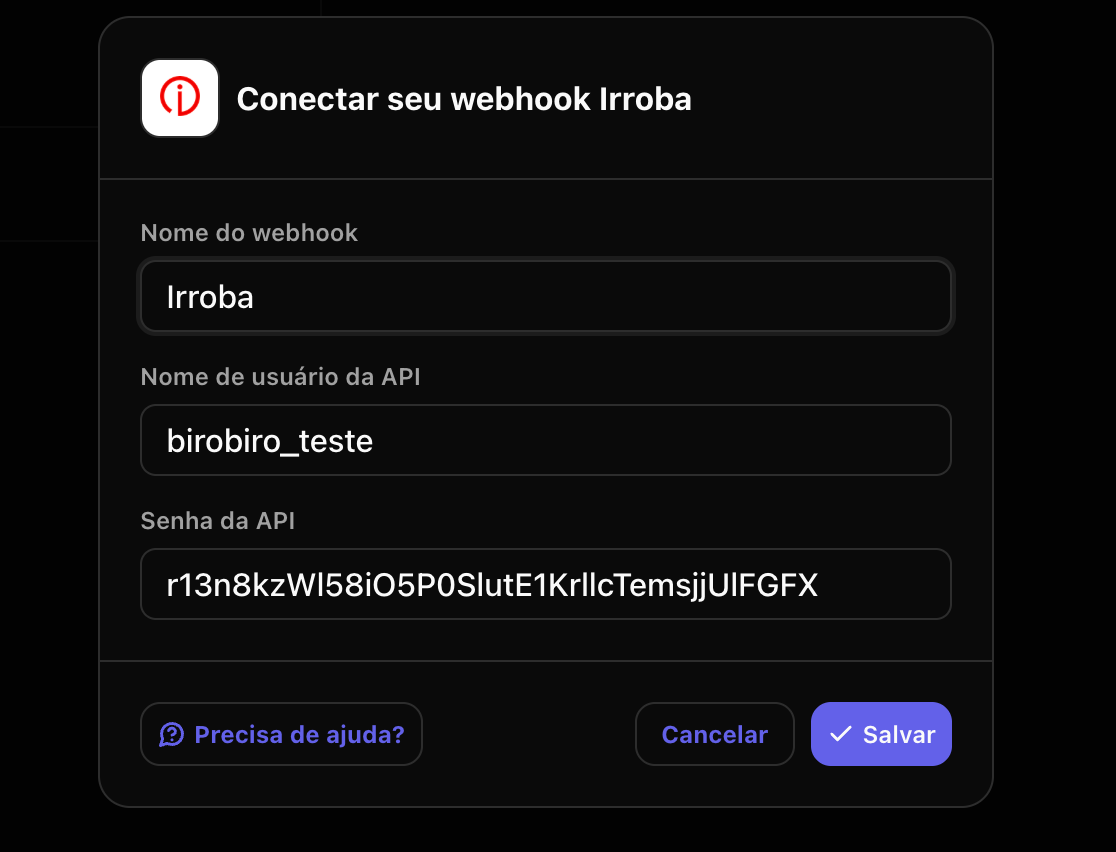
Fill in the Webhook data with the information from step 3
-
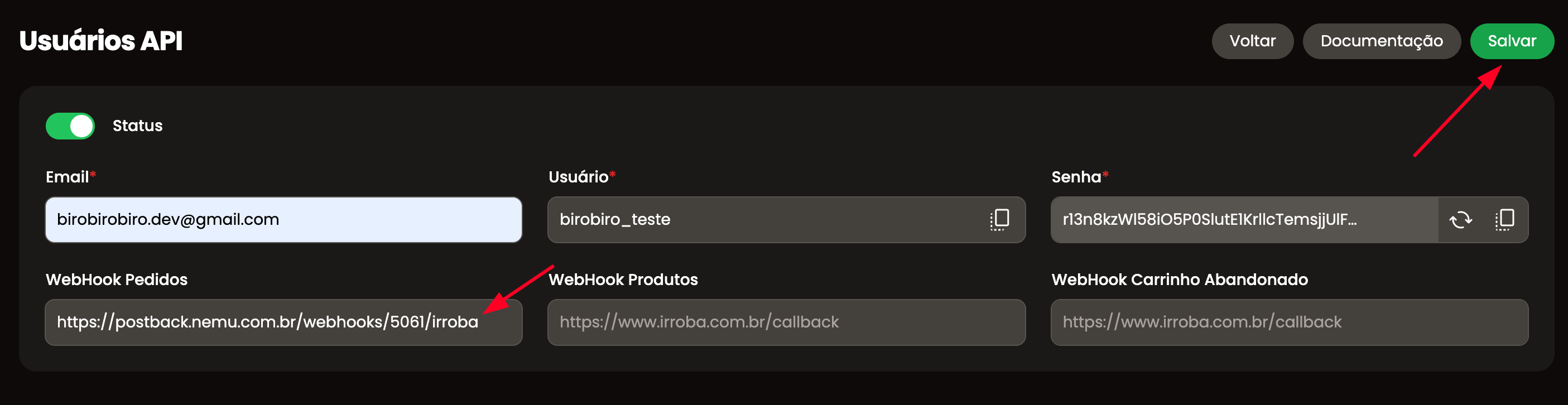
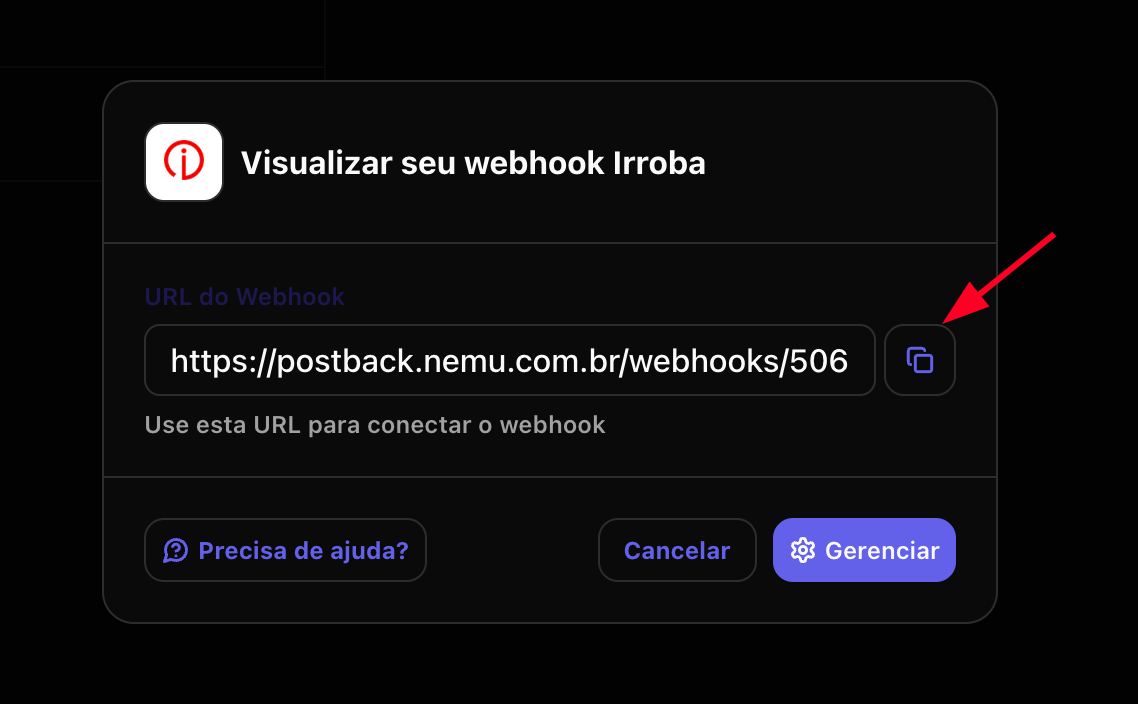
Copy the generated Webhook URL and return to Irroba
-
Paste the URL copied from the previous step and click on Save